


 Video Converter Ultimate
 บันทึกหน้าจอ
 ซ่อมวิดีโอ
 ดาวน์โหลดอย่างปลอดภัย
ตัวแปลง HEVC เป็น MP4 4 อันดับแรก [วิธีแก้ปัญหาที่ง่ายและรวดเร็ว]
วิดีโอของคุณอยู่ในรูปแบบไฟล์ HEVC ใช่ไหม? แล้วคุณกำลังประสบปัญหาเปิดเล่นบนอุปกรณ์ส่วนใหญ่ไม่ได้อยู่หรือเปล่า? เราเข้าใจดีว่ามันน่าหงุดหงิดแค่ไหน! รูปแบบ HEVC นั้นพัฒนาโดย Apple เพื่อให้เล่นวิดีโอที่ถูกบีบอัดให้มีขนาดเล็กลงได้อย่างมีประสิทธิภาพ แต่ยังคงคุณภาพภาพเท่าเดิม อย่างไรก็ตาม แม้ว่าจะมีความสามารถสูง แต่โค้ดெค HEVC ก็มีข้อจำกัด เพราะไม่ใช่ทุกอุปกรณ์หรือซอฟต์แวร์จะรองรับได้ ส่งผลให้จำเป็นต้องแปลงไฟล์ HEVC เป็น MP4 ซึ่งถือว่าเป็นเรื่องยุ่งยากอยู่บ้าง แต่การแปลงไฟล์คือวิธีเดียวที่จะทำให้คุณเล่นวิดีโอนั้นได้ ดังนั้น ถ้าคุณกำลังเจอปัญหาแบบเดียวกันและกำลังมองหาวิธีแก้ บทความนี้เหมาะกับคุณอย่างยิ่ง มาเริ่มกันเลย.

ส่วนที่ 1: ทำไมต้องแปลง HEVC เป็น MP4
คุณภาพด้วยบิตเรตที่ต่ำกว่าหรือปรับปรุงคุณภาพด้วยบิตเรตเดียวกัน ซึ่งหมายความว่าผู้ใช้สามารถเพลิดเพลินกับวิดีโอคุณภาพสูงขึ้นได้โดยไม่จำเป็นต้องใช้พื้นที่เก็บข้อมูลเพิ่มเติมหรือการใช้ข้อมูล ซึ่งอาจเป็นเรื่องที่ยุ่งยากเล็กน้อยในการจัดการ
แม้ว่าอุปกรณ์ต่างๆ เช่น สมาร์ทโฟน แท็บเล็ต สมาร์ททีวี และคอมพิวเตอร์จะรองรับรูปแบบนี้ แต่ความเข้ากันได้ของรูปแบบนี้จำกัดเฉพาะบางรุ่นเท่านั้น ด้วยเหตุนี้ ความจำเป็นในการแปลง HEVC เป็น MP4 จึงกลายเป็นสิ่งจำเป็น เนื่องจากวิดีโอ MP4 มีความเข้ากันได้ในวงกว้างกับอุปกรณ์และรุ่นส่วนใหญ่ หากไม่ทำเช่นนั้นอาจส่งผลให้เกิดปัญหาในการเล่นได้
ด้วยเหตุนี้ การแปลงไฟล์ HEVC เป็น MP4 จึงช่วยแก้ปัญหานี้ได้อย่างมีประสิทธิภาพ ไฟล์ MP4 ได้รับการสนับสนุนอย่างกว้างขวางจากแพลตฟอร์มและอุปกรณ์ต่างๆ ทำให้มั่นใจได้ว่าการเล่นจะราบรื่นโดยไม่ต้องกังวลเรื่องความเข้ากันได้ ด้วยการแปลงไฟล์ ผู้ใช้สามารถเพลิดเพลินกับวิดีโอบนอุปกรณ์หรือเครื่องเล่นสื่อใดก็ได้ที่พวกเขาเลือก
ส่วนที่ 2: แปลง HEVC เป็น MP4 โดยไม่สูญเสียคุณภาพ [แนะนำ]
หากคุณต้องการแปลงไฟล์ HEVC เป็น MP4 โดยไม่สูญเสียคุณภาพ เครื่องมือที่ดีที่สุดที่คุณควรใช้คือ FVC Video Converter Ultimate เครื่องมือนี้เป็นโปรแกรมแปลงไฟล์แบบครบฟังก์ชัน ที่เหมาะอย่างยิ่งสำหรับการแปลงไฟล์ HEVC เป็นรูปแบบอื่น ๆ ตามที่คุณต้องการ เพราะโปรแกรมนี้รองรับรูปแบบเอาต์พุตอย่าง MP4, AVI, WMV, MOV และอื่น ๆ นอกจากนี้ ยังมีหน้าตาโปรแกรมที่ยอดเยี่ยมและใช้งานง่าย ให้ผู้ใช้เลือกหรือเปลี่ยนรูปแบบไฟล์ โค้ดெค ความละเอียด และอื่น ๆ ได้อย่างแม่นยำ ที่สำคัญ โปรแกรมนี้เหมาะมากสำหรับการแปลงไฟล์คุณภาพสูง โดยเฉพาะเมื่อไฟล์ HEVC เป็นความละเอียด 4K, 5K หรือ 8K.
ขั้นตอนที่ 1 ดาวน์โหลดและติดตั้ง FVC Video Converter Ultimate บนคอมพิวเตอร์ Windows หรือ Mac ของคุณ.
ดาวน์โหลดฟรีสำหรับ Windows 7 หรือใหม่กว่าดาวน์โหลดอย่างปลอดภัย
ดาวน์โหลดฟรีสำหรับ MacOS 10.7 หรือใหม่กว่าดาวน์โหลดอย่างปลอดภัย
ขั้นตอนที่ 2 เปิดโปรแกรม แล้วไปที่แท็บ Converters จากนั้นคลิกปุ่ม Add Files เพื่อเพิ่มวิดีโอ HEVC.
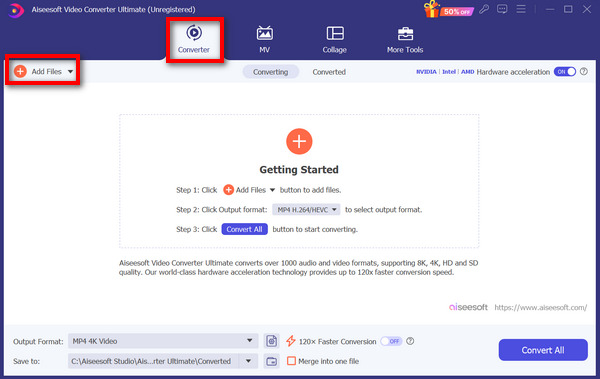
ขั้นตอนที่ 3 เพื่อเริ่มแปลงไฟล์ HEVC เป็นวิดีโอ MP4 ให้คลิกปุ่ม Output format ด้านล่าง แล้วเลือก MP4.
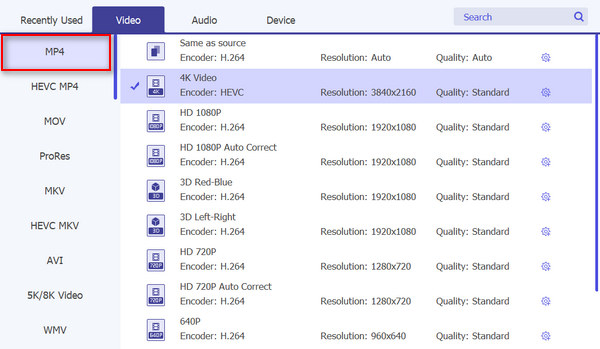
ขั้นตอนที่ 4 หากคุณต้องการเปลี่ยนหรือปรับแต่งรูปแบบไฟล์ ให้คลิกที่ Settings จากนั้นคุณสามารถปรับคุณภาพวิดีโอ ตัวเข้ารหัส ความละเอียด อัตราเฟรม และบิตเรตได้ เมื่อเสร็จแล้วให้คลิกปุ่ม Create New.
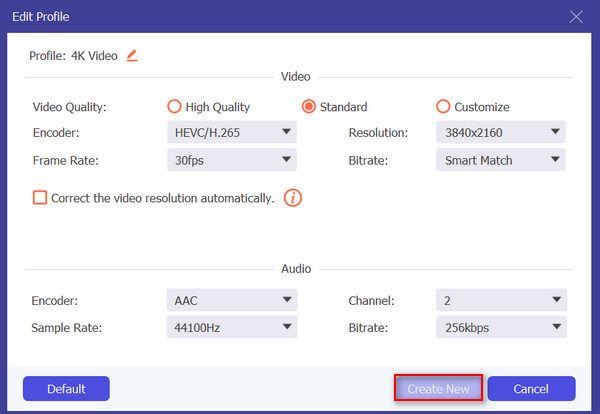
ขั้นตอนที่ 5 เมื่อตั้งค่าทุกอย่างเรียบร้อยแล้ว ให้คลิกปุ่ม Convert All.
เมื่อแปลง HEVC เป็น MP4 หรือรูปแบบวิดีโอใดๆ สิ่งสำคัญคือต้องรักษาคุณภาพต้นฉบับและรับรองความเข้ากันได้กับอุปกรณ์ของคุณ ด้วยการปรับการตั้งค่าให้เหมาะกับความต้องการของคุณ คุณจะได้รับผลลัพธ์ที่ดีที่สุด ดังนั้น FVC Video Converter Ultimate จึงโดดเด่นในฐานะเครื่องมือแปลงไฟล์ที่ดีที่สุด โดยให้การปรับแต่งที่ง่ายดายและรักษาคุณภาพสูงตลอดกระบวนการแปลง
ส่วนที่ 3: วิธีที่รวดเร็วในการเปลี่ยน HEVC เป็น MP4 ด้วยตัวแปลงออนไลน์
อีกวิธีหนึ่งในการแปลง HEVC เป็น MP4 คือการใช้ตัวแปลงออนไลน์ การใช้เครื่องมือเหล่านี้ทำให้ไม่จำเป็นต้องดาวน์โหลดและติดตั้งซอฟต์แวร์ ทำให้ผู้ใช้สามารถแปลงไฟล์ได้โดยตรงจากเว็บเบราว์เซอร์ ด้วยเหตุนี้ จึงช่วยประหยัดเวลาและพื้นที่จัดเก็บข้อมูลบนอุปกรณ์ของผู้ใช้ นอกจากนี้ เครื่องมือออนไลน์มักจะมีอินเทอร์เฟซที่ใช้งานง่าย ทำให้กระบวนการแปลงตรงไปตรงมาสำหรับผู้ใช้ที่มีความเชี่ยวชาญทางเทคนิคในระดับที่แตกต่างกัน
หนึ่งในเครื่องมือแปลงไฟล์วิดีโอออนไลน์ที่ดีที่สุดในตอนนี้คือ FVC Free Video Converter Online ด้วยเครื่องมือนี้ คุณสามารถแปลงไฟล์ HEVC เป็น MP4 ได้อย่างรวดเร็วในไม่กี่ขั้นตอน คุณเพียงเข้าไปที่เว็บไซต์ อัปโหลดวิดีโอ HEVC แล้วตั้งค่ารูปแบบเอาต์พุตเป็น MP4 นอกจากนี้ เครื่องมือนี้ยังให้ใช้งานได้ฟรีอย่างเต็มรูปแบบ คุณจึงสามารถใช้ประโยชน์จากฟังก์ชันต่าง ๆ ได้อย่างเต็มที่ นอกเหนือจาก MP4 หากคุณต้องการแปลงไฟล์วิดีโอรูปแบบอื่น ต้องบอกว่าเครื่องมือนี้ยังรองรับการแปลงวิดีโอเป็น FLV, WMA, AVI, MOV, TS, M2TS, MP3 และอื่น ๆ อีกมากมาย อีกทั้งยังรองรับการแปลงแบบเป็นชุด เผื่อว่าคุณต้องการแปลงไฟล์ HEVC หลายไฟล์เป็น MP4 พร้อมกัน.
ขั้นตอนที่ 1 ก่อนอื่นให้เข้าไปที่เว็บไซต์ทางการของพวกเขา.
ขั้นตอนที่ 2 จากนั้นคลิกปุ่ม Add Files to Convert เพื่อเปิดคลังไฟล์ของคุณ แล้วมองหาวิดีโอ HEVC ที่คุณต้องการแปลง เมื่อเจอแล้วให้เลือกไฟล์เพื่อนำเข้า.
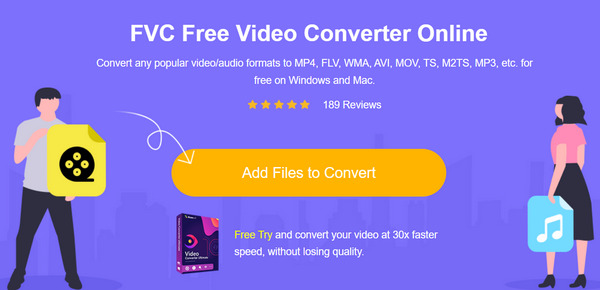
ขั้นตอนที่ 3 หลังจากนั้น ให้คลิกเลือก MP4 จากบรรดารูปแบบเอาต์พุตมากมายด้านล่าง.
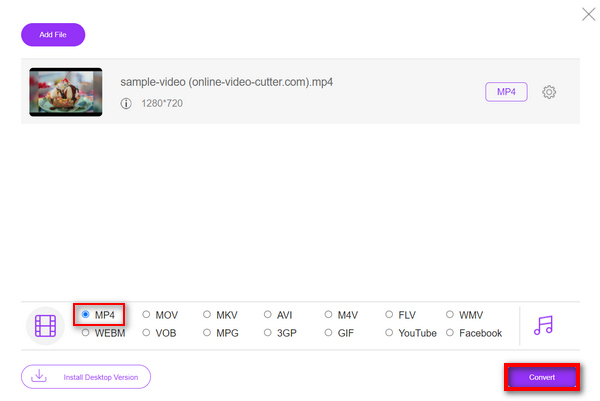
ขั้นตอนที่ 4 เมื่อคุณตั้งค่ารูปแบบเอาต์พุตเป็น MP4 เรียบร้อยแล้ว ให้คลิกปุ่ม Convert เพื่อเริ่มแปลงไฟล์ HEVC เป็น MP4.
ด้วยอินเทอร์เฟซที่ใช้งานง่ายของ FVC Free Video Converter Ultimate Online และความเร็วในการแปลง 30 เท่า นี่เป็นวิธีที่ง่ายและรวดเร็วที่สุดในการแปลง HEVC เป็น MP4 เมื่อเทียบกับเครื่องมือแปลงอื่น ๆ นอกจากนี้ยังใช้งานได้ฟรีทั้งหมด ทำให้เป็นตัวเลือกที่สามารถเข้าถึงได้สำหรับผู้ใช้ทุกคน
ส่วนที่ 4: แปลง HEVC เป็น MP4 บน iPhone / Android
Video Converter and Compressor โดย Inverse.ai เป็นแอปที่แปลงหรือบีบอัดวิดีโอระหว่างอุปกรณ์เคลื่อนที่ ไม่ว่าจะเป็นอุปกรณ์ iPhone หรือ Android ดังนั้น หากคุณมีวิดีโอในรูปแบบไฟล์ HEVC คุณสามารถใช้ประโยชน์จากเครื่องมือนี้เพื่อแปลงวิดีโอของคุณเป็น MP4 ได้อย่างราบรื่น นอกจากนี้ยังรองรับความต้องการวิดีโออื่นๆ เช่น การบีบอัด การเปลี่ยนความละเอียด อัตราเฟรม และบิตเรต
ขั้นตอนที่ 1 อันดับแรก ให้ดาวน์โหลดและติดตั้งแอป Video Converter and Compressor โดย Inverse.ai บน iPhone หรืออุปกรณ์ Android ของคุณจากสโตร์ประจำแพลตฟอร์ม.
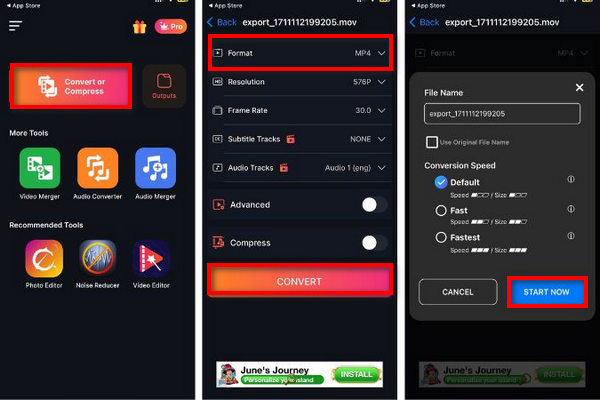
ขั้นตอนที่ 2 จากนั้นคลิกปุ่ม Convert or Compress เพื่อเพิ่มวิดีโอ HEVC ที่คุณต้องการแปลงเป็น MP4 หลังจากนั้นให้เลือก MP4 เป็นรูปแบบเอาต์พุต แล้วคลิก Convert.
ขั้นตอนที่ 3 สุดท้าย คุณสามารถเปลี่ยนชื่อไฟล์ก่อนบันทึกวิดีโอที่แปลงแล้วจาก iPhone หรือ Android ได้.
ขั้นตอนที่ 4 จากนั้นคลิกปุ่ม Start Now เพื่อบันทึกวิดีโอ.
เครื่องมือนี้ยอดเยี่ยมและใช้งานง่าย อย่างไรก็ตาม โฆษณานั้นน่ารำคาญในระหว่างกระบวนการแปลง
ส่วนที่ 5: วิธีฟรีในการแปลง HEVC เป็น MP4 ด้วย FFmpeg
FFmpeg เป็นไลบรารีโอเพ่นซอร์ส มีการใช้กันอย่างแพร่หลายเนื่องจากฟรี ยืดหยุ่น และรองรับหลายรูปแบบ ทำให้สะดวกสำหรับทั้งมืออาชีพและผู้ที่ชื่นชอบ นอกจากนี้ เครื่องมือนี้ได้เพิ่มการรองรับการเข้ารหัส HEVC ที่ให้ผู้ใช้สามารถแปลง HEVC เป็น MP4, MKV และ MOV ผ่าน MulticoreWare x265 หรือ DivX HEVC Encoders
ขั้นตอนที่ 1 ก่อนอื่น คุณต้องติดตั้ง FFmpeg บนคอมพิวเตอร์ของคุณก่อน.
ขั้นตอนที่ 2 ต่อมา ให้เปิดหน้าต่าง Command Prompt หรือ Terminal แล้วจึงรันคำสั่ง.
ขั้นตอนที่ 3 ในการแปลงไฟล์ HEVC เป็น MP4 ให้พิมพ์หรือวางคำสั่งนี้ลงใน Terminal: ffmpeg -i input-hevc output.mp4.
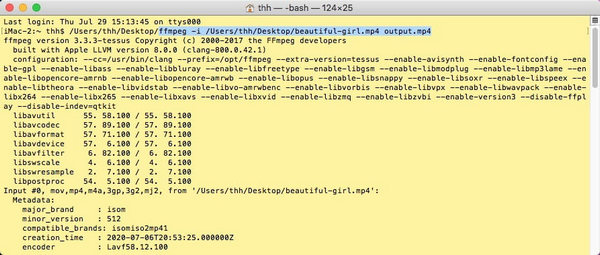
ขั้นตอนที่ 4 จากนั้นกดปุ่ม Enter เพื่อแปลงไฟล์ HEVC ของคุณ.
เครื่องมือนี้ฟรีและเป็นทางเลือกที่ดีในการแปลงไฟล์ HEVC เป็น MP4 อย่างไรก็ตาม คุณต้องคุ้นเคยกับการเขียนโค้ดเพื่อที่คุณจะได้ไม่รู้สึกหนักใจในการทำกระบวนการแปลงไฟล์
ส่วนที่ 6: คำถามที่พบบ่อยเกี่ยวกับ HEVC เป็น MP4
ตัวแปลง HEVC เป็น MP4 ออนไลน์ปลอดภัยหรือไม่
แม้ว่าตัวแปลงออนไลน์จำนวนมากจะปลอดภัย แต่การพิจารณาความปลอดภัยของตัวแปลง HEVC เป็น MP4 ก็เป็นสิ่งสำคัญ ขั้นแรก คุณต้องแน่ใจว่าเว็บไซต์ที่คุณกำลังเข้าถึงนั้นมีชื่อเสียง และคุณดาวน์โหลดเครื่องมือจากเว็บไซต์อย่างเป็นทางการของพวกเขา แต่เนื่องจากความกังวลเรื่องความเป็นส่วนตัวและความปลอดภัยเป็นปัญหาออนไลน์มายาวนาน ผู้แปลงวิดีโอเหล่านี้ส่วนใหญ่ในปัจจุบันจึงพิจารณาปกป้องความเป็นส่วนตัวของผู้ใช้
ฉันสามารถแปลง HEVC เป็นรูปแบบอื่นนอกเหนือจาก MP4 ได้หรือไม่
ใช่ เครื่องมือแปลงส่วนใหญ่ เช่น FVC Video Converter Ultimate มีรูปแบบเอาต์พุตที่หลากหลาย คุณสามารถแปลง HEVC เป็นรูปแบบเช่น MKV, AVI, MOV หรือมากกว่านั้นได้ตามความต้องการหรือความเข้ากันได้ของอุปกรณ์
การแปลง HEVC เป็น MP4 เพื่อการใช้งานส่วนตัวถูกกฎหมายหรือไม่
โดยทั่วไป การแปลง HEVC เป็น MP4 เพื่อการใช้งานส่วนตัวเป็นเรื่องถูกกฎหมาย อย่างไรก็ตาม จำเป็นต้องตรวจสอบให้แน่ใจว่าวิดีโอที่เราแปลงนั้นไม่มีลิขสิทธิ์เนื่องจากการทำเช่นนั้นผิดกฎหมาย
การแปลง HEVC เป็น MP4 สูญเสียคุณภาพหรือไม่
เมื่อคุณแปลง HEVC เป็น MP4 อาจมีโอกาสที่จะสูญเสียคุณภาพ แต่ขึ้นอยู่กับวิธีการทำและเครื่องมือแปลงที่คุณใช้ HEVC มักจะรักษาคุณภาพไว้ได้มากขึ้นเนื่องจากมีการบีบอัดที่มีประสิทธิภาพ อย่างไรก็ตาม การแปลงเป็น MP4 อาจลดคุณภาพนี้ หากมีการปรับการตั้งค่าเพื่อบีบอัดไฟล์เพิ่มเติม หรือหากกระบวนการแปลงเกิดข้อผิดพลาด เพื่อป้องกันสิ่งนี้ ให้ใช้ซอฟต์แวร์แปลงไฟล์ที่ดี เช่น FVC Video Converter Ultimate และตรวจสอบให้แน่ใจว่าการตั้งค่าตรงกับพารามิเตอร์ของวิดีโอต้นฉบับเพื่อรักษาคุณภาพให้ได้มากที่สุด
VLC รองรับไฟล์ HEVC หรือไม่
รองรับ ใช่แล้ว VLC Media Player รองรับไฟล์ HEVC โดย VLC รองรับการถอดรหัสแบบฮาร์ดแวร์ของ HEVC บนหลายแพลตฟอร์ม รวมถึง Windows, Android, macOS และ iOS ตั้งแต่เวอร์ชัน 3.0 อย่างไรก็ตาม ผู้ใช้บางรายอาจพบปัญหาระหว่างการเล่น ทำให้ต้องให้ความสำคัญกับการอัปเดตซอฟต์แวร์ให้เป็นเวอร์ชันล่าสุด และลองแก้ไขปัญหาต่าง ๆ ที่อาจเกิดขึ้น คุณสามารถดูโปรแกรมทางเลือกแทน VLC ได้ที่นี่ หากต้องการใช้เครื่องมือฟรีลักษณะเดียวกัน.
สรุป
ดังนั้น หากคุณกำลังประสบปัญหาความเข้ากันได้กับไฟล์ HEVC บนอุปกรณ์หรือซอฟต์แวร์ การแปลงไฟล์เป็นรูปแบบ MP4 ถือเป็นวิธีแก้ปัญหาที่ใช้งานได้จริง ขณะนี้คุณมีวิธีการและเครื่องมือมากมายในการแปลง HEVC เป็น MP4 ได้อย่างง่ายดาย อย่าปล่อยให้ปัญหาความเข้ากันได้เป็นอุปสรรคต่อประสบการณ์การรับชมของคุณ แปลงไฟล์ HEVC ของคุณเป็น MP4 ทันที!
-
 4 วิธีในการแปลงภาพยนตร์ QuickTime เป็น MP4 ฟรีบนโทรศัพท์ / คอมพิวเตอร์
 อ่านและรับ 4 วิธีในการแปลงวิดีโอ QuickTime เป็น MP4 ได้ฟรีบนโทรศัพท์หรือคอมพิวเตอร์ของคุณ คุณสามารถเปลี่ยนรูปแบบไฟล์จาก MOV เป็น MP4 ได้อย่างง่ายดาย
-
 VOB เป็น MP4 - 3 วิธีในการแปลงไฟล์ VOB เป็น MP4 ฟรีใน Bulk
 บทความนี้แนะนำตัวแปลง VOB เป็น MP4 ฟรี 3 รายการและบทช่วยสอนที่เกี่ยวข้อง คุณสามารถแปลงไฟล์ VOB เป็น MP4 ได้ฟรีบน Windows / Mac / ออนไลน์ได้อย่างง่ายดาย
-
 5 วิธีในการแปลง AVCHD เป็น MP4 (ฟรี & แบทช์ & รวดเร็ว & ปลอดภัย)
 มี 5 วิธีง่ายๆในการแปลงวิดีโอ AVCHD เป็น MP4 บนคอมพิวเตอร์ของคุณ คุณสามารถแปลงวิดีโอ AVCHD เป็น MP4 เป็นชุดได้โดยไม่สูญเสียคุณภาพด้วยตัวแปลงใด ๆ ที่นี่
