


 Video Converter Ultimate
 บันทึกหน้าจอ
 ซ่อมวิดีโอ
 ดาวน์โหลดอย่างปลอดภัย
วิธีการแปลง MKV เป็น MP4 บน Windows / Mac
เมื่อคุณเล่นภาพยนตร์คุณจะพบว่าไม่สามารถเปิดได้เนื่องจากบางโปรแกรมไม่รองรับรูปแบบ MKV จากนั้นคุณอาจสงสัยว่าเหตุใดจึงเกิดขึ้นและจะแก้ไขได้อย่างไร
สาเหตุที่คุณไม่สามารถเล่น MKV ได้อาจเกิดจากไม่มีตัวแปลงสัญญาณบางตัวบนอุปกรณ์ของคุณ ด้วยเหตุนี้แม้ว่าคุณจะเห็น MKV ทุกที่ในปัจจุบัน แต่อุปกรณ์หรือโปรแกรมบางอย่างก็ยังไม่รองรับรูปแบบ MKV ดังนั้นคุณต้องแปลงเป็นรูปแบบทั่วไปเช่น MP4 ซึ่งเป็นรูปแบบที่ใช้งานได้มากขึ้นซึ่งสามารถโหลดได้อย่างถูกต้องในเกือบทุกอุปกรณ์
วันนี้เราจะมาแนะนำตัวแปลงไฟล์ฟรี 2 ตัวที่จะช่วยคุณแปลงไฟล์ MKV เป็น MP4ได้.

ส่วนที่ 1 วิธีการเปลี่ยน MKV เป็น MP4 ออนไลน์และฟรี
หากคุณไม่สามารถติดตั้งซอฟต์แวร์จำนวนมากบนคอมพิวเตอร์ได้เช่นเดียวกับฉันฉันขอแนะนำให้คุณลองใช้ตัวแปลงออนไลน์บนเว็บ
มีตัวแปลงวิดีโอออนไลน์ฟรีมากมายในตลาด แต่ตามจริงแล้วตัวแปลงที่เรียกว่า 'ฟรี' เหล่านี้ส่วนใหญ่มีข้อ จำกัด มากมาย คุณต้องจ่ายเงินเพื่อให้ได้แผนการที่ดีขึ้น ด้วยวิธีนี้เท่านั้นที่คุณสามารถแปลงไฟล์ขนาดใหญ่เป็นกลุ่มได้อย่างรวดเร็วโดยไม่มีลายน้ำ
มีตัวแปลงวิดีโอฟรีที่รวดเร็วและทรงพลังอย่างแท้จริงหรือไม่? คำตอบคือใช่
FVC Free Online Video Converter เป็นตัวแปลงวิดีโอ MKV เป็น MP4 ที่มีประสิทธิภาพ ซึ่งสามารถช่วยคุณแปลงวิดีโอได้ไม่จำกัด รองรับการแปลงวิดีโอหลัก ๆ เกือบทุกประเภทเป็นฟอร์แมตยอดนิยมอย่าง MP4, MOV, WMV, AVI และ FLV ได้ภายในไม่กี่วินาที อีกทั้งยังรองรับการแปลงแบบเป็นชุด หมายความว่าคุณสามารถแปลงวิดีโอหลายไฟล์พร้อมกันและคงคุณภาพดั้งเดิมไว้ได้ในเวลาเดียวกัน.
เนื่องจาก FVC Free Online Video Converter เป็นเครื่องมือบนเว็บ คุณจึงสามารถใช้งานได้ง่ายทั้งบน Windows และ Mac ตราบใดที่คุณมีเครือข่ายอินเทอร์เน็ตที่เสถียรและเบราว์เซอร์ สำหรับวิธีใช้งาน คุณสามารถใช้งานตัวแปลง MKV เป็น MP4นี้ได้ภายในไม่กี่ขั้นตอน.
ขั้นตอนที่ 1. ไปที่เว็บไซต์ของ FVC Free Online Video Converter บนเบราว์เซอร์ของคุณ จากนั้นคลิกปุ่ม Add Files to Convert หากคุณยังไม่ได้ดาวน์โหลด FVC Launcher ลงคอมพิวเตอร์ ระบบจะแจ้งให้คุณดาวน์โหลดตัวเรียกใช้งานก่อน เพียงทำตามคำแนะนำและติดตั้งตัวเรียกใช้งาน.
ดาวน์โหลดเวอร์ชันเดสก์ท็อปเพื่อแปลงไฟล์แบบเป็นชุดได้.

ขั้นตอนที่ 2. เมื่อติดตั้งเสร็จแล้ว หน้าต่าง Open File จะปรากฏขึ้นโดยอัตโนมัติ ตอนนี้ให้เลือกไฟล์ MKV ที่คุณต้องการแปลง ทั้งนี้ หากต้องการแปลงวิดีโอ MKV หลายไฟล์ให้เสร็จทีเดียว ก็ให้เลือกไฟล์ MKV ทั้งหมดที่ต้องการ.
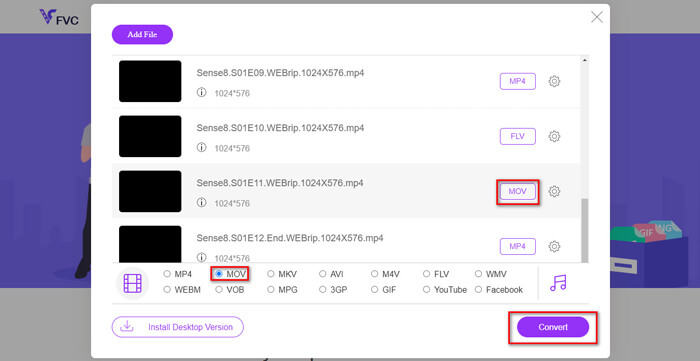
ขั้นตอนที่ 3. จากนั้นคลิก Open คุณจะเห็นรายการไฟล์ที่เลือกไว้ เลือกฟอร์แมตเอาต์พุตเป็น MP4 ใต้รายการนั้น.
คุณยังสามารถเลือกฟอร์แมตต่างกันสำหรับแต่ละไฟล์แยกกันได้ โดยคลิกที่ฟอร์แมตด้านข้างไอคอน Setting แล้วเปลี่ยนฟอร์แมตเอาต์พุตด้านล่าง แต่ถ้าไม่ต้องการปรับ คุณสามารถข้ามขั้นตอนนี้ไปแล้วคลิกปุ่ม Convert ได้เลย หลังจากนั้นให้เลือกโฟลเดอร์ปลายทางสำหรับบันทึกวิดีโอที่แปลงแล้ว.
ตอนที่ 2. วิธีการแปลง MKV เป็น MP4 ด้วย VLC Media Player
คุณอาจรู้จัก VLC ในฐานะโปรแกรมเล่นสื่อมัลติมีเดียที่ใช้ได้กับระบบปฏิบัติการเดสก์ท็อปเกือบทุกประเภท แต่จริง ๆ แล้วมันยังเป็นตัวแปลงวิดีโอแบบซ่อนไว้อีกด้วย คุณสามารถใช้มันแปลงไฟล์ MKV เป็นรูปแบบ MP4 ได้ หากคุณมี VLC อยู่ในคอมพิวเตอร์แล้ว ลองใช้ดูได้เลย.
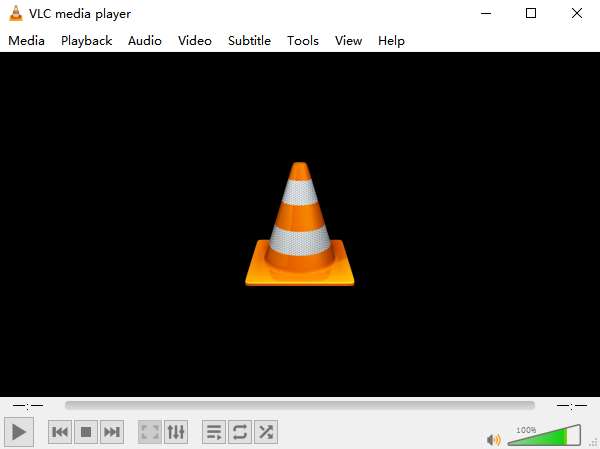
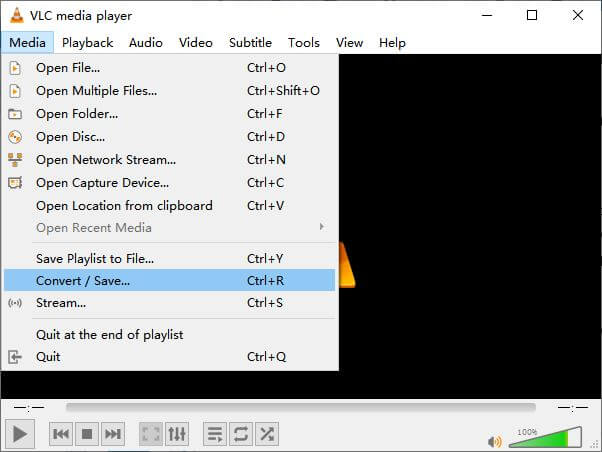
ขั้นตอนที่ 1. ก่อนอื่นให้เปิดโปรแกรม VLC Media Player บนคอมพิวเตอร์ของคุณ คลิกเมนู Media จากนั้นหา Convert / Save ในเมนูแบบเลื่อนลง.
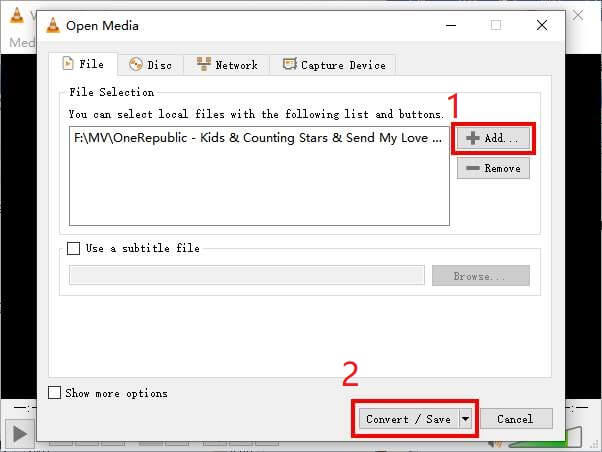
ขั้นตอนที่ 2. คลิก + Add แล้วหาไฟล์วิดีโอ MKV ที่คุณต้องการแปลง จากนั้นคลิกปุ่ม Convert / Save ด้านล่าง.
ขั้นตอนที่ 3. เลือกฟอร์แมต MP4 ในหน้าต่าง Convert.
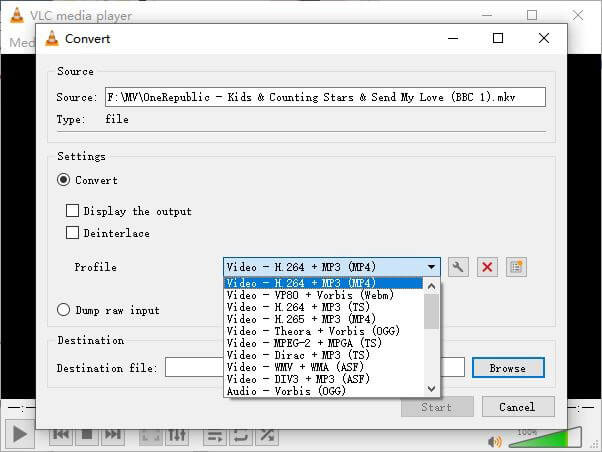
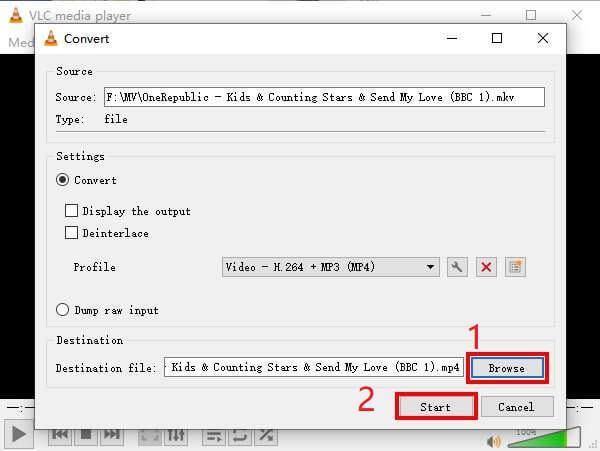
ขั้นตอนที่ 4. คลิกปุ่ม Browse เพื่อยืนยันโฟลเดอร์ปลายทางสำหรับบันทึกไฟล์ สุดท้ายให้คลิก Start เพื่อเริ่มการแปลง และรอจนได้วิดีโอ MP4 ของคุณ.
MKV กับ MP4
รูปแบบคอนเทนเนอร์มัลติมีเดีย Matroska ซึ่งเปิดตัวในปี 2545 เป็นรูปแบบโอเพนซอร์สที่สามารถรวมแทร็กวิดีโอ เสียง รูปภาพ และคำบรรยายได้จำนวนหนึ่ง ดังนั้น คุณสามารถใช้เพื่อเก็บคลิปวิดีโอสั้น รายการทีวี และภาพยนตร์ได้อย่างง่ายดาย ค่อนข้างเป็นที่นิยมสำหรับแฟนอนิเมะ
เผยแพร่โดยกลุ่มผู้เชี่ยวชาญด้านภาพเคลื่อนไหว (MPEG) ในปี 2544 รูปแบบ MP4 สามารถช่วยคุณบันทึกวิดีโอ เสียง คำบรรยาย และข้อมูลภาพในแทร็กแยกกัน ย่อมาจาก MPEG-4 Part 14 นอกจากนี้ยังเป็นหนึ่งในรูปแบบที่นิยมใช้มากที่สุดสำหรับการสตรีมและแชร์วิดีโอ
ส่วนที่ 3 คำถามที่พบบ่อยเกี่ยวกับการแปลง MKV เป็น MP4
1. ffmpeg สามารถแปลง MKV เป็น MP4 ได้หรือไม่?
ใช่ คุณสามารถแปลง MKV เป็น MP4 ด้วย ffmpeg ได้ แต่การใช้งานอาจซับซ้อนไปสักหน่อยสำหรับคุณ แม้ว่าขั้นตอนที่มีประสิทธิภาพที่สุดจะเป็นเพียงลำดับตัวอักษรชุดหนึ่งคือ: ffmpeg -i my_movie.mkv -vcodec copy -acodec copy my_movie.mp4
2. HandBrake สามารถส่งออก MP4 จาก MKV ได้หรือไม่?
หากคุณต้องการเพียงไฟล์ MP4 หลังการแปลง HandBrake ก็สามารถช่วยคุณได้จริง อย่างไรก็ตาม มันไม่สามารถแปลงไฟล์ของคุณเป็นฟอร์แมตอื่นอย่าง WMV, MOV, FLV ได้ HandBrake รองรับไฟล์มัลติมีเดียส่วนใหญ่ที่ใช้กันทั่วไป แต่สิ่งนั้นเป็นเพียงแหล่งอินพุต ที่รองรับ สำหรับฟอร์แมตเอาต์พุต ตัวเลือกของคุณมีแค่ MP4(.M4V) และ MKV เท่านั้น.
3. การแปลง MKV เป็น MP4 จะสูญเสียคุณภาพหรือไม่?
ตัวแปลงวิดีโอส่วนใหญ่จะสูญเสียคุณภาพเมื่อคุณแปลงไฟล์ MKV เป็น MP4 อาจเป็น 1% หรือ 5% ในขณะที่เข้ารหัสไฟล์ MKV เป็น MP4 อีกครั้งเป็นการยากที่จะหลีกเลี่ยงการสูญเสียข้อมูลทั้งหมด แต่คุณสามารถเพิ่มความละเอียดของภาพเพื่อให้คุณภาพของวิดีโอ MP4 ที่ส่งออกใกล้เคียงกับวิดีโอต้นฉบับ
สรุป
มีตัวแปลงวิดีโอมากมายให้คุณเลือก เป็นการยากที่จะหาตัวแปลงที่ฟรีและมีประสิทธิภาพทั้งหมดด้วยตัวเอง โพสต์นี้ได้แนะนำ 2 วิธีในการแปลง MKV เป็น MP4 หนึ่งคือ VLC Media Player และอีกอันคือ FVC Free Online Video Converter
หากคุณต้องการแค่ไฟล์ MP4 VLC ก็เพียงพอแล้ว อย่างไรก็ตาม VLC รองรับรูปแบบจำนวน จำกัด เท่านั้น ดังนั้นหากคุณต้องการตัวแปลงที่เป็นมืออาชีพมากขึ้น FVC Free Online Video Converter น่าจะเป็นทางเลือกที่ดีกว่า
หวังว่าโพสต์นี้จะเป็นประโยชน์ และอย่าลังเลที่จะบอกความคิดเห็นของคุณกับเรา
-
 วิธีการแปลงไฟล์วิดีโอ MP4 ของคุณเป็นภาพเคลื่อนไหว GIF โดยไม่สูญเสียคุณภาพ
 กำลังมองหาวิธีที่ดีที่สุดในการแปลงวิดีโอ MP4 ของคุณเป็น GIF แบบเคลื่อนไหวหรือไม่? นี่คือคำแนะนำโดยละเอียดใน Photoshop, Windows Movie Maker ตัวแปลงวิดีโอออนไลน์และอื่น ๆ
-
 วิธีการแปลง MOV เป็น MP4 โดยไม่สูญเสียคุณภาพ
 ต้องการแปลงไฟล์ MOV (Apple QuickTime Movie) เป็น MP4 หรือไม่? โพสต์นี้แชร์ 4 วิธีฟรีในการแปลงไฟล์วิดีโอ MOV ของคุณเป็นรูปแบบ MP4 บน Windows 10/8/7 / XP และ Mac OS X
-
 4 วิธีง่ายๆในการแปลง WMV เป็น MP4 บน Mac และ Windows
 วิธีแปลงไฟล์ WMV เป็น MP4 นี่คือ 4 วิธีง่ายๆในการแปลง WMV เป็น MP4 บน Mac และ Windows ด้วยขั้นตอนง่ายๆ

