


 Video Converter Ultimate
 บันทึกหน้าจอ
 ซ่อมวิดีโอ
 ดาวน์โหลดอย่างปลอดภัย
3 วิธีที่มีประสิทธิภาพในการแปลง MP4 เป็น AMV บน Windows และ Mac ของคุณได้อย่างง่ายดาย
เมื่อคุณต้องการส่งวิดีโอ MP4 ขนาดใหญ่ไปยังสมาร์ทโฟนของคุณเช่นภาพยนตร์ขนาดใหญ่อาจมีพื้นที่จัดเก็บไม่เพียงพอ ในการแปลงไฟล์ MP4 เป็น AMV คุณสามารถใช้อัลกอริธึมการบีบอัดขั้นสูงเพื่อให้ได้วิดีโอที่มีขนาดเล็กลงมาก ไม่ว่าคุณจะต้องการแปลงวิดีโอออนไลน์หรือปรับแต่งและแก้ไขวิดีโอด้วยขนาดที่กำหนดคุณสามารถเรียนรู้เพิ่มเติมเกี่ยวกับตัวแปลง MP4 เป็น AMV ที่มีประสิทธิภาพสูงสุด 3 ตัวได้จากบทความ

ส่วนที่ 1: วิธีการแปลง MP4 เป็น AMV ออนไลน์
หากคุณเพียงแค่ต้องการแปลง MP4 แบบง่าย ๆ เป็น AMV ได้อย่างสะดวก FVC Free Online Video Converter คือโปรแกรมแปลงวิดีโอออนไลน์อเนกประสงค์ที่รองรับไฟล์ MP4, AMV, AVI และไฟล์อื่น ๆ อีกมากมาย นอกจากนี้ยังสามารถปรับแต่งการตั้งค่าวิดีโอและเสียงได้ และยังแปลงไฟล์ได้โดยไม่มีลายน้ำหรือข้อจำกัดอื่น ๆ อีกด้วย.
- 1. แปลง MP4 เป็น AMV AVI, MKV และวิดีโออื่น ๆ อีกมากมายด้วยคุณภาพต้นฉบับ
- 2. ปรับแต่งอัตราเฟรมคุณภาพของวิดีโอตัวแปลงสัญญาณวิดีโอคุณภาพเสียงและอื่น ๆ
- 3. จัดเตรียมอินเทอร์เฟซผู้ใช้ที่ง่ายในการแปลงไฟล์ AMV ภายใน 3 ขั้นตอนเท่านั้น
- 4. เป็นวิธีการที่ปลอดภัยและมั่นคงในการแปลงไฟล์โดยไม่มีลายน้ำ
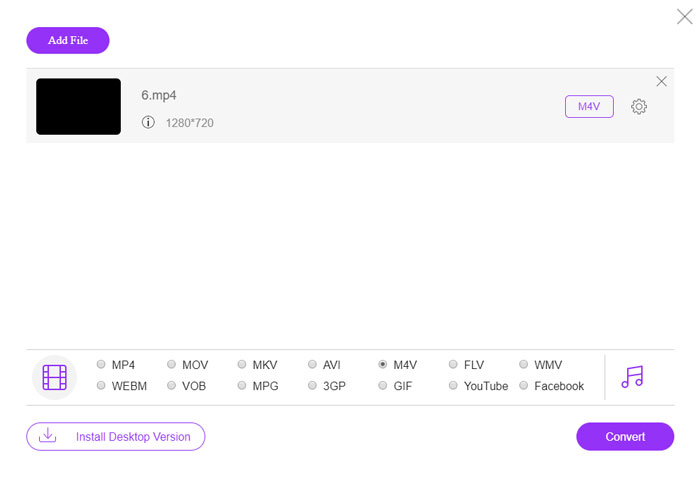
ขั้นตอนที่ 1. ไปที่ตัวแปลงไฟล์ MP4 เป็น AMV ออนไลน์ผ่านเบราว์เซอร์ใดก็ได้ จากนั้นคลิกปุ่ม Add File to Convert เพื่อติดตั้งโปรแกรมแปลงวิดีโอเป็นครั้งแรก คุณยังสามารถโหลดไฟล์ MP4 เข้าสู่โปรแกรมได้ด้วย.

ขั้นตอนที่ 2. เลือก AMV เป็นรูปแบบไฟล์เอาต์พุตจากแถบด้านล่าง แน่นอนว่าคุณยังสามารถปรับแต่งการตั้งค่าวิดีโอและเสียงได้ เช่น ตัวเข้ารหัสวิดีโอ ความละเอียดวิดีโอ บิตเรตวิดีโอ เฟรมเรต และอื่น ๆ เพื่อให้ได้วิดีโอที่ต้องการ.

ขั้นตอนที่ 3. จากนั้นให้คลิกปุ่ม Convert เพื่อเริ่มแปลงไฟล์ MP4 เป็น AMV ซึ่งจะใช้เวลาเพียงไม่กี่วินาทีในการได้ไฟล์ที่ต้องการ แล้วคุณค่อยถ่ายโอนวิดีโอไปยังสมาร์ทโฟนของคุณได้ตามต้องการ.
ส่วนที่ 2: วิธีการแปลง MP4 เป็น AMV ด้วย VLC Media Player
VLC Media Player เป็นหนึ่งในตัวแปลง MP4 เป็น AMV ยอดนิยม นอกจากนี้ยังมีคุณสมบัติการแปลงและแก้ไขวิดีโอขั้นพื้นฐาน นอกจากนี้คุณยังสามารถดูวิดีโอ AMV เอาต์พุตหลังการแปลง เพียงตรวจสอบขั้นตอนโดยละเอียดดังต่อไปนี้
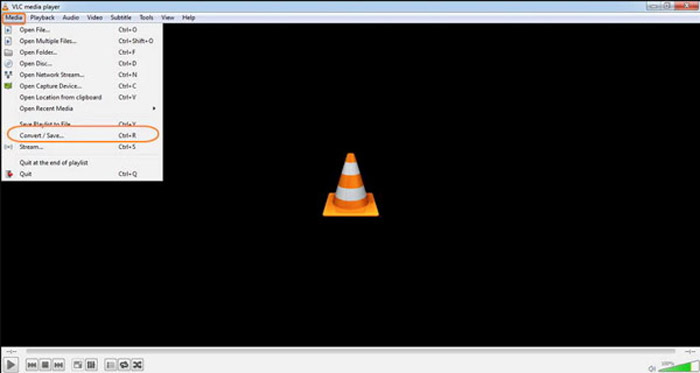
ขั้นตอนที่ 1. เปิดโปรแกรม VLC Media Player บนคอมพิวเตอร์ ไปที่เมนู Media แล้วเลือกตัวเลือก Convert/Save จากนั้นคลิกตัวเลือก Add ที่ด้านขวาของรายการ File Selection บนแท็บ File และเลือกไฟล์ MP4.
ขั้นตอนที่ 2. คลิกปุ่ม Convert/Save เพื่อดำเนินการต่อ ไปที่หน้าต่าง Convert จากนั้นเลือก AMV เป็นรูปแบบไฟล์เอาต์พุต คลิกปุ่ม Edit Selected Profile เพื่อปรับแต่งการตั้งค่าวิดีโอและเสียง.
ขั้นตอนที่ 3. คลิกตัวเลือก Browse แล้วเลือกตำแหน่งจัดเก็บและชื่อไฟล์สำหรับไฟล์เอาต์พุต หลังจากนั้นให้คลิกปุ่ม Start เพื่อเริ่มแปลงไฟล์ MP4 เป็น AMV บนคอมพิวเตอร์ของคุณ.
ส่วนที่ 3: วิธีที่ดีที่สุดในการแปลง MP4 เป็น AMV ได้อย่างง่ายดาย
FVC Video Converter Ultimate เป็นโปรแกรมแปลง MP4 เป็น AMV แบบครบวงจรที่ใช้งานได้ทั้งบน Windows และ Mac นอกจากจะแปลงรูปแบบไฟล์วิดีโอแล้ว ยังช่วยให้คุณสามารถปรับพารามิเตอร์วิดีโอและเสียงต่าง ๆ เพิ่มคำบรรยาย/แทร็กเสียง และแม้แต่ตัดต่อไฟล์วิดีโอที่แปลงแล้วได้อย่างสะดวก.
- 1. แปลง MP4 เป็น AMV และรูปแบบวิดีโออื่น ๆ ด้วยคุณภาพต้นฉบับ
- 2. ปรับแต่งอัตราเฟรมคุณภาพของวิดีโอบิตเรตตัวแปลงสัญญาณวิดีโอและอื่น ๆ อีกมากมาย
- 3. ให้คุณสมบัติการตัดต่อวิดีโอที่หลากหลายเพื่อหมุนคลิปปรับฟิลเตอร์ ฯลฯ
- 4. การเร่งด้วยฮาร์ดแวร์ขั้นสูงเพื่อแปลงวิดีโอด้วยความเร็วที่เร็วขึ้น 70 เท่า
ดาวน์โหลดฟรีสำหรับ Windows 7 หรือใหม่กว่าดาวน์โหลดอย่างปลอดภัย
ดาวน์โหลดฟรีสำหรับ MacOS 10.7 หรือใหม่กว่าดาวน์โหลดอย่างปลอดภัย
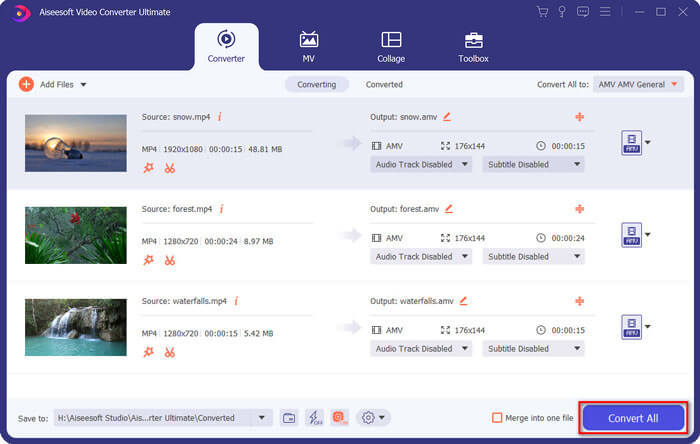
ขั้นตอนที่ 1. ดาวน์โหลดและติดตั้งโปรแกรมแปลง MP4 เป็น AMV จากนั้นเปิดโปรแกรมบนคอมพิวเตอร์ของคุณ เลือกปุ่ม Convert แล้วคลิกตัวเลือก Add File เพื่อโหลดไฟล์ MP4 หรือจะลากไฟล์ MP4 หลายไฟล์เข้ามาในโปรแกรมโดยตรงก็ได้.

ขั้นตอนที่ 2. คลิกที่ไอคอนรูปแบบไฟล์ด้านขวาของไฟล์วิดีโอแล้วเลือก AMV เป็นรูปแบบเอาต์พุต คุณยังสามารถคลิกไอคอนรูป Gear เพื่อปรับแต่งการตั้งค่าวิดีโอและเสียง หรือแม้แต่ตัดต่อวิดีโอ/ปรับฟิลเตอร์ได้อย่างง่ายดาย.

ขั้นตอนที่ 3. เมื่อคุณพอใจกับไฟล์ AMV ที่ได้ เช่น ขนาดวิดีโอแล้ว ให้คลิกปุ่ม Convert All เพื่อเริ่มการแปลงไฟล์ MP4 เป็น AMV หลังจากนั้นคุณก็สามารถถ่ายโอนไฟล์ AMV ไปยังอุปกรณ์อื่นได้.
ส่วนที่ 4: คำถามที่พบบ่อยเกี่ยวกับการแปลงไฟล์ MP4 เป็น AMV
1. รูปแบบไฟล์ AMV คืออะไร?
ไฟล์ AMV เรียกว่าไฟล์ Anime Music Video โดยทั่วไปจะใช้โดยอุปกรณ์เล่นสื่อแบบพกพาจากและในประเทศจีน รูปแบบวิดีโอ AMV มีไว้สำหรับความละเอียดต่ำซึ่งมีความละเอียดวิดีโอระหว่าง 94x64 ถึง 160x120 เมื่อคุณแปลง MP4 เป็น AMV คุณสามารถส่งวิดีโอเพิ่มเติมไปยังสมาร์ทโฟนของคุณได้อย่างง่ายดาย
2. จะเล่นไฟล์ AMV บนสมาร์ทโฟนและคอมพิวเตอร์ได้อย่างไร?
เมื่อคุณแปลงไฟล์ MP4 เป็น AMV วิธีเล่นไฟล์วิดีโอบนสมาร์ทโฟนหรือคอมพิวเตอร์ของคุณ จริงๆแล้วคุณสามารถใช้ AMV เป็นรูปแบบ AVI ที่แตกต่างกันได้ซึ่งสามารถใช้งานได้กับเครื่องเล่นสื่อส่วนใหญ่ หากคุณต้องการเล่นไฟล์ AMV บนอุปกรณ์ iOS ของคุณคุณสามารถใช้ VLC Media Player หรือเครื่องเล่นสื่ออื่น ๆ แทนได้
3. อะไรคือความแตกต่างระหว่าง AMV และ MP4?
MP4 เป็นรูปแบบวิดีโอที่ใช้บ่อยที่สุดรูปแบบหนึ่งที่สามารถใช้สำหรับบริการสตรีมมิ่งออนไลน์และอุปกรณ์ AMV เป็นรูปแบบหนึ่งของ Motion JPEG ที่มีตารางคงที่แทนที่จะเป็นตัวแปร เมื่อคุณแปลง MP4 เป็น AMV คุณสามารถบีบอัดวิดีโอและประหยัดพื้นที่เก็บข้อมูลได้มากขึ้นโดยเฉพาะอย่างยิ่งสำหรับการถ่ายโอนวิดีโอไปยังอุปกรณ์
สรุป
ทางเลือกที่ดีที่สุดในการแปลง MP4 เป็น AMV คืออะไร? เพียงเรียนรู้รายละเอียดเพิ่มเติมเกี่ยวกับวิธีการที่ดีที่สุดจากบทความ หากคุณต้องการแปลงและบีบอัดวิดีโอออนไลน์โดยไม่ต้องใช้ซอฟต์แวร์เพิ่มเติม FVC Free Online Video Converter เป็นทางออกที่ดีที่สุดที่คุณสามารถนำมาพิจารณาได้
-
 AVI VS MP4 - ไหนดีกว่ากัน (คุณภาพ / การบีบอัด / ขนาดไฟล์ ... )
 รูปแบบวิดีโอ AVI หรือ MP4 แบบไหนดีกว่ากัน หากคุณต้องการเปรียบเทียบโดยละเอียดคุณสามารถตรวจสอบบทความ AVI VS MP4 นี้ คุณสามารถทราบความแตกต่างและความคล้ายคลึงกันระหว่าง AVI และ MP4 ได้ในหลายแง่มุม
-
 ซอฟต์แวร์เครื่องเล่น MP4 10 อันดับแรกสำหรับ Windows และ Mac (ฟรีและจ่ายเงิน)
 อ่านและรับเครื่องเล่น MP4 ที่ดีที่สุดจากคำแนะนำของซอฟต์แวร์เครื่องเล่นวิดีโอ MP4 ล่าสุด 10 รายการ คุณสามารถเล่นไฟล์วิดีโอ MP4 บน Windows และ Mac ได้อย่างราบรื่นโดยไม่ล่าช้า
-
 วิธีการแปลง MP4 เป็น WMV สำหรับ Mac / Windows
 โพสต์นี้แชร์วิธีการแปลงวิดีโอ MP4 เป็นรูปแบบ WMV บน Mac หรือ Windows นอกจากนี้เรายังมีตัวเลือกมากมายให้คุณรวมทั้งซอฟต์แวร์เดสก์ท็อปและตัวแปลงออนไลน์บนเว็บ พร้อมที่จะรู้จักเครื่องมือแปลง MP4 เป็น WMV ที่ดีที่สุดแล้วหรือยัง?
