


 Video Converter Ultimate
 บันทึกหน้าจอ
 ซ่อมวิดีโอ
 ดาวน์โหลดอย่างปลอดภัย
วิธีการแปลง MP4 เป็น M4A บน Windows / Mac (ฟรีและออนไลน์)
MP4 เป็นรูปแบบไฟล์ที่แพร่หลายซึ่งใช้กับสถานีและเครื่องเล่นวิดีโอหลายเครื่อง ไฟล์ MP4 สามารถจัดเก็บวิดีโอเสียงและเนื้อหาอื่น ๆ ตอนนี้หลายคนชอบฟังแทร็กเสียงของวิดีโอ MP4 เพื่อการรักษาคุณภาพการแปลง MP4 เป็น M4A เป็นความคิดที่ดี M4A ย่อมาจาก MPEG 4 Audio โปรแกรมส่วนใหญ่สามารถเล่นไฟล์ M4A รวมถึง iTunes, QuickTime, Windows Media Player และอื่น ๆ

คุณอาจสงสัยว่าจะดึงไฟล์เสียงออกจากไฟล์ MP4 ได้อย่างไร มีหลายวิธีในการแปลงไฟล์ MP4 ให้เป็นไฟล์ M4A ลองอ่านโพสต์นี้เพื่อดูวิธีแปลง MP4 เป็น M4A สำหรับฟังในภายหลังบนอุปกรณ์พกพาของคุณ.
ส่วนที่ 1 วิธีออนไลน์ฟรีที่ดีที่สุดในการแปลง MP4 เป็น M4A โดยไม่สูญเสียคุณภาพ
FVC Free Online Video Converter เป็นโปรแกรมแปลงไฟล์ MP4 เป็น M4A ออนไลน์ฟรี ที่สามารถแปลงไฟล์ MP4 ไม่เพียงเป็น M4A แต่ยังเป็นรูปแบบอื่น ๆ เช่น MP3, WAV, M4R, WMA, AIFF, AC3 เป็นต้น นอกจากนี้ยังรองรับการแปลงแบบเป็นชุด ทำให้คุณสามารถแปลงวิดีโอ MP4 หลายไฟล์เป็น M4A ได้พร้อมกัน อีกทั้งเครื่องมือออนไลน์ฟรีนี้ยังช่วยให้คุณแปลงวิดีโอ MP4 เป็น MOV รวมถึง AVI, FLV และรูปแบบวิดีโออื่น ๆ ได้ด้วย.
ขั้นตอนที่ 1. เปิดเว็บไซต์ https://www.free-videoconverter.net/free-online-video-converter/ บนเบราว์เซอร์ของคุณ คลิกปุ่ม Add Files to Convert จากนั้นดาวน์โหลดและติดตั้งตัวเรียกใช้งาน (launcher) ของโปรแกรม.

ขั้นตอนที่ 2. อัปโหลดวิดีโอ MP4 ที่คุณต้องการแปลง จากนั้นคลิก Open เพื่อไปยังขั้นตอนถัดไป.
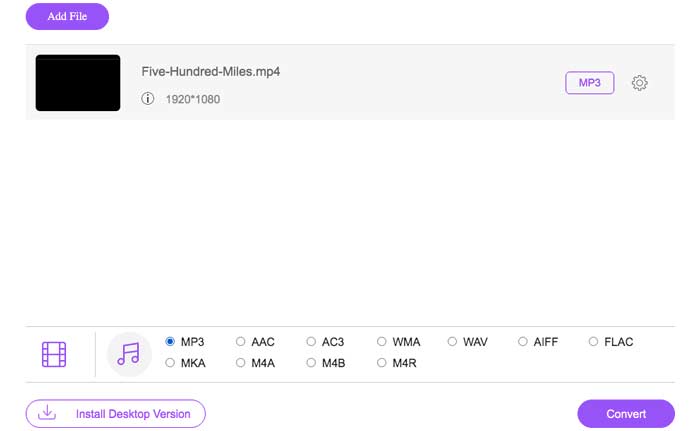
ขั้นตอนที่ 3. หลังจากอัปโหลดไฟล์วิดีโอไปยังแอปพลิเคชันนี้แล้ว ให้คลิกไอคอน Audio และเลือกรูปแบบ M4A เป็นรูปแบบไฟล์ผลลัพธ์.
ขั้นตอนที่ 4. สุดท้ายคลิกปุ่ม Convert ที่มุมขวาล่าง รอสักครู่ แล้วคุณก็จะได้ไฟล์เสียง M4A ที่ดึงออกมาจากไฟล์ MP4.
ตอนที่ 2. วิธีการแปลง MP4 เป็น M4A พร้อมตัวแปลงเสียงฟรี
FVC Free Audio Converter เป็นฟรีแวร์ที่ให้คุณแปลงไฟล์ MP4 เป็น M4A ได้อย่างง่ายดาย สามารถเปลี่ยนไฟล์วิดีโอหรือไฟล์เสียงเป็น M4A, MP3, WAV ฯลฯ คุณสามารถดาวน์โหลดและติดตั้งบนพีซี Windows ของคุณเพื่อเริ่มการแปลง
ดาวน์โหลดฟรีสำหรับ Windows 7 หรือใหม่กว่าดาวน์โหลดอย่างปลอดภัย
ดาวน์โหลดฟรีสำหรับ MacOS 10.7 หรือใหม่กว่าดาวน์โหลดอย่างปลอดภัย
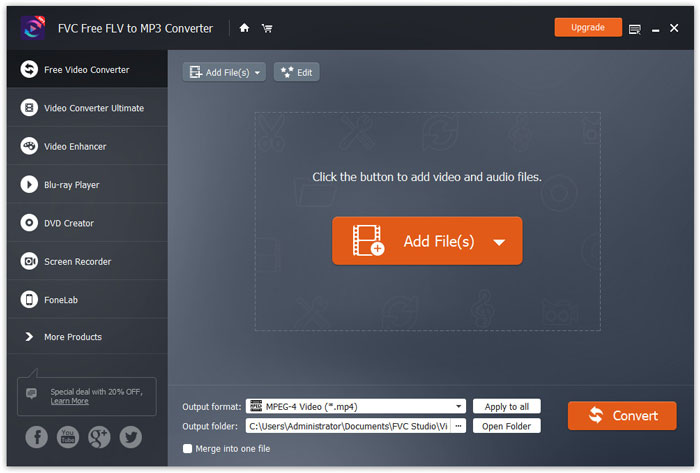
ขั้นตอนที่ 1. เปิดโปรแกรมแปลงไฟล์เสียงนี้บนคอมพิวเตอร์ของคุณ คลิกปุ่ม Add File(s) เพื่ออัปโหลดไฟล์ MP4 เข้าสู่โปรแกรม.
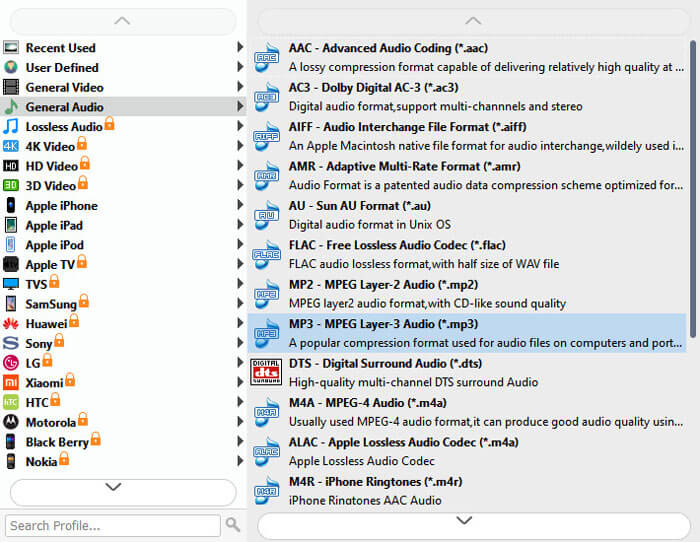
ขั้นตอนที่ 2. หาและเลือกตัวเลือก Output formats แล้วเลือก M4A เป็นรูปแบบไฟล์ผลลัพธ์จากรายการดรอปดาวน์.
ขั้นตอนที่ 3. คลิกปุ่ม Convert เพื่อเริ่มแปลงไฟล์ MP4 ให้เป็น M4A.
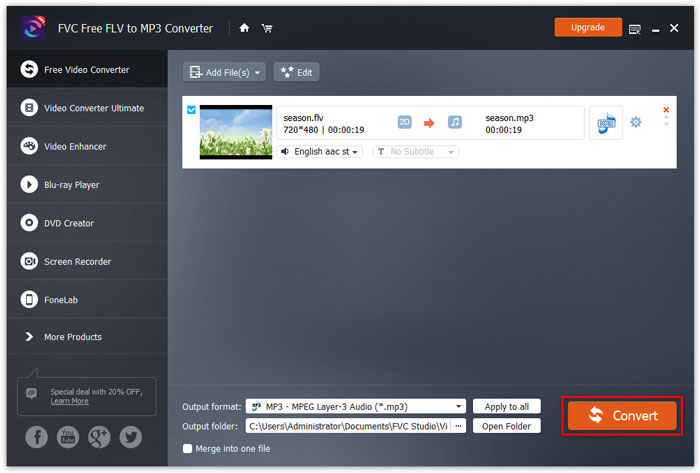
นอกจาก M4A แล้ว คุณยังสามารถใช้โปรแกรมนี้เพื่อแปลง MP4 เป็น MP3, AAC หรือรูปแบบไฟล์เสียงอื่น ๆ ได้.
ส่วนที่ 3 วิธีการแปลง MP4 เป็น M4A โดยใช้ iTunes
ในการแปลง MP4 เป็น M4A ด้วย iTunes สำหรับ Windows หรือ Mac คุณต้องเปลี่ยนการตั้งค่าการนำเข้า iTunes จากนั้นใช้ตัวเลือกเมนูแปลงเพื่อสร้างสำเนา M4A
ขั้นตอนที่ 1. เปิด iTunes บนพีซี Windows หรือ Mac ของคุณ.
ขั้นตอนที่ 2. เลือกเมนู Edit จากนั้นคลิก Preferences ในแถบเมนู แล้วไปที่แท็บ General และคลิก Import Settings.
ขั้นตอนที่ 3. หาและคลิกเมนูถัดจาก Import Using จากนั้นเลือกรูปแบบการเข้ารหัสที่คุณต้องการแปลงวิดีโอให้เป็น แล้วคลิก OK.
ขั้นตอนที่ 4. เลือกเพลงในไลบรารีที่คุณต้องการแปลง จากนั้นเลือก File แล้วคลิก Create New Version แล้วเลือกสร้างเวอร์ชันแบบ M4A.
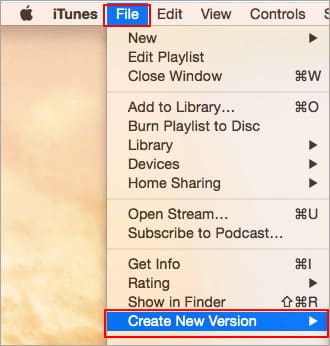
ไฟล์เสียงที่แปลงแล้วจะปรากฏในไลบรารีของคุณถัดจากไฟล์ต้นฉบับ
ส่วนที่ 4. คำถามที่พบบ่อยของการแปลง MP4 เป็น M4A
1. ไฟล์ M4A คืออะไร?
ไฟล์ที่มีนามสกุลไฟล์ M4A คือไฟล์เสียง MPEG-4 มักพบ M4A ใน iTunes Store ของ Apple เป็นรูปแบบการดาวน์โหลดเพลง
2. วิธีการเปิดไฟล์ M4A?
โปรแกรมที่ใช้เปิดไฟล์ M4A ได้แก่ iTunes, QuickTime, Windows Media Player ฯลฯ แท็บเล็ตและโทรศัพท์ Android, iPhone, iPad และ iPod touch ยังรองรับการเล่นไฟล์ M4A
3. จะรวมไฟล์ MP4 ออนไลน์ได้อย่างไร?
FVC Free Online Video Merger สามารถช่วยคุณรวมและต่อไฟล์ MP4 หรือไฟล์วิดีโอรูปแบบอื่น ๆ เช่น MOV, AVI, FLV และอีกมากมายได้แบบออนไลน์.
4. Windows Media Player สามารถแปลง MP4 เป็น M4A ได้หรือไม่?
ไม่ Windows Media Player รองรับการแปลงไฟล์วิดีโอเป็น MP3 หรือ WAV เท่านั้น
สรุป
สามวิธีข้างต้นสามารถช่วยให้คุณเปลี่ยน MP4 เป็น M4A ได้ฟรีโดยไม่ต้องออกแรงมาก หากคุณต้องการทำการแปลงออนไลน์ FVC Free Online Video Converter น่าจะเป็นตัวเลือกที่ยอดเยี่ยม หากไฟล์ MP4 ของคุณมีขนาดใหญ่ FVC Free Audio Converter หรือ iTunes จะน่าเชื่อถือกว่าในการแปลงไฟล์ MP4 เป็น M4A
-
 วิธีการแปลง MP4 เป็น WMV สำหรับ Mac / Windows
 โพสต์นี้แชร์วิธีการแปลงวิดีโอ MP4 เป็นรูปแบบ WMV บน Mac หรือ Windows นอกจากนี้เรายังมีตัวเลือกมากมายให้คุณรวมทั้งซอฟต์แวร์เดสก์ท็อปและตัวแปลงออนไลน์บนเว็บ พร้อมที่จะรู้จักเครื่องมือแปลง MP4 เป็น WMV ที่ดีที่สุดแล้วหรือยัง?
-
 วิธีการแปลง WMV เป็น MP3 บนเดสก์ท็อปและออนไลน์
 คุณสามารถค้นหาซอฟต์แวร์แปลงวิดีโอฟรีจาก FVC studio รองรับรูปแบบวิดีโอ / เสียงใด ๆ รวมถึง MP4, MOV, TS, AVI, WMV, FLAC, MP3 และอื่น ๆ
-
 วิธีการแปลง AVCHD เป็นวิดีโอ MP4 ฟรีบน Windows / Mac / ออนไลน์
 มี 5 วิธีง่ายๆในการแปลงวิดีโอ AVCHD เป็น MP4 บนคอมพิวเตอร์ของคุณ คุณสามารถแปลงวิดีโอ AVCHD เป็น MP4 เป็นชุดได้โดยไม่สูญเสียคุณภาพด้วยตัวแปลงใด ๆ ที่นี่
