


 Video Converter Ultimate
 บันทึกหน้าจอ
 ซ่อมวิดีโอ
 ดาวน์โหลดอย่างปลอดภัย
คำแนะนำเกี่ยวกับวิธีการแปลง MP4 เป็น VOB บนคอมพิวเตอร์ของคุณ
MP4 เป็นรูปแบบมัลติมีเดียสำหรับจัดเก็บไฟล์เสียงและวิดีโอ ซึ่งถูกใช้อย่างแพร่หลายสำหรับการดาวน์โหลดและสตรีมวิดีโอ หลายคนอาจต้องการดูวิดีโอ MP4 บนแผ่น DVD อย่างไรก็ตาม ไฟล์ MP4 ไม่สามารถเล่นบนเครื่องเล่น DVD ได้ ดังนั้นคุณจึงต้องแปลงวิดีโอ MP4 เป็น VOB ซึ่งเป็นที่รู้จักกันในฐานะรูปแบบวิดีโอของ DVD เพื่อใช้ในการเบิร์นเป็นแผ่น DVD ที่เล่นได้ ดังนั้นคุณจึงต้องมีโปรแกรมแปลงไฟล์ MP4 เป็น VOB บทความนี้จะอธิบายว่าไฟล์วิดีโอ MP4 และ VOB คืออะไร และวิธีแปลง MP4 เป็น VOB เพื่อให้เล่นวิดีโอได้ดีขึ้นบนอุปกรณ์ของคุณ.

ส่วนที่ 1. MP4 และ VOB คืออะไร
ไฟล์ที่มีนามสกุลไฟล์. mp4 เป็นคำย่อของไฟล์วิดีโอ MPEG-4 พัฒนาครั้งแรกในปี 2544 MPEG-4 Part 12 ใช้รูปแบบไฟล์ QuickTime (.MOV) เวอร์ชันปัจจุบัน - MPEG-4 ตอนที่ 14 - เปิดตัวในปี 2546 MP4 เป็นรูปแบบคอนเทนเนอร์มัลติมีเดียดิจิทัลซึ่งสามารถมีข้อมูลจำนวนมากรวมทั้งวิดีโอเสียงและคำบรรยาย
VOB เรียกว่าไฟล์วิดีโอออบเจ็กต์ที่ใช้สำหรับเล่นวิดีโอจากแผ่นดีวีดี มักพบในโฟลเดอร์ VIDEO_TS ที่มีนามสกุล. vob รูปแบบ VOB เป็นรูปแบบคอนเทนเนอร์ในสื่อ DVD-Video ซึ่งสามารถจัดเก็บวิดีโอดิจิทัลและเสียงคำบรรยายเมนูดีวีดีและเนื้อหาการนำทางอื่น ๆ เข้าด้วยกันในรูปแบบสตรีม
ส่วนที่ 2 ใช้แอปพลิเคชันออนไลน์ฟรี
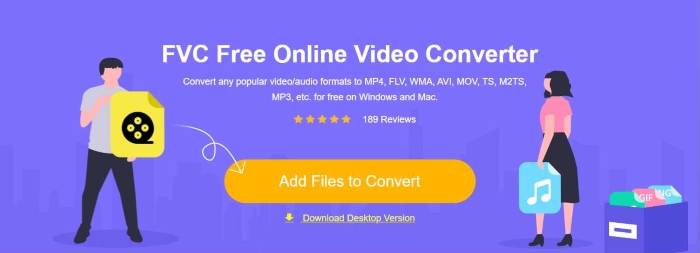
FVC Free Online Video Converter เป็นโปรแกรมออนไลน์ที่ใช้งานสะดวกมาก ซึ่งคุณสามารถใช้แปลงไฟล์ MP4 ของคุณเป็น VOB รวมถึงรูปแบบไฟล์อื่น ๆ ได้หลากหลาย พร้อมคุณภาพสูงแบบออนไลน์ฟรี และยังมีตัวเลือกหลายอย่างให้ปรับแต่งไฟล์วิดีก่อนแปลง คุณสามารถปรับบิตเรตของวิดีโอ เลือกอัตราเฟรม รวมถึงอัปสเกลความละเอียดได้อย่างง่ายดาย.
ขั้นตอนที่ 1. เข้าไปที่ https://www.free-videoconverter.net/free-online-video-converter/ คลิกปุ่ม Add Files to Convert เพื่อดาวน์โหลดและติดตั้งตัวเรียกใช้งาน (launcher) เมื่อตัวเรียกใช้งานทำงานแล้ว ให้อัปโหลดไฟล์ MP4 ที่คุณต้องการแปลง.
ดาวน์โหลดเวอร์ชันเดสก์ท็อปเพื่อแปลงไฟล์แบบเป็นชุดได้.
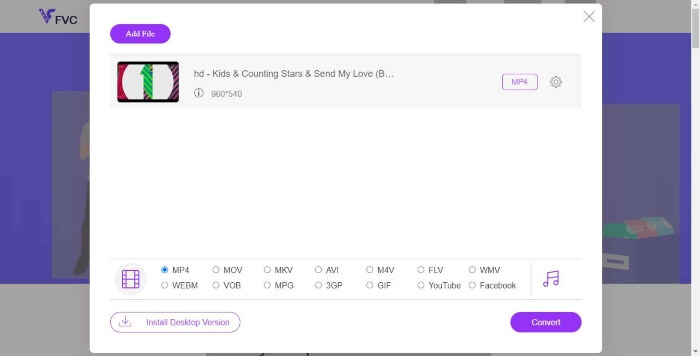
ขั้นตอนที่ 2. หลังจากเพิ่มวิดีโอ MP4 ของคุณลงในโปรแกรมแล้ว ให้เลือกไฟล์รูปแบบ VOB จากส่วนรูปแบบเอาต์พุตวิดีโอ.
ขั้นตอนที่ 3. จากนั้นคลิกปุ่ม Convert เพื่อแปลงไฟล์ MP4 เป็นรูปแบบ VOB
ส่วนที่ 3 ใช้ตัวแปลงเดสก์ท็อปฟรีและมืออาชีพ
สิ่งอื่นที่คุณสามารถทำได้คือการแปลงไฟล์ MP4 เป็น VOB โดยใช้ตัวแปลงเดสก์ท็อปซึ่งจะทำให้การแปลงราบรื่นขึ้นโดยไม่ต้องกังวลกับปัญหาการเชื่อมต่ออินเทอร์เน็ต ที่นี่เราต้องการแบ่งปันตัวแปลงวิดีโอฟรีสองตัวเพื่อช่วยให้คุณแปลงไฟล์ MP4 เป็น VOB ได้อย่างมีประสิทธิภาพ
ตัวเลือก 1. แปลง MP4 เป็น VOB ด้วยโปรแกรมแปลงวิดีโอฟรี
Free Video Converter ทำหน้าที่เป็นตัวแปลง MP4 เป็น VOB ฟรีที่ดีที่สุดซึ่งช่วยให้คุณสามารถแปลง MP4 เป็น VOB ได้ภายในขั้นตอนง่ายๆ รองรับการแปลงเป็นกลุ่มเพื่อประหยัดเวลาของคุณและคุณยังสามารถใช้เพื่อแก้ไขวิดีโอก่อนที่จะแปลงได้อย่างง่ายดาย ทำตามขั้นตอนด้านล่างเพื่อแปลง MP4 เป็น VOB
ดาวน์โหลดฟรีสำหรับ Windows 7 หรือใหม่กว่าดาวน์โหลดอย่างปลอดภัย
ดาวน์โหลดฟรีสำหรับ MacOS 10.7 หรือใหม่กว่าดาวน์โหลดอย่างปลอดภัย
ขั้นตอนที่ 1. คลิกปุ่มดาวน์โหลดด้านบนเพื่อติดตั้งและเปิดใช้ Free MP4 to VOB Converter บนพีซี Windows ของคุณอย่างรวดเร็ว บนหน้าหลักให้คลิกปุ่ม Add File จากแถบเมนูเพื่อโหลดไฟล์ MP4 คุณสามารถแปลงไฟล์ MP4 ได้หลายไฟล์พร้อมกัน.
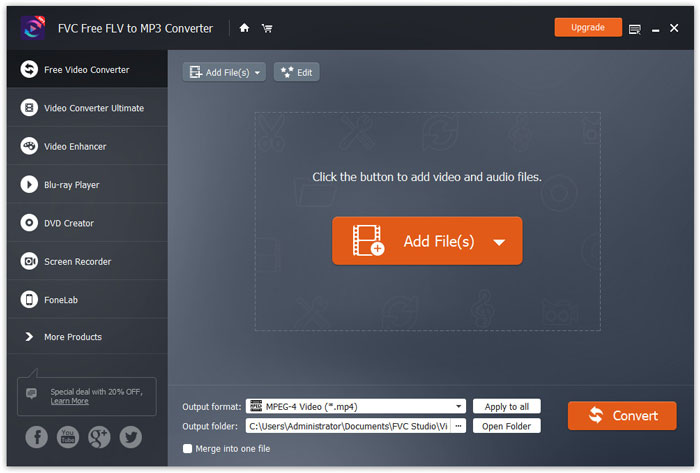
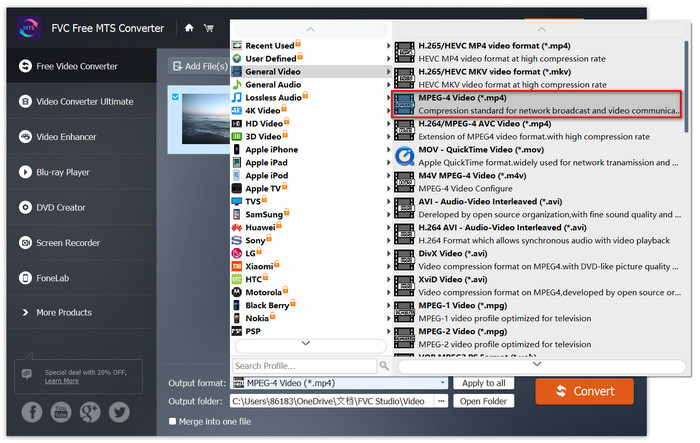
ขั้นตอนที่ 2. หลังจากอัปโหลดแล้ว คลิก Profile และเลือก VOB เป็นรูปแบบเอาต์พุตเป้าหมาย จากนั้นเลือกโฟลเดอร์ปลายทางโดยการคลิก Browse.
ขั้นตอนที่ 3. สุดท้ายคลิกปุ่ม Convert เพื่อแปลง MP4 เป็นไฟล์ DVD VOB.
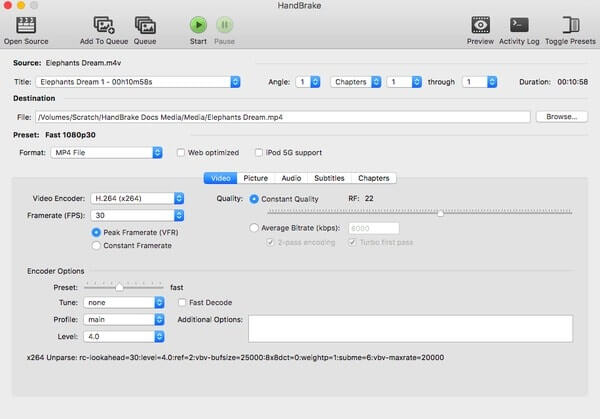
ตัวเลือก 2. แปลง MP4 เป็น VOB ด้วย HandBrake
HandBrake เป็นเครื่องมือฟรีสำหรับการแปลงวิดีโอจากเกือบทุกรูปแบบเป็นรูปแบบวิดีโอหรือเสียงยอดนิยมที่หลากหลาย มีความสามารถในการแปลง MP4 เป็น DVD VOB ได้อย่างง่ายดาย คุณสามารถทำตามขั้นตอนต่อไปนี้เพื่อเปลี่ยน MP4 เป็น VOB
ขั้นตอนที่ 1. ดาวน์โหลดและติดตั้ง HandBrake ฟรีสำหรับ Windows หรือ Mac จากนั้นเปิดโปรแกรม.
ขั้นตอนที่ 2. หลังจากเปิดโปรแกรมแล้ว ให้คลิก Open Source ที่มุมซ้ายบน จากนั้นเลือกไฟล์ MP4 จากคอมพิวเตอร์ของคุณ.
ขั้นตอนที่ 3. ไปที่ตัวเลือก Format แล้วเลือก VOB เป็นรูปแบบเอาต์พุต คุณยังสามารถปรับคุณภาพวิดีโอเอาต์พุต อัตราเฟรม ตัวเข้ารหัสวิดีโอ และตัวเลือกอื่น ๆ ได้ด้วย.
ขั้นตอนที่ 4. ต่อไปให้คลิก Start เพื่อแปลงวิดีโอ MP4 เป็น VOB ได้ฟรี.
MP4 เทียบกับ VOB
เผยแพร่โดยกลุ่มผู้เชี่ยวชาญด้านภาพเคลื่อนไหว (MPEG) ในปี 2544 รูปแบบ MP4 สามารถช่วยคุณบันทึกวิดีโอ เสียง คำบรรยาย และข้อมูลภาพในแทร็กแยกกัน ย่อมาจาก MPEG-4 Part 14 นอกจากนี้ยังเป็นหนึ่งในรูปแบบที่นิยมใช้มากที่สุดสำหรับการสตรีมและแชร์วิดีโอ
รูปแบบ VOB มักใช้สำหรับจัดเก็บข้อมูลภาพยนตร์ของแผ่น DVD ซึ่งรวมถึงวิดีโอ เสียง คำบรรยาย เมนู DVD และเนื้อหาอื่นๆ โดยปกติแล้วจะจัดรูปแบบเป็นสตรีมระบบ MPEG-2 คุณสามารถเปิดไฟล์ VOB ในเครื่องมือเล่นวิดีโอต่างๆ ได้
ส่วนที่ 4. คำถามที่พบบ่อยของการแปลง MP4 เป็น VOB
อะไรเล่นไฟล์ VOB บน Windows?
ไฟล์ VOB สามารถเปิดบนคอมพิวเตอร์ได้โดยเล่นกับเครื่องเล่นสื่อสมัยใหม่ส่วนใหญ่ ตัวอย่างเช่น VLC Media Player และ Windows Media Player 12 ขึ้นไปสามารถเล่นไฟล์ VOB ได้
ฉันจะเปิดไฟล์ MP4 ได้อย่างไร
เนื่องจาก MP4 เป็นรูปแบบไฟล์มาตรฐานสำหรับวิดีโอเครื่องเล่นวิดีโอเกือบทั้งหมดจึงรองรับการเล่นไฟล์ MP4 Android, iPhone, Windows และ Mac รองรับการเล่น MP4 โดยไม่ต้องติดตั้งซอฟต์แวร์ของ บริษัท อื่น
เครื่องเล่น MP4 ที่ดีที่สุดคืออะไร?
นี่คือรีวิวซอฟต์แวร์ยอดนิยมสำหรับการเล่นวิดีโอ MP4: ซอฟต์แวร์เล่น MP4 ชั้นนำ
ฉันจะแยกเสียงออกจากไฟล์ MP4 ได้อย่างไร
คุณสามารถใช้ Free MP3 Converter เพื่อช่วยคุณแยกแทร็กเสียงออกจากวิดีโอ MP4 เครื่องมือนี้ใช้ฟรีทั้งหมด และคุณไม่จำเป็นต้องดาวน์โหลดซอฟต์แวร์ใด ๆ ลงคอมพิวเตอร์.
สรุป
ในการแปลงไฟล์ MP4 เป็นรูปแบบ VOB ตัวแปลงออนไลน์ทำให้การแปลงเป็นเรื่องง่าย อย่างไรก็ตามอาจมีข้อ จำกัด บางประการเกี่ยวกับความเร็วในการแปลงเนื่องจากปัญหาอินเทอร์เน็ต ดังนั้นหากคุณกำลังจะแปลงไฟล์ MP4 ขนาดใหญ่ด้วยความเร็วที่รวดเร็วตัวแปลงวิดีโอบนเดสก์ท็อปที่เสถียรกว่าจะเป็นตัวเลือกในอุดมคติของคุณ
-
 3 วิธีฟรีในการแปลงไฟล์ VOB เป็น MP4 บน Windows / Mac / ออนไลน์
 บทความนี้แนะนำตัวแปลง VOB เป็น MP4 ฟรี 3 รายการและบทช่วยสอนที่เกี่ยวข้อง คุณสามารถแปลงไฟล์ VOB เป็น MP4 ได้ฟรีบน Windows / Mac / ออนไลน์ได้อย่างง่ายดาย
-
 วิธีการแปลง AVCHD เป็นวิดีโอ MP4 ฟรีบน Windows / Mac / ออนไลน์
 มี 5 วิธีง่ายๆในการแปลงวิดีโอ AVCHD เป็น MP4 บนคอมพิวเตอร์ของคุณ คุณสามารถแปลงวิดีโอ AVCHD เป็น MP4 เป็นชุดได้โดยไม่สูญเสียคุณภาพด้วยตัวแปลงใด ๆ ที่นี่
-
 3 วิธีในการแปลง MPEG 1/2/4 เป็นรูปแบบ MP4 บน Windows / Mac / ออนไลน์
 อ่านและรับ 3 วิธีฟรีในการแปลงไฟล์ MPEG เป็น MP4 บนคอมพิวเตอร์ของคุณ คุณสามารถใช้ตัวแปลงวิดีโอออนไลน์และเดสก์ท็อปเพื่อเปลี่ยนรูปแบบ MPEG เป็น MP4 ได้อย่างง่ายดาย

