


 Video Converter Ultimate
 บันทึกหน้าจอ
 ซ่อมวิดีโอ
 ดาวน์โหลดอย่างปลอดภัย
วิธีการแปลง QuickTime เป็น MP4 บน Windows / Mac / Online / iOS / Android
ในกรณีส่วนใหญ่รูปแบบไฟล์ QuickTime หมายถึง MOV QuickTime บันทึกวิดีโอเป็นรูปแบบ MOV ตามค่าเริ่มต้น อย่างไรก็ตามไฟล์ QuickTime MOV ไม่สามารถใช้ได้กับเครื่องเล่นสื่อทุกประเภท เมื่อเทียบกับ MOV แล้ว MP4 เป็นตัวเลือกที่ดีกว่า คุณสามารถรับเนื้อหาวิดีโอเดียวกันที่มีขนาดไฟล์เล็กลงและเข้ากันได้ดีขึ้น นั่นเป็นเหตุผลที่หลายคนแปลง QuickTime เป็นรูปแบบ MP4 แล้วคำถามที่ว่าจะแปลงวิดีโอ QuickTime เป็น MP4 บนคอมพิวเตอร์ของคุณได้อย่างไร? นี่คือ 3 วิธีที่คุณสามารถใช้ได้

ส่วนที่ 1: วิธีการแปลง QuickTime เป็น MP4 ออนไลน์ฟรี
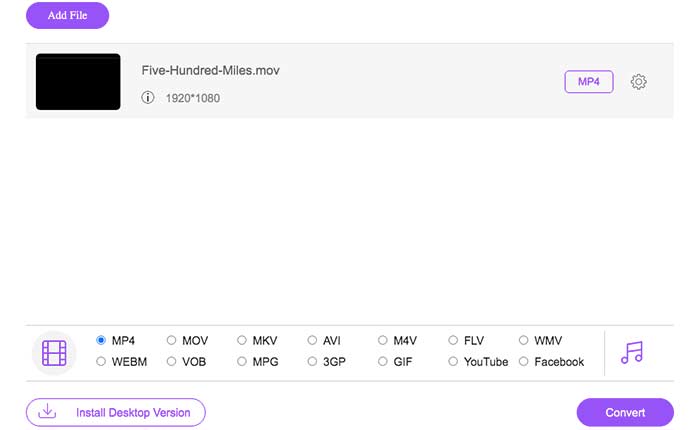
FVC Free Online Video Converter เป็นโปรแกรมแปลงวิดีโอเป็น MP4 แบบออนไลน์ฟรีสำหรับผู้ใช้ Windows และ Mac คุณสามารถแปลงไฟล์ QuickTime MOV และไฟล์อื่น ๆ เป็น MP4 ออนไลน์ได้ฟรี แตกต่างจากโปรแกรมแปลงวิดีโอออนไลน์ทั่วไป ตรงที่ไม่มีการจำกัดขนาดไฟล์สูงสุด คุณสามารถแปลงไฟล์ MOV ขนาดใหญ่เป็น MP4 แบบแบทช์ได้โดยไม่สูญเสียคุณภาพ ไฟล์เอาต์พุตของคุณจะไม่มีลายน้ำ ดังนั้นคุณจึงส่งออกภาพยนตร์ QuickTime เป็น MP4 ออนไลน์ได้อย่างสบายใจ.
ขั้นตอนที่ 1: เปิดเว็บไซต์ทางการของ FVC Free Online Video Converter คลิกตัวเลือก Add Files to Convert ครั้งแรกที่คุณจะแปลงวิดีโอเป็น MP4 ออนไลน์ คุณจำเป็นต้องดาวน์โหลดตัวเรียกใช้งาน FVC ก่อน.
ขั้นตอนที่ 2: เรียกดูและนำเข้าวิดีโอ QuickTime ของคุณในหน้าต่างที่เด้งขึ้นมา.
ขั้นตอนที่ 3: MP4 เป็นรูปแบบวิดีโอเอาต์พุตเริ่มต้น หากไม่ใช่ คุณสามารถเปลี่ยนรูปแบบเอาต์พุตเป็น MP4 ด้วยตนเองที่ด้านล่าง.
ขั้นตอนที่ 4: คลิก Convert เพื่อแปลง QuickTime เป็น MP4 ออนไลน์ได้ฟรี.
ส่วนที่ 2: วิธีการแปลง QuickTime MOV เป็น MP4 บน Windows
หากคุณต้องการแปลงวิดีโอ MOV เป็น MP4 บนพีซีอย่างรวดเร็ว คุณสามารถเปลี่ยนนามสกุลไฟล์ได้ QuickTime MOV เป็นรูปแบบไฟล์คอนเทนเนอร์วิดีโอ MPEG-4 ในขณะที่ MP4 ก็เป็นรูปแบบไฟล์วิดีโอ MPEG-4 เช่นกัน MP4 เป็นชุดย่อยของรูปแบบ QuickTime MOV ดังนั้นคุณจึงสามารถแปลง MOV เป็น MP4 บน Windows ได้โดยการเปลี่ยนนามสกุลไฟล์โดยตรง.
ขั้นตอนที่ 1: เปิดโฟลเดอร์ที่มีไฟล์ MOV ของคุณ.
ขั้นตอนที่ 2: ตรวจสอบให้แน่ใจว่านามสกุลไฟล์มองเห็นได้ กล่าวคือ คุณต้องเห็นนามสกุลไฟล์ .mov หากไม่เห็น คุณต้องยกเลิกการซ่อนนามสกุลชื่อไฟล์ด้วยตนเอง.
ขั้นตอนที่ 3: เลือก Rename จากเมนูคลิกขวา.
ขั้นตอนที่ 4: เปลี่ยนนามสกุลไฟล์จาก .mov เป็น .mp4.
ขั้นตอนที่ 5: กดปุ่ม Enter บนแป้นพิมพ์ จากนั้นคุณก็สามารถเปลี่ยนวิดีโอ QuickTime เป็น MP4 บน Windows ได้.
ส่วนที่ 3: วิธีการแปลงภาพยนตร์ QuickTime เป็น MP4 บน Mac
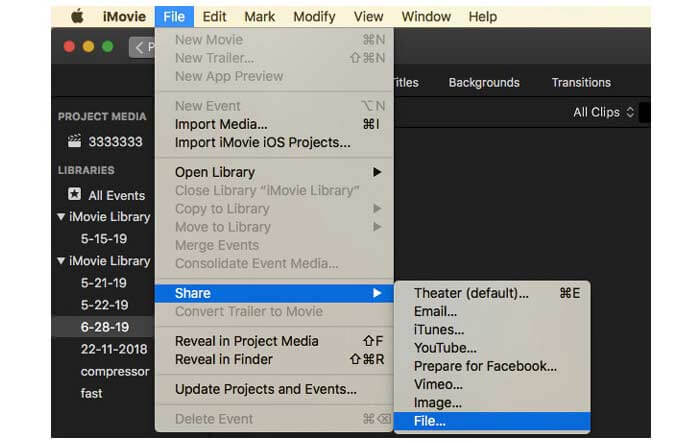
สำหรับผู้ใช้ Mac คุณสามารถใช้ iMovie เป็นตัวแปลง MOV เป็น MP4 ได้ฟรี iMovie พร้อมใช้งานสำหรับอุปกรณ์ macOS และ iOS คุณสามารถแปลงและแก้ไขไฟล์ QuickTime MOV บนคอมพิวเตอร์ Mac ของคุณได้อย่างง่ายดาย ส่วนนี้จะแสดงวิธีการแปลง QuickTime เป็น MP4 บน Mac
ขั้นตอนที่ 1: ดาวน์โหลด ติดตั้ง และเปิด iMovie บน Mac เลือก New Movie จากเมนูแบบเลื่อนลง File.
ขั้นตอนที่ 2: คลิก Import Media เพื่อเพิ่มภาพยนตร์ QuickTime ลงใน iMovie.
ขั้นตอนที่ 3: เลือกวิดีโอ QuickTime MOV ที่นำเข้า จากนั้นเลือก Share จากเมนูแบบเลื่อนลง File แล้วเลือก File จากเมนูย่อย.
ขั้นตอนที่ 4: ปรับการตั้งค่าวิดีโอเอาต์พุต เช่น ตำแหน่งจัดเก็บ ความละเอียด คุณภาพ และอื่น ๆ คลิก Next เพื่อดำเนินการต่อ.
ขั้นตอนที่ 5: ตั้งชื่อไฟล์และโฟลเดอร์ปลายทาง สุดท้ายคลิก Save เพื่อแปลง QuickTime เป็น MP4 บน Mac ด้วย iMovie.
ส่วนที่ 4: วิธีการแปลงวิดีโอจาก MOV เป็น MP4 ด้วย VLC
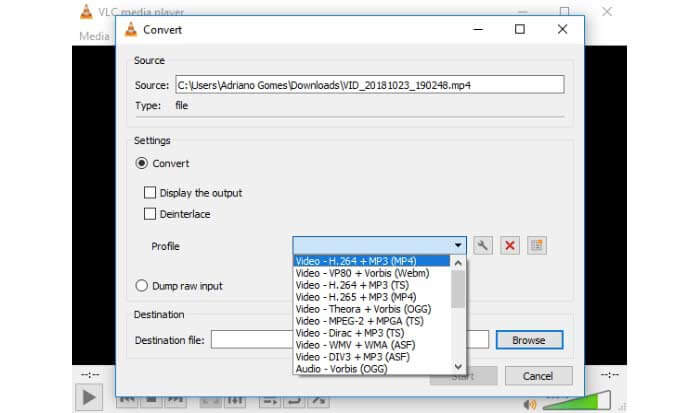
VLC เป็นโปรแกรมแปลงวิดีโอโอเพนซอร์สเครื่องเล่นและตัวแก้ไขสำหรับหลายแพลตฟอร์ม ผู้ใช้ทั้งมือถือและเดสก์ท็อปสามารถแปลงไฟล์ MOV เป็น MP4 ได้ฟรีโดยใช้ VLC ดังนั้นคุณสามารถแปลง QuickTime เป็น MP4 บน iPhone และ Android ด้วย VLC ได้เช่นกัน VLC ดาวน์โหลดได้ฟรีและปลอดภัย คุณสามารถไปที่เว็บไซต์อย่างเป็นทางการเพื่อรับแพ็คเกจดาวน์โหลดทั้งหมด
ขั้นตอนที่ 1: เปิด VLC เลือก Convert/Save จากเมนู Media.
ขั้นตอนที่ 2: ในหน้าต่าง Open Media ให้คลิก Add เพื่อนำเข้าวิดีโอ QuickTime MOV จากนั้นคลิก Convert/Save เพื่อไปต่อ.
ขั้นตอนที่ 3: คลิกรายการแบบเลื่อนลง Profile เลือก Video – H.264 + MP3 (MP4).
ขั้นตอนที่ 4: คลิก Start เพื่อเริ่มแปลง QuickTime เป็น MP4 ด้วย VLC.
ส่วนที่ 5: คำถามที่พบบ่อยเกี่ยวกับการแปลง QuickTime เป็น MP4
คุณสามารถแปลง MOV เป็น MP4 ด้วย QuickTime ได้หรือไม่?
ไม่ได้คุณสามารถเปิดวิดีโอ MOV ด้วย QuickTime Player แต่ไม่รองรับการแปลงวิดีโอ MOV เป็น MP4 โดยใช้ QuickTime
QuickTime Pro พร้อมใช้งานหรือไม่
ใช่. เวอร์ชันล่าสุดคือ QuickTime Player 7 Apple ไม่เสนอการอัปเกรด QuickTime Pro อีกต่อไป คุณยังสามารถใช้ QuickTime Player Pro บนคอมพิวเตอร์ Windows หรือ Mac ของคุณได้ แต่ Apple ยกเลิกการสนับสนุน QuickTime ให้คุณ
โปรแกรมใดบ้างที่สามารถเปิดวิดีโอ MOV ได้
คุณสามารถเล่นไฟล์ MOV ด้วย QuickTime Player, iTunes, VLC, Windows Media Player, Adobe Flash และอื่น ๆ
ด้วยการใช้โปรแกรมแปลงวิดีโอออนไลน์และออฟไลน์ข้างต้น คุณสามารถแปลง QuickTime เป็น MOV ได้ฟรีบนโทรศัพท์และคอมพิวเตอร์ คุณสามารถใช้ตัวแปลง MOV เป็น MP4 ออนไลน์ การเปลี่ยนนามสกุลไฟล์ iMovie และ VLC เพื่อแปลงรูปแบบวิดีโอจาก QuickTime MOV เป็น MP4 หากคุณต้องการแปลง QuickTime เป็นไฟล์ MP4 แบบแบทช์โดยไม่ใช้แอปของบุคคลที่สาม FVC Free Online Video Converter สามารถเป็นตัวเลือกแรกของคุณได้ เครื่องมือนี้ปลอดภัยและใช้ฟรี 100% คุณสามารถแปลงวิดีโอ QuickTime เป็น MP4 และรูปแบบอื่น ๆ แบบแบทช์ได้ด้วยคุณภาพสูง.
-
 MOV VS MP4 - อันไหนดีกว่ากัน
 MOV VS MP4 อันไหนดีกว่ากัน? โพสต์นี้จะบอกความแตกต่างระหว่าง MP4 และ MOV เพื่อให้คุณสามารถเลือกใช้ไฟล์วิดีโอได้ดีกว่า
-
 4 วิธีฟรียอดนิยมในการแปลง MTS เป็น MOV
 ไม่สามารถเล่นไฟล์ MTS บนคอมพิวเตอร์หรือโทรศัพท์ iPhone / Android ของคุณ? ไฟล์ MTS คืออะไรและจะเล่นได้อย่างไร? MTS Video Converter ที่ดีที่สุดคืออะไร? โพสต์นี้แชร์ 4 วิธีง่ายๆและฟรีที่จะช่วยคุณแปลง MTS เป็น MOV เพื่อการเล่นที่ดีขึ้น
-
 6 วิธีง่ายๆในการแปลง TS เป็น AVI / MKV / MOV / WMV บน Windows / Mac
 ต้องการแปลงไฟล์ TS เป็น AVI / MKV / MOV / WMV อย่างรวดเร็วหรือไม่? บทความนี้แสดงตัวแปลงวิดีโอออนไลน์และออฟไลน์พร้อมคู่มือฉบับสมบูรณ์ บางทีคุณอาจได้รับตัวแปลง TS ฟรีที่ดีที่สุดที่นี่
