


 Video Converter Ultimate
 บันทึกหน้าจอ
 ซ่อมวิดีโอ
 ดาวน์โหลดอย่างปลอดภัย
3 เคล็ดลับสำหรับ MP4 ไม่เล่นใน Google Drive
Google Drive เป็นบริการทำงานร่วมกันบนคลาวด์ที่ช่วยให้คุณสำรองและเข้าถึงไฟล์ทั้งหมดของคุณได้จากทุกอุปกรณ์และทุกที่ โดยให้พื้นที่จัดเก็บฟรี 15GB ที่ใช้ร่วมกันระหว่าง Google Drive, Gmail และ Google Photos เพื่อเก็บข้อมูลได้ทุกประเภท คุณสามารถอัปโหลดไฟล์ MP4 ไปยัง Google Drive แล้วเล่นไฟล์เหล่านั้นได้โดยตรงบน Google Drive.
โดยทั่วไป คุณสามารถเล่นไฟล์ MP4 ใน Google Drive ได้อย่างง่ายดายด้วยการดับเบิลคลิกที่ไฟล์นั้น แต่บางครั้งอาจเกิดข้อผิดพลาดในการเล่นไฟล์ MP4 ใน Google Drive เช่น ข้อความว่า ไม่สามารถเล่นวิดีโอนี้ได้ หรือ อุ๊ปส์! เกิดปัญหาในการเล่นวิดีโอนี้.

หากคุณไม่สามารถเล่นไฟล์ MP4 ใน Google Drive ด้วยวิธีปกติได้ คุณสามารถใช้ 3 วิธีต่อไปนี้ในการเล่นวิดีโอที่อยู่บน Google Drive ของคุณ.
ส่วนที่ 1 เล่น MP4 ใน Google Drive ด้วยหน้าต่างใหม่
เมื่อคุณต้องการเล่น MP4 ใน Google Drive คุณสามารถดับเบิลคลิกเพื่อเริ่มเล่นด้วยเครื่องเล่นวิดีโอในตัว อย่างไรก็ตาม หากคุณไม่สามารถเล่นไฟล์ MP4 ด้วยวิธีนี้ คุณสามารถเลือกเล่นวิดีโอ Google ไดรฟ์ในหน้าต่างใหม่ได้
ขั้นตอนที่ 1. เปิด Google Drive แล้วค้นหาวิดีโอ MP4 ที่คุณต้องการดู คลิกขวาที่ไฟล์นั้นแล้วเลือก แสดงตัวอย่าง (Preview).
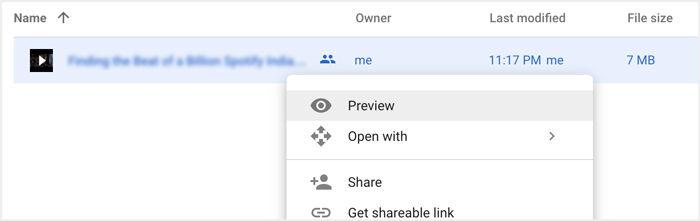
ขั้นตอนที่ 2. จากนั้นคุณสามารถเปิดเมนูได้โดยคลิกที่ไอคอน จุดสามจุด ที่มุมขวาบน จากเมนูแบบเลื่อนลง ให้เลือกตัวเลือก เปิดในหน้าต่างใหม่ (Open in new window).
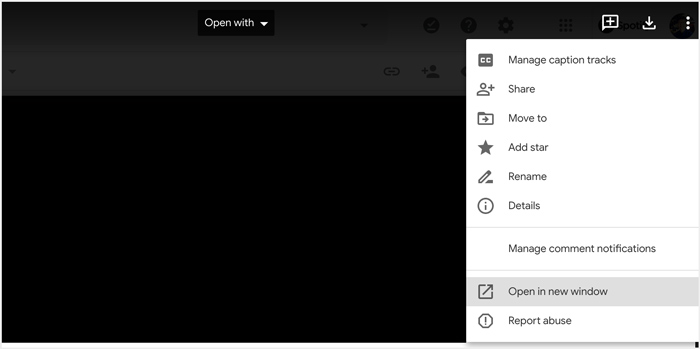
หลังจากดำเนินการทั้งหมดแล้ว ไฟล์ MP4 ใน Google ไดรฟ์จะเล่นในหน้าต่างใหม่ คุณสามารถตรวจสอบว่าวิดีโอนี้สามารถเล่นได้ตามปกติหรือไม่
ส่วนที่ 2 ลบบัญชีเพื่อเล่นไฟล์ MP4 ใน Google Drive
ในบางกรณี ไฟล์ MP4 ที่ไม่เล่นใน Google Drive เกิดข้อผิดพลาดเกิดจากบัญชี Google หลายบัญชี ดังนั้น คุณสามารถลองลบบัญชีที่ไม่ต้องการออกเพื่อแก้ไข
ขั้นตอนที่ 1. หากต้องการออกจากระบบบัญชีที่ไม่ต้องการใช้งาน คุณสามารถไปที่ บัญชี Google ของคุณบนเว็บไซต์ Google ซึ่งจะอยู่ที่มุมขวาบน คลิกที่รูปโปรไฟล์ของคุณแล้วตรวจสอบบัญชี Google ทั้งหมดที่แสดงอยู่.
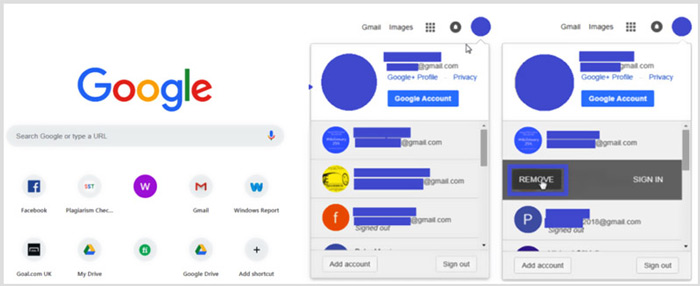
ขั้นตอนที่ 2. ค้นหาบัญชีที่ไม่ต้องการแล้วเลือกปุ่ม นำออก (Remove) ที่นี่คุณควรให้เหลือเพียงบัญชีที่คุณต้องการใช้งานเท่านั้น หลังจากนั้นให้รีเฟรชหน้าเว็บไซต์ Google แล้วกลับไปที่ Google Drive ของคุณ ค้นหาไฟล์ MP4 ที่ต้องการรับชมแล้วลองเล่นอีกครั้ง.
ส่วนที่ 3 แปลงวิดีโอเป็นเล่น MP4 ใน Google Drive
ถึงแม้ว่า Google Drive จะรองรับรูปแบบไฟล์ MP4 แต่หากไฟล์ MP4 ของคุณไม่สามารถเล่นบน Google Drive ได้ คุณควรตรวจสอบขนาดไฟล์วิดีโอ ความละเอียด และปัจจัยอื่น ๆ ที่เกี่ยวข้อง หากต้องการแปลงวิดีโอให้เป็นไฟล์ที่ Google Drive รองรับ คุณสามารถใช้โปรแกรมมืออาชีพอย่าง Video Converter Ultimate ซึ่งสามารถแปลงไฟล์วิดีโอและเสียงทุกชนิดได้โดยไม่สูญเสียคุณภาพ.
- 1. แปลงวิดีโอใด ๆ รวมถึงไฟล์ MP4 เป็น Google Drive ที่รองรับด้วยคุณภาพสูง
- 2. แปลงวิดีโอ 8K/5K/4K, 1080p/720p HD และ SD ให้เป็นรูปแบบมากกว่า 500 รูปแบบ เช่น MP4, MOV, AVI, FLV, MP3, FLAC, AAC และอื่นๆ
- 3. แก้ไขวิดีโอ ปรับเอฟเฟกต์ เพิ่มคุณภาพ บีบอัดวิดีโอ แก้ไขข้อมูล ID3 และสร้าง GIF ด้วยความมั่นใจในตนเอง
- 4. เทคโนโลยีการเร่งความเร็วด้วยฮาร์ดแวร์ที่ไม่เคยมีมาก่อนเพื่อให้มีความเร็วในการแปลงที่เร็วมาก
ดาวน์โหลดฟรีสำหรับ Windows 7 หรือใหม่กว่าดาวน์โหลดอย่างปลอดภัย
ดาวน์โหลดฟรีสำหรับ MacOS 10.7 หรือใหม่กว่าดาวน์โหลดอย่างปลอดภัย
ขั้นตอนที่ 1. หากต้องการแปลงวิดีโอให้เป็นไฟล์ที่ Google Drive รองรับ ก่อนอื่นคุณต้องติดตั้งโปรแกรมแปลงไฟล์นี้บนคอมพิวเตอร์ของคุณฟรี ๆ คุณสามารถดับเบิลคลิกที่ปุ่มดาวน์โหลดของโปรแกรม และทำตามคำแนะนำบนหน้าจอเพื่อทำการติดตั้ง.
ขั้นตอนที่ 2. เปิดเครื่องมือแปลงวิดีโอสำหรับ Google Drive นี้ แล้วใช้ฟังก์ชัน Converter คลิกปุ่ม + ขนาดใหญ่หรือปุ่ม Add Files เพื่อโหลดไฟล์ MP4 ของคุณเข้าไป.
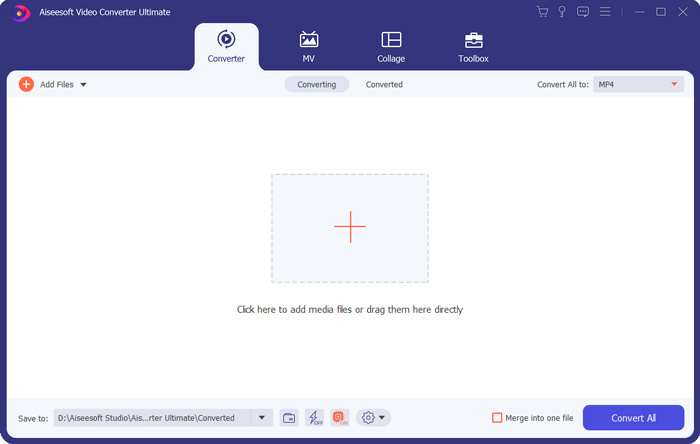
ขั้นตอนที่ 3. รูปแบบไฟล์ขาออกจะถูกตั้งค่าเป็น MP4 โดยอัตโนมัติ คุณสามารถคลิกที่ตัวเลือกดังกล่าวเพื่อเลือกรูปแบบอื่นที่เหมาะสมได้.
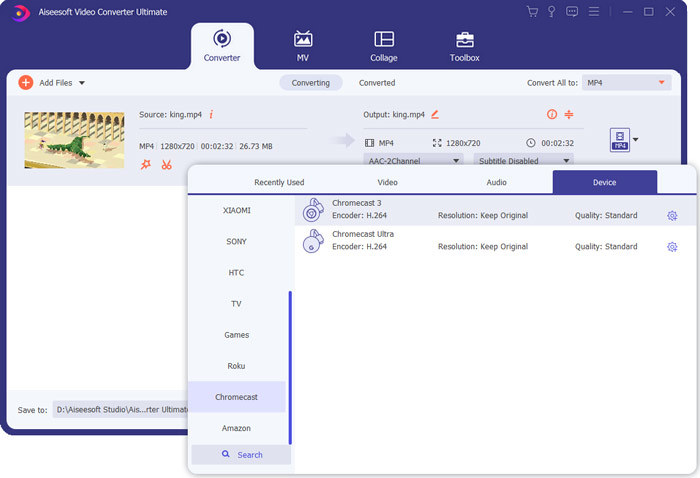
ในขั้นตอนนี้ คุณสามารถคลิกที่ไอคอน Custom Profile เพื่อปรับแต่งการตั้งค่าเพิ่มเติมได้.
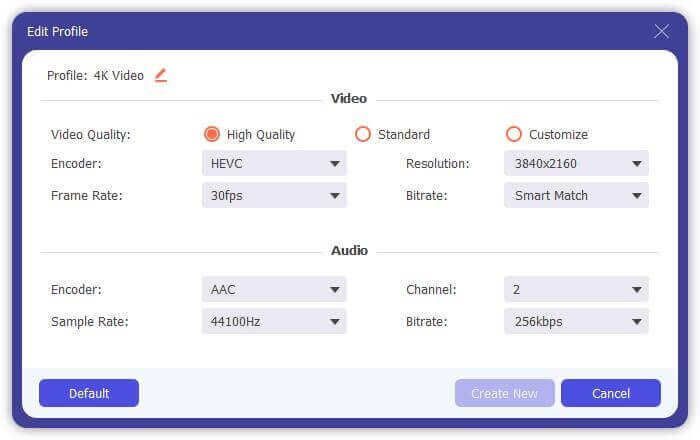
ขั้นตอนที่ 4. หลังจากดำเนินการทุกอย่างเรียบร้อยแล้ว คุณสามารถคลิกปุ่ม Convert All เพื่อเริ่มแปลงวิดีโอ ก่อนทำการแปลง คุณยังสามารถเปลี่ยนชื่อไฟล์ผลลัพธ์ เลือกโฟลเดอร์ปลายทางที่เหมาะสม ตัดต่อวิดีโอ และปรับแต่งเอฟเฟกต์ภาพและเสียงได้.
ส่วนที่ 4 คำถามที่พบบ่อยเกี่ยวกับการเล่นไฟล์ MP4 ใน Google Drive
Google Drive รองรับความละเอียดวิดีโอเท่าใด
คุณได้รับอนุญาตให้จัดเก็บและเล่นวิดีโอใน Google ไดรฟ์ คุณสามารถสำรองวิดีโอที่มีความละเอียดเท่าใดก็ได้ แต่คุณควรรู้ว่าความละเอียดในการเล่นสูงสุดของ Google ไดรฟ์คือ 1920x1080
เหตุใดฉันจึงเล่นวิดีโอใน Google Drive ไม่ได้
สาเหตุหลายประการจะทำให้วิดีโอไม่เล่นใน Google Drive ของคุณ สาเหตุหลักประการหนึ่งคือรูปแบบวิดีโอที่ไม่รองรับ นอกจากนี้ ปัจจัยอื่นๆ เช่น เบราว์เซอร์ที่ล้าสมัย ความเร็วอินเทอร์เน็ตต่ำ ความละเอียดวิดีโอที่สูงขึ้น ขนาดไฟล์ที่ใหญ่ขึ้น การตั้งค่าความปลอดภัยของเราเตอร์ และปลั๊กอินของบุคคลที่สาม เป็นต้น จะทำให้เกิดปัญหาในการเล่นวิดีโอ Google ไดรฟ์
จะจัดการบัญชี Google ของฉันได้ที่ไหน
Google อนุญาตให้คุณเพิ่มและใช้บัญชีได้ตั้งแต่หนึ่งบัญชีขึ้นไป เมื่อคุณต้องการจัดการบัญชี Google ของคุณ คุณสามารถเปิดเบราว์เซอร์ Chrome และคลิกที่ไอคอนบัญชี Google ของคุณที่ด้านบนขวา จากเมนูแบบเลื่อนลง ให้คลิกปุ่มจัดการบัญชี Google ของคุณ
ฉันจะอัปโหลด MP4 ไปยัง Google Drive ได้อย่างไร
ในการอัปโหลดไฟล์รวมถึงวิดีโอ MP4 ไปยัง Google Drive คุณสามารถคลิกที่ไอคอนใหม่ทางด้านซ้ายบน จากนั้นเลือก File Upload หรือ Folder Upload เพื่อเพิ่มไฟล์ของคุณ
สรุป
Google Drive มอบวิธีที่สะดวกในการสำรอง จัดการ และดูไฟล์ทุกประเภท บทความนี้ได้กล่าวถึง 3 เคล็ดลับสำหรับแก้ไขปัญหาการเล่นวิดีโอบน Google Drive หวังว่าคุณจะสามารถเล่นไฟล์ MP4 ใน Google Drive ได้ดีขึ้นหลังจากอ่านหน้านี้.
-
 วิธีการแปลง Cisco WebEx ARF เป็น MP4 บน PC และ Mac ฟรี
 รับไฟล์ ARF แต่ไม่รู้จะเปิดได้อย่างไร? โพสต์นี้สามารถช่วยคุณได้อย่างแน่นอน นี่คือ 2 วิธีฟรีในการแปลง ARF เป็น MP4 บน Mac และ PC โดยละเอียด
-
 เครื่องเล่นวิดีโอที่ดีที่สุด 5 อันดับแรกสำหรับ iPhone ที่คุณไม่ควรพลาดในปี 2021
 หากต้องการเล่นวิดีโอในทุกรูปแบบและมีประสบการณ์การรับชมที่ดีขึ้นบน iPhone ของคุณ คุณควรอ่านบทความนี้และเรียนรู้เกี่ยวกับเครื่องเล่นวิดีโอ 5 รายการที่ดีที่สุดสำหรับ iPhone 12/11/X/8/7/6
-
 5 เครื่องเล่น WAV ฟรีที่ดีที่สุดสำหรับ Android, iOS และคอมพิวเตอร์
 จะเล่นไฟล์ WAV บนโทรศัพท์ Android ได้อย่างไร? เครื่องเล่นอะไรสามารถเล่น WAV ได้? โพสต์นี้แชร์ 5 เครื่องเล่น WAV ฟรีที่ดีที่สุดสำหรับ Android, iPhone, Mac และ PC
