


 Video Converter Ultimate
 บันทึกหน้าจอ
 ซ่อมวิดีโอ
5 วิธีในการซ่อมแซมไฟล์ MOV ที่เสียหาย: กู้คืนอย่างมืออาชีพ
ไฟล์ MOV ซึ่งขึ้นชื่อในด้านความสามารถรอบด้าน เป็นรูปแบบที่นิยมใช้ในการบันทึกและจัดเก็บเนื้อหามัลติมีเดียเนื่องจากมีความเข้ากันได้ในวงกว้าง อย่างไรก็ตาม ความยุ่งยากจะเพิ่มขึ้นเมื่อไฟล์เหล่านี้พบกับความเสียหาย ซึ่งเป็นอุปสรรคต่อประสบการณ์การเล่นที่ราบรื่นที่เราทุกคนปรารถนา ความท้าทายอยู่ที่การจัดการและซ่อมแซมความเสียหายเหล่านี้เพื่อฟื้นฟูความลื่นไหลและคุณภาพของการเล่นมัลติมีเดียของเรา การจัดการกับปัญหาดังกล่าวอาจทำให้คุณต้องพยายามแก้ไขอีกครั้ง และหากไม่ระวัง มันก็อาจเลวร้ายยิ่งกว่าแก้ไขได้
คลายความกังวลลงได้เมื่อเรานำคุณไปสู่ชุดวิธีการที่คัดสรรมาอย่างดี ตั้งแต่การใช้เครื่องมือเฉพาะทางอย่าง FVC Video Repair ไปจนถึงการใช้โปรแกรมเล่นวิดีโอที่คุ้นเคยอย่าง VLC และ QuickTime อ่านบทความนี้ต่อเพื่อซ่อมแซมไฟล์ MOV ให้มั่นใจได้ว่าวิดีโอของคุณจะกลับมามีชีวิตอีกครั้งอย่างมืออาชีพ บอกลาปัญหาวิดีโอสะดุดระหว่างเล่น และเข้าสู่โลกของการสตรีมคุณภาพสูงที่ราบรื่นไร้การขัดจังหวะ.

ส่วนที่ 1 ฉันสามารถแก้ไขไฟล์ MOV ที่เสียหายได้หรือไม่
การซ่อมแซมไฟล์ MOV ที่เสียหายสามารถทำได้ด้วยหลายวิธี เช่นการใช้เครื่องมือซ่อมวิดีโอ MOV เครื่องมือซ่อมวิดีโอเฉพาะทางเหล่านี้ เช่น FVC Video Repair มอบโซลูชันที่ออกแบบมาเพื่อซ่อมแซมไฟล์ MOV ที่เสียหายได้อย่างมีประสิทธิภาพ อีกทางเลือกหนึ่งคือใช้โปรแกรมเล่นมัลติมีเดียยอดนิยมอย่าง VLC และ QuickTime เพื่อพยายามซ่อมไฟล์ระหว่างการเล่นหรือการแปลงไฟล์ ผู้ใช้บางคนประสบความสำเร็จด้วยการเปลี่ยนสกุลไฟล์ หรือใช้ซอฟต์แวร์กู้ข้อมูลอย่าง Disk Drill หรือ EaseUS Data Recovery Wizard ไม่ว่าคุณจะใช้ระบบ Mac หรือ Windows การลองใช้วิธีเหล่านี้สามารถช่วยกู้คืนและกู้ซ่อมไฟล์ MOV อันมีค่าของคุณให้กลับมาเล่นได้อย่างราบรื่นอีกครั้ง.
ส่วนที่ 2 วิธีการซ่อมแซมไฟล์ MOV ที่เสียหาย
1. การซ่อมแซมวิดีโอ FVC
ไฟล์ MOV ที่เสียหายอาจสร้างความหงุดหงิด เพราะทำให้การเล่นไฟล์มัลติมีเดียสะดุด FVC Video Repair เป็นหนึ่งในเครื่องมือซ่อม MOV ที่มีโซลูชันเฉพาะทางเพื่อจัดการกับปัญหาเหล่านี้ ทำให้ผู้ใช้สามารถเข้าถึงวิดีโออันมีค่าของตนได้อีกครั้ง FVC Video Repair ถูกออกแบบมาเพื่อซ่อมแซมไฟล์ MOV ที่เสียหายอย่างมีประสิทธิภาพ และกู้คืนให้กลับสู่สภาพที่ดีที่สุด.
ขั้นตอนที่ 1. ดาวน์โหลดและเปิดใช้โปรแกรม FVC Video Repair บนคอมพิวเตอร์ของคุณ.
ดาวน์โหลดฟรีสำหรับ Windows 7 หรือใหม่กว่าดาวน์โหลดอย่างปลอดภัย
ดาวน์โหลดฟรีสำหรับ macOS 10.7 หรือใหม่กว่าดาวน์โหลดอย่างปลอดภัย
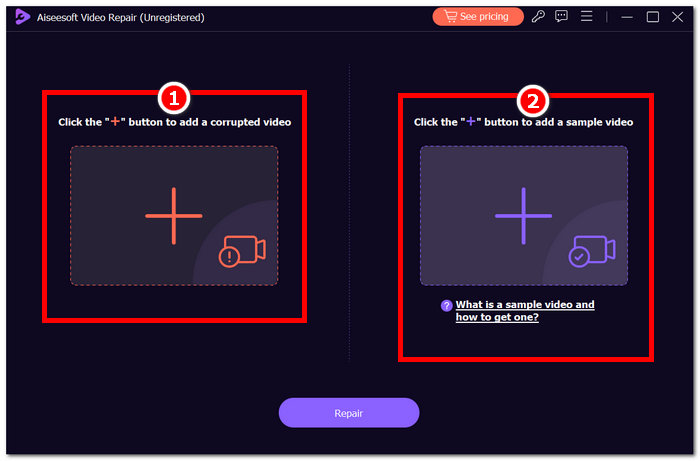
ขั้นตอนที่ 2. บนหน้าจอหลัก คลิกปุ่ม + สีแดงเพื่อเพิ่มไฟล์ MOV ที่เสียหาย จากนั้นให้เพิ่มวิดีโอตัวอย่าง โดยคลิกปุ่ม + สีม่วง.
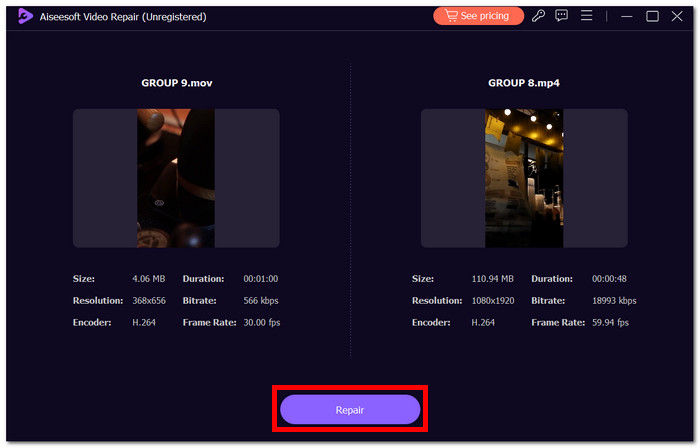
ขั้นตอนที่ 3. คลิกปุ่ม Repair และคลิก Preview เพื่อตรวจสอบคุณภาพของไฟล์วิดีโอ MOV ที่ผ่านการประมวลผลแล้ว.
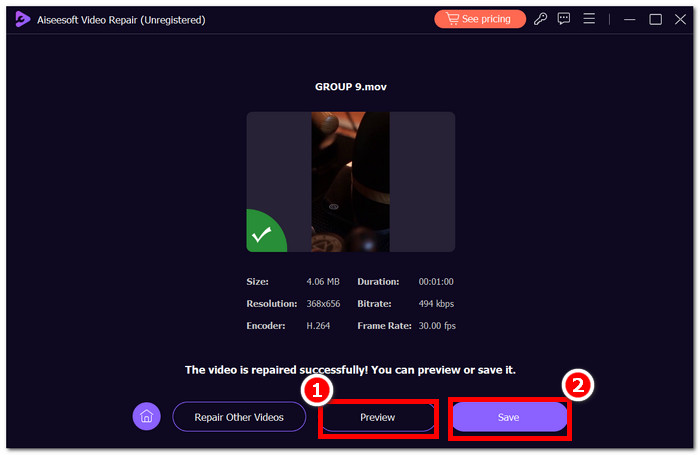
ขั้นตอนที่ 4. หากต้องการบันทึกไฟล์ลงบนเดสก์ท็อป เพียงคลิก Save.
FVC Video Repair โดดเด่นในฐานะเครื่องมือที่เชื่อถือได้และมีประสิทธิภาพสำหรับการซ่อมแซมไฟล์ MOV ที่เสียหาย มอบวิธีแก้ปัญหาที่ตรงไปตรงมาแก่ผู้ใช้ในการหยุดชะงักของการเล่นมัลติมีเดีย เมื่อทำตามขั้นตอนข้างต้น คุณจะสามารถบันทึกเนื้อหาวิดีโออันมีค่าของคุณและเพลิดเพลินไปกับประสบการณ์การรับชมที่ราบรื่นได้อีกครั้ง
2. VLC Media Player
ซ่อมแซมไฟล์ MOV ที่เสียหายด้วย VLC Media Player ซึ่งมีชื่อเสียงในด้านความคล่องตัวในการจัดการรูปแบบมัลติมีเดียต่างๆ และยังสามารถช่วยในการซ่อมแซมไฟล์ MOV ที่เสียหายได้อีกด้วย ไม่ว่าไฟล์ MOV ของคุณจะแสดงข้อผิดพลาดในการเล่นหรือภาพบกพร่อง VLC Media Player ก็มีวิธีแก้ปัญหาที่ตรงไปตรงมา
ขั้นตอนที่ 1. เปิดแอปพลิเคชัน VLC Media Player บนคอมพิวเตอร์ของคุณ.
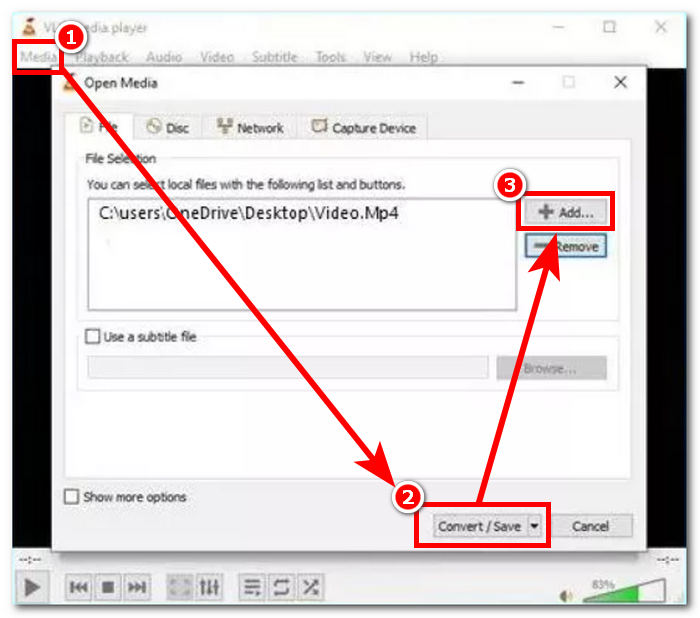
ขั้นตอนที่ 2. ไปที่แท็บ Media ในแถบเมนูแล้วเลือก Convert/Save.
ขั้นตอนที่ 3. เพิ่มไฟล์ MOV ที่เสียหายโดยการคลิกปุ่ม Add.
ขั้นตอนที่ 4. เลือกปลายทางจัดเก็บไฟล์ แล้วคลิก Start เพื่อเริ่มกระบวนการซ่อม.
ความสามารถของ VLC Media Player ในการซ่อมแซมไฟล์ MOV ที่เสียหายทำให้เป็นเครื่องมือที่มีประโยชน์สำหรับผู้ใช้ที่ประสบปัญหาในการเล่น แม้ว่าจะไม่ได้ป้องกันความเสียหายทุกประเภท แต่วิธีนี้ก็คุ้มค่าที่จะลองเพราะความเรียบง่ายและสามารถเข้าถึงได้ อย่าลืมสำรองข้อมูลไฟล์ต้นฉบับของคุณไว้เสมอก่อนที่จะพยายามซ่อมแซมใดๆ หาก VLC Player ไม่สามารถแก้ไขปัญหาได้อย่างสมบูรณ์ คุณอาจต้องการสำรวจเครื่องมือซ่อมแซมวิดีโอเฉพาะทางเพื่อดูวิธีแก้ปัญหาขั้นสูงเพิ่มเติม
3. ผู้เล่น QuickTime
QuickTime Player ซึ่งเป็นโปรแกรมเล่นไฟล์ MOV พื้นฐานสำหรับอุปกรณ์ Apple สามารถเป็นเครื่องมือที่มีประโยชน์ในการซ่อมแซมไฟล์ MOV ที่เสียหายได้ เมื่อเจอปัญหาการเล่นหรือไฟล์เสีย QuickTime Player มีวิธีแก้ปัญหาที่ตรงไปตรงมาในการกู้คืนและกู้ซ่อมเนื้อหาวิดีโออันมีค่าของคุณ.
ขั้นตอนที่ 1. เปิด QuickTime Player บน Mac ของคุณ หากยังไม่มีติดตั้ง คุณสามารถดาวน์โหลดได้จาก Apple Store.
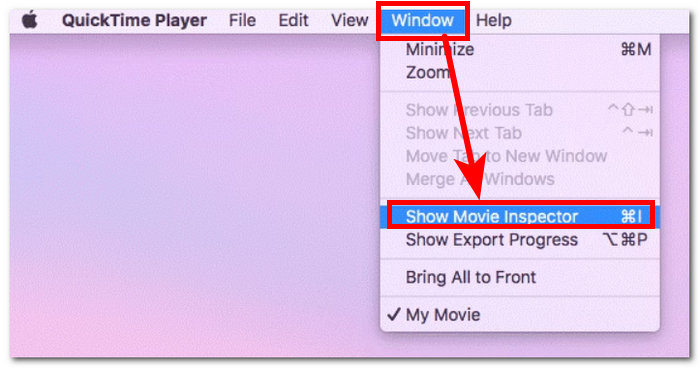
ขั้นตอนที่ 2. บนแถบเมนู ให้หาและคลิก Window จากนั้นเลือก Show Movie Inspector.
ขั้นตอนที่ 3. QuickTime Player อาจตรวจพบว่าไฟล์เสียหายและแสดงข้อความให้คุณซ่อมแซมไฟล์.
ขั้นตอนที่ 4. หน้าต่าง Inspector จะแสดงรายละเอียดเกี่ยวกับไฟล์ MOV ของคุณ ทำให้คุณสามารถระบุและค้นหารหัสข้อผิดพลาดที่ช่วยในการซ่อมไฟล์ MOV ออนไลน์ได้.
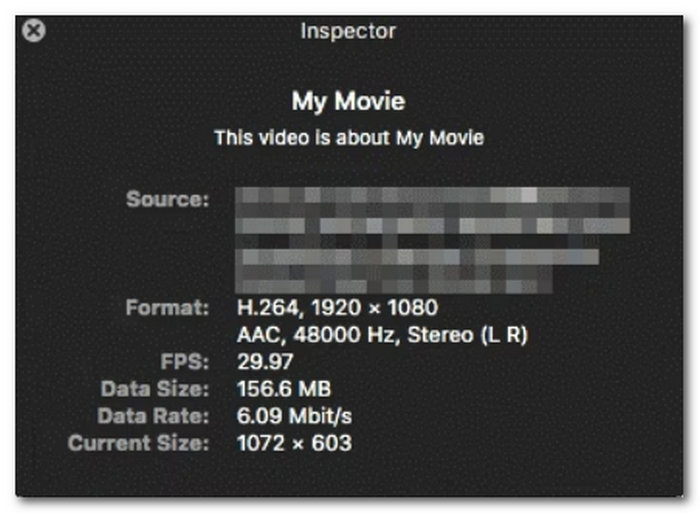
แก้ไข MOV ที่เสียหายด้วย QuickTime Player ทำให้เป็นตัวเลือกที่สะดวกสำหรับผู้ใช้ Mac แม้ว่ามันอาจจะไม่ได้จัดการกับความเสียหายของไฟล์ทุกประเภท แต่ก็มักจะสามารถแก้ไขปัญหาทั่วไปที่นำไปสู่การหยุดชะงักในการเล่นได้
4. ซ่อมแซมไฟล์ MOV ออนไลน์
เครื่องมือออนไลน์มอบโซลูชันที่รวดเร็วและเป็นมิตรต่อผู้ใช้ในการแก้ไขไฟล์ MOV ที่เสียหาย ปฏิบัติตามสี่ขั้นตอนง่าย ๆ เหล่านี้:
ขั้นตอนที่ 1. ค้นหาเครื่องมือซ่อมไฟล์ mov บนเบราว์เซอร์ของคุณ.
ขั้นตอนที่ 2. ไปยังเว็บไซต์เครื่องมือซ่อมไฟล์ MOV ออนไลน์ที่น่าเชื่อถือและอัปโหลดไฟล์ที่เสียหายของคุณ ตรวจสอบให้แน่ใจว่าแพลตฟอร์มนั้นปลอดภัยและให้ความสำคัญกับความเป็นส่วนตัวของคุณ.
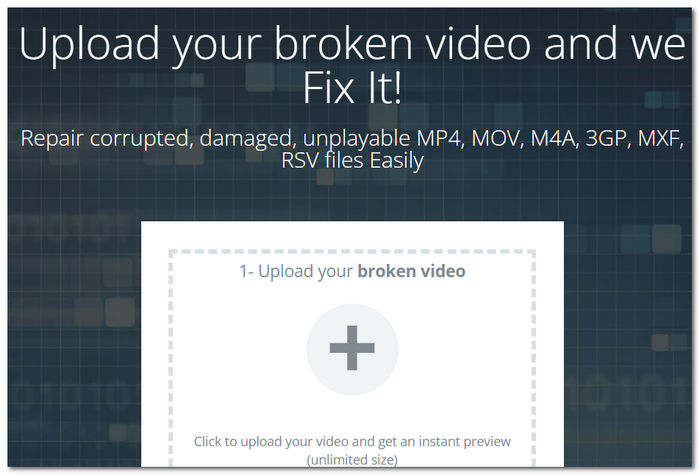
ขั้นตอนที่ 3. เครื่องมือออนไลน์จะวิเคราะห์โครงสร้างและเนื้อหาของไฟล์ MOV เพื่อระบุและประเมินระดับความเสียหาย.
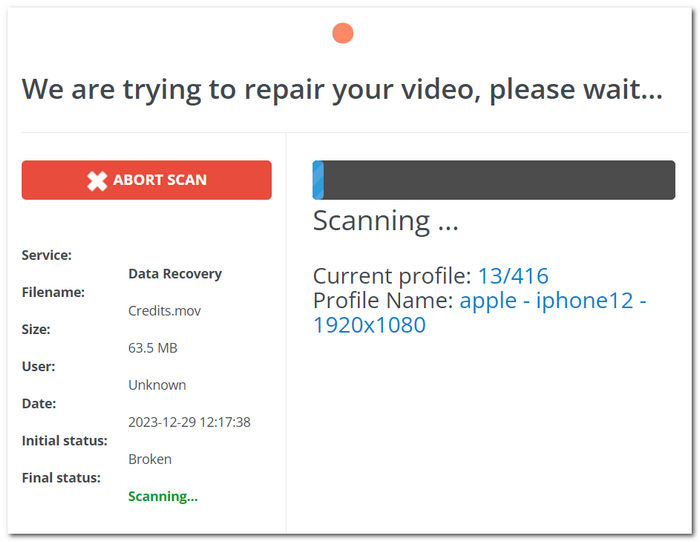
ขั้นตอนที่ 4. เมื่อการซ่อมแซมเสร็จสมบูรณ์ ให้ดาวน์โหลดไฟล์ MOV ที่ได้รับการกู้ซ่อมแล้วมายังคอมพิวเตอร์ของคุณ และบันทึกไว้ในตำแหน่งที่คุณต้องการเพื่อใช้งานในอนาคต.
การซ่อมแซมไฟล์ MOV ที่เสียหายทางออนไลน์เป็นวิธีแก้ปัญหาที่สะดวกและเข้าถึงได้ โดยเฉพาะสำหรับผู้ใช้ที่อาจไม่คุ้นเคยกับกระบวนการซ่อมแซมวิดีโอที่ซับซ้อน อย่างไรก็ตาม การเลือกเครื่องมือออนไลน์ที่เชื่อถือได้เพื่อความปลอดภัยของไฟล์ของคุณถือเป็นสิ่งสำคัญ
5. การแปลง MOV เป็น MP4
ไฟล์ MOV ซึ่งเป็นรูปแบบมัลติมีเดียยอดนิยมที่พัฒนาโดย Apple บางครั้งอาจประสบปัญหาการทุจริต ส่งผลให้การเล่นหยุดชะงัก โชคดีที่มีวิธีการที่มีประสิทธิภาพในการซ่อมแซมไฟล์ที่เสียหายเหล่านี้และคืนค่าฟังก์ชันการทำงาน วิธีการหนึ่งดังกล่าวเกี่ยวข้องกับการแปลงไฟล์ MOV เป็น MP4 ซึ่งเป็นกระบวนการที่มักจะสามารถกำจัดความเสียหายและทำให้เล่นได้อย่างราบรื่น
ขั้นตอนที่ 1. ค้นหาซอฟต์แวร์แปลงวิดีโอที่เชื่อถือได้ เช่น Aiseesoft Video Converter Ultimate และเปิดใช้งานบนเดสก์ท็อปของคุณ.
ขั้นตอนที่ 2. บนหน้าจอหลัก คลิกปุ่ม + สีแดงเพื่อเพิ่มไฟล์ MOV ที่เสียหายของคุณ.
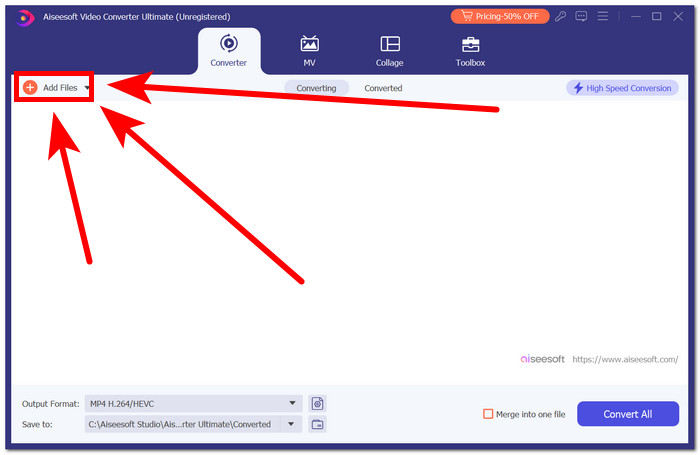
ขั้นตอนที่ 3. เปลี่ยนรูปแบบเอาต์พุต ในที่นี้คือ MP4.
ขั้นตอนที่ 4. จากนั้นคลิก Convert เพื่อเริ่มแปลงไฟล์ MOV ของคุณเป็น MP4.
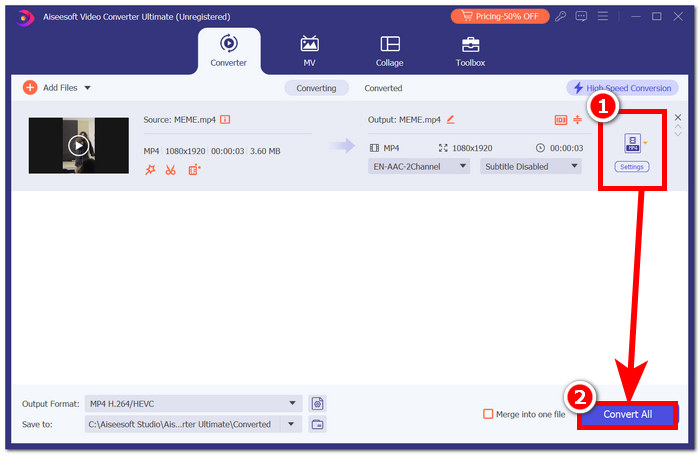
การแปลงไฟล์ MOV ที่เสียหายเป็น MP4 อาจเป็นวิธีที่ตรงไปตรงมาและมีประสิทธิภาพในการแก้ไขปัญหาการเล่น แม้ว่าวิธีนี้อาจใช้ไม่ได้กับไฟล์ที่เสียหายอย่างรุนแรง แต่ก็เป็นวิธีแก้ปัญหาที่ใช้งานได้จริงสำหรับผู้ใช้จำนวนมาก
ส่วนที่ 3 คำถามที่พบบ่อยเกี่ยวกับการซ่อมแซมไฟล์ MOV ที่เสียหาย
ฉันจะแก้ไขไฟล์ MOV ที่เสียหายบน Mac ได้อย่างไร
บน Mac การแก้ไขไฟล์ MOV สามารถทำได้หลายวิธี QuickTime Player นำเสนอโซลูชันแบบเนทิฟ ซึ่งช่วยให้ผู้ใช้สามารถลองซ่อมแซมระหว่างการเล่นได้ อีกทางหนึ่ง การเปลี่ยนนามสกุลไฟล์หรือใช้ซอฟต์แวร์ของบริษัทอื่น เช่น FVC Video Repair ก็มีประสิทธิภาพในการกู้คืนฟังก์ชันการทำงานของไฟล์ MOV ได้เช่นกัน
ทำไมไฟล์ MOV ของฉันถึงไม่เล่น?
เมื่อไฟล์ MOV ปฏิเสธที่จะเล่น ปัญหาอาจเกิดจากการเสียหาย ตัวแปลงสัญญาณที่เข้ากันไม่ได้ หรือปัญหาเกี่ยวกับเครื่องเล่นสื่อ การใช้วิธีการซ่อมแซมที่อธิบายไว้ข้างต้น รวมถึงการแปลง MOV เป็น MP4 และเครื่องมือซ่อมแซมวิดีโอเฉพาะ สามารถแก้ไขปัญหาเหล่านี้ได้อย่างมีประสิทธิภาพและฟื้นฟูการเล่นที่ราบรื่น ด้วยการทำความเข้าใจและนำโซลูชันเหล่านี้ไปใช้ ผู้ใช้สามารถเอาชนะอุปสรรคที่ขัดขวางประสบการณ์ไฟล์ MOV ของตนได้
เหตุใดไฟล์ MOV ของฉันจึงไม่ทำงานใน QuickTime
QuickTime อาจเผชิญกับความท้าทายในการจัดการไฟล์ MOV ที่เสียหาย หากคุณประสบปัญหาในการเล่น ให้พิจารณาใช้เครื่องเล่นสื่อทางเลือก เช่น VLC Player หรือใช้ซอฟต์แวร์ซ่อมแซมพิเศษที่ออกแบบมาเพื่อแก้ไขและกู้คืนความสมบูรณ์ของไฟล์ MOV ของคุณ ทางเลือกเหล่านี้มักจะมอบโซลูชั่นที่มีประสิทธิภาพเพื่อประสบการณ์การรับชมที่ราบรื่น
ฉันจะรู้ได้อย่างไรว่าไฟล์ MOV ของฉันเสียหาย
หากไฟล์ MOV ของคุณปฏิเสธที่จะเล่น แสดงข้อความแสดงข้อผิดพลาด หรือแสดงภาพที่ไม่ชัดเจนระหว่างการเล่น ไฟล์นั้นอาจเสียหาย การระบุสัญญาณเหล่านี้มีความสำคัญเนื่องจากบ่งบอกถึงปัญหาที่อาจเกิดขึ้นซึ่งอาจรบกวนประสบการณ์การรับชมที่ราบรื่น ในกรณีเช่นนี้ การสำรวจวิธีการซ่อมแซม เช่น การแปลง MOV เป็น MP4 หรือเครื่องมือซ่อมแซมวิดีโอเฉพาะทาง สามารถช่วยฟื้นฟูการทำงานของไฟล์ได้
VLC สามารถซ่อมแซมไฟล์ MOV ได้หรือไม่
VLC Player นำเสนอวิธีแก้ปัญหาพื้นฐานสำหรับการซ่อมแซมปัญหาบางอย่างเกี่ยวกับไฟล์ MOV ผ่านขั้นตอนการแปลง แม้ว่าจะสามารถแก้ไขปัญหาทั่วไปได้ แต่สำหรับการซ่อมแซมที่ซับซ้อนมากขึ้นและการฟื้นฟูที่ครอบคลุมมากขึ้น ขอแนะนำให้ใช้เครื่องมือซ่อมแซมวิดีโอเฉพาะทาง เช่น การซ่อมแซมวิดีโอ FVC เครื่องมือเฉพาะเหล่านี้มีคุณสมบัติขั้นสูงที่ออกแบบมาเพื่อจัดการกับความเสียหายของไฟล์ MOV ที่หลากหลายเพื่อการกู้คืนที่มีประสิทธิภาพยิ่งขึ้น
สรุป
สรุปแล้ว เมื่อเวลาผ่านไป ซอฟต์แวร์และเครื่องมือต่าง ๆ ก็พัฒนาขึ้นเช่นกัน ทุกสิ่งที่มีอยู่ล้วนสามารถช่วยตอบสนองความต้องการของคุณได้เป็นอย่างดี ในกรณีนี้ การซ่อมแซมไฟล์ MOV ที่เสียหาย สามารถทำได้ด้วยหลากหลายวิธี ตั้งแต่โซลูชันง่าย ๆ ผ่านโปรแกรมเล่นวิดีโอ ไปจนถึงซอฟต์แวร์ซ่อมวิดีโอขั้นสูง การเลือกใช้วิธีที่เหมาะสมกับความต้องการของคุณเพื่อกู้คืนเนื้อหามัลติมีเดียอันมีค่านั้นเป็นสิ่งที่ไม่ควรมองข้าม.
-
 วิธีแก้ไขวิดีโอแบบพิกเซล: สาเหตุอะไรและจะแก้ไขได้อย่างไร
 อย่าปล่อยให้พิกเซลมาทำลายวิดีโอของคุณ ค้นพบวิธีทำให้วิดีโอมีพิกเซลน้อยลงด้วยกลยุทธ์จากผู้เชี่ยวชาญของเรา ยกระดับวิดีโอของคุณเพื่อคุณภาพพิกเซลที่สมบูรณ์แบบ
-
 วิธีซ่อมแซมไฟล์ MP4: กู้คืนวิดีโอของคุณในไม่กี่นาที
 ไขความลับของการซ่อม MP4! ปฏิบัติตามบทช่วยสอนที่เข้าใจง่ายของเราเพื่อแก้ไขปัญหาและแก้ไข อย่าปล่อยให้วิดีโอที่เสียหายมาทำลายประสบการณ์สื่อของคุณ
-
 วิธีป้องกันการทุจริตทางวิดีโอและการทราบสาเหตุที่เป็นไปได้
 เรียนรู้ขั้นตอนสำคัญในการหลีกเลี่ยงความเสียหายของวิดีโอ สำรวจสาเหตุทั่วไปและรับข้อมูลเชิงลึกอันมีค่าเพื่อรับประกันคุณภาพของเนื้อหาดิจิทัลของคุณ
