


 Video Converter Ultimate
 บันทึกหน้าจอ
 ซ่อมวิดีโอ
 ดาวน์โหลดอย่างปลอดภัย
VLC Rip DVD: วิธีแปลง DVD อย่างง่ายดายโดยใช้ VLC [2024]
การดูภาพยนตร์บนเครื่องเล่น DVD เคยเป็นส่วนหนึ่งของชีวิตคุณมาก่อนหรือไม่? บอกเราหน่อยว่าคุณดูการ์ตูนหรือภาพยนตร์ครั้งแรกเมื่อตอนเป็นเด็กที่ไหน? ให้ความรู้สึกย้อนยุคใช่ไหม? ทุกวันนี้ Netflix เข้ามาครอบงำแพลตฟอร์มสตรีมมิ่งสื่อทั้งหมด การดูภาพยนตร์จึงไม่เคยง่ายและเข้าถึงได้ง่ายเหมือนแต่ก่อนมาก่อน ด้วยเหตุนี้ แผ่นดิสก์จำนวนมากจึงถูกมองข้ามและรอที่จะเน่าเสียไปตามกาลเวลา
ตอนนี้ หากคุณกำลังมองหาวิธีเก็บรักษาคอลเลกชันแผ่นของคุณ วิธีเดียวที่คุณสามารถทำได้ก็คือริปแผ่นแต่ละแผ่นด้วยความช่วยเหลือของ VLC โดย VLC เป็นโปรแกรมเล่นมัลติมีเดียฟรีที่ให้ผู้ใช้เล่น แปลง และซ่อมแซมไฟล์วิดีโอหลายประเภท นอกจากนั้น เครื่องมือนี้ยังสามารถริป DVD เพื่อดึงเนื้อหามัลติมีเดียออกจากแผ่นได้ ด้วยเหตุนี้ ในบทความนี้ เราจึงได้เตรียมคู่มือที่จะช่วยคุณริป DVD ด้วย VLC ไว้ให้แล้ว นอกจากนี้ ยังมีตัวเลือกโปรแกรมอื่นที่ใช้แทน VLC รอคุณอยู่ตอนท้ายบทความ ซึ่งอาจใช้งานง่ายกว่าและมีฟีเจอร์ที่ยอดเยี่ยมยิ่งขึ้น แล้วคุณจะรออะไรอยู่ เลื่อนลงและอ่านบทความนี้ได้เลย.

ส่วนที่ 1. ริป DVD บน VLC
VLC เป็นซอฟต์แวร์เครื่องเล่นสื่อที่ใช้งานได้กับผู้ใช้ Windows, macOS และ Linux เครื่องมือนี้เป็นที่รู้จักอย่างกว้างขวางในด้านคุณสมบัติต่างๆ ที่ช่วยให้ผู้ใช้ไม่เพียงแต่เล่นวิดีโอต่างๆ ผ่านเครื่องมือนี้เท่านั้น แต่ยังริป DVD ได้อีกด้วย ทำให้เข้าถึงและเล่นได้ง่ายกว่าในอุปกรณ์ต่างๆ เครื่องมือนี้แยกเนื้อหาจากดิสก์แล้วแปลงเป็นไฟล์วิดีโอดิจิทัลที่สามารถจัดเก็บหรือแชร์ได้อย่างง่ายดาย
ราคา: ฟรี 100%
นี่คือคู่มือแบบทีละขั้นตอนเกี่ยวกับวิธีริป DVD ด้วย VLC:
ขั้นตอนที่ 1: ก่อนอื่น คุณต้องดาวน์โหลดและติดตั้ง VLC บนอุปกรณ์ของคุณ หลังจากนั้นให้ใส่แผ่นดิสก์เข้าไป.
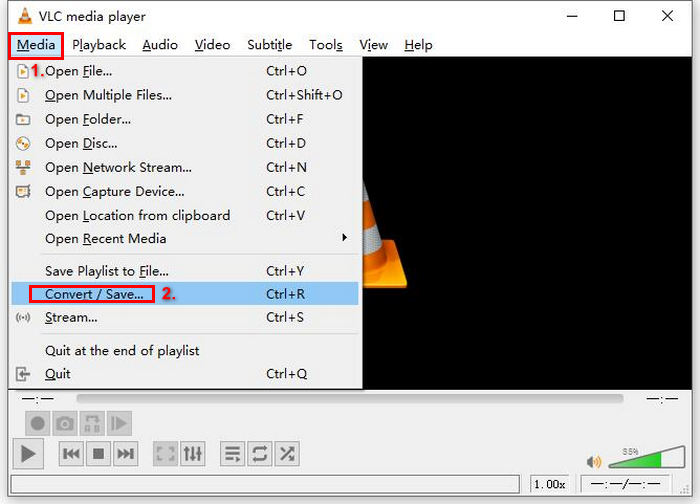
ขั้นตอนที่ 2: จากนั้น ไปที่แท็บ Media และเลือกตัวเลือก Convert/ Save จากรายการ.
ขั้นตอนที่ 3: หลังจากนั้น คลิก Disc จากแท็บด้านบน เปิดใช้งานตัวเลือก DVD และเลือก DVD ที่คุณต้องการริปในส่วน Disc device.
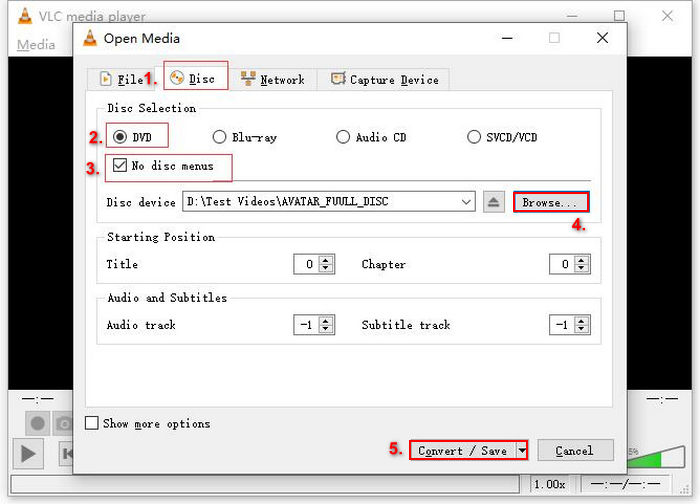
ขั้นตอนที่ 4: ตอนนี้ คลิกปุ่ม Convert/ Save และตั้งค่ารูปแบบไฟล์ออกเป็น MKV โดยคลิกรายการแบบดรอปดาวน์ของโปรไฟล์ด้านล่าง.
ขั้นตอนที่ 5: จากนั้น ในส่วน Destination ด้านล่าง ให้คลิก Browse เลือกโฟลเดอร์ และตั้งชื่อไฟล์เอาต์พุต.
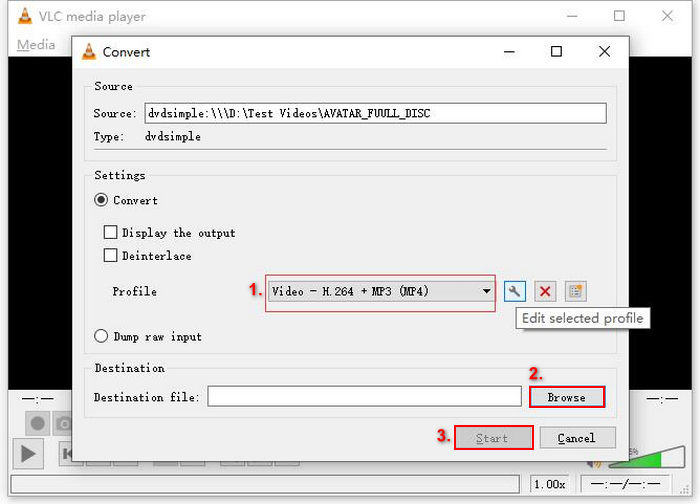
ขั้นตอนที่ 6: เมื่อทุกอย่างตั้งค่าเรียบร้อยแล้ว ให้คลิกปุ่ม Start เพื่อริป DVD ด้วย VLC.
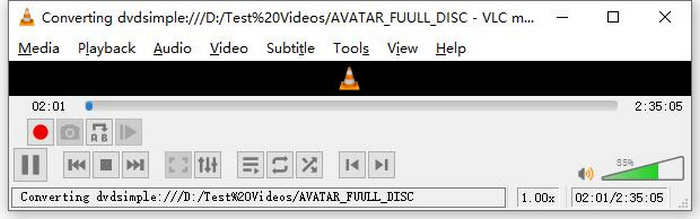
หมายเหตุ: คุณจะเห็นแถบความคืบหน้าการแปลงอยู่ด้านล่าง เพียงรอให้ VLC ดำเนินการริปให้เสร็จ.
ความคิดเห็น:
สิ่งที่เราชอบเกี่ยวกับ VLC Media Player คือมันน่าเชื่อถือและใช้งานได้หลากหลาย โดยเฉพาะสำหรับผู้ใช้ที่กำลังมองหาตัวเลือกฟรีในการริปดีวีดี อย่างไรก็ตาม แม้จะมีคุณสมบัตินี้ อินเทอร์เฟซของมันก็อาจจะค่อนข้างซับซ้อนสำหรับผู้เริ่มต้น และขั้นตอนอาจดูยาวนานเมื่อเทียบกับซอฟต์แวร์ริปดีวีดีเฉพาะทาง นอกจากนี้ มันอาจมีปัญหากับดิสก์ที่ป้องกันการคัดลอกบางแผ่น ทำให้ประสิทธิภาพลดลงในกรณีดังกล่าว อย่างไรก็ตาม ขอแนะนำให้ริปดีวีดีบน VLC
ส่วนที่ 2. ทางเลือกสำหรับ VLC DVD Ripper
หากคุณกำลังมองหาเครื่องมือทางเลือกอื่นนอกเหนือจาก VLC สำหรับการแปลง DVD เป็นไฟล์ดิจิทัล AnyMP4 DVD Ripper คือคำตอบของคุณ โปรแกรมนี้เป็นโปรแกรมทางเลือกแทน VLC DVD ที่มีฟังก์ชันครบครัน รองรับรูปแบบไฟล์วิดีโอที่ใช้กันอย่างแพร่หลายหลายรูปแบบ เช่น MP4, MOV, AVI, MKV และอื่นๆ ด้วยโปรแกรมนี้ คุณสามารถแปลง DVD เป็นรูปแบบดิจิทัลเพื่อเล่นบนอุปกรณ์ต่างๆ ได้อย่างง่ายดายโดยไม่สูญเสียคุณภาพ ความสามารถในการแปลง DVD ของโปรแกรมนี้โดดเด่น รองรับการแปลง DVD ทุกประเภท เช่น DVD ที่ทำเอง DVD เชิงพาณิชย์ DVD ออกกำลังกาย และ DVD 99 เรื่อง
ดาวน์โหลดฟรีสำหรับ Windows 7 ขึ้นไปดาวน์โหลดอย่างปลอดภัย
ดาวน์โหลดฟรีสำหรับ macOS 10.7 ขึ้นไปดาวน์โหลดอย่างปลอดภัย
ขั้นตอนการคัดลอก DVD โดยใช้โปรแกรม AnyMP4 DVD Ripper:
ขั้นตอนที่ 1: ก่อนอื่น คุณต้องดาวน์โหลดและติดตั้งเครื่องมือนี้บนอุปกรณ์ของคุณ อย่าลืมใส่แผ่น DVD ลงในไดรเวอร์ DVD บนคอมพิวเตอร์ของคุณ และรอสักครู่จนกว่าระบบจะตรวจพบ.
ดาวน์โหลดฟรีสำหรับ Windows 7 ขึ้นไปดาวน์โหลดอย่างปลอดภัย
ดาวน์โหลดฟรีสำหรับ macOS 10.7 ขึ้นไปดาวน์โหลดอย่างปลอดภัย
ขั้นตอนที่ 2: จากนั้น เปิดโปรแกรมและคลิก "Load DVD" เพื่อโหลดแผ่นดิสก์.
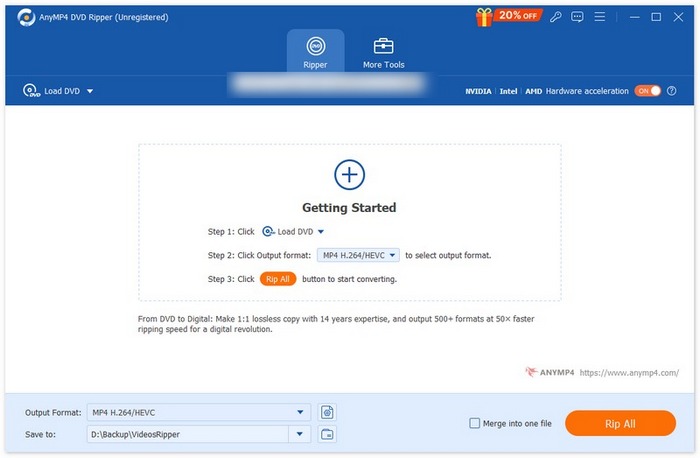
ขั้นตอนที่ 3: หลังจากนั้น ให้คลิกที่ "Output Format" ด้านล่าง และเลือกรูปแบบวิดีโอที่คุณต้องการจากแท็บ "Video" ด้วยขั้นตอนนี้ คุณจะสามารถแปลง DVD ให้เป็นไฟล์วิดีโอที่เข้าถึงได้ง่ายกว่าและรองรับโดยอุปกรณ์หลากหลาย เมื่อเสร็จแล้ว เพียงคลิกปุ่ม "Rip All" เพื่อเริ่มริป DVD ของคุณ.

ง่ายกว่าเยอะเลยใช่ไหม? โปรแกรม AnyMP4 DVD Ripper เป็นทางเลือกที่ดีเยี่ยมแทนโปรแกรม VLC DVD ripper จริงๆ ทั้งในด้านอินเทอร์เฟซ กระบวนการริป และฟีเจอร์อื่นๆ ที่จำเป็น โปรแกรมนี้พลิกโฉมวงการและดีกว่าการริป DVD ด้วย VLC มากๆ
ส่วนที่ 3 คำถามที่พบบ่อยเกี่ยวกับการริปดีวีดีบน VLC
รูปแบบที่ดีที่สุดในการริป DVD คืออะไร?
รูปแบบที่ดีที่สุดในการริปดีวีดีขึ้นอยู่กับอุปกรณ์ของผู้ใช้ อย่างไรก็ตาม MP4 เป็นรูปแบบวิดีโอที่ใช้กันอย่างแพร่หลาย ดังนั้นเมื่อริปดีวีดี รูปแบบที่ปลอดภัยที่สุดที่คุณสามารถเลือกได้คือ MP4
ฉันสามารถริพ DVD บน Windows 7 ได้หรือไม่?
ใช่ คุณสามารถริปดีวีดีบน Windows 7 ได้โดยใช้ VLC Media Player VLC รองรับระบบปฏิบัติการต่างๆ มากมาย รวมถึง Windows 7 เมื่อต้องริปดีวีดีบน VLC ให้ทำตามขั้นตอนเดียวกับที่คุณใช้กับ Windows เวอร์ชันอื่นๆ แต่ต้องแน่ใจว่าไดรฟ์ดีวีดีของคุณใช้งานได้และ VLC เป็นเวอร์ชันล่าสุดเพื่อหลีกเลี่ยงปัญหาความเข้ากันได้
การริปดีวีดีต้องใช้เวลานานเท่าใด?
ระยะเวลาที่ใช้ในการริป DVD จะแตกต่างกันไปตามหลายปัจจัย จำเป็นต้องพิจารณาขนาดของแผ่น DVD ความเร็วของไดรฟ์ DVD และการตั้งค่าที่คุณเลือกใช้ในการริป เช่น ความละเอียด รูปแบบไฟล์ เป็นต้น โดยทั่วไป การริป DVD มาตรฐานอาจใช้เวลาตั้งแต่ประมาณ 20 นาทีไปจนถึงมากกว่าหนึ่งชั่วโมง การริปคุณภาพสูงและไฟล์ที่มีขนาดใหญ่ก็มักใช้เวลานานกว่าในการประมวลผล หากคุณต้องการทราบความเร็วการเล่นของ VLC ให้ตรวจสอบได้ที่นี่.
ฉันสามารถริพ DVD ที่ป้องกันการคัดลอกด้วย VLC ได้หรือไม่
ไม่ เป็นเรื่องยากสำหรับซอฟต์แวร์ใดๆ ที่จะริปแผ่น DVD ที่มีการป้องกันการคัดลอก เนื่องจากมีการเข้ารหัสและการป้องกันการจัดการลิขสิทธิ์ดิจิทัล
สรุป
ตอนนี้เมื่อคุณรู้แล้ววิธีริป DVD ด้วย VLC ก็ไม่มีเหตุผลให้คุณต้องเก็บแผ่น DVD ทั้งหมดไว้ตลอดไป เพียงทำตามคู่มือนี้ คุณก็สามารถแปลงแผ่นดิสก์ทุกแผ่นให้เป็นไฟล์ดิจิทัลที่คุณเปิดเล่นได้ทุกที่ และบนอุปกรณ์ใดก็ได้ที่คุณต้องการ ในขณะเดียวกัน หาก VLC ใช้งานไม่ได้ในฝั่งของคุณ คุณสามารถลองใช้ AnyMP4 DVD Ripper เป็นทางเลือกแทน คุณตื่นเต้นแล้วใช่ไหม มาเริ่มใช้งานและริปแผ่นกันเลย.
-
 วิธีการสตรีมภาพยนตร์ดีวีดีจากพีซี/Mac ไปยังทีวีผ่าน Chromecast
 ไม่ทราบวิธีการรับชมภาพยนตร์ DVD บนทีวีผ่าน Chromecast? บทความนี้แสดงวิธีที่ง่ายที่สุดในการส่งภาพยนตร์ DVD จากพีซีไปยังทีวีผ่าน Chromecast
-
 เครื่องเล่น Android DVD – วิธีเล่นวิดีโอ DVD บนมือถือ Android
 จะเล่นไฟล์ DVD บนมือถือ Android ได้อย่างไร? มีเครื่องเล่นดีวีดี Android หรือไม่? ในบทความนี้ คุณจะได้เรียนรู้เกี่ยวกับ 3 วิธีในการเล่นวิดีโอดีวีดีบนโทรศัพท์มือถือ Android ที่มีหรือไม่มีไดรเวอร์ภายนอก
-
 3 ทางเลือกที่ดีที่สุดสำหรับเครื่องเล่น DVDFab เพื่อเล่นวิดีโอดีวีดีบนพีซี
 DVDFab Player น่าซื้อไหม? สามารถเล่นวิดีโอ 4K ได้หรือไม่? แล้วเวอร์ชันที่ต้องชำระเงินล่ะ? บทความนี้จะแนะนำคุณลักษณะโดยละเอียด และมี 3 ทางเลือกที่ดีที่สุดสำหรับ DVDFab Player ให้คุณเลือก
