


 Video Converter Ultimate
 บันทึกหน้าจอ
 ซ่อมวิดีโอ
 ดาวน์โหลดอย่างปลอดภัย
สุดยอดโปรแกรมบันทึกหน้าจอฟรีสำหรับ Windows, Mac, iPhone และ Android
ปัจจุบันโปรแกรมอัดหน้าจอกำลังเป็นที่นิยม เพราะหลายคนต้องการบันทึกกิจกรรมต่าง ๆ บนคอมพิวเตอร์ของตนเอง แต่การหาโปรแกรมอัดหน้าจอที่เชื่อถือได้ค่อนข้างยาก โดยเฉพาะอย่างยิ่งเมื่อบางโปรแกรมมีมัลแวร์แฝงอยู่ และบางโปรแกรมก็มีไว้เพียงเพื่อโฆษณาเท่านั้น ดังนั้นเราจึงได้ทดลองใช้โปรแกรมอัดหน้าจอที่ดีที่สุดทั้งแบบออนไลน์ ออฟไลน์ และเป็นแอปบนมือถือที่มาพร้อมฟีเจอร์ที่ยอดเยี่ยมและใช้งานได้ฟรี 100% อ่านบทความนี้ให้จบเพื่อค้นหาโปรแกรมอัดหน้าจอฟรีที่เหมาะที่สุดสำหรับคุณ.

ส่วนที่ 1 3 เครื่องบันทึกหน้าจอออนไลน์ที่ดีที่สุด
หากคุณต้องการมีเครื่องบันทึกหน้าจอที่คุณไม่จำเป็นต้องดาวน์โหลด คุณอาจกำลังมองหาเครื่องบันทึกหน้าจอออนไลน์ มั่นใจได้ว่าเครื่องบันทึกหน้าจอออนไลน์จะช่วยให้คุณสะดวกสบาย ดังนั้น ในส่วนนี้ คุณจะรู้จักเครื่องบันทึกหน้าจอออนไลน์ฟรีที่ดีที่สุดสามเครื่อง
FVC โปรแกรมบันทึกหน้าจอออนไลน์ฟรี
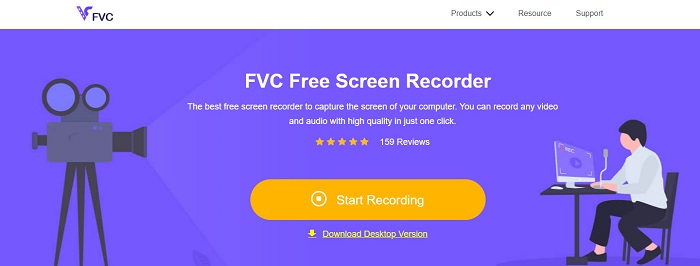
โปรแกรมอัดหน้าจอออนไลน์ที่ดีที่สุดที่คุณจะพบได้บนอินเทอร์เน็ตคือ FVC Free Screen Recorder Online โปรแกรมอัดหน้าจอออนไลน์ตัวนี้สามารถบันทึกและจับภาพกิจกรรมต่าง ๆ บนคอมพิวเตอร์ของคุณได้ โดยสามารถอัดหน้าจอด้วยคุณภาพวิดีโอระดับสูง และหากคุณต้องการบันทึกเฉพาะบางส่วนของหน้าจอ ก็มีฟีเจอร์ให้ปรับพื้นที่บันทึกของหน้าจอได้ตามต้องการ.
นอกจากนี้ยังมีอินเทอร์เฟซผู้ใช้ที่เรียบง่าย ทำให้เป็นเครื่องมือที่เป็นมิตรกับผู้เริ่มต้นใช้งาน นอกจากนี้ยังมีการตั้งค่าขั้นสูงซึ่งคุณสามารถปรับปุ่มลัด เลือกรูปแบบเอาต์พุตวิดีโอ และปรับอัตราเฟรมของเอาต์พุตวิดีโอของคุณ
ดังนั้น หากคุณต้องการใช้ตัวแปลงออนไลน์นี้ ให้ทำตามคำแนะนำง่ายๆ ด้านล่าง
ขั้นตอนที่ 1. บนเบราว์เซอร์ที่คุณใช้งาน ให้ค้นหา FVC Free Screen Recorder Online หรือคลิกที่ลิงก์นี้เพื่อไปยังหน้าเว็บโดยตรง จากนั้นเปิดใช้งานแอปพลิเคชัน.
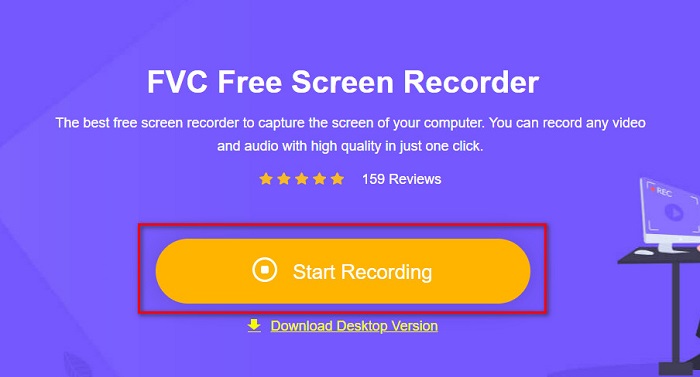
ขั้นตอนที่ 2. คลิกปุ่ม Start Recording บนอินเทอร์เฟซหลักของซอฟต์แวร์เพื่อเริ่มอัดหน้าจอ จากนั้นกรอบที่ปรับขนาดได้จะปรากฏขึ้น.
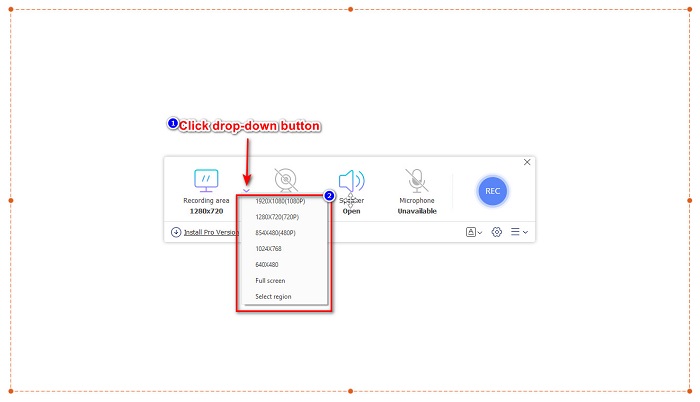
ขั้นตอนที่ 3. ต่อไป เลือกพื้นที่บนหน้าจอที่คุณต้องการบันทึกโดยคลิกปุ่มดรอปดาวน์ในตัวเลือกRecording Area คุณสามารถเลือกอัดทั้งหน้าจอหรือกำหนดเฉพาะส่วนที่ต้องการได้.
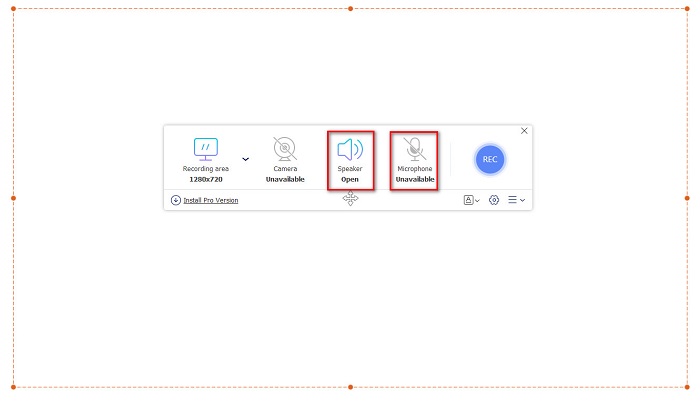
ขั้นตอนที่ 4. จากนั้นเลือกแหล่งบันทึกเสียงที่คุณต้องการ โดยคลิกที่ตัวเลือกลำโพงหรือไมโครโฟน.
ขั้นตอนที่ 5. สุดท้ายคลิกปุ่ม RECec เพื่อเริ่มบันทึก เมื่ออัดเสร็จแล้วให้คลิกปุ่มสัญลักษณ์หยุด และไฟล์วิดีโอของคุณจะถูกบันทึกลงในอินเทอร์เฟซของซอฟต์แวร์โดยอัตโนมัติ.
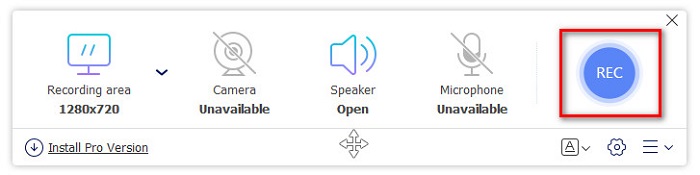
และนั่นแหล่ะ! คุณสามารถบันทึกกิจกรรมบนหน้าจอของคุณได้อย่างง่ายดายโดยทำตามคำแนะนำง่ายๆ ด้านบน
ข้อดี
- สามารถบันทึกกิจกรรมบนหน้าจอของคุณด้วยเอาต์พุตวิดีโอคุณภาพสูง
- ช่วยให้คุณปรับอัตราเฟรม ตัวแปลงสัญญาณ และรูปแบบเอาต์พุตของวิดีโอได้
- มีอินเทอร์เฟซซอฟต์แวร์ที่ใช้งานง่าย
- เข้าถึงได้ในทุกเว็บเบราว์เซอร์ รวมถึง Google, Firefox, Safari และอื่นๆ
จุดด้อย
- คุณต้องดาวน์โหลดแอปโปรเพื่อเข้าถึงคุณสมบัติขั้นสูง
ScreenApp.IO
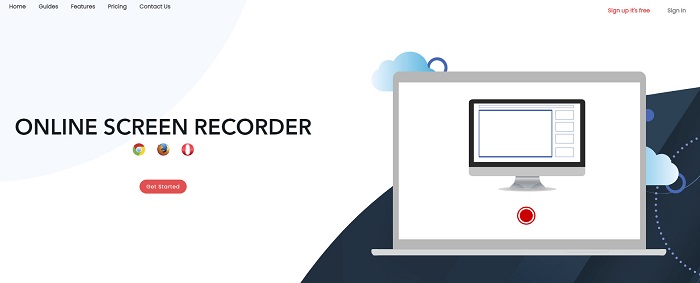
ScreenApp.IO เป็นโปรแกรมอัดหน้าจอออนไลน์ฟรีที่ช่วยให้คุณบันทึกกิจกรรมบนหน้าจอได้อย่างง่ายดาย เครื่องมืออัดหน้าจอบนคอมพิวเตอร์แบบออนไลน์นี้มีหน้าตาโปรแกรมที่เรียบง่าย ใช้งานไม่ยุ่งยาก คุณยังสามารถเลือกแหล่งบันทึกเสียงได้ตามต้องการ อย่างไรก็ตามโปรแกรมอัดหน้าจอออนไลน์ตัวนี้มีฟีเจอร์ให้ใช้ค่อนข้างจำกัด แม้กระนั้นผู้ใช้จำนวนมากก็ยังเลือกใช้เพราะสะดวกต่อการใช้งาน.
ข้อดี
- มีอินเทอร์เฟซซอฟต์แวร์ที่ใช้งานง่าย
- พร้อมใช้งานบนเว็บเบราว์เซอร์เกือบทั้งหมด เช่น Google และ Firefox
- คุณสามารถเลือกเครื่องบันทึกเสียงที่คุณต้องการ
จุดด้อย
- คุณอาจพบว่ามีกระบวนการโหลดช้า
- คุณไม่สามารถเลือกรูปแบบไฟล์เอาต์พุตที่คุณต้องการได้
คลิปแชมป์
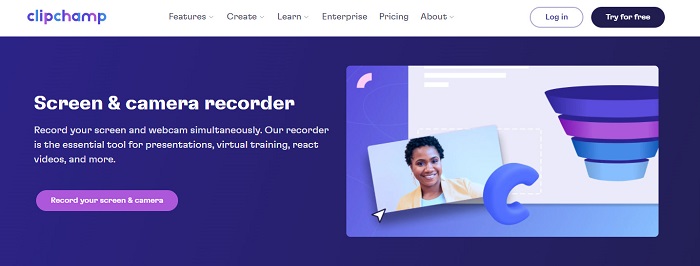
ClipChamp เป็นหนึ่งในโปรแกรมอัดหน้าจอออนไลน์ที่ได้รับความนิยมมากที่สุดบนอินเทอร์เน็ต เครื่องมือนี้ช่วยให้คุณใส่ข้อความลงในวิดีโอที่บันทึก และยังมีฟีเจอร์ปรับขนาดกรอบการบันทึกได้ แม้อินเทอร์เฟซของซอฟต์แวร์จะค่อนข้างใช้งานยาก แต่ก็ยังมีประสิทธิภาพสำหรับการอัดการนำเสนอและการประชุม นอกจากนี้ยังใช้คุกกี้เพื่อให้เว็บไซต์สามารถเก็บข้อมูลของคุณได้.
ข้อดี
- สามารถบันทึกหน้าจอของคุณได้อย่างสะดวกสบาย
- ช่วยให้คุณปรับขนาดเฟรมของการบันทึกหน้าจอได้
จุดด้อย
- ใช้คุกกี้สำหรับเว็บไซต์
- เมื่อการเชื่อมต่ออินเทอร์เน็ตของคุณช้า อาจส่งผลต่อการบันทึกหน้าจอของคุณ
ส่วนที่ 2 2 โปรแกรมบันทึกหน้าจอที่ดีที่สุดสำหรับเดสก์ท็อปของคุณ
คุณกำลังมองหาเครื่องบันทึกหน้าจอที่ดีที่สุดสำหรับพีซีของคุณหรือไม่? ไม่ต้องกังวลอีกต่อไป เพราะเรามีเครื่องบันทึกหน้าจอที่ดีที่สุดสำหรับเดสก์ท็อปของคุณ แม้ว่าจะหายากเครื่องบันทึกหน้าจอที่มีคุณสมบัติมากมาย แต่เราพบเครื่องบันทึกหน้าจอที่โดดเด่นที่สุดสำหรับคุณในการใช้งานแบบออฟไลน์
Bandicam
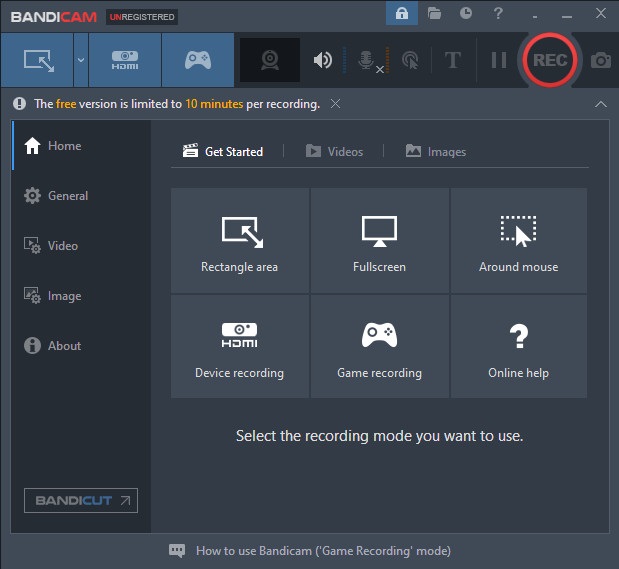
Bandicam ถือเป็นโปรแกรมอัดหน้าจอบนเดสก์ท็อปที่มีชื่อเสียงมากที่สุดตัวหนึ่งและมาพร้อมฟีเจอร์การใช้งานหลากหลาย มีฟีเจอร์ขั้นสูงอย่างการบันทึกอุปกรณ์ (Device Recording) ที่ช่วยให้คุณอัดวิดีโอจากอุปกรณ์ภายนอก เช่น เว็บแคม สมาร์ตโฟน Xbox และอื่น ๆ คุณยังสามารถบันทึกจังหวะสำคัญตอนเล่นเกมได้โดยการคลิกตัวเลือก Game Recording นอกจากนี้ด้วยโปรแกรมตัวนี้คุณยังสามารถจับภาพหน้าจอเป็นรูปภาพระหว่างการอัดวิดีโอได้ด้วย แต่ข้อเสียคืออินเทอร์เฟซค่อนข้างใช้งานยาก ผู้เริ่มต้นอาจรู้สึกว่าไม่ค่อยเป็นมิตร.
ข้อดี
- มีคุณสมบัติขั้นสูงเช่นการบันทึกอุปกรณ์และโหมดบันทึกเกม
- ช่วยให้คุณสามารถจับภาพขณะบันทึกได้
- พร้อมใช้งานในแพลตฟอร์มข้ามสื่อเกือบทั้งหมด รวมทั้ง Windows และ Mac
จุดด้อย
- มีอินเทอร์เฟซซอฟต์แวร์ที่ใช้งานง่าย
- ซื้อแอพก่อนที่คุณจะสามารถใช้คุณสมบัติพิเศษของมันได้
ScreenRec
อีกหนึ่งโปรแกรมอัดหน้าจอที่คุณสามารถใช้ได้คือ ScreenRec โปรแกรมอัดหน้าจอตัวนี้ใช้งานง่ายและให้คุณภาพวิดีโอที่ดี คุณยังสามารถปรับคุณภาพการบันทึกได้ทั้งแบบ SD, HD และ 4K นอกจากนี้ยังมีฟีเจอร์จับภาพหน้าจอ และบันทึกเสียงพูดของคุณไปพร้อมกับการอัดหน้าจอ ข้อเสียคือมีฟีเจอร์ให้ใช้น้อยกว่าโปรแกรมอัดหน้าจอบนเดสก์ท็อปตัวอื่น ๆ.
ข้อดี
- มีส่วนต่อประสานผู้ใช้ที่เรียบง่าย
- ดาวน์โหลดฟรี
- พร้อมใช้งานบน Windows, Mac และ Linux
จุดด้อย
- มีคุณสมบัติบางอย่างที่จะใช้
ส่วนที่ 3 3 บันทึกหน้าจอที่ดีที่สุดสำหรับ iPhone และ Android
หากอุปกรณ์ iPhone หรือ Android ของคุณไม่มีเครื่องบันทึกหน้าจอในตัว ถือว่าโชคร้ายสำหรับคุณ โดยเฉพาะอย่างยิ่งเมื่อคุณต้องการสกรีนบันทึกการประชุมโดยใช้โทรศัพท์ของคุณ แต่ยังไม่สิ้นสุดหากคุณยังคงต้องการบันทึกหน้าจอโดยใช้อุปกรณ์ iPhone หรือ Android ดังนั้น คุณจะเห็นเครื่องบันทึกหน้าจอที่ดีที่สุดสำหรับ iPhone และอุปกรณ์ Android อื่น ๆ ในส่วนนี้
โปรแกรมบันทึกหน้าจอ AZ
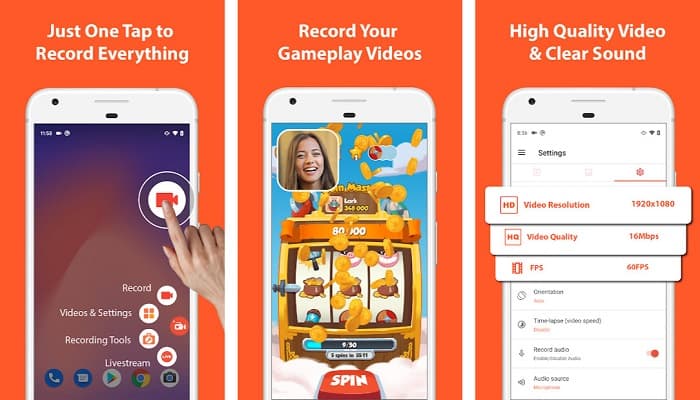
AZ Screen Recorder ได้รับการยืนยันแล้วว่าเป็นหนึ่งในโปรแกรมอัดหน้าจอที่ดีที่สุดสำหรับ iPhone และอุปกรณ์ Android หากคุณกำลังมองหาโปรแกรมอัดหน้าจอที่สามารถบันทึกวิดีโอแบบไทม์แลปส์ได้ เครื่องมือนี้มีฟีเจอร์ดังกล่าวให้ใช้งานเช่นกัน อีกทั้งยังสามารถปรับความละเอียดและบิตเรตของวิดีโอที่อัดหน้าจอได้ นอกจากนี้ยังผลิตวิดีโอคุณภาพดีโดยที่ไม่ต้องใช้งานอะไรยุ่งยาก.
ข้อดี
- มีคุณสมบัติขั้นสูง เช่น วิดีโอไทม์แลปส์ แก้ไขหน้าจอสีเขียว และเพิ่มข้อความและโลโก้ลงในวิดีโอของคุณ
- มีส่วนต่อประสานกับผู้ใช้ที่ตรงไปตรงมา
- แอปพลิเคชั่นใช้งานฟรี
จุดด้อย
- กระบวนการโหลดช้าอาจเกิดขึ้นในบางครั้ง
โมบิเซ็น
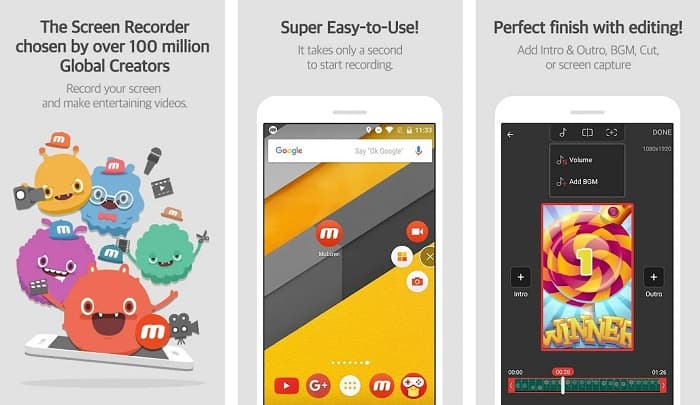
Mobizen เป็นโปรแกรมอัดหน้าจอที่มีให้ใช้ทั้งบน iPhone และสมาร์ตโฟน Android เมื่อเทียบกับแอปอัดหน้าจอมือถืออื่น ๆ แอปนี้มีปุ่มลอย (Floating Button) ให้คุณเข้าถึงฟีเจอร์ต่าง ๆ ได้สะดวก เพิ่มเติมคือคุณสามารถปรับคุณภาพวิดีโอ ความละเอียด และ FPS (เฟรมต่อวินาที) ของการอัดหน้าจอได้ ด้วยอินเทอร์เฟซที่ใช้งานง่าย คุณจึงสามารถอัดกิจกรรมบนหน้าจอได้อย่างสะดวก.
ข้อดี
- มีปุ่มลอยให้บันทึกหน้าจอได้ง่าย
- มีคุณสมบัติในการเพิ่มเพลงประกอบในการบันทึกหน้าจอของคุณ
จุดด้อย
- บางครั้งเสียงวิดีโอของคุณอาจผิดพลาดได้
V Recorder
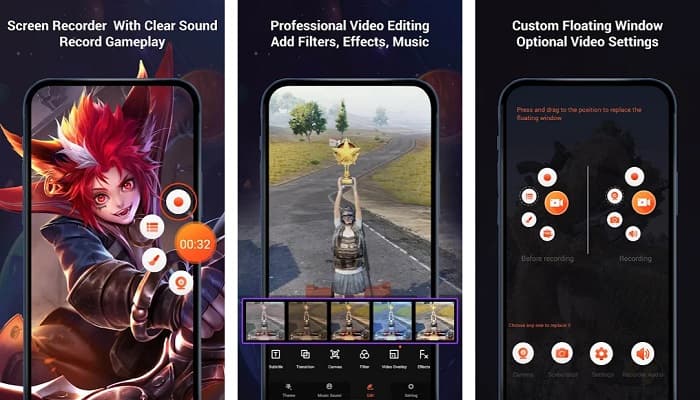
V Recorder เป็นแอปอัดหน้าจอที่มีตัวตัดต่อวิดีโอในตัว โปรแกรมนี้สามารถผลิตวิดีโอคุณภาพสูงได้ อีกทั้งคุณยังสามารถอัดเกมขณะเล่นได้อย่างง่ายดาย และหากคุณต้องการบันทึกปฏิกิริยาของตัวเองระหว่างเล่นเกม แอปนี้ก็มีฟีเจอร์ Facecam ให้ใช้งาน อย่างไรก็ตามรีวิวจากผู้ใช้จำนวนมากระบุว่าไม่สามารถอัดเสียงภายในและเสียงภายนอกได้ หากคุณต้องการบันทึกเสียงบน iPhone คลิกที่นี่เพื่อดูรายละเอียดเพิ่มเติม.
ข้อดี
- มีส่วนต่อประสานผู้ใช้ที่เรียบง่าย
- ช่วยให้คุณสามารถแก้ไขการบันทึกวิดีโอของคุณ
- พร้อมใช้งานบนอุปกรณ์ iPhone และ Android
จุดด้อย
- บางครั้งไม่บันทึกเสียงภายนอกและภายใน
- คุณต้องซื้อแอปก่อนจึงจะเข้าถึงคุณลักษณะเฉพาะของแอปได้
ส่วนที่ 4. เครื่องบันทึกหน้าจอใดที่จะใช้
หากคุณยังไม่แน่ใจว่าควรใช้เครื่องบันทึกหน้าจอแบบใด เราได้จัดทำแผนภูมิเปรียบเทียบแอปบันทึกหน้าจอออนไลน์ ออฟไลน์ และมือถือที่ดีที่สุดไว้ด้านล่าง นอกจากนี้ ส่วนนี้จะให้ข้อมูลเชิงลึกเกี่ยวกับคุณลักษณะและลักษณะของเครื่องบันทึกหน้าจอที่กล่าวถึงข้างต้น
| คุณสมบัติ | FVC โปรแกรมบันทึกหน้าจอออนไลน์ฟรี | ScreenApp.IO | คลิปแชมป์ | Bandicam | บันทึกหน้าจอ | โปรแกรมบันทึกหน้าจอ AZ | โมบิเซ็น | V Recorder |
| อินเทอร์เฟซซอฟต์แวร์ที่ใช้งานง่าย |  | |  | | | | | |
| ใช้งานฟรี | | | | | | | | |
| สามารถเปลี่ยนการตั้งค่าวิดีโอของคุณ | | | | | | | | |
| ปลอดภัยต่อการใช้งาน | | | | | | | | |
| สามารถบันทึกเสียงของอุปกรณ์ | | | | | | | บางครั้งก็ผิดพลาด | ไม่บันทึกเสียงภายในและภายนอกในบางครั้ง |
ส่วนที่ 5. คำถามที่พบบ่อยเกี่ยวกับเครื่องบันทึกหน้าจอที่ดีที่สุด
iPhone 11 มีเครื่องบันทึกหน้าจอในตัวหรือไม่?
iPhones ทั้งหมดที่มีระบบ iOS 11 มีเครื่องบันทึกหน้าจอในตัว ดังนั้น คุณไม่จำเป็นต้องดาวน์โหลดแอปใดๆ สำหรับการบันทึกหน้าจอ หากคุณเป็นผู้ใช้ iPhone 11
เครื่องบันทึกหน้าจอสามารถบันทึกได้นานแค่ไหน?
เมื่อพูดถึงการบันทึกหน้าจอ จะไม่มีข้อจำกัดใดๆ ขึ้นอยู่กับที่เก็บข้อมูลที่มีอยู่ของอุปกรณ์ของคุณว่าการบันทึกหน้าจอของคุณจะใช้เวลานานแค่ไหน
QuickTime มีเครื่องบันทึกหน้าจอในตัวหรือไม่
ได้ มีโปรแกรมเล่นสื่อพื้นฐานของ Mac อย่าง QuickTime Player ที่มาพร้อมฟังก์ชันอัดหน้าจอในตัว คลิกที่นี่เพื่อเรียนรู้วิธีอัดหน้าจอด้วย QuickTime Player.
รูปแบบไฟล์ที่ดีที่สุดสำหรับการบันทึกหน้าจอคืออะไร?
รูปแบบไฟล์ที่ดีที่สุดสำหรับการบันทึกหน้าจอคือ MPEG-1 MPEG-1 เป็นไฟล์แบบไม่สูญเสียข้อมูล และโปรแกรมเล่นสื่อจำนวนมากรองรับรูปแบบไฟล์นี้ รวมถึง Youtube ดังนั้น หากคุณต้องการอัปโหลดการบันทึกหน้าจอของคุณบนแพลตฟอร์มโซเชียลมีเดียอื่นๆ คุณอาจต้องการพิจารณาสร้างไฟล์วิดีโอของคุณให้อยู่ในรูปแบบไฟล์ MPEG-1
สรุป
โดยรวมแล้ว มีเครื่องบันทึกหน้าจอมากมายที่คุณสามารถใช้ได้ทั้งแบบออนไลน์และออฟไลน์ แต่พึงระลึกไว้เสมอว่าเครื่องบันทึกหน้าจอทุกตัวมีคุณสมบัติที่แตกต่างกันออกไป บทความนี้จัดเตรียมเครื่องบันทึกหน้าจอที่ดีที่สุดสำหรับพีซี, Mac, iPhone และ Android ของคุณ นอกจากนี้ยังอยู่ในมือคุณแล้วว่าจะเลือกเครื่องบันทึกหน้าจอแบบใด
อย่างไรก็ตาม หากคุณกำลังมองหาวิธีที่สะดวกกว่าในการอัดหน้าจอและมีคุณสมบัติที่คุณต้องการสำหรับเครื่องบันทึกหน้าจอ ให้ใช้ FVC Free Screen Recorder Online ซึ่งหลายคนก็ใช้เช่นกัน
-
 วิธีบันทึก Epic Stunts, Clutches หรือ Tutorials บน Minecraft [2021]
 คุณต้องการทราบวิธีการบันทึกการแสดงโลดโผนของคุณใน Minecraft หรือไม่? จากนั้นอ่านบทความนี้ตามที่เรามีให้
-
 4 เครื่องบันทึก FLV ที่ดีที่สุดในการจับภาพวิดีโอ FLV บนแพลตฟอร์มต่างๆ
 บทความนี้มีวิธีแก้ปัญหาที่คุณสามารถใช้ในการบันทึกวิดีโอ FLV ค้นพบรายชื่อเครื่องบันทึก FLV ในการทบทวนบทความนี้
-
 4 ซอฟต์แวร์บันทึกเสียงใหม่ล่าสุดพร้อมใช้งานบน Windows & Mac
 ต้องการซอฟต์แวร์บันทึกเสียงบนเดสก์ท็อปของคุณหรือไม่? ในกรณีนี้ บทความนี้เต็มไปด้วยแนวคิดเกี่ยวกับสิ่งที่ดีที่สุดและอื่นๆ อีกมากมาย ดังนั้นหากคุณต้องการอ่านบทความนี้
