


 Video Converter Ultimate
 บันทึกหน้าจอ
 ซ่อมวิดีโอ
 ดาวน์โหลดอย่างปลอดภัย
วิธีแปลงการบันทึกแบบซูมเป็น MP4 บนคอมพิวเตอร์ Windows และ Mac
Zoom เป็นแพลตฟอร์มที่ช่วยให้สามารถวิดีโอคอลได้ เช่น การประชุมและชั้นเรียนออนไลน์ ปกติแล้ว Zoom จะบันทึกไฟล์การประชุมในรูปแบบที่เปิดเล่นได้บนอุปกรณ์ส่วนใหญ่ เช่น MP4 อย่างไรก็ตาม หากคุณเผลอหยุดการบันทึกก่อนจบ ไฟล์อาจค้างอยู่ในรูปแบบดั้งเดิมของแพลตฟอร์ม ซึ่งก็คือไฟล์ .zoom ที่คุณไม่สามารถเปิดดูได้ทันที สาเหตุเป็นเพราะ Zoom ยังไม่ได้มีโอกาสแปลงไฟล์ให้เป็น MP4 โดยอัตโนมัติ หากเกิดเหตุการณ์นี้กับคุณ คุณจำเป็นต้องแปลงไฟล์ Zoom ให้เป็น MP4 ทั้งบนแพลตฟอร์มหรือด้วยวิธีอื่น โชคดีที่ยังมีหลายวิธีที่จะช่วยให้ Zoom ทำกระบวนการแปลงไฟล์นี้ให้เสร็จสมบูรณ์ เราจะพาคุณทำทีละขั้นตอนโดยใช้โปรแกรม Zoom เองและเครื่องมือพิเศษที่มาพร้อมกับ Zoom หากสองวิธีนี้ยังไม่สามารถใช้ได้ เราก็มีเครื่องมืออื่นให้คุณเลือกใช้เพิ่มเติมเช่นกัน เอาล่ะ มาเริ่มดูเนื้อหากันเลย!

ส่วนที่ 1 มีการบันทึกการซูมในรูปแบบ MP4
ก่อนอื่น Zoom จะสร้างการบันทึก MP4 ซึ่งเป็นการตั้งค่าเริ่มต้น อย่างไรก็ตาม สิ่งนี้จะไม่เกิดขึ้นในทันที สิ่งที่เราหมายถึงคือในระหว่างการบันทึก ฟุตเทจดิบของคุณยังไม่อยู่ในรูปแบบ MP4 ที่คุณคิด ตามความเป็นจริง ตามที่กล่าวไว้ข้างต้น ภาพในกระบวนการยังคงอยู่ในรูปแบบ .zoom ซึ่งเป็นรูปแบบที่เป็นกรรมสิทธิ์ของแพลตฟอร์ม และจะถูกเปลี่ยนเป็น MP4 เมื่อการบันทึกเสร็จสิ้นและการแปลงเสร็จสิ้นเท่านั้น โดยเฉพาะอย่างยิ่งเมื่อคุณหยุดการบันทึกโดยไม่ได้ตั้งใจ
ส่วนที่ 2 3 วิธีในการแปลงการบันทึกแบบซูมเป็น MP4 ด้วยการซูม
ตอนนี้เรามาดูเครื่องมือที่มีประสิทธิภาพซึ่งจะช่วยคุณแปลงการบันทึก Zoom เป็น MP4 หากคุณไม่มีในแพลตฟอร์ม
1. ไคลเอนต์ซูม (เดสก์ท็อป)
คุณรู้หรือไม่ว่า Zoom ติดตามการบันทึกทั้งหมดของคุณภายในแอปพลิเคชันไคลเอ็นต์เดสก์ท็อป ไม่เพียงแต่คุณสามารถเข้าถึงการบันทึกของคุณได้อย่างง่ายดาย แต่ Zoom ยังมีตัวแปลงในตัวอีกด้วย สิ่งนี้จะช่วยให้มั่นใจได้ถึงความเข้ากันได้ในการเล่นบนอุปกรณ์ส่วนใหญ่ ดังนั้น หากคุณไม่แน่ใจว่าจะใช้อย่างไร ต่อไปนี้คือรายละเอียดเกี่ยวกับวิธีการค้นหาและแปลงไฟล์บันทึก Zoom ของคุณเป็นรูปแบบ MP4
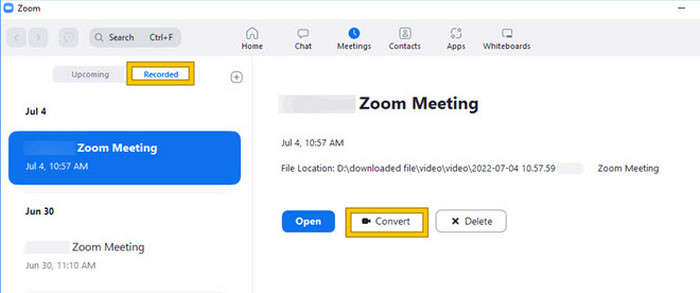
ขั้นตอนที่ 1. เปิดโปรแกรม Zoom บนเดสก์ท็อป จากนั้นไปที่เมนู Meetings ทันทีเพื่อเปิดดูประวัติการประชุมของคุณ.
ขั้นตอนที่ 2. เมื่อเปิดแล้ว คุณจะเห็นรายการการประชุมที่บันทึกไว้ทั้งหมด ให้ค้นหาการบันทึกที่คุณต้องการแปลง แล้วคลิกเลือกการบันทึกนั้น.
ขั้นตอนที่ 3. เมื่อเลือกแล้ว รายละเอียดจะปรากฏทางด้านขวาของหน้าจอ ให้คลิกปุ่ม Convert และรอจนกว่าผลลัพธ์ไฟล์ MP4 จะถูกแปลงเสร็จสมบูรณ์.
2. แปลงรหัส (macOS)
หากคุณเป็นผู้ใช้ Mac และการแปลงการบันทึกอัตโนมัติของ Zoom เป็น MP4 ล้มเหลว ต่อไปนี้เป็นเครื่องมือที่มีประโยชน์ที่เรียกว่า Transcode ที่จะช่วยเหลือคุณ เครื่องมือนี้ช่วยให้คุณสามารถแปลงไฟล์ .zoom เป็น MP4 ด้วยตนเอง ซึ่งอาจเล่นไม่ถูกต้องเนื่องจากการแปลงอัตโนมัติล้มเหลว โดยพื้นฐานแล้ว Transcode มอบโซลูชันแบบแมนนวลสำหรับผู้ใช้ Mac เพื่อให้แน่ใจว่าการบันทึก Zoom ของพวกเขาจะสามารถเข้าถึงได้และใช้งานได้เมื่อกระบวนการอัตโนมัติไม่ทำงานตามที่คาดไว้
ขั้นตอนที่ 1. ค้นหาไฟล์ .zoom ของคุณ ดับเบิลคลิกที่ไฟล์ แล้วเลือก Choose Application จากหน้าต่างแจ้งเตือน จากนั้นเปิดไฟล์ด้วยแอป Transcode ซึ่งคุณสามารถตั้งค่าให้ใช้เปิดไฟล์ประเภทนี้เสมอได้ด้วย.
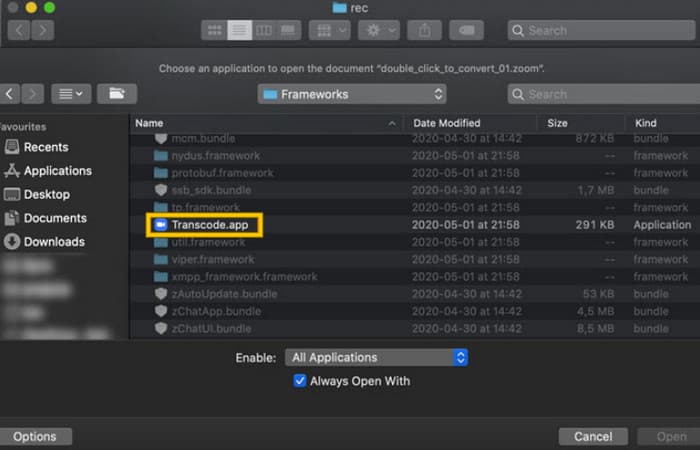
ขั้นตอนที่ 2. หลังจากเลือกแอปแล้ว กระบวนการแปลงไฟล์จะเริ่มทำงานโดยอัตโนมัติทันที.
ขั้นตอนที่ 3. เมื่อกระบวนการแปลงเสร็จสิ้น ให้เลือกโฟลเดอร์ปลายทางที่คุณต้องการบันทึกไฟล์ผลลัพธ์.
3. zTscoder (เดสก์ท็อป)
หากคุณต้องการเครื่องมือที่คล้ายกับเครื่องมือก่อนหน้าสำหรับเดสก์ท็อปของคุณ เราขอแนะนำ zTscoder zTscoder เป็น Transcode เวอร์ชัน Windows ซึ่งเป็นโปรแกรมที่ผู้ใช้ Mac พึ่งพาในสถานการณ์ที่คล้ายกัน เครื่องมือทั้งสองช่วยให้คุณสามารถแปลงไฟล์ Zoom ของคุณเป็นรูปแบบ MP4 มาตรฐานได้ด้วยตนเองซึ่งอาจเล่นไม่ถูกต้อง ดังนั้น หากคุณกำลังเผชิญหน้ากับเดสก์ท็อป ให้ทำตามขั้นตอนด้านล่าง
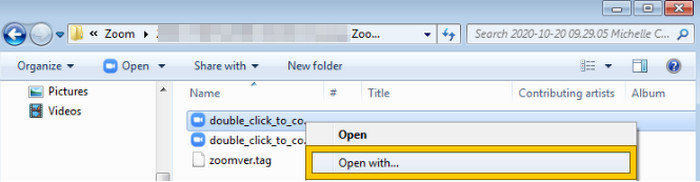
ขั้นตอนที่ 1. ค้นหาโฟลเดอร์ที่เก็บไฟล์บันทึก Zoom ของคุณไว้ และเลือกไฟล์ที่ต้องการแปลง คลิกขวาที่ไฟล์แล้วเลือกเปิดด้วย zTscoder.
ขั้นตอนที่ 2. หากเครื่องมือไม่ตอบสนอง คุณสามารถไปที่ Control Panel จากนั้นไปที่ System and Security > System แล้วเปิด Advanced System settings จากนั้นเพิ่มเส้นทาง C:\Users\*your username*\AppData\Roaming\Zoom\bin ลงในค่า Variable value แล้วคลิก OK.
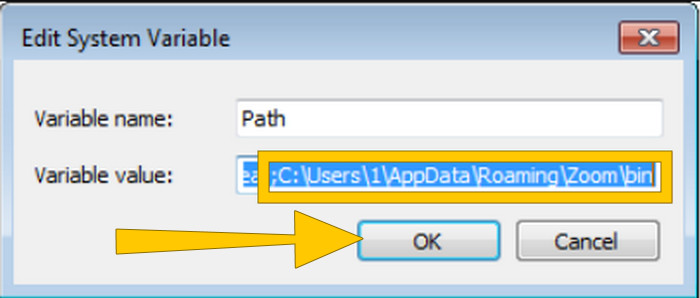
ขั้นตอนที่ 3. เมื่อกำหนดให้เปิดไฟล์ด้วยเครื่องมือนี้แล้ว กระบวนการแปลงไฟล์จะเริ่มทำงานโดยอัตโนมัติ.
ส่วนที่ 3 บันทึกการประชุม Zoom ในรูปแบบ MP4 ด้วยคุณภาพสูงสุด 4K
ต้องการวิธีง่าย ๆ เพื่อให้การประชุม Zoom ของคุณอยู่ในรูปแบบ MP4 ใช่ไหม? ให้บันทึกด้วย FVC Screen Recorder ได้เลย! โปรแกรมบันทึกหน้าจอนี้เป็นโซลูชันที่หลากหลายที่ทำได้มากกว่าการบันทึกแค่การประชุม Zoom เครื่องมือนี้ช่วยให้คุณบันทึกชั้นเรียนออนไลน์ การประชุมสัมมนา การสอน หรืออะไรก็ตามที่แสดงบนหน้าจอ Zoom ของคุณ นอกจากนี้ คุณยังสามารถเลือกบันทึกทั้งหน้าจอหรือเฉพาะหน้าต่างที่ต้องการได้ เพราะมีตัวเลือกการตั้งค่ารองรับ ฟังก์ชันของโปรแกรมยังสามารถบันทึกเสียงไมโครโฟน เสียงระบบ และภาพจากเว็บแคมได้ หากคุณตั้งค่าเอาไว้ล่วงหน้า ซอฟต์แวร์นี้รองรับทั้งคอมพิวเตอร์ Mac และ Windows และช่วยให้คุณบันทึกวิดีโอออกมาเป็นไฟล์คุณภาพสูง ได้ถึงความละเอียด 4K อีกจุดเด่นที่น่าประทับใจของ FVC คือมีเครื่องมือใส่คำอธิบายและไฮไลต์บนหน้าจอขณะบันทึก ช่วยให้คุณเน้นจุดสำคัญได้สะดวก ระหว่างนี้ มาดูวิธีใช้มันเพื่อ“แปลง”การบันทึก Zoom ให้เป็นไฟล์ MP4 กัน.
ขั้นตอนที่ 1. ติดตั้งโปรแกรมบันทึกหน้าจอบนเดสก์ท็อปของคุณ คุณสามารถใช้ปุ่ม Download ด้านล่างได้ ขณะกำลังติดตั้ง ให้เปิดการประชุม Zoom ที่คุณต้องการบันทึกเป็นไฟล์ MP4 เตรียมไว้.
ดาวน์โหลดฟรีสำหรับ Windows 7 ขึ้นไปดาวน์โหลดอย่างปลอดภัย
ดาวน์โหลดฟรีสำหรับ MacOS 10.7 ขึ้นไปดาวน์โหลดอย่างปลอดภัย
ขั้นตอนที่ 2. เปิดโปรแกรมแล้วคลิกที่เครื่องมือ Video Recorder จากนั้นตั้งค่าพื้นที่หน้าจอให้ครอบคลุมหน้าต่างการประชุม Zoom ทั้งหมด คุณยังสามารถตั้งค่าเสียง System และ Microphone ได้ตามต้องการ.
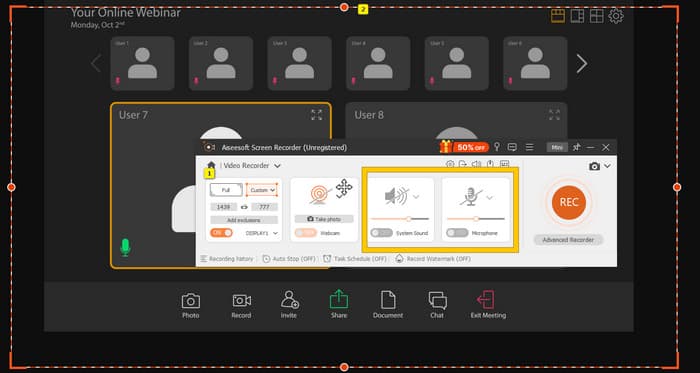
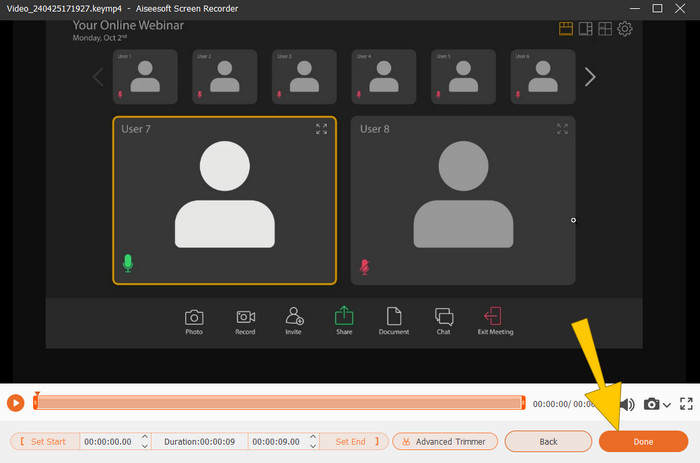
ขั้นตอนที่ 3. จากนั้น คลิกปุ่ม REC เพื่อเริ่มการบันทึก เมื่อการประชุมสิ้นสุดลง ให้คลิกปุ่ม Stop จากแถบลอยบนหน้าจอ จากนั้นสามารถปรับแต่งเล็กน้อยได้จากหน้าต่างใหม่ หรือหากไม่ต้องการแก้ไขเพิ่มเติม ให้คลิกปุ่ม DONE เพื่อดำเนินการบันทึกไฟล์.
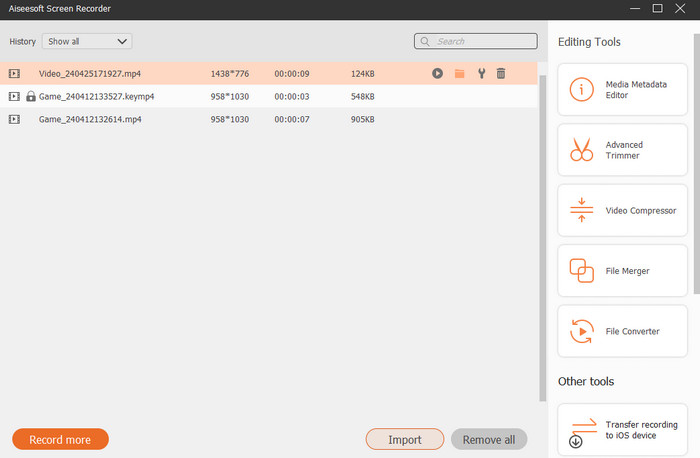
ขั้นตอนที่ 4. หากต้องการตัวเลือกการตัดต่อเพิ่มเติม เครื่องมือจะพาคุณไปที่คลังไฟล์ภายในโปรแกรม ซึ่งคุณจะเห็นรายการวิดีโอที่บันทึกไว้ พร้อมทั้งมีเครื่องมือตัดต่อให้ใช้งานได้ตามต้องการ.
อ่านเพิ่มเติม:
6 เครื่องมือบันทึกไฟล์ MP4 สุดยอดเยี่ยมปี 2024 [ทั้งแบบฟรีและเสียเงิน]
5 อันดับเครื่องบันทึกการประชุม Zoom ที่ดีที่สุดสำหรับบันทึกการประชุมบน Zoom [ปี 2024]
ส่วนที่ 4 คำถามที่พบบ่อยเกี่ยวกับการแปลงการบันทึกแบบซูม
Zoom เป็นการบันทึกแบบ MP4 หรือไม่
ใช่. อย่างไรก็ตาม การบันทึกอาจไม่อยู่ในรูปแบบ MP4 หากหยุดทำงานโดยไม่ตั้งใจ
มีการจำกัดระยะเวลาในการบันทึกที่ฉันสามารถแปลงเป็น MP4 ได้หรือไม่
มันขึ้นอยู่กับ. บัญชีแบบฟรีอาจมีข้อจำกัดเกี่ยวกับพื้นที่เก็บข้อมูลและตัวเลือกการแปลง ในขณะที่แผนแบบชำระเงินมักจะให้ความยืดหยุ่นและขีดจำกัดที่สูงกว่า
ฉันจะแปลงการบันทึก Zoom เป็น MP4 ได้อย่างไร
คุณสามารถแปลงการบันทึก Zoom เป็น MP4 ด้วยไคลเอนต์ Zoom เนื่องจากมีฟีเจอร์การแปลงในตัว เมื่อคุณเปิดการบันทึก คุณเพียงแค่ต้องคลิกปุ่มแปลง
สรุป
โดยปกติแล้ว การประชุม Zoom จะถูกบันทึกเป็นไฟล์ MP4 แต่ถ้าการบันทึกไม่ถูกจัดเก็บอย่างถูกต้อง คุณก็ยังต้องแปลงไฟล์บันทึก Zoom ให้เป็น MP4 อยู่ดี โชคดีที่มีวิธีที่มีประสิทธิภาพสำหรับการแปลงไฟล์ซึ่งได้อธิบายไว้ในบทความนี้ หวังว่าจะเป็นประโยชน์กับคุณ.
-
 7 ของ Magnificent Voice Recorder ที่เข้าถึงได้ในทุกแพลตฟอร์ม
 คุณต้องการเรียนรู้วิธีการบันทึกเสียงหรือไม่? จากนั้นไปที่บทความนี้ในขณะที่เราพูดถึงเครื่องบันทึกเสียงที่ดีที่สุดที่ตรงกับความต้องการของคุณ
-
 รีวิว CamStudio 2025: ข้อดีและข้อเสียของการใช้ CamStudio
 CamStudio เป็นโปรแกรมจับภาพหน้าจอโอเพ่นซอร์สฟรีที่ยอดเยี่ยมสำหรับบันทึกการแสดงผลบนหน้าจอของคุณ เครื่องบันทึกหน้าจอ CamStudio ปลอดภัยหรือไม่? รีวิวนี้จะช่วยให้คุณค้นพบคุณสมบัติทั้งหมดของ CamStudio
-
 วิธีที่เป็นไปได้ในการบันทึกเสียงด้วย VLC Player
 เรียนรู้วิธีที่ดีที่สุดในการบันทึกเสียงด้วยเครื่องเล่น VLC และเครื่องมือที่ใช้งานได้จริงอื่นๆ โดยการอ่านบทความ
