


 Video Converter Ultimate
 บันทึกหน้าจอ
 ซ่อมวิดีโอ
 ดาวน์โหลดอย่างปลอดภัย
ขั้นตอนทีละขั้นตอนสำหรับ VLC เพื่อบันทึกดีวีดีบนระบบปฏิบัติการทั้งหมด
VLC เป็นโปรแกรมเล่นมีเดียชื่อดังที่มีผู้ใช้หลายล้านคนทั่วโลก มันไม่ได้มีไว้แค่สำหรับเล่นวิดีโอหรือเสียงเท่านั้น บางทีนี่อาจเป็นเรื่องใหม่สำหรับคุณ แต่คุณรู้หรือไม่ว่าโปรแกรมนี้ยังมีประโยชน์อื่น ๆ อีก เช่น แก้ไขและบันทึก DVD ที่มีวิดีโอและเสียง รวมถึงอ่านและริป DVD ที่เข้ารหัสได้ด้วย แต่ไม่ใช่ DVD ทุกแผ่นที่จะถูกริปด้วย VLC ได้หากมีการป้องกันการก็อปปี้ อีกทั้งการริปยังใช้เวลาของคุณ แทนที่จะดูวิดีโอ คุณอาจต้องนั่งรอให้การริปเสร็จ ด้วยเหตุผลหลายอย่าง ผู้ใช้จึงมักจะอัดหรือบันทึกภาพยนตร์ DVD ด้วย VLCขณะดูหรือตั้งทิ้งไว้ มากกว่าการริปวิดีโอจาก DVD เพื่อไปแชร์ให้คนอื่น ในบทความนี้ คุณจะเข้าใจว่าคุณไม่จำเป็นต้องริปเอาวิดีโอหรือเสียงออกมาจาก DVD แต่สามารถบันทึกไปพร้อมกับการรับชมได้เลย โดยยังคงคุณภาพเดียวกันไว้ อ่านต่อเพื่อทำความเข้าใจถึงคุณค่าของแต่ละเครื่องมือ.

ส่วนที่ 1 วิธีการบันทึกภาพยนตร์ดีวีดีด้วย VLC Media Player
VLC Media Player
เครื่องเล่นสื่อนี้เป็นโอเพ่นซอร์สหลายแพลตฟอร์มที่รองรับรูปแบบสื่อเกือบทั้งหมดที่คุณเคยนึกถึง นอกจากนี้ยังสามารถริปวิดีโอจากดีวีดีได้ แต่ VLC จะริปไฟล์ต้องใช้เวลา กระบวนการริปจะใช้เวลามากกว่า 15 ถึง 45 นาที ขึ้นอยู่กับระยะเวลา จำนวน และขนาดของรูปแบบสื่อ แทนที่จะริปดิสก์ ทำไมคุณไม่บันทึกด้วยความช่วยเหลือของ VLC
เมื่อเราดำเนินการต่อไป ต่อไปนี้คือขั้นตอนบางประการในการบันทึกวิดีโอเสียงไปยัง VLC
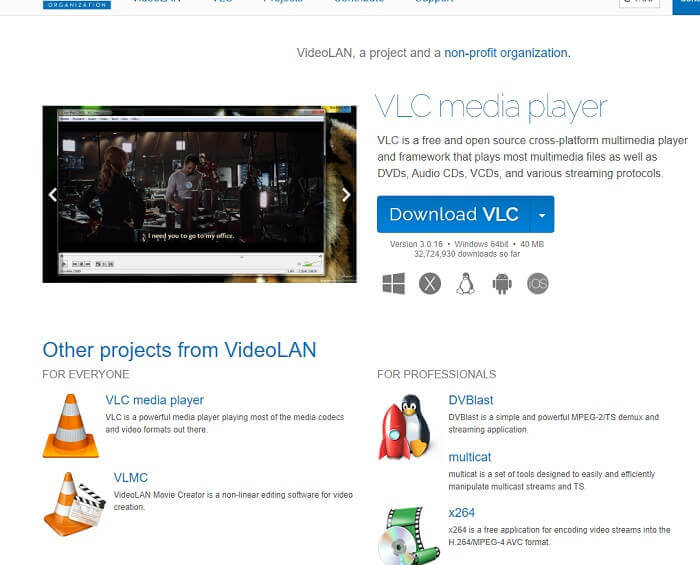
ขั้นตอนที่ 1. ดาวน์โหลดโปรแกรม VLC Media Player ผ่านบราวเซอร์แล้วติดตั้ง ตั้งค่าตามที่ต้องการ จากนั้นคลิก Finish เพื่อดำเนินการต่อ หากคุณไม่รู้ว่าหน้าตาโปรแกรมเป็นอย่างไร นี่คือตัวอย่าง.
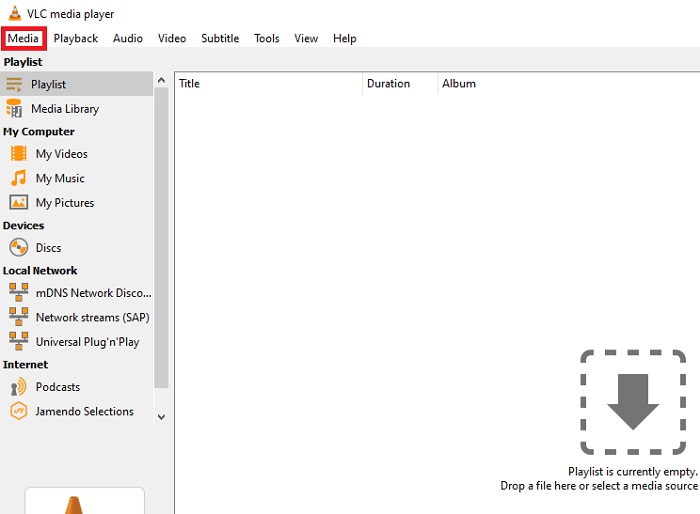
ขั้นตอนที่ 2. คลิกเมนู Media ที่มุมซ้ายบนของหน้าต่างโปรแกรม จากนั้นคลิก Open File แล้วเลือกไฟล์ หรือคุณจะลากแล้วปล่อยไฟล์มีเดียเข้ามาก็ได้.
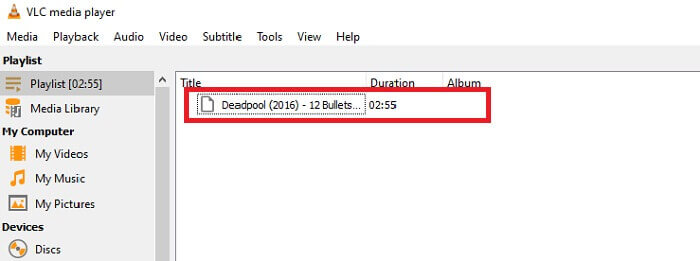
ขั้นตอนที่ 3. คลิกไฟล์วิดีโอที่คุณใส่เข้ามาในโปรแกรมเพื่อเริ่มเล่น.
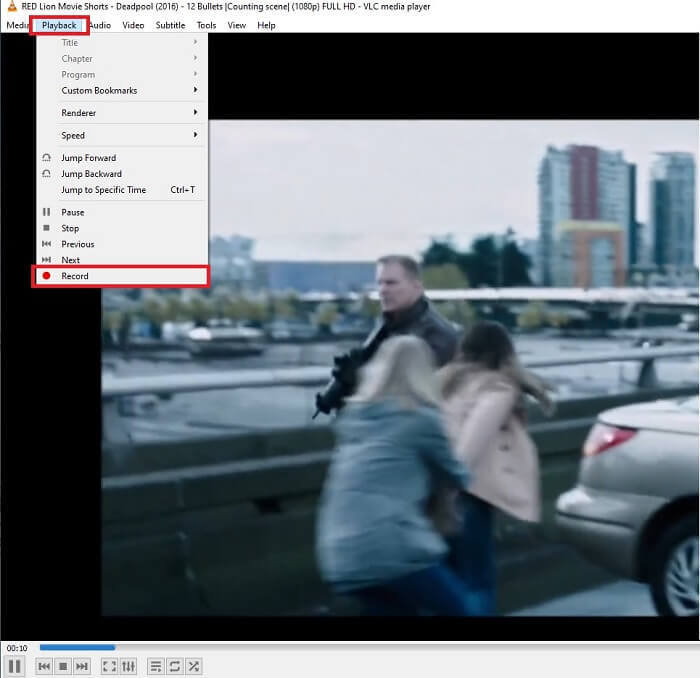
ขั้นตอนที่ 4. คลิกปุ่ม Playback ที่ด้านบนของหน้าต่างโปรแกรมถัดจาก Media จากนั้นคลิก Record ในเมนูดรอปดาวน์เพื่อเริ่มบันทึก หมายเหตุ: ทันทีที่คุณคลิกบันทึก การบันทึกจะเริ่มต้นทันที รอจนกว่าวิดีโอจะเล่นจบก่อนจึงค่อยหยุดบันทึก.
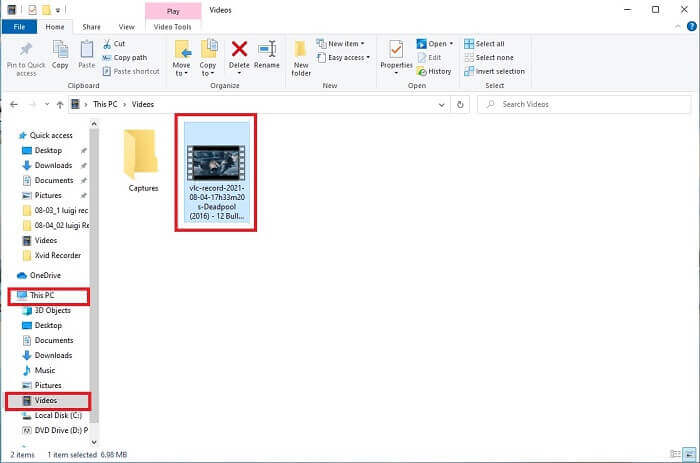
ขั้นตอนที่ 5. เมื่อวิดีโอจบแล้ว คุณสามารถไปตรวจสอบไฟล์บันทึกได้ใน File Explorer หรือ File Manager จากนั้นคลิกเข้าไป เลือก This PC แล้วคลิก จากนั้นตามไปที่โฟลเดอร์ Videos สุดท้ายในโฟลเดอร์ Videos คุณจะเห็นไฟล์ที่ VLC บันทึกไว้.
ข้อดี
- รองรับรูปแบบไฟล์เสียงและวิดีโอ ตัวแปลงสัญญาณ และไฟล์ที่เข้ารหัสอื่นๆ
- เป็นเครื่องมือโอเพนซอร์ซฟรีบนเว็บไซต์ทางการ
- ดูได้ทุกที่ทุกเวลา ไม่จำเป็นต้องใช้อินเทอร์เน็ตในการเล่นวิดีโอ
จุดด้อย
- ไม่มีรายการประวัติของตัวเองหลังจากการบันทึกเสร็จสิ้น
- ผู้ใช้พบว่าเป็นการยากที่จะทราบว่าการบันทึกเริ่มต้นขึ้นหรือยัง ไม่มีการใช้ fps, ความยาวของวิดีโอ, พื้นที่เก็บข้อมูล และคุณสมบัติอื่นๆ ที่การบันทึกหน้าจอควรมี
ส่วนที่ 2 วิธีออนไลน์ในการจับภาพ DVD ด้วย FVC Free Screen Recorder
VLC สามารถบันทึกสิ่งที่อยู่ในอินเทอร์เฟซ จะเกิดอะไรขึ้นถ้าคุณไม่ต้องการดาวน์โหลด VLC แต่ต้องการบันทึกโดยไม่ต้องดาวน์โหลดเครื่องมือใดๆ เพียงต้องการบันทึกภาพยนตร์ดีวีดีบนแพลตฟอร์มออนไลน์ เครื่องมือออนไลน์ฟรีที่ทุกคนสามารถเข้าถึงได้และทุกที่ที่มีการเชื่อมต่ออินเทอร์เน็ต
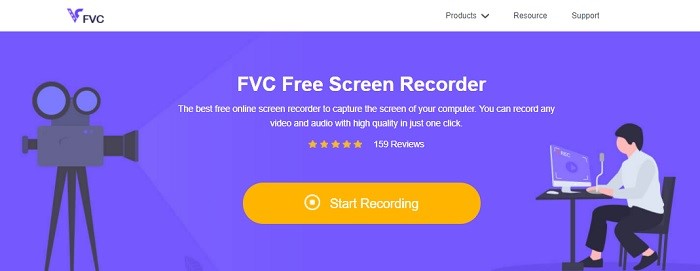
ถ้าอย่างนั้นเครื่องมือออนไลน์นี้ - FVC Screen Recorder ก็เหมาะสำหรับคุณ ไม่ต้องดาวน์โหลด แค่เปิดเครื่องมือจากเว็บเท่านั้น แทนที่จะใช้ VLC บันทึก DVD เครื่องมือที่ต้องใช้การเชื่อมต่ออินเทอร์เน็ตตัวนี้ทำให้การอัดวิดีโอง่ายขึ้นพร้อมเอาต์พุตวิดีโอและเสียงคุณภาพดี ไม่มีค่าใช้จ่ายแอบแฝง ใช้ได้ทุกแพลตฟอร์ม ด้วยแถบเครื่องมือแบบลอย ทำให้ใช้งานง่ายและจัดการสะดวก.
และตอนนี้ ไปที่ขั้นตอนเกี่ยวกับวิธีการใช้เครื่องมือนี้
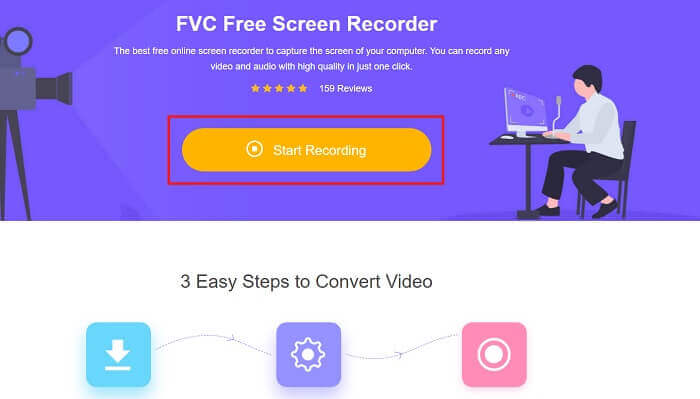
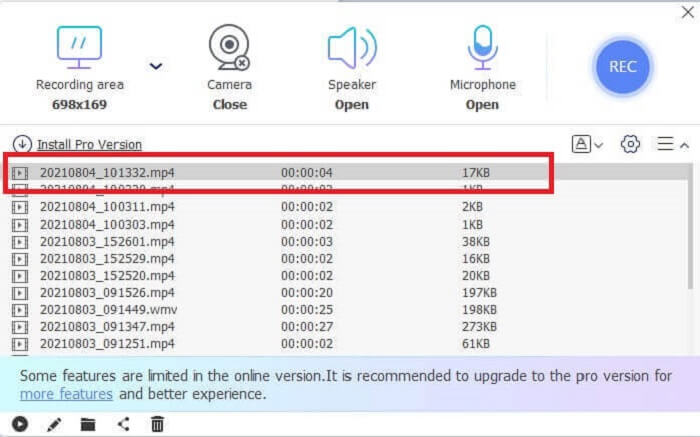
ขั้นตอนที่ 1. คลิกลิงก์เพื่อไปยังหน้าเครื่องมือ จากนั้นคลิก Start Recording เพื่อเปิดใช้งานซอฟต์แวร์.
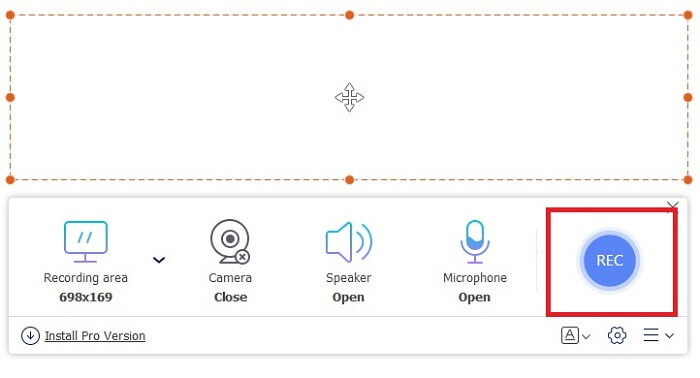
ขั้นตอนที่ 2. จะมีแถบเครื่องมือแบบลอยปรากฏบนหน้าจอของคุณ เลือกพื้นที่หน้าจอที่คุณต้องการบันทึก เปิด Speaker เพื่อบันทึกเสียงระบบ แล้วคลิกปุ่ม วงกลม เพื่อเริ่มบันทึก ปล่อยให้โปรแกรมบันทึกหน้าจอไปสักพักเพื่ออัดวิดีโอ หรือคุณจะนั่งดูไปด้วยก็ได้.
ขั้นตอนที่ 3. คลิกปุ่ม สี่เหลี่ยม เพื่อหยุดบันทึก จะมีรายการ History แสดงขึ้นมา ให้คลิกไฟล์แรกเพื่อดูวิดีโอที่บันทึกไว้ซึ่งมีคุณภาพวิดีโอและเสียงเท่าเดิม.
ข้อดี
- เครื่องมือออนไลน์ฟรี ไม่มีค่าใช้จ่ายแอบแฝงจะเปิดใช้งานและไม่จำเป็นต้องลงทะเบียน
- ไม่มีโฆษณาที่น่ารำคาญในโปรแกรมก่อนใช้งาน
- บันทึกได้ไม่จำกัด
จุดด้อย
- ขึ้นอยู่กับอินเทอร์เน็ต
- ไม่มีคุณสมบัติล็อคหน้าจอ
ส่วนที่ 3 วิธีการจับภาพดีวีดีด้วยทางเลือก VLC ที่ดีที่สุด
VLC สามารถบันทึกได้ แต่ถ้าคุณต้องการบันทึกวิดีโอคุณภาพสูงขึ้นพร้อมเสียงที่คมชัด นอกจากนี้ คุณยังสามารถเลือกรูปแบบ คุณภาพ และตัวแปลงสัญญาณที่คุณต้องการไม่ให้ดีวีดีบันทึก VLC ได้
เครื่องบันทึกหน้าจอ FVC
ขอแนะนำเครื่องมือมหัศจรรย์นี้ที่ช่วยให้ผู้ใช้สร้างรูปแบบวิดีโอ-เสียงประเภทใดก็ได้ที่เครื่องมืออื่นๆ ไม่สามารถให้ได้ เครื่องบันทึกหน้าจอ FVC นี้ทำงานหนักสำหรับเครื่องบันทึกหน้าจอ คุณสมบัติของหน้าจอล็อคอินสร้างความแตกต่างให้กับเครื่องมืออื่นๆ ด้วยความช่วยเหลือของเครื่องมือนี้ คุณสามารถบันทึกเนื้อหาดีวีดีของคุณได้ทุกที่ทุกเวลาในโลก ไม่ว่าจะเป็นแพลตฟอร์มออนไลน์หรือออฟไลน์ เช่นกัน คุณสามารถใส่คำอธิบายประกอบบนหน้าจอขณะบันทึก และยังมีการตัดเสียงรบกวนเพื่อเอาต์พุตเสียงที่ชัดเจนยิ่งขึ้น หากต้องการสำรวจเพิ่มเติมเกี่ยวกับเครื่องมือนี้ มีขั้นตอนเกี่ยวกับวิธีการใช้เครื่องมือนี้
ขั้นตอนที่ 1. คลิกปุ่มดาวน์โหลดที่ตรงกับระบบของคุณ ติดตั้งโปรแกรมแล้วเปิดใช้งาน.
ดาวน์โหลดฟรีสำหรับ Windows 7 ขึ้นไปดาวน์โหลดอย่างปลอดภัย
ดาวน์โหลดฟรีสำหรับ MacOS 10.7 ขึ้นไปดาวน์โหลดอย่างปลอดภัย
ขั้นตอนที่ 2. บนแถบเครื่องมือแบบลอยให้คลิก Video Recorder จากนั้นจะมีแถบเครื่องมือแบบลอยอีกชุดหนึ่งขึ้นมา ปรับอัตราส่วนกรอบภาพ เปิด System Sound เพื่อบันทึกเสียงจากระบบ แล้วคลิกปุ่มวงกลม REC เพื่อเริ่มบันทึก.
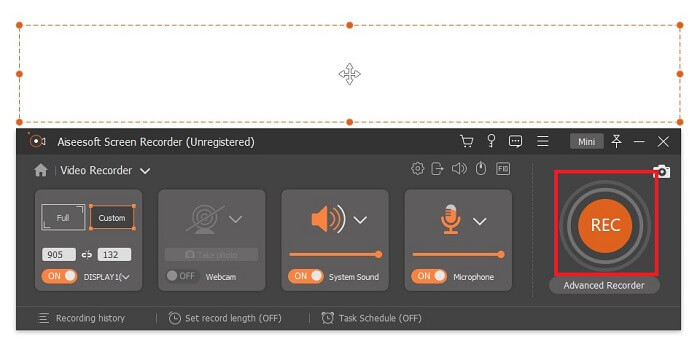
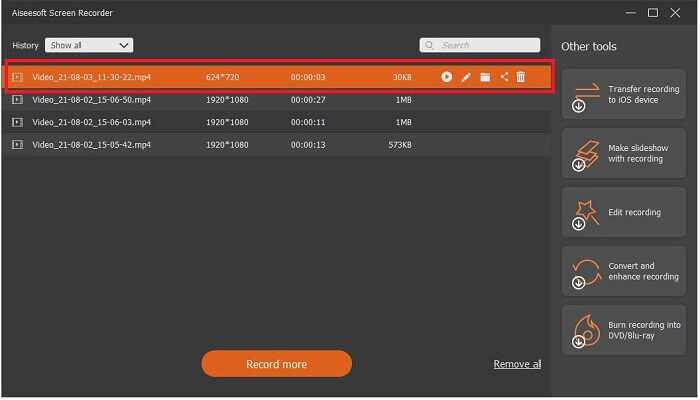
ขั้นตอนที่ 3. หลังจากบันทึกเสร็จ ให้คลิกปุ่ม สี่เหลี่ยม เพื่อหยุดวิดีโอ ตัวแรกในรายการประวัติจะเป็นไฟล์ล่าสุด ให้คลิกปุ่ม Play เพื่อดูวิดีโอที่บันทึกไว้และเพลิดเพลินกับการรับชม.
ข้อดี
- คุณสมบัติล็อคหน้าจอเพื่อหลีกเลี่ยงการรบกวนกับการบันทึกวิดีโอ
- เข้าถึงได้ง่ายเพราะสามารถใช้สำหรับการบันทึกออนไลน์และออฟไลน์
- รองรับรูปแบบทุกประเภทด้วยการเร่งด้วยฮาร์ดแวร์เพื่อการประมวลผลสื่อออกอย่างรวดเร็ว
จุดด้อย
- ชำระเงินก่อนใช้เครื่องมือ
- จำเป็นต้องดาวน์โหลดเพื่อเข้าถึง
ส่วนที่ 4 คำถามที่พบบ่อยเกี่ยวกับการบันทึก DVD ด้วย VLC และ Conclusion
รูปแบบที่รองรับใน VLC Media Player คืออะไร?
ต่อไปนี้คือบางส่วนของฟอร์แมตวิดีโอที่ VLC Media รองรับ: MPEG (ES, PS, TS, PVA, MP3), AVI, ASF / WMV / WMA, MP4 / MOV / 3GP, OGG / OGM / Annodex, Matroska (MKV), Real, WAV (รวมถึง DTS), Raw Audio: DTS, AAC, AC3/A52, Raw DV, FLAC, FLV (Flash), MXF, Nut, Standard MIDI / SMF, Creative™ Voice
สำหรับเสียง: MPEG Layer 1/2, MP3 - MPEG Layer 3, AAC - MPEG-4 part 3, Vorbis, AC3 - A/52, E-AC-3, MLP / TrueHD>3, DTS, WMA 1/2, WMA 3, FLAC, ALAC, Speex, Musepack / MPC, ATRAC 3, Wavpack, Mod, TrueAudio, APE, Real Audio, Alaw/µlaw, AMR (3GPP), MIDI, LPCM, ADPCM, QCELP, DV Audio, QDM2/QDMC, MACE นอกจากนี้ยังรองรับฟอร์แมตอื่น ๆ อีกมากมาย นอกเหนือจากที่ระบุไว้ข้างต้น.
VLC ยังคงเป็นเครื่องเล่นสื่อฟรีหรือไม่?
ใช่ มันยังฟรีอยู่เพราะได้รับการคุ้มครองโดยใบอนุญาต GNU GPL ที่ยืมมา แต่คุณสามารถบริจาคผ่าน PayPal ได้โดยไม่มีการบริจาคขั้นต่ำ
ดาวน์โหลด VLC ปลอดภัยหรือไม่
หากคุณดาวน์โหลดจากเว็บไซต์ทางการ ก็จะไม่มีปัญหาใด ๆ นอกจากนี้ยังปราศจากมัลแวร์ ไวรัส เวิร์ม สปายแวร์ และอื่น ๆ อีกมากมาย อีกทั้งยังได้รับการป้องกันจากความเสียหายที่จงใจทำต่อไฟล์ด้วย หากคุณยังกังวลอยู่ สามารถลองใช้โปรแกรมทางเลือกอื่นที่ใช้แทน VLC Media Player ได้.
สรุป
เพื่อสรุปรายละเอียดทั้งหมดจากด้านบน เป็นการดีกว่าที่จะบันทึกวิดีโอแทนที่จะริป เพราะดีวีดีบางแผ่นไม่สามารถริปได้เพราะบางแผ่นได้รับการคุ้มครองลิขสิทธิ์ VLC สามารถทำการริปได้ แต่จะใช้เวลามากในกระบวนการ ดังนั้น เพื่อลดปัญหา คุณต้องบันทึกวิดีโอเพื่อเพลิดเพลินกับการรับชม และต่อมาคุณสามารถแบ่งปันกับผู้อื่นได้
แต่ในตอนท้ายของวัน คุณยังต้องคิดว่าตัวเลือกใดดีที่สุดในการบันทึกหน้าจอเพื่อบันทึกเอาต์พุตดีวีดีโดยไม่ทำลายคุณภาพเนื้อหาของสื่อ ตัวเลือกที่ถูกต้องยังคงอยู่ในมือคุณ รายละเอียดที่ให้ไว้ทำให้คุณมีแนวคิดว่า FVC Screen Record เป็นเครื่องมือที่ต้องมี คุณอาจใช้สิ่งนี้ไม่เพียงแต่สำหรับการบันทึกภาพยนตร์จากดีวีดีเท่านั้น แต่ยังมีจุดประสงค์อื่นอีกมากมาย เป็นเครื่องบันทึก screencast แบบ all-in-one ดังนั้นสิ่งที่คุณรอแทนที่จะรอให้เวทมนตร์เกิดขึ้น? ทำไมไม่ลองร่ายมนตร์และทำกลอุบายแรกด้วย FVC Screen Recorder
-
 Snagit 2021 Review - ข้อดีข้อเสียและทางเลือกที่ดีที่สุด
 ทางเลือกที่ดีที่สุดสำหรับ Snagit คืออะไร? มีเครื่องมือจับภาพหน้าจอเช่น Snagit หรือไม่? โพสต์นี้จะทบทวน Snagit และแบ่งปันทางเลือกที่ดีที่สุดสำหรับ Snagit ในการจับภาพหน้าจอ
-
 การบันทึกหน้าจอ QuickTime - บันทึกวิดีโอพร้อมเสียงบน Mac และ PC
 หน้าจอการบันทึกเสียงบน Mac มีประโยชน์ เครื่องเล่นในตัว QuickTime Player สามารถทำได้ อ่านโพสต์ของเขาและเรียนรู้วิธีจับภาพหน้าจอพร้อมเสียงบน Mac และ PC
-
 สกรีนช็อตใน VLC - วิธีถ่าย Snapshot ใน VLC Media Player
 จะถ่ายภาพใน VLC Media Player ได้อย่างไร? สแนปชอต VLC บันทึกอยู่ที่ไหน เพียงเรียนรู้เพิ่มเติมเกี่ยวกับคุณสมบัติสแนปชอต VLC และทางเลือกที่ดีที่สุดจากบทความ
