


 Video Converter Ultimate
 บันทึกหน้าจอ
 ซ่อมวิดีโอ
 ดาวน์โหลดอย่างปลอดภัย
วิธีง่ายๆ วิธีสร้างไฟล์เสียงเป็นเสียงเรียกเข้าบน iPhone
เคยอยากให้เพลงโปรดของคุณดังขึ้นทุกครั้งที่มีสายเรียกเข้าไหม? ไม่ต้องสงสัยอีกต่อไป เพราะเรามีคู่มือสุดง่ายในการแปลงไฟล์ MP3 เป็น M4R ซึ่งเป็นรูปแบบไฟล์ที่ iPhone ใช้สำหรับเสียงเรียกเข้า ไม่มีศัพท์เทคนิคยุ่งยาก มีแค่คำอธิบายง่าย ๆ และขั้นตอนสบาย ๆ ให้มือถือของคุณร้องเพลงโปรดได้ มาลุยกันเลยแล้วทำให้เสียงเรียกเข้าที่คุณใฝ่ฝันกลายเป็นจริง!

ส่วนที่ 1 วิธีเริ่มต้นในการสร้างเสียงเรียกเข้าสำหรับ iPhone จากวิดีโอ
การสร้างเสียงเรียกเข้าสำหรับ iPhone จากวิดีโอด้วยวิธีดั้งเดิมมีขั้นตอนต่อไปนี้:
ขั้นตอนที่ 1 เลือกและเตรียมวิดีโอ
เลือกวิดีโอที่คุณต้องการสร้างเสียงเรียกเข้า ตรวจสอบให้แน่ใจว่าวิดีโออยู่ในคอมพิวเตอร์ของคุณหรือในคลังรูปภาพของ iPhone แล้ว
ขั้นตอนที่ 2 ตัดแต่งวิดีโอ
คุณจะต้องตัดวิดีโอให้อยู่ในระยะเวลาเสียงเรียกเข้าที่ต้องการ ซึ่งควรอยู่ที่ประมาณ 30 วินาทีหรือน้อยกว่าสำหรับเสียงเรียกเข้าของ iPhone
ขั้นตอนที่ 3 แปลงวิดีโอให้เป็นไฟล์เสียง
หลังจากตัดวิดีโอแล้ว คุณจะต้องแยกเสียงออกจากวิดีโอ คุณสามารถทำได้โดยใช้ซอฟต์แวร์แปลงวิดีโอเป็นเสียงบนคอมพิวเตอร์ของคุณ หรือใช้แอพแปลงวิดีโอเป็นเสียงบน iPhone ของคุณ
ขั้นตอนที่ 4 เปลี่ยนชื่อและถ่ายโอนไฟล์เสียงไปยัง iTunes
เมื่อคุณได้ไฟล์เสียงมาแล้ว ให้เปลี่ยนชื่อต่อท้ายด้วยนามสกุล .m4r ตัวอย่างเช่น my_ringtone.m4r
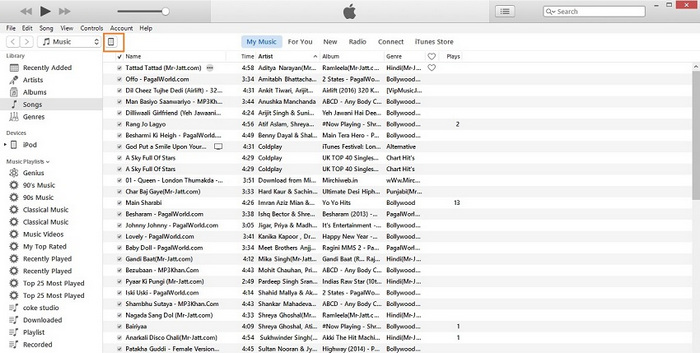
เชื่อมโยง iPhone ของคุณเข้ากับคอมพิวเตอร์แล้วเปิด iTunes ลากและวางไฟล์เสียงที่เปลี่ยนชื่อลงใน iTunes มันจะถูกเพิ่มเข้าไปในส่วน Tones ของคลัง iTunes ของคุณ
ขั้นตอนที่ 5 ซิงค์เสียงเรียกเข้ากับ iPhone ของคุณ
ใน iTunes ให้ไปที่ส่วนเสียงเรียกเข้า และตรวจสอบให้แน่ใจว่าเสียงเรียกเข้าที่คุณสร้างแสดงอยู่ในรายการ จากนั้นซิงค์ iPhone ของคุณกับ iTunes เพื่อถ่ายโอนเสียงเรียกเข้าไปยังอุปกรณ์ของคุณ
ขั้นตอนที่ 6 ตั้งค่าเสียงเรียกเข้าบน iPhone ของคุณ
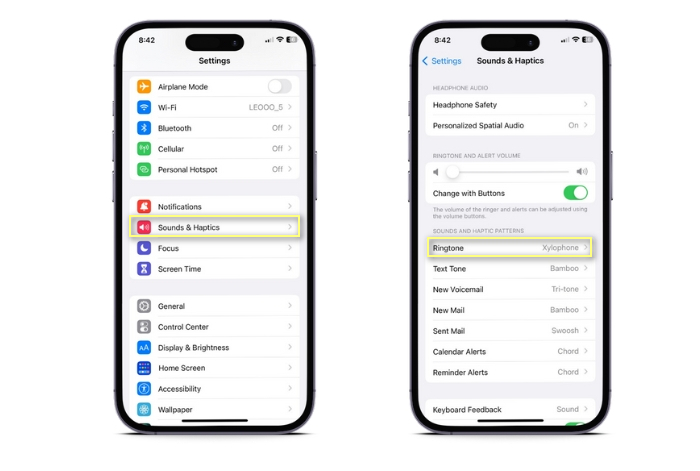
เมื่อซิงค์เสร็จแล้ว ให้ไปที่ การตั้งค่า (Settings) > เสียงและการสัมผัส (Sounds & Haptics) > เสียงเรียกเข้า (Ringtone) บน iPhone ของคุณ คุณจะเห็นเสียงเรียกเข้าที่คุณสร้างเองอยู่ด้านบนในส่วน เสียงเรียกเข้า (Ringtones) แตะเลือกเพื่อใช้เป็นเสียงเรียกเข้าหลักของคุณ.
แค่นั้นแหละ! คุณได้เรียนรู้วิธีเปลี่ยนวิดีโอเป็นเสียงเรียกเข้าบน iPhone เรียบร้อยแล้ว ตอนนี้คุณสามารถสร้างเสียงเรียกเข้าจากไฟล์วิดีโอบน iPhone ของคุณได้
ส่วนที่ 2 เปลี่ยนวิดีโอเป็นไฟล์เสียง M4R
1. Video Converter Ultimate
Video Converter Ultimate เป็นแอปแปลงไฟล์ที่ยอดเยี่ยม ช่วยให้คุณแปลงไฟล์เสียงได้ทุกแบบ คุณสามารถแปลงจาก M4A เป็น M4R, MP3 เป็น M4R และอีกมากมาย ด้วย Video Converter Ultimate คุณสามารถตัดช่วงเสียงที่ต้องการจากวิดีโอได้อย่างง่ายดาย หรือแปลงเพลงโปรดให้เป็นรูปแบบเสียงเรียกเข้า iPhone (m4r) บอกลาความยุ่งยากด้านเทคนิคไปได้เลย เพราะเครื่องมือนี้ใช้งานง่าย ตรงไปตรงมา รับรองว่าคุณจะตั้งค่าเสียงเรียกเข้าของตัวเองได้ในเวลาไม่นาน.
คุณสมบัติเด่น
◆ การแปลงวิดีโอเป็นเสียง: แยกแทร็กเสียงจากวิดีโอในรูปแบบต่าง ๆ ได้อย่างง่ายดาย และบันทึกเป็นไฟล์เสียงแบบสแตนด์อโลน (MP3, M4A ฯลฯ )
◆ การแปลงเสียงเป็นเสียงเรียกเข้า iPhone: แปลงไฟล์เสียงเป็นรูปแบบเสียงเรียกเข้าที่เหมาะกับ iPhone (M4R) ด้วยการคลิกเพียงไม่กี่ครั้ง
◆ การตั้งค่าเอาต์พุตที่ปรับแต่งได้: ปรับพารามิเตอร์เสียง เช่น อัตราบิต อัตราตัวอย่าง และช่องสัญญาณ เพื่อให้ได้คุณภาพเสียงที่ดีที่สุดสำหรับเสียงเรียกเข้าของคุณ
◆ การตัดแต่งวิดีโอ: ตัดแต่งและตัดวิดีโอเพื่อเลือกส่วนที่คุณต้องการใช้เป็นเสียงเรียกเข้า เพื่อให้มั่นใจว่าคุณจะได้ส่วนที่สมบูรณ์แบบ
มาดูขั้นตอนการสร้างเสียงเรียกเข้าจากวิดีโอโดยใช้ Video Converter Ultimate กัน:
ขั้นตอนที่ 1 ติดตั้งและเปิดโปรแกรม
ขั้นแรก ดาวน์โหลดและติดตั้ง Video Converter Ultimate บนคอมพิวเตอร์ของคุณ เมื่อติดตั้งแล้ว ให้เปิดโปรแกรมเพื่อเริ่มต้นใช้งาน
ดาวน์โหลดฟรีสำหรับ Windows 7 ขึ้นไปดาวน์โหลดอย่างปลอดภัย
ดาวน์โหลดฟรีสำหรับ MacOS 10.7 หรือใหม่กว่าดาวน์โหลดอย่างปลอดภัย
ขั้นตอนที่ 2 นำเข้าวิดีโอ
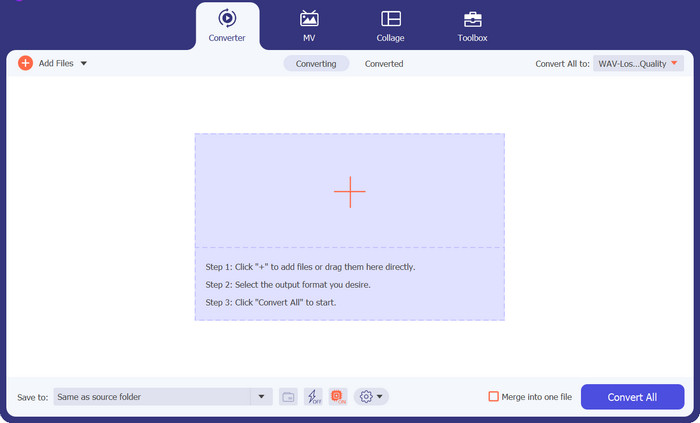
คลิกปุ่ม Add Files เพื่อนำเข้าวิดีโอที่คุณต้องการใช้ทำเสียงเรียกเข้า คุณสามารถเลือกไฟล์วิดีโอจากที่เก็บข้อมูลในเครื่อง และไฟล์จะปรากฏในหน้าต่างโปรแกรม.
ขั้นตอนที่ 3 ตัดวิดีโอ
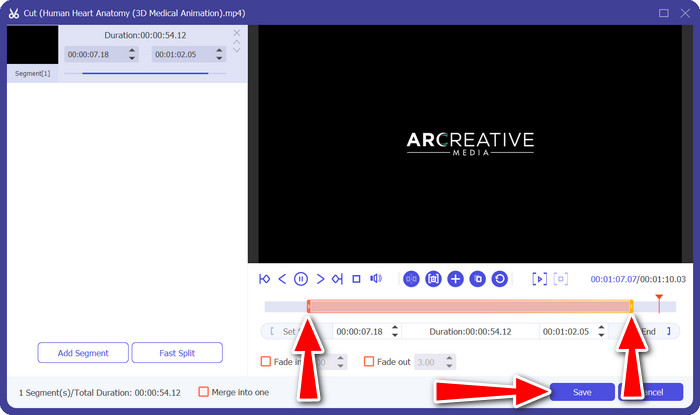
ในหน้าหลักของ Video Converter Ultimate ให้ค้นหาและคลิกปุ่ม Cut จากนั้นจะแสดงไทม์ไลน์วิดีโอเพื่อให้คุณพรีวิววิดีโอได้ หากต้องการกำหนดจุดเริ่มต้นของเสียงเรียกเข้า ให้ลากตัวชี้ไปยังตำแหน่งที่ต้องการบนไทม์ไลน์ เช่นเดียวกัน ให้ลากตัวชี้ไปยังจุดสิ้นสุดเพื่อเลือกช่วงที่คุณต้องการใช้เป็นเสียงเรียกเข้า เมื่อเลือกช่วงเสร็จแล้ว ให้คลิกปุ่ม Save โปรแกรมจะบันทึกช่วงที่ตัดไว้เป็นไฟล์วิดีโอแยกต่างหาก ซึ่งจะถูกใช้สำหรับสร้างเสียงเรียกเข้าของคุณ.
ขั้นตอนที่ 4 แปลงวิดีโอ
จากนั้น มองหาช่องรายการดรอปดาวน์ Profile แล้วเลือก M4R เป็นรูปแบบไฟล์ขาออก M4R เป็นรูปแบบไฟล์ที่ออกแบบมาสำหรับเสียงเรียกเข้า iPhone โดยเฉพาะ สุดท้ายให้คลิกปุ่ม Convert All เพื่อเริ่มกระบวนการแปลงไฟล์ คุณสามารถใช้วิธีนี้เพื่อแปลงไฟล์จาก M4A เป็น M4R หรือกลับกันก็ได้.
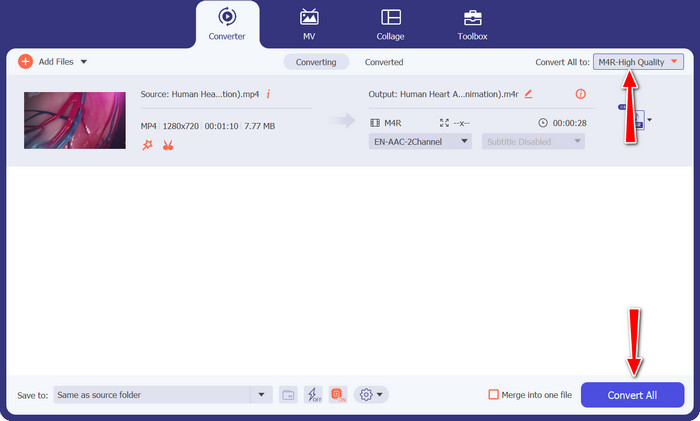
2. โปรแกรมแปลงวิดีโอออนไลน์ฟรี
Free Video Converter Online คือเครื่องมือออนไลน์ที่คุณพึ่งพาได้สำหรับสร้างเสียงเรียกเข้าดี ๆ และแปลงไฟล์เสียงให้กลายเป็นโทนเสียงที่รองรับบน iPhone และที่สำคัญคือใช้งานได้ฟรี คุณสามารถตัดช่วงที่ต้องการจากวิดีโอได้อย่างง่ายดาย แล้วเปลี่ยนให้เป็นเสียงเรียกเข้าที่มีเอกลักษณ์เฉพาะตัวของคุณเอง และถ้าคุณมีเพลงหรือคลิปเสียงโปรดก็ไม่ต้องกังวล! เครื่องมือนี้สามารถแปลงให้เป็นรูปแบบ M4R สำหรับ iPhone ได้เช่นกัน เพื่อให้คุณตั้งเป็นเสียงเรียกเข้าและเพลิดเพลินไปกับท่อนโปรดของคุณ.
คุณสมบัติเด่น
◆ ความสะดวกสบายออนไลน์: ในฐานะเครื่องมือออนไลน์ คุณสามารถเข้าถึงได้จากอุปกรณ์ใดๆ ที่มีการเชื่อมต่ออินเทอร์เน็ต ไม่จำเป็นต้องดาวน์โหลดหรือติดตั้ง
◆ ไม่มีลายน้ำหรือข้อจำกัด: เพลิดเพลินกับฟังก์ชันการทำงานเต็มรูปแบบโดยไม่มีลายน้ำที่น่ารำคาญหรือข้อจำกัดการใช้งานในไฟล์ที่แปลงแล้วของคุณ
◆ ส่วนต่อประสานที่ใช้งานง่าย: การออกแบบที่ใช้งานง่ายและตรงไปตรงมา ทำให้ทุกคนใช้งานได้ง่าย แม้ว่าคุณจะไม่เชี่ยวชาญด้านเทคโนโลยีก็ตาม
ขั้นตอนที่ 1 เปิดเว็บเบราว์เซอร์ แล้วไปที่เว็บไซต์ Free Video Converter Online ผ่านเครื่องมือค้นหาที่คุณใช้งานประจำ.
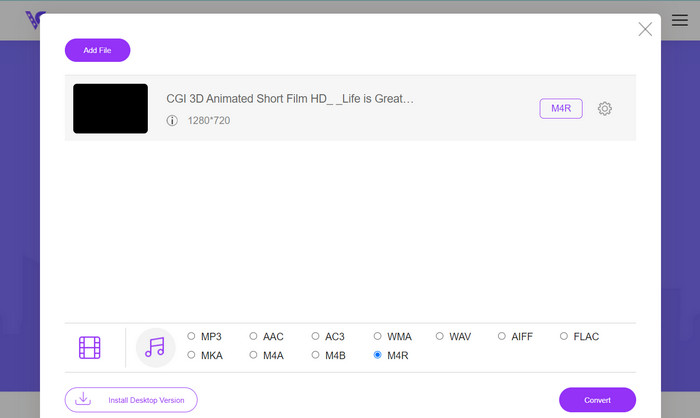
ขั้นตอนที่ 2 คลิกปุ่ม Add Files to Convert บนเว็บไซต์เพื่ออัปโหลดไฟล์เสียงที่คุณต้องการแปลง คุณอาจมีตัวเลือกให้ลากและวางไฟล์ลงบนหน้าเว็บโดยตรงด้วย.
ขั้นตอนที่ 3 หลังจากอัปโหลดไฟล์เสียงแล้ว ให้เลือก M4R เป็นรูปแบบไฟล์ขาออกจากรายชื่อรูปแบบไฟล์ นี่คือรูปแบบที่ใช้สำหรับเสียงเรียกเข้า iPhone โดยเฉพาะ.
ขั้นตอนที่ 4 เมื่อคุณเลือกรูปแบบไฟล์ขาออกแล้ว ให้คลิกปุ่ม Convert เพื่อเริ่มกระบวนการแปลงไฟล์.
อ่านเพิ่มเติม:
เครื่องมือที่ดีที่สุดสำหรับแปลงไฟล์ MP3 เป็น M4R แบบแบตช์
3 เทคนิคที่ดีที่สุดในการบันทึกเสียงบน iPhone
ส่วนที่ 3 คำถามที่พบบ่อยเกี่ยวกับการสร้างริงโทนสำหรับ iPhone
ฉันจะดาวน์โหลดเสียงเรียกเข้าฟรีได้อย่างไร?
หากต้องการรับเสียงเรียกเข้าฟรี โปรดไปที่เว็บไซต์เช่น Mobile9, Zedge, iTunemachine, Tones7, Mobiles24, Ringtone Maker และอื่นๆ เว็บไซต์เหล่านี้มีเสียงเรียกเข้าให้เลือกมากมายซึ่งคุณสามารถดาวน์โหลดได้โดยไม่เสียค่าใช้จ่ายใดๆ
จะทำให้เพลงของคุณเป็นริงโทนบน Android ได้อย่างไร?
หากต้องการตั้งเพลงเป็นเสียงเรียกเข้าบน Android ให้ไปที่ "การตั้งค่า" > "เสียงและการแจ้งเตือน" > "เสียงเรียกเข้า" > "เพิ่ม" และเลือกส่วนของเพลงที่คุณต้องการ เสร็จแล้ว! เพลงของคุณเป็นเสียงเรียกเข้าของคุณแล้ว
ฉันสามารถสร้างเสียง TikTok เป็นเสียงเรียกเข้าส่วนตัวบน iPhone ได้หรือไม่
โดยเฉพาะอย่างยิ่ง คุณสามารถรับวิดีโอจาก TikTok และใช้มันเพื่อสร้างเสียงเรียกเข้าที่เป็นเอกลักษณ์ของคุณได้ ซอฟต์แวร์อเนกประสงค์นี้ช่วยให้คุณสามารถแก้ไขและปรับแต่งคลิปให้ตรงกับความต้องการของคุณ ทำให้คุณควบคุมเสียงเรียกเข้าของ iPhone ได้อย่างสมบูรณ์
ฉันสามารถตั้งค่าเสียงเรียกเข้าที่แตกต่างกันสำหรับรายชื่อติดต่อที่แตกต่างกันในโทรศัพท์ของฉันได้หรือไม่?
ใช่ สมาร์ทโฟนส่วนใหญ่อนุญาตให้คุณตั้งค่าเสียงเรียกเข้าเฉพาะสำหรับผู้ติดต่อแต่ละคนได้ ด้วยวิธีนี้ คุณสามารถรับรู้ได้ว่าใครโทรมาโดยไม่ต้องดูโทรศัพท์ของคุณด้วยซ้ำ
ฉันจะถ่ายโอนเสียงเรียกเข้าแบบกำหนดเองไปยังอุปกรณ์ iPhone หรือ Android ได้อย่างไร
หากต้องการถ่ายโอนเสียงเรียกเข้าแบบกำหนดเองไปยัง iPhone ของคุณ คุณสามารถใช้ iTunes หรือบริการจัดเก็บข้อมูลบนคลาวด์ เช่น iCloud สำหรับอุปกรณ์ Android คุณสามารถคัดลอกเสียงเรียกเข้าไปยังโฟลเดอร์ "เสียงเรียกเข้า" โดยใช้แอปตัวจัดการไฟล์ หรือเชื่อมต่อโทรศัพท์ของคุณเข้ากับคอมพิวเตอร์ แล้วลากและวางไฟล์เสียงเรียกเข้า
สรุป
การเรียนรู้วิธีทำไฟล์เสียงให้เป็นเสียงเรียกเข้าบน iPhone ตอนนี้ง่ายกว่าที่เคย ด้วยความช่วยเหลือจากเครื่องมือใช้งานง่ายอย่าง Video Converter Ultimate และ Free Video Converter Online คุณสามารถเปลี่ยนเพลงและคลิปวิดีโอโปรดให้กลายเป็นทำนองส่วนตัวของคุณได้.
-
 M4R เป็น MP3: สุดยอดคู่มือการแปลงรูปแบบเสียง
 แปลงเสียงเรียกเข้า iPhone ของคุณอย่างง่ายดาย! แปลง M4R เป็น MP3 อย่างง่ายดายและเพลิดเพลินกับโทนเสียงที่กำหนดเองได้หลากหลายบนอุปกรณ์ใดก็ได้
-
 วิธีสร้าง GIF บน iPhone จากรูปภาพหลายรูปที่คุณถ่ายและบันทึก
 คุณต้องการทราบวิธีการสร้าง GIF บน iPhone จากรูปภาพของคุณหรือไม่? โพสต์นี้แชร์ซอฟต์แวร์ 3 ตัวที่คุณสามารถใช้สร้าง GIF บน iPhone ของคุณ
-
 5 เครื่องตัด MP3 เพื่อตัดเสียงใด ๆ ได้อย่างง่ายดาย [อัปเดต 2023]
 คุณต้องการเครื่องตัด MP3 เพื่อตัดเสียงหรือไม่? ในกรณีนั้น โปรดอ่านบทความนี้เพราะเรามีเครื่องมือที่คุณสามารถพึ่งพาได้ซึ่งให้การตัดเสียงที่ง่ายดาย
