


 Video Converter Ultimate
 บันทึกหน้าจอ
 ซ่อมวิดีโอ
 ดาวน์โหลดอย่างปลอดภัย
วิธีแปลง MOV เป็น OGG: 5 วิธีที่มีประสิทธิภาพสูงสุด
การเล่นไฟล์คอนเทนเนอร์ MOV บนอุปกรณ์ของพวกเขาไม่ใช่ปัญหาสำหรับผู้ใช้ Apple จำนวนมาก เนื่องจากไฟล์ MOV ถูกสร้างขึ้นมาเดิมเพื่อใช้กับ QuickTime Player และซอฟต์แวร์ตัดต่อวิดีโอบน Mac อื่น ๆ เช่น Final Cut Pro คุณจึงอาจจำเป็นต้องแปลง MOV เป็น OGGเป็นครั้งคราวเพื่อแก้ปัญหาความไม่รองรับกับอุปกรณ์ Android อื่น ๆ และโปรแกรมเล่นสื่อบนระบบปฏิบัติการ Windows ในคู่มือสั้น ๆ นี้ เราจะนำเสนอ 5 วิธีที่ดีที่สุดในการแปลงไฟล์ MOV เป็น OGG ให้คุณ.

ส่วนที่ 1 5 วิธีในการแปลง MOV เป็น OGG
1. Video Converter Ultimate
หากคุณกำลังมองหาวิธีแบบครบวงจรในการแปลง MOV เป็น OGG อย่างลื่นไหล ให้เลือกใช้ Video Converter Ultimate ซอฟต์แวร์นี้ใช้กระบวนการเข้ารหัสด้วยฮาร์ดแวร์ GPU ทำให้การแปลงไฟล์ต่าง ๆ ทำได้รวดเร็วขึ้นถึง 50 เท่า นอกจากนี้ยังเปิดโอกาสให้ผู้ใช้ควบคุมคุณภาพเอาต์พุตของไฟล์ให้ตรงตามความต้องการและความชื่นชอบได้อีกด้วย ที่สำคัญ Video Converter Ultimate ยังรองรับการแปลงแบบแบตช์ กล่าวคือ คุณสามารถแปลงชุดไฟล์เสียง MOV ให้เป็น OGG ได้ในคลิกเดียว หากต้องการดูว่าเครื่องมือสุดพิเศษนี้ทำงานอย่างไร โปรดปฏิบัติตามคำแนะนำด้านล่างนี้.
ขั้นตอนที่ 1 เปิดโปรแกรมแปลง MOV เป็น OGG ที่ดีที่สุด
ดาวน์โหลดฟรีสำหรับ Windows 7 ขึ้นไปดาวน์โหลดอย่างปลอดภัย
ดาวน์โหลดฟรีสำหรับ MacOS 10.7 ขึ้นไปดาวน์โหลดอย่างปลอดภัย
ขั้นตอนที่ 2 อัปโหลดไฟล์เสียง MOV
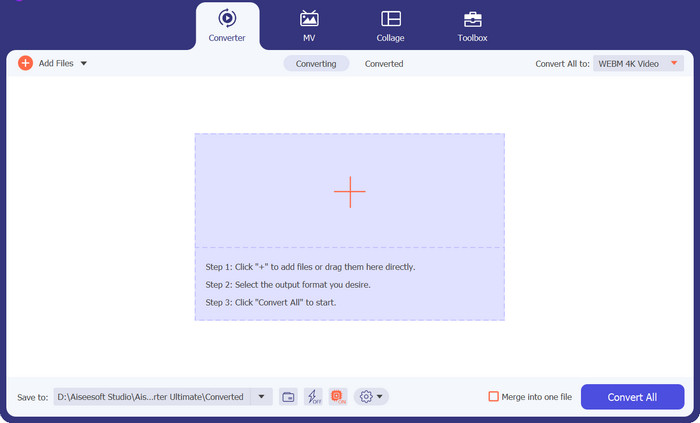
เมื่อโปรแกรมโหลดขึ้นมาบนหน้าจอ ให้คลิกปุ่ม เครื่องหมายบวก ที่กึ่งกลางอินเทอร์เฟซของโปรแกรม จากนั้นไดเรกทอรีของคอมพิวเตอร์คุณจะปรากฏขึ้น ให้เลือกไฟล์ MOV ที่คุณต้องการแปลงเป็น OGG.
ขั้นตอนที่ 3 เลือก OGG เป็นรูปแบบเอาต์พุต
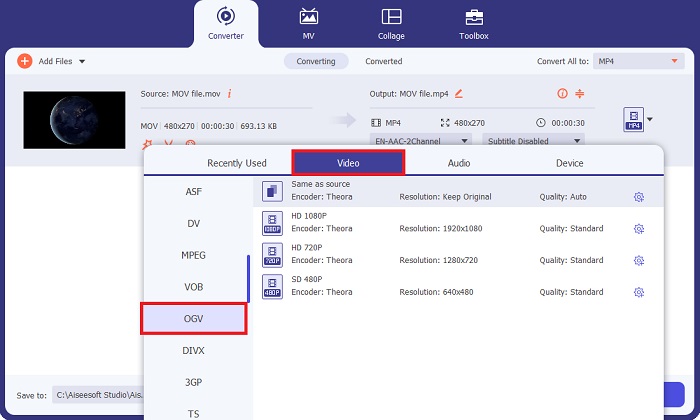
เมื่อไฟล์โหลดขึ้นบนหน้าจอแล้ว ให้ไปที่แท็บ Output จากนั้นไปที่พาเนล Audio แล้วเลือกไฟล์ OGV นอกจากนี้ คุณยังสามารถควบคุมคุณภาพเอาต์พุตได้โดยปรับอัตราการสุ่มตัวอย่าง (sample rate).
ขั้นตอนที่ 4 แปลงไฟล์
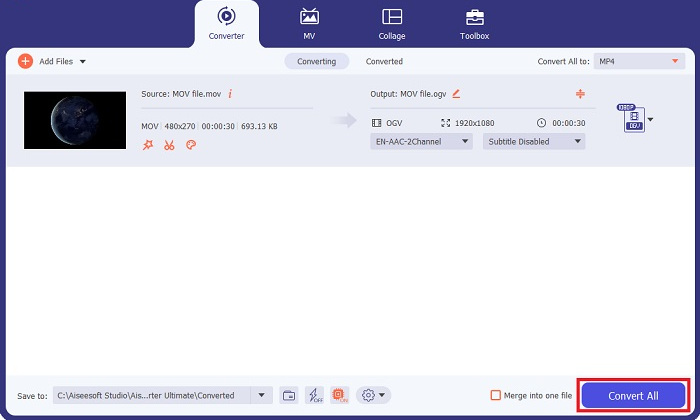
เมื่อกำหนดค่าความต้องการเอาต์พุตทุกอย่างเรียบร้อยแล้ว ให้กดปุ่ม Convert All ด้านล่าง ขั้นตอนการแปลงอาจใช้เวลาสักครู่ขึ้นอยู่กับขนาดไฟล์เสียงของคุณ คุณสามารถคลิกที่ไฟล์เอาต์พุตและฟังได้เมื่อกระบวนการเสร็จสมบูรณ์.
ข้อดี
- โปรแกรมนี้มีกล่องเครื่องมืออันมีค่าที่มีเครื่องมือแก้ไขเสียงและวิดีโอ เช่น Enhancer, Video Merger, File Compressor และอื่นๆ
- Video Converter Ultimate มีรูปแบบเสียงและวิดีโอมากกว่า 1,000 รูปแบบ
- Video Converter Ultimate เสนอแผนการสมัครสมาชิกที่ยืดหยุ่นตั้งแต่ $23.20 ต่อเดือนไปจนถึง $49.96 ต่ออายุการใช้งาน
จุดด้อย
- โปรแกรมนี้เข้ากันไม่ได้กับซอฟต์แวร์ลินุกซ์
2. โปรแกรมแปลงวิดีโอออนไลน์ฟรี
ผู้ใช้บางรายไม่ต้องการติดตั้งซอฟต์แวร์ หากคุณเป็นหนึ่งในนั้น นี่คือ Free Video Converter Online ซึ่งรองรับการแปลง MOV เป็น OGG เช่นกัน เครื่องมือนี้ไม่เพียงมีอินเทอร์เฟซที่สวยงามเท่านั้น แต่ยังน่าประทับใจยิ่งกว่าด้วยความที่ใช้งานง่าย นี่คือรายละเอียดขั้นตอนการแปลง MOV เป็น OGG ด้วยตัวแปลงออนไลน์นี้.
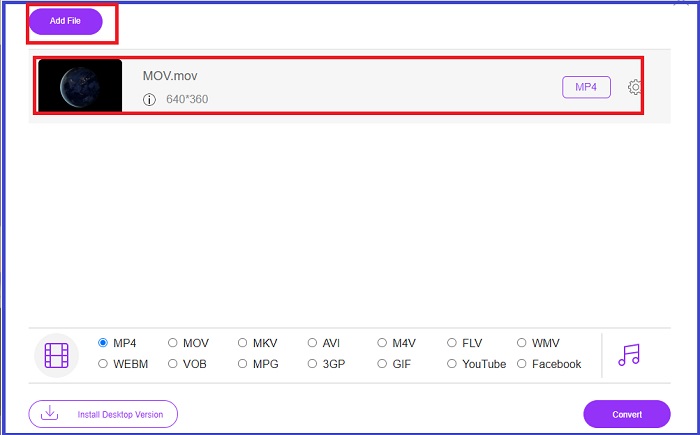
ขั้นตอนที่ 1 เริ่มจากเข้าสู่หน้าเว็บไซต์หลักของโปรแกรม จากนั้นกดปุ่ม Add Files to Convert และอัปโหลดไฟล์ที่คุณต้องการ.
ขั้นตอนที่ 2 เมื่ออัปโหลดไฟล์ MOV แล้ว ให้เปลี่ยนเอาต์พุตจากปุ่ม Video เป็น Audio แล้วเลือก OGG.
ขั้นตอนที่ 3 คลิกปุ่ม Convert เพื่อเริ่มต้นการแปลง.
ข้อดี
- โปรแกรมนี้รับประกันความปลอดภัยอย่างสมบูรณ์และการบุกรุกป้องกันความเป็นส่วนตัวสำหรับผู้ใช้
- รองรับคุณสมบัติการแปลงเป็นชุด
จุดด้อย
- ไม่มีเครื่องมือที่ครอบคลุมเช่นโปรแกรมตัดต่อวิดีโอ
3. Convertio
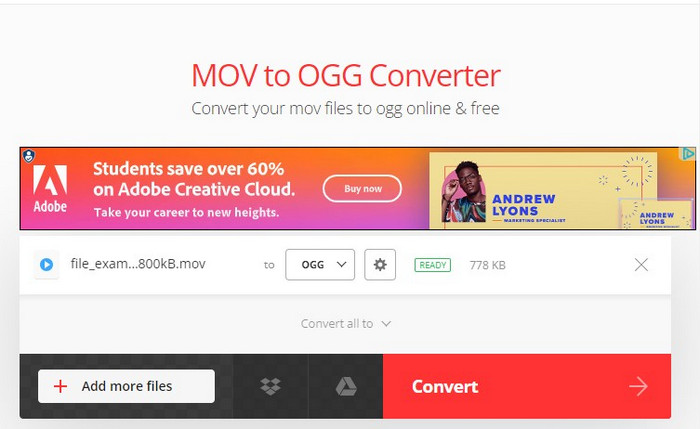
เครื่องมือที่น่าเชื่อถืออีกตัวในการแปลง OGG เป็น MOV หรือ MOV เป็น OGG คือ Convertio โปรแกรมออนไลน์นี้ใช้งานได้ฟรีและมีอินเทอร์เฟซที่ไม่ซับซ้อน ที่กล่าวว่ามันทำให้กิจกรรมการแปลงสำหรับมือใหม่และบุคคลที่ไม่เชี่ยวชาญด้านเทคโนโลยีนั้นไม่เจ็บปวดอย่างปฏิเสธไม่ได้ นอกจากนี้ยังใช้งานได้กับอุปกรณ์พกพาทำให้สะดวกยิ่งขึ้น ทำตามคำแนะนำด้านล่างเพื่อแปลง MOV เป็น OGG
ขั้นตอนที่ 1 บนหน้าแรกของโปรแกรม ให้กดปุ่ม Choose Files ที่อยู่ตรงกลาง.
ขั้นตอนที่ 2 จากนั้นอัปโหลดไฟล์ MOV จากไดเรกทอรีในคอมพิวเตอร์ของคุณ หากต้องการปรับคุณภาพเอาต์พุต ให้กดปุ่ม Settings แล้วปรับรายละเอียดตามที่คุณต้องการ.
ขั้นตอนที่ 3 กดปุ่ม Convert หากต้องการแปลงไฟล์หลายไฟล์พร้อมกัน ให้คลิก Add more files.
ข้อดี
- สามารถแก้ไขการตั้งค่าเอาต์พุตได้ด้วยตนเอง เช่น โคเดก คุณภาพ และช่องสัญญาณเสียง
- Convertio เป็นซอฟต์แวร์แปลง MOV เป็น OGG ออนไลน์ที่ปลอดภัย 100%
จุดด้อย
- ผู้ใช้อาจมีปัญหาในการอัปโหลดไฟล์ MOV ขนาดใหญ่
- ไม่มีโปรแกรมตัดต่อวิดีโอและเสียง
- มันมีโฆษณาที่ไม่ต้องการและน่ารำคาญ
4. โรงงานแปลงวิดีโอ
Video Converter Factory เป็นอีกหนึ่งเครื่องมือที่จะทำให้การแปลงของคุณง่ายขึ้น ซอฟต์แวร์ออฟไลน์นี้ใช้งานได้ทั้งบนระบบปฏิบัติการ Windows และ Mac นอกจากนี้ยังมีรูปแบบเอาต์พุตหลายรูปแบบ เช่น OGG, M4A, FLAC และ WAV มีแนวโน้มมากขึ้นคืออะไร? Video Converter Factory มีตัวดาวน์โหลดเพลงในตัวที่ให้คุณบันทึกเพลงโปรด อัลบั้ม และหนังสือเสียง
ขั้นตอนที่ 1 ก่อนอื่น ให้เปิดไฟล์บนอุปกรณ์ของคุณและคลิกปุ่ม Add Files จากนั้นนำเข้าไฟล์ MOV เข้าสู่โปรแกรม หรือคุณจะใช้ฟังก์ชันลากแล้วปล่อยก็ได้.
ขั้นตอนที่ 2 ไปที่พาเนลเอาต์พุตแล้วเลือก OGG เป็นรูปแบบเอาต์พุตของคุณ คุณยังสามารถแก้ไขพารามิเตอร์เสียงบางอย่างได้ใน Settings.
ขั้นตอนที่ 3 สุดท้าย เลือกโฟลเดอร์ปลายทางสำหรับไฟล์ของคุณแล้วกดปุ่ม Convert.
ข้อดี
- Video Converter Factory ให้เครื่องบันทึกหน้าจอแก่ผู้ใช้เพื่อบันทึกสตรีมสด
- โปรแกรมสามารถสร้างเสียงเรียกเข้าเมื่อคุณแปลงวิดีโอเป็นเสียง
จุดด้อย
- โปรแกรมนี้ไม่เหมาะสำหรับระบบปฏิบัติการ Mac
5. แปลงไฟล์ฟรี
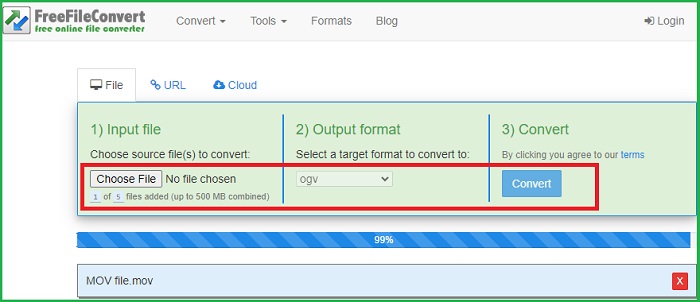
FreeFileConvert เป็นซอฟต์แวร์ออนไลน์ที่รับการชำระเงินเป็นศูนย์สำหรับผู้ใช้ นอกเหนือจากการแปลงไฟล์วิดีโออย่างเช่น MOV เป็น OGG แล้ว มันยังทำหน้าที่เป็นตัวแปลงเสียงและบีบอัดไฟล์ PDF หากคุณต้องการแปลงไฟล์ MOV เป็น OGG ให้ทำตามคำแนะนำที่นี่
ขั้นตอนที่ 1 ไปที่แท็บ Input File บนหน้าจอแล้วอัปโหลดไฟล์วิดีโอ MOV ของคุณ.
ขั้นตอนที่ 2 เมื่ออัปโหลดไฟล์แล้ว ไปที่พาเนล Output Format แล้วเลือก OGG.
ขั้นตอนที่ 3 ก่อนการแปลง ให้คลิก Yes เพื่อยอมรับข้อตกลง จากนั้นกดปุ่ม Convert เพื่อเริ่มกระบวนการ.
ข้อดี
- FreeFileConvert รองรับรูปแบบไฟล์วิดีโอและไฟล์เสียง
- มีอินเทอร์เฟซที่ใช้งานง่าย
จุดด้อย
- โปรแกรมสามารถรองรับขนาดไฟล์สูงสุด 300 MB เท่านั้น
อ่านเพิ่มเติม:
5 อันดับตัวแปลง MOV เป็น WAV ที่ดีที่สุดปี 2023: รีวิวแบบละเอียดครบถ้วน
[ฟรี & ออนไลน์] 3 วิธีรวดเร็วในการแปลง MP4 เป็น OGG
ส่วนที่ 2: คำถามที่พบบ่อยเกี่ยวกับการแปลง OGG เป็น MOV
ไฟล์ OGG ดีกว่า MP3 หรือไม่
ไฟล์ทั้งสองมีขนาดไฟล์ที่ใกล้เคียงกันเมื่อคุณเปรียบเทียบ อย่างไรก็ตาม ในแง่ของคุณภาพ OGG นั้นดีกว่า MP3 เล็กน้อย
MOV คืออะไร?
MOV เป็นนามสกุลไฟล์วิดีโอที่พัฒนาโดย Apple ไฟล์ประเภทนี้มักจะเล่นบนเครื่องเล่น QuickTime
ฉันจะแปลง MOV เป็นเสียงได้อย่างไร
คุณจะต้องใช้ซอฟต์แวร์ในการทำงานเมื่อแปลงไฟล์ MOV เป็นไฟล์เสียง ด้วยวิธีนี้ คุณสามารถใช้โปรแกรมออนไลน์หรือซอฟต์แวร์ออฟไลน์ เช่น Video Converter Ultimate
VLC สามารถแยกเสียง MOV ได้หรือไม่
ใช่. VLC สามารถแยกอินพุตเสียงจากไฟล์รูปแบบต่างๆ อย่างไรก็ตาม กระบวนการนี้อาจใช้เวลามากสำหรับผู้เริ่มต้น
ข้อดีของการใช้ตัวแปลง MOV เป็น OGG แบบออฟไลน์คืออะไร
แม้ว่าแพลตฟอร์มออนไลน์จะเป็นตัวเลือกที่ค่อนข้างดีเมื่อแปลงไฟล์ MOV เป็น OGG แต่ซอฟต์แวร์ออฟไลน์ เช่น Video Converter Ultimate ช่วยให้คุณสามารถขยายคุณภาพของผลงานของคุณได้ คุณสามารถปรับแต่งพารามิเตอร์ของเพื่อนของคุณ คุณสามารถแก้ไขฟุตเทจได้เองโดยใช้โปรแกรมแก้ไขในตัว
สรุป
แม้ว่าไฟล์ MOV จะเหมาะกับการเล่นวิดีโอ แต่ไฟล์ OGG จะช่วยประหยัดพื้นที่จัดเก็บบนอุปกรณ์ของคุณได้มาก เมื่อคุณต้องการเพียงรูปแบบ MOV ในลักษณะไฟล์เสียงเท่านั้น ด้วยซอฟต์แวร์ที่กล่าวมาข้างต้น คุณสามารถเปลี่ยน MOV เป็น OGG ได้อย่างง่ายดาย.
-
 4 วิธีที่ดีที่สุดในการแปลง MOV เป็น MP3 บน Windows และ Mac ได้อย่างง่ายดาย
 เมื่อคุณต้องการแยกไฟล์เสียง MP3 จากไฟล์ MOV คุณสามารถเรียนรู้เพิ่มเติมเกี่ยวกับตัวแปลง MOV เป็น MP3 ที่มีประสิทธิภาพสูงสุด 4 ตัวเพื่อให้ได้ไฟล์ที่ต้องการจากบทความ
-
 แปลงไฟล์ MOV เป็น GIF และปลดล็อกพลังของเนื้อหาภาพเคลื่อนไหว
 แปลงวิดีโอ MOV ของคุณเป็น GIF แบบเคลื่อนไหว และเพิ่มระดับเนื้อหาเกมออนไลน์ของคุณ! เครื่องมือแปลง MOV เป็น GIF ที่ใช้งานง่ายของเราจะช่วยให้คุณสร้างกราฟิกที่สะดุดตา
-
 2 วิธีที่ดีที่สุดในการแก้ไขข้อมูลเมตา OGG ที่คุณควรลองใช้ฟรี
 ต้องการแก้ไขข้อมูลเมตา OGG หรือไม่ คุณสามารถจัดการแก้ไขแท็กได้อย่างง่ายดายโดยใช้ซอฟต์แวร์ที่ถูกต้อง หากคุณไม่มี'ต้องอ่านบทความนี้
