


 Video Converter Ultimate
 บันทึกหน้าจอ
 ซ่อมวิดีโอ
วิธีการสร้างและเพิ่มข้อความลงในวิดีโอใน iMovie ด้วยขั้นตอนที่ง่ายต่อการปฏิบัติตาม
ด้วย iMovie คุณแทบจะสามารถทำการตัดต่อที่ซับซ้อนเท่าที่คุณต้องการเพื่อสร้างวิดีโอที่ยอดเยี่ยมได้ ดังนั้นการใส่ข้อความลงในวิดีโอบน iMovieจึงเป็นเรื่องง่ายมาก แต่คำถามคือจะต้องทำอย่างไร? มันยากไหมที่จะใส่ข้อความลงในวิดีโอด้วยหนึ่งในโปรแกรมตัดต่อที่ดีที่สุดที่ Apple มอบให้? คำถามเหล่านี้มีคำตอบอยู่ด้านล่าง หากคุณอ่านบทความนี้ให้จบอย่างละเอียด ไม่ต้องกังวล เพราะคุณจะใช้เวลาเพียงประมาณ 5 นาทีหรือน้อยกว่านั้น ขึ้นอยู่กับความเร็วในการอ่านของคุณ แต่อย่างไรก็ใช้เวลาอ่านให้เต็มที่ และเมื่อจบโพสต์นี้ คุณจะรู้วิธีการใส่ข้อความลงในวิดีโอของคุณแล้ว เอาล่ะ มาเตรียมตัวให้พร้อมและเริ่มต้นการเดินทางกันเลยดีกว่าโดยไม่ต้องรอช้า.

ส่วนที่ 1 วิธีการเพิ่มข้อความลงในวิดีโอใน iMovie บน Mac
มันจะง่ายมากที่จะเข้าใจขั้นตอนถ้าคุณมี Mac เพราะบทช่วยสอนนี้ที่เราจัดเตรียมไว้จะนำคุณไปสู่ความสำเร็จในการเพิ่มลายน้ำข้อความบนวิดีโอของคุณ ปฏิบัติตามอย่างละเอียดและทำความเข้าใจวิธีเพิ่มข้อความลงในวิดีโอใน iMovie โดยใช้ Mac ของคุณ
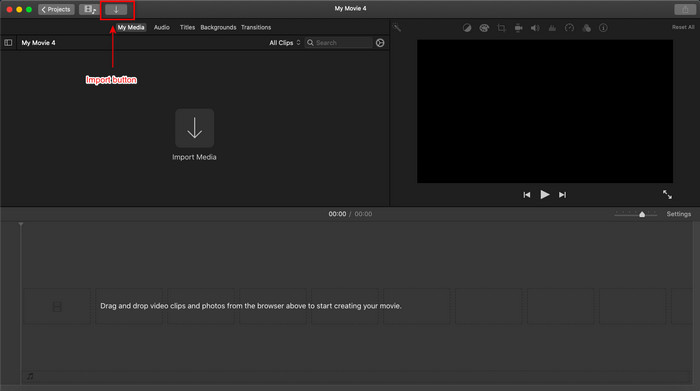
ขั้นตอนที่ 1. บน Finder ให้มองหา iMovie แล้วเปิดขึ้นมา จากนั้นคลิกปุ่ม Import เพื่ออัปโหลดไฟล์วิดีโอที่ต้องการใส่ลายน้ำข้อความ ลากและวางไฟล์ลงในไทม์ไลน์วิดีโอ.
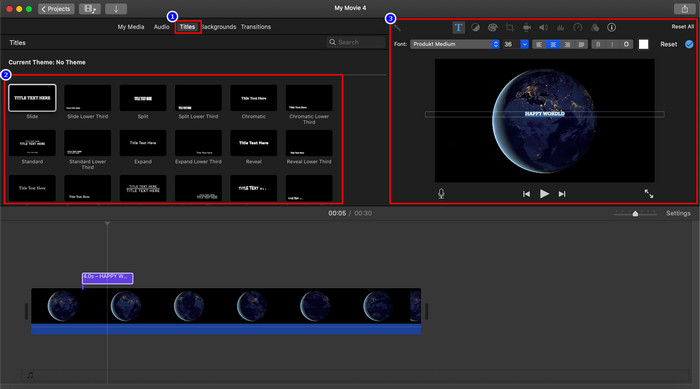
ขั้นตอนที่ 2. คลิก Titles และเลือกข้อความแบบเคลื่อนไหวที่คุณต้องการ คลิกที่ชื่อเรื่องแบบเคลื่อนไหวสองครั้ง แล้วมันจะถูกเพิ่มลงในไทม์ไลน์โดยอัตโนมัติ ในส่วนหน้าตัวอย่าง ให้คลิกที่ข้อความชื่อเรื่องและพิมพ์ข้อความที่คุณต้องการใส่ คุณสามารถแก้ไขแบบอักษร การจัดวาง สี และอื่น ๆ ของตัวอักษรได้ในบริเวณนี้ ปรับตำแหน่งข้อความด้วยการลากไปยังตำแหน่งที่คุณต้องการให้แสดง.
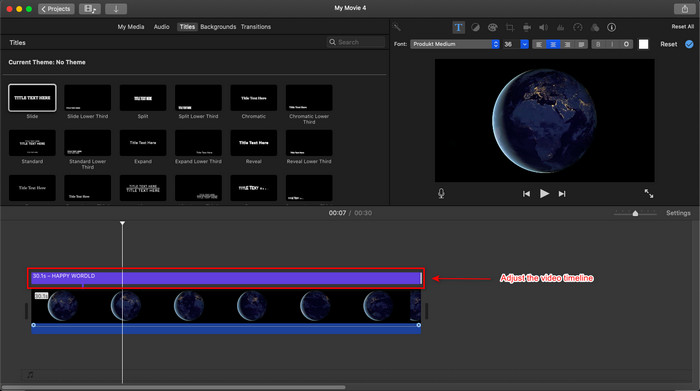
ขั้นตอนที่ 3. กลับไปที่ไทม์ไลน์ ลากส่วนท้ายของเลเยอร์ข้อความเพื่อปรับระยะเวลาแสดง หากคุณต้องการให้ข้อความอยู่บนวิดีโอทั้งคลิป ก็ให้ลากไปจนสุดปลายและกำหนดความยาวตามที่คุณต้องการ.
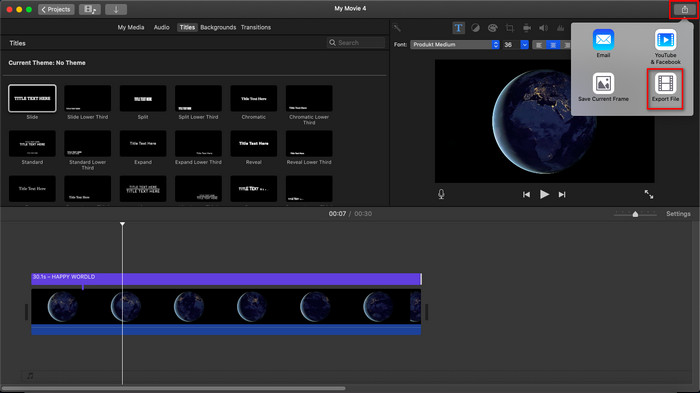
ขั้นตอนที่ 4. หลังจากใส่ข้อความลงในวิดีโอบน iMovie บน Mac เสร็จแล้ว ก็ถึงเวลาส่งออกไฟล์ โดยคลิกปุ่มส่งออกที่มุมขวาบนของอินเทอร์เฟซ จากนั้นเลือก Export File.
ส่วนที่ 2 วิธีการใส่ข้อความบนวิดีโอใน iMovie โดยใช้ iPhone
ดังนั้นตอนนี้ หากคุณมี iPhone คุณสามารถทำตามคำแนะนำนี้แทนการเพิ่มลายน้ำข้อความบน iMovie ขั้นตอนที่เราเพิ่มในคู่มือนี้อิงตามข้อเท็จจริงเกี่ยวกับ iMovie บน iPhone ดังนั้นตอนนี้ หากคุณอยากเรียนรู้วิธีใช้ iMovie บน iPhone เพื่อเพิ่มลายน้ำข้อความ ให้ทำตามขั้นตอนด้านล่าง
ขั้นตอนที่ 1. ก่อนที่เราจะสอนคุณวิธีใส่ข้อความในวิดีโอด้วย iMovie บน iPhone คุณต้องเปิดแอปบนอุปกรณ์ของคุณก่อน หลังจากเปิดแอปแล้ว ให้คลิกไอคอน + แตะ Movie เลือกวิดีโอจากแกลเลอรีของคุณ แล้วแตะ + เพื่อไปขั้นตอนต่อไป.
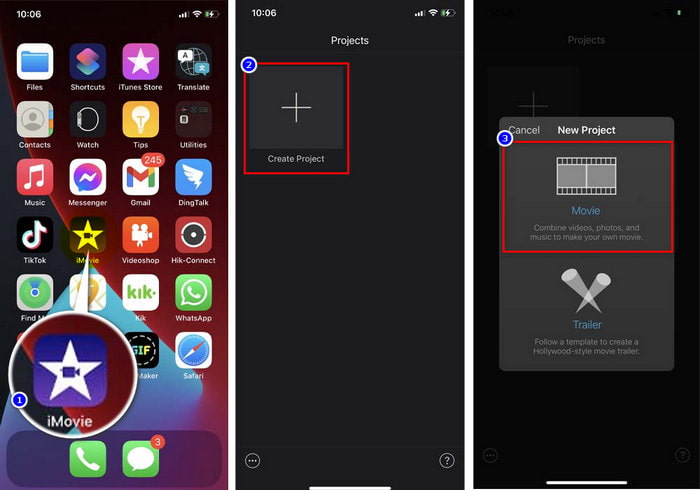
ขั้นตอนที่ 2. บนไทม์ไลน์ ให้คลิกที่วิดีโอ จะมีชุดฟีเจอร์การตัดต่อปรากฏขึ้นด้านล่าง ให้แตะสัญลักษณ์ T เพื่อเพิ่มลายน้ำข้อความ เลื่อนตัวเลือกไปทางขวาแล้วเลือกแอนิเมชันที่คุณต้องการใช้เป็นลายน้ำข้อความ เมื่อคุณเลือกข้อความแบบเคลื่อนไหวแล้ว ให้แตะข้อความตัวอย่างและคลิก Edit พิมพ์ข้อความที่คุณต้องการ จากนั้นคลิก Done เพื่อบันทึก หลังจากนั้นให้แก้ไขข้อความด้วยฟีเจอร์การตัดต่อที่มีอยู่ด้านล่าง กดค้างและลากข้อความไปวางในตำแหน่งใดก็ได้บนวิดีโอ.
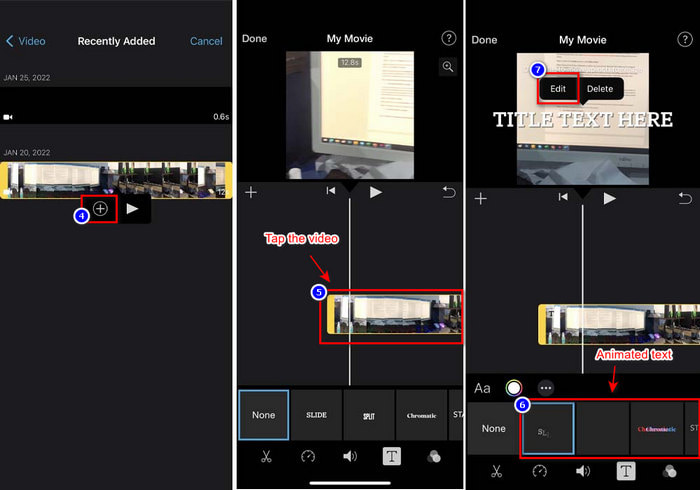
ขั้นตอนที่ 3. หากคุณแก้ไขและใส่ทุกอย่างเรียบร้อยแล้ว ให้คลิก Done จากนั้นกดปุ่มส่งออก แล้วเลือก Save to Files.
ส่วนที่ 3 วิธีที่ง่ายที่สุดในการเพิ่มข้อความลงในวิดีโอบน Mac ด้วย Video Converter Ultimate
น่าอัศจรรย์ใช่ไหมว่าคุณสามารถทำอะไรได้บ้างด้วย iMovie แน่นอนว่ามันยอดเยี่ยมมาก อย่างไรก็ตาม ผู้ใช้ Apple บางคนกลับรู้สึกว่า iMovie ใช้งานค่อนข้างยุ่งยาก แม้ว่าเราจะให้ขั้นตอนการใช้ iMovie เพื่อใส่ลายน้ำข้อความไว้แล้วก็ตาม เราก็ยังพบว่ามันใช้งานยากเล็กน้อย แต่หากคุณต้องการเครื่องมือที่ใช้ง่ายกว่า และยังคงได้ลายน้ำข้อความในแบบเดียวกับที่ iMovie ทำได้ คุณควรเลือกใช้ Video Converter Ultimate เครื่องมือนี้ถือได้ว่าเป็นตัวเลือกที่ดีที่สุดในการใส่ลายน้ำลงในวิดีโอทุกฟอร์แมตบน Mac อยากเรียนรู้วิธีใส่ข้อความทับบนวิดีโอแบบใน iMovie แต่ใช้งานง่ายกว่านี้ไหม? บทเรียนด้านล่างนี้ใช้งานง่ายมากสำหรับผู้ใช้ทุกระดับ.
ขั้นตอนที่ 1. โปรดคลิกปุ่มดาวน์โหลดเพื่อดาวน์โหลดโปรแกรมตัดต่อวิดีโอที่ดีที่สุดลงบน Mac ของคุณ ทำตามขั้นตอนการติดตั้ง แล้วคลิก Start Now เพื่อเปิดเครื่องมือบนเดสก์ท็อปของคุณ.
ดาวน์โหลดฟรีสำหรับ Windows 7 หรือใหม่กว่าดาวน์โหลดอย่างปลอดภัย
ดาวน์โหลดฟรีสำหรับ MacOS 10.7 หรือใหม่กว่าดาวน์โหลดอย่างปลอดภัย
ขั้นตอนที่ 2. บนอินเทอร์เฟซหลักของเครื่องมือ คลิกปุ่ม + เพื่อเปิดโฟลเดอร์และอัปโหลดไฟล์วิดีโอที่นี่ จากนั้นคลิก Open เพื่อเพิ่มไฟล์ลงในคิว.
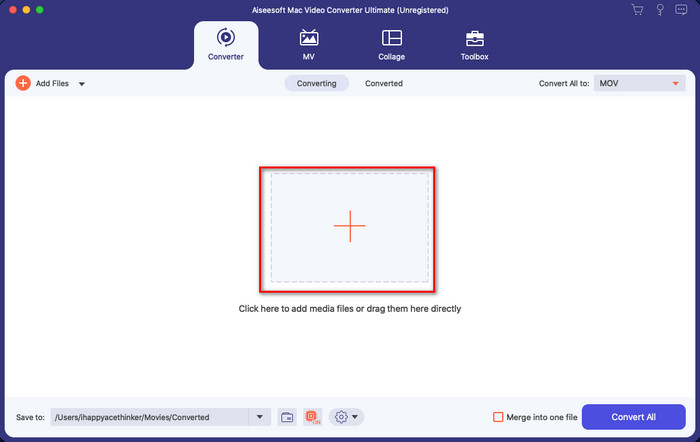
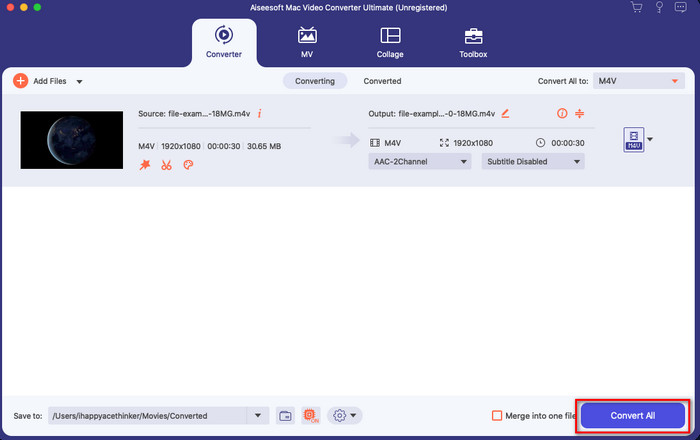
ขั้นตอนที่ 3. มองหาปุ่มไม้กายสิทธิ์เพื่อเริ่มใส่ลายน้ำข้อความสุดมหัศจรรย์ให้วิดีโอของคุณ มองหาหมวดWatermark แล้วคลิกเข้าไป ในส่วน Watermark จะมีตัวเลือกอยู่สองแบบ แต่ตอนนี้ให้คลิกที่ Text Watermark โดยการคลิกที่กล่องข้อความ คุณสามารถใส่ข้อความที่ต้องการใช้เป็นลายน้ำได้ จากนั้นให้แก้ไขหรือปรับแต่งลายน้ำข้อความของคุณ บริเวณนี้คุณสามารถปรับสีตัวอักษร รูปแบบฟอนต์ และขนาดได้ เมื่อคุณพอใจกับข้อความแล้ว ก็ถึงเวลาจัดวางลายน้ำให้ถูกตำแหน่งที่ต้องการ กดค้างและลากข้อความบนหน้าต่างแสดงตัวอย่างวิดีโอ.
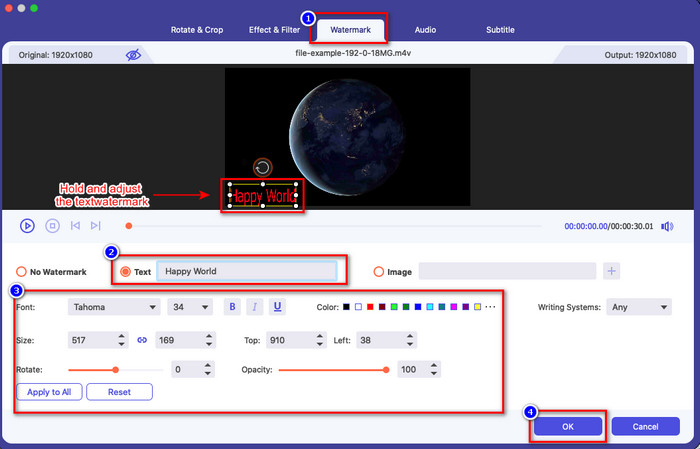
ขั้นตอนที่ 4. หลังจากปรับทุกอย่างเรียบร้อยแล้ว ให้คลิก Convert All เพื่อบันทึกวิดีโอที่มีลายน้ำข้อความ.
ส่วนที่ 4 คำถามที่พบบ่อยเกี่ยวกับการแทรกข้อความผ่านวิดีโอบน iMovie
iMovie รองรับข้อความเคลื่อนไหวหรือไม่?
ใช่ โปรแกรมตัดต่อวิดีโอที่ดีที่สุดบน Apple รองรับลายน้ำข้อความเคลื่อนไหวที่คุณสามารถใช้กับวิดีโอของคุณได้ฟรี ข้อความเคลื่อนไหวอยู่ภายใต้ชื่อ; คุณสามารถใช้ตัวอย่างข้อความเคลื่อนไหวหลายตัวอย่างเพื่อทำให้วิดีโอของคุณไม่เหมือนใคร
ฉันสามารถใช้ iMovie เพื่อเพิ่มลายน้ำรูปภาพได้หรือไม่
ได้ คุณสามารถใช้รูปภาพส่วนตัวเป็นลายน้ำบน iMovie ได้ อย่างไรก็ตาม วิธีนี้จะซับซ้อนกว่าการใส่ลายน้ำข้อความบน iMovie แต่หากคุณอยากลองทำ คุณสามารถคลิกลิงก์นี้เพื่อเรียนรู้วิธีใส่ลายน้ำรูปภาพบน iMovie.
จะทำให้ AVI ของฉันเข้ากันได้กับ iMovie ได้อย่างไร
iMovie รองรับไฟล์ฟอร์แมต AVI แต่บางครั้งคุณอาจอัปโหลดวิดีโอ .avi ไม่ได้ เนื่องจากโค้ดที่ไฟล์นั้นใช้ แทนที่จะเปลี่ยนไปใช้เครื่องมืออื่น ทำไมไม่ลองแปลงไฟล์ AVI ดูล่ะ โชคดีที่คุณสามารถคลิกลิงก์นี้เพื่อเปิดแท็บใหม่ ซึ่งในนั้นคุณจะได้เรียนรู้วิธีแปลงไฟล์ AVI ให้เป็นฟอร์แมตที่ iMovie รองรับ.
สรุป
จากการสรุปข้อมูลด้านบน เราจะเห็นได้ว่าการใส่ลายน้ำข้อความบน iMovie นั้นทำได้ง่ายและฟรี หากคุณต้องการจะทำ ไม่ว่าคุณจะใช้ iPhone หรือ Mac ก็ตาม บทเรียนด้านบนจะช่วยให้คุณทำสำเร็จได้ แต่หากคุณยังรู้สึกว่าวิธีข้างต้นใช้งานยากอยู่ เราขอแนะนำให้ใช้ FVC Video Converter Ultimate เป็นตัวเลือกทดแทนในการใส่ลายน้ำข้อความ ถึงแม้ว่าเครื่องมือนี้จะไม่ได้ติดตั้งมาในระบบของคุณตามค่าเริ่มต้น แต่คุณยังสามารถคลิกปุ่มดาวน์โหลดด้านบนและสนุกไปกับการใช้งานเครื่องมือนี้ได้ แล้วคุณจะรออะไรอยู่ล่ะ คลิกและดาวน์โหลดได้เลยตอนนี้.
-
 วิธีเพิ่มเสียงและเพลงลงในวิดีโอฟรีบนคอมพิวเตอร์ / โทรศัพท์ของคุณ
 บทความนี้แสดง 4 วิธีง่ายๆในการเพิ่มเสียงลงในวิดีโอฟรี ไม่ว่าคุณต้องการเพิ่มแทร็กเสียงใดลงในวิดีโอของคุณคุณสามารถรับผลลัพธ์ที่น่าพึงพอใจได้ที่นี่
-
 เปลี่ยน GIF เป็นรูปแบบวิดีโอ: แปลง GIF Memes เป็นวิดีโอ [2021]
 กำหนดวิธีการแปลง GIF เป็นรูปแบบวิดีโอด้วยความช่วยเหลือของเครื่องมือที่แสดงด้านล่าง เลือกข้อใดและเรียนรู้วิธีดำเนินการ เนื่องจากเรารวบรวมหลักฐานเพียงพอ
-
 แอพ GIF ที่ยอดเยี่ยมสำหรับวิดีโอสำหรับอุปกรณ์ Android และ iOS
 คุณรู้หรือไม่ว่าคุณสามารถแปลง GIF เป็นรูปแบบวิดีโอใดก็ได้ที่คุณต้องการโดยใช้โทรศัพท์ของคุณ เลือกแอพที่ดีที่สุดบน Android หรือ iOS ของคุณ
