


 Video Converter Ultimate
 บันทึกหน้าจอ
 ซ่อมวิดีโอ
 ดาวน์โหลดอย่างปลอดภัย
วิธีเพิ่มการเคลื่อนไหวช้าและเร็วในวิดีโอใน Windows & Mac
ด้วยการใช้เอฟเฟ็กต์สโลว์และฟาสต์โมชั่นกับวิดีโอ คุณสามารถสร้างภาพลวงตาได้อย่างง่ายดาย ซึ่งทำให้วิดีโอของคุณดูแปลกใหม่ในสายตามนุษย์ ไม่ว่าคุณจะใช้สมาร์ตโฟนหรือกล้อง DSLR คุณก็สามารถถ่ายวิดีโอด้วยความเร็วต่าง ๆ ตามที่ต้องการได้อย่างรวดเร็ว แต่ไม่ได้หมายความว่าทุกอุปกรณ์จะมีโปรแกรมตัดต่อที่ปรับความเร็วได้อย่างรวดเร็ว เนื่องจากเอฟเฟ็กต์นี้ส่งผลต่อผู้ชม ความต้องการใช้เครื่องมือปรับความเร็ววิดีโอจึงแพร่หลายอย่างรวดเร็ว แต่คุณควรเลือกตัวไหน? หากอยากรู้ว่าเรายกให้ตัวไหนเป็นตัวเลือกที่ดีที่สุด คุณจำเป็นต้องอ่านต่อ เพราะเราจะอธิบายเพิ่มเติมเกี่ยวกับสองรูปแบบการเคลื่อนไหวที่คุณต้องการให้ได้มาในวิดีโอของคุณ.

ตอนที่ 1 อันไหนดีที่สุด | การเคลื่อนไหวอย่างรวดเร็วกับการเคลื่อนไหวช้า
เมื่อคุณถ่ายวิดีโอ มีการเคลื่อนไหวสามประเภท: ปกติ เร็ว และช้า ส่วนใหญ่แล้ว เราเปลี่ยนความเร็วเป็นการเล่นที่ต้องการเพราะเหตุผลบางประการ อย่างไรก็ตาม เราจะไม่พูดถึงเหตุผลที่ว่าทำไมเราจึงใช้เอฟเฟกต์สโลว์โมชั่นที่รวดเร็วในวิดีโอ ข้อมูลด้านล่างนี้จะทำให้คุณได้ทราบถึงสิ่งที่ทำให้เอฟเฟกต์แตกต่างไปจากที่อื่นและการใช้งาน
| การเคลื่อนไหวอย่างรวดเร็ว | VS. | เคลื่อนที่ช้า |
| เนื่องจากการเคลื่อนไหวที่รวดเร็ว ระยะเวลาของวิดีโอหากตั้งค่าไว้ที่ความเร็วนี้ จะสั้นตามธรรมชาติ เพราะจะเล่นได้อย่างรวดเร็ว | ระยะเวลาของวิดีโอ | ต่างจากที่นี้ เมื่อคุณเปลี่ยนความเร็วตามธรรมชาติของวิดีโอเป็นสโลว์โมชั่น ระยะเวลาของวิดีโอจะนานขึ้นเพราะอยู่ในสถานะสโลว์โมชั่น |
| ในการเคลื่อนไหวที่รวดเร็ว FPS ของการฉายภาพจะสูงกว่า FPS ที่จับภาพไว้มาก ต่างจากการเคลื่อนไหวปกติ ความเร็วที่ให้นั้นเท่ากับทั้งการฉายภาพและการจับภาพ FPS | FPS ของวิดีโอ | แม้ว่ามันจะรองรับ FPS การจับที่สูงกว่าการเร่งความเร็ว แต่เราสามารถเห็นได้ว่า FPS ของการฉายภาพนั้นต่ำกว่าเพราะจะเสียไปหลังจากที่คุณชะลอความเร็วลง |
| การถ่ายภาพยนตร์ส่วนใหญ่ใช้ความเร็วในการเคลื่อนไหวที่เร็วกว่าสโลว์โมชั่น เนื่องจากเหมาะสำหรับการดำเนินการต่อการดำเนินการที่จำเป็นอย่างยิ่ง และช่วยเราประหยัดเวลาเมื่อเราดูวิดีโอหรือภาพยนตร์ในลักษณะนี้ | ใช้สำหรับ | แม้ว่าคุณจะสามารถชมวิดีโอในรายละเอียดเกี่ยวกับความเร็วของการเคลื่อนไหวนี้ได้มากกว่าวิดีโอแรก แต่เราสามารถเห็นได้ว่าระยะเวลาของวิดีโอนั้นยาวเกินไป และขนาดไฟล์จะใหญ่กว่าครั้งก่อน |
ตอนนี้เราทราบเอฟเฟกต์ต่างๆ ของการเคลื่อนไหวช้าและเร็วที่สร้างขึ้นในการตัดต่อแล้ว ถึงเวลาต้องรู้ว่าตัวควบคุมความเร็วตัวใดดีที่สุดที่เราสามารถใช้ได้ หากคุณไม่มีโปรแกรมตัดต่อวิดีโอระดับมืออาชีพ ขั้นตอนต่อไปคือการค้นหา อ่านบทความนี้ต่อไปเพื่อทราบข้อมูลเพิ่มเติม
ส่วนที่ 2 ตัวควบคุมความเร็ววิดีโอที่เร็วและช้าที่สุดที่คุณต้องมีบนเดสก์ท็อป
คอนโทรลเลอร์ความเร็วที่ทรงพลังถือเป็นสิ่งที่ต้องมี โดยเฉพาะหากคุณต้องการปรับความเร็ววิดีโออย่างมีประสิทธิภาพและแม่นยำ เหมือนที่FVC Video Converter Ultimate มอบให้ ด้วยตัวเลือกความเร็ววิดีโอของมัน คุณสามารถปรับใช้ความเร็วที่ต้องการได้ง่ายมาก จะช้าสุดที่ 0.125x หรือเร็วสุดที่ 8x ซึ่งโปรแกรมตัดต่อวิดีโออื่น ๆ ไม่มีให้ นอกจากนี้ คุณยังสามารถอัปโหลดวิดีโอได้ทุกประเภทที่ต้องการเร่งหรือชะลอความเร็ว เครื่องมือนี้แทบไม่มีข้อจำกัดในการเปลี่ยนความเร็วหรือรูปแบบการเคลื่อนไหวของวิดีโอที่คุณมี จริง ๆ แล้ว เครื่องมือทำวิดีโอสโลว์และฟาสต์โมชั่นตัวนี้เป็นสิ่งที่ควรมีติดเครื่องไว้ หากมันดึงดูดความสนใจคุณ แนะนำให้อ่านและทำตามบทเรียนที่เราใส่ไว้ต่อไป เพื่อดาวน์โหลดและเรียนรู้วิธีใช้งาน.
ขั้นตอนที่ 1. หากต้องการมีซอฟต์แวร์ที่ดีที่สุดบนเดสก์ท็อปของคุณ ให้คลิกปุ่มดาวน์โหลดด้านล่างเพื่อดาวน์โหลดลงใน Windows และ Mac โดยตรง หลังดาวน์โหลดเสร็จให้ติดตั้งโปรแกรม ทำตามขั้นตอนตั้งค่าที่ง่ายและใช้เวลาเพียงไม่กี่นาที จากนั้นเปิดโปรแกรม.
ดาวน์โหลดฟรีสำหรับ Windows 7 หรือใหม่กว่าดาวน์โหลดอย่างปลอดภัย
ดาวน์โหลดฟรีสำหรับ MacOS 10.7 หรือใหม่กว่าดาวน์โหลดอย่างปลอดภัย
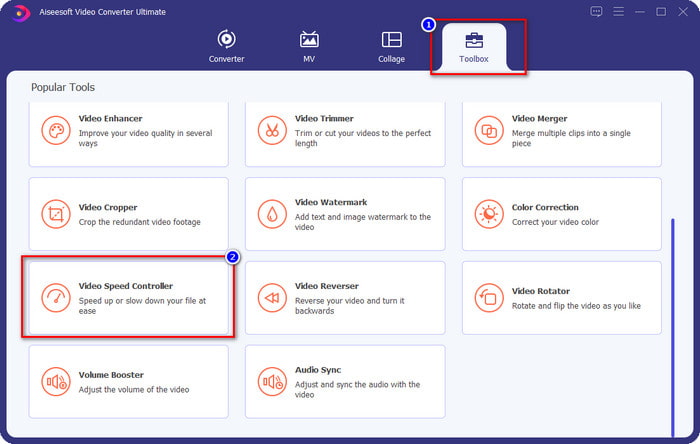
ขั้นตอนที่ 2. เปิดเมนูToolbox จากนั้นมองหาฟีเจอร์Video Speed Controller แล้วคลิก.
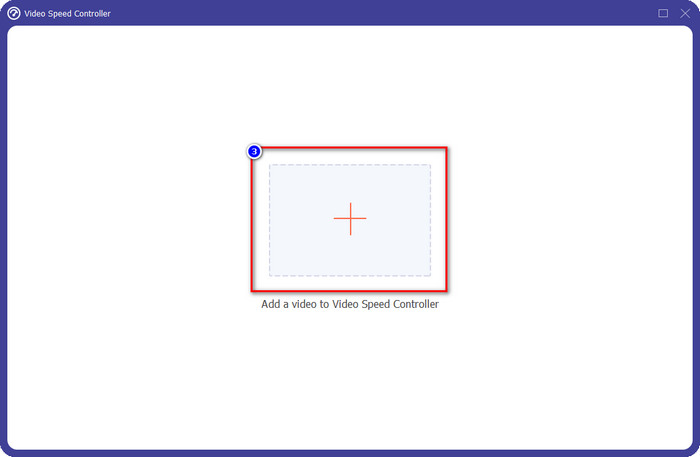
ขั้นตอนที่ 3. คลิกปุ่ม + จากนั้นค้นหาวิดีโอที่คุณต้องการเปลี่ยนความเร็วหรือรูปแบบการเคลื่อนไหว แล้วคลิกOpen เพื่ออัปโหลดเข้ามาที่นี่.
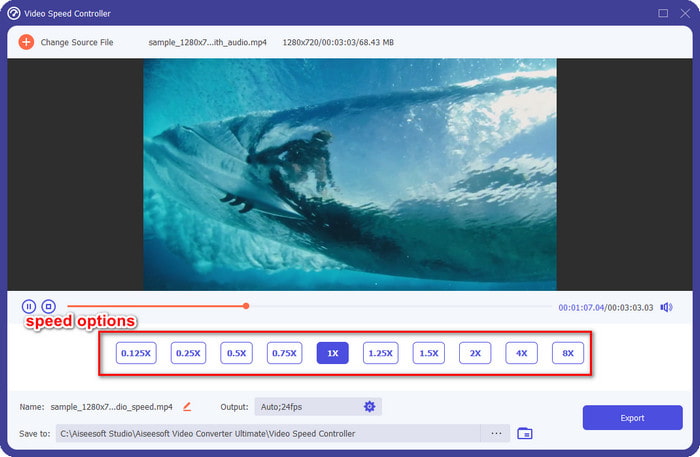
ขั้นตอนที่ 4. เมื่อคุณอัปโหลดไฟล์แล้ว หน้าต่างของเครื่องมือควบคุมความเร็วจะเปิดขึ้นบนหน้าจอของคุณ ให้เลือกความเร็วที่ต้องการใช้กับวิดีโอ โดยการเลือกจากตัวเลือกความเร็ววิดีโอที่มีให้ภายในซอฟต์แวร์นี้ คุณสามารถคลิกทีละความเร็วแล้วดูตัวอย่างว่าเมื่อเล่นด้วยความเร็วนั้นบนหน้าจอจะเป็นอย่างไร.
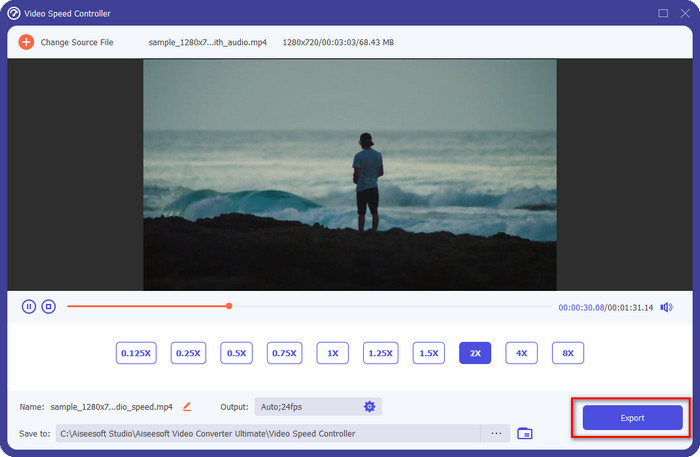
ขั้นตอนที่ 5. หากต้องการบันทึกวิดีโอที่คุณได้เปลี่ยนความเร็วแล้ว ให้คลิกExport ง่ายเพียงเท่านี้ คุณก็ได้เปลี่ยนโมชันของวิดีโอเรียบร้อยด้วยซอฟต์แวร์ระดับสุดยอดนี้ ทั้งบน Windows และ Mac.
ส่วนที่ 3 คำถามที่พบบ่อยเกี่ยวกับ Fast and Slow Motion
ฉันสามารถดูวิดีโอแบบเร็วและแบบสโลว์โมชั่นบนเดสก์ท็อปได้หรือไม่
ด้วยโปรแกรมเล่นสื่อต่างๆ คุณสามารถเปลี่ยนความเร็วของวิดีโอที่คุณกำลังดูได้อย่างง่ายดายเพื่อให้ช้าลงหรือเร็วขึ้น ตามความต้องการของคุณ คุณสามารถมีไว้บนเดสก์ท็อปของคุณโดยกดตัวควบคุมความเร็วที่มีอยู่ในเครื่องเล่น Blu-ray, VLC Media Player, Quicktime, Windows Media Player และเครื่องเล่นสื่ออื่น ๆ แต่อย่าลืมว่าความเร็วของวิดีโอจะไม่เปลี่ยนแปลงอย่างถาวร ดังนั้นหากต้องการ โปรดอ่านเครื่องมือที่เราแนะนำในบทความนี้
เหตุใดจึงจำเป็นต้องใช้เอฟเฟกต์แบบเร็วและแบบสโลว์โมชั่น
ด้วยการเปลี่ยนความเร็วของวิดีโอ คุณสามารถเข้าถึงเอฟเฟกต์บางอย่างที่เอฟเฟกต์และฟิลเตอร์อื่นๆ ไม่สามารถทำได้ ดังนั้น หากคุณเป็นนักตัดต่อและต้องการลองใช้เอฟเฟกต์อื่นๆ ต้องลองใช้งานตัวควบคุมความเร็วและเปลี่ยนความเร็วของวิดีโอ ไม่จำเป็นต้องเป็นมืออาชีพเพราะมันง่ายและสามารถทำให้วิดีโอของคุณดูน่าทึ่งได้อย่างแน่นอน
มีข้อ จำกัด ในการเปลี่ยนความเร็วในการเล่นหรือไม่?
เราไม่อาจปฏิเสธได้ว่ามีข้อจำกัดด้านความเร็วการเล่น แม้ว่าการปรับใช้กับวิดีโอใด ๆ จะทำได้ง่าย แต่ถ้าเล่นเร็วเกินไป คุณอาจเห็นอาการภาพค้างในวิดีโอซึ่งไม่สามารถย้อนกลับมาแก้ได้ เช่นเดียวกับตอนทำสโลว์โมชั่น หากคุณลดความเร็วมากเกินไป เฟรมของวิดีโออาจตกและกลายเป็นวิดีโอกระตุกอย่างมาก เพื่อหลีกเลี่ยงปัญหาเหล่านี้ คุณจำเป็นต้องพิจารณาให้รอบคอบและเปลี่ยนความเร็วการเล่นของวิดีโออย่างเหมาะสม.
สรุป
เมื่อพิจารณาทุกอย่างเกี่ยวกับสโลว์และฟาสต์โมชั่นแล้ว รายละเอียดข้างต้นอ้างอิงจากข้อมูลที่เราได้ค้นคว้าและประสบการณ์จริงในการเปลี่ยนความเร็ววิดีโอ แม้ว่าการเพิ่มหรือลดความเร็วจะทำได้ง่าย แต่เราควรเรียนรู้ทำความเข้าใจให้ดีก่อนลงมือปรับความเร็ว หากไม่มีความเชี่ยวชาญระดับมืออาชีพและไม่มีเครื่องมือแบบครบวงจร การปรับความเร็วให้ได้ตามที่เราต้องการย่อมไม่ใช่เรื่องง่าย หากคุณดาวน์โหลดFVC Video Converter Ultimate คุณจะได้ทั้งตัวควบคุมความเร็วที่ยอดเยี่ยมและเครื่องมือออลอินวัน ใช่แล้ว ซอฟต์แวร์นี้ยังมีฟังก์ชันอื่น ๆ ให้ใช้อีกมาก หากคุณอยากรู้ว่ามันทำอะไรได้มากกว่าที่เราเล่าในบทความนี้ การดาวน์โหลดมาทดลองใช้ด้วยตัวเองคือวิธีที่ดีที่สุดในการพิสูจน์.
-
 ข้อมูลสำคัญที่คุณควรรู้เกี่ยวกับ QuickTime Slow Motion
 คุณได้ลองใช้ QuickTime Media Player เพื่อเล่นวิดีโอแบบสโลว์โมชั่นแล้วหรือยัง? อ่านบทความนี้เพื่อทราบข้อมูลเพิ่มเติมเกี่ยวกับบริการที่ยอดเยี่ยมของโปรแกรมเล่นสื่อนี้
-
 5 เครื่องมือสร้างวิดีโอสโลว์โมชั่นระดับมืออาชีพสำหรับ Windows/Mac/ออนไลน์
 คุณต้องการทราบวิธีทำให้วิดีโอของคุณเล่นแบบสโลว์โมชั่นได้อย่างไร? จากนั้นอ่านบทความนี้เพื่อค้นหาว่าผู้ผลิตวิดีโอสโลว์โมชั่นมืออาชีพ 5 รายคืออะไร
-
 วิธีที่ดีที่สุดในการใช้ iMovie ในการสร้างวิดีโอสโลว์โมชั่น [แก้ไขแล้ว]
 คุณเคยใช้แอพ iMovie เพื่อแปลงวิดีโอความเร็วปกติของคุณเป็นสโลว์โมชั่นหรือไม่? นี่เป็นโอกาสที่จะได้ทราบข้อมูลเพิ่มเติมเกี่ยวกับแอปพลิเคชันนี้ โปรดอ่านต่อ
