


 Video Converter Ultimate
 บันทึกหน้าจอ
 ซ่อมวิดีโอ
 ดาวน์โหลดอย่างปลอดภัย
HandBrake Compress Video: Guide & Tips on Video Compression
As cameras continue to improve, videos are becoming larger and higher in quality than ever. While sharper visuals and better details are great, large video files can quickly take up storage space and make uploading, sharing, or transferring videos a hassle. That’s where video compression comes in. By reducing the size of a video file, you can free up storage, speed up uploads, and share your videos more easily while still keeping the quality you care about.
One of the most popular tools for this is HandBrake. It is a free and open‑source video transcoder that helps users compress videos by adjusting settings such as resolution, bitrate, and output format. In this guide, you'll learn how HandBrake compresses videos, its advantages and limitations, and useful tips to achieve the best balance between file size and video quality.

Part 1. How to Compress a Video in HandBrake?
HandBrake offers several settings that allow you to control a video's size and quality. While the interface may seem technical at first, compressing a video is actually a straightforward process. Follow the steps below on how to compress a video in HandBrake:
Step 1. Download and install HandBrake on your device. The software is available for Windows, Mac, and Linux users.
Step 2. After that, open HandBrake and import your video file. You can either drag and drop the video into the program or click Open Source to browse and select the file manually.
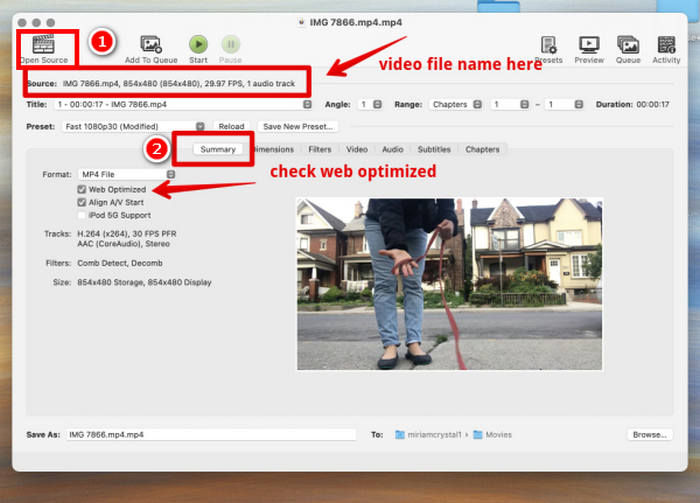
Step 3. Head to the Summary tab and verify that MP4 is selected as the output format.
Step 4. Go to the Video tab and adjust the compression settings:
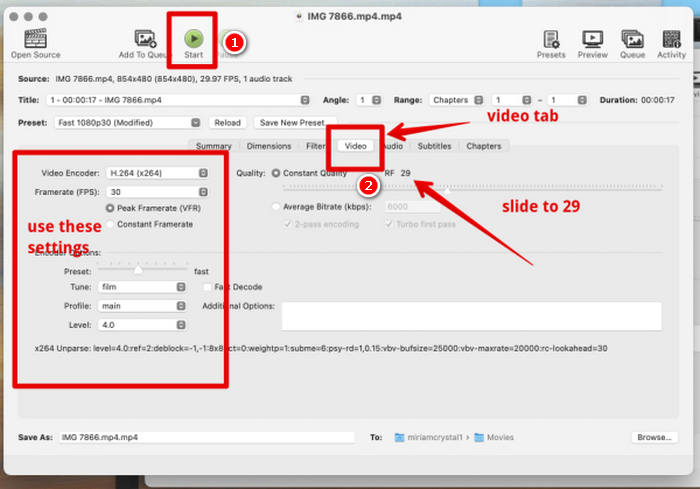
- • Set Video Codec to H.264 (x264).
- • Choose Same as Source for the Framerate.
- • Move the Constant Quality slider to a value between 20 and 23 to achieve a balance between file size and video quality.
Step 5. Click the Start button at the top of the interface to begin compressing the video.
Step 6. Wait for the encoding process to complete. Once finished, you can locate the compressed video in the output folder indicated at the bottom of the HandBrake window.
Part 2. Key Tips for Compression
Compressing a video is not just about making the file smaller. The goal is to reduce the file size while maintaining acceptable video quality. To achieve the best results when compressing a video with HandBrake, keep the following tips in mind:
Choose the Right Video Codec: For most users, H.264 (x264) offers an excellent balance between compatibility, quality, and file size. If your device supports it, H.265 (HEVC) can provide even smaller file sizes while preserving quality.
Lower the Resolution When Necessary: If your video is in 4K or 1080p, consider reducing the resolution to match your intended use. For example, 720p is often sufficient for online sharing and can significantly decrease file size.
Adjust the Constant Quality Setting: The Constant Quality slider directly affects the output quality and file size. Lower values produce higher‑quality videos with larger file sizes, while higher values create smaller files at the expense of quality. A setting between 20 and 23 is usually a good starting point.
Keep the Original Frame Rate: Unless necessary, select Same as Source for the frame rate. Changing the frame rate can affect video smoothness and may not provide substantial file‑size savings.
Preview Before Compressing Large Files: Before processing a lengthy video, test your settings on a short clip. This helps you determine whether the quality and file size meet your expectations without spending time encoding the entire video.
With these tips, you can compress a video in HandBrake more effectively and achieve a better balance between file size and quality. However, it is important to remember that HandBrake is not a one‑click video compressor. To get the desired results, you often need to manually adjust settings such as the codec, resolution, bitrate, and quality level. While this gives you greater control over the output, it may require some trial and error, especially if you're new to video compression. Understanding how these settings affect your video can help you avoid unnecessary quality loss while still reducing the file size significantly.
Part 3. Best Alternative to HandBrake to Compress a Video
If you prefer a faster and more beginner‑friendly video compressor tool, FVC Video Converter Ultimate is a great alternative. It features a dedicated Video Compressor that lets you reduce video file size with just a few clicks while still giving you the option to customize settings when needed.
คุณสมบัติหลัก:
- • Compress videos without noticeable quality loss.
- • รองรับฟอร์แมตวิดีโอและเสียงมากกว่า 1,000 แบบ.
- • Customize video size, resolution, bitrate, and format.
- • Batch video compression.
- • Hardware-accelerated processing for faster compression.
- • Real-time preview before exporting.
- • Compress videos with no file size limit.
How to Compress a Video on FVC Video Converter Ultimate:
ขั้นตอนที่ 1 ก่อนอื่น คุณต้องติดตั้งและดาวน์โหลดเครื่องมือลงในคอมพิวเตอร์ของคุณก่อน.
ดาวน์โหลดฟรีสำหรับ Windows 7 หรือใหม่กว่าดาวน์โหลดอย่างปลอดภัย
ดาวน์โหลดฟรีสำหรับ MacOS 10.7 หรือใหม่กว่าดาวน์โหลดอย่างปลอดภัย
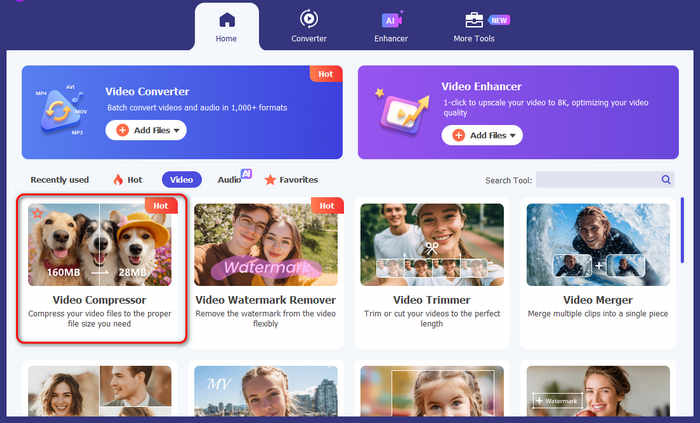
Step 2. Open the tool, go to the Home > Video, and click on the Video Compressor. Once done, just click the Red Plus button to add the video that you want to compress.
Step 3. After that, to compress the video file size, on the Size option, you can just simply slide the Slider to adjust the file size of your video, or else manually type it on the Box. Once done, click the Compress button.
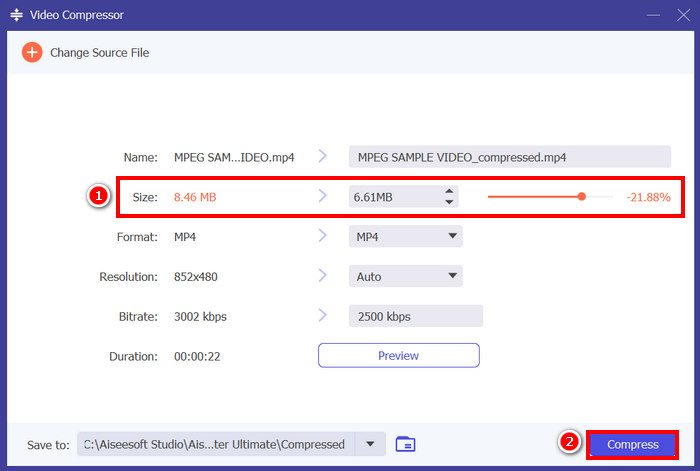
หากคุณต้องการปรับปรุงวิดีโอของคุณเพิ่มเติมในขณะที่กำลังถูกบีบอัด คุณยังสามารถปรับแต่งความละเอียด บิตเรต ฯลฯ ได้ด้วย
FVC Video Converter Ultimate is truly one of the best alternatives if you find it handy to compress video with HandBrake. In a few taps, you can easily compress your video. Moreover, you can further enhance your video after being compressed.
Part 4. FAQs about How to Compress a Video in HandBrake
Does compressing a video in HandBrake reduce its quality?
Yes, some quality loss may occur during compression, but it can be minimal if you use the right settings. Choosing an appropriate codec and quality level, such as a Constant Quality value between 20 and 23, helps maintain a good balance between file size and visual quality.
ทำไมวิดีโอที่บีบอัดแล้วของฉันยังมีขนาดใหญ่เกินไปอยู่?
หากไฟล์เอาต์พุตยังมีขนาดใหญ่เกินไป คุณสามารถลดขนาดลงได้อีกโดยการลดความละเอียดของวิดีโอ เพิ่มระดับการบีบอัด หรือเปลี่ยนไปใช้โค้เดก H.265 แทน H.264 หากอุปกรณ์ของคุณรองรับ.
HandBrake ใช้งานได้ฟรีหรือไม่?
Yes. HandBrake is completely free and open‑source, making it a popular choice for users who need basic video compression and transcoding features.
สรุป
Learning how to use HandBrake compress video features is an effective way to reduce file sizes while maintaining good video quality. Although HandBrake provides powerful compression settings, it requires manual adjustments to achieve the best results. If you prefer a quicker and more beginner‑friendly solution, FVC Video Converter Ultimate is an excellent alternative with its dedicated Video Compressor and easy‑to‑use interface. Let’s get started!
-
 วิธีบีบอัดวิดีโอ MP4 ให้มีขนาดเล็กลง
 วิดีโอ MP4 ใหญ่เกินไปสำหรับการอัปโหลด? ต้องการลดขนาดวิดีโอหรือไม่? นี่คือ 3 วิธีที่มีประสิทธิภาพในการบีบอัดไฟล์ MP4 ให้มีขนาดเล็กลงโดยไม่มีขีด จำกัด
-
 วิธีบีบอัดวิดีโอฟรี / ลองใช้โปรแกรมบีบอัดวิดีโอออนไลน์ 7 ตัวนี้
 อ่านและรับ 7 วิธีในการบีบอัดวิดีโอฟรีบนคอมพิวเตอร์หรือโทรศัพท์ของคุณ คุณสามารถลดขนาดวิดีโอขนาดใหญ่ให้เป็นไฟล์ขนาดเล็กสำหรับอีเมล, Twitter, Instagram, YouTube, WhatsApp และอื่น ๆ ได้อย่างง่ายดาย
-
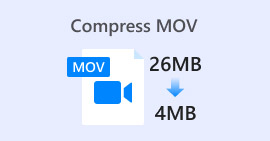 วิธีบีบอัดไฟล์ MOV อย่างง่ายดาย: 6 ตัวเลือกฟรีสำหรับคุณ
 หากต้องการบีบอัด MOV คุณสามารถดูตัวเลือกทั้ง 6 ตัวเลือกในบทความนี้ ซึ่งรวมถึงซอฟต์แวร์เดสก์ท็อป 3 ตัวและแพลตฟอร์มออนไลน์ 3 ตัว เราจะแสดงวิธีใช้งานให้คุณดูที่นี่
