


 Video Converter Ultimate
 บันทึกหน้าจอ
 ซ่อมวิดีโอ
 ดาวน์โหลดอย่างปลอดภัย
วิธีแก้ปัญหายอดนิยมสำหรับใช้ในการเพิ่มความอิ่มตัวของสีในวิดีโอ
ความอิ่มตัวของสีวิดีโอหมายถึงความเข้มของสีในวิดีโอ โดยจะวัดระดับของสีที่สดใสและเด่นชัด คุณสามารถปรับระดับความอิ่มตัวของวิดีโอเพื่อสร้างรูปลักษณ์หรือโทนที่เฉพาะเจาะจงได้ ตัวอย่างเช่น การเพิ่มความอิ่มตัวสามารถทำให้สีดูสดใสและมีชีวิตชีวามากขึ้น ซึ่งมักใช้ในมิวสิควิดีโอหรือโฆษณาเพื่อสร้างเอฟเฟ็กต์ภาพที่น่าตื่นเต้นและดึงดูดความสนใจ
ในทางกลับกัน ระดับความอิ่มตัวของสีที่ต่ำลงสามารถสร้างบรรยากาศที่นุ่มนวล เงียบขรึมหรือชวนให้คิดถึงอดีต ซึ่งมักใช้ในภาพยนตร์หรือรายการทีวีเพื่อถ่ายทอดอารมณ์หรือบรรยากาศบางอย่างโดยเฉพาะ โดยรวมแล้ว การปรับความอิ่มตัวของวิดีโอเป็นเครื่องมือที่จำเป็นสำหรับผู้สร้างภาพยนตร์และช่างวิดีโอในการสร้างสไตล์ภาพตามต้องการและเสริมพลังด้านการเล่าเรื่องของผลงาน ดังนั้น หากคุณเป็นคนรักงานวิดีโอ คุณจำเป็นต้องเรียนรู้วิธีต่าง ๆ เกี่ยวกับวิธีเพิ่มความอิ่มตัวของสีในวิดีโอ.

ส่วนที่ 1 แก้ไขความอิ่มตัวของวิดีโอบนคอมพิวเตอร์
1. Video Converter Ultimate
เมื่อคุณต้องการปรับความอิ่มตัวของสีในวิดีโอโครงการของคุณ Video Converter Ultimate จะเป็นผู้ช่วยมือหนึ่งของคุณ แอปพลิเคชันนี้เป็นที่ชื่นชอบของผู้ที่หลงใหลในงานวิดีโอส่วนใหญ่ เนื่องจากมีฟังก์ชันตัดต่อขั้นสูง เช่น การปรับปรุงรูปลักษณ์ของวิดีโอและการแก้ไขพารามิเตอร์ความอิ่มตัวของสี ซอฟต์แวร์ได้รวบรวมฟีเจอร์เร่งประสิทธิภาพต่าง ๆ ที่ช่วยให้ได้วิดีโอเอาต์พุตที่ดียิ่งขึ้น มันใช้เทคโนโลยีปรับแก้สีเพื่อปรับความสว่าง คอนทราสต์ เฉดสี (hue) และความอิ่มตัวของสี สิ่งที่ทำให้เครื่องมือนี้โดดเด่นคือมีตัวเลือกการตัดต่อวิดีโอที่หลากหลาย คุณยังสามารถเพิ่มประสิทธิภาพวิดีโอ สร้างแอนิเมชัน 3 มิติ ใส่โลโก้ และองค์ประกอบต่าง ๆ เพื่อยกระดับไฟล์วิดีโอของคุณได้ ดูคำแนะนำด้านล่างเพื่อเรียนรู้วิธีที่ถูกต้องในการแก้ไขความอิ่มตัวของสีของวิดีโอด้วยแอปนี้.
ขั้นตอนที่ 1 ดาวน์โหลด Video Converter Ultimate
คุณสามารถดาวน์โหลดเฟิร์มแวร์ของแอปลงคอมพิวเตอร์ได้โดยคลิกตัวเลือก ดาวน์โหลดฟรี ด้านล่างขั้นตอนนี้ ไปที่โฟลเดอร์ดาวน์โหลดในพีซีของคุณและรันไฟล์เพื่อติดตั้งลงในอุปกรณ์ จากนั้นทำตามตัวช่วยติดตั้งให้เสร็จสิ้นและเปิดแอปเพื่อเริ่มทำความคุ้นเคยกับฟังก์ชันพื้นฐานของมัน.
ดาวน์โหลดฟรีสำหรับ Windows 7 ขึ้นไปดาวน์โหลดอย่างปลอดภัย
ดาวน์โหลดฟรีสำหรับ MacOS 10.7 หรือใหม่กว่าดาวน์โหลดอย่างปลอดภัย
ขั้นตอนที่ 2. นำเข้าไฟล์วิดีโอ
ขั้นตอนถัดไปคือการนำเข้าไฟล์วิดีโอลงในเครื่องมือ ไปที่ตัวเลือก กล่องเครื่องมือ (Toolbox) และเลื่อนลงมาจนเจอ การปรับสี (Color Correction) แตะฟีเจอร์แก้ไขนี้เพื่อเปิดกล่องโต้ตอบใหม่ กดไอคอน + เพื่อเข้าถึงและนำเข้าวิดีโอโครงการของคุณ.
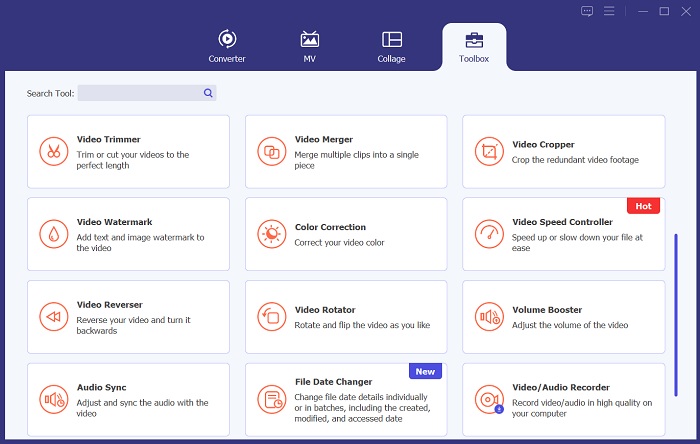
ขั้นตอนที่ 3 ปรับแต่งความอิ่มตัวของสี
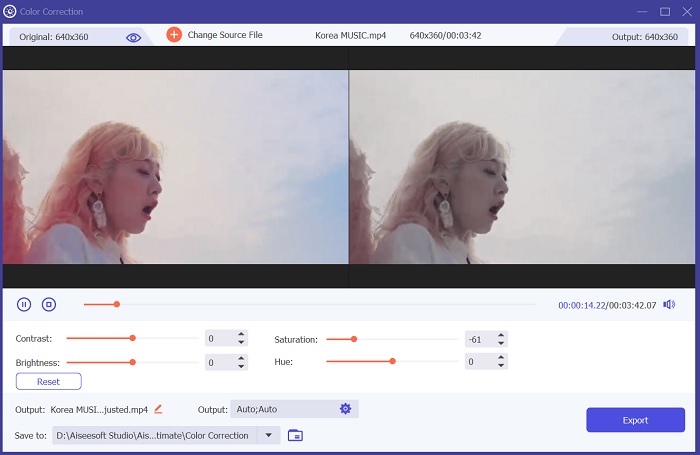
ท้ายที่สุด ให้ใช้แถบเลื่อนเพื่อแก้ไขความอิ่มตัวของสีในวิดีโอโครงการของคุณ ปรับแถบเลื่อนตามผลลัพธ์ที่คุณต้องการ จากนั้นกดไอคอน ส่งออก (Export) เพื่อบันทึกการเปลี่ยนแปลง ไปที่โฟลเดอร์เอาต์พุตและลองดูวิดีโอที่แก้ไขแล้ว.
2. คลิดิโอ
เมื่อพูดถึงการตัดต่อวิดีโอ Clideo นำเสนอองค์ประกอบที่หลากหลายที่สามารถช่วยให้คุณบรรลุผลลัพธ์ที่ต้องการ หนึ่งในคุณสมบัติเหล่านี้คือความสามารถในการปรับความอิ่มตัวของวิดีโอของคุณ ความอิ่มตัวคือการวัดความเข้มหรือความสดใสของสีในวิดีโอของคุณที่ปรากฏ และการเปลี่ยนแปลงนั้นสามารถเปลี่ยนแปลงรูปลักษณ์และความรู้สึกโดยรวมของวิดีโอของคุณได้อย่างมาก ด้วย Clideo คุณสามารถปรับความอิ่มตัวของวิดีโอได้อย่างง่ายดายโดยใช้เครื่องมือตัวเลื่อนง่ายๆ แถบเลื่อนนี้ช่วยให้คุณสามารถเพิ่มหรือลดระดับความอิ่มตัวของวิดีโอ ทำให้วิดีโอมีสีสันสดใสหรือปิดเสียงได้มากขึ้น ขึ้นอยู่กับความต้องการของคุณ คุณยังสามารถใช้เครื่องมือนี้เพื่อปรับเฉดสีและความสว่างของวิดีโอของคุณ ปรับแต่งรูปลักษณ์ของวิดีโอของคุณเพิ่มเติมได้ ตรวจสอบคำแนะนำด้านล่างเพื่อเรียนรู้วิธีใช้แอพนี้
ขั้นตอนที่ 1 คู่มือเริ่มต้นในการแก้ไขความอิ่มตัวของสีบน Clideo คือเข้าใช้เครื่องมือออนไลน์นี้ผ่านเว็บเบราว์เซอร์ของคุณ คุณสามารถค้นหาแอปและเข้าใช้งานหน้าอินเทอร์เฟซของมันได้ จากนั้นศึกษาฟังก์ชันการตัดต่อพื้นฐานเพื่อให้มีประสบการณ์การตัดต่อที่ดียิ่งขึ้น.
ขั้นตอนที่ 2 จากนั้นกดตัวเลือก Choose File เพื่อนำเข้าวิดีโอของคุณ ค้นหาวิดีโอโครงการที่เก็บไว้ในคอมพิวเตอร์ แล้วกดตัวเลือกหรือไอคอน Open เพื่อเพิ่มวิดีโอลงในเครื่องมือออนไลน์.
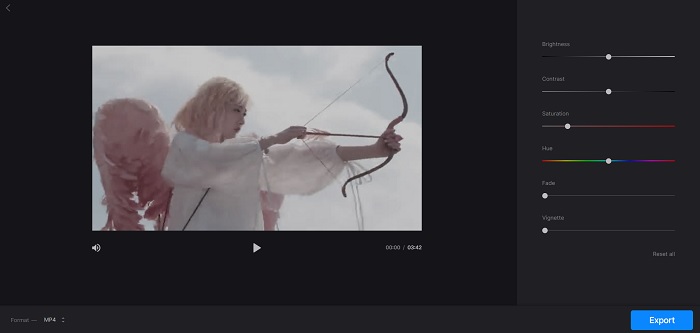
ขั้นตอนที่ 3 สุดท้าย ฟังก์ชันตัดต่อวิดีโอและวิดีโอโครงการของคุณจะปรากฏขึ้น ใช้แถบเลื่อน Saturation เพื่อเลื่อนและปรับความอิ่มตัวของสีในวิดีโอของคุณ คลิกตัวเลือก Export เพื่อบันทึกการเปลี่ยนแปลงที่ทำภายในแอปออนไลน์ ไปที่โฟลเดอร์เอาต์พุตและลองดูวิดีโอ.
ส่วนที่ 2 แก้ไขความอิ่มตัวของวิดีโอบนโทรศัพท์
PowerDirector เป็นแอปมือถือที่เหมาะสำหรับแก้ไขความอิ่มตัวของวิดีโอของคุณ มีคุณสมบัติหลายอย่างเพื่อปรับปรุงวิดีโอของคุณภายในแอพนี้ ประการแรก ซอฟต์แวร์ช่วยให้คุณปรับระดับความอิ่มตัวของสีแต่ละสีได้ ทำให้คุณควบคุมรูปลักษณ์โดยรวมของวิดีโอได้ดียิ่งขึ้น คุณยังสามารถใช้คุณสมบัติการจับคู่สีเพื่อจับคู่สีของคลิปต่างๆ เพื่อให้มั่นใจถึงความสอดคล้องกันตลอดทั้งโปรเจ็กต์ของคุณ คุณสมบัติอันมีค่าอีกประการหนึ่งของ PowerDirector คือความสามารถในการใช้การตั้งค่าสีล่วงหน้า ซึ่งเป็นฟิลเตอร์ที่สร้างไว้ล่วงหน้าซึ่งออกแบบมาเพื่อปรับปรุงรูปลักษณ์ของวิดีโอของคุณ ค่าที่ตั้งล่วงหน้าเหล่านี้สามารถปรับแต่งให้ตรงกับความต้องการของคุณ ทำให้คุณควบคุมผลิตภัณฑ์ขั้นสุดท้ายได้ดียิ่งขึ้น
ขั้นตอนที่ 1 หากต้องการปรับความอิ่มตัวของสีใน PowerDirector ให้ดาวน์โหลดแอปมาก่อน คุณสามารถดาวน์โหลดแอปมือถือได้จาก Google Play Store และ App Store เปิดแอปและทำความเข้าใจกับการนำทางและฟีเจอร์พื้นฐานของมัน.
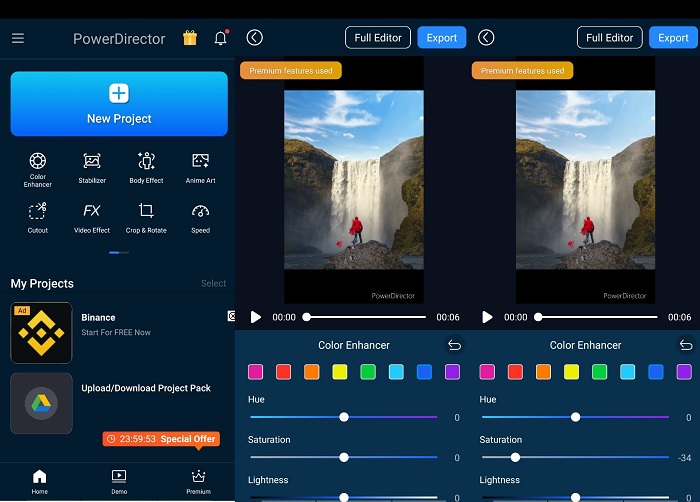
ขั้นตอนที่ 2 ถัดไป ให้นำเข้าวิดีโอโดยเลือกคลิปวิดีโอที่คุณต้องการตัดต่อจากแกลเลอรีวิดีโอ จากนั้นไปที่ตัวเลือกการตัดต่อและหาเมนู Color Enhancer จากตรงนั้นคุณสามารถปรับความอิ่มตัวของสีของคลิปได้โดยเลื่อนแถบเลื่อนไปทางซ้ายหรือขวา.
ขั้นตอนที่ 3 เมื่อคุณพอใจกับระดับความอิ่มตัวของสีแล้ว คุณสามารถบันทึกการเปลี่ยนแปลงและกด Export เพื่อบันทึกวิดีโอ ด้วยขั้นตอนง่าย ๆ เหล่านี้ คุณก็สามารถปรับความอิ่มตัวของคลิปวิดีโอของคุณใน PowerDirector ได้อย่างสะดวก อย่าลืมระวังไม่ให้เพิ่มความอิ่มตัวของสีมากเกินไป เพราะอาจทำให้สีดูไม่เป็นธรรมชาติ.
อ่านเพิ่มเติม:
จะแก้ไขวิดีโอที่สว่างเกินไปได้อย่างไร? 5 วิธีเด็ดอยู่ที่นี่
How to Change the Hue of Video? Exploring the Creative Possibilities
ส่วนที่ 3 คำถามที่พบบ่อยเกี่ยวกับการแก้ไขความอิ่มตัวของวิดีโอ
คุณจะแก้ไขความอิ่มตัวของสีใน iMovie ได้อย่างไร
หากต้องการแก้ไขความอิ่มตัวของสีใน iMovie ให้ไปที่แท็บการแก้ไขสีแล้วปรับแถบเลื่อนความอิ่มตัวจนกว่าคุณจะได้ระดับความอิ่มตัวที่ต้องการ คุณยังสามารถเปลี่ยนช่องสีแต่ละช่องเพื่อปรับระดับความอิ่มตัวของสีเฉพาะได้อย่างละเอียด อีกทางเลือกหนึ่งคือการเพิ่มฟิลเตอร์แก้ไขสีและปรับการตั้งค่าความอิ่มตัวภายในฟิลเตอร์ อย่าลืมดูตัวอย่างการเปลี่ยนแปลงของคุณก่อนที่จะส่งออกวิดีโอสุดท้ายของคุณ
คุณจะเพิ่มความอิ่มตัวได้อย่างไร?
หากต้องการเพิ่มความอิ่มตัว คุณสามารถปรับการตั้งค่าสีบนอุปกรณ์หรือซอฟต์แวร์ตัดต่อของคุณได้ ลองใช้เครื่องมือความอิ่มสีหรือฟิลเตอร์เพื่อเพิ่มสีสันในภาพหรือวิดีโอของคุณ อย่าลืมใช้การกลั่นกรองเมื่อเพิ่มความอิ่มตัว เนื่องจากสีที่อิ่มตัวมากเกินไปอาจดูไม่สมจริงและไม่น่าดึงดูด ทดลองกับระดับความอิ่มสีต่างๆ จนกว่าคุณจะพบความสมดุลที่สมบูรณ์แบบสำหรับโปรเจ็กต์ของคุณ
โปรแกรมตัดต่อวิดีโอฟรีสำหรับเอฟเฟกต์ควันคืออะไร
เครื่องมือตัดต่อวิดีโอต่างๆ สามารถปรับปรุงเอฟเฟกต์ควันของวิดีโอโปรเจ็กต์ของคุณได้ ในกรณีนี้ คุณสามารถใช้ Video Converter Ultimate ได้ เนื่องจากมีคุณสมบัติการแก้ไขสีที่สามารถเพิ่ม แก้ไข และปรับเปลี่ยนรูปลักษณ์ของวิดีโอโปรเจ็กต์ของคุณได้ตามที่คุณต้องการ
สรุป
โดยรวมแล้ว การตัดต่อวิดีโอเพื่อให้ได้ระดับความอิ่มตัวของสีตามต้องการนั้นทั้งน่าพึงพอใจและทำได้ไม่ยาก คุณสามารถสร้างเอฟเฟกต์และอารมณ์ที่แตกต่างกันบนวิดีโอโครงการของคุณได้ หากมีทักษะที่เหมาะสมในการปรับความอิ่มตัวของสี Video Converter Ultimate, Clideo และ PowerDirector เป็นเพียงบางส่วนของเครื่องมือที่ช่วยให้คุณได้ฟิลเตอร์และงานตัดต่อแบบภาพยนตร์ หากคุณพอใจกับแนวทางในการเพิ่มความอิ่มตัวของสีให้วิดีโอในบทความนี้ เชิญมาร่วมพูดคุยกันต่อได้ที่ช่องคอมเมนต์ด้านล่าง โปรดส่งข้อเสนอแนะและไอเดียของคุณมาให้เรา.
-
 วิธีเพิ่มและสร้างตัวกรอง Instagram ก่อนโพสต์รูปภาพและวิดีโอ
 ฟิลเตอร์บน Instagram คืออะไร? วิธีการสมัคร? วิธีการทำ? คำถามเหล่านี้จะมีคำตอบที่ตรงไปตรงมาในโพสต์นี้ ดังนั้นโปรดอ่าน
-
 เทคนิคที่ดีที่สุดในการแก้ไขข้อมูลเมตาของ WebM อย่างรวดเร็ว
 อ่านรายละเอียดทั้งหมดที่เราให้ไว้ด้านล่างในขณะที่เราแทรกบทช่วยสอนเกี่ยวกับวิธีการแก้ไขข้อมูลเมตาของ WebM คลิกลิงค์นี้เพื่อทราบข้อมูลเพิ่มเติม
-
 วิธีครอบตัดวิดีโอออนไลน์อย่างง่ายดายด้วยโปรแกรมที่น่าทึ่ง
 ปรับขนาดวิดีโอออนไลน์ได้อย่างง่ายดายด้วยเครื่องมือแก้ไขวิดีโอต่างๆ ที่มีอยู่บนอินเทอร์เน็ต ลองใช้แพลตฟอร์มตัดต่อวิดีโอออนไลน์ยอดนิยม
