


 Video Converter Ultimate
 บันทึกหน้าจอ
 ซ่อมวิดีโอ
 ดาวน์โหลดอย่างปลอดภัย
จะรวมไฟล์ M4V ได้อย่างไร? นี่คือ 2 วิธีแก้ปัญหาที่เร็วที่สุด
ไฟล์ M4V หรือที่เรียกว่าไฟล์วิดีโอ MPEG-4 มักถูกดาวน์โหลดมาจาก iTunes ไฟล์เหล่านี้มีความคล้ายคลึงกับไฟล์ MP4 มาก เพราะทั้งสองใช้รูปแบบคอนเทนเนอร์แบบ MPEG-4 มีโอกาสสูงที่คุณจะดาวน์โหลดคลิปวิดีโอแบบไม่สมบูรณ์หลายไฟล์ในรูปแบบ M4V จาก iTunes แล้วต้องการรวมไฟล์ M4V เหล่านั้นให้กลายเป็นวิดีโอเรื่องเดียวที่ต่อเนื่องกันอย่างไร้รอยต่อ จะรวมไฟล์ M4Vได้อย่างไร? บทความนี้ตั้งใจจะแนะนำ 2 วิธีที่จะช่วยให้คุณทำได้อย่างมีประสิทธิภาพและไม่สูญเสียคุณภาพของภาพ.

ส่วนที่ 1: วิธีแก้ปัญหาที่เร็วที่สุด - ใช้ M4V Merger Online ฟรี
หากต้องการวิธีที่รวดเร็วที่สุด คุณสามารถใช้ FVC Free Online Video Merger ซึ่งไม่ต้องใช้เวลานานในการเรียนรู้ขั้นตอนและการตั้งค่า เพียงเปิดเครื่องมือนี้ในเบราว์เซอร์ โหลดไฟล์ M4V ของคุณ แล้วคลิกเพียงครั้งเดียวเพื่อรวมไฟล์ M4V.
คุณสมบัติเด่น
- • รวมไฟล์ M4V จำนวนเท่าใดก็ได้และขนาดใดก็ได้เป็นไฟล์เดียวฟรี
- • อินเทอร์เฟซที่ใช้งานง่ายและกระบวนการผสานล่วงหน้าที่ใช้งานง่าย
- • คุณสามารถบันทึกไฟล์ M4V ที่ผสานเป็น 9 รูปแบบหลักอื่นๆ
- • ไม่ทิ้งลายน้ำไว้ในวิดีโอ M4V ที่รวมกัน
- • อัปโหลดไฟล์ของคุณทุกขนาดในเวลาเพียง 1 วินาที
ขั้นตอนการรวมไฟล์ M4V ออนไลน์ฟรี
ขั้นตอนที่ 1. คลิก ที่นี่ เพื่อโหลด FVC Free Online Video Merger บนหน้าเว็บของเครื่องมือออนไลน์ ให้คลิกปุ่ม Upload Videos to Merge ที่อยู่ตรงกลางหน้าจอของคุณ.

หมายเหตุ: เครื่องมือจะขอให้คุณดาวน์โหลดและติดตั้งตัวเรียกใช้งาน (launcher) หากคุณใช้เครื่องมือนี้เป็นครั้งแรก เมื่อติดตั้งตัวเรียกใช้งานเสร็จแล้ว ให้คลิกปุ่ม Upload Videos to Merge อีกครั้ง.
ขั้นตอนที่ 2. ตอนนี้หน้าต่าง Open ควรจะปรากฏขึ้น ที่นี่คุณต้องเลือกไฟล์ M4V แล้วคลิกปุ่ม Open ที่ด้านล่างของหน้าต่าง.
ขั้นตอนที่ 3. หลังจากอัปโหลดไฟล์ M4V แล้ว คุณสามารถปรับลำดับของไฟล์ M4V ได้โดยการลบไฟล์ที่มีอยู่ และแทรกไฟล์ใหม่ลงในตำแหน่งที่ต้องการ.
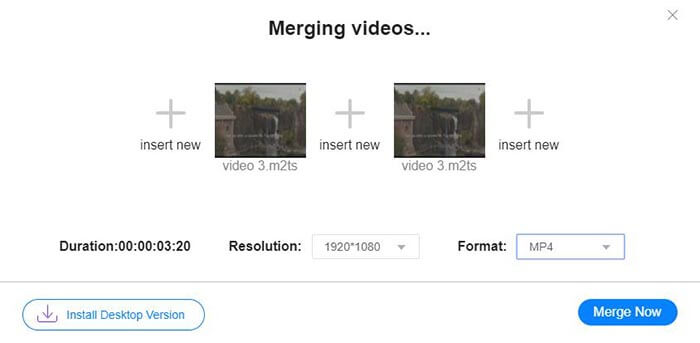
ขั้นตอนที่ 4. หากต้องการให้ไฟล์ที่รวมแล้วคงเป็นรูปแบบ M4V คุณต้องเลือก M4V ในรายการ Format คุณยังสามารถเลือกรูปแบบอื่นใดในรายการเพื่อแปลงไฟล์วิดีโอ M4V ที่รวมแล้วได้.
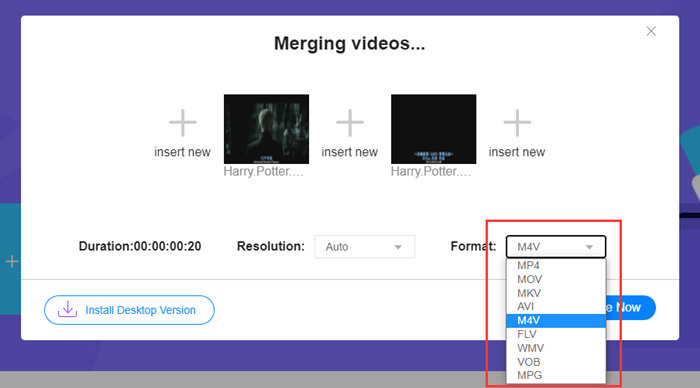
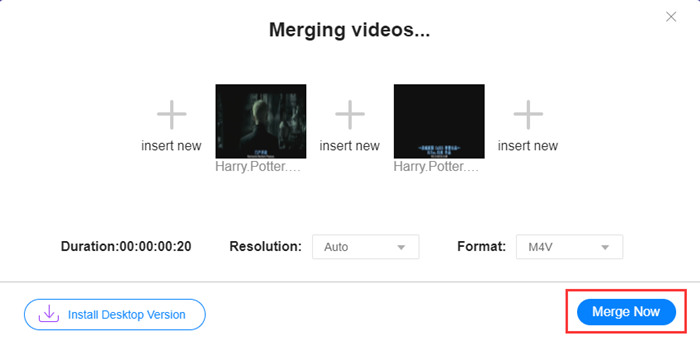
ขั้นตอนที่ 5. คลิกปุ่ม Merge Now เพื่อเริ่มรวมไฟล์ M4V จากนั้นเครื่องมือจะขอให้คุณเลือกโฟลเดอร์ปลายทางสำหรับไฟล์ที่ส่งออก.
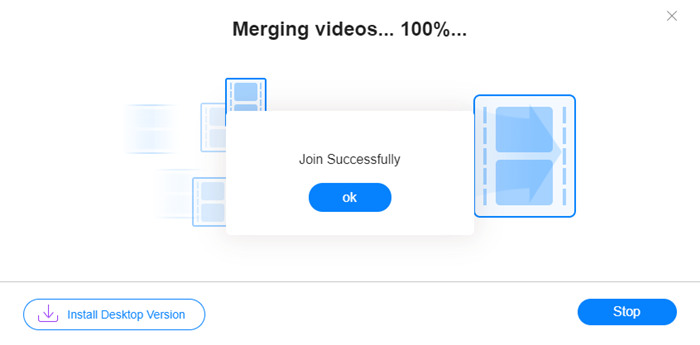
เมื่อคุณเห็นประกาศความสำเร็จด้านล่าง วิดีโอที่รวมไว้จะถูกบันทึกไว้ในคอมพิวเตอร์ของคุณ
ตอนนี้คุณได้เรียนรู้วิธีที่รวดเร็วที่สุดในการรวมไฟล์ M4V แล้ว อย่างไรก็ตาม วิธีนี้ช่วยให้คุณเพียงเชื่อมวิดีโอต่อกันแบบหัวชนท้ายเท่านั้น แต่ไม่สามารถช่วยตัดส่วนที่ไม่ต้องการออกได้ ซึ่งอาจทำให้มีช่วงหน้าจอดำในวิดีโอ บางทีคุณอาจต้องการวิธีถัดไปที่ช่วยได้ทั้งการรวมไฟล์ M4V และการตัดต่ออย่างไร้รอยต่อ คุณยังสามารถบีบอัดไฟล์ M4V ได้ที่นี่.
ส่วนที่ 2: วิธีการผสานไฟล์ M4V อย่างราบรื่น
เพื่อให้ได้วิดีโอที่สมบูรณ์และต่อเนื่องอย่างลื่นไหล การเพียงแค่รวมไฟล์ M4V ต่อกันแบบหัวชนท้ายยังไม่เพียงพอ คุณจำเป็นต้องตัดส่วนที่ไม่ต้องการออกทั้งตอนเริ่มต้นและตอนท้าย ดังนั้นจึงต้องใช้เครื่องมือตัดต่อวิดีโอ คุณมีตัวเลือกมากมาย แต่ที่นี่เราขอแนะนำ Video Converter Ultimate เหตุผลง่าย ๆ คือ ใช้งานง่ายและมีฟีเจอร์ที่ทรงพลังเพียงพอ.
คุณสมบัติเด่น
- • ผสาน ตัดแต่ง หมุน ครอบตัด และเพิ่มเอฟเฟกต์ให้กับวิดีโอ M4V
- • เทคโนโลยีการเร่งด้วยฮาร์ดแวร์ช่วยให้เข้าร่วมไฟล์ M4V ได้เร็วขึ้น 70 เท่า
- • ฟิลเตอร์และเอฟเฟกต์มากมายเพื่อตกแต่งวิดีโอของคุณ
- • ใช้ตัวเพิ่มประสิทธิภาพวิดีโอในตัวเพื่อปรับปรุงคุณภาพวิดีโอของคุณ
- • เปลี่ยนวิดีโอของคุณเป็น 3D และสนุกกับมันด้วยแว่นตา 3D ของคุณ
ดาวน์โหลดฟรีสำหรับ Windows 7 หรือใหม่กว่าดาวน์โหลดอย่างปลอดภัย
ดาวน์โหลดฟรีสำหรับ MacOS 10.7 หรือใหม่กว่าดาวน์โหลดอย่างปลอดภัย
ขั้นตอนการรวมไฟล์ M4V อย่างไร้รอยต่อ
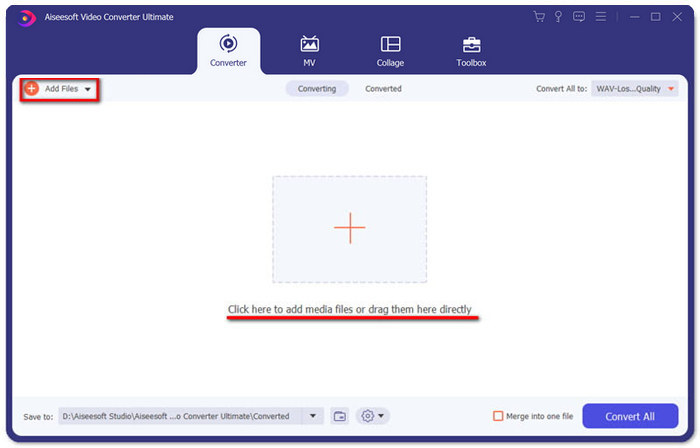
ขั้นตอนที่ 1. ติดตั้งและเปิดใช้งาน Video Converter Ultimate คลิกปุ่ม Add Files หรือแดรกไฟล์ลงในหน้าต่างโปรแกรมเพื่อเพิ่มวิดีโอ.
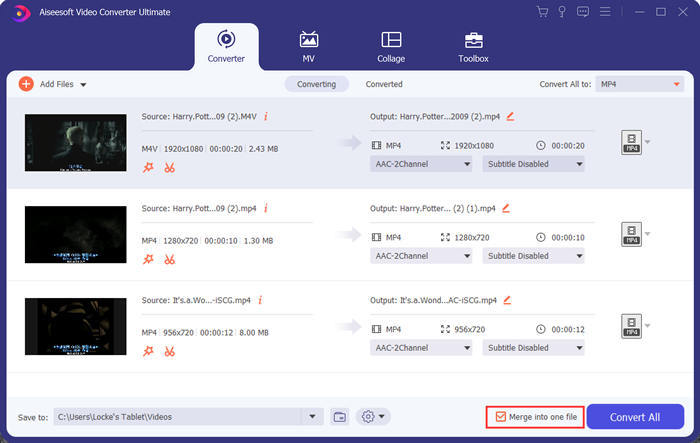
หลังจากเพิ่มไฟล์แล้ว คุณสามารถลากไฟล์ขึ้นและลงเพื่อจัดลำดับได้ นอกจากนี้คุณต้องติ๊กช่อง Merge into one file เพื่อให้โปรแกรมไม่แปลงวิดีโอแต่ละไฟล์แยกจากกัน.
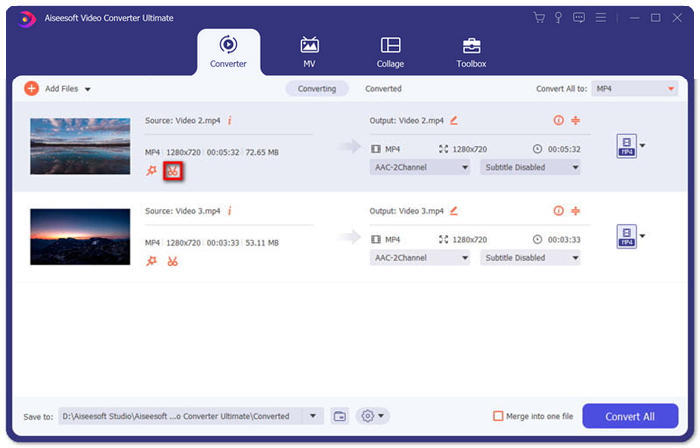
ขั้นตอนที่ 2. หากต้องการใช้ฟังก์ชันตัดวิดีโอ ให้คลิกไอคอน Cut บนวิดีโอที่เพิ่มเข้าไป.
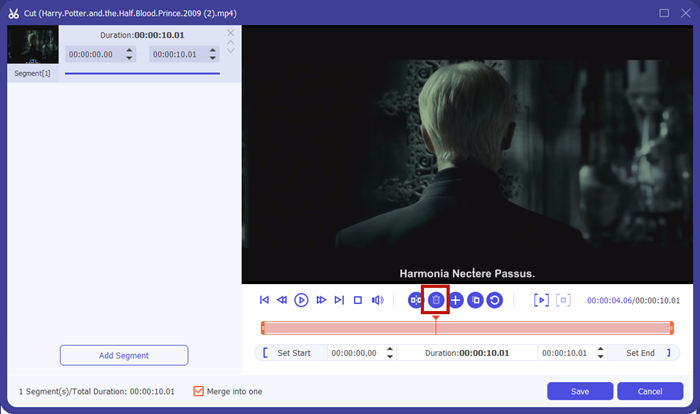
ในหน้าต่าง Cut คุณสามารถตัดส่วนที่ไม่ต้องการของวิดีโอได้อย่างง่ายดาย เพียงเลือกช่วงที่ต้องการโดยกำหนดจุดเริ่มต้นและจุดสิ้นสุด แล้วคลิกไอคอนถังขยะเพื่อลบช่วงนั้นออก.
ขั้นตอนที่ 3. กลับมาที่หน้าหลัก คุณสามารถเลือกไฟล์เอาต์พุตได้ ให้คลิกลูกศรลงข้าง Convert All to จากนั้นคุณสามารถเลือก M4V หรือรูปแบบอื่นเป็นรูปแบบไฟล์ออก.
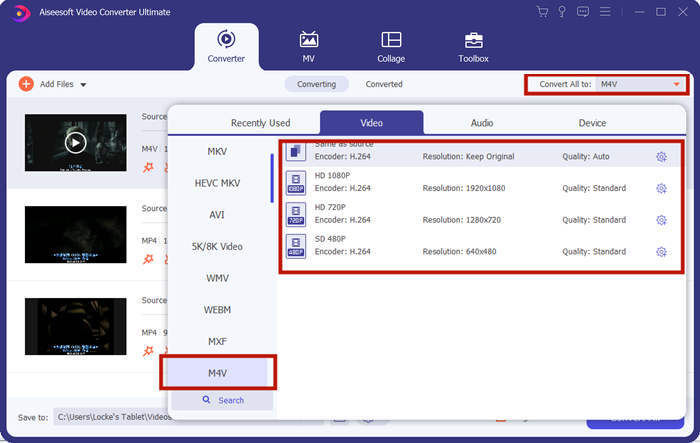
ขั้นตอนที่ 4. คลิกปุ่ม Convert All ที่มุมขวาล่างของโปรแกรม แล้วรอให้โปรแกรมรวมไฟล์ M4V ให้เสร็จ.

เมื่อการรวมเสร็จสิ้น คุณจะเห็นการแจ้งความสำเร็จ จากนั้น คุณจะพบไฟล์ M4V ที่ผสานในโฟลเดอร์ปลายทาง ด้านบนเป็นสองวิธีในการรวมไฟล์วิดีโอ M4V เราได้สรุปคำถามที่พบบ่อยหลายข้อไว้ด้านล่าง
ส่วนที่ 3: คำถามที่พบบ่อยเกี่ยวกับการเข้าร่วมไฟล์ M4V
ไฟล์ M4V คืออะไร
M4V ซึ่งออกแบบโดย Apple บางครั้งเรียกว่าไฟล์วิดีโอ iTunes คล้ายกับ MP4 เพราะทั้งคู่ใช้ MPEG-4 คุณสมบัติพิเศษที่สุดของ M4V คือ iTunes สามารถเพิ่มการป้องกัน DRM เข้าไปเพื่อป้องกันการแจกจ่ายวิดีโอ iTunes โดยไม่ได้รับอนุญาต
จะเปิดไฟล์ M4V ได้อย่างไร?
หากไฟล์ M4V ไม่ได้ถูกป้องกันด้วย DRM ไฟล์ M4V ก็สามารถเล่นได้บน VLC, QuickTime, Windows Media Player และโปรแกรมเล่นสื่ออื่น ๆ อีกมากมาย บางครั้งเพียงแค่เปลี่ยนส่วนขยายไฟล์จาก .M4V เป็น .MP4 ก็อาจเปิดได้เช่นกัน อย่างไรก็ตาม ไฟล์ M4V ที่มีการป้องกัน DRM จะเล่นได้เฉพาะบนอุปกรณ์ที่ได้รับอนุญาตเท่านั้น.
ฉันสามารถลบการป้องกัน DRM ออกจากไฟล์ M4V ได้หรือไม่
ใช่คุณสามารถ. คุณสามารถหาโปรแกรมลบ DRM ได้มากมายในตลาด นี่คือบางส่วนของพวกเขา: TunesKit DRM M4V Converter, Aimersoft DRM Media Converter, Requiem DRM Remover, Ondesoft iTunes Convertert, Apple Music Converter
สรุป
บทความนี้ได้แนะนำ 2 วิธีที่มีประสิทธิภาพในการรวมไฟล์วิดีโอ M4V หลายไฟล์ให้เป็นไฟล์เดียว หากต้องการวิธีที่รวดเร็วที่สุด FVC Free Online Video Merger คือทางเลือกที่ดีที่สุด คุณสามารถใช้ได้โดยไม่ต้องดาวน์โหลดโปรแกรมใด ๆ เลย และขั้นตอนการอัปโหลดก็เสร็จได้ในทันที แต่หากคุณต้องการคุณภาพที่สูงกว่า หรือไม่เพียงแต่ต้องการรวมไฟล์ M4V แต่ยังต้องการตัดแต่งไฟล์เหล่านั้นด้วย คุณสามารถหันมาใช้ Video Converter Ultimate ซึ่งมาพร้อมฟังก์ชันตัดต่อที่ทรงพลัง และยังมีหน้าตาโปรแกรมที่เป็นมิตรกับผู้เริ่มต้น หากคุณพบวิธีที่ดีกว่านี้ เรายินดีที่จะทราบ เพียงแสดงความคิดเห็นไว้ด้านล่าง.
-
 วิธีการแปลง M4V เป็น MP4 พร้อม / ไม่มี DRM
 6 วิธีในการแปลง M4V เป็น MP4 ฟรี (รวมการกำจัด DRM)
-
 5 ผู้เล่น M4V ที่ดีที่สุดในการเล่นไฟล์ M4V ได้อย่างง่ายดายบนคอมพิวเตอร์ / โทรศัพท์มือถือ
 ผู้เล่น M4V 5 อันดับแรกสำหรับ Windows / Mac / Android / iOS ที่คุณควรรู้
-
 วิธีแยกไฟล์ MP3 จาก M4V ด้วย 4 วิธียอดเยี่ยมที่คุณควรรู้
 M4V เป็น MP3 Converter - 4 วิธีที่ดีที่สุดในการแยก MP3 จากไฟล์ M4V
