


 Video Converter Ultimate
 บันทึกหน้าจอ
 ซ่อมวิดีโอ
 ดาวน์โหลดอย่างปลอดภัย
วิธีเข้าร่วมไฟล์ MOV (QuickTime) ฟรี
หลังจากรวบรวมวัสดุวิดีโอ MOV จำนวนมากคุณอาจต้องการจัดเรียงวัสดุและรวมเป็นไฟล์เดียวที่สมบูรณ์ อย่างไรก็ตามสำหรับผู้เริ่มต้นหรือผู้ผลิตวิดีโอมือสมัครเล่นการใช้เครื่องมือทางเทคนิคเช่น Adobe Premiere Pro อาจซับซ้อนเกินไป บางทีคุณอาจใช้เวลาหลายวันหรือหลายเดือนเพื่อศึกษาวิธีการดำเนินงานโปรแกรม
จริง ๆ แล้ว หากคุณต้องการเพียงแค่รวมคลิปวิดีโอเข้าด้วยกัน คุณสามารถใช้โปรแกรมรวมวิดีโอที่ใช้งานง่ายและมีประสิทธิภาพเพื่อแก้ปัญหานี้ได้ ซึ่งใช้เวลาเพียงไม่กี่นาทีในการรวมไฟล์ MOV สองไฟล์หรือมากกว่านั้นเข้าไว้ด้วยกัน.
ด้วยขั้นตอนต่อไปนี้ คุณสามารถรวมไฟล์ MOVได้อย่างง่ายดายทั้งบน Mac และ Windows ดังนั้นโปรดอ่านต่อและลองทำตามวิธีต่าง ๆ ด้วยตัวคุณเอง.

ส่วนที่ 1 วิธีการรวมวิดีโอ MOV ใน QuickTime
MOV หรือที่รู้จักกันในชื่อ QuickTime File Format (QTFF) เป็นไฟล์คอนเทนเนอร์วิดีโอดิจิทัลที่ใช้ตัวแปลงสัญญาณ MPEG-4 โดยถูกพัฒนาโดย Apple ในปี 1998 เพื่อรองรับโปรแกรม QuickTime Player ดังนั้นหากคุณใช้ Mac คุณสามารถใช้ QuickTime Player เพื่อรวมไฟล์ movได้อย่างง่ายดาย.
น่าแปลกใจที่ QuickTime ไม่ได้เป็นเพียงเครื่องเล่นสื่อเท่านั้น แต่ยังเป็นโปรแกรมตัดต่อวิดีโอที่ช่วยให้คุณสามารถรวมวิดีโอแยกแก้ไขคลิปวิดีโอและแม้แต่บันทึกเสียงหรือวิดีโอบน Mac ของคุณ นอกจากนี้ยังใช้งานง่ายและรักษาคุณภาพวิดีโอต้นฉบับ
นี่คือขั้นตอนในการเข้าร่วมคลิปวิดีโอใน QuickTime
ขั้นตอนที่ 1. ค้นหาวิดีโอที่คุณต้องการรวม และเปิดหนึ่งในนั้นด้วย QuickTime Player (คุณอาจย้ายไฟล์ทั้งหมดไปไว้ในโฟลเดอร์เดียวกันหรือบนเดสก์ท็อปก่อนเพื่อความสะดวก)
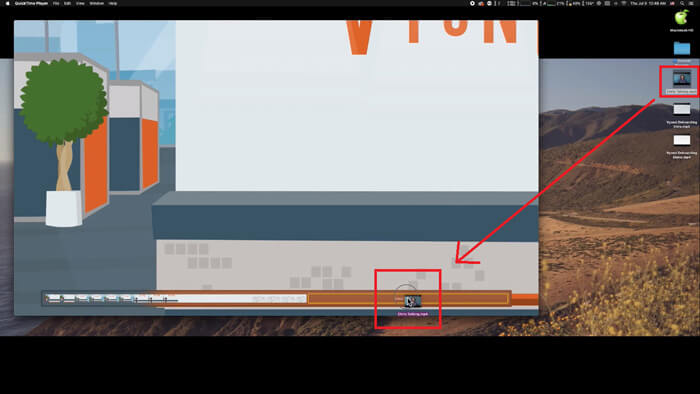
ขั้นตอนที่ 2. เมื่อเปิดไฟล์แล้ว หน้าต่างเล่นวิดีโอจะแสดงขึ้นบนหน้าจอ ตอนนี้ให้ลากคลิปวิดีโออีกไฟล์หนึ่งเข้าไปใน QuickTime Player จากนั้นคุณสามารถคลิกค้างแล้วลากคลิปวิดีโอเพื่อจัดลำดับให้ถูกต้องได้ เมื่อคุณปล่อยเมาส์ จะมีปุ่ม Done ปรากฏข้าง ๆ คลิปวิดีโอของคุณ ให้คลิกที่ปุ่มนั้น.
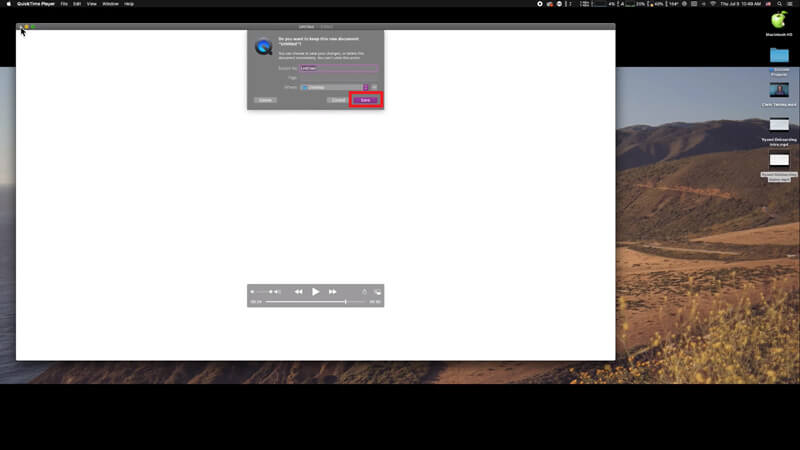
ขั้นตอนที่ 3. ปิด QuickTime แล้วคุณจะได้รับหน้าต่างแจ้งให้บันทึกวิดีโอที่รวมเรียบร้อยทันที เพียงพิมพ์ชื่อใหม่และเลือกโฟลเดอร์ปลายทาง จากนั้นคลิกปุ่ม Save.
ตอนที่ 2. วิธีการรวมไฟล์ MOV ออนไลน์และฟรี
อย่างไรก็ตาม QuickTime ไม่สามารถช่วยให้คุณรวมไฟล์วิดีโอหลายรูปแบบที่แตกต่างกัน เช่น MP4, MOV, AVI, WMV, FLV เป็นต้น ให้กลายเป็นไฟล์ MOV ไฟล์เดียวได้ ในกรณีนี้ คุณจำเป็นต้องใช้โปรแกรมรวมวิดีโอระดับมืออาชีพที่รองรับไฟล์วิดีโอหลากหลายรูปแบบ.
ดังนั้นขอแนะนำ FVC Free Online Video Merger โปรแกรมรวมวิดีโอออนไลน์ฟรีที่ยอดเยี่ยมที่สุด สำหรับการรวมวิดีโอหลายไฟล์ โดยคุณสามารถอัปโหลดวิดีโอได้ไม่จำกัดจำนวน นอกจาก MOV แล้ว คุณยังสามารถส่งออกเป็นรูปแบบวิดีโอยอดนิยมอื่น ๆ ได้อีกด้วย ซึ่งสะดวกมากสำหรับการแชร์วิดีโอไปยังแพลตฟอร์มสตรีมมิงอย่าง YouTube.
แทนที่จะติดตั้งโปรแกรมที่จริงจังและมีค่าใช้จ่ายสูงลงในพีซีของคุณคุณสามารถเข้าร่วมวิดีโอใดก็ได้เพื่อสร้างวิดีโอที่น่าตื่นตาตื่นใจออนไลน์ด้วยตัวรวมวิดีโอที่ใช้งานง่ายนี้ซึ่งช่วยให้คุณสร้างวิดีโอที่ไม่มีลายน้ำได้อีกด้วย ไม่ว่าคุณจะใช้ระบบอะไร Windows, Mac หรือ Linux ก็สามารถทำงานได้ดี สิ่งที่คุณต้องมีคือเบราว์เซอร์และเครือข่ายที่เสถียร
ขั้นตอนต่อไปนี้จะแนะนำวิธีใช้งานเครื่องมือผสานวิดีโอนี้
ขั้นตอนที่ 1. คลิกลิงก์ด้านบนเพื่อเปิดเว็บไซต์ของFVC Free Online Video Mergerในเบราว์เซอร์ของคุณ.
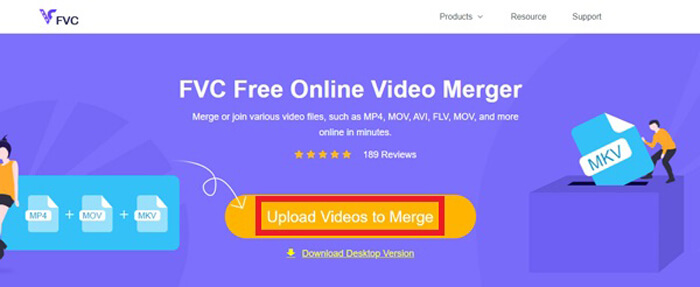
ขั้นตอนที่ 2. คลิกปุ่มUpload Videos to Mergeในแบนเนอร์ก่อน จากนั้นทำตามคำแนะนำบนหน้าจอเพื่อดาวน์โหลดและติดตั้งโปรแกรมเรียกใช้งาน (launcher) ลงบนคอมพิวเตอร์ของคุณ.
ขั้นตอนที่ 3. เมื่อการติดตั้งเสร็จสิ้น หน้าต่างโปรแกรมจะเด้งขึ้นมาโดยอัตโนมัติ ตอนนี้คุณสามารถเลือกและเพิ่มไฟล์ MOV ทั้งหมดที่ต้องการรวมเข้าด้วยกันลงในโปรแกรมรวมวิดีโอได้.
ขั้นตอนที่ 4. หลังจากอัปโหลดแล้ว โปรดตรวจสอบว่าลำดับของคลิปวิดีโอถูกต้องหรือไม่ จากนั้นปรับค่าResolutionตามที่คุณต้องการ และเปลี่ยนFormatเป็น MOV หรือรูปแบบอื่นใดที่คุณต้องการ.
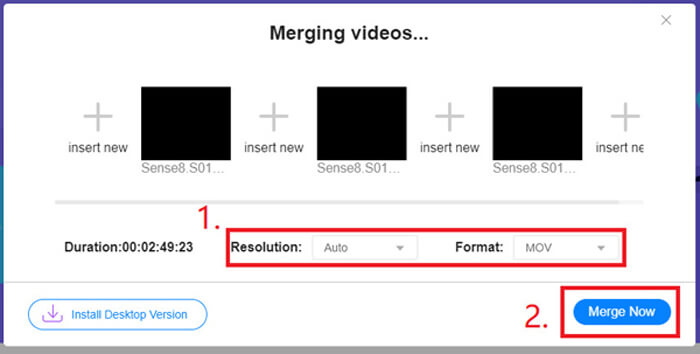
ขั้นตอนที่ 5. คลิกMerge Nowเพื่อเริ่มรวมไฟล์.
ส่วนที่ 3. วิธีการรวมไฟล์ MOV ใน Windows 10
หากคุณไม่มี Mac แต่เป็นเจ้าของพีซีที่ใช้ Windows 10 คุณสามารถลองทำตามขั้นตอนต่อไปนี้เพื่อเข้าร่วมไฟล์ MOV
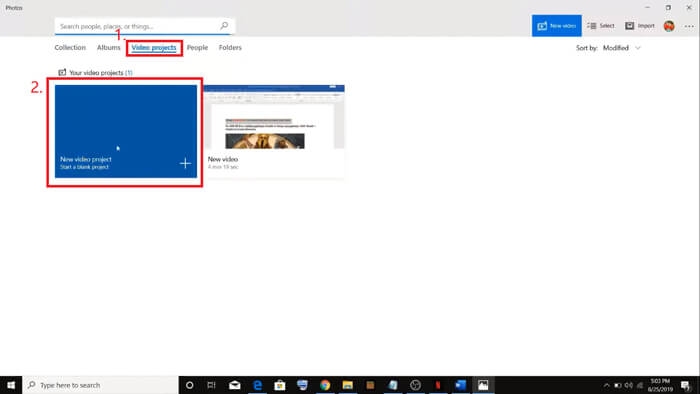
ขั้นตอนที่ 1. เปิดแอปPhotosบนพีซีของคุณ คุณสามารถค้นหาได้จากแถบSearch จากนั้นเลือกแท็บVideo projectsด้านบน แล้วคลิกNew video project ตั้งชื่อโปรเจกต์วิดีโอของคุณ.
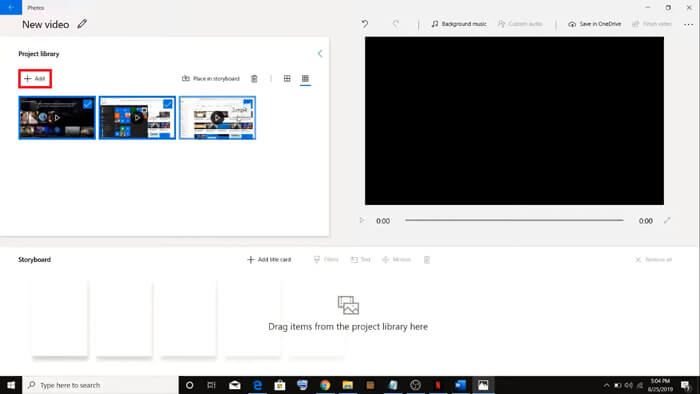
ขั้นตอนที่ 2. คลิกปุ่มAddที่มุมบนซ้าย แล้วเลือกวิดีโอทั้งหมดที่คุณต้องการแปลงจากพีซีของคุณ.
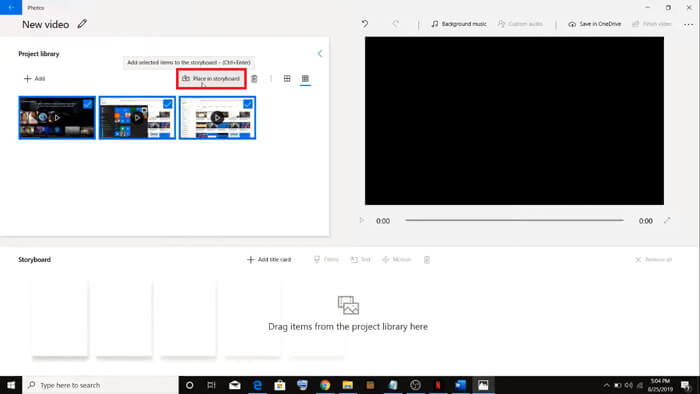
ขั้นตอนที่ 3. จากนั้นคลิกปุ่มPlace in storyboardเพื่อรวมไฟล์ MOV ทั้งหมดของคุณเข้าด้วยกัน.
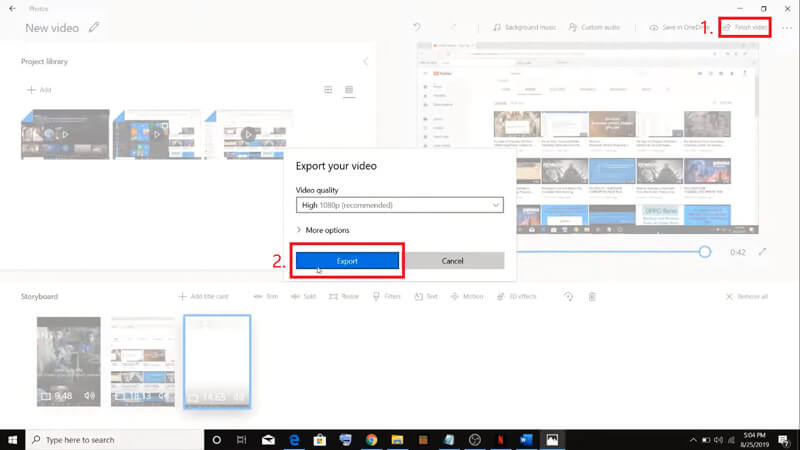
ขั้นตอนที่ 4. เมื่อตรวจสอบและปรับลำดับวิดีโอเรียบร้อยแล้ว ให้คลิกFinish videoที่มุมบนขวา จากนั้นส่งออก (Export) วิดีโอที่รวมแล้วไปยังพีซีของคุณ.
ส่วนที่ 4. คำถามที่พบบ่อยเกี่ยวกับการรวม MOV
1. ฉันสามารถใช้ QuickTime Player บน Windows ได้หรือไม่?
แม้ว่า Apple จะไม่รองรับ QuickTime สำหรับ Windows อีกต่อไปแล้ว แต่คุณยังสามารถหาไฟล์ติดตั้ง QuickTime บนอินเทอร์เน็ตได้ อย่างไรก็ตาม คุณควรทราบว่าคุณสามารถใช้โปรแกรมนี้เพื่อเล่นวิดีโอเท่านั้น ดังนั้นมันจึงเป็นเพียงโปรแกรมเล่นวิดีโอทั่วไปที่แทบไม่ช่วยอะไรคุณเลย
หากคุณเป็นผู้ใช้ Windows ที่ต้องการรวมไฟล์ MOV คุณสามารถใช้FVC Free Online Video Mergerที่ทรงพลังตัวนี้ได้เลย.
2. แบบไหนดีกว่าสำหรับ YouTube, MOV หรือ MP4?
หลังจากที่คุณสร้างวิดีโอสุดประทับใจจากการรวมวิดีโอทุกคลิปเข้าด้วยกันแล้ว คุณอาจต้องการอัปโหลดไปยัง YouTube, Facebook, Instagram หรือแพลตฟอร์มอื่น ๆ หากเป็นเช่นนั้น MP4 จะเป็นตัวเลือกที่ดีกว่า เพราะมีขนาดไฟล์เล็กกว่าและแชร์ผ่านอินเทอร์เน็ตได้ง่ายกว่า
หากคุณต้องการทราบความแตกต่างระหว่าง MOV และ MP4เพิ่มเติม.
3. QuickTime Player สามารถส่งออกวิดีโอ MP4 ได้หรือไม่?
ไม่ใช่และก็ใช่ เพราะ QuickTime ในตัวเองไม่รองรับการส่งออกไฟล์เป็น MP4 แต่หากคุณชำระเงินอัปเกรด QuickTime ของคุณเป็น QuickTime Pro คุณก็จะสามารถรวมไฟล์ MOV และได้รับไฟล์ MP4 ที่แปลงแล้วโดยอัตโนมัติ หากคุณไม่ต้องการจ่ายเงินแม้แต่บาทเดียวแต่ยังอยากแปลง MOV เป็น MP4บน Mac คุณสามารถลองใช้ตัวแปลงวิดีโอออนไลน์ฟรีชื่อFVC Free Online Video Converterซึ่งรองรับทั้ง Mac และ Windows.
สรุป
ดังนั้นนี่คือวิธีต่าง ๆ ที่คุณสามารถนำไปใช้เมื่อคุณต้องการรวมไฟล์ MOV ให้เป็นไฟล์เดียว หากคุณใช้ Mac คุณสามารถใช้ซอฟต์แวร์ที่มีมาให้ในเครื่องอย่าง QuickTime Player เพื่อสร้างไฟล์ MOV ที่รวมแล้วได้โดยตรง ผู้ใช้ Windows 10 สามารถลองใช้ Photos ได้ ส่วนผู้ใช้ Windows เวอร์ชันอื่น ๆ สามารถเลือกใช้FVC Free Online Video Mergerและเพลิดเพลินไปกับการรวมวิดีโออย่างไร้ขีดจำกัด ไม่มีโฆษณา และไม่มีไวรัส.
หากคุณชอบโพสต์นี้และพบว่าใช้งานได้จริงคุณสามารถแบ่งปันกับเพื่อนของคุณได้ และอย่าลังเลที่จะแสดงความคิดเห็นของคุณ ตอนนี้ถึงตาคุณแล้วที่จะลองใช้วิธีการและรวมไฟล์ของคุณ
-
 วิธีการแปลง QuickTime เป็น MP4 บน Windows / Mac / Online / iOS / Android
 อ่านและรับ 4 วิธีในการแปลงวิดีโอ QuickTime เป็น MP4 ฟรีบนโทรศัพท์หรือคอมพิวเตอร์ของคุณ คุณสามารถเปลี่ยนรูปแบบไฟล์จาก MOV เป็น MP4 บน Windows / Mac / iPhone / Android / ออนไลน์ได้อย่างง่ายดาย
-
 4 วิธียอดนิยมในการแปลง MP4 เป็น MOV ฟรี
 วิธีแปลง MP4 เป็น MOV บน Mac มีวิธีฟรีในการแปลง MP4 เป็น MOV โดยไม่สูญเสียคุณภาพหรือไม่? โพสต์นี้แชร์ 4 วิธีง่ายๆที่จะช่วยคุณในการแปลงวิดีโอจาก MP4 เป็น MOV บน Mac, Windows PC และออนไลน์
-
 วิธีการแปลง M2TS เป็น MOV บน Windows / Mac (ออนไลน์ / ออฟไลน์)
 ต้องการแปลง M2TS เป็น MOV เพื่อเล่นไฟล์วิดีโอบนเครื่องเล่นและแพลตฟอร์มต่างๆหรือไม่? บทความนี้จะช่วยคุณค้นหาวิธีการออนไลน์ / ออฟไลน์ที่ดีที่สุดในการแปลง M2TS เป็น MOV บน Windows / Mac
