


 Video Converter Ultimate
 บันทึกหน้าจอ
 ซ่อมวิดีโอ
วิธีการเปลี่ยนข้อมูลเมตาของไฟล์ MOV บน Mac ด้วยขั้นตอนอย่างง่ายดาย
พวกเราต่างก็รู้กันดีว่าไฟล์ MOV เป็นหนึ่งในรูปแบบวิดีโอชั้นยอดที่คุณสามารถใช้สำหรับการเล่นวิดีโอบนดีไวซ์ของ Apple และสำหรับงานตัดต่อได้อย่างเหมาะสม แล้วอะไรทำให้ MOV มีความพิเศษแตกต่าง? นั่นก็เพราะมันรองรับการบีบอัดวิดีโอแบบที่มืออาชีพนิยมใช้กัน แม้ว่ามันจะสามารถเก็บองค์ประกอบได้หลายอย่างไว้ในไฟล์เดียว แต่ก็ยังมีโอกาสที่แท็กต่าง ๆ ในไฟล์ MOV จะสับสนปะปนกันจนทำให้เกิดปัญหาได้ การแก้ไขแท็กเหล่านี้ให้ถูกต้องเพื่อให้เมทาดาทาถูกต้องจึงช่วยให้คุณจัดการปัญหาได้ทันที ด้วยเครื่องมือที่เหมาะสม งานนี้จะกลายเป็นเรื่องง่ายมาก ดังนั้นวันนี้เราจะมาแนะนำวิธีที่ดีที่สุดในการแก้ไขเมทาดาทาไฟล์ MOVแบบฉับไวให้กับคุณ.

ส่วนที่ 1 วิธีแก้ไขข้อมูลเมตา MOV ด้วย Ultimate Tag Editor บน Mac
FVC Video Converter Ultimate คือโซลูชันแบบครบวงจรสำหรับปัญหาเมทาดาทานี้ ซึ่งรองรับไฟล์ได้มากกว่า 1000+ รูปแบบทั้งบน Mac และ Windows ด้วยเครื่องมือนี้ คุณสามารถลบ แก้ไข หรือเพิ่มเมทาดาทาให้กับไฟล์ MOV ของคุณได้ทันที แล้วยังมีอะไรอีก? คุณยังสามารถแก้ไขไฟล์ MOV ได้หลายรูปแบบ เช่น ตัด ต่อรวม ตัดขอบ ครอป และอีกนับพันฟังก์ชัน แม้ว่าคุณจะไม่ใช่มืออาชีพด้านการตัดต่อก็ตาม เรียกได้ว่าการมีเครื่องมือนี้อยู่ข้างกายเป็นเรื่องที่น่าประทับใจมาก และยังมีอะไรอีกมากมายที่คุณทำได้ภายในไม่กี่คลิก แต่วันนี้ เราจะนำเสนอคำแนะนำแบบละเอียดที่เราเตรียมไว้ให้คุณทำตามเพื่อแก้ไขเมทาดาทาของไฟล์ MOV ได้สำเร็จ.
ขั้นตอนที่ 1. คุณสามารถดาวน์โหลดโปรแกรมตัวนี้บน Mac หรือ Windows ได้โดยกดปุ่มดาวน์โหลดด้านล่าง ดำเนินการติดตั้งโดยคลิกไฟล์ที่คุณดาวน์โหลดมา แล้วคลิก Start Now เพื่อเปิดโปรแกรมทันที.
ดาวน์โหลดฟรีสำหรับ Windows 7 หรือใหม่กว่าดาวน์โหลดอย่างปลอดภัย
ดาวน์โหลดฟรีสำหรับ MacOS 10.7 หรือใหม่กว่าดาวน์โหลดอย่างปลอดภัย
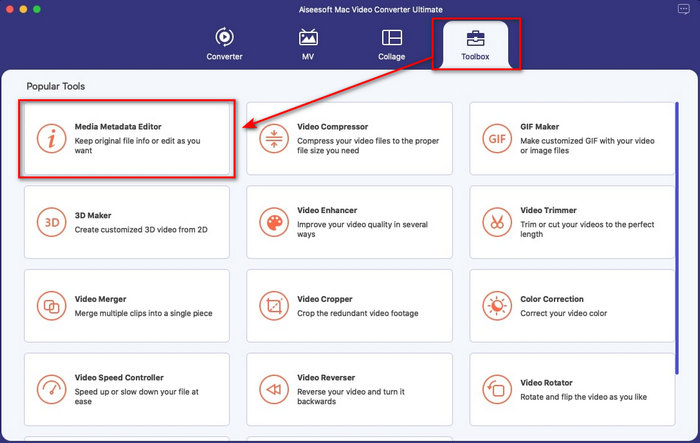
ขั้นตอนที่ 2. อินเทอร์เฟซของโปรแกรมจะแสดงบนหน้าจอของคุณ ไปที่ส่วน Toolbox แล้วเปิด Media Metadata Editor.
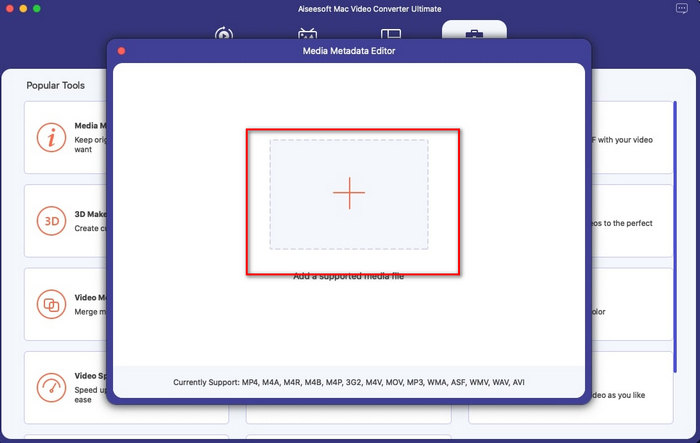
ขั้นตอนที่ 3. เมื่อคุณเปิดตัวแก้ไขเมทาดาทาแล้ว จะมีหน้าต่างขนาดเล็กปรากฏขึ้น ให้แตะปุ่ม + เพื่อเปิดโฟลเดอร์ที่คุณเก็บไฟล์ไว้ แล้วคลิก Open เพื่อนำไฟล์เข้ามา.
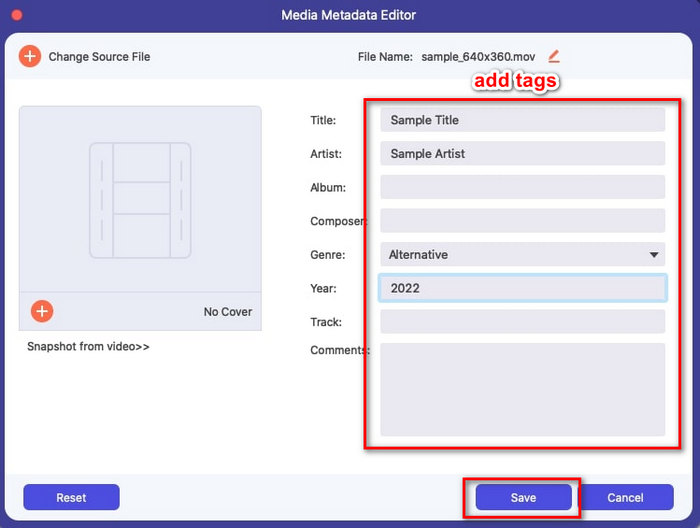
ขั้นตอนที่ 4. ตอนนี้คุณสามารถเพิ่ม แก้ไข หรือลบแท็กต่าง ๆ ในไฟล์ MOV ได้แล้วในกล่องข้อความ หากจัดการทุกอย่างเรียบร้อยแล้ว ให้คลิกปุ่ม Save คุณก็จะแก้ไขเมทาดาทาในไฟล์ MOV ของคุณเสร็จเรียบร้อยอย่างรวดเร็ว.
ที่เกี่ยวข้อง:
ส่วนที่ 2 ตัวแก้ไขแท็ก MOV ที่ดีที่สุด 3 ตัวเพื่อเปลี่ยนข้อมูลเมตาของ MOV
VLC Media Player
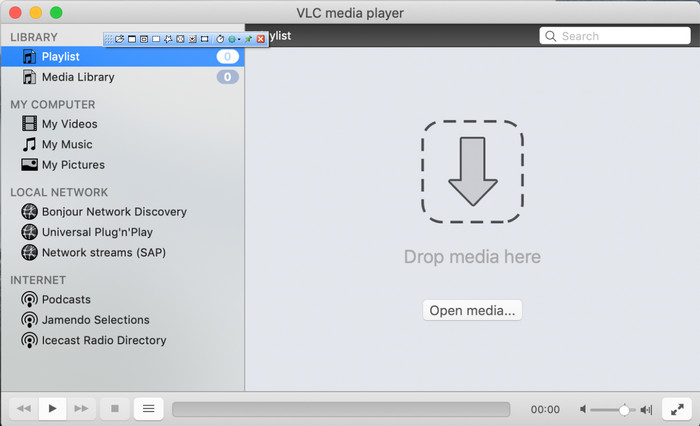
VLC Media Player เป็นโปรแกรมเล่นมีเดียชื่อดังที่ใช้งานได้ทั้งบน Mac และ Windows แม้ว่ามันจะเล่นวิดีโอได้หลายรูปแบบ แต่ก็สามารถเปลี่ยนเมทาดาทาของไฟล์มีเดียของคุณ เช่น MOV ได้อีกด้วย นอกจากนี้หากคุณต้องการดูเมทาดาทาของไฟล์ ก็สามารถใช้โปรแกรมนี้เปิดดูได้อย่างง่ายดาย อย่างไรก็ตาม ความสามารถด้านการแก้ไขเมทาดาทาของมันยังไม่ดีเท่าโปรแกรมแก้ไขเมทาดาทาเฉพาะทางตัวอื่น ๆ ที่มีบน Mac หรือ Windows แต่ก็ยังสามารถใช้โปรแกรมเล่นมีเดียตัวนี้แก้ไขเมทาดาทาไฟล์ MOV ได้อยู่ดี.
ขั้นตอนที่ 1. ดาวน์โหลดโปรแกรมเล่นมีเดียจากเว็บไซต์ทางการของ VLC แล้วเปิดโปรแกรม.
ขั้นตอนที่ 2. กดปุ่ม Command + I บนคีย์บอร์ด แล้วหน้าต่างข้อมูลมีเดียจะปรากฏขึ้น ซึ่งคุณสามารถเพิ่มหรือลบเมทาดาทาของไฟล์ MOV ได้จากที่นี่.
ขั้นตอนที่ 3. คลิก Save Metadata เมื่อคุณใส่แท็กให้กับไฟล์ MOV เสร็จเรียบร้อยแล้ว.
iTunes
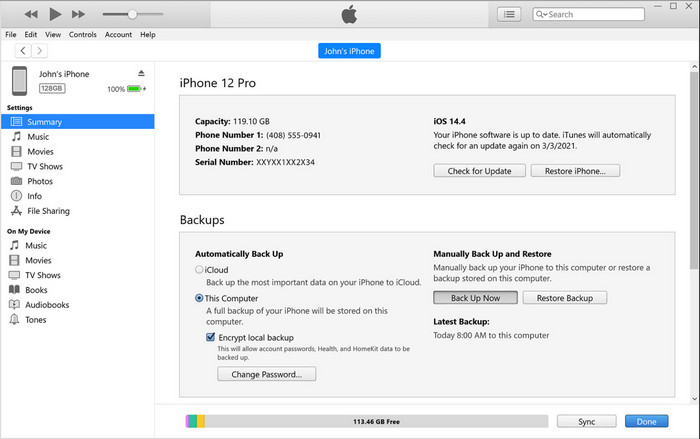
iTunes เป็นแอปสตรีมมิงแบบติดตั้งมาพร้อมเครื่องที่ดีที่สุดซึ่งคุณสามารถใช้งานได้บนดีไวซ์ Apple ทุกเครื่อง เครื่องมือนี้อัดแน่นไปด้วยฟีเจอร์ต่าง ๆ เช่น เครื่องเล่นเพลงและร้านจำหน่ายเพลง ภาพยนตร์ พ็อดคาสต์ และอีกมากมาย ซึ่งได้รับการป้องกันด้วย DRM เพื่อหลีกเลี่ยงปัญหาลิขสิทธิ์ แม้จะเป็นแอปติดเครื่องที่ยอดเยี่ยม แต่การแข่งขันในตลาดโปรแกรมแก้ไขเมทาดาทานั้นดุเดือดเกินกว่าที่ iTunes จะโดดเด่นได้ อย่างไรก็ตาม เราก็ยังนำแอปนี้มาพิจารณาเพราะมันสามารถเปลี่ยนเมทาดาทาของไฟล์ MOV บน Mac ได้.
ขั้นตอนที่ 1. เปิดแล้วนำเข้าไฟล์ MOV ไปยังไลบรารี iTunes.
ขั้นตอนที่ 2. จากนั้นคลิกขวาที่ไฟล์ .mov ที่คุณเพิ่มเข้าไปแล้วเลือก Get Info หลังจากคลิกแล้ว คุณจะเห็นตัวเลือกต่าง ๆ สำหรับเปลี่ยนเมทาดาทา เช่น รายละเอียด ภาพปก เนื้อเพลง ตัวเลือก การจัดเรียง และไฟล์ ซึ่งคุณสามารถปรับตามต้องการได้.
ขั้นตอนที่ 3. กด OK เพื่อบันทึกการเปลี่ยนแปลง.
MetaZ
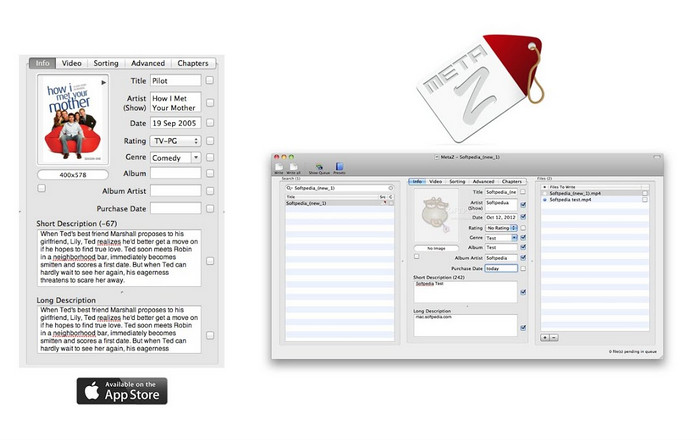
สำหรับ macOS X คุณสามารถดาวน์โหลด Metaz ได้อย่างอิสระเพื่อเปลี่ยนข้อมูลเมตาของไฟล์ของคุณได้อย่างง่ายดาย โปรแกรมแก้ไขข้อมูลเมตานี้สามารถช่วยคุณเปลี่ยนแท็กวิดีโอของคุณในรูปแบบส่วนใหญ่ เช่น MOV ด้วยแอพนี้ คุณสามารถทำเคล็ดลับได้อย่างง่ายดายและจัดระเบียบ MOV ในห้องสมุดของคุณ อย่างไรก็ตาม มีรายงานจำนวนมากที่เกิดขึ้นเมื่อเร็วๆ นี้กับแอปนี้ ผู้ใช้พบปัญหาที่ยุ่งยากมากมายขณะใช้แอพ แม้ว่าปัญหาอาจเกิดขึ้น แต่ก็ยังเป็นหนึ่งในตัวแก้ไขข้อมูลเมตาของ MOV ที่ได้รับการคัดสรรมากที่สุดซึ่งคุณสามารถดาวน์โหลดบน Mac ของคุณได้
ขั้นตอนที่ 1. ดาวน์โหลดแอปบน Mac ของคุณ เปิดใช้งาน จากนั้นอินเทอร์เฟซของเครื่องมือจะแสดงส่วนหลัก 3 ส่วนบนหน้าจอ ได้แก่ พื้นที่เพิ่มไฟล์ ส่วนแก้ไขแท็ก และส่วนค้นหาแท็ก.
ขั้นตอนที่ 2. ลากแล้ววางไฟล์ MOV ไปยังด้านซ้ายมือ ที่ด้านซ้ายของหน้าจอคุณจะเห็นว่าโปรแกรมจะค้นหาแท็กสำหรับไฟล์ MOV ให้โดยอัตโนมัติตามชื่อไฟล์ แต่คุณสามารถแก้ไขแท็กเหล่านั้นได้ในส่วนตรงกลางหากต้องการ.
ขั้นตอนที่ 3. กด Write แล้วแท็กต่าง ๆ จะถูกเพิ่มไปยังไฟล์ MOV.
ส่วนที่ 3 คำถามที่พบบ่อยเกี่ยวกับ MOV Metadata Editor
ฉันสามารถใช้โปรแกรมแก้ไขข้อมูลเมตา QuickTime เพื่อเปลี่ยนแท็กได้หรือไม่
ขออภัย คุณไม่สามารถทำได้เนื่องจากเครื่องมือนี้สามารถเล่นรูปแบบสื่อ แก้ไขวิดีโอ และบันทึกได้เท่านั้น แต่คุณสามารถดูข้อมูลเมตาของไฟล์บน Quicktime ได้อย่างอิสระโดยทำตามขั้นตอนง่ายๆ เหล่านี้ ขั้นแรก เปิดไฟล์ MOV บน Quicktime แล้วเล่น คุณจะเห็นตัวเลือกต่างๆ ที่ส่วนบน คลิก Window และภายใต้นั้น ให้กด View Inspector จากนั้นหน้าต่างใหม่จะปรากฏขึ้นบนหน้าจอของคุณเพื่อดูข้อมูลเล็กน้อยเกี่ยวกับไฟล์ MOV ของคุณ
การเปลี่ยนแท็ก MOV ส่งผลต่อคุณภาพหรือไม่
โชคดีที่ไม่เป็นเช่นนั้นเพราะคุณได้ปรับแท็ก ไม่ใช่ความละเอียดหรือคุณภาพของไฟล์ MOV ดังนั้น หากคุณกังวลว่าความละเอียดของวิดีโออาจลดลงหลังจากเปลี่ยนแท็ก เราจะทำซ้ำ มันจะไม่
การเพิ่มข้อมูลเมตาบน MOV จะเพิ่มขนาดไฟล์หรือไม่
ในไฟล์ใดๆ เมื่อคุณเพิ่มข้อมูลเมตาลงในไฟล์นั้น คุณจะเห็นความแตกต่างระหว่างไฟล์ที่ไม่มีแท็กและไฟล์ที่มี อย่างไรก็ตาม แท็กเหล่านี้ไม่ใหญ่เท่ากับเนื้อหาของไฟล์ ดังนั้น หากคุณเพิ่มข้อมูลเมตาลงใน MOV ของคุณ คาดว่าข้อมูลนั้นจะเพิ่มขึ้นเล็กน้อยเนื่องจากคุณได้เพิ่มข้อมูลเกี่ยวกับไฟล์วิดีโอ
สรุป
ตอนนี้เราได้สอนคุณเสร็จแล้วว่าจะเปลี่ยนเมทาดาทาไฟล์ MOV อย่างไร ก็ถึงเวลาที่คุณจะเลือกแล้วว่าจะทำตามคู่มือแบบไหน หากคุณอยากดาวน์โหลดเครื่องมือฟรีบน Mac คุณสามารถใช้ VLC และ Metaz เพื่อแก้ไขหรือปรับเมทาดาทาของไฟล์ MOV ได้ แต่ถ้าคุณไม่อยากดาวน์โหลดเพิ่ม คุณสามารถใช้ iTunes เพื่อแก้ไขเมทาดาทาได้อย่างง่ายดาย แม้ว่าเครื่องมือเหล่านี้จะใช้งานได้ดี แต่ก็ยังไม่มีโปรแกรมไหนที่มีฟีเจอร์แก้ไขเมทาดาทาทรงพลังบน Mac ได้เทียบเท่ากับสิ่งที่ FVC Video Converter Ultimate มอบให้ ดังนั้นหากคุณยังลังเลว่าจะใช้เครื่องมือใด เราขอแนะนำให้คุณเลือกใช้โปรแกรม Ultimate ตัวนี้สำหรับงานประเภทนี้ เพราะใช้งานง่ายแต่ให้แพ็กเกจฟีเจอร์แบบครบเครื่องที่คุณต้องการในทุก ๆ วัน.
-
 ข้อมูลเมตาคืออะไร: เรียนรู้ข้อมูลพื้นฐานเกี่ยวกับข้อมูลเมตา
 เมตาดาต้าคืออะไร? สิ่งนี้สำคัญหรือไม่? ข้อมูลเมตามีส่วนใดบ้าง คุณมีคำถามเดียวกันหรือไม่? ในบทความนี้ คุณจะได้เรียนรู้ข้อมูลพื้นฐานเกี่ยวกับข้อมูลเมตา
-
 4 ของโปรแกรมดูข้อมูลเมตาที่ดีที่สุดทางออนไลน์และออฟไลน์ [อัปเดต 2022]
 ฉันสามารถตรวจสอบข้อมูลเมตาของไฟล์ของฉันได้หรือไม่ ได้ ด้วยความช่วยเหลือของโพสต์นี้ เราจะแนะนำให้คุณรู้จักกับผู้ดูข้อมูลเมตาต่างๆ ที่คุณสามารถใช้ได้
-
 บรรณาธิการแท็ก WMV ที่ได้รับเลือกมากที่สุด 4 อันดับแรกบนเดสก์ท็อป [อัปเดต 2022]
 ต้องการโปรแกรมแก้ไขแท็ก WMV ที่เชื่อถือได้เพื่อแก้ไขแท็ก WMV หรือไม่ บทความนี้ให้ความรู้เพียงพอเกี่ยวกับเครื่องมือที่รองรับ WMV
