


 Video Converter Ultimate
 บันทึกหน้าจอ
 ซ่อมวิดีโอ
 ดาวน์โหลดอย่างปลอดภัย
วิธีง่ายๆ ในการเร่งความเร็ววิดีโอของคุณบน Sony Vegas
Sony Vegas เป็นเครื่องมือที่ครบครันที่คุณสามารถใช้สำหรับการตัดต่อแบบมืออาชีพ เครื่องมือนี้ช่วยให้คุณทำอะไรได้หลายอย่างกับวิดีโอเอาต์พุตของคุณ และไม่เพียงเท่านั้น Sony Vegas ยังสามารถเร่งหรือลดความเร็ววิดีโอของคุณเพื่อให้ได้วิดีโอที่ทรานซิชันลื่นไหลสมบูรณ์แบบไว้แชร์กับเพื่อน ๆ ดังนั้นหากคุณกำลังสงสัยว่าจะเร่งความเร็ววิดีโอใน Sony Vegas ได้อย่างไร ให้อ่านบทความนี้จนจบ.

ส่วนที่ 1 Sony Vegas - เครื่องมือแก้ไขที่ดีที่สุดสำหรับคุณ
หากคุณกำลังมองหาซอฟต์แวร์ตัดต่อที่มีเครื่องมือหลากหลาย ซอฟต์แวร์นี้คือคำตอบ Sony Vegas คือซอฟต์แวร์ตัดต่อที่เป็นที่รู้จักอย่างกว้างขวางบนอินเทอร์เน็ต ซอฟต์แวร์นี้เหมาะอย่างยิ่งสำหรับใช้ตัดต่อรายการทีวี ภาพยนตร์ และมิวสิกวิดีโอ นอกจากนี้ยังมีฟีเจอร์ขั้นสูงให้ใช้อีกมากมาย เช่น การใส่ซับไตเติล การเพิ่มฟิลเตอร์และเอฟเฟกต์ และการปรับแต่งภาพให้เหมาะสม อีกทั้งยังรองรับการตัดต่อแบบหลายกล้อง (multi-cam) การป้องกันภาพสั่นไหว (image stabilization) และการมาสก์ (masking).
และหากคุณมีวิดีโอที่มีความละเอียด 4k, 8k และ HD เครื่องมือนี้สามารถใช้ได้กับสิ่งนั้น แม้ว่าเครื่องมือนี้จะมีอินเทอร์เฟซซอฟต์แวร์ที่ยากต่อการใช้งาน แต่ก็ใช้งานได้ง่ายเมื่อคุณเข้าใจ นอกจากนี้ หากคุณกำลังมองหาเครื่องมือที่สามารถเพิ่มความเร็วให้กับวิดีโอของคุณ เครื่องมือนี้เหมาะที่สุดสำหรับคุณ หากคุณต้องการทราบข้อมูลเพิ่มเติมเกี่ยวกับเครื่องมือนี้ โปรดอ่านคุณสมบัติด้านล่าง
คุณสมบัติ:
- มีคุณสมบัติการแก้ไขขั้นสูง เช่น การเพิ่มคำบรรยาย เพิ่มตัวกรองและเอฟเฟกต์ให้กับวิดีโอของคุณ
- สามารถรองรับวิดีโอ HD, 4k และ 8k
- รองรับปลั๊กอิน Open FX
- มีเอฟเฟกต์เสียงและวิดีโอที่โดดเด่น
- พร้อมใช้งานบนแพลตฟอร์มสื่อเกือบทั้งหมด รวมทั้ง Windows และ Mac
ส่วนที่ 2 3 ตัวเลือกในการเพิ่มความเร็ววิดีโอบน Sony Vegas
ดังที่กล่าวไว้ข้างต้น Sony Vegas ยังสามารถเพิ่มความเร็วหรือลดความเร็ววิดีโอของคุณได้ มีสามวิธีง่ายๆ ในการเพิ่มความเร็ววิดีโอของคุณโดยใช้ Sony Vegas ดังนั้น อ่านส่วนนี้อย่างครอบคลุมเพื่อทราบวิธีเพิ่มความเร็ววิดีโอของคุณบน Sony Vegas
ตัวเลือกที่ 1 ใช้อัตราเฟรมของการเล่น
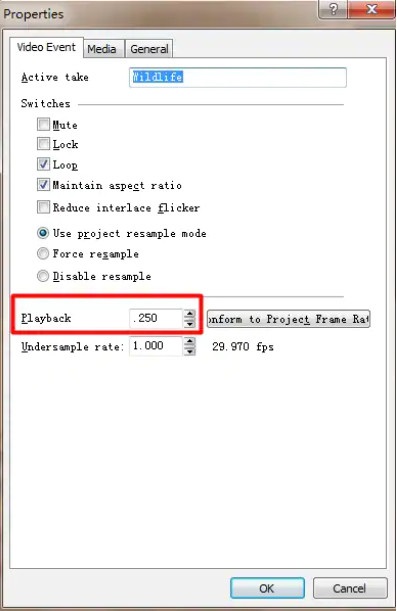
ตัวเลือกแรกที่คุณสามารถใช้ได้คือการตั้งค่าเฟรมเรตสำหรับการเล่นวิดีโอของคุณ ก่อนอื่นให้คุณเปิด Vegas Pro บนคอมพิวเตอร์ จากนั้นไปที่เมนู Properties ในหน้าต่าง Properties คุณจะเห็นตัวเลือก Playback ปรับเฟรมเรตการเล่นของวิดีโอโดยคลิกปุ่มลูกศรขึ้นหรือลง แล้วจึงคลิก OK เพื่อยืนยันการตั้งค่า.
ตัวเลือกที่ 2 ปรับความเร็ว
หากคุณสงสัยว่าความเร็วคืออะไร ความเร็วคืออัตราและทิศทางของวัตถุ วิธีนี้จะช่วยให้คุณทราบวิธีปรับความเร็วของวิดีโอโดยใช้ Sony Vegas
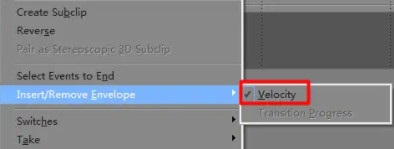
คลิกขวาที่วิดีโอที่คุณต้องการเร่งความเร็ว จากนั้นในเมนูดรอปดาวน์ให้คลิก Insert/Remove Envelop แล้วเลือก Velocity.
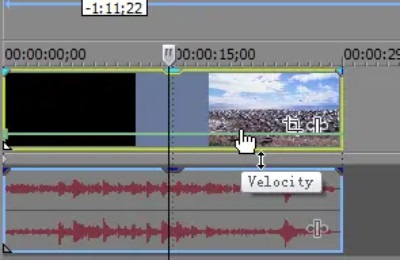
จากนั้นลากซองด้วยความเร็วที่ต้องการ เมื่อคุณลากซองขึ้นด้านบน ความเร็วจะเร็วขึ้น และวิดีโอของคุณจะช้าลงเมื่อคุณลากซองลง
ตัวเลือก 3 ตัดแต่งยืด
อันนี้เป็นวิธีที่ง่ายที่สุดที่จะทำกับสามตัวเลือก กดปุ่ม Ctrl แล้วลากส่วนท้ายของวิดีโอ มันจะช้าลงเมื่อคุณยืดวิดีโอของคุณ แต่เมื่อคุณบีบอัดวิดีโอ ความเร็วของวิดีโอจะเร็วขึ้น
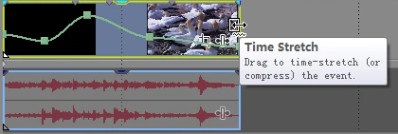
หากต้องการตรวจสอบว่าใช้การเปลี่ยนแปลงหรือไม่ ให้ไปที่คุณสมบัติ จากนั้นตรวจสอบอัตราการเล่นวิดีโอของคุณ
ส่วนที่ 3 2 วิธีที่ง่ายกว่าในการเร่งความเร็ววิดีโอของคุณ
แม้ว่า Sony Vegas จะมีคุณสมบัติการแก้ไขขั้นสูงมากมายให้ใช้งาน และนักตัดต่อมืออาชีพจำนวนมากใช้มัน แต่ผู้คนต่างก็เข้าใจอินเทอร์เฟซของเครื่องมือได้ยาก ดังนั้นเราจึงค้นหาเครื่องมือเปลี่ยนความเร็ววิดีโอยอดนิยมบนอินเทอร์เน็ตด้วยอินเทอร์เฟซซอฟต์แวร์ที่ใช้งานง่าย ต่อไปนี้คือเครื่องมือที่สะดวกต่อการใช้งานอีกสามเครื่องมือเพื่อเพิ่มความเร็ววิดีโอของคุณ
FVC Video Converter Ultimate
FVC Video Converter Ultimate เป็นซอฟต์แวร์ที่ดีที่สุดสำหรับการเปลี่ยนความเร็ววิดีโอของคุณ ซอฟต์แวร์นี้เป็นเครื่องมือออฟไลน์ที่มีฟีเจอร์มากมาย เช่น ตัวลบลายน้ำวิดีโอ วิดีโอย้อนกลับ (video reverser) การซิงก์เสียง (audio sync) เป็นต้น รองรับรูปแบบไฟล์จำนวนมากที่พบได้บนอินเทอร์เน็ต รวมถึง MP4, AVI, WMV, MOV, FLV และรูปแบบอื่น ๆ กว่า 1,000 แบบ.
นอกจากนี้ยังมีอินเทอร์เฟซผู้ใช้ที่เรียบง่าย ทำให้เป็นเครื่องมือที่เป็นมิตรกับผู้เริ่มต้นใช้งาน นอกจากนี้ยังสามารถเปลี่ยนความเร็วของวิดีโอได้ 0.125x, 0.25x, 0.5x, 0.75x, 1.25x, 1.5x, 2x, 4x และ 8x ดังนั้น หากคุณสนใจที่จะใช้เครื่องมือนี้ ให้ทำตามขั้นตอนง่าย ๆ ด้านล่างนี้
ขั้นตอนที่ 1. หากต้องการดาวน์โหลด FVC Video Converter Ultimate ให้คลิกปุ่ม Download ด้านล่าง จากนั้นทำตามขั้นตอนการติดตั้งและเปิดโปรแกรม.
ดาวน์โหลดฟรีสำหรับ Windows 7 หรือใหม่กว่าดาวน์โหลดอย่างปลอดภัย
ดาวน์โหลดฟรีสำหรับ MacOS 10.7 หรือใหม่กว่าดาวน์โหลดอย่างปลอดภัย
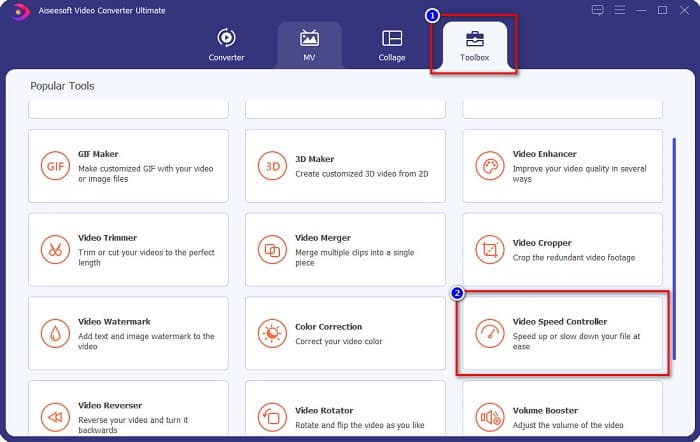
ขั้นตอนที่ 2. ต่อไปคลิกแท็บ Toolbox ที่อยู่ด้านบนของหน้าต่างหลักของซอฟต์แวร์ แล้วคลิกที่ Video Speed Controller.
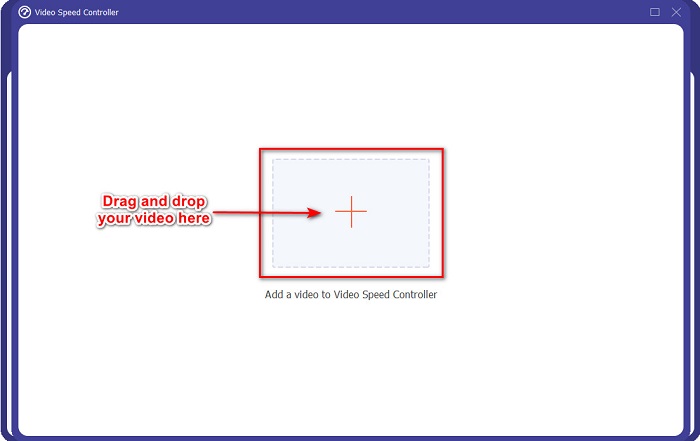
ขั้นตอนที่ 3. ในหน้าต่างถัดไป ให้คลิกปุ่มสัญลักษณ์ + หรือจะใช้วิธีลากและวางวิดีโอของคุณลงบนปุ่มเครื่องหมายบวกก็ได้.
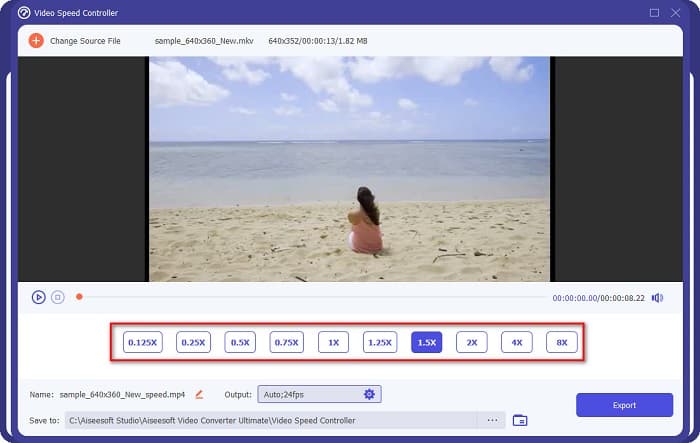
ขั้นตอนที่ 4. จากนั้นเลือกความเร็วที่คุณต้องการให้วิดีโอของคุณ โดยเลือกจากตัวเลือกความเร็วที่อยู่ด้านล่างหน้าตัวอย่างวิดีโอของคุณ แต่หากคุณต้องการเร่งวิดีโอให้เร็วขึ้น ให้เลือกตั้งแต่ความเร็ว 1.25x ถึง 8x.
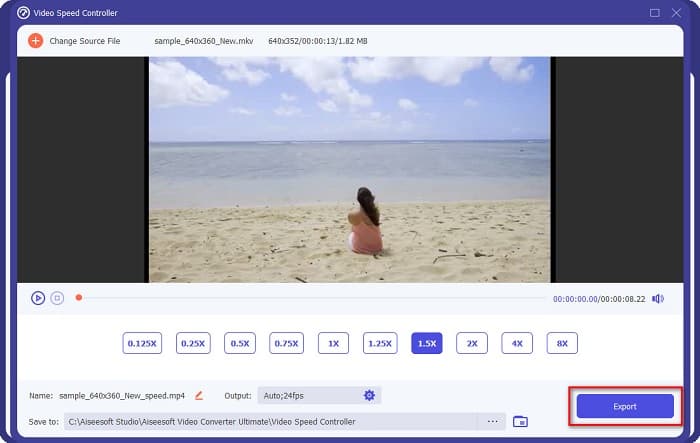
ขั้นตอนที่ 5. สุดท้ายให้คลิกปุ่ม Export เพื่อบันทึกการเปลี่ยนแปลงความเร็วของวิดีโอ.
ข้อดี
- มีคุณสมบัติขั้นสูงมากมายเช่น เครื่องชง GIF, ผู้สร้าง 3D, การควบรวมกิจการวิดีโอฯลฯ
- รองรับไฟล์ได้หลายรูปแบบ รวมถึง MP4, WebM, WMV, M4V, MKV, AVI และรูปแบบมากกว่า 1,000 รูปแบบ
- มีอินเทอร์เฟซซอฟต์แวร์ที่ใช้งานง่าย
- พร้อมใช้งานบนแพลตฟอร์มข้ามสื่อทั้งหมด รวมทั้ง Windows และ Mac
จุดด้อย
- ซื้อแอปก่อนเข้าถึงคุณสมบัติพิเศษ
Fastreel
Fastreel เป็นเครื่องมือออนไลน์ที่ช่วยให้คุณเปลี่ยนความเร็ววิดีโอได้ตั้งแต่ 0.25 จนถึง 4 เท่า เครื่องมือนี้ยังมีอินเทอร์เฟซที่ใช้งานง่ายและมีระดับความปลอดภัยสูง นอกจากนี้เครื่องมือนี้ยังช่วยให้คุณบันทึกวิดีโอเอาต์พุตลงในไฟล์ของคุณโดยอัตโนมัติ พร้อมลายน้ำ.
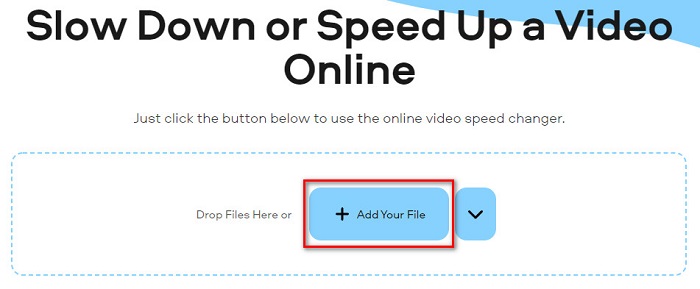
ขั้นตอนที่ 1. บนเบราว์เซอร์ของคุณ ให้ค้นหาเครื่องมือเปลี่ยนความเร็ววิดีโอ Fastreel จากนั้นคลิกปุ่ม Add Your File เพื่ออัปโหลดวิดีโอ ไฟล์ในคอมพิวเตอร์ของคุณจะปรากฏขึ้น ให้เลือกวิดีโอที่คุณต้องการอัปโหลด.
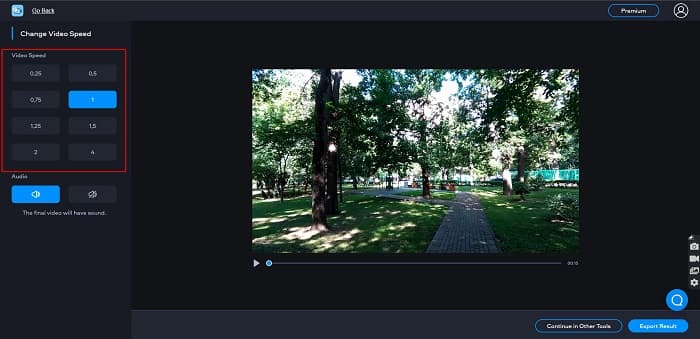
ขั้นตอนที่ 2. จากนั้นเลือกความเร็ววิดีโอที่คุณต้องการทางด้านซ้ายของหน้าต่างโปรแกรม.
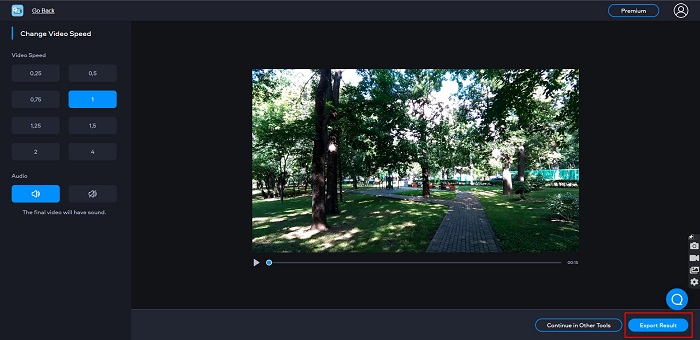
ขั้นตอนที่ 3. สุดท้ายคลิก Export Result เพื่อเปลี่ยนความเร็ววิดีโอของคุณ.
ข้อดี
- มี GUI ที่เรียบง่าย
- ใช้งานได้ฟรีและปลอดภัย
จุดด้อย
- คุณอาจพบกระบวนการโหลดช้าเมื่อการเชื่อมต่ออินเทอร์เน็ตช้า
ส่วนที่ 4. คำถามที่พบบ่อยเกี่ยวกับ Sony Vegas Speed Up Video
Sony Vegas มีการทดลองใช้ฟรีหรือไม่?
ใช่. Sony Vegas มีรุ่นทดลองใช้ฟรีเป็นเวลา 30 วัน เมื่อช่วงทดลองใช้ฟรี 30 วันหมดอายุ คุณต้องซื้อแอปเพื่อใช้งานต่อไป มีค่าใช้จ่าย $16.67 ต่อเดือน
อันไหนดีกว่ากัน Sony Vegas หรือ Filmora?
ผู้เชี่ยวชาญหลายคนบอกว่า Filmora ดีกว่า Sony Vegas เพราะ Filmora มีส่วนต่อประสานผู้ใช้ที่ง่ายกว่า Sony Vegas บรรณาธิการมืออาชีพยังกล่าวอีกว่า Filmora สามารถสร้างผลงานที่มีคุณภาพดีกว่า Sony Vegas
การเปลี่ยนความเร็ววิดีโอใน Sony Vegas ส่งผลต่อคุณภาพวิดีโอของคุณหรือไม่?
ไม่ การเปลี่ยนความเร็ววิดีโอใน Sony Vegas จะไม่ส่งผลต่อคุณภาพของวิดีโอของคุณ
สรุป
โดยสรุป คำถามที่ว่าใน Sony Vegas จะเร่งความเร็ววิดีโอได้อย่างไรนั้นมีคำตอบแล้ว Sony Vegas เป็นหนึ่งในซอฟต์แวร์ตัดต่อวิดีโอที่ดีที่สุด หลายคนเลือกใช้เครื่องมือนี้เพราะมีฟีเจอร์ที่ยอดเยี่ยมมากมาย อย่างไรก็ตาม หากคุณต้องการตัวเปลี่ยนความเร็ววิดีโอที่สะดวกและใช้งานง่ายกว่า แนะนำให้ลองใช้ FVC Video Converter Ultimate ซึ่งเป็นอีกหนึ่งโปรแกรมที่มีผู้ใช้จำนวนมากแนะนำ.
-
 [4 วิธี] วิธีเพิ่มความเร็ววิดีโอออนไลน์ของคุณอย่างง่ายดาย
 คุณต้องการเร่งความเร็ววิดีโอออนไลน์หรือไม่? อ่านบทความนี้เพื่อให้คุณทราบข้อมูลเพิ่มเติมเกี่ยวกับการเร่งความเร็ววิดีโอด้วยวิธีต่างๆ ที่เป็นไปได้
-
 วิธีที่ง่ายกว่าในการเพิ่มความเร็ววิดีโอรูปแบบ MP4 [ออฟไลน์ & ออนไลน์]
 คุณต้องการเร่งความเร็ววิดีโอของคุณ แต่อยู่ในรูปแบบ MP4 หรือไม่? บทความนี้อาจช่วยให้คุณทราบความแตกต่างในการเร่งความเร็ววิดีโอของคุณทางออนไลน์หรือออฟไลน์
-
 [ฟรีและจ่ายเงิน] GIF Speed Changer: ตัวเลือกยอดนิยมแห่งปี 2021
 คุณไม่พอใจกับ GIF ที่คุณสร้างทางออนไลน์เพราะมันน่าเบื่อและช้าไหม วันนี้จะเป็นวันโชคดีของคุณ เพราะเรานำเสนอบทความเกี่ยวกับตัวเปลี่ยนความเร็ว GIF และรายละเอียดที่ช่วยให้คุณใช้งานและเชี่ยวชาญ
