


 Video Converter Ultimate
 บันทึกหน้าจอ
 ซ่อมวิดีโอ
รวบรวมความคิดของคุณเกี่ยวกับวิธีเร่งความเร็ววิดีโอบน iMovie
คุณชอบดูสารคดีบน iPhone เครื่องใหม่ของคุณ และคุณดูอยู่เสมอเพราะคุณชอบเนื้อเรื่องที่นำเสนอ โดยที่ไม่มีเหตุผลพิเศษอะไร คุณอยากรวบรวมสารคดีแต่ละเรื่องแล้วตัดต่อรวมกันอย่างรวดเร็ว คุณจึงเริ่มมองหาแอปที่ทั้งตัดต่อวิดีโอและเร่งความเร็ววิดีโอได้ในตัว จนได้พบกับ iMovie แต่เพราะคุณเพิ่งใช้ iPhone และก็ยังใหม่กับแอปนี้ด้วย คุณจึงไม่รู้วิธีใช้งานและไม่รู้ว่าจะเร่งความเร็ววิดีโอด้วย iMovie อย่างไร อ่านต่อไป เพราะบทความนี้มีรายละเอียดมากมายให้คุณได้เรียนรู้เกี่ยวกับแอปนี้เพิ่มเติม.

ส่วนที่ 1 วิธีเพิ่มความเร็ววิดีโอใน iMovie
คำถามเกี่ยวกับวิธีการเร่งความเร็วของวิดีโอสามารถตอบได้โดยใช้คุณสมบัติของ iMovie เอาต์พุตวิดีโอคุณภาพสูง เทมเพลตที่หลากหลาย และเครื่องมือตกแต่งที่พร้อมใช้งาน สามารถนำการควบคุมความเร็วในการเล่นมาสู่ iPhone เป็นครั้งแรก iMovie ยังมีพลังในการเพิ่มความเร็วให้กับวิดีโอเหมือนกับแอพพลิเคชั่นอื่นๆ เครื่องมือหนึ่งสามารถปรับเปลี่ยนวิดีโอของคุณพร้อมกับเครื่องมืออื่นๆ ที่มีให้ ตอนนี้เข้าถึงวิดีโอที่คุณต้องการเพิ่มความเร็วได้อย่างง่ายดายโดยใช้แอปพลิเคชันนี้ซึ่งมีให้เฉพาะบนระบบปฏิบัติการ iOS และ Mac เท่านั้น ตอนนี้คุณรู้เกี่ยวกับเครื่องมือแล้ว ไปพูดถึงขั้นตอนที่คุณต้องปฏิบัติตามกัน
สำหรับผู้ใช้ iPhone
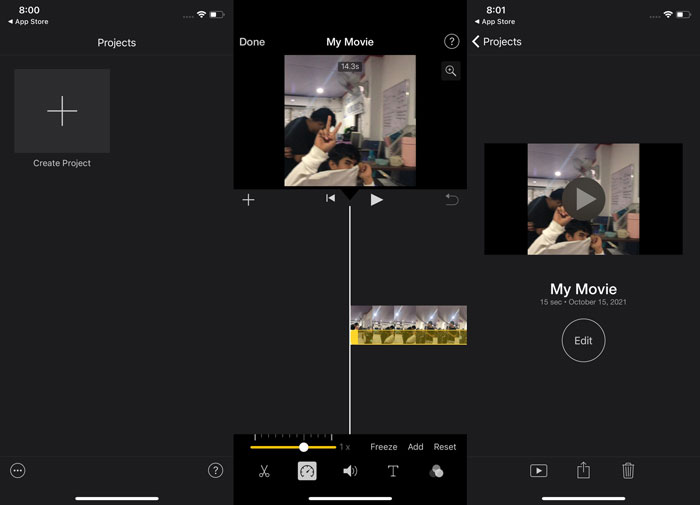
ขั้นตอนที่ 1: ไปที่ App Store บน iPhone หรือ iPad ของคุณแล้วดาวน์โหลดแอป iMovie เมื่อตัวอย่างภาพรวมของอินเทอร์เฟซปรากฏขึ้น ให้เลือก Continue เมื่อคุณอยู่ที่หน้า Projects ให้แตะสัญลักษณ์เครื่องหมายบวก + เพื่อเริ่มโปรเจ็กต์คลิปวิดีโอใหม่ จากนั้นเลือก Movie ในหน้าต่าง New Projects เพื่อไปต่อ
ขั้นตอนที่ 2: หลังจากเลือกวิดีโอจาก Camera Roll ของคุณแล้ว ให้แตะปุ่ม Create Movie ที่ด้านล่างของหน้าจอ แตะที่ไทม์ไลน์และรอให้เครื่องมือตัดต่อปรากฏขึ้นก่อน แล้วจึงใช้เครื่องมือปรับความเร็ว ซึ่งมีหน้าตาคล้ายมาตรวัดความเร็ว หากต้องการกรอวิดีโอเดินหน้าเร็วขึ้นหรือกรอกลับ ให้เลื่อนแถบเลื่อนสีเหลืองด้านล่าง คุณสามารถเร่งความเร็ววิดีโอได้สูงสุดสองเท่า หรือทำให้ช้าลงได้ถึงหนึ่งในแปดของความเร็วเดิม.
ขั้นตอนที่ 3: เมื่อคุณแก้ไขเสร็จแล้ว ให้ไปที่มุมซ้ายบนของหน้าจอโทรศัพท์และคลิก Done เพื่อบันทึกวิดีโอที่เสร็จสมบูรณ์ ให้ไปที่เมนู Share แล้วเลือกตำแหน่งที่คุณต้องการจัดเก็บจากตัวเลือกที่ปรากฏ.
สำหรับผู้ใช้ Mac
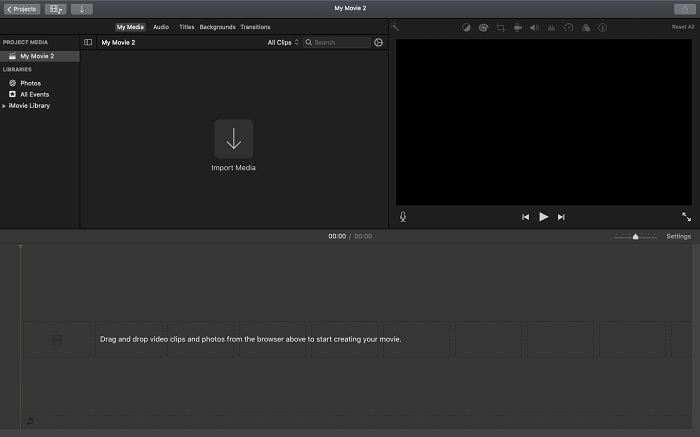
ขั้นตอนที่ 1: เลือกคลิปในไทม์ไลน์ในแอป iMovie บน Mac ของคุณ แล้วจึงเปลี่ยนความเร็วของคลิปนั้น.
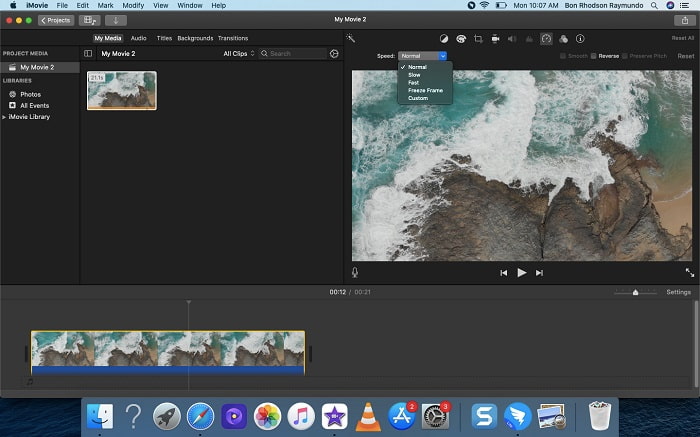
ขั้นตอนที่ 2: คลิกปุ่ม Speed ที่ด้านบนของอินเทอร์เฟซเพื่อแสดงการตั้งค่าความเร็ว จากนั้นเลือกความเร็ว Slow หรือ Fast จากปุ่มความเร็วเพื่อปรับความเร็วของคลิปให้ละเอียดตามต้องการ.
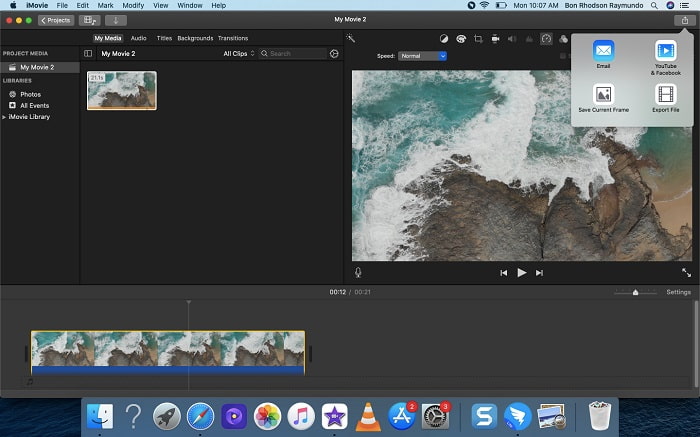
ขั้นตอนที่ 3: คลิกไอคอน Upload ที่มุมบนสุดของอินเทอร์เฟซเพื่อส่งออกไฟล์ไปยังเดสก์ท็อปของคุณ.
ส่วนที่ 2 อีกวิธีที่ง่ายกว่าในการเร่งความเร็ววิดีโอ
การใช้ iPhone หรือแอปออนไลน์อื่น ๆ ที่ใช้ได้บน iPhone เป็นตัวแก้ไขวิดีโอของคุณอาจเป็นเรื่องยาก หากคุณต้องการเร่งความเร็วอัตราการเล่นวิดีโอ Video Converter Ultimate จะเป็นตัวเลือกที่ดีที่สุดที่คุณควรพิจารณา เพราะมันช่วยให้คุณเร่งความเร็ววิดีโอได้แบบถาวร คุณสามารถปรับความเร็วการเล่นวิดีโอด้วยเครื่องมือนี้ ซึ่งคุณสามารถดาวน์โหลดได้ฟรี ภายในโปรแกรมมีเครื่องมือต่าง ๆ รวมถึง Video Speed Controller ที่ช่วยให้วิดีโอของคุณเร่งความเร็วการเล่นได้โดยยังคงคุณภาพสูงและแปลงไฟล์ได้รวดเร็วมาก หากต้องการทราบรายละเอียดเพิ่มเติม ต่อไปนี้คือขั้นตอนที่คุณต้องทำตาม
ขั้นตอนที่ 1: คลิก Free Download เพื่อบันทึกซอฟต์แวร์ลงในคอมพิวเตอร์ของคุณ หลังจากนั้นให้ติดตั้งเพื่อปรับตั้งค่าซอฟต์แวร์ตามต้องการ.
ดาวน์โหลดฟรีสำหรับ Windows 7 หรือใหม่กว่าดาวน์โหลดอย่างปลอดภัย
ดาวน์โหลดฟรีสำหรับ MacOS 10.7 หรือใหม่กว่าดาวน์โหลดอย่างปลอดภัย
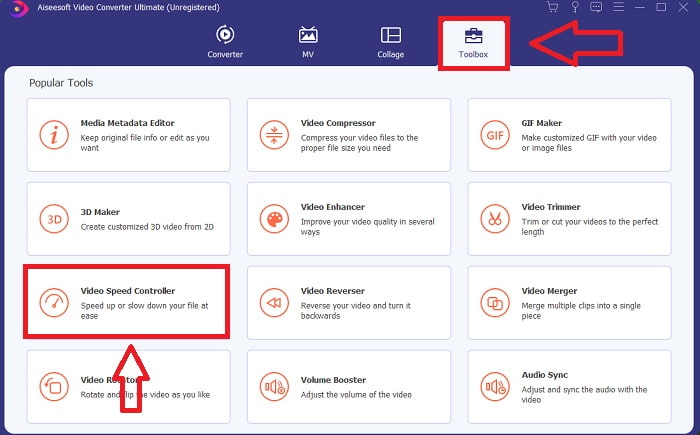
ขั้นตอนที่ 2: หลังจากเปิดซอฟต์แวร์เป็นครั้งแรกหลังการติดตั้งแล้ว ให้เลือกฟีเจอร์ Toolbox จากนั้นเลือกฟีเจอร์ Video Speed Controller.
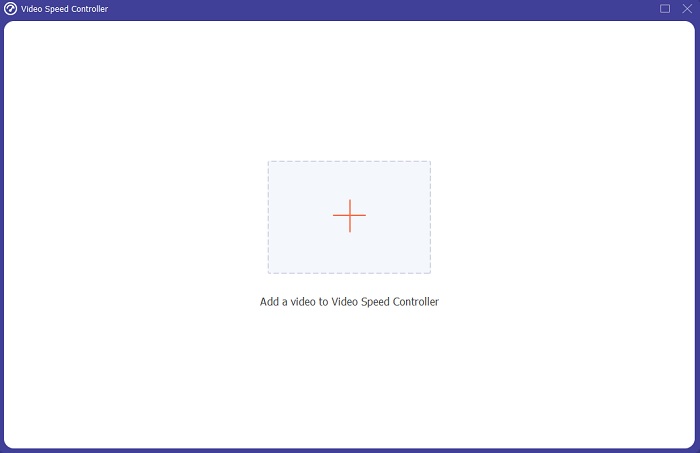
ขั้นตอนที่ 3: เพื่อเริ่มขั้นตอนการตัดต่อ คุณสามารถอัปโหลดไฟล์วิดีโอจากคอมพิวเตอร์ของคุณได้แล้ว โดยคลิกสัญลักษณ์ + ที่จะปรากฏขึ้นหลังจากที่คุณเข้าไปยังเครื่องมือ Video Speed Controller.
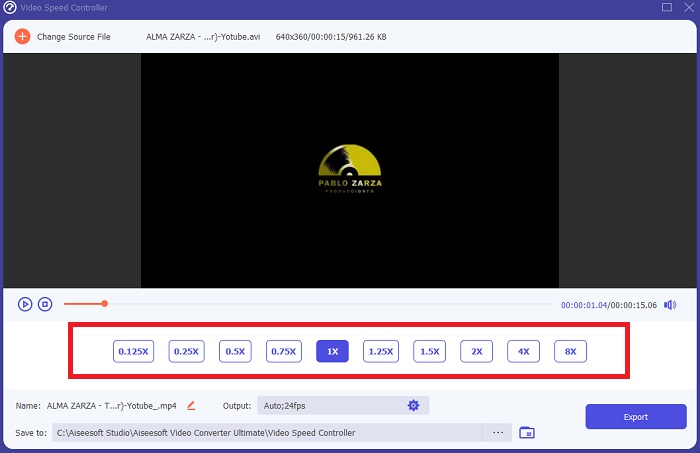
ขั้นตอนที่ 4: ตอนนี้คุณสามารถเร่งความเร็ววิดีโอให้เร็วกว่าบน iMovie ได้ เพราะเครื่องมือนี้จะมีตัวเลือกให้คุณเลือกว่าจะใช้ตัวคูณความเร็วกับวิดีโอของคุณเท่าใด นอกจากนี้คุณยังสามารถเล่นตัวอย่างวิดีโอหลังจากเลือกค่าความเร็วที่ต้องการ เพื่อดูว่าผลลัพธ์น่าพอใจหรือไม่.
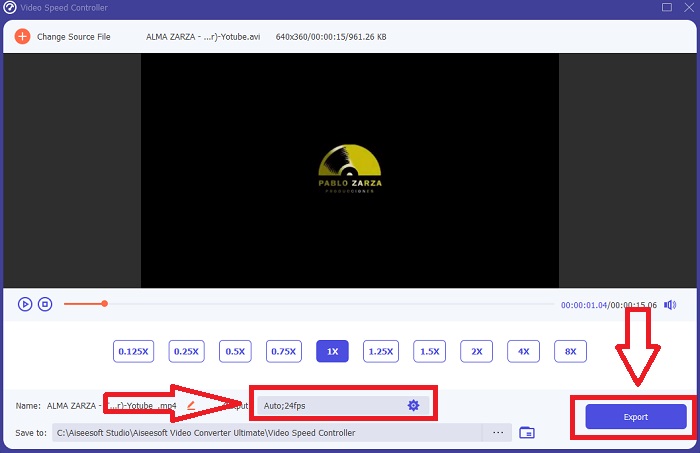
ขั้นตอนที่ 5: คุณสามารถเลือกผลลัพธ์ที่ต้องการได้โดยเปลี่ยนรูปแบบไฟล์ ความละเอียด และคุณภาพของคลิปวิดีโอ หลังจากที่คุณปรับความเร็วการเล่นของวิดีโอเสร็จแล้ว เมื่อต้องการบันทึกงาน ให้เลือก Export และระบุตำแหน่งจัดเก็บ.
ที่เกี่ยวข้อง:
สุดยอดแอปเล่นวิดีโอสำหรับ iPhone
ส่วนที่ 3 คำถามที่พบบ่อยเกี่ยวกับวิธีการเร่งความเร็ววิดีโอ
จะเกิดอะไรขึ้นหากฉันส่งวิดีโอที่เร็วและรับวิดีโอที่ช้าเพื่อลดขนาดวิดีโอ
ไม่ มีผลเฉพาะกับการนำเสนอข้อมูลเท่านั้น ไม่ส่งผลต่อปริมาณข้อมูลเอง อย่างไรก็ตาม สามารถลดขนาดวิดีโอได้โดยทำให้วิดีโอทำงานที่อัตราเฟรมที่ต่ำลง ด้วยเฟรมต่อวินาทีที่น้อยลง ทำให้รักษาความเร็วเท่าเดิม 60 กับ 30 เฟรมต่อวินาทีมีผลกระทบอย่างมากต่อขนาดไฟล์วิดีโอ เนื่องจากรูปแบบเฟรมต่อเฟรมกำลังถูกพิจารณาระหว่างการเข้ารหัสวิดีโอ ลดความละเอียดของวิดีโอ เช่น จาก 1080p เป็น 720p เพื่อลดขนาดลงอีก ขนาดไฟล์จะลดลงอย่างมากด้วยเหตุนี้
ตัวเลือกของคุณสำหรับการเร่งความเร็วการเล่นวิดีโอบน Mac คืออะไร?
หากต้องการเพิ่มความเร็วในการเล่นสองครั้งขึ้นไป (5 หรือมากกว่า) ให้คลิกที่ปุ่มไปข้างหน้าหรือย้อนกลับจนกว่าวิดีโอจะเล่นด้วยความเร็วที่คุณต้องการ เช่น 30 หรือ 60 ครั้ง ขณะที่กำลังเล่นวิดีโอ คุณสามารถเปลี่ยนความเร็วในการเล่นเพิ่มขึ้น 1.1 เท่าโดยกดปุ่มตัวเลือกไปข้างหน้าหรือกรอกลับ
ฉันจะเปลี่ยนความเร็วในการเล่นวิดีโออย่างถาวรได้อย่างไร
ลองคิดดูว่าต้องใช้กี่ขั้นตอนกว่าจะเปลี่ยนอัตราความเร็วการเล่นของวิดีโอได้ ถึงแม้ว่าเครื่องมือวิดีโอและโปรแกรมตัดต่อวิดีโอจะหาได้ง่ายบนออนไลน์ คุณก็ยังคงมองหาเครื่องมือที่ดีที่สุดในการแก้ปัญหาเรื่องความเร็วการเล่นของคลิปวิดีโอของคุณ บนอินเทอร์เน็ตมีเว็บทูลจำนวนมาก บางตัวใช้งานฟรีแต่ต้องจ่ายเงินเพื่อปลดล็อกฟีเจอร์ทั้งหมด Video Converter Ultimate ซึ่งเป็นโปรแกรมฟรีสำหรับการเร่งความเร็ววิดีโอ จึงเป็นตัวเลือกที่เหมาะที่สุดในการเปลี่ยนความเร็วการเล่นของวิดีโอคุณแบบถาวร.
สรุป
สรุปแล้ว iMovie เป็นแอปที่ยอดเยี่ยมบนอุปกรณ์ระบบ iOS อย่าง Mac และ iPhone สำหรับแก้ปัญหาเรื่องความเร็วการเล่นของวิดีโอ แอปนี้เข้าถึงผู้ใช้ได้เป็นจำนวนมาก ใช้งานสะดวก และฟรี ใช่ มันดีมากในการแก้ไขความเร็วการเล่น แต่แล้วปัจจัยสำคัญอื่น ๆ ของวิดีโอล่ะ? นั่นจึงเป็นเหตุผลที่เราแนะนำให้ใช้ Video Converter Ultimate เป็นซอฟต์แวร์ที่ดีที่สุดในการแก้ไขความเร็วการเล่นของวิดีโอ ไม่เพียงเท่านั้น ยังมีฟีเจอร์อีกมากมายที่ช่วยให้คุณสร้างวิดีโอสุดโดดเด่นเกินกว่าที่คุณเคยจินตนาการ.
-
 เครื่องเล่น Android DVD – วิธีเล่นวิดีโอ DVD บนมือถือ Android
 จะเล่นไฟล์ DVD บนมือถือ Android ได้อย่างไร? มีเครื่องเล่นดีวีดี Android หรือไม่? ในบทความนี้ คุณจะได้เรียนรู้เกี่ยวกับ 3 วิธีในการเล่นวิดีโอดีวีดีบนโทรศัพท์มือถือ Android ที่มีหรือไม่มีไดรเวอร์ภายนอก
-
 10 สุดยอดเครื่องเล่น Android MP4 ฟรีสำหรับเล่นวิดีโอ HD/4K
 แม้ว่ามือถือ Android จะมีโปรแกรมเล่นเริ่มต้นสำหรับเล่นวิดีโอ MP4 แต่ก็ไม่รองรับการปรับการตั้งค่าการเล่นและฟังก์ชันอื่นๆ ดังนั้น คุณสามารถเรียนรู้เกี่ยวกับเครื่องเล่น MP4 Android 10 ที่ดีที่สุดจากบทความนี้
-
 Samsung Video Player Stuck: 5 อันดับเครื่องเล่นวิดีโอที่ดีที่สุดสำหรับ Samsung
 เมื่อคุณเล่นวิดีโอผ่านโปรแกรมเล่นวิดีโอเริ่มต้นของ Samsung คุณอาจพบว่าวิดีโอค้างอยู่เสมอ เพื่อให้ได้รับประสบการณ์การรับชมที่ราบรื่นและดียิ่งขึ้น คุณสามารถเรียนรู้เกี่ยวกับ 5 เครื่องเล่นวิดีโอที่ดีที่สุดสำหรับ Samsung ได้จากบทความนี้
