


 Video Converter Ultimate
 บันทึกหน้าจอ
 ซ่อมวิดีโอ
หลักในการเพิ่มความเร็ววิดีโอใน Windows Media Player ด้วยวิธีที่ดีที่สุด [ตามหลักฐาน]
ฉากวิดีโอทั้งหมดมีความแตกต่างกันในด้านความเร็วการเล่น และยังมีจุดประสงค์ที่ต่างกันเมื่อมีการเปลี่ยนความเร็วอีกด้วย เมื่อคุณเร่งความเร็ววิดีโอ มักสื่อถึงเหตุการณ์ที่ไม่สำคัญหรือไม่น่าสนใจในภาพยนตร์หรือวิดีโอ ตรงกันข้าม เมื่อคุณทำให้วิดีโอช้าลง จะเป็นการเน้นช่วงเวลา หรือฉากที่มีความสำคัญมากต่อภาพ การปรับความเร็วการเล่นเหล่านี้เป็นสิ่งสำคัญอย่างยิ่งเมื่อต้องตัดต่อหรือสร้างภาพยนตร์วิดีโอ อ่านบทความนี้เพื่อสอนผู้ใช้เกี่ยวกับวิธีเร่งความเร็ววิดีโอ โดยเฉพาะอย่างยิ่งในโปรแกรมเล่นสื่อยอดนิยมบนเดสก์ท็อปของเราอย่าง Windows Media Player.

ส่วนที่ 1 Windows Media Player: วิธีเพิ่มความเร็ววิดีโอ
Windows Media Player เป็นโปรแกรมเล่นสื่อฟรีจาก Microsoft ที่มาพร้อมกับ Windows ทุกชุด Microsoft เรียกอีกอย่างว่า WMP หรือ WM player นอกจากจะให้พวกเขาดูรูปภาพและฟังเพลงแล้ว ยังช่วยให้พวกเขาดูวิดีโอได้อีกด้วย การริปซีดีเพลงและการจัดระเบียบไลบรารีเพลงสามารถทำได้ด้วย Windows Media Player (WMP) นอกจากนี้ยังมีแท็บแก้ไขที่ช่วยปรับวิดีโอ รูปภาพ และเพลง หากคุณต้องการเพิ่มความเร็ววิดีโอโดยใช้ Windows Media Player ให้ทำตามขั้นตอนต่อไปนี้:
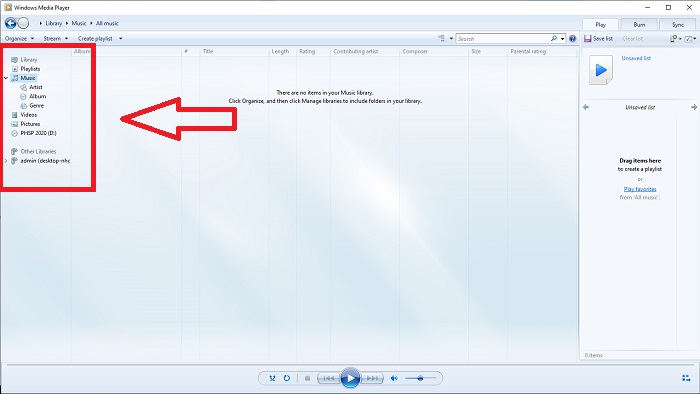
ขั้นตอนที่ 1: เปิด Windows Media Player ที่มุมซ้ายเลือกแท็บวิดีโอ (Video).
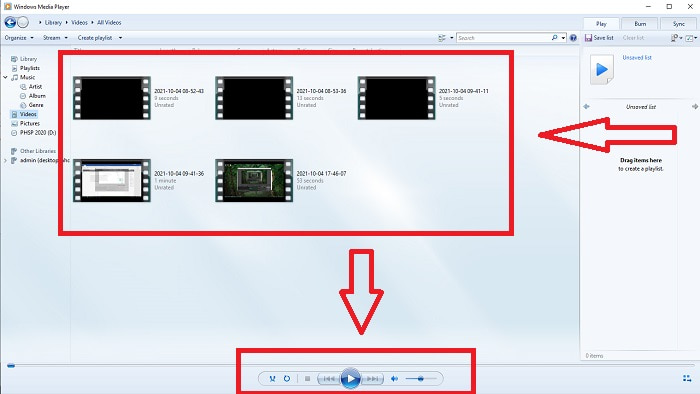
ขั้นตอนที่ 2: เล่นวิดีโอด้วยการดับเบิลคลิกซ้ายหรือคลิกขวา หรือต้องการกดปุ่มเล่น (Play) ที่ด้านล่างตรงกลางของอินเทอร์เฟซก็ได้.
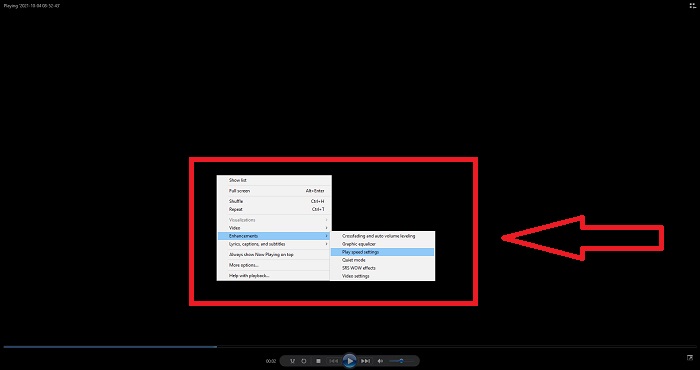
ขั้นตอนที่ 3: จากนั้นคลิกขวาบนหน้าจอเพื่อเข้าสู่แท็บการแก้ไข ดำเนินการโดยคลิก Enhancements และ Play Speed Settings หลังจากนั้นคุณก็สามารถปรับความเร็วการเล่นของคลิปวิดีโอได้โดยการลากแถบ Slider.
ส่วนที่ 2 จะเกิดอะไรขึ้นถ้าความเร็วการเล่นของ Windows Media Player ไม่ทำงาน
เมื่อเล่นไฟล์วิดีโอ AVI, WAV หรือ MOV คุณอาจพบโปรแกรมเล่นสื่อ Windows และพบปัญหาขณะเล่นไฟล์มีข้อผิดพลาด วิดีโอที่มีคุณภาพปานกลางมักถูกรับชมในรูปแบบ AVI เครื่องเล่นสื่ออื่นๆ ไม่มีปัญหาในการเล่น AVI ในทางกลับกัน WMP อาจมีข้อผิดพลาดเมื่อเล่นไฟล์ AVI Windows Media Player ไม่รองรับไฟล์ AVI เนื่องจากมีการเข้ารหัสโดยใช้ตัวแปลงสัญญาณ คุณอาจได้รับการแจ้งเตือนต่อไปนี้: Windows Media Player ไม่สามารถเล่นไฟล์ได้ โปรแกรมเล่นอาจไม่รองรับประเภทไฟล์หรืออาจไม่รองรับตัวแปลงสัญญาณที่ใช้ในการบีบอัดไฟล์ มีคำอธิบายที่เป็นไปได้สองประการสำหรับปรากฏการณ์นี้
1. เนื่องจากไม่ตรงกับไฟล์ที่ต้องการ โปรแกรมเล่นสื่อ Windows (WMP) จึงไม่สามารถรองรับตัวแปลงสัญญาณสำหรับไฟล์ได้
2. เครื่องเล่นสื่อ Windows ไม่รองรับตัวแปลงสัญญาณการบีบอัด
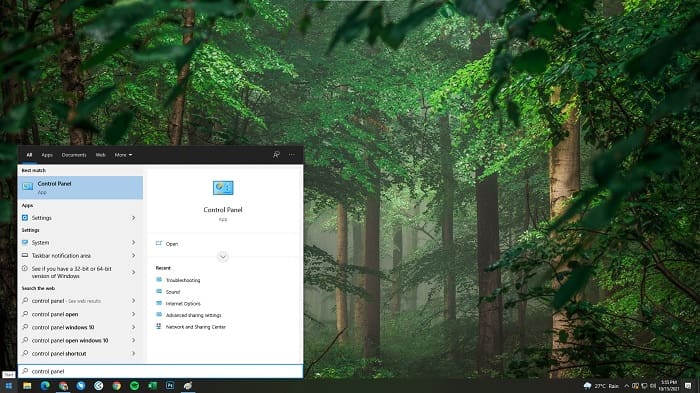
ขั้นตอนที่ 1: เปิดแผงควบคุม (Control Panel) บนคอมพิวเตอร์ของคุณ แล้วค้นหา View By จากนั้นคลิก Large Icons เพื่อเข้าถึงทุกฟีเจอร์ทั้งหมดของแผงควบคุม.
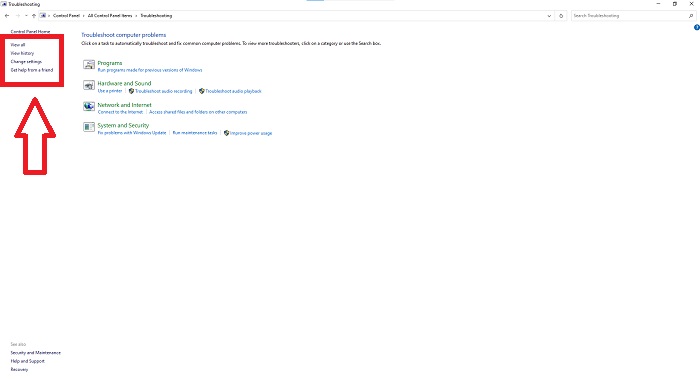
ขั้นตอนที่ 2: ดำเนินการต่อโดยคลิก Troubleshooting ที่มุมซ้ายคลิก View all แล้วค้นหา Windows Media Player Library.
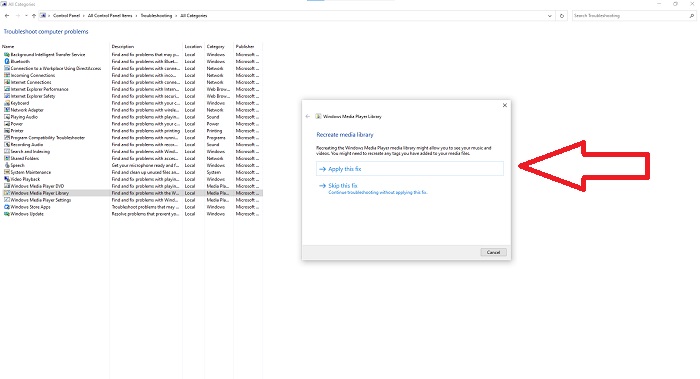
ขั้นตอนที่ 3: สุดท้าย ทำการแก้ไขปัญหา (troubleshoot) Windows Media Player ของคุณโดยการคลิก Next หลังจากมีหน้าต่างปรากฏขึ้น แล้วเลือก Apply this Fix ต่อไป เมื่อการแก้ไขปัญหาเสร็จสิ้น ให้เลือกว่าคุณจะปิดหน้าต่างการแก้ไขปัญหาหรือจะส่งความคิดเห็นเกี่ยวกับการแก้ไขนี้ด้วย.
ส่วนที่ 3 อีกวิธีที่เป็นไปได้ในการเร่งความเร็ววิดีโอ
สมมติว่าคุณมีปัญหาในการแก้ไขความเร็วในการเล่นวิดีโอของคุณเนื่องจากขั้นตอนที่ซับซ้อน นอกจากนี้ หากการแก้ไขปัญหาใช้งานไม่ได้และคุณยังเล่นวิดีโอไม่ได้ มีเครื่องมือทางเว็บอยู่บนอินเทอร์เน็ต และบางเครื่องมือต้องซื้อก่อนจึงจะสามารถเข้าถึงเครื่องมือทั้งหมดได้ Video Converter Ultimate เป็นทางเลือกที่ดีที่สุดในการเพิ่มความเร็ววิดีโอ และใช้งานได้ฟรี ซอฟต์แวร์นี้สามารถแก้ไขวิดีโอของคุณไปอีกระดับ และนี่คือขั้นตอนที่มีให้:
ขั้นตอนที่ 1: เลือกดาวน์โหลดฟรี (Free Download) ซอฟต์แวร์ลงในคอมพิวเตอร์ของคุณโดยตรง หลังจากนั้นทำการตั้งค่าและติดตั้งโปรแกรม.
ดาวน์โหลดฟรีสำหรับ Windows 7 หรือใหม่กว่าดาวน์โหลดอย่างปลอดภัย
ดาวน์โหลดฟรีสำหรับ MacOS 10.7 หรือใหม่กว่าดาวน์โหลดอย่างปลอดภัย
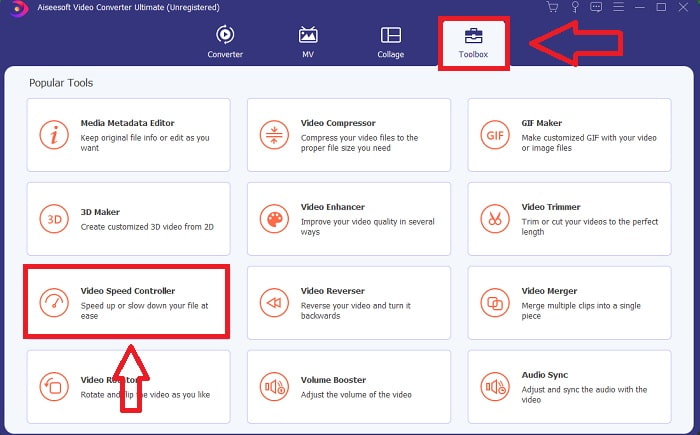
ขั้นตอนที่ 2: เมื่อติดตั้งซอฟต์แวร์เรียบร้อยแล้ว ให้เปิดโปรแกรมโดยเลือกตัวเลือก Toolbox จากแถบเมนู จากนั้นเลือก Video Speed Controller จากรายการที่ปรากฏ.
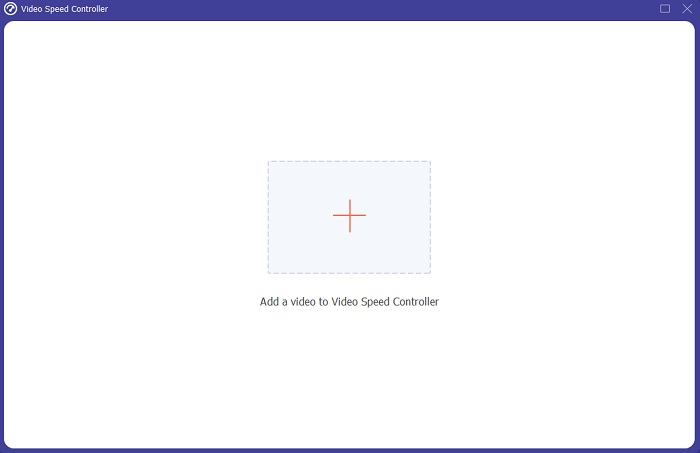
ขั้นตอนที่ 3: คลิกปุ่ม + ตามที่คุณต้องการเพื่อเพิ่มไฟล์ แล้วดำเนินการตัดต่อวิดีโอต่อไป.
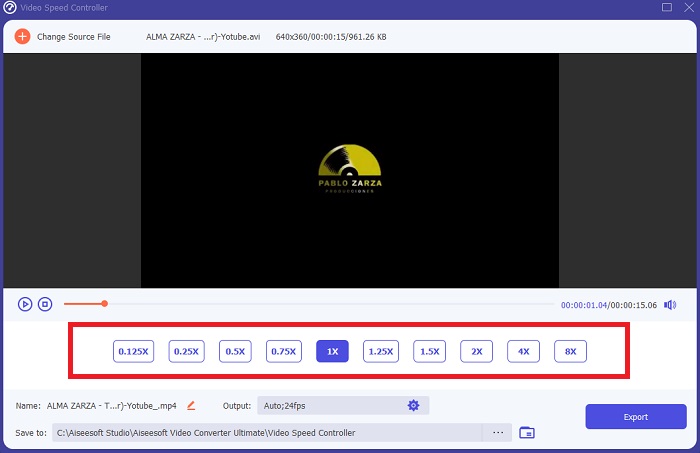
ขั้นตอนที่ 4: เลือกว่าคุณต้องการเพิ่มหรือลดอัตราเฟรมของวิดีโอเป็นกี่เท่าเพื่อเปลี่ยนความเร็วการเล่น.
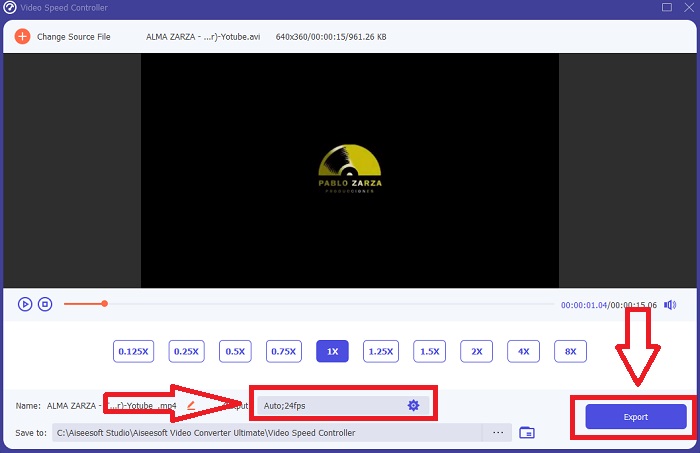
ขั้นตอนที่ 5: การเปลี่ยนรูปแบบ ความละเอียด คุณภาพ และอื่น ๆ จะช่วยให้คุณเลือกผลลัพธ์ที่ต้องการได้หลังจากปรับความเร็วการเล่นของวิดีโอเสร็จแล้ว คลิก Export จากนั้นเลือกตำแหน่งสำหรับบันทึกงานของคุณเมื่อดำเนินการเสร็จสิ้น.
ส่วนที่ 4 คำถามที่พบบ่อยเกี่ยวกับวิธีการเร่งความเร็ววิดีโอใน Windows Media Player
จะแก้ไขวิดีโอ MP4 ที่ไม่สามารถเล่นบน Windows Media Player ได้อย่างไร
ดังที่ได้กล่าวไว้ก่อนหน้านี้ Windows Media Player ไม่รองรับรูปแบบไฟล์วิดีโอที่หลากหลายมากนัก เนื่องจากรองรับเพียงรูปแบบที่เหมาะสมกับ Windows เป็นส่วนใหญ่ จึงทำให้แก้ไขข้อผิดพลาดด้วยโปรแกรมเล่นสื่อนี้ได้ค่อนข้างยาก นั่นจึงเป็นเหตุผลที่คุณจำเป็นต้องเรียนรู้วิธีการแปลงไฟล์ หรือรู้วิธีเล่นวิดีโอรูปแบบ MP4 ลิงก์ ที่นี่ เป็นบทความที่มีประโยชน์สำหรับช่วยคุณแก้ปัญหานี้.
จะเล่น DVD ใน Windows Media Player ได้อย่างไร?
ภาพยนตร์บางเรื่องอยู่ในรูปแบบ DVD และหากต้องการเล่น คุณจำเป็นต้องหาโปรแกรมเล่นสื่อที่เหมาะสมสำหรับเล่นแผ่น DVD Windows Media Player เป็นหนึ่งในโปรแกรมเล่นสื่อที่นิยมใช้เล่น DVD นอกจากนี้โปรแกรมเล่นสื่อนี้ยังมีการตั้งค่าบางอย่างที่ช่วยสำหรับการปรับแต่งในระหว่างที่เล่น DVD อีกด้วย ดูรายละเอียดเพิ่มเติมเกี่ยวกับ วิธีเล่นแผ่น DVD บน Windows Media Player.
ขนาดไฟล์ของวิดีโอจะเล็กลงหากคุณเพิ่มความเร็วในการเล่นหรือไม่
เฉพาะเฟรมเท่านั้นที่จะแบ่งออกในแต่ละครั้งที่คุณเพิ่มหรือลดความเร็วในการเล่นวิดีโอของคุณ หากคุณเพิ่มเร็วขึ้น .5x เฟรมจะเป็น 60 เฟรมต่อ 1/120 วินาที กล่าวโดยย่อ จะไม่สามารถส่งผลต่อวิดีโอได้เว้นแต่วิดีโอจะมีอัตราเฟรมต่ำอยู่แล้ว
สรุป
โดยสรุปแล้ว แม้ว่า Windows Media Player อาจเป็นซอฟต์แวร์ที่มีข้อจำกัด รองรับได้เพียงไม่กี่รูปแบบไฟล์ แต่ก็ยังมีฟีเจอร์บางอย่างที่สามารถช่วยแก้ปัญหาที่เกี่ยวข้องกับรูปแบบวิดีโอได้ อย่างไรก็ตาม หากคุณต้องการเพิ่มความเร็วการเล่นของคลิปวิดีโอ แนะนำให้ดาวน์โหลด Video Converter Ultimate ซึ่งไม่เพียงแต่ช่วยเร่งความเร็ววิดีโอเท่านั้น ซอฟต์แวร์นี้ยังสามารถยกระดับวิดีโอของคุณไปอีกขั้น ด้วยฟีเจอร์ทั้งหมดที่มีอยู่ นี่จึงเป็นซอฟต์แวร์ที่เราแนะนำให้ใช้มากที่สุดและเข้าถึงได้ง่าย.
-
 WebM to GIF – 3 ฟรี WebM to GIF Converters เพื่อสร้าง GIF ของคุณเอง
 WebM เป็น GIF หรือไม่ จะเปลี่ยนวิดีโอเป็น GIF ได้อย่างไร? มีตัวแปลง WebM เป็น GIF ฟรีหรือไม่ โพสต์นี้แบ่งปัน 3 วิธีฟรีเพื่อช่วยคุณแปลง WebM เป็น GIF
-
 วิธีแปลงวิดีโอ MKV เป็น GIF แบบเคลื่อนไหวโดยไม่ต้องใช้ Photoshop/FFmpeg
 หลังจากดาวน์โหลดและดูภาพยนตร์ MKV บนคอมพิวเตอร์ของคุณแล้ว คุณอาจต้องการแบ่งปันช่วงเวลาที่ยอดเยี่ยมกับเพื่อน ๆ หรือบนอินเทอร์เน็ตในรูปแบบ GIF ในบทความนี้ คุณสามารถเรียนรู้เกี่ยวกับ 2 วิธีที่ง่ายที่สุดในการแปลง MKV เป็น GIF
-
 สร้าง GIF เคลื่อนไหวที่ดีที่สุดของคุณผ่าน Online GIF Maker [2021]
 บทวิจารณ์ที่ให้ข้อมูลเกี่ยวกับวิธีการสร้าง GIF โดยใช้เครื่องสร้าง GIF ออนไลน์แบบง่ายๆ ที่คุณเคยพบเห็นหรือไม่ผ่านทางเว็บ
