


 Video Converter Ultimate
 บันทึกหน้าจอ
 ซ่อมวิดีโอ
 ดาวน์โหลดอย่างปลอดภัย
วิธีหมุนวิดีโอด้วยเครื่องมือหมุนที่เรียบง่ายแต่มีประสิทธิภาพ
คุณเบื่อและเบื่อกับการดูวิดีโอแบบกลับด้านหรือไม่? หรือบางทีคุณอาจถ่ายทำบางสิ่งในมุมที่ไม่สะดวกและต้องการแก้ไข โชคดีที่การหมุนวิดีโอเป็นกระบวนการง่ายๆ ที่สามารถทำได้ทั้งบนคอมพิวเตอร์ Windows และ Mac ไม่ว่าคุณจะเป็นช่างวิดีโอมืออาชีพหรือแค่ต้องการตัดต่อฟุตเทจส่วนตัว ความสามารถในการหมุนวิดีโอเป็นทักษะที่มีประโยชน์
ในคู่มือนี้ เราจะมาสำรวจวิธีที่ได้รับความนิยมมากที่สุดบางวิธีในการหมุนวิดีโอบนคอมพิวเตอร์ Windows และ Mac เราจะพูดถึงซอฟต์แวร์ตัวเลือกต่าง ๆ และแนะนำขั้นตอนง่าย ๆ สำหรับแต่ละโปรแกรมหมุนวิดีโอให้คุณทำตามได้อย่างละเอียด.

ส่วนที่ 1 ตัวหมุนวิดีโอสำหรับ Windows และ Mac
บางทีคุณอาจถ่ายวิดีโอด้วยโทรศัพท์แล้วเผลอถือไปด้านข้าง หรือคุณอาจต้องการสร้างองค์ประกอบภาพที่ดึงดูดสายตามากขึ้น ไม่ว่าด้วยเหตุผลใดก็ตาม มีตัวเลือกซอฟต์แวร์ต่างๆ มากมายที่พร้อมช่วยคุณเปลี่ยนวิดีโอบน Windows และ Mac ที่นี่เราจะจัดการกับพวกเขาทีละคน
1. Video Converter Ultimate
หากคุณกำลังมองหาซอฟต์แวร์ตัดต่อวิดีโอที่เชื่อถือได้และใช้งานง่ายเพื่อช่วยหมุนวิดีโอของคุณ FVC Video Converter Ultimate ถือเป็นตัวเลือกที่ยอดเยี่ยม ซอฟต์แวร์อเนกประสงค์นี้ช่วยให้คุณหมุนวิดีโอไปยังมุมใดก็ได้ตามต้องการเพียงไม่กี่คลิก นอกจากการหมุนวิดีโอแล้ว แอปนี้ยังมีฟีเจอร์ตัดต่อวิดีโออื่น ๆ อีกมากมาย เช่น การตัดต่อ (Trim) การครอป (Crop) การเพิ่มคำบรรยาย (Subtitle) รวมถึงการปรับค่าต่าง ๆ ของวิดีโออย่างความสว่างและคอนทราสต์.
คุณสมบัติเด่นของ FVC Video Converter Ultimate:
◆ หมุนวิดีโอไปยังมุมใดก็ได้
◆ พลิกในแนวนอนหรือแนวตั้ง
◆ ส่วนต่อประสานที่ใช้งานง่าย
◆ การแปลงเป็นชุดหรือการหมุนวิดีโอ
◆ คุณสมบัติการตัดต่อวิดีโอเพิ่มเติม
ขั้นตอนเกี่ยวกับวิธีการทำวิดีโอแนวนอนหรือแนวตั้งมีดังนี้:
ขั้นตอนที่ 1. ดาวน์โหลดและติดตั้ง FVC Video Converter Ultimate บนคอมพิวเตอร์ของคุณ.
ดาวน์โหลดฟรีสำหรับ Windows 7 ขึ้นไปดาวน์โหลดอย่างปลอดภัย
ดาวน์โหลดฟรีสำหรับ MacOS 10.7 ขึ้นไปดาวน์โหลดอย่างปลอดภัย
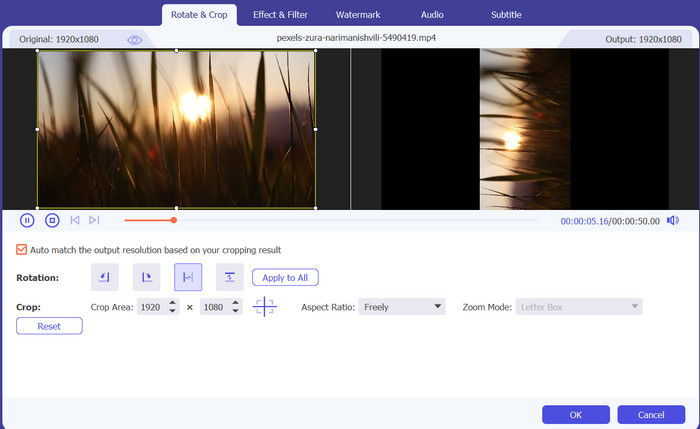
ขั้นตอนที่ 2. เปิดโปรแกรม แล้วคลิกปุ่ม Add File เพื่อเพิ่มวิดีโอที่คุณต้องการหมุน.
ขั้นตอนที่ 3. กดปุ่ม Edit ถัดจากไฟล์วิดีโอเพื่อเปิดหน้าต่างตัดต่อวิดีโอ.
ขั้นตอนที่ 4. คลิกแท็บ Rotate แล้วเลือกมุมการหมุนที่คุณต้องการ คุณยังสามารถกลับภาพวิดีโอในแนวนอนหรือแนวตั้งได้หากจำเป็น.
ขั้นตอนที่ 5. พรีวิววิดีโอที่หมุนแล้วเพื่อตรวจสอบให้แน่ใจว่าดูเรียบร้อย จากนั้นคลิก OK เพื่อบันทึกการเปลี่ยนแปลง.
2. VLC Media Player
VLC Media Player เป็นเครื่องเล่นมีเดียโอเพ่นซอร์สฟรีที่ผู้คนทั่วโลกใช้กันอย่างแพร่หลาย หนึ่งในคุณสมบัติที่โดดเด่นของ VLC คือความสามารถในการหมุนวิดีโอ ด้วย VLC คุณสามารถหมุนวิดีโอที่บันทึกในมุมหรือทิศทางที่ไม่เหมาะสมได้อย่างง่ายดาย
คุณสมบัติเด่นของ VLC:
◆ มุมการหมุนวิดีโอที่ปรับแต่งได้
◆ การหมุนเวียนวิดีโอเป็นชุด
◆ แป้นพิมพ์ลัด
นี่คือวิธีการหมุนวิดีโอใน VLC:
ขั้นตอนที่ 1. หากต้องการหมุนวิดีโอด้วย VLC เพียงเปิดไฟล์วิดีโอในโปรแกรม VLC,
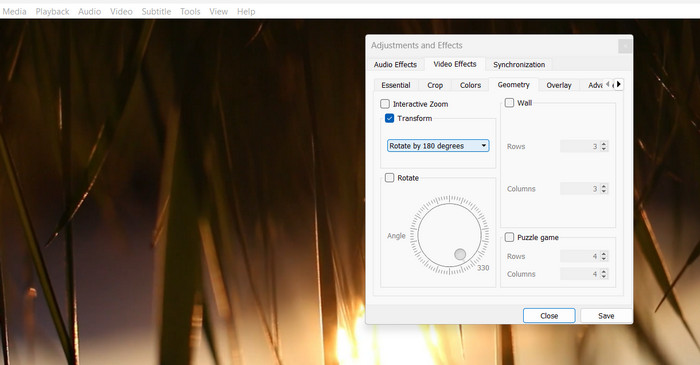
ขั้นตอนที่ 2. คลิกที่เมนู Tools แล้วเลือก Effects and Filters.
ขั้นตอนที่ 3. ที่แท็บ Video Effects ให้คลิกแท็บ Geometry จากนั้นเลือกมุมการหมุนตามต้องการ.
3. รอบปฐมทัศน์
Adobe Premiere เป็นซอฟต์แวร์ตัดต่อวิดีโอยอดนิยมที่ใช้โดยมืออาชีพและมือสมัครเล่น สิ่งที่ยอดเยี่ยมเกี่ยวกับคุณลักษณะการหมุนวิดีโอของ Premiere คือมีตัวเลือกการปรับแต่งที่หลากหลาย รวมถึงคีย์เฟรมสำหรับการปรับที่แม่นยำยิ่งขึ้น คุณยังสามารถใช้ Premiere เพื่อครอบตัดและปรับขนาดวิดีโอของคุณ เพิ่มช่วงการเปลี่ยนภาพ และใช้การแก้ไขสีและเอฟเฟ็กต์อื่นๆ
คุณสมบัติเด่นของ Premiere:
◆ ระบบป้องกันภาพสั่นไหว
◆ การแก้ไขอัตราส่วนภาพ
◆ การหมุนที่แม่นยำ
ต่อไปนี้เป็นขั้นตอนเกี่ยวกับวิธีการหมุนวิดีโอใน Premiere:
ขั้นตอนที่ 1. หากต้องการหมุนวิดีโอด้วย Premiere เพียงนำเข้าคลิปวิดีโอแล้วลากลงบนไทม์ไลน์.
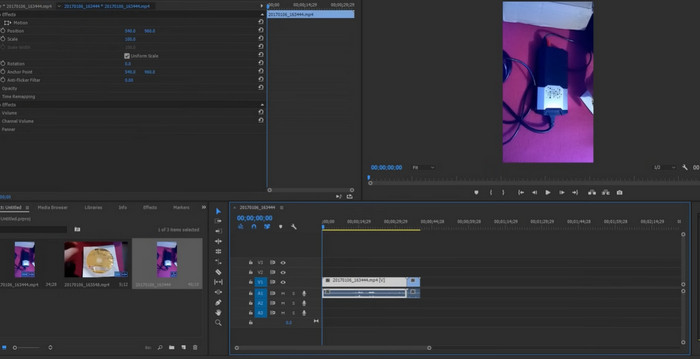
ขั้นตอนที่ 2. จากนั้นคลิกเลือกคลิป และไปที่แผง Effect Controls.
ขั้นตอนที่ 3. ในแท็บ Motion ที่ตัวเลือก Rotation คุณสามารถปรับมุมของวิดีโอตามที่ต้องการได้.
4. ผู้อำนวยการฝ่ายพลังงาน
PowerDirector เป็นซอฟต์แวร์ตัดต่อวิดีโออเนกประสงค์ที่มีฟีเจอร์มากมาย รวมถึงความสามารถในการหมุนวิดีโอ ด้วย PowerDirector คุณสามารถแก้ไขวิดีโอที่บันทึกในทิศทางที่ไม่ถูกต้องหรือในมุมที่ไม่เหมาะสมได้อย่างง่ายดาย
คุณสมบัติเด่นของ PowerDirector:
◆ การควบคุมคีย์เฟรม
◆ การแก้ไขด้วยกล้องหลายตัว
◆ เอฟเฟกต์วิดีโอสุดสร้างสรรค์
ต่อไปนี้เป็นคำแนะนำโดยย่อเกี่ยวกับการหมุนวิดีโอของ PowerDirector:
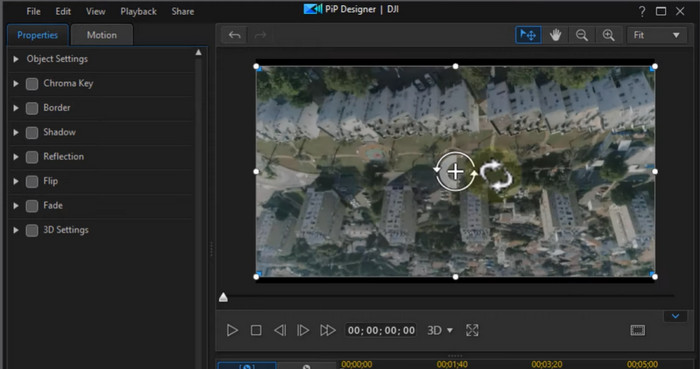
ขั้นตอนที่ 1. ในการหมุนวิดีโอใน PowerDirector เพียงนำเข้าคลิปวิดีโอลงในโปรแกรมแล้วลากวางบนไทม์ไลน์.
ขั้นตอนที่ 2. จากนั้นคลิกที่คลิปเพื่อเลือก และไปที่แท็บ Fix/Enhance ที่นั่นคุณจะพบตัวเลือก Rotation ซึ่งสามารถปรับมุมของวิดีโอตามที่ต้องการได้.
5. DaVinci แก้ไข
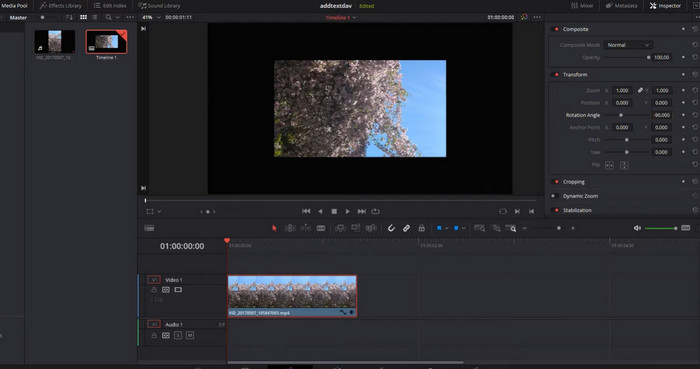
หนึ่งในคุณสมบัติที่ดีที่สุดของ DaVinci Resolve ที่เกี่ยวข้องกับการหมุนวิดีโอคือความสามารถในการหมุนวิดีโอด้วยความแม่นยำและการควบคุม คุณสามารถปรับมุมการหมุนได้อย่างง่ายดายโดยใช้แผง Transform ซึ่งช่วยให้คุณป้อนองศาการหมุนที่คุณต้องการได้ DaVinci Resolve ยังมีการควบคุมคีย์เฟรม ช่วยให้คุณสร้างภาพเคลื่อนไหวการหมุนที่ราบรื่นและแม่นยำเมื่อเวลาผ่านไป
คุณสมบัติเด่นของ DaVinci Resolve:
◆ การควบคุมการหมุนที่แม่นยำ
◆ การแก้ไขสีขั้นสูง
◆ ผลภาพ
นี่คือขั้นตอนในการดำเนินการ DaVinci Resolve หมุนวิดีโอ:
ขั้นตอนที่ 1. เปิด DaVinci Resolve และสร้างโปรเจกต์ใหม่ จากนั้นนำเข้าวิดีโอของคุณไปยัง media pool โดยคลิกปุ่ม Import Media แล้วลากวิดีโอจาก media pool ลงบนไทม์ไลน์.
ขั้นตอนที่ 2. คลิกปุ่ม Inspector เพื่อเปิดแผง Inspector แล้วเลือกแท็บ Transform: ในแผง Inspector ให้เลือกแท็บ Transform.
ขั้นตอนที่ 3. ปรับมุมการหมุน: ในแท็บ Transform คุณสามารถปรับมุมการหมุนได้โดยเปลี่ยนค่า Rotation นอกจากนี้ยังสามารถใช้การตั้งค่า keyframe เพื่อสร้างแอนิเมชันการหมุนที่ลื่นไหลและแม่นยำตามเวลาได้.
ส่วนที่ 2 Video Rotator สำหรับ Windows เท่านั้น
ตอนนี้ เมื่อต้องการค้นหาตัวหมุนวิดีโอสำหรับผู้ใช้ Windows โดยเฉพาะ คุณสามารถดูโปรแกรมด้านล่าง
1. วินโดวส์ มีเดีย เพลเยอร์
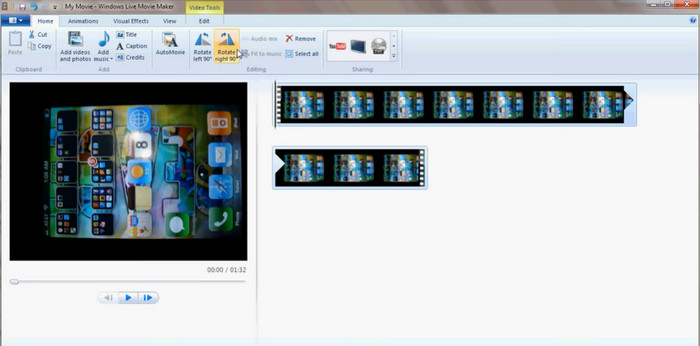
Windows Media Player สามารถใช้เป็นโปรแกรมเล่นวิดีโอทางเลือกแทน VLC ที่มาพร้อมติดตั้งล่วงหน้าบนคอมพิวเตอร์ Windows ได้ รองรับการเล่นไฟล์วิดีโอและเสียงได้หลากหลายฟอร์แมต และมีฟีเจอร์ตัดต่อวิดีโอพื้นฐานบางอย่าง รวมถึงการหมุนวิดีโอ นอกจากนี้คุณยังสามารถหมุนวิดีโอไปทางซ้ายหรือขวาทีละ 90 องศาได้ ซึ่งเป็นประโยชน์เมื่อคุณถ่ายวิดีโอมาในแนวนอนหรือแนวตั้งผิดทิศ จากวิดีโอแนวนอน (Landscape) ก็สามารถหมุนให้กลายเป็นแนวตั้ง (Portrait) ได้.
คุณสมบัติเด่นของ Windows Media Player:
◆ การเล่นสื่อรูปแบบต่างๆ
◆ รองรับตัวแปลงสัญญาณในตัว
◆ หมุนวิดีโอได้ 90 องศา
นี่คือคำแนะนำเกี่ยวกับวิธีการหมุนวิดีโอใน Windows Media Player:
ขั้นตอนที่ 1. เพียงเปิดไฟล์วิดีโอในโปรแกรม จากนั้นคลิกปุ่ม Organize ที่ด้านบนของหน้าต่าง.
ขั้นตอนที่ 2. จากเมนูแบบเลื่อนลง ให้เลือก Options แล้วคลิกแท็บ Performance.
ขั้นตอนที่ 3. ภายใต้ส่วน Video Acceleration คุณจะเห็นตัวเลือก Rotate Video by 90 degrees
ขั้นตอนที่ 4. ติ๊กเครื่องหมายถูกที่ช่องตัวเลือกนี้เพื่อเปิดใช้งานการหมุนวิดีโอ จากนั้นคลิก Apply และ OK เพื่อบันทึกการเปลี่ยนแปลง.
2.คลิปแชมป์
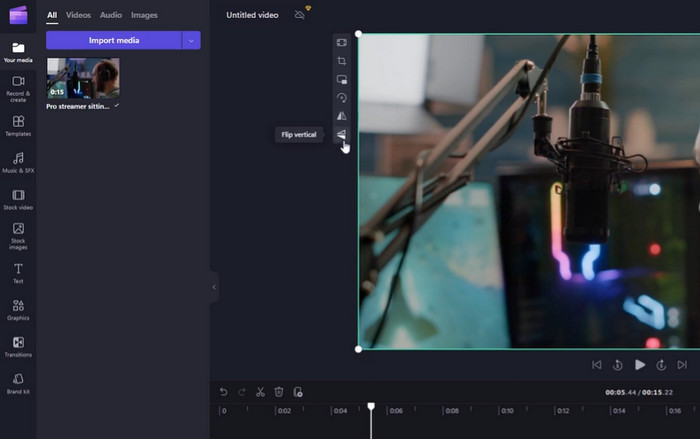
Clipchamp เป็นแอปตัดต่อและแปลงวิดีโอแบบออนไลน์ทั้งหมด ผู้ใช้สามารถตัดต่อและปรับแต่งวิดีโอได้ด้วยเครื่องมือและฟีเจอร์หลากหลาย เช่น การหมุนวิดีโอ การครอป การตัดต่อ (Trim) การเพิ่มข้อความ การใส่ฟิลเตอร์ และอื่น ๆ อีกมากมาย.
คุณสมบัติเด่นของ ClipChamp:
◆ ที่เก็บข้อมูลบนคลาวด์
◆ การผสานรวมกับโซเชียลมีเดีย
◆ เอาต์พุตวิดีโอที่ปรับแต่งได้
ต่อไปนี้เป็นขั้นตอนในการหมุนวิดีโอของ ClipChamp:
ขั้นตอนที่ 1. ลงชื่อเข้าใช้บัญชี ClipChamp ของคุณ แล้วคลิกปุ่ม Create a video บนแดชบอร์ด จากนั้นเลือกวิดีโอที่ต้องการหมุนจากคอมพิวเตอร์ของคุณ.
ขั้นตอนที่ 2. หลังจากอัปโหลดวิดีโอแล้ว ให้คลิกปุ่ม Edit เพื่อเปิดตัวตัดต่อวิดีโอของ Clipchamp.
ขั้นตอนที่ 3. หากต้องการหมุนวิดีโอ ให้คลิกปุ่ม Rotate ที่แถบด้านซ้ายของหน้าต่างตัดต่อ.
ขั้นตอนที่ 4. เมื่อหมุนวิดีโอเรียบร้อยแล้ว ให้คลิกปุ่ม Save เพื่อบันทึกการเปลี่ยนแปลง.
ส่วนที่ 3 ตัวหมุนวิดีโอสำหรับ Mac เท่านั้น
คอมพิวเตอร์ Mac ยังมีเครื่องมือเฉพาะสำหรับการหมุนวิดีโอ ด้านล่างนี้คือคำแนะนำบางส่วน
1. iMovie
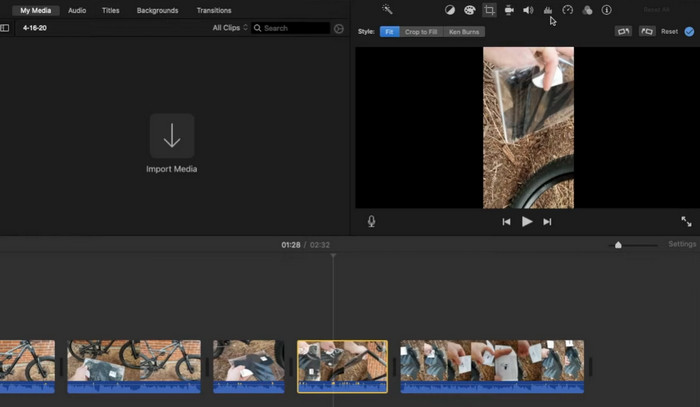
iMovie เป็นซอฟต์แวร์ตัดต่อวิดีโอที่ยอดเยี่ยมที่พัฒนาโดย Apple ซึ่งพร้อมใช้งานสำหรับ macOS, iOS และ iPadOS เป็นแอปพลิเคชันที่มีประสิทธิภาพและเป็นมิตรกับผู้ใช้ซึ่งช่วยให้ผู้ใช้สามารถแก้ไขและปรับปรุงวิดีโอของตนด้วยคุณลักษณะและเครื่องมือต่างๆ รวมถึงการหมุนเวียนวิดีโอ
คุณสมบัติเด่นของ iMovie:
◆ ชื่อเรื่องและข้อความซ้อนทับ
◆ เทคนิคพิเศษ
◆ การผสานรวมกับผลิตภัณฑ์ของ Apple อย่างราบรื่น
หากต้องการหมุนวิดีโอ iMovie ให้ทำตามคำแนะนำด้านล่าง
ขั้นตอนที่ 1. เปิด iMovie แล้วเลือกโปรเจกต์ที่ต้องการแก้ไข จากนั้นหาและเลือกคลิปวิดีโอที่ต้องการหมุนบนไทม์ไลน์.
ขั้นตอนที่ 2. คลิกปุ่ม Crop ซึ่งมีลักษณะเป็นสี่เหลี่ยมที่มีลูกศรสองอันหมุนรอบ อยู่บนแถบเครื่องมือเหนือหน้าต่างแสดงผล แล้วเลือก Rotate จากเมนูแบบเลื่อนลงที่ปรากฏ.
ขั้นตอนที่ 3. ใช้เครื่องมือหมุนเพื่อปรับมุมของคลิปวิดีโอ คุณยังสามารถใช้แถบเลื่อน (Slider) เพื่อกลับภาพวิดีโอในแนวนอนหรือแนวตั้งได้.
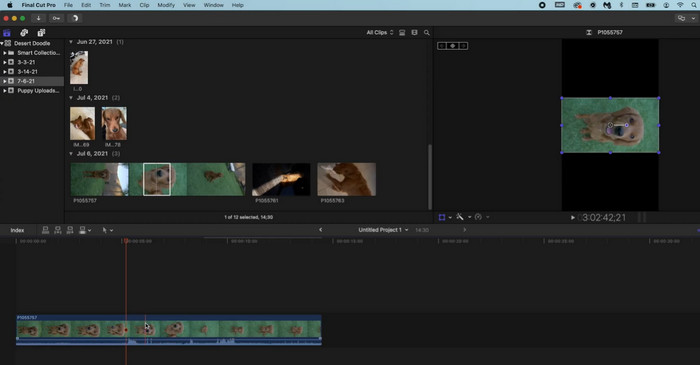
2. ไฟนอลคัตโปร
Final Cut Pro เป็นซอฟต์แวร์ตัดต่อวิดีโอที่ยอดเยี่ยมซึ่งออกแบบมาสำหรับผู้ใช้ Mac มันมีเครื่องมือและคุณสมบัติการตัดต่อวิดีโอที่หลากหลาย รวมถึงความสามารถในการหมุนวิดีโอ คุณสามารถหมุนวิดีโอของคุณไปยังทิศทางที่ต้องการและสร้างวิดีโอคุณภาพสูงได้อย่างง่ายดาย
คุณสมบัติเด่นของ Final Cut Pro:
◆ รองรับกล้องหลายตัว
◆ รองรับวิดีโอ 360 องศา
◆ เครื่องมือแก้ไขเสียง
นี่คือคำแนะนำทีละขั้นตอนสำหรับวิดีโอ Final Cut Pro Rotate:
ขั้นตอนที่ 1. เปิด Final Cut Pro แล้วนำเข้าฟุตเทจที่ต้องการลงในโปรเจกต์ เมื่อวิดีโอถูกนำเข้าแล้ว ให้ลากลงบนไทม์ไลน์ด้านล่างหน้าจอ.
ขั้นตอนที่ 2. คลิกปุ่ม Crop ที่แถบเครื่องมือด้านบนของหน้าจอเพื่อครอปภาพ.
ขั้นตอนที่ 3. เลือก Rotate จากเมนูแบบเลื่อนลงของ Crop จากนั้นใช้วงล้อหมุน (rotation dial) เพื่อปรับทิศทางของคลิปวิดีโอ.
ส่วนที่ 4 คำถามที่พบบ่อยเกี่ยวกับตัวหมุนวิดีโอ
ฉันสามารถหมุนวิดีโอโดยไม่สูญเสียคุณภาพได้หรือไม่
ได้ คุณสามารถหมุนวิดีโอโดยไม่สูญเสียคุณภาพได้โดยใช้ซอฟต์แวร์ตัดต่อวิดีโอที่ช่วยให้สามารถหมุนได้โดยไม่สูญเสียคุณภาพ
ฉันสามารถหมุนวิดีโอด้วย FFmpeg ได้หรือไม่
ได้ คุณสามารถใช้ FFmpeg เพื่อหมุนวิดีโอได้ หากต้องการหมุนวิดีโอด้วย FFmpeg คุณจะต้องใช้ตัวกรองทรานสโพสหรือหมุน
เป็นไปได้ไหมที่จะแปลงวิดีโอแนวตั้งเป็นแนวนอน
ได้ เป็นไปได้ที่จะแปลงวิดีโอแนวตั้งเป็นแนวนอนโดยใช้ซอฟต์แวร์หรือเครื่องมือตัดต่อวิดีโอ สิ่งหนึ่งที่ต้องทำคือเพิ่มแถบสีดำที่ด้านข้างของวิดีโอแนวตั้งเพื่อให้พอดีกับอัตราส่วนกว้างยาว 16:9 ของวิดีโอแนวนอน
สรุป
ด้วยการหมุนวิดีโอของคุณ คุณสามารถเพิ่มประสบการณ์การรับชมให้กับผู้ชม และทำให้วิดีโอของคุณดูน่าสนใจและดูเป็นมืออาชีพมากขึ้น ไม่ว่าจะเป็นคอนเทนต์บนโซเชียลมีเดีย พรีเซนเทชั่นธุรกิจ หรือวิดีโอส่วนตัว โปรแกรมหมุนวิดีโอ สามารถช่วยยกระดับคุณภาพและผลลัพธ์ของคอนเทนต์ภาพของคุณได้อย่างชัดเจน.
-
 11 ทริมเมอร์วิดีโอที่น่าทึ่งที่จะใช้ [ฟรีและจ่ายเงิน]
 ต่อไปนี้คือรายการซอฟต์แวร์ตัดต่อวิดีโอที่คุณสามารถใช้เพื่อตัดต่อวิดีโอ เราจะตรวจสอบโปรแกรมเหล่านี้อย่างแท้จริงและให้รายละเอียดทั้งหมดที่คุณต้องการ
-
 5 โปรแกรมตัดต่อวิดีโอ Windows ที่ดีที่สุดพร้อมคำแนะนำสำหรับมืออาชีพและผู้เริ่มต้น [2023]
 กำลังมองหาโปรแกรมตัดต่อวิดีโอ Windows ที่มีคุณสมบัติการแก้ไขคุณภาพสูงอยู่ใช่ไหม จากนั้นอ่านบทความนี้ในขณะที่เราเพิ่มประสิทธิภาพเครื่องมือต่างๆ ที่คุณสามารถเลือกได้
-
 7 สุดยอดเครื่องมือแก้ไขข้อมูลเมตาสำหรับสื่อ/รูปภาพ/เอกสาร [เว็บ & ออฟไลน์]
 ต้องการทราบตัวแก้ไขข้อมูลเมตาที่ดีที่สุดหรือไม่? โชคดีที่บทความนี้มีตัวแก้ไขข้อมูลเมตาที่ดีที่สุดที่คุณสามารถใช้เพื่อเปลี่ยนแท็กในทุกไฟล์ได้อย่างง่ายดาย
