


 Video Dönüştürücü Ultimate
 Ekran kaydedicisi
 Video Onarımı
 Güvenli İndirme
Videolardaki VSDC Filigranını Kolay ve Etkili Bir Şekilde Kaldırma Kılavuzu
Windows’ta temel video düzenleme için VSDC Video Editor’ı seçerek hata yapmış olmazsınız. Bu doğrusal olmayan düzenleyici, bir video düzenleyicisinden beklediğiniz ihtiyaçları karşılayabilir. Çünkü sonunda mükemmel bir çıktı üretmenizi sağlayacak bir dizi düzenleme özelliği sunar. Bu aracın popülerleşmesiyle birlikte, birçok kullanıcının aklında bu araçla ilgili bir soru oluştu; şu anda en çok merak edilenlerden biri de şudur: VSDC ücretsiz video düzenleyici filigran içeriyor mu? İnternetteki diğer kullanıcılarla aynı soruları siz de mi soruyorsunuz? Pek çok kişinin merak ettiği bu soruları yanıtlamak için size ihtiyacınız olan cevabı vereceğiz; daha iyi anlamak için okumaya devam edin.

Bölüm 1. VSDC Free Video Editor'da Filigran Var mı?
Sahip olduğunuz videoları veya filmleri düzenlemek için VSDC'nin ücretsiz sürümünü kullanıyor olsanız bile, bunları dışa aktardığınızda hiçbir VSDC filigranı dahil edilmez. Böylece burada düzenlediğiniz videonun üzerlerinde filigran olmadan ücretsiz olarak keyfini çıkarabilirsiniz. Sahip olduğu diğer video düzenleme özelliklerini kullanmak için, bunların kilidini açmak için aracı satın alsanız iyi olur. Ücretsiz bir düzenleyici olmasına rağmen, araç videoya eklediğiniz filigranı kaldıramaz. Bazıları için bir sorundur ve diğerleri filigranı çıkarmak için bölme ve kesme özelliğini kullanır, ancak yanlarda olması iyidir. Ancak filigran ortadaysa, bir video kesici kullanmak ister miydiniz? Tabii ki değil! Aşağıdaki araçlar, videonuzdaki VSDC filigranını kolayca kaldırmanıza yardımcı olabilir.
Bölüm 2. Mevcut 2 Yolla VSDC'deki Videodan Filigran Nasıl Kaldırılır
FVC Video Converter Ultimate – Windows ve Mac'te Ultimate Watermark Remover
FVC Video Converter Ultimate, VSDC filigranını kaldırmak için kullanabileceğiniz en gelişmiş ve yapay zekâ destekli yazılımdır. Bu araç, sunduğu filigran kaldırma özelliğini manuel olarak kontrol etmenize imkân tanır; bunu birçok başka yazılım sunmaz. Filigranı videolardan, filigranın bulunduğu alanın izini bırakmadan, son derece hassas biçimde kaldırır.
Ayrıca bu araç, diğer yazılımlarda bulamayacağınız sağlam özelliklere ve işlevlere de sahiptir. Bu araç AI teknolojisini desteklese de, araç düşük kaliteli Windows ve macOS'ta çalıştığı için bilgisayarınızın özellikleri hakkında endişelenmenize gerek yok. Performans açısından üstündür, bilgisayarlarda düşük özellikler kullanır, hem Windows hem de Mac üzerinde çalışır ve içe ve dışa aktarmada yüksek performansa sahiptir. Aşağıdaki yardımla VSDC'deki videodan filigranın nasıl kaldırılacağına dair adım adım öğretici dışında aranacak bir şey kalmadı.
Adım 1. Aşağıdaki indirme düğmesine tıklayarak yazılımı şimdi masaüstünüze indirin. Ardından, gerekli kurulum ve ayarlama sürecini takip edin ve masaüstünüzde aracı açmak için Şimdi Başlat’a tıklayın.
Ücretsiz İndirWindows 7 veya üstü içinGüvenli İndirme
Ücretsiz İndirMacOS 10.7 veya üstü içinGüvenli İndirme
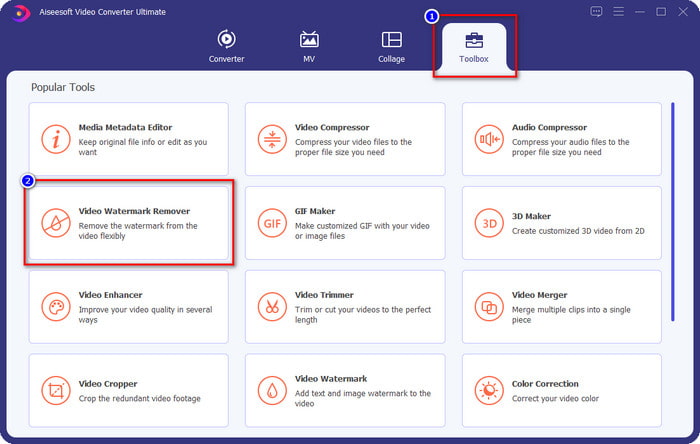
Adım 2. Yazılımı başlattıktan sonra, Araç Kutusu bölümüne gidin ve bu yazılımın gelişmiş filigran kaldırma özelliğini kullanmak için Video Filigranı Kaldırmayı seçin.
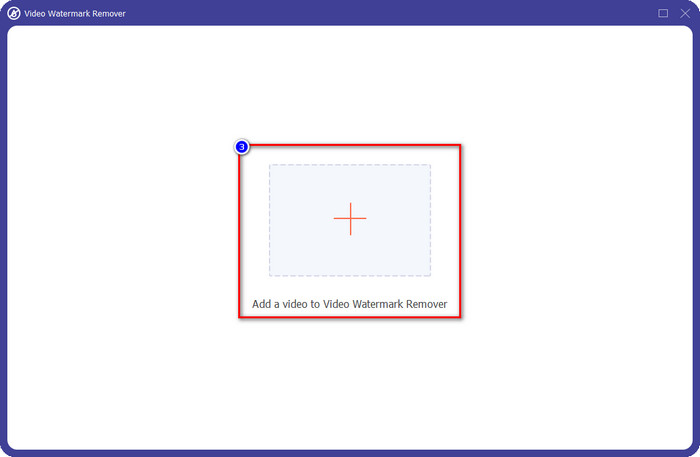
Adım 3. Ekranınızda açılacak pencerede, filigranlı videoyu yüklemek için + simgesine tıklayın.
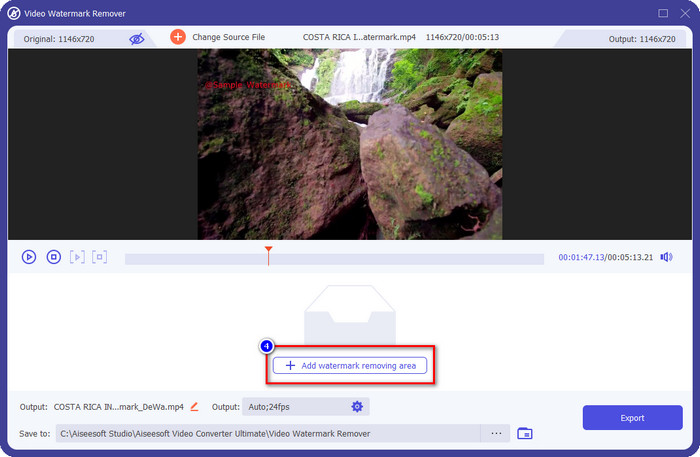
Adım 4. Filigran kaldırıcıyı kullanmak için Filigran Kaldırma Alanı Ekleye tıklayın.
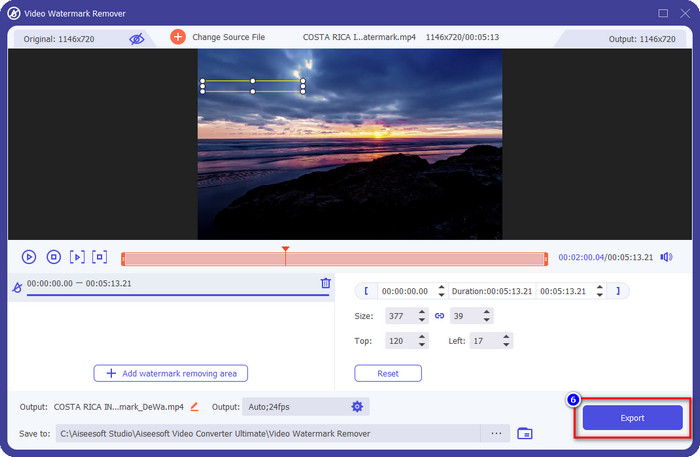
Adım 5. Seçim kutusunu filigranın bulunduğu alana yerleştirin ve videoyu dışa aktardığınızda filigranı görmemek ve videoyu keyifle izlemek için alanın tamamını kapladığınızdan emin olun.
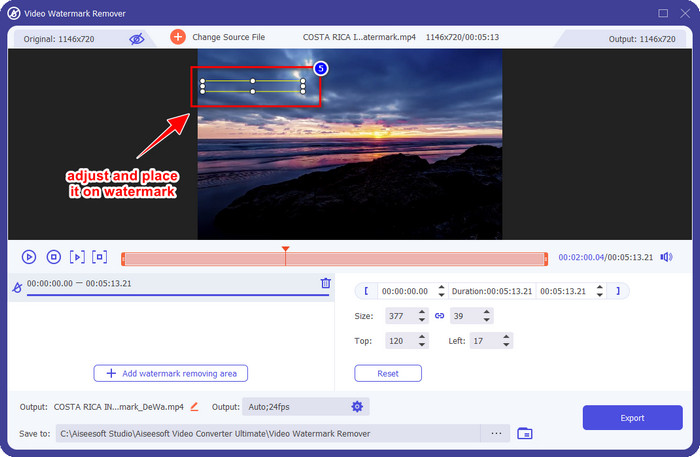
Adım 6. Artık filigran kapsandığına göre, videoyu filigransız kaydetmek için Dışa Aktar düğmesine tıklayın.
kapwing
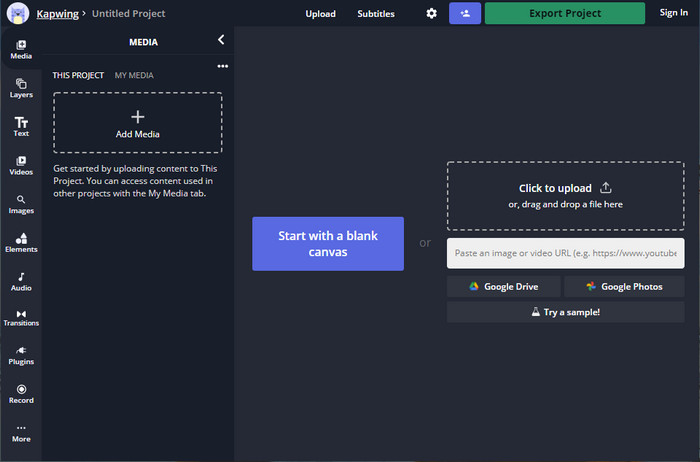
VSDC ücretsiz video düzenleyici filigranını kaldırmanın en iyi yollarından biri de Kapwing.com kullanmaktır. Bu filigran düzenleyici, videodaki mevcut filigranı hızla ortadan kaldırarak videonun harika görünmesini sağlar. Bu işlemi profesyonelce yapamıyor olsanız bile, sezgisel ve eksiksiz arayüzü sayesinde bunu seçtiğinizde endişelenmenize gerek yoktur. Nasıl kullanılacağını öğrenmek çok daha hızlı hâle gelir. Araç iyi bir seçimdir, ancak bazı dezavantajları da vardır; örneğin, ücretsiz sürümü 60 dakikanın üzerindeki videoları dışa aktaramaz, sınırlıdır ve videoyu dışa aktardıktan sonra Kapwing filigranını kaldırmak için oturum açmanız gerekir.
Adım 1. Web aracını açın ve dosyayı buraya sürükleyip bırakarak yükleyin.
Adım 2. Dosyayı yükledikten sonra öğeler bölümüne gidin ve burada mevcut olan istediğiniz şekle tıklayın.
Adım 3. Şekli filigranın üzerine tutun ve yerleştirin. Unutmayın, bu yöntem video çok renkliyse iyi çalışmaz; yalnızca videonun o kısmında tek renk paleti kullanılmışsa işe yarar.
Adım 4. Son çıktıyı kaydetmek için Videoyu Dışa Aktar’a tıklayın, ardından MP4 Dışa Aktar’a tıklayın.
İlgili:
Photobucket Filigranları Nasıl Kaldırılır
GIF Üzerindeki Filigran Nasıl Kaldırılır
Bölüm 3. VSDC Free Video Editor'ın Filigranı Var mı Hakkında SSS
VSDC’de 4K video dışa aktarabilir miyim?
Evet, isterseniz bu araç videoları 4k çözünürlükte dışa aktarabilir. Bununla birlikte, işlem 1080 ve 720 gibi diğer video çözünürlüklerinden daha fazla zaman alır. Oluşturma işlemi o kadar zaman alacak olsa da, araç yine de gerekirse 4k gibi ultra yüksek çözünürlüklü bir video kalitesi üretebilir.
VSDC’de filigran nasıl kaldırılır?
Aracı indirin, ardından devam etmek için başlatın, Nesne Ekle'yi tıklayın ve altındaki Video'yu tıklayın. Video Filtresini açın; sonra seçenekler gösterilecektir; Filtreler'i tıklayın; DeLogo'yu tıklayın. DeLogo ile artık videonun filigranını VSDC'de kapatabilirsiniz. Yalnızca aracın yalnızca yeni güncellenmiş bir sürümüyle çalışır; bulamazsanız, kullandığınızı sonraki sürümü indirerek güncellemelisiniz.
Kullanılacak en iyi video düzenleyici VSDC mi?
En iyisi değil, ancak etkileyici bir video yapmak için ihtiyaç duyabileceğiniz temel düzenleme özelliklerini sağladığı için mutlaka denenmesi gereken bir araç olduğunu düşünebiliriz. Nasıl kullanılacağını öğrenmek zor olsa da, diğer kullanıcılar düzenleme yapmak yerine bu yazılımı öğrenmek için zaman harcama eğilimindedir. En iyi 10 video düzenleyici arasında yer almasa bile, düzenleme amacı için hala harika bir araç olarak kabul edilir.
Sonuç
VSDC filigranını kaldırmak için, bu makalede bahsedilen iki yazılım gibi güvenebileceğiniz bir filigran kaldırıcıya ihtiyacınız olacaktır. Her biri için verilen adımlarla, hangisinin ihtiyaçlarınıza uygun olduğunu ve elinizdeki videodaki filigranı kaldırmada daha kullanışlı olacağını seçebilirsiniz. Ancak hem filigran kaldırma ve ekleme, hem video düzenleme, hem dönüştürme hem de daha fazlasını yapabileceğiniz çok amaçlı bir yazılım istiyorsanız, mutlaka FVC Video Converter Ultimateı seçmelisiniz. Neden mi? Çünkü masaüstünüzde ihtiyaç duyacağınız en iyi çok yönlü yazılımdır. Bu makaleyi okumak sizin için faydalı oldu mu? Öyleyse, bu makaleden memnun kaldıysanız aşağıdan bize beş yıldız verebilirsiniz.
-
 Fotoğraftaki Filigran Nedir Rehberi [Güncelleme 2022]
 Fotoğraftaki filigran nedir? Bir tane eklememiz gerekiyor mu? Nasıl kaldırabiliriz? İhtiyacınız olan her şey burada, bu yüzden bu blogu okumaya devam edin.
-
 Wondershare DVD Creator'dan Filigran Nasıl Kolayca Kaldırılır
 Bu makale, Wondershare DVD Creator'dan filigranın nasıl kaldırılacağına ilişkin bilgileri kapsar. İhtiyacınız olan tüm bilgileri almak için bunu okumak bir zorunluluktur.
-
 Basit Adımlarla PDF'den Filigranı Kolayca Kaldırın
 Bu basit adımları izleyerek Filigranı PDF'den kaldırın. Bu harika araçları kullanarak PDF dosyanızdan filigranları nasıl kolayca kaldıracağınızı öğrenin.
