


 Video Dönüştürücü Ultimate
 Ekran kaydedicisi
 Video Onarımı
 Güvenli İndirme
En Güçlü Uygulamaları Kullanarak Görüntülerin Bulanıklığını Kaldırma
Çektiğiniz fotoğrafın bulanık olduğunu bilmek oldukça sinir bozucudur. Fotoğrafınızın bulanık olmasının nedeni, çektiğiniz konunun hareket etmesi, kameranın titremesi ya da bulunduğunuz yerdeki ışıklandırmanın iyi olmamasıdır. Ayrıca, fotoğraf çektiğiniz anı geri alamazsınız, bu da oldukça hayal kırıklığı yaratır. O görüntüyü düzeltmek imkânsız gibi görünse de aslında öyle değildir. Neyse ki bulanık bir görüntüyü netleştirmek için uygulayabileceğiniz belirli yöntemler vardır. En iyi görüntü onarma uygulamalarıyla bulanık fotoğrafınızı düzeltebilirsiniz. Bu rehber yazı, size zahmetsizce bir görüntü nasıl netleştirilir gösterecektir.

Bölüm 1. Çevrimiçi Bir Görüntü Nasıl Bulanıklaştırılır
İnsanlar, cihazlarında yerden tasarruf etmelerini sağladığı için görüntülerin bulanıklığını gidermek için çevrimiçi bir uygulama kullanmayı tercih ediyor. Ayrıca, çevrimiçi bir araç kullanırken, ona tarayıcınızdan erişmeniz yeterlidir. Uygun değil mi? Bu nedenle, fotoğrafınızın bulanıklığını düzeltmek için en iyi çevrimiçi görüntü yükselticiyi arıyoruz.
FVC Free Image Upscaler, bir görüntüyü çevrimiçi olarak netleştirmenin bir yolunu arıyorsanız en iyi seçenektir. Bunun yanında, kullanımı ücretsiz ve güvenlidir. Google, Firefox ve Safari dâhil tüm web tarayıcılarından erişebilirsiniz. Ayrıca, görüntünüzün kalitesini 2x, 4x, 6x ve 8x büyütme ile artırabilirsiniz. Bununla birlikte, fotoğrafınızdaki bulanık kısımları otomatik olarak algılayıp iyileştiren bir YZ (Yapay Zekâ) teknolojisi kullanır.
Ayrıca, FVC Free Image Upscaler, kayıp pikselleri, renk dokularını ve daha fazla ayrıntıyı hassas bir şekilde düzeltmenizi sağlar. Ve online bir uygulama olmasına rağmen, hızlı bir yükseltme sürecine sahiptir ve dikkatinizi dağıtacak herhangi bir reklam içermez. Bu nedenle, ücretsiz görüntü yükselticiyi kullanmakla ilgileniyorsanız, aşağıdaki basit kılavuzu izleyin.
FVC Free Image Upscaler kullanılarak görüntülerin bulanıklığı nasıl kaldırılır:
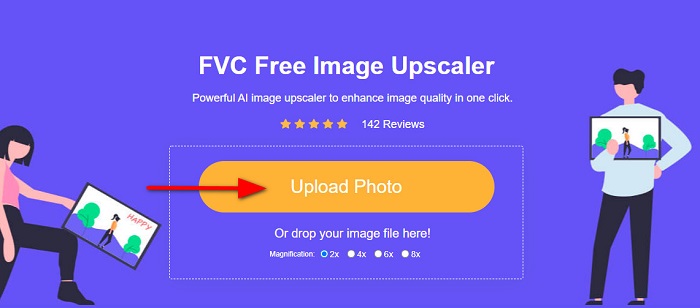
Adım 1. Önce tarayıcınızı açın ve arama kutusuna FVC Free Image Upscaler yazın. Ayrıca bağlantıya doğrudan tıklayarak ana sayfaya gidebilirsiniz. Ardından, Fotoğraf Yükle düğmesine tıklayarak uygulamayı başlatın. Uygulamayı başlattıktan sonra bir sonraki adıma geçin.
Adım 2. İlk arayüzde, netleştirmek istediğiniz görüntüyü içe aktarmak için Fotoğraf Yükle düğmesine tıklayın. Bilgisayar klasörleriniz açılacak ve fotoğrafınızı buradan seçeceksiniz. Yüklemek için Aç seçeneğine tıklayın.
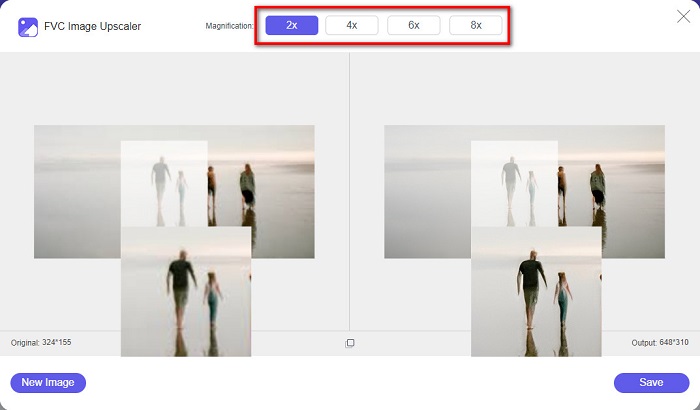
Adım 3. Görüntünüzü yükledikten sonra, fotoğrafınız için tercih ettiğiniz büyütme ön ayarını seçin. 2x, 4x, 6x ve 8x büyütme seçenekleri arasından seçim yapabilirsiniz. Ardından, sağ tarafta çıktınızın ön izlemesini görerek orijinal dosyanızla farkı karşılaştırabilirsiniz.
Adım 4. Son olarak, arayüzün sağ alt köşesindeki Kaydet düğmesine tıklayarak çıktınızı kaydedin.
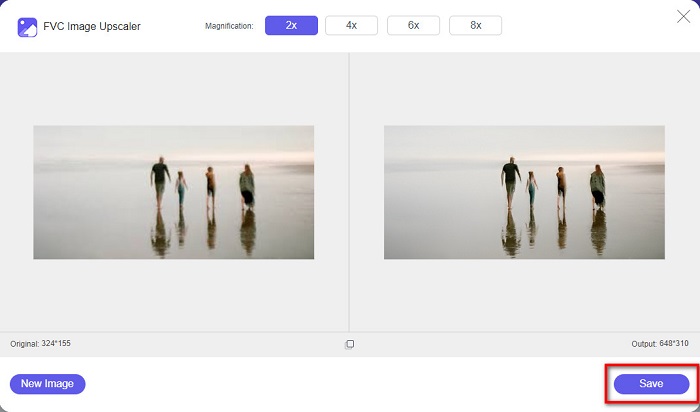
Ve bunlar, çevrimiçi bir görüntünün nasıl bulanıklaştırılacağına ilişkin adımlar. Sonuçtan, bu ücretsiz görüntü yükselticinin, görüntünüzün kalitesini düzeltmenize nasıl yardımcı olabileceğini göreceksiniz.
Bölüm 2. Masaüstünde Çevrimdışı Bir Görüntü Nasıl Bulanıklaştırılır
Birçok profesyonel, görüntüleri veya videoları düzenlemek için bir bilgisayar kullanır. Ayrıca birçok fotoğraf düzenleme uygulaması yalnızca masaüstlerinde kullanılabilir. Ve bu bölümde, masaüstünüzde çevrimdışı olarak bir görüntüyü bulanıklaştırmanın en iyi yöntemlerini size öğreteceğiz.
Photoshop Kullanarak Görüntünün Bulanıklığını Kaldırma
Adobe Photoshop, görüntülerinizi netleştirmek için kullanabileceğiniz muhtemelen en iyi fotoğraf düzenleme uygulamasıdır. Bu çevrimdışı uygulamada, bir görüntüyü iyileştirmek için kullanabileceğiniz pek çok düzenleme özelliği ve aracı bulunur. Ayrıca, fotoğrafınızın kalitesi iyi değilse veya bulanıksa, ona keskinlik ekleyebilirsiniz. Gelişmiş düzenleme araçlarını kullanarak kesinlikle mükemmel çıktılar üretebilirsiniz. Buna ek olarak, görüntünüzden insanları veya nesneleri kaldırabilir, kurşun kalem veya kalem aracıyla bir resim ya da nesne çizebilir, fotoğrafınızın rengini değiştirebilir ve daha fazlasını yapabilirsiniz. Adobe Photoshop ile harika düzenlenmiş görseller oluşturabilirsiniz. Ancak Adobe Photoshop kullanıcı dostu bir araç değildir. Görüntünüzü netleştirmek veya düzenlemek için araçlarını kullanma konusunda derinlemesine bilgiye ihtiyaç duyarsınız. Yine de, Photoshop’u kullanarak görüntüleri nasıl netleştireceğinize dair adımları sunacağız. Ayrıca görüntünüzdeki bulanıklığı azaltmak için Photoshop’u kullanmanın iki yolunu da göstereceğiz.
Adobe Photoshop kullanarak görüntü bulanıklaştırma işlemi:
Adım 1. Bilgisayarınıza Adobe Photoshop’u indirin ve kurun. Uygulamayı indirip kurduktan sonra cihazınızda çalıştırın.
Adım 2. Ardından, ana arayüzde netleştirmek istediğiniz görüntüyü açın. Görüntünüzü kolayca açmak için klavyenizdeki CTRL + O kısayolunu da kullanabilirsiniz.
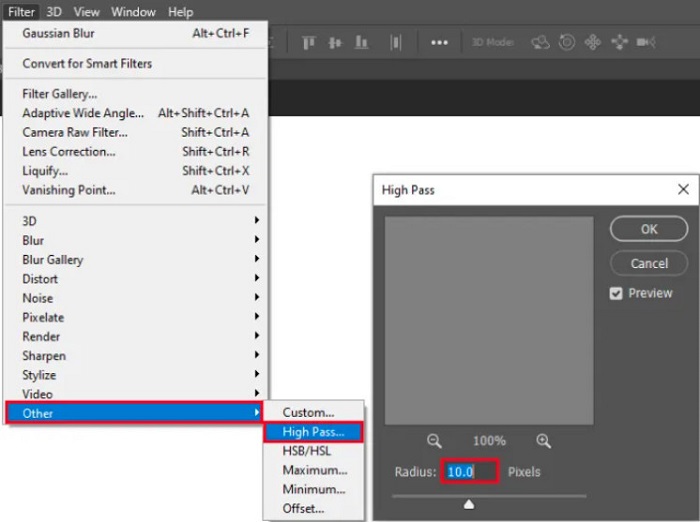
Adım 3. Sonra, katmanınızın arka planını kopyalayın ve onu seçin. Daha sonra Filtre > Diğer > Yüksek Geçiş seçeneğine tıklayın. Yüksek Geçiş’i 10% olarak ayarlayın.
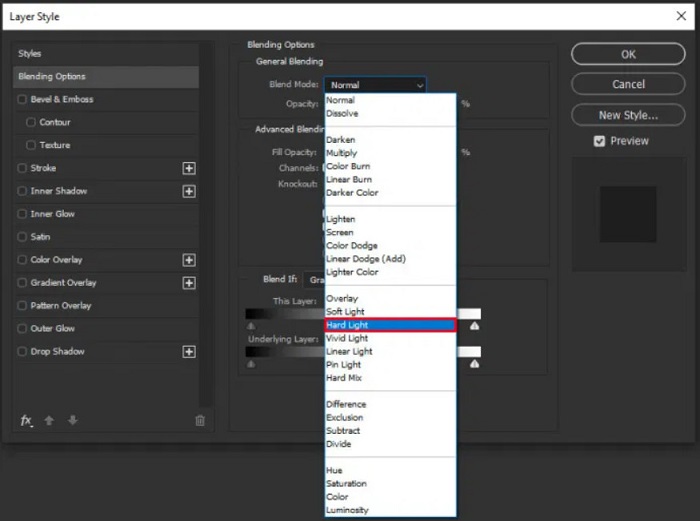
Adım 4. Ardından, Katman Stili penceresinde karışım modunu normalden sert ışıka değiştirin, sonra fotoğraf netleşene veya iyileşene kadar opaklığı ayarlayın.
Photoshop’un yeni sürümünü kullanıyorsanız, bir görüntüyü Photoshop ile keskinleştirmek için kamera sarsıntısı azaltma seçeneğini kullanabilirsiniz.
Adım 1. Netleştirmek istediğiniz görüntüyü Photoshop’a aktarın.
Adım 2. Ardından, Filtre > Keskinleştir > Sarsıntıyı Azalt yoluna gidin.
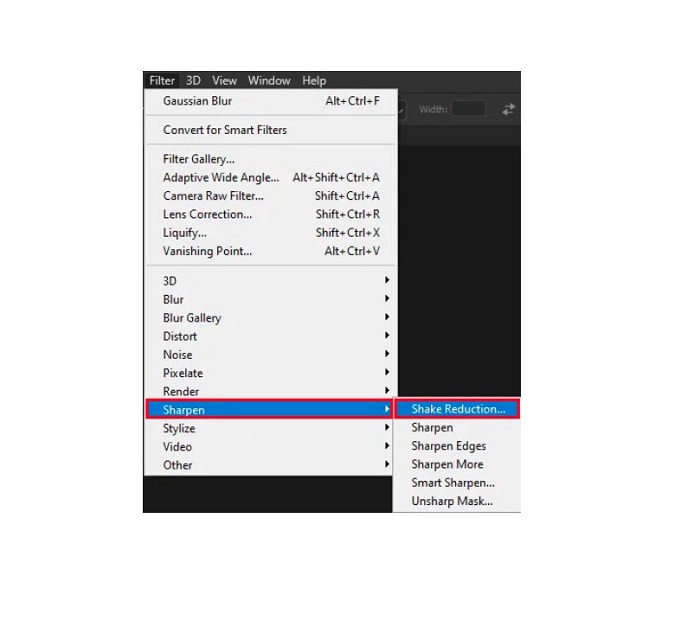
Adım 3. Daha sonra Photoshop görüntünüz üzerinde çalışacak ve sonucunuzu görebileceksiniz.
Paint.net Kullanarak Görüntünün Bulanıklığını Kaldırma
Kullanabileceğiniz bir diğer ücretsiz çevrimdışı fotoğraf düzenleme yazılımı Paint.net’tir. Bu uygulamanın güçlü özelliklerinden biri görüntü keskinleştirmedir. Kaydırıcıyı hareket ettirerek görüntünüzdeki keskinlik miktarını ayarlayabilir, böylece fotoğrafın daha keskin ve net görünmesini sağlayıp bulanıklığı giderebilirsiniz. Ayrıca, Adobe Photoshop’a kıyasla kullanımı daha kolaydır. Fotoğraflarınızı düzenlemek için kullanabileceğiniz başka düzenleme işlevlerine de sahiptir. Ve bu uygulamayı nasıl kullanacağınızı bilmiyorsanız, çevrim içi danışmanlık ve nasıl yapılır eğitimlerine erişebilirsiniz. Ayrıca, fotoğrafınızı geliştirmek için kullanabileceğiniz pek çok düzeltme işlevine sahip olduğundan, Windows kullanıcıları arasında en popüler görüntü düzenleyicilerden biridir. Paint.net’in küçük bir dezavantajı, efektleri uyguladıktan sonra girdiğiniz metni düzeltememenizdir. Buna rağmen, bu yazılım çok katmanlı görüntü düzenleme çıktıları oluşturmanıza olanak tanır.
Paint.net kullanarak bir görüntünün bulanıklığı nasıl kaldırılır:
Adım 1. Başlamak için, klavyenizde CTRL + O tuşlarına basarak Paint.net’te görüntünüzü açın. Ayrıca Dosya menüsüne gidip Aç seçeneğini bulabilirsiniz. Ardından masaüstü dosyalarınız görünecek ve görüntünüzü seçip Aç’a tıklayacaksınız.
Adım 2. Sonra, Efektler > Resim seçeneğine tıklayın ve ardından Keskinleştir’i seçin.
Adım 3. Ardından, Keskinleştir panelinde, görüntünüzün keskinliğini ayarlayıp onu netleştireceğiniz bir kaydırıcı göreceksiniz. Ayrıca fotoğrafınızın keskinlik miktarını değiştirmek için aşağı/yukarı ok düğmesine de tıklayabilirsiniz.
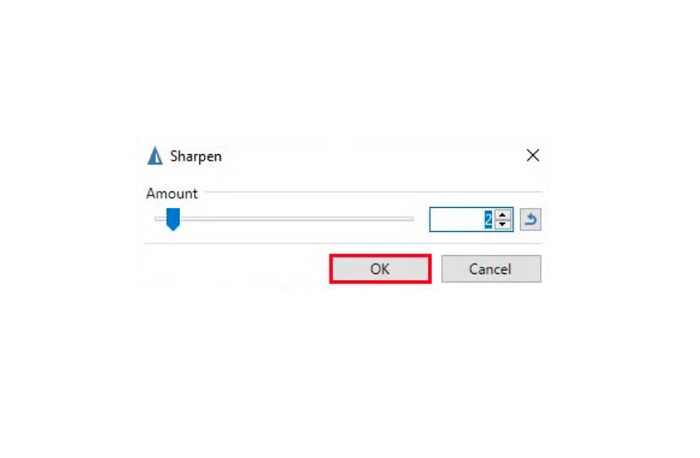
Adım 4. Tamam düğmesine basın ve çıktınızı kaydedin.
Bölüm 3. iPhone'da Bir Görüntü Nasıl Bulanıklaştırılır
Bir iPhone cihazı kullanıcısıysanız, görüntünüzün bulanıklığını gidermek için bazı uygulamaları da indirebilirsiniz. Resminizin bulanıklığını gidermek için App Store'daki uygulamalar arasından seçim yapabilirsiniz. Ancak, bazı uygulamalar satın alınabilir ve bunları kullanmadan önce satın almanızı gerektirir. Ancak bu bölümde, ücretsiz ve dikkat çekici bir uygulama kullanarak iPhone'unuzdaki görüntünüzün bulanıklığını nasıl kaldıracağınızı size öğreteceğiz.
Foton, iPhone’da en çok kullanılan görüntü netleştirme uygulamalarından biridir. Bu uygulamayı App Store’dan ücretsiz olarak indirebilirsiniz. Ayrıca kolaj, kırpma, şablon ekleme, bölme ve daha fazlası gibi kullanabileceğiniz başka düzenleme işlevlerine de sahiptir. Kullanımı kolay bir arayüze sahip olması onu kullanıcı dostu bir uygulama hâline getirir. Bu uygulamayla, görüntünüzün keskinliğini ayarlayarak fotoğrafınızı netleştirebilirsiniz. Fotoğrafınızı daha da etkileyici kılmak için ona keskinlik katmak isterseniz, görüntünüzün kontrastını, netliğini, doygunluğunu ve pus giderme değerini ayarlayabilirsiniz. Ayrıca, kullanımı güvenlidir, bu nedenle görüntü dosyalarınızın güvenliği konusunda endişelenmenize gerek yoktur. Uygulamanın dezavantajı, diğer özelliklerini kullanmak için pro sürümünü satın almanız gerekmesidir.
İPhone'da bir görüntünün bulanıklığı nasıl kaldırılır:
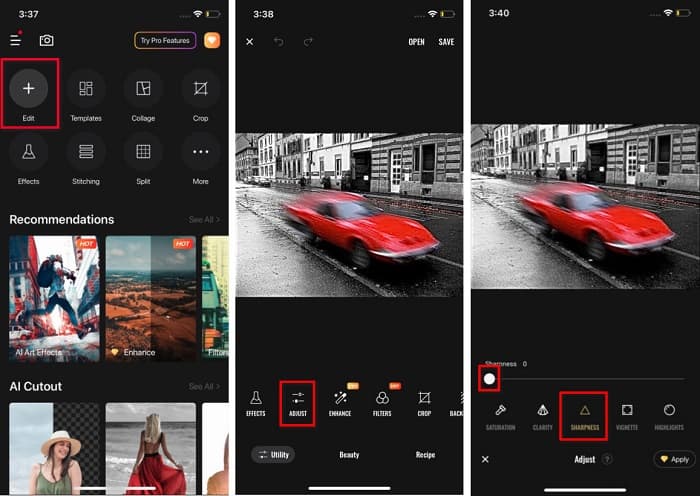
Adım 1. iPhone’unuzda App Store’u açın ve Foton araması yapın. Telefonunuza yükleyin ve kurulum tamamlanınca açın. Ardından, uygulamanın ana arayüzünde Düzenle seçeneğine dokunun.
Adım 2. Netleştirmek istediğiniz görüntüyü seçin; daha sonra başka bir arayüze yönlendirileceksiniz. Görüntünüzün altında bulunan Ayarla seçeneğine dokunun, ardından sola kaydırarak Keskinlik özelliğini bulun.
Adım 3. Keskinlik panelinde, görüntünüzdeki bulanıklık azalıncaya kadar kaydırıcıyı istediğiniz keskinlik seviyesine sürükleyin.
Adım 4. Son olarak, çıktınızı iPhone cihazınıza kaydetmek için arayüzün sağ üst köşesindeki Kaydet düğmesine dokunun. Bir görüntüyü iPhone’da nasıl yeniden boyutlandıracağınızı öğrenmek için buraya tıklayın.
Bölüm 4. Android Telefonda Bir Görüntü Nasıl Bulanıklaştırılır
Birçok kişi ayrıca Android cihazlara sahiptir ve siz de kullanıyorsanız, Android'de bir görüntünün nasıl bulanıklaştırılacağını öğrenmek için bu bölümü okuyabilirsiniz. Android için en popüler fotoğraf bulanıklaştırma uygulamalarını aradık ve tek tek denedik. Neyse ki, tavsiye edilebilecek en iyi uygulamayı bulduk.
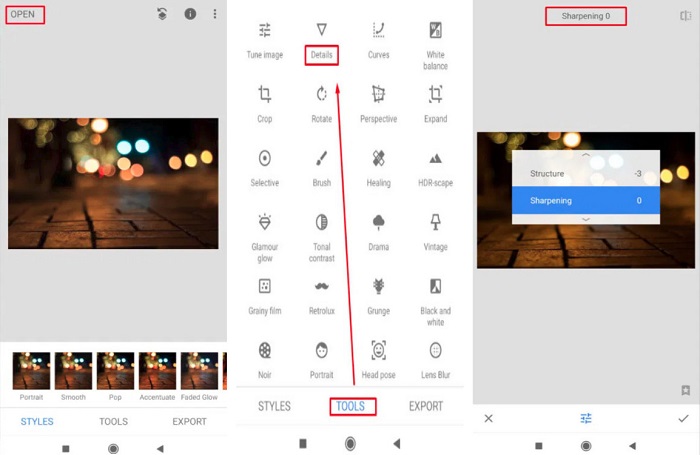
Snapseed, Android cihazınızda görüntünüzü netleştirmek istiyorsanız kullanabileceğiniz en iyi uygulamadır. Keskinleştir ve yapı özelliklerini kullanarak, görüntünüzdeki bulanık kısımları gidermek için ona keskinlik ekleyebilirsiniz. Ayrıca, görüntünüzün kalitesini artırmanıza yardımcı olabilecek pek çok düzenleme özelliğine sahiptir. Ve yukarıda bahsedilen diğer araçlar gibi, basit bir kullanıcı arayüzüne sahiptir. Bu nedenle, yeni başlayan biriyseniz, fotoğrafınızı netleştirmek için bu uygulamayı kullanabilirsiniz. Ancak, bu uygulamayı kullanmadan önce WiFi’nizi açmanız gerekir.
Snapseed kullanarak Android'de bir görüntünün bulanıklığı nasıl giderilir:
Adım 1. Uygulamayı Android cihazınıza indirin ve açın. Açtıktan sonra, görüntünüzü uygulamada açın.
Adım 2. Ardından, Araçlar panelinde Ayrıntılar seçeneğini seçin.
Adım 3. Sonra, bulanık fotoğrafınızda fark yaratmak için görüntünüzün Keskinlik veya Yapı ayarını seçin. Bu iki seçeneği ayarlayarak fotoğrafınızdaki bulanıklığı gidereceksiniz.
Bölüm 5. Bir Görüntünün Bulanıklığını Kaldırma Hakkında SSS
Bir görüntünün bulanıklığını kaldırdığınızda dosya boyutu artar mı?
Evet. Bir görüntünün bulanıklığını kaldırdığınızda, ÜFE'si artacak ve dosya boyutunun orijinalden daha büyük olmasına neden olacaktır.
Resmi büyüttüğümde neden bulanıklaşıyor?
Muhtemelen bir sıkıştırma sorunundan kaynaklanmaktadır. Bir görüntüyü yeniden boyutlandırmaya çalıştığınızda, fotoğrafınızın piksellerini de büyütüyorsunuz. Bu nedenle, bir görüntüyü sıkıştırmak, görüntünüzün kalitesini etkileyebilir.
Adobe'de bir JPG görüntüsünün bulanıklığını kaldırabilir miyim?
Kesinlikle! Bir JPG görüntüsünün bulanıklığını kaldırmak istiyorsanız Adobe Photoshop'u kullanabilirsiniz. Adobe Photoshop, PNG, JPG ve JPEG gibi standart görüntü biçimlerini destekler
Sonuç
Artık en kolay yöntemleri kullanarak bir görüntü nasıl netleştirilir bildiğinize göre, fotoğraflarınızı netleştirebilirsiniz. Yukarıda gösterdiğimiz tüm yöntemler, ulaşmak istediğiniz amaca kesinlikle yardımcı olacaktır. Ancak cihazınızda yer tasarrufu yapmak istiyorsanız, ücretsiz ve çevrim içi olarak erişebileceğiniz FVC Free Image Upscaler kullanmanızı öneririz.
-
 PowerPoint'te Bir Resim Nasıl Yeniden Boyutlandırılır [Boyut Değiştirmenin En Hızlı Yolu]
 PowerPoint'te resimlerin nasıl yeniden boyutlandırılacağını öğrenmek, özellikle sununuzda kullanmak istiyorsanız çok önemlidir. Nasıl yapılacağını öğrenmek için bu makaleyi okuyun.
-
 1440p Görüntü – İhtiyacınız Olan Her Şey Dahil Bilgiler [2022 Güncellendi]
 1440p görüntüler hakkında bilgi edinmek ister misiniz? Veya nereden temin edebilirsiniz? Görüntünüzü 1440p'ye mi çeviriyorsunuz? Hepsini tanımak için bunu okuyun.
-
 En İyi 3 Fotoğraf Çözücü Kullanarak Bir Görüntünün Piksel Çözme Eğitimi
 Piksellenmiş görüntüleri işlemede sorun mu yaşıyorsunuz? Bugün sorunu çözdük ve buraya eklediğimiz araçları kullanabilirsiniz.
