


 Chuyển đổi video Ultimate
 Trình ghi màn hình
 Sửa chữa video
 Tải xuống an toàn
Cách chuyển đổi video MOV sang định dạng FLV trên máy tính để bàn và trực tuyến
MOV vừa là một phần mở rộng tập tin vừa là một định dạng video. Tập tin có phần mở rộng MOV là tập tin phim Apple QuickTime. Định dạng này hoạt động rất tốt trên iOS và Mac. Hơn nữa, Windows 10 cũng đã tích hợp bộ giải mã (codec) tương ứng. Tuy nhiên, nó không được thiết kế cho việc phân phối trực tuyến. Vì vậy, bạn phải chuyển MOV sang FLV trước khi đăng lên YouTube hoặc các trang web khác. Bài viết này sẽ chia sẻ với bạn hai cách tốt nhất xoay quanh nhu cầu đó.

Phần 1: Làm thế nào để chuyển đổi MOV sang FLV trên PC / Mac
Bạn có thể mở hầu hết mọi tập tin MOV bằng QuickTime, nhưng nó không thể chuyển MOV sang định dạng FLV. Vì vậy, bạn cần một trình chuyển đổi video, chẳng hạn như FVC Free FLV Converter. Mặc dù là phần mềm miễn phí, bạn vẫn có thể nhận được rất nhiều tính năng hữu ích mà thường chỉ có trên các phần mềm chuyên nghiệp.
Các tính năng chính của trình chuyển đổi MOV sang FLV miễn phí tốt nhất
- 1. Chuyển đổi hàng loạt các tệp MOV không giới hạn sang định dạng FLV.
- 2. Bảo vệ chất lượng video và âm thanh trong khi chuyển đổi.
- 3. Cung cấp một loạt các tính năng thưởng như tùy chỉnh độ phân giải.
Tải Miễn PhíDành cho Windows 7 hoặc mới hơnTải xuống An toàn
Tải Miễn PhíDành cho MacOS 10.7 hoặc mới hơnTải xuống An toàn
Không cần phải nói, đó là lựa chọn tốt nhất để chuyển đổi các tệp MOV của bạn sang FLV trên máy tính để bàn miễn phí.
Làm thế nào để chuyển đổi MOV sang FLV hàng loạt
Bước 1: Thêm tệp MOV
Khởi chạy trình chuyển đổi MOV sang FLV tốt nhất sau khi bạn cài đặt nó trên máy tính. Bạn có thể tải phần mềm miễn phí từ trang web chính thức. Nhấp nút Add File(s) trên giao diện chính để mở các tập tin MOV mà bạn muốn chuyển đổi vào trong phần mềm. Sau đó, các video sẽ xuất hiện trong bảng thư viện. Tại đây bạn có thể xem trước và chỉnh sửa video.

Bước 2: Đặt định dạng đầu ra
Để thay đổi định dạng đầu ra, nhấp và mở rộng tùy chọn Output format ở phía dưới. Vào thẻ General Video, cuộn xuống và chọn FLV hoặc định dạng liên quan. Bạn cũng có thể thay đổi độ phân giải và các tham số khác trong hộp thoại cấu hình (profile). Nhấp vào biểu tượng Gear và hộp thoại cấu hình sẽ bật lên.

Bước 3: Chuyển MOV sang FLV
Nhấp nút Open Folder bên cạnh ô Output folder và chọn một thư mục cụ thể để lưu kết quả. Cuối cùng, nhấn nút Convert và trình chuyển đổi MOV sang FLV sẽ thực hiện phần việc còn lại. Vài phút sau, bạn sẽ tìm thấy các tập tin FLV tại vị trí đã chọn.

Phần 2: Cách tốt nhất để chuyển đổi MOV sang FLV trực tuyến
Ngày nay, chúng ta có nhiều cách hơn bao giờ hết để chỉnh sửa và chuyển đổi các tập tin video. Chẳng hạn, FVC Free Online Video Converter là một trình chuyển đổi MOV sang FLV trực tuyến trên web. Nó cho phép bạn xử lý nhiều tập tin MOV miễn phí mà không cần đăng ký. Hơn nữa, công cụ này không giới hạn kích thước tập tin, không chèn watermark, v.v. Nếu bạn chỉ thỉnh thoảng cần chuyển MOV sang FLV, hãy thực hiện các bước dưới đây.
Bước 1: Truy cập https://www.free-videoconverter.net/free-online-video-converter/ trong trình duyệt của bạn. Công cụ này hỗ trợ Chrome, Firefox và các trình duyệt khác. Nhấp nút Add Files to Convert để tải trình khởi chạy (launcher).
Tải xuống phiên bản dành cho máy tính để bàn để chuyển đổi tập tin hàng loạt.
Bước 2: Tiếp theo, nhấp nút Add File sau khi trình khởi chạy bật lên. Tải lên các tập tin MOV mà bạn muốn chuyển đổi từ ổ cứng. Chọn FLV trong phần định dạng ở dưới cùng của trình khởi chạy.
Mẹo: Nếu bạn cần thay đổi độ phân giải, hãy nhấp vào biểu tượng Settings để mở hộp thoại cài đặt và thực hiện dễ dàng.
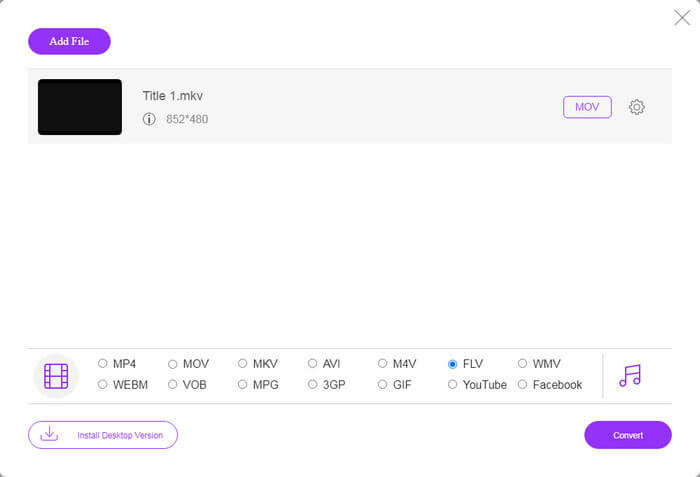
Bước 3: Nhấn nút Convert để bắt đầu chuyển đổi MOV sang FLV trực tuyến. Theo nghiên cứu của chúng tôi, quá trình này chỉ mất một lúc để hoàn tất. Thời gian thực tế phụ thuộc vào kết nối internet của bạn. Sau đó tải các tập tin FLV về máy tính.
Có thể bạn sẽ thích:
MOV so với FLV
Định dạng MOV có thể được sử dụng để lưu trữ phim, chương trình truyền hình, video clip ngắn hoặc phim gia đình. Nó thực sự được lưu ở Định dạng tệp QuickTime (QTFF), được Apple giới thiệu vào năm 1991. Các tệp MOV thường được sử dụng khi mọi người muốn lưu video với chất lượng cao.
Adobe Flash Player đã sử dụng FLV để cung cấp nội dung video như phim và chương trình truyền hình. Ngày nay, Adobe không còn phát triển trình phát nữa và khuyến nghị người dùng gỡ cài đặt vì lý do bảo mật. Tuy nhiên, bạn vẫn có thể sử dụng định dạng FLV trên nhiều chương trình không phải Adobe / Macromedia.
Phần 3: Câu hỏi thường gặp về Chuyển đổi MOV sang FLV
Làm cách nào để chuyển MOV sang FLV trên Mac?
Không có cách nào để chuyển đổi MOV sang FLV trên Mac mà không có trình chuyển đổi video của bên thứ ba. Tuy nhiên, có rất nhiều bộ chuyển đổi MOV sang FLV cho Mac. Bạn cũng có thể sử dụng các ứng dụng web để tạo tệp FLV từ MOV.
VLC có thể chuyển đổi MOV sang FLV không?
Có, VLC có thể chuyển đổi MOV sang FLV trên Windows, Mac, Linux. Ưu điểm lớn nhất của VLC là miễn phí. Nhược điểm là quy trình làm việc phức tạp. Trên thực tế, tính năng chuyển đổi được ẩn sâu trong thanh menu.
Cái nào tốt hơn, MOV hay FLV?
Câu trả lời tùy thuộc vào mục đích của bạn. Để phát hoặc chỉnh sửa trên iOS hoặc Mac, MOV tốt hơn các định dạng khác. Tuy nhiên, FLV có thể tạo ra kích thước tệp nhỏ và hoạt động tốt trên internet.
Phần kết luận
Hướng dẫn này đã nói về những cách tốt nhất để chuyển đổi các tệp video MOV của bạn sang định dạng FLV. May mắn thay, có ít nhất hai cách để thực hiện công việc. Đầu tiên, bạn có thể thay đổi MOV sang FLV bằng ứng dụng chuyển đổi video trên web. Nếu bạn cần nhiều tính năng nâng cao hơn, FVC Free FLV Converter có thể đáp ứng nhu cầu của bạn. Hơn nữa, nó hoàn toàn miễn phí để sử dụng trên máy tính. Nhiều vấn đề hơn? Vui lòng liên hệ với chúng tôi bằng cách để lại tin nhắn của bạn bên dưới bài đăng này.
-
 2 cách dễ nhất để chuyển đổi tệp WMV sang FLV trên PC / Mac
 Làm thế nào bạn có thể chuyển đổi WMV sang FLV? Trước tiên, bạn cần đọc phần giới thiệu của chúng tôi và tìm ra phương pháp yêu thích của bạn, sau đó làm theo hướng dẫn của chúng tôi để thực hiện công việc một cách nhanh chóng.
-
 4 phương pháp đã xác minh để chuyển đổi TS sang FLV trên Máy tính để bàn / Trực tuyến
 Bạn không thể mở TS trên máy tính hoặc thiết bị di động của mình theo mặc định. Cách duy nhất để xem các tệp video là chuyển đổi TS sang FLV hoặc các định dạng khác với hướng dẫn cụ thể của chúng tôi.
-
 3 giải pháp chuyển đổi MTS sang FLV Miễn phí & Trực tuyến
 Bạn muốn chuyển đổi MTS sang FLV? Dưới đây là 3 phần mềm chuyển đổi MTS sang FLV miễn phí mà bạn có thể thử để chuyển MTS sang FLV trên Mac OS X và Windows 10/8/7.

