


 Chuyển đổi video Ultimate
 Trình ghi màn hình
 Sửa chữa video
5 công cụ cắt MP4 tuyệt vời nhất: Tìm hiểu cách cắt video trên PC, Mac và thiết bị di động
Nếu bạn là một vlogger hoặc một người có tham vọng, việc quay video về bản thân là điều quá phổ biến. Điều này sẽ cần rất nhiều nỗ lực và sự tự tin cũng như bạn chụp trước ống kính. Ngoài ra, điều phổ biến nhất mà tất cả những người chuyên nghiệp và mới làm vlog là những sai lầm bạn mắc phải. Thay vì chụp lại video, họ có xu hướng cắt video và ghép thành video gốc. Để tạo một video hoàn toàn mới bao gồm các góc độ, cách xem, dựng phim khác nhau, v.v., họ cắt video đó từ các video khác nhau và thêm video đó thành một. Nhưng với những người mới làm nghề này hay thậm chí là dân chuyên nghiệp thì việc lựa chọn một chiếc tông đơ phù hợp là rất khó. Vì không phải tất cả các chức năng như họ nói trên quảng cáo của tool đều không có trong tool. Thay vì tìm đến bài báo kia và đọc phần giới thiệu, tại sao bạn không rút kinh nghiệm từ điều này trước. Vì chúng tôi chỉ thu thập bằng chứng thực sự cho lợi ích của riêng bạn. Vì vậy, đây trong danh sách là các máy cắt MP4 mà bạn có thể sử dụng để bắt đầu làm vlog. Hãy tập trung để biết đâu là bộ cắt tỉa tốt nhất mà bạn có thể sử dụng để mang lại cái nhìn đơn giản nhưng chuyên nghiệp cho video của bạn.

Phần 1. Tải xuống Phần mềm cắt video MP4 tốt nhất trên PC và Mac
Nếu chúng ta định nói về lựa chọn tốt nhất, thì bạn phải ưu tiên đọc phần này trước. Như đã nói ở trên, việc tạo vlog khó hơn nhiều so với chúng ta nghĩ, không chỉ đơn giản là tự tin trước ống kính và đăng video lên. Bạn còn phải cân nhắc sở hữu một công cụ đa năng nữa. Công cụ đó sẽ mang lại những video bắt mắt hơn đối với mọi người xem. FVC Video Converter Ultimate cung cấp các tính năng chỉnh sửa tuyệt vời và chức năng chuyển đổi mà bất kỳ ai cũng có thể sử dụng. Dù là người mới hay chuyên nghiệp, chúng ta đều nên cân nhắc lựa chọn những công cụ tốt nhất trên thị trường. Mặc dù đây là phiên bản trả phí, nó vẫn mang lại những gì tốt nhất mà bạn muốn có. Và nếu bạn chọn nó làm lựa chọn cá nhân thì phía trước bạn sẽ là một tương lai tươi sáng. Muốn bắt đầu làm vlog ngay hôm nay? Hãy làm theo các bước sau để sử dụng trình cắt video MP4 này.
Bước 1. Nhấn nút tải xuống bên dưới và cài đặt phần mềm trên PC hoặc Mac của bạn. Làm theo hướng dẫn thiết lập công cụ và nhấn hoàn tất để khởi chạy phần mềm.
Tải xuống miễn phí cho Windows 7 trở lên. Tải xuống an toàn.
Tải xuống miễn phí cho MacOS 10.7 trở lên. Tải xuống an toàn.
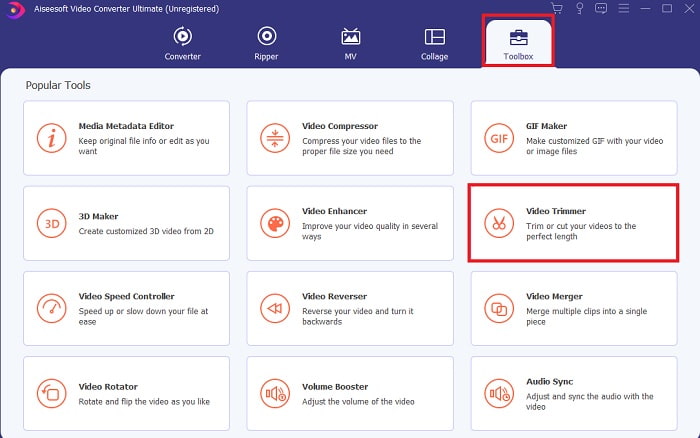
Bước 2. Nếu giao diện này đã hiển thị trên màn hình thì hãy nhấp vào Thanh công cụ và tìm Trình cắt video phía bên dưới.
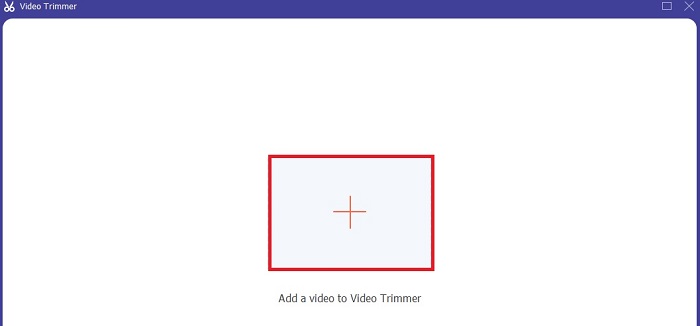
Bước 3. Nhấn nút dấu cộng để thêm tệp. Chọn tệp trong ổ đĩa mà bạn muốn cắt và nhấn mở để chèn video.
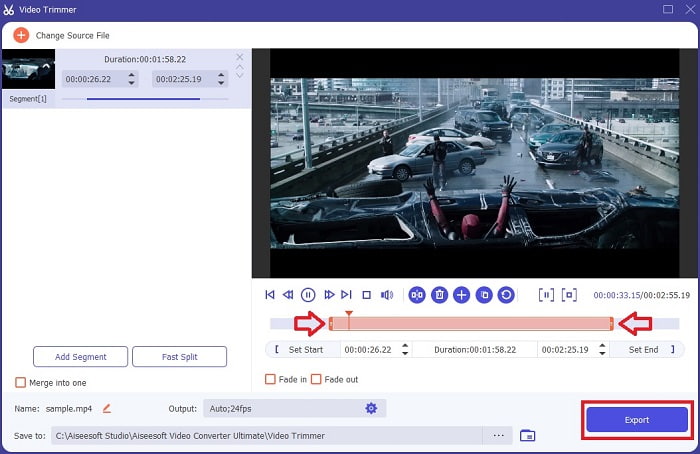
Bước 4. Để điều chỉnh điểm bắt đầu và kết thúc của video, hãy thao tác điểm vào và ra của phát lại để đặt độ dài như bạn muốn. Thêm hiệu ứng mờ dần xuất hiện và biến mất nếu bạn muốn. Bạn cũng có thể thay đổi định dạng đầu ra nếu nhấn nút bánh răng. Khi hoàn tất, nhấn nút Xuất để bắt đầu quá trình cắt video.
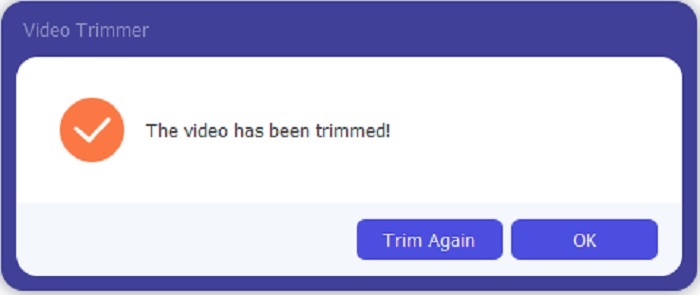
Bước 5. Chỉ cần chờ trong giây lát và video của bạn sẽ được cắt xong. Sau đó nhấn OK hoặc Cắt lại nếu bạn cần cắt thêm video khác. Nếu muốn nâng cao chất lượng video vừa tạo, hãy nhấn lại vào thanh công cụ và tìm mục tăng cường video.
Lợi thế của việc có một công cụ hợp nhất được cung cấp bởi FVC Video Converter Ultimate với các bước
Không giống như bất kỳ ứng dụng nào khác, việc hợp nhất video trong FVC Video Converter Ultimate rất dễ thực hiện. Đây là một tính năng thưởng nếu bạn có được công cụ này. Như đã nói, công cụ này là một công cụ đa năng, vì vậy chúng ta hãy bắt đầu hợp nhất các video khác nhau thành một.
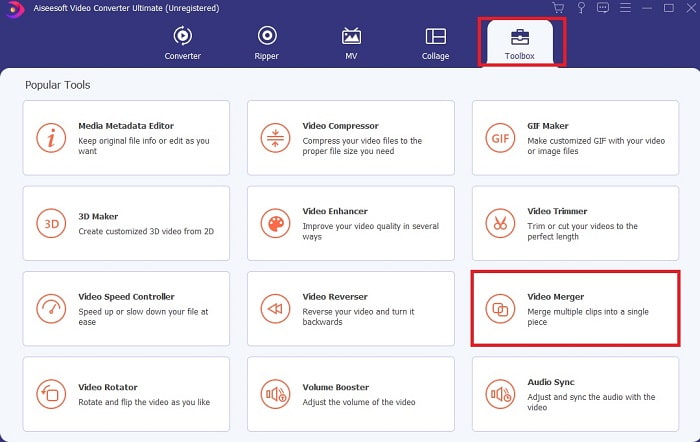
Bước 1. Mở phần mềm, đi đến Thanh công cụ rồi tìm Trình ghép video và nhấp vào đó.
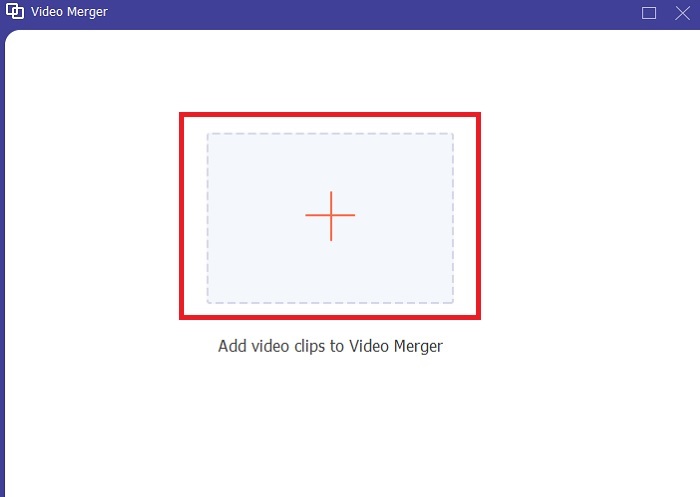
Bước 2. Nhấn nút thêm và chọn video bạn muốn ghép, sau đó nhấn mở để tiếp tục. Sau khi chọn tệp đầu tiên, nhấn dấu cộng để thêm những tệp khác mà bạn muốn ghép.
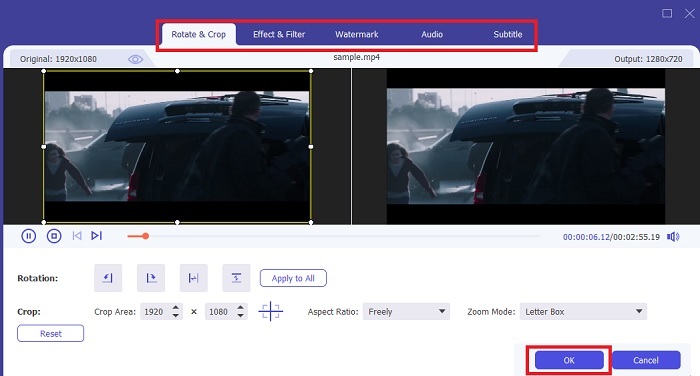
Bước 3. Trên giao diện, nhấn nút cây đũa thần để thêm hiệu ứng, nâng cao âm thanh, xoay hoặc cắt khung hình và thêm phụ đề. Để lưu các chỉnh sửa vừa thực hiện, hãy nhấn OK. Nếu muốn, bạn lặp lại thao tác tương tự với các video khác.
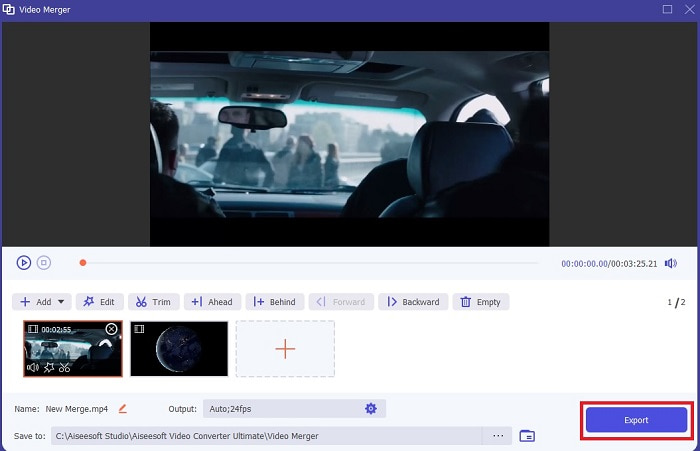
Bước 4. Khi đã sẵn sàng bắt đầu quá trình, hãy nhấn Xuất. Sau khi xuất xong sẽ có trình quản lý tệp bật lên trên màn hình của bạn. Để xem video đã xuất, chỉ cần nhấp vào tệp đó và thưởng thức.
Phần 2. Máy cắt MP4 tốt nhất trực tuyến
Đây có thể là một trình cắt khá tốt nhưng vẫn không phải là tốt nhất như FVC Video Converter Ultimate. Tuy vậy, cũng rất đáng để bạn thử dùng những trình cắt MP4 trực tuyến này.
1. Máy cắt video trực tuyến 123Apps
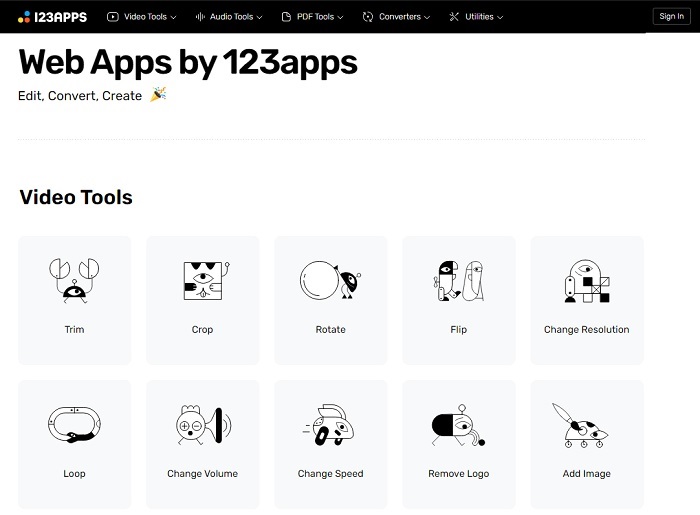
Công cụ trực tuyến đầu tiên này nhằm cải thiện video của bạn. Nó có thể điều chỉnh thời lượng của video, cắt, thêm văn bản và hơn thế nữa. Nhưng công cụ này mất rất nhiều thời gian của bạn để được xuất ra. Sau khi xuất, bạn phải tải xuống và quá trình này sẽ phụ thuộc vào tốc độ internet của bạn. Ngoài ra, bạn không thể điều chỉnh chất lượng video của mình. Vì vậy, nếu video của bạn hơi mờ và cần điều chỉnh khung hình / giây, bạn không thể thực hiện ở đây. Tuy nhiên, nó vẫn đáng để thử.
2. Video
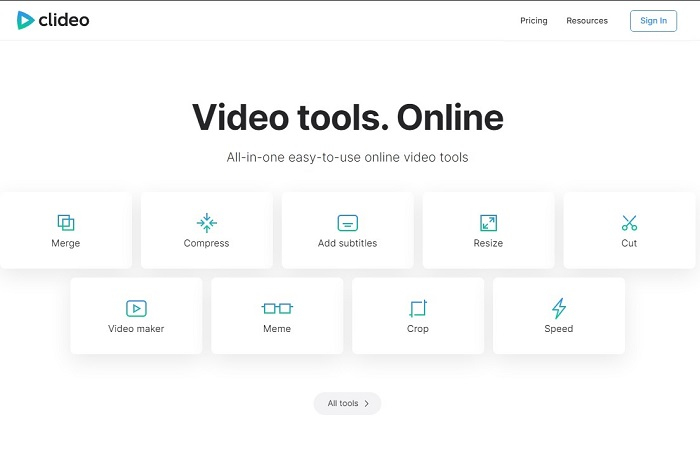
Nếu nói về việc cắt video thì đây cũng là một lựa chọn tốt. Clideo là một trong những trình cắt MP4 trực tuyến tốt nhất mà bạn có thể tìm thấy. Cũng giống như công cụ trực tuyến đầu tiên được đề cập ở trên, công cụ này cũng cung cấp các tính năng chỉnh sửa cơ bản. Tuy chỉ hỗ trợ chỉnh sửa cơ bản nên vẫn chưa đủ nếu bạn muốn làm một video thật bắt mắt. Nhưng bạn có thể dùng thử trực tuyến, không cần lo lắng vì nó miễn phí và an toàn.
Phần 3. 3 Ứng dụng cắt MP4 tốt nhất trên Android và iOS
Điều gì sẽ xảy ra nếu bạn không có máy tính để bàn để sử dụng các công cụ trên và muốn trở thành một vlogger thì vẫn có thể? Nếu bạn có điện thoại như Android hoặc iOS thì bạn có thể sử dụng các ứng dụng này để thực hiện chỉnh sửa trên điện thoại của mình. Nhưng có một số tính năng có sẵn ở trên không có ở đây. Vì vậy, hãy tiếp tục đọc phần bên dưới để biết những công cụ này là gì và lựa chọn chúng.
1. iMovie dành cho iOS
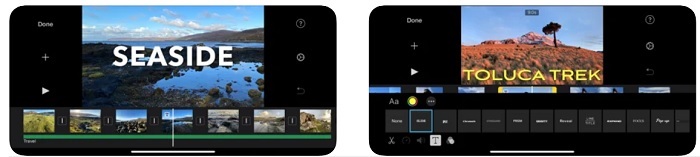
Nếu bạn muốn thêm phong cách kiểu Hollywood vào video của mình thì iMovie là phần mềm phù hợp. Ứng dụng cắt MP4 này được tạo ra chỉ dành cho người dùng iOS. Tuy công cụ cung cấp các tính năng chỉnh sửa cao cấp nhưng một số lỗi vẫn chưa được khắc phục. Trong một số trường hợp, ứng dụng luôn bị treo mỗi khi bạn chỉnh sửa và màn hình chuyển sang màu đen. Đôi khi video và âm thanh không đồng bộ do trục trặc. Đây chỉ là một vài lỗi ví dụ, có thể xem là lỗi nhỏ nhưng lại rất khó chịu trong phần lớn thời gian. Vì vậy nếu muốn thử iMovie, bạn vẫn có thể tải nó trên App Store.
2. Trình chỉnh sửa và tạo video - Viva Video dành cho Android
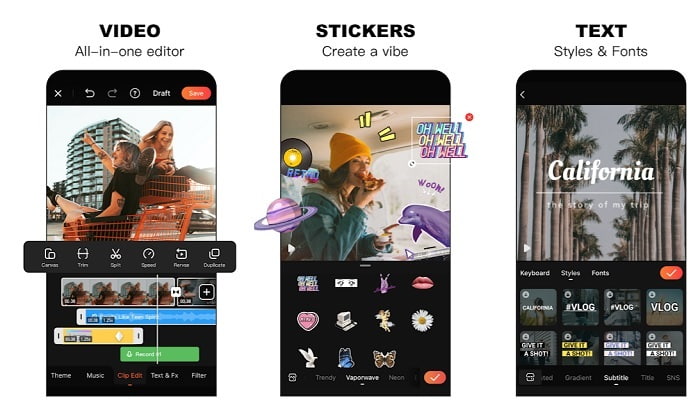
Một trong những trình cắt MP4 miễn phí tốt nhất trên Android là Video Editor & Maker – Viva Video. Cũng giống như công cụ ở trên, cả hai đều cung cấp các tính năng chỉnh sửa tốt trên điện thoại. Chẳng hạn như hiệu ứng chuyển cảnh, hiệu ứng glitch và nhiều hơn nữa, nhưng đây là công cụ trả phí. Có trường hợp nó không thật sự tuyệt vời vì không có nút hủy đăng ký để dừng ứng dụng. Vì vậy cách tốt nhất bạn nghĩ có lẽ là xóa ứng dụng để kết thúc gói đăng ký, nhưng việc đó cũng không chấm dứt được. Nó vẫn tiếp tục trừ tiền thẻ tín dụng của bạn nếu bạn chọn phương thức thanh toán này. Nhưng nhìn chung, công cụ này vẫn thuộc hạng A, không hơn không kém.
Phần 4. Câu hỏi thường gặp về Máy cắt MP4
MP4 là gì?
MP4 còn được gọi là định dạng đa phương tiện. Thay vì lưu trữ mã, nó lưu trữ dữ liệu của video, ảnh tĩnh, phụ đề hoặc văn bản. Ngoài ra, nó là định dạng video được sử dụng phổ biến nhất trên toàn thế giới.
MP4 là mất dữ liệu hay không mất dữ liệu?
Là một định dạng đa dụng, MP4 là một định dạng nén mất dữ liệu.
Định dạng tốt nhất ngoài MP4 là gì?
Có một số định dạng cho chất lượng đầu ra tốt hơn MP4 nhưng lại không linh hoạt bằng định dạng này. Ví dụ, WMV cho kích thước tệp nhỏ hơn MP4 nhưng lại không tương thích với thiết bị Apple, vì nó được thiết kế làm định dạng gốc cho Windows Media Player. Bạn có thể chọn chuyển đổi tệp MP4 của mình sang WMV để phát lại tốt hơn.
Phần kết luận
Để kết lại, giờ đây sẽ dễ hiểu hơn sự khác nhau giữa từng công cụ để bạn lựa chọn sử dụng. Nhưng như đã nói ở trên, không phải tất cả đều cung cấp tính năng cắt tuyệt vời như FVC Video Converter Ultimate. Đặc biệt là khi bạn muốn tạo ra những video hấp dẫn hơn để thu hút nhiều lượt xem và kiếm lợi nhuận. Vậy nên, thay vì tạm hài lòng với những công cụ nhất thời, sao bạn không chọn FVC Video Converter Ultimate để hướng tới tương lai và sở hữu phiên bản tốt nhất cho chính mình.
-
 Hướng dẫn cách chuyển đổi RMVB sang MP4 trên Windows / Mac (3 cách miễn phí)
 Bạn muốn chuyển đổi RMVB sang MP4 để dễ dàng phát lại trên máy tính hoặc điện thoại di động? Bạn sẽ tìm thấy các cách đơn giản để chuyển đổi các tệp RMVB của mình sang MP4 trong hướng dẫn này.
-
 4 Bộ chuyển đổi MP4 sang M4V tốt nhất để biến video MP4 thành M4V một cách dễ dàng
 Khi bạn cần thay đổi tệp MP4 sang M4V, bạn nên tìm hiểu thêm thông tin chi tiết về sự khác biệt giữa hai định dạng, cũng như các bộ chuyển đổi MP4 sang M4V tốt nhất từ bài viết.
-
 AMV Converter - 3 phương pháp tốt nhất để chuyển đổi MP4 sang AMV trên Win / Mac
 Bộ chuyển đổi MP4 sang AMV tốt nhất để chuyển video thành Amine Music Video là gì, bạn có thể tìm hiểu thêm về 3 phương pháp hiệu quả nhất để có được video mong muốn một cách dễ dàng từ bài viết.
