


 Chuyển đổi video Ultimate
 Trình ghi màn hình
 Sửa chữa video
 Tải xuống an toàn
7 cách dễ dàng để nhanh chóng chuyển đổi HEIC sang PNG trong vài giây
Bạn muốn làm cho tệp HEIC của mình tương thích rộng rãi với nhiều thiết bị khác? Chúng tôi có đúng thứ bạn cần! Bài viết này sẽ chỉ cho bạn những cách tốt nhất để chuyển đổi tệp HEIC sang PNG mà không gặp khó khăn. Vậy nên hãy cùng tìm hiểu những cách tốt nhất để chuyển đổi HEIC sang PNG một cách dễ dàng.

Phần 1. Tại sao phải chuyển đổi định dạng HEIC sang PNG
Định dạng tệp HEIC là định dạng hình ảnh do Apple tạo ra. Nó là một định dạng hình ảnh mà các thiết bị Apple thường sử dụng. Mặc dù nó có độ phân giải chất lượng cao nhưng nó không chiếm quá nhiều dung lượng trên thiết bị của bạn. Tuy nhiên, các tệp HEIC không tương thích với các thiết bị không phải của Apple. Ngược lại, PNG, viết tắt của Portable Graphics Format, là một định dạng tệp hình ảnh được tạo ra để thay thế các định dạng GIF.
Đây là định dạng hình ảnh được sử dụng nhiều nhất không nén, có nghĩa là nó có kích thước tệp lớn. Tuy nhiên, hầu hết tất cả các thiết bị đều hỗ trợ định dạng tệp hình ảnh này. Vì vậy, nếu bạn muốn mở hình ảnh HEIC của mình trên các thiết bị khác ngoài Apple, tốt hơn nên chuyển nó sang định dạng tệp PNG.
Phần 2. 5 cách dễ dàng để chuyển đổi tệp HEIC của bạn sang tệp PNG trực tuyến
Việc tìm kiếm các cách tốt nhất để chuyển đổi HEIC sang PNG là khá khó khăn. Tuy nhiên, chúng tôi đã tìm kiếm các phương pháp tốt nhất và đơn giản nhất để bạn thay đổi HEIC sang định dạng tệp PNG.
Sử dụng FVC Miễn phí chuyển đổi HEIC sang PNG
Cách tuyệt vời nhất để chuyển HEIC sang PNG là dùng công cụ chuyển đổi. Và công cụ tốt nhất mà chúng tôi tìm thấy trên Internet là FVC Free HEIC to PNG Converter. Trình chuyển đổi này là một công cụ trực tuyến giúp bạn chuyển tệp HEIC sang định dạng PNG một cách tiện lợi. Ngoài ra, nếu bạn muốn chuyển đổi hàng loạt tệp HEIC sang PNG, công cụ này cũng có tính năng đó cho bạn.
Nó cũng có thể truy cập được trong hầu hết các trình duyệt phổ biến khiến nó trở thành một công cụ không giới hạn trình duyệt. Hơn nữa, nó có giao diện phần mềm đơn giản và không có giới hạn kích thước tệp, vì vậy bạn có thể chuyển đổi tệp HEIC mà không cần suy nghĩ về kích thước tệp. Do đó, hãy làm theo hướng dẫn đơn giản dưới đây nếu bạn muốn sử dụng công cụ chuyển đổi HEIC sang PNG trực tuyến này.
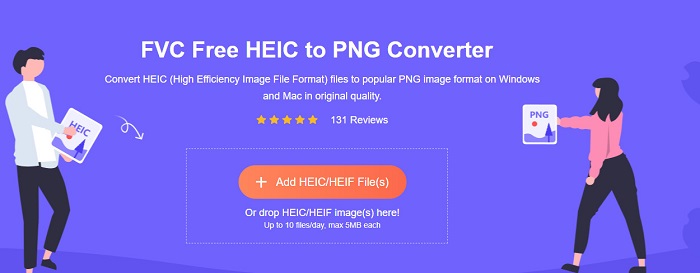
Bước 1. Trên trình duyệt của bạn, hãy tìm kiếm FVC Free HEIC to PNG Converter. Bạn cũng có thể nhấn vào liên kết này để truy cập trực tiếp vào trang web của họ. Đây là giao diện đầu tiên mà bạn sẽ thấy:
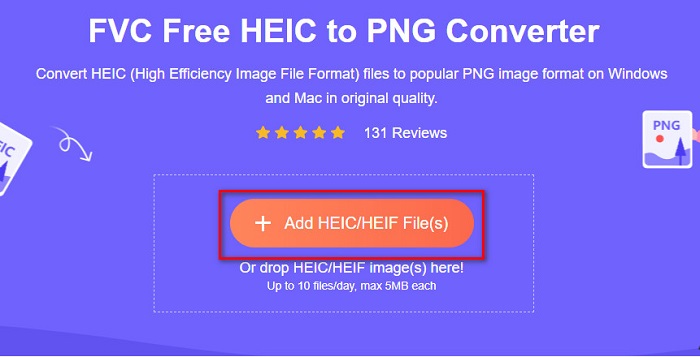
Bước 2. Tiếp theo, nhấp vào nút Add HEIC/HEIF File(s). Các thư mục trong máy tính sẽ xuất hiện, và bạn hãy chọn tệp HEIC của mình.
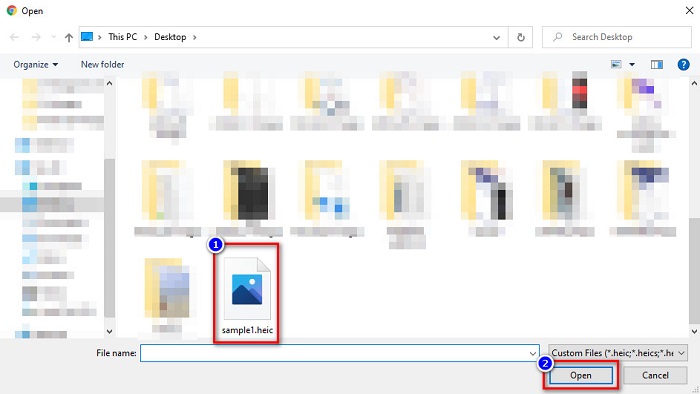
Bước 3. Sau đó, các thư mục trên máy tính của bạn sẽ hiện ra để bạn chọn tệp HEIC. Nhấn Open. Sau đó quá trình chuyển đổi HEIC sang PNG sẽ bắt đầu.
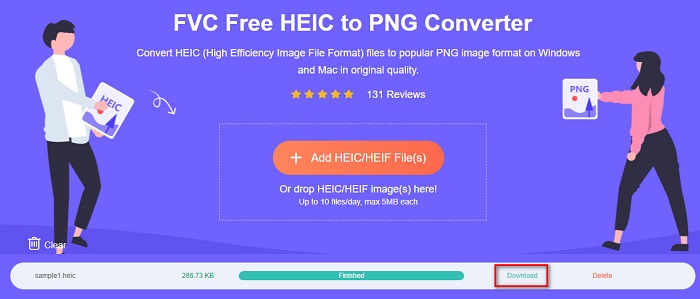
Bước 4. Cuối cùng, tại giao diện phần mềm, nhấp vào nút Download để tải tệp PNG của bạn về.
Đơn giản phải không? Bạn có thể chuyển đổi tệp HEIC của mình thành tệp PNG bằng cách làm theo các bước đơn giản sau.
Sử dụng Xconvert.com
Xconvert là một công cụ chuyển đổi HEIC sang PNG trực tuyến miễn phí, giúp chuyển các tệp HEIC sang tệp PNG dễ dàng. Trình chuyển đổi trực tuyến này có giao diện phần mềm dễ dùng, rất hữu ích cho người mới bắt đầu. Hơn nữa, bạn có thể thay đổi độ phân giải hình ảnh khi sử dụng công cụ này. Tuy nhiên, vì là công cụ phụ thuộc vào Internet nên bạn có thể gặp tình trạng chuyển đổi chậm khi mạng yếu. Nó cũng chứa quảng cáo có thể gây phiền cho bạn.
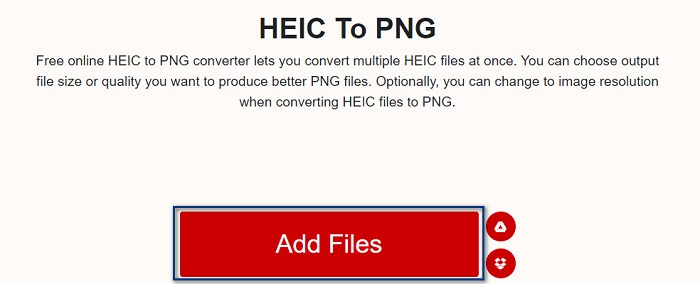
Bước 1. Tìm Xconvert.com trên trình duyệt. Tại trang web của họ, nhấp nút Add Files, sau đó các tệp trên máy tính của bạn sẽ xuất hiện, rồi chọn tệp HEIC của bạn.
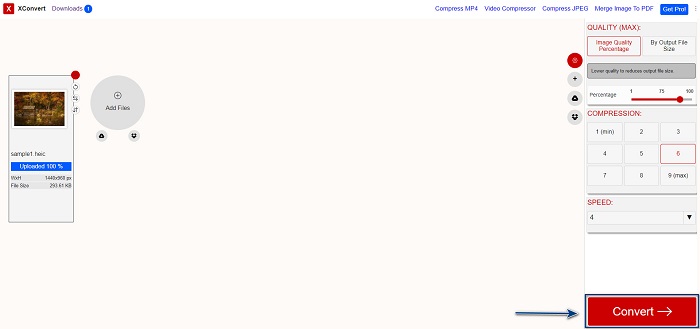
Bước 2. Hình ảnh của bạn sẽ được tải lên giao diện phần mềm. Sau khi tải lên, nhấp nút Convert ở góc dưới bên phải giao diện. Sau đó chờ cho đến khi tệp sẵn sàng để tải xuống, rồi chuyển sang bước tiếp theo.
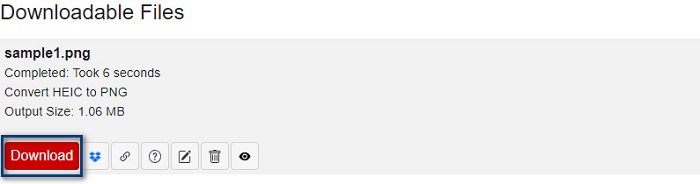
Bước 3. Khi tệp của bạn đã sẵn sàng, nhấp nút Download để tải tệp PNG về; phía trên nút tải về, bạn cũng sẽ thấy kích thước đầu ra và thời gian chuyển đổi.
Sử dụng Zamzar
Một cách khác để chuyển HEIC sang PNG trực tuyến là dùng trình chuyển đổi trực tuyến Zamzar. Có lẽ bạn đã thấy công cụ này khi tìm kiếm trình chuyển HEIC sang PNG. Trình chuyển đổi này có thể truy cập trên hầu hết các trình duyệt. Ngoài ra, nó có giao diện đơn giản nên rất thân thiện với người dùng. Tuy nhiên, tệp của bạn có thể bị lỗi nếu kết nối Internet bị gián đoạn trong quá trình chuyển đổi. Dù vậy, rất nhiều người vẫn sử dụng công cụ này để đổi HEIC sang PNG.
Bước 1. Trên trình duyệt bạn dùng, tìm Zamzar. Trên trang web của họ, nhấp nút Add Files. Các tệp trên máy tính sẽ xuất hiện, sau đó tải lên ảnh HEIC của bạn.
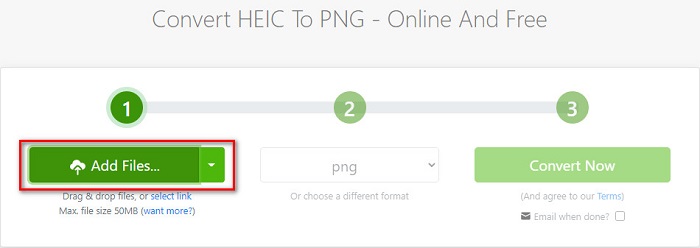
Bước 2. Sau khi tải tệp HEIC lên, nhấp nút drop-down, rồi chọn PNG làm định dạng đầu ra.
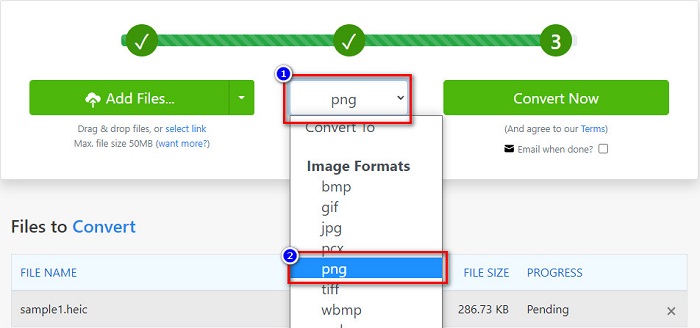
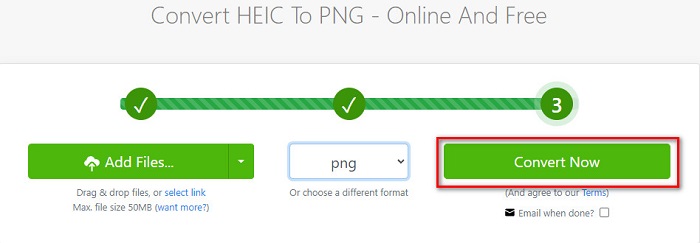
Bước 3. Cuối cùng, nhấp nút Convert Now để chuyển tệp HEIC sang định dạng PNG. Sau đó tải tệp PNG xuống. Chỉ cần đợi vài giây là xong!
Sử dụng Công cụ chuyển đổi.io
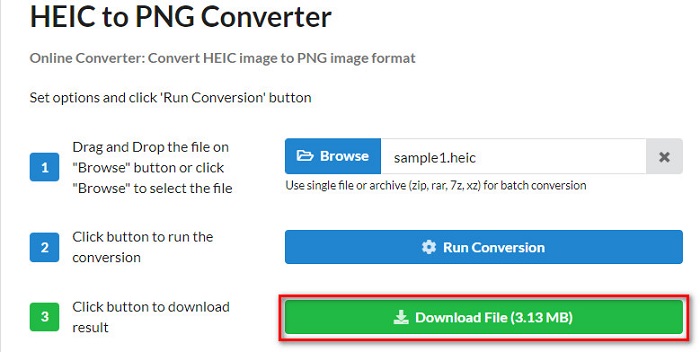
Conversion Tool là công cụ chuyển đổi HEIC sang PNG trực tuyến với giao diện đơn giản. Nó có thể chuyển tệp HEIC sang PNG với tốc độ cao. Hơn nữa, nó không chứa quá nhiều quảng cáo như các công cụ trực tuyến khác. Nhưng nhược điểm là bạn chỉ có thể chuyển tối đa mười tệp mỗi ngày và bị giới hạn dung lượng tệp. Tuy nhiên, nếu bạn chỉ chuyển các tệp nhỏ thì công cụ này có thể phù hợp với bạn.
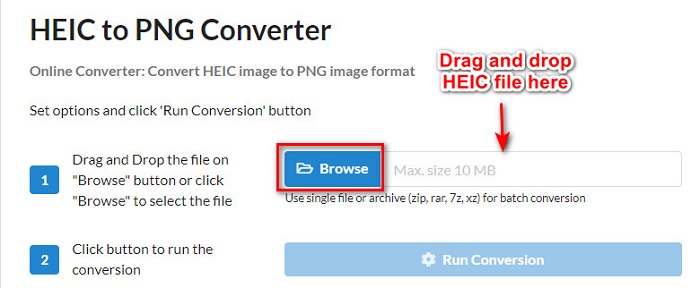
Bước 1. Tìm Conversion Tools.io trên trình duyệt của bạn. Sau đó, nhấp nút Browse trên giao diện chính của phần mềm, hoặc kéo và thả tệp HEIC của bạn vào nút Browse.
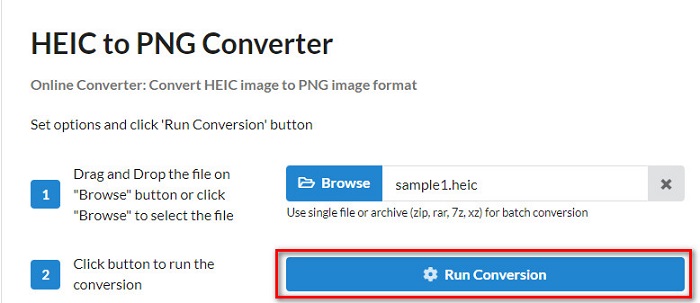
Bước 2. Sau đó, nhấp nút Run Conversion để bắt đầu chuyển tệp HEIC sang tệp PNG. Đợi cho đến khi tệp ảnh được xử lý xong, rồi chuyển sang bước tiếp theo.
Bước 3. Để kết thúc, nhấp nút Download để tải tệp PNG về.
Sử dụng CDKM
Công cụ cuối cùng mà chúng tôi muốn giới thiệu là CDKM. Công cụ này cho phép bạn chuyển tệp HEIC sang PNG chỉ với vài cú nhấp chuột. Tuy nhiên, việc dùng trình chuyển đổi trực tuyến này có thể mất vài giây tùy vào tốc độ Internet của bạn. Nó cũng chứa quảng cáo có thể gây khó chịu. Dù vậy, nó không giới hạn kích thước tệp, vì thế rất đáng để thử.
Bước 1. Trên trình duyệt, hãy tìm CDKM online converter. Trên giao diện chính của phần mềm, nhấp nút Choose Files. Các thư mục trên máy tính sẽ hiện lên, sau đó chọn tệp HEIC để tải lên.

Bước 2. Tiếp theo, nhấp nút Start Conversion để bắt đầu quá trình chuyển đổi.

Bước 3. Cuối cùng, cuộn xuống một chút và bạn sẽ thấy nút Download. Nhấp nút Download để tải tệp PNG về.

Phần 3. Chuyển đổi HEIC sang PNG trên Mac
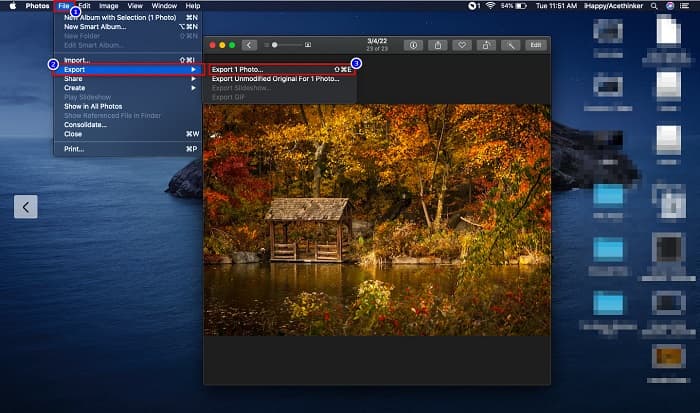
Các thiết bị của Apple hỗ trợ các định dạng tệp HEIC và bằng cách sử dụng Mac, bạn có thể mở một tệp HEIC nguyên bản. Nhưng nếu bạn muốn chuyển đổi tệp HEIC của mình thành PNG, bạn có thể thay đổi tệp này bằng Ứng dụng Ảnh trên máy Mac. Theo đó, nếu bạn là người dùng Mac, tốt hơn nên đọc phần này.
Bước 1. Trước tiên, hãy kéo và thả tệp HEIC của bạn vào Photo App. Sau đó, xem trước ảnh HEIC và nhấp File > Export > Export 1 Photo.
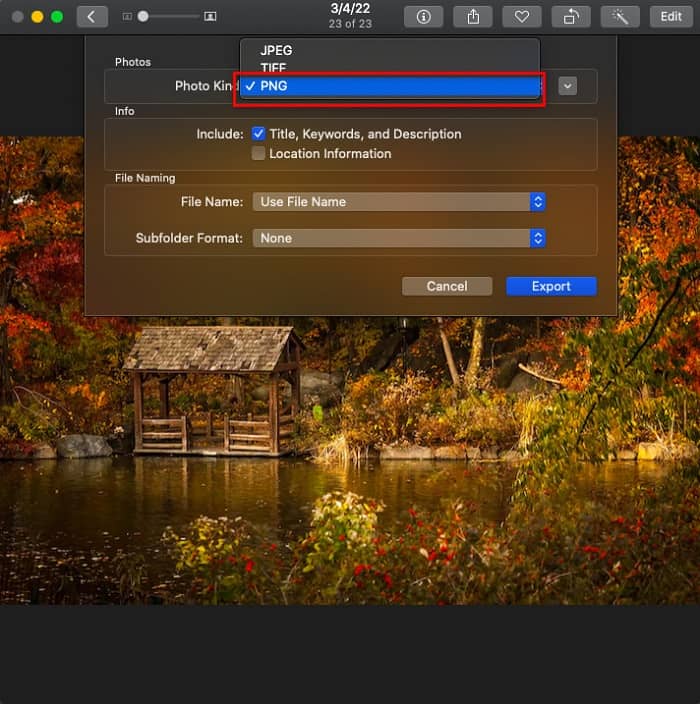
Bước 2. Sau đó, tại phần Photo Kind, hãy chọn định dạng xuất mà bạn muốn. Chọn định dạng tệp PNG.
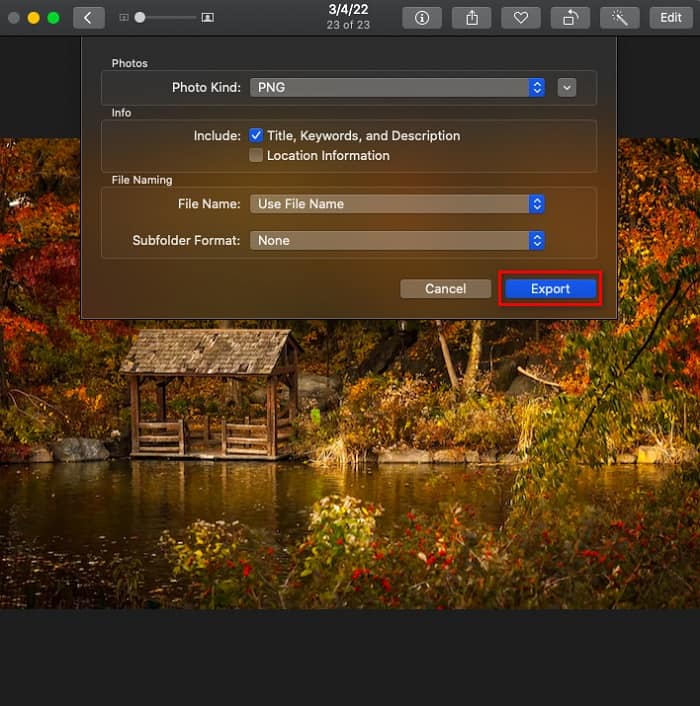
Bước 3. Tiếp theo, nhấp nút Export, rồi chọn thư mục lưu tệp đầu ra. Bạn sẽ thấy tệp HEIC của mình đã được đổi sang định dạng PNG.
Phần 4. Chuyển đổi tệp HEIC sang PNG trên iPhone
Nếu đang sử dụng iPhone, bạn có thể mở tệp HEIC trên thiết bị của mình. Nhưng nếu bạn muốn chuyển đổi tệp HEIC của mình sang PNG bằng thiết bị iPhone, thì chúng tôi có một cách cho bạn. Bằng cách làm theo các bước đơn giản và dễ dàng bên dưới, bạn có thể chuyển đổi HEIC sang PNG một cách dễ dàng.
Bước 1. Trong Photo App trên iPhone, chạm vào nút Select ở phía trên màn hình. Sau đó chọn tệp HEIC của bạn, rồi nhấn biểu tượng Share.
Bước 2. Vuốt màn hình lên; bạn sẽ thấy tùy chọn Copy Photo, sau đó nhấn vào đó.
Bước 3. Cuối cùng, mở ứng dụng Files, chạm nút browse và chọn vị trí lưu mong muốn (chạm iCloud Drive hoặc On my iPhone). Sau đó dán tệp HEIC của bạn vào đó.
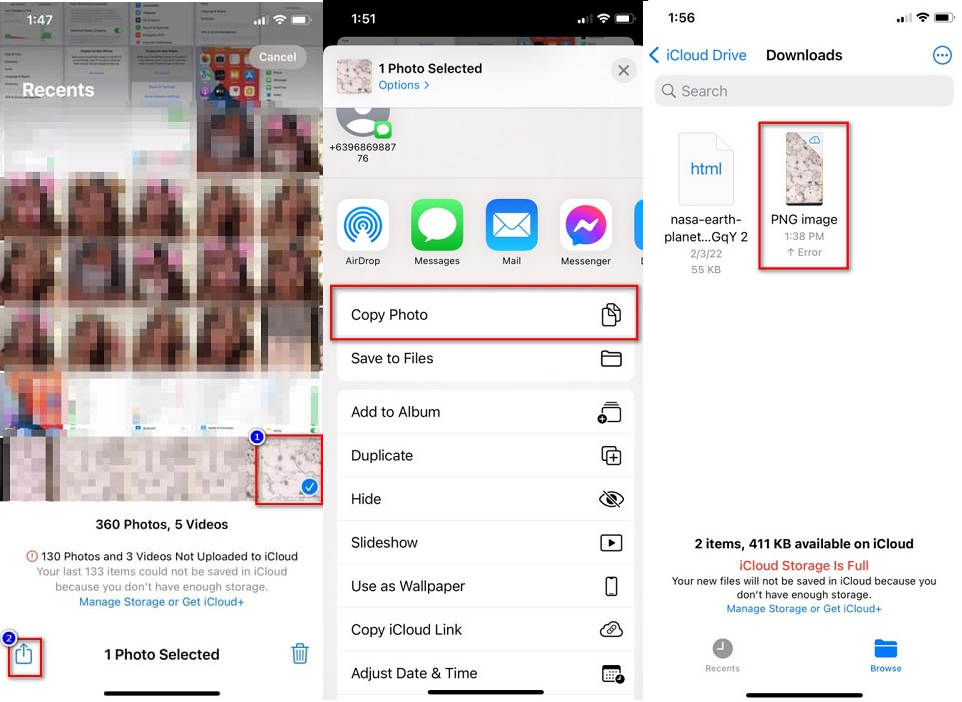
Sau khi dán tệp, bạn sẽ thấy tệp của bạn sẽ tự động được chuyển đổi thành tệp PNG.
Phần 5. Kiến thức mở rộng về tệp HEIC và tệp PNG
Nếu bạn vẫn còn nghi ngờ nếu bạn muốn chuyển đổi tệp HEIC của mình sang PNG, chúng tôi cung cấp cho bạn biểu đồ so sánh để giúp bạn phân biệt sự khác biệt giữa hai tệp này. Hơn nữa, nó cung cấp cho bạn một cái nhìn tổng quan rõ ràng về các đặc điểm HEIC và PNG. Đọc kỹ để biết sự khác biệt giữa tệp HEIC và tệp PNG.
| HEIC | PNG | |
| Khả năng tương thích | Chỉ thiết bị Apple mới hỗ trợ định dạng tệp này. | Hầu hết tất cả các thiết bị đều hỗ trợ tệp này, bao gồm cả các thiết bị của Apple. |
| Kích thước tập tin | Kích thước tệp nhỏ. | Có thể đạt được kích thước tệp lớn. |
| Chất lượng hình ảnh | Chất lượng hình ảnh cao. | Có chất lượng tốt, nhưng không tốt hơn tệp HEIC. |
| Nén / Không nén | Nén | Không nén |
| Chỉnh sửa | Giữ chất lượng hình ảnh khi chỉnh sửa. | Chất lượng có thể giảm khi chỉnh sửa. |
Phần 6. Các câu hỏi thường gặp về Chuyển đổi HEIC sang PNG
Việc chuyển đổi HEIC sang PNG có ảnh hưởng đến kích thước tệp không?
Đúng. Khi bạn chuyển đổi HEIC sang PNG, nó sẽ làm tăng kích thước tệp, mặc dù nó sẽ không cao.
Bạn có thể mở tệp PNG trên Adobe Photoshop không?
Chắc chắn. Bạn có thể mở tệp PNG trên Adobe Photoshop vì Adobe Photoshop hỗ trợ định dạng tệp PNG.
Bạn có thể mở định dạng tệp PNG nguyên bản trên thiết bị Apple không?
Đúng. Khi bạn chụp ảnh màn hình từ iPhone của mình, chúng sẽ tự động được lưu vào Thư viện ảnh dưới dạng tệp PNG.
Phần kết luận
Cuối cùng! Chúng ta đã đi đến phần kết của hành trình. Bài viết này mang đến cho bạn những giải pháp tốt nhất để chuyển tệp HEIC sang định dạng PNG. Tất cả các công cụ chuyển đổi HEIC sang PNG trực tuyến được giới thiệu ở trên đều có thể chuyển tệp của bạn một cách hiệu quả và nhẹ nhàng. Ngoài ra, còn có những lựa chọn khác nếu bạn là người dùng Mac hoặc iPhone. Nhưng nếu bạn đang tìm kiếm trình chuyển HEIC sang PNG tốt nhất với các tính năng nổi bật, thì trình chuyển FVC Free HEIC to PNG là lựa chọn tốt nhất dành cho bạn.
-
 Cách mở tệp HEIC trên Windows, Mac và Trực tuyến
 Bạn đang tìm cách mở tệp HEIC? Bài viết này cung cấp cho bạn các giải pháp tốt nhất để mở tệp HEIC trên Windows, Mac và Trực tuyến.
-
 JPG VS GIF: 3 cách dễ dàng về cách chuyển đổi JPG sang GIF
 Bạn có muốn biết sự khác biệt giữa JPG và GIF không? Hay bạn muốn chuyển JPG sang định dạng động GIF? Sau đó, đọc bài viết này để có một ý tưởng.
-
 5 cách tốt nhất để thay đổi hình ảnh thành GIF động [Cập nhật năm 2022]
 Cần một hình ảnh chuyển đổi sang GIF? Bài viết này sẽ cung cấp năm bộ chuyển đổi tốt nhất mà chúng tôi có thể tìm thấy trên thị trường. Vì vậy, hãy & #039; s tìm hiểu những công cụ này bằng cách đọc bài viết này.
