


 Chuyển đổi video Ultimate
 Trình ghi màn hình
 Sửa chữa video
Hiểu về cách tải xuống liên kết iFunny ở định dạng MP4 [Trực tuyến và Ngoại tuyến]
Như chúng ta đều biết, iFunny là nhà cung cấp meme mới trên web. Nó cũng có các meme được cập nhật hằng ngày trong nhiều danh mục khác nhau. Tuy nhiên, nếu bạn xuất video từ đây thì lúc nào cũng sẽ có một watermark ở góc dưới bên trái của video. Hơn nữa, trong bài viết này chúng ta sẽ nói về cách tải và lưu iFunny sang định dạng MP4 mà không dính watermark. Không chần chừ nữa, hãy cùng tìm hiểu các công cụ bạn có thể dùng để lưu video.

Phần 1. Các phương pháp hay nhất để lưu iFunny Video thành MP4 trên PC và Mac
1. Trình ghi màn hình miễn phí FVC
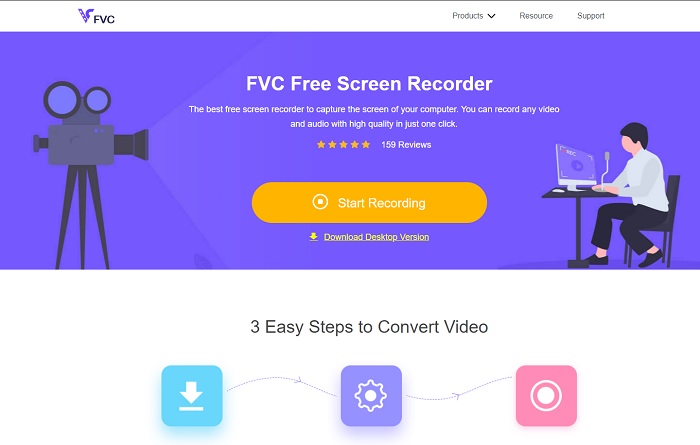
Nếu việc tải trực tiếp video iFunny sang MP4 không phải thế mạnh của bạn, thì ghi màn hình video chắc chắn sẽ phù hợp. FVC Free Screen Recorder cho bạn toàn quyền kiểm soát việc ghi lại video trên màn hình. Bạn cũng có thể đổi định dạng nếu muốn, nhưng tính năng này chỉ hỗ trợ một số định dạng nhất định. Dù vậy, nó vẫn an toàn và bảo mật, không chỉ vì có thư viện tích hợp sẵn để bạn truy cập bản ghi dễ dàng. Hãy nhường chỗ cho công cụ web tốt nhất mà bạn có thể tìm thấy trên internet. Hãy làm theo hướng dẫn dưới đây khi chúng ta nói về cách sử dụng công cụ này.
Bước 1. Truy cập liên kết đã được cung cấp cho bạn, một trang web sẽ được mở ra.
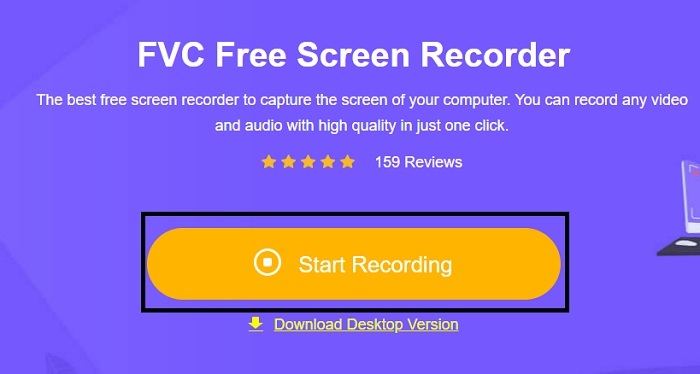
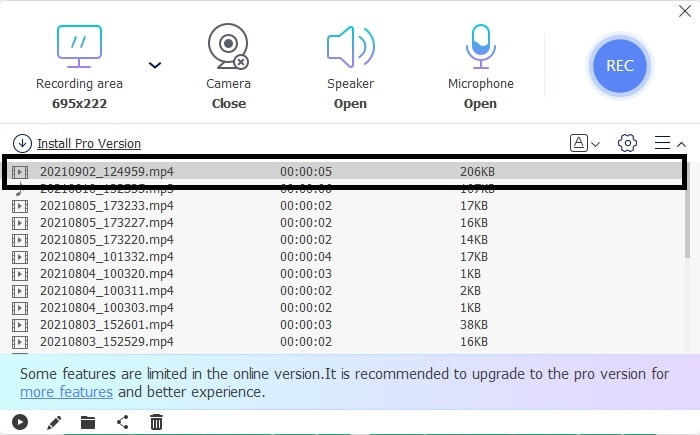
Bước 2. Để khởi động công cụ, nhấp vào Start Recording và cho phép công cụ được chạy.
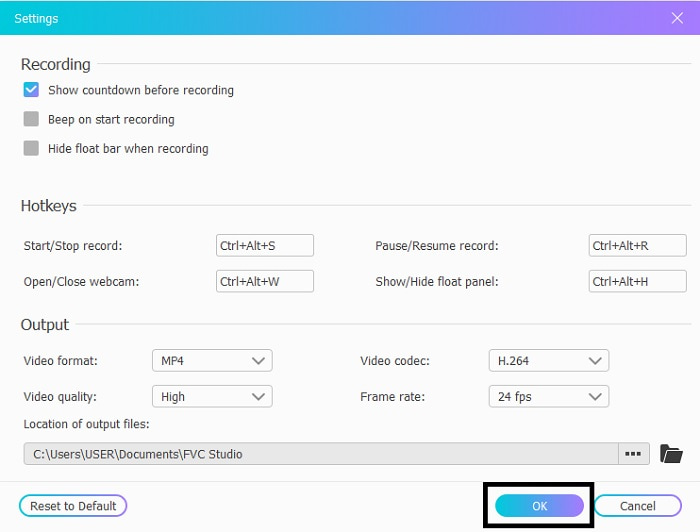
Bước 3. Ở thanh công cụ nhỏ, nhấp vào biểu tượng gear để thay đổi thiết lập ghi hình, phím tắt và định dạng đầu ra nếu bạn muốn. Để lưu các thay đổi, nhấp OK.
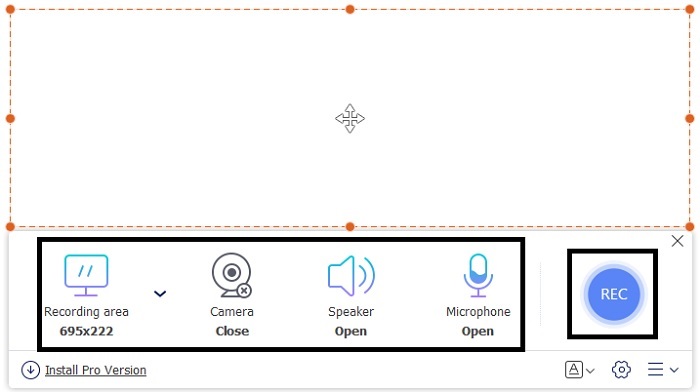
Bước 4. Bây giờ hãy chỉnh chiều dài và chiều rộng của khu vực ghi hình trong Recording Area. Nếu bạn muốn thêm phản ứng khuôn mặt của mình, nhấp vào Webcam; để thêm âm thanh của video hãy bật System Sound; và để thêm giọng nói của bạn, bật Microphone. Nhấp nút tròn REC để bắt đầu ghi.
Bước 5. Khi ghi xong, nhấp nút hình khối vuông để dừng. Tệp sẽ tự động được lưu vào ổ đĩa của bạn, nhưng bạn có thể kiểm tra file đã ghi trong danh sách History và phát lại.
2. Trình ghi màn hình FVC
Chúng ta đều biết công cụ web chỉ cung cấp số lượng tính năng hạn chế, nghĩa là bạn không thể tùy biến và khám phá nhiều. Nhưng nếu chúng tôi nói rằng bạn có thể ghi hình ở mức cao nhất mà không cần tốn nhiều công sức thì sao? Giới thiệu với bạn FVC Screen Recorder, một trình ghi màn hình đa năng tập trung vào tính sáng tạo và giao diện mang tính tương lai. Cách tốt nhất để lưu video iFunny mà không làm giảm chất lượng chính là ghi lại iFunny sang MP4. Bởi vì nếu bạn chia sẻ video sang các nền tảng khác bằng iFunny, rất có thể chất lượng video sẽ bị giảm, đặc biệt là khi bạn tải xuống bằng liên kết.
Có thể bạn đang tự hỏi liệu công cụ này không thân thiện với người dùng hoặc nếu nó dễ sử dụng, nó không thể ghi lại như các công cụ chuyên nghiệp. Thành thật mà nói, không có công cụ nào phát triển loại tính năng đó ngoài FVC Screen Recorder. Có ba điều mà công cụ này tự hào vì nó dễ dàng, hiệu quả và chi phí thấp trong khi trải nghiệm ghi âm vượt trội. Vì vậy, không cần khoe khoang về điều này, hãy tiến hành cách sử dụng nó bằng cách làm theo các bước dưới đây.
Bước 1. Chọn phiên bản chương trình phù hợp với máy tính để bàn hoặc laptop của bạn để tải về. Quá trình này sẽ mất khoảng một đến hai phút để tải vào ổ đĩa. Cài đặt chương trình và thiết lập theo ý bạn, sau đó nhấp Finish để lưu.
Tải miễn phíDành cho Windows 7 hoặc mới hơnTải xuống an toàn
Tải miễn phíDành cho MacOS 10.7 hoặc mới hơnTải xuống an toàn
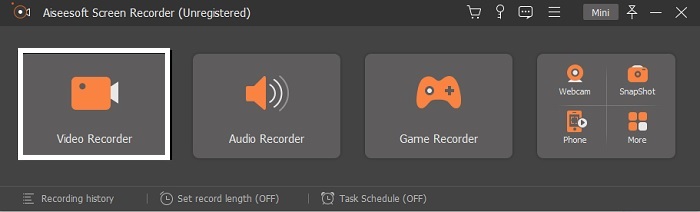
Bước 2. Công cụ sẽ tự động khởi chạy trên màn hình của bạn. Nhấp vào Video Recorder để ghi lại video iFunny.
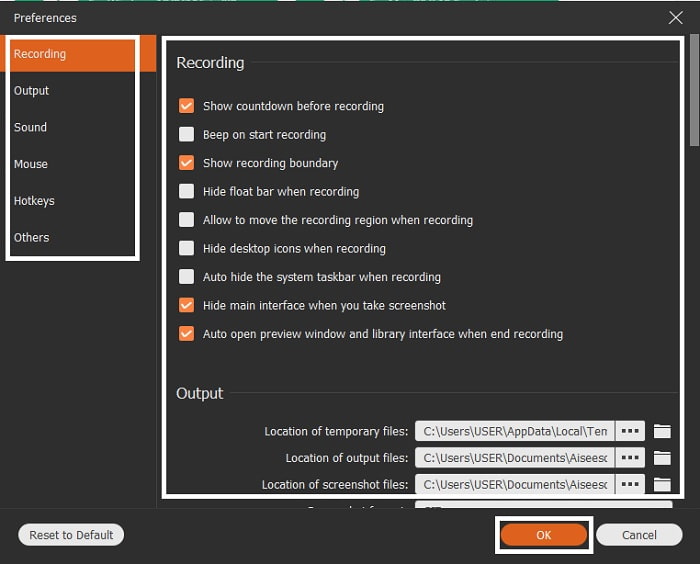
Bước 3. Trên thanh công cụ, vào biểu tượng cog và thay đổi các tùy chọn. Để lưu các chỉnh sửa bạn đã thực hiện, nhấp OK.
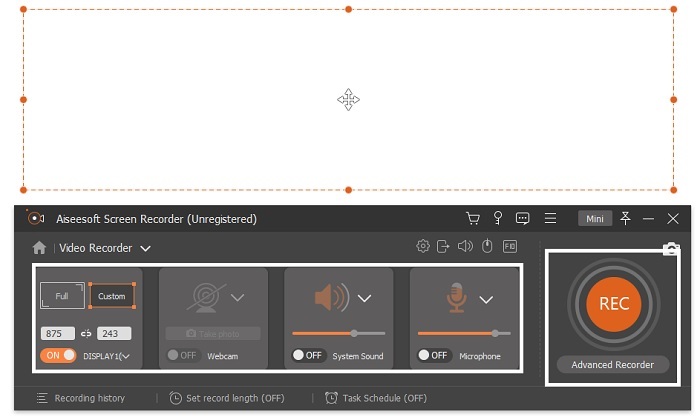
Bước 4. Thay đổi tỷ lệ màn hình của bản ghi theo ý muốn của bạn. Các tính năng khác: để thêm phản ứng của bạn, bật Webcam; để thêm âm thanh của video đang ghi, bật System Sound; và cuối cùng, để thêm giọng nói của bạn, bật Microphone. Khi mọi thứ đã sẵn sàng, nhấp nút REC để bắt đầu ghi.
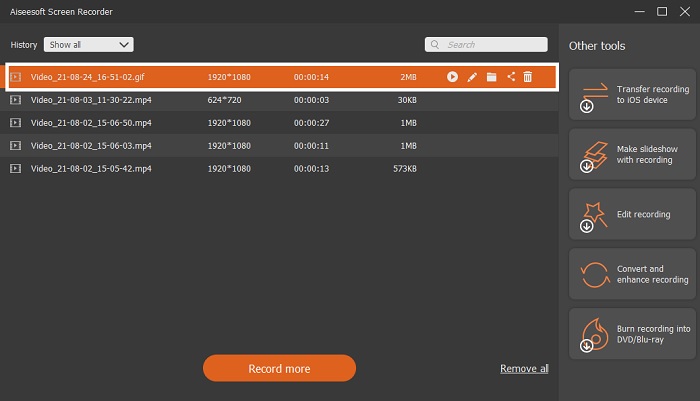
Bước 5. Để dừng ghi, nhấp nút hình vuông. Để lưu video iFunny và lưu trực tiếp dưới dạng MP4, nhấp Save và Next. Nếu bạn muốn xem lại bản ghi iFunny vừa thực hiện, hãy vào Recording List và nhấp vào tệp đầu tiên.
Phần 2. Liên kết iFunny tới Công cụ Web của Trình tải xuống MP4
Tất cả các công cụ có trong danh sách đều là những lựa chọn tốt nhất mà bạn có thể dùng để tải video qua liên kết. Hãy sao chép liên kết iFunny để lưu sang MP4 với sự trợ giúp của các công cụ này.
1. TubeOffline

Hãy chuyển đổi liên kết iFunny với sự trợ giúp của TubeOffline. Công cụ này giúp bạn chuyển đổi rất dễ dàng nhưng nhược điểm là quảng cáo xuất hiện khắp nơi. Ngoài ra, quảng cáo hiển thị trên công cụ không có giới hạn độ tuổi. Khi chúng tôi thử nghiệm công cụ này, giao diện của nó không phù hợp với người dưới 18 tuổi vì có quảng cáo nội dung khiêu dâm. Miễn là bạn còn ở trên trang web, quảng cáo sẽ liên tục bật lên bất ngờ. Nhưng nếu bạn không khó chịu với quảng cáo thì bạn nên thử sử dụng công cụ này.
2. Các chuyên giaPHP
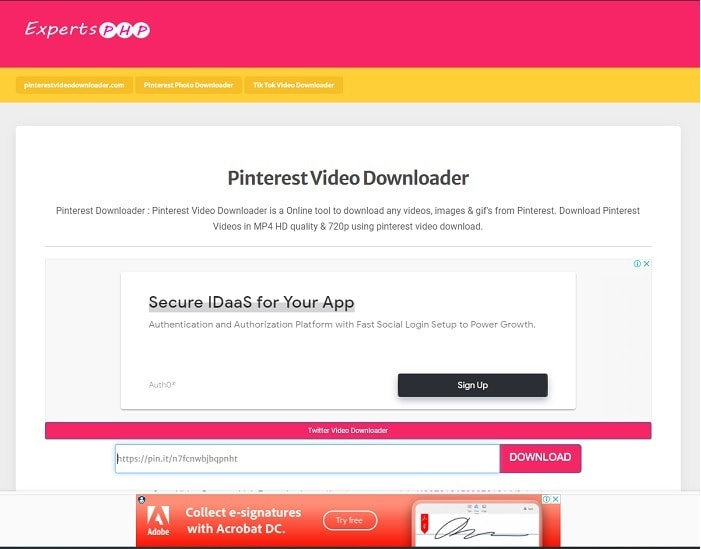
Công cụ này cũng có quảng cáo nhưng ít hơn nhiều so với TubeOffline. ExpertsPHP có thể trở thành trình tải liên kết iFunny sang MP4 dành cho bạn nếu bạn thích dùng nó. Công cụ web này rất rõ ràng, nghĩa là ngay cả người mới cũng có thể sử dụng. Tuy nhiên nó chỉ cung cấp hai lựa chọn: chọn một trong hai rồi tải xuống. Dù công cụ này có thể là lựa chọn của bạn để lưu iFunny, nhưng vẫn có thể xảy ra lỗi nếu tệp không được tải đúng cách. Dù vậy, nó vẫn tốt hơn nhiều so với công cụ đầu tiên, đặc biệt nếu bạn cảm thấy khó chịu vì quảng cáo.
3. DoremiZone
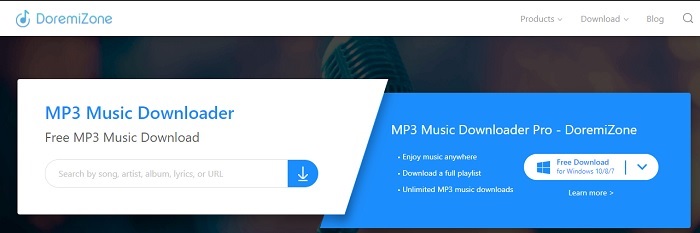
Nếu hai công cụ tải iFunny đầu tiên có quảng cáo thì DoremiZone lại không có quảng cáo. Công cụ này rất nhiều thông tin vì nó hướng dẫn chi tiết cách sử dụng. Tông màu xanh dương và trắng rất phù hợp với giao diện trang web. Ngoài ra, thay vì chỉ đơn giản dán URL và tải xuống, công cụ này có một bộ máy tìm kiếm riêng chỉ dành cho nhạc. Bạn có thể tìm theo tên bài hát, tên nghệ sĩ hoặc lời bài hát. Tuy nhiên, dù cung cấp tính năng nâng cao như vậy, nếu kết nối của bạn bị gián đoạn thì khả năng cao là một phần mã của tệp sẽ bị mất.
Đọc thêm
Phần 3. Câu hỏi thường gặp về iFunny to MP4
IFunny có thích hợp để người dưới tuổi truy cập không?
Giới hạn độ tuổi bắt buộc để truy cập iFunny là 13+ nhưng nếu bạn không đăng nhập vào trang web của họ. Không có cơ hội nào để nhà phát triển iFunny có thể giám sát giới hạn độ tuổi này và các hoạt động của trẻ vị thành niên.
Tôi có thể chia sẻ meme hoặc video của mình trên iFunny không?
Có, bạn có thể chia sẻ meme hoặc video của mình được thực hiện thông qua nền tảng này. Chia sẻ meme bạn đã tạo ở đây và để mọi người sử dụng nó để thể hiện cảm xúc của họ tốt hơn.
Tôi có thể tạo GIF trên iFunny không?
Bạn có thể tạo GIF trên iFunny nhưng vẫn có một công cụ tốt hơn hỗ trợ làm meme. FVC Ultimate Video Converter có một tính năng là trình tạo GIF, cho phép bạn tạo ra những ảnh GIF hài hước nhất mà bạn từng thấy. Bạn chỉ cần tải công cụ này về và vào thanh công cụ để truy cập tính năng đó.
Phần kết luận
Tóm lại, ghi màn hình là cách lý tưởng và tốt nhất để lưu video iFunny sang MP4. Nhưng việc chọn giữa hai cách có thể sẽ khó cho bạn. Khi chúng tôi tìm kiếm công cụ tốt nhất có thể mang lại chất lượng đầu ra tuyệt vời nhất mà bạn mong đợi, thì FVC Screen Recorder là lựa chọn số một trong mảng ghi video, âm thanh, thậm chí là cả gameplay. Nếu bạn mua công cụ này, coi như bạn đã chuẩn bị sẵn cho tương lai. Vì FVC Screen Recorder hứa hẹn sẽ mang đến nhiều tính năng mang tính tương lai hơn nữa khi chúng tôi tiếp tục nâng cấp sản phẩm.
-
 2 cách miễn phí để chuyển đổi ARF sang MP4 trên Mac & PC (100% Làm việc)
 Nhận một tệp ARF, nhưng không biết làm thế nào để mở nó? Bài đăng này có thể giúp bạn một cách chính xác. Đây là 2 cách chuyển ARF sang MP4 miễn phí trên Mac và PC chi tiết.
-
 Hướng dẫn cách chuyển đổi RMVB sang MP4 trên Windows / Mac (3 cách miễn phí)
 Bạn muốn chuyển đổi RMVB sang MP4 để dễ dàng phát lại trên máy tính hoặc điện thoại di động? Bạn sẽ tìm thấy các cách đơn giản để chuyển đổi các tệp RMVB của mình sang MP4 trong hướng dẫn này.
-
 4 Bộ chuyển đổi MP4 sang M4V tốt nhất để biến video MP4 thành M4V một cách dễ dàng
 Khi bạn cần thay đổi tệp MP4 sang M4V, bạn nên tìm hiểu thêm thông tin chi tiết về sự khác biệt giữa hai định dạng, cũng như các bộ chuyển đổi MP4 sang M4V tốt nhất từ bài viết.
