


 Chuyển đổi video Ultimate
 Trình ghi màn hình
 Sửa chữa video
Sơ đồ hữu ích làm lo ngại tình trạng tiến thoái lưỡng nan về độ trễ âm thanh của OBS
Bạn muốn ghi lại một bài thuyết trình video để ngày mai có thể trình chiếu cho lớp học hoặc trình bày trong các cuộc họp kinh doanh. Để làm được điều đó, bạn dùng OBS Studio để ghi hình và lưu vào máy tính. Nhưng khi bắt đầu chỉnh sửa video để thêm một số chi tiết cho bài thuyết trình, bạn nhận thấy âm thanh bị trễ và lệch khỏi hình. Trong bài viết này, bạn sẽ biết lý do vì sao âm thanh trong OBS bị lệch. Và trong trường hợp bạn chưa biết cách xử lý, chúng tôi cũng cung cấp những cách khắc phục tình trạng trễ tiếng một cách dễ thực hiện.

Phần 1. Tại sao OBS Audio Out Of Sync?
Vấn đề chính mà hầu hết streamer gặp phải là khi âm thanh bị lệch: lúc đầu vài phút thì có vẻ ổn, nhưng sau đó bắt đầu xuất hiện độ trễ âm thanh không khớp với khẩu hình miệng trong giờ tiếp theo. Vì quá lo lắng muốn sửa lỗi trong luồng phát, một số người sẽ mở phần thuộc tính âm thanh nâng cao để chỉnh độ lệch đồng bộ (sync offset), thứ chỉ có thể thêm độ trễ cho nguồn âm thanh trong một khoảng thời gian cố định, và điều này không được khuyến khích. Thay vào đó, lý do âm thanh OBS bị lệch là do không khớp tần số lấy mẫu (sample rate).
Phần 2. 7 bước dễ dàng để khắc phục độ trễ âm thanh OBS
Độ trễ âm thanh xảy ra bất kỳ lúc nào; nó có thể nằm trong các nền tảng phát trực tuyến, các bản trình bày được ghi lại và thậm chí là các chương trình phát sóng trực tiếp. Hầu hết lý do điều này xảy ra là do các vấn đề kết nối, khó khăn kỹ thuật và các ứng dụng được lập trình bị lỗi. Ví dụ: bạn đang sử dụng studio OBS làm nền tảng cho hoạt động phát trực tuyến của mình và điều xảy ra là mọi đầu ra video mà bạn phát trực tiếp đều có độ trễ. Điều tốt là có những cách hoàn hảo để ngăn chặn những tình huống này bằng cách sử dụng cùng một nền tảng. Dưới đây là các bước dễ làm theo:
Bước 1: Tìm phần Cài đặt (Settings)
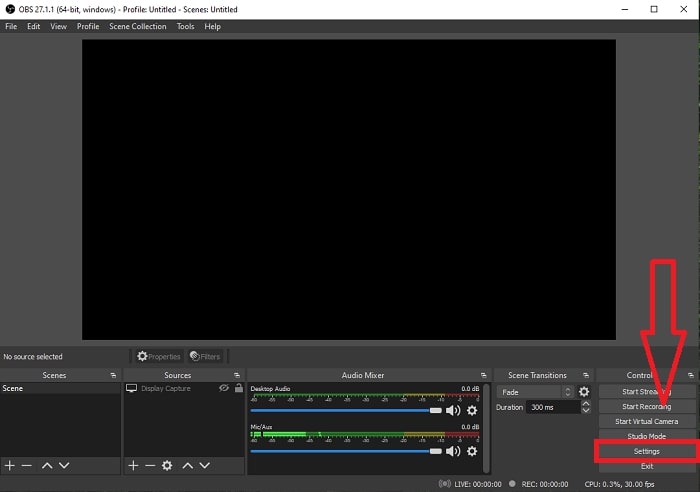
Mở OBS Studio để tiếp tục với giao diện ứng dụng và nhấp vào Cài đặt ở góc dưới bên phải.
Bước 2: Truy cập Cài đặt Âm thanh (Audio Settings)
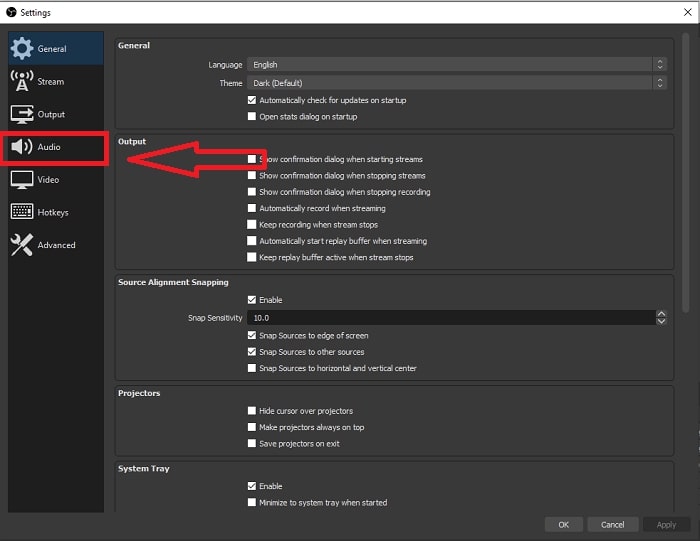
Sau khi bạn nhấp vào Settings, một giao diện khác sẽ xuất hiện trên màn hình. Giao diện này sẽ cho bạn cái nhìn tổng quan về cài đặt chung của OBS Studio. Nhưng để tiếp tục sửa lỗi trễ tiếng trong OBS Studio, hãy nhấp vào mục Audio ở góc bên trái của giao diện.
Bước 3: Chọn tần số lấy mẫu (Sample Rate) phù hợp
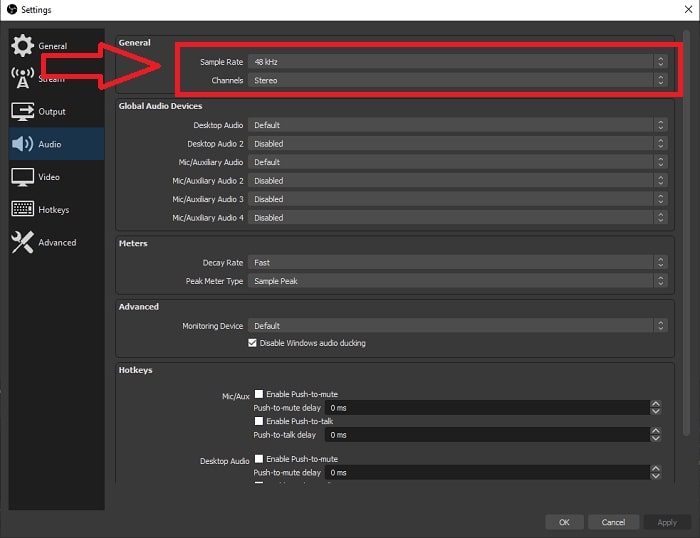
Chỉnh sửa tỷ lệ mẫu dựa trên tỷ lệ mẫu ưa thích của máy tính để bàn và thiết bị ghi âm của bạn. Giả sử thiết bị ghi âm của bạn hơi cổ và bạn có thiết lập cũ. Trong trường hợp đó, sẽ tốt hơn nếu bạn giảm tốc độ lấy mẫu từ tốc độ mẫu tiêu chuẩn là 48 kHz và tăng mức điều chỉnh từ 48 kHz nếu bạn muốn quan sát tốc độ lấy mẫu ưa thích của thiết bị. Bởi vì tốc độ lấy mẫu của video càng cao thì video đó sẽ tạo lại âm thanh gốc càng gần. Hơn nữa, bạn chỉ có thể thay đổi tùy chọn kênh tùy thuộc vào công cụ bạn sử dụng để phát video.
Bước 4: Mở phần Cài đặt Âm thanh (Sound Settings)
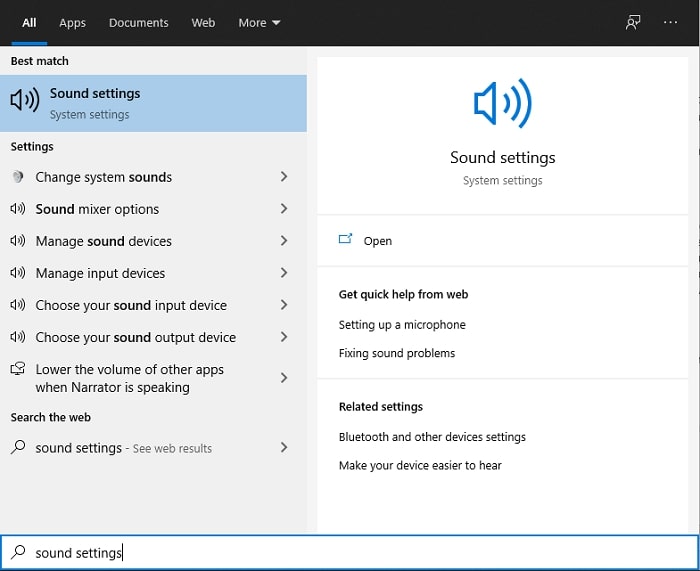
Sau khi đặt tần số lấy mẫu mong muốn trong OBS Studio, hãy gõ Sound Settings trong thanh tìm kiếm trên thanh tác vụ, tìm đến mục Sound Settings và nhấp vào đó để tiếp tục thiết lập trong phần cài đặt âm thanh của máy tính.
Bước 5: Tìm Bảng điều khiển âm thanh (Sound Control Panel)
Nhấp vào Sound Control Panel. Sau khi mở, một giao diện âm thanh khác sẽ xuất hiện trên màn hình bạn – đây là tổng quan về tất cả các thiết bị liên quan đến đầu ra âm thanh.
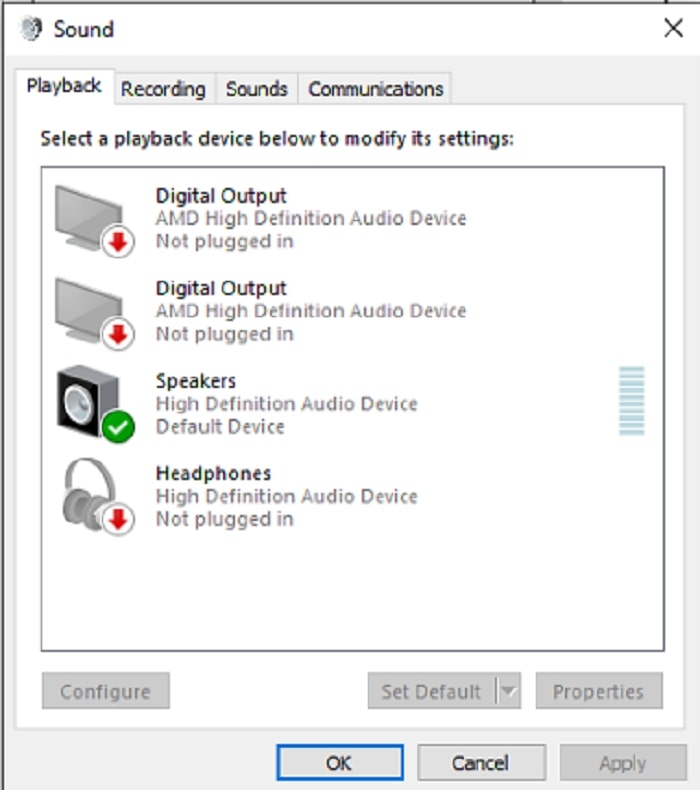
Bước 6: Chọn thiết bị cho đầu ra âm thanh
Các tùy chọn hiện có là các thiết bị có sẵn trong thiết lập ghi âm của bạn, cho dù là loa hay tai nghe. Chọn thiết bị nào khiến âm thanh không đồng bộ hóa và nhấp vào thuộc tính sau đó.
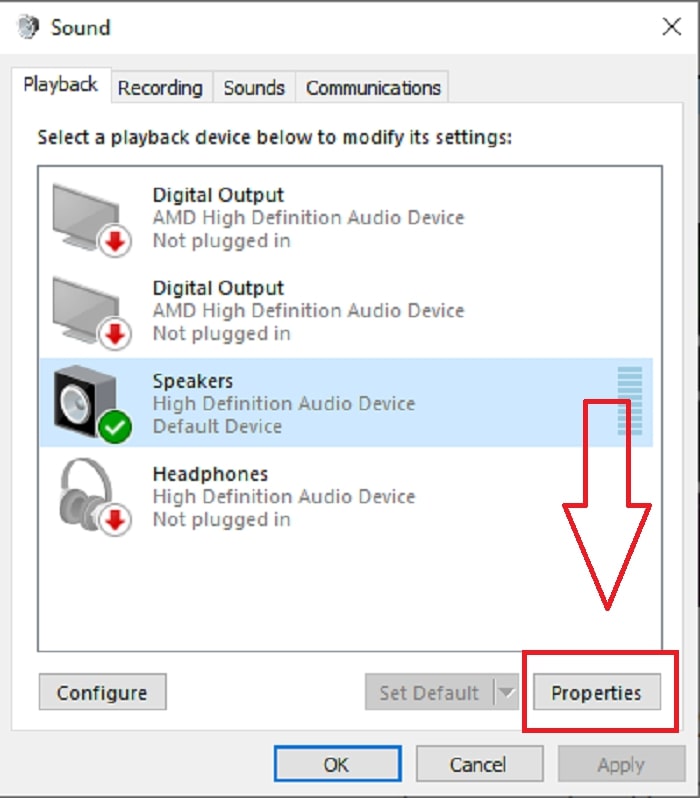
Bước 7: Tiếp tục trong phần Cài đặt nâng cao (Advanced Settings)
Sau đó, sau khi bạn nhấp vào thuộc tính của thiết bị mong muốn dùng làm đầu ra âm thanh, hãy nhấp vào thẻ Advance và bạn sẽ thấy mục định dạng mặc định; hãy thử từng định dạng trong các tùy chọn và chọn định dạng không làm âm thanh bị lệch so với hình.
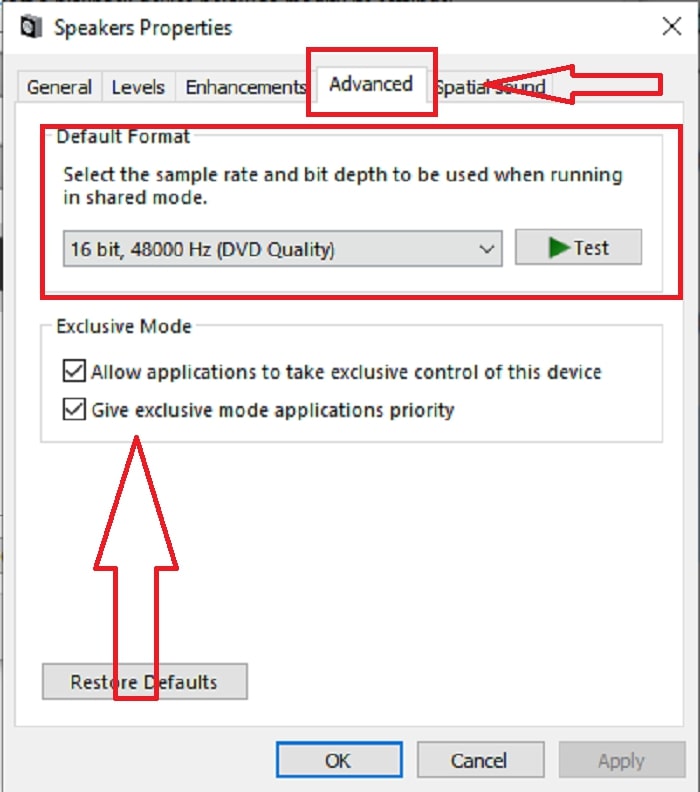
Phần 3. Cách tốt nhất để khắc phục độ trễ âm thanh OBS
Giải pháp ở trên giải thích cách tránh bị trễ tiếng khi dùng OBS Studio, nhưng nếu vấn đề là file ghi âm đã quay mà bạn muốn trình chiếu hoặc tải lên lại bị lệch tiếng thì sao? Hãy dùng FVC Video Converter Ultimate, một phần mềm có nhiều tính năng để cải thiện video clip. Một trong các tính năng đó có thể sửa lỗi lệch tiếng của video bằng cách điều chỉnh độ trễ âm thanh. Hãy làm theo các bước dưới đây để biết cách sử dụng phần mềm:
Bước 1: Để lưu phần mềm vào ổ cứng máy tính, hãy nhấp vào nút Free Download. Sau đó bạn có thể cài đặt phần mềm và tùy chỉnh các thiết lập theo ý mình.
Tải xuống miễn phí cho Windows 7 trở lên. Tải xuống an toàn.
Tải xuống miễn phí cho MacOS 10.7 trở lên. Tải xuống an toàn.
Bước 2: Sau khi khởi chạy phần mềm, hãy nhấp vào tính năng Toolbox, rồi tiếp tục nhấp vào Audio Sync.
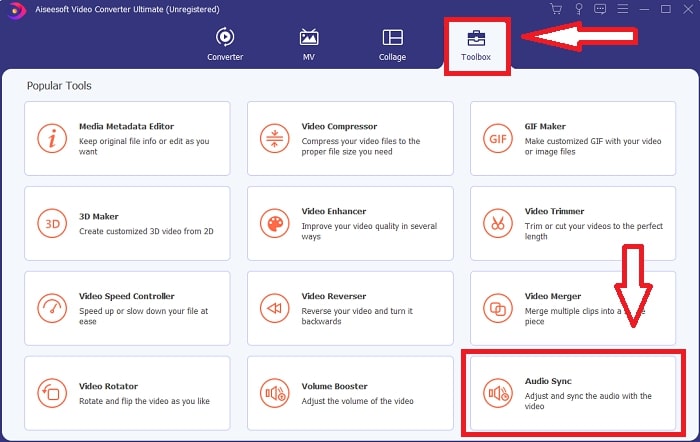
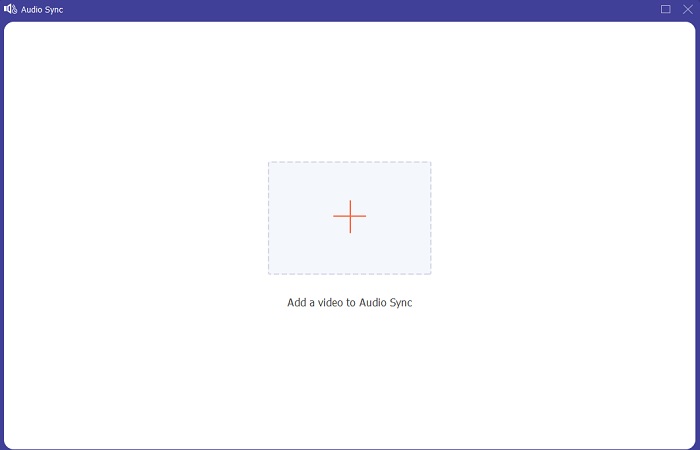
Bước 3: Nhấp vào nút + sau khi nhấp vào Audio Sync và bắt đầu chỉnh sửa video clip.
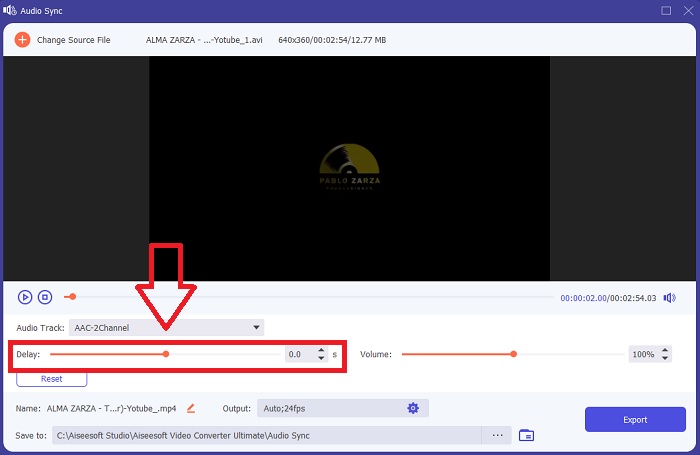
Bước 4: Điều chỉnh Thanh trượt (Slider) của âm thanh để đồng bộ với hình ảnh video clip. Với thao tác này, bạn cũng có thể thay đổi thiết bị đầu ra và bắt đầu tùy chỉnh âm lượng cho video clip.
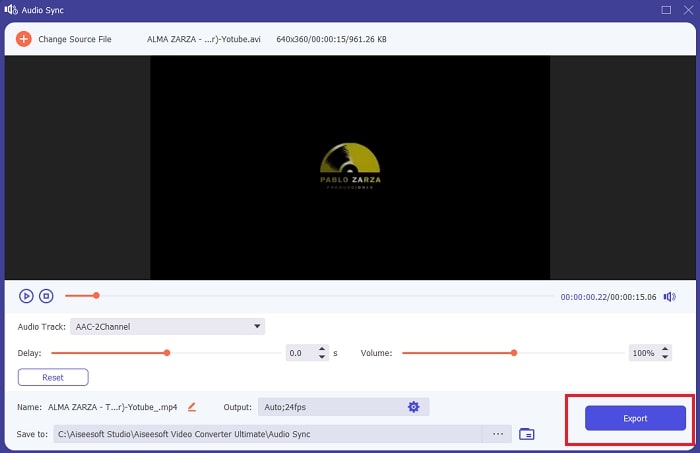
Bước 5: Nhấp vào Export và chọn nơi bạn sẽ lưu tệp sau khi hoàn tất chỉnh sửa.
Có liên quan:
Phần 4. Câu hỏi thường gặp về độ trễ âm thanh OBS
Tỷ lệ mẫu không khớp là gì?
Tốc độ lấy mẫu âm thanh, được biểu thị bằng kilohertz, là tốc độ mà hệ thống thực hiện các phép đo này. Tốc độ mẫu âm thanh xác định dải tần số bạn có thể thu được trong âm thanh kỹ thuật số — tốc độ mẫu thay đổi trong tùy chọn âm thanh của bạn trong hầu hết các DAW. Thay đổi tốc độ lấy mẫu ảnh hưởng đến chất lượng âm thanh của bạn. Tuy nhiên, tốc độ lấy mẫu không khớp là tốc độ nhận và gửi mẫu âm thanh đến nguồn không đồng đều. Sự cố này luôn xảy ra nếu đầu ra loa và đầu ra tai nghe không cùng tốc độ lấy mẫu gây ra độ trễ âm thanh.
Tôi có bị mất chất lượng âm thanh nếu tôi điều chỉnh tốc độ lấy mẫu không?
Tốc độ mẫu sẽ thay đổi nếu bạn muốn nghe âm thanh trong video clip của mình và không thay đổi nó. Khi sử dụng FVC Video Converter Ultimate, bạn sẽ chỉ thay đổi độ trễ âm thanh của video clip để đồng bộ hóa âm thanh của nó. Bạn sẽ không điều chỉnh tốc độ lấy mẫu nữa và sợ mất chất lượng âm thanh.
Tốc độ lấy mẫu nào được ưu tiên nếu tôi sử dụng đầu ra âm thanh chất lượng thấp?
Chất lượng của âm thanh phụ thuộc vào đầu ra âm thanh. Nếu micrô hoặc loa của bạn chỉ hỗ trợ tốc độ âm thanh tần số thấp, tốt hơn nên giảm tốc độ lấy mẫu tiêu chuẩn xuống 44,1 kHz hơn là đặt thành 48 Hz. Tốc độ mẫu có thể ảnh hưởng đến độ trễ đồng bộ hóa âm thanh nếu không có luồng tần số bằng nhau cho đầu ra và đầu vào.
Phần kết luận
Tóm lại, tình trạng trễ tiếng thường xuyên xuất hiện trong OBS Studio có nhiều cách để khắc phục. Chúng tôi đã bàn về lỗi không khớp tần số lấy mẫu và việc kiểm tra các đầu ra âm thanh khác nhau, nhưng cách tốt nhất để xử lý triệt để lỗi lệch tiếng là sử dụng FVC Video Converter Ultimate. Ngoài tính năng sửa đồng bộ âm thanh, phần mềm này còn có rất nhiều chức năng khác giúp cải thiện video clip của bạn.
-
 2 giải pháp tốt nhất để giải quyết Windows Media Player không phát DVD
 Khi bạn muốn phát video DVD thông qua Windows Media Player nhưng chỉ nhận được lỗi “Loại tệp không được hỗ trợ”, bạn có thể tìm hiểu 3 cách dễ dàng để sửa lỗi Windows Media Player không phát được DVD.
-
 [Đã giải quyết] Cách sửa video không phát trên iPhone với các bước chi tiết
 Không thể phát video cục bộ trên thư viện trên iPhone của bạn thông qua trình phát video mặc định? Video YouTube trực tuyến không phát trên iPhone luôn xảy ra? Dưới đây là 5 giải pháp giúp bạn trong bài viết này.
-
 Hướng dẫn cách sửa video không phát trên điện thoại Android
 Bạn muốn biết những lý do khiến video trên thiết bị Android của bạn không phát được là gì? Và nếu có thì có cách nào để tự khắc phục sự cố không? Tiếp tục đọc để biết thêm.
