


 Chuyển đổi video Ultimate
 Trình ghi màn hình
 Sửa chữa video
 Tải xuống an toàn
Các cách hay nhất về cách xóa hình mờ khỏi video trong After Effects
Việc xóa hình mờ khỏi ảnh bằng Adobe Photoshop rất dễ dàng. Nhưng bạn có biết cách xóa hình mờ khỏi video trong Adobe After Effects không? Có người nói rằng điều này khá khó vì chỉ có vài ứng dụng có thể dùng để xóa hình mờ khỏi video. Bạn thật may mắn. Bằng cách sử dụng Adobe After Effects, bài viết này sẽ cung cấp những phương pháp tuyệt vời để xóa các đối tượng không cần thiết khỏi video hoặc phim của bạn, như hình mờ, logo, chữ, nhãn dán, v.v. Ngoài ra, bạn sẽ khám phá những lựa chọn thay thế tốt nhất nên thử, để bạn có nhiều lựa chọn về ứng dụng mình ưa thích. Hãy đọc bài viết để biết thêm chi tiết.

Phần 1: Cách xóa hình mờ khỏi video trong After Effects
Adobe After Effects có thể dễ dàng xóa hình mờ và các yếu tố khó chịu khác khỏi video của bạn. Ngoài ra, bạn có thể làm nhiều việc hơn với vô số công cụ của nó. Một trong những chương trình chỉnh sửa video tiên tiến và được yêu thích nhất của Adobe, After Effects nâng công việc của bạn lên một tầm cao mới. Công cụ này được sử dụng cho quá trình hậu sản xuất phim, sản xuất truyền hình và trò chơi điện tử. Hơn nữa, bạn có thể dựa vào ứng dụng này để tạo hoạt ảnh, ủ, theo dõi và khóa.
Hơn nữa, các nhà thiết kế hình ảnh, họa sĩ hoạt hình, đại lý quảng cáo, biên tập video, thiết kế đồ họa chuyển động, chuyên gia truyền thông xã hội, nhà sản xuất video, biên tập video, chuyên gia UX và họa sĩ hoạt hình đều sử dụng After Effects. Tuy nhiên, Adobe After Effects không hoàn hảo cho người dùng không chuyên nghiệp. Nó có rất nhiều công cụ, quy trình phức tạp và các tính năng nâng cao, điều này thật khó hiểu. Ngoài ra, bạn chỉ có thể sử dụng bản dùng thử miễn phí trong tối đa bảy ngày. Bạn phải mua phần mềm để sử dụng phần mềm này liên tục. Làm theo các bước đơn giản dưới đây để xóa hình mờ khỏi video.
Bước 1: Tải xuống Adobe After Effects và cài đặt trên thiết bị của bạn. Khởi chạy ứng dụng và vào File > Open để chèn video có hình mờ của bạn.
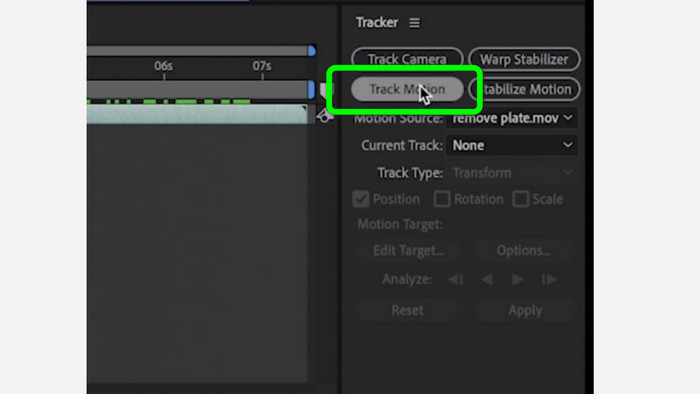
Bước 2: Vào thẻ Tracker và nhấn Tracker motion. Đặt hộp theo dõi vào khu vực có hình mờ và nhấn mũi tên theo dõi về phía trước.
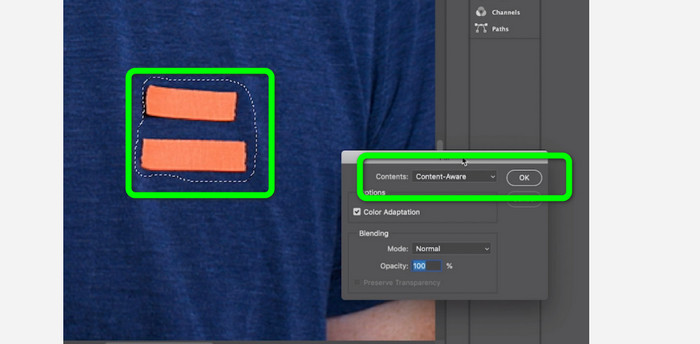
Bước 3: Chọn hình mờ bằng công cụ Marquee và chọn Edit > Fill. Khi hộp thoại xuất hiện, chọn Content-aware và nhấn OK.
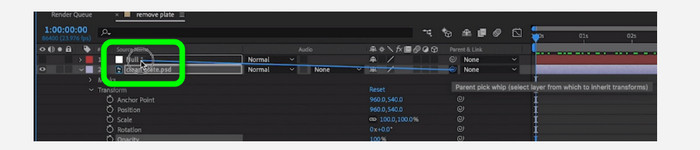
Bước 4: Liên kết đối tượng Null đã theo dõi với khung hình tĩnh đã che (masked still frame) bằng công cụ pick whip. Khi đó, nó sẽ được gắn với đối tượng Null đang chuyển động. Khi phát, video của bạn giờ đây sẽ có phần hình mờ gần như không thể phát hiện.
Phần 2: Phương pháp dễ nhất để xóa hình mờ khỏi video
Sử dụng Video Converter Ultimate
Như chúng ta biết, Adobe After Effects khó sử dụng, đặc biệt với người mới bắt đầu. Trong trường hợp này, ứng dụng hiệu quả và dễ dùng nhất để xóa hình mờ khỏi video của bạn là Video Converter Ultimate. Nó có giao diện đơn giản và cách dùng dễ hiểu, rất phù hợp cho mọi đối tượng. Ngoài hình mờ, bạn cũng có thể xóa các yếu tố gây phiền khác như logo, nhãn dán, biểu tượng cảm xúc, chữ và nhiều thứ nữa. Quá trình xóa bằng công cụ này rất nhanh, nên bạn không phải chờ đợi lâu.
Hơn nữa, nó có nhiều tính năng hơn bạn tưởng tượng. Nếu các thiết bị khác không hỗ trợ video của bạn, bạn có thể chuyển đổi video đó sang định dạng tệp khác. Công cụ này có thể chuyển đổi định dạng tệp video và âm thanh. Ngoài ra, nếu video của bạn quá nhanh và bạn muốn làm chậm nó, bạn vẫn có thể dựa vào ứng dụng này vì nó cung cấp tính năng Bộ điều khiển tốc độ video, trong đó bạn có thể điều chỉnh tốc độ video của mình nhanh hơn từ 0,125 lần đến 8 lần.
Để xóa hình mờ khỏi video của bạn, hãy sử dụng hướng dẫn chi tiết bên dưới.
Sử dụng Video Watermark Remover
Bước 1: Bạn có thể tải Video Converter Ultimate trên Windows và Mac bằng cách nhấn nút Tải xuống bên dưới. Sau khi quá trình cài đặt hoàn tất, bạn có thể khởi chạy ngay.
Tải xuống miễn phí cho Windows 7 trở lên. Tải xuống an toàn.
Tải xuống miễn phí cho MacOS 10.7 trở lên. Tải xuống an toàn.
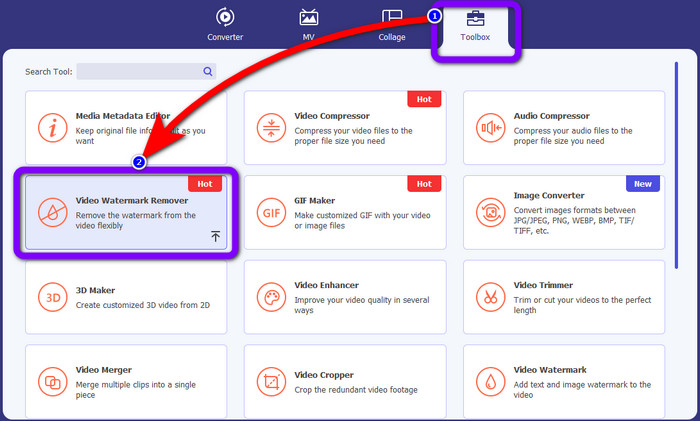
Bước 2: Chọn bảng Toolbox trong bốn tùy chọn ở phía trên, rồi nhấp vào Video Watermark Remover. Sẽ có một giao diện khác hiện ra. Sau khi nhấn nút Tải xuống bên dưới và hoàn tất cài đặt, bạn có thể khởi chạy ngay.
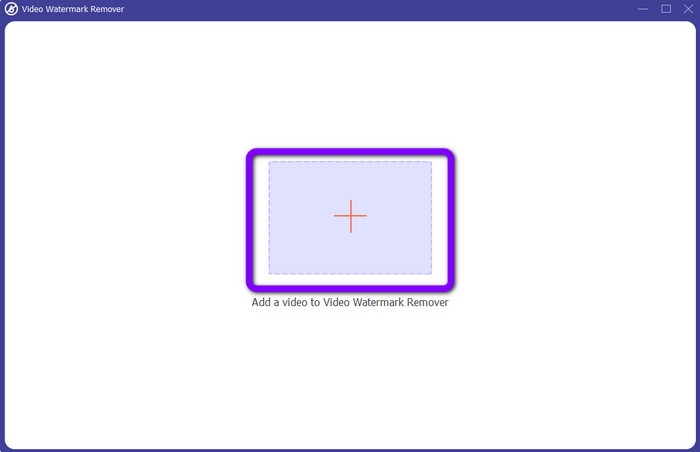
Bước 3: Nhấn biểu tượng Dấu cộng (Plus). Thư mục của bạn sẽ hiện ra, sau đó hãy chọn video có hình mờ mà bạn muốn xóa.
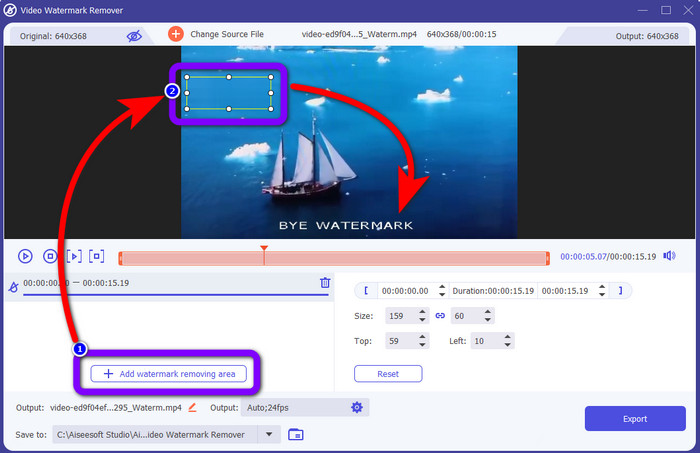
Bước 4: Nhấn nút Add Watermark Removing Area sau khi đã thêm video có hình mờ. Một ô vuông nhỏ sẽ xuất hiện trên video của bạn. Hãy dùng ô này để che các hình mờ.
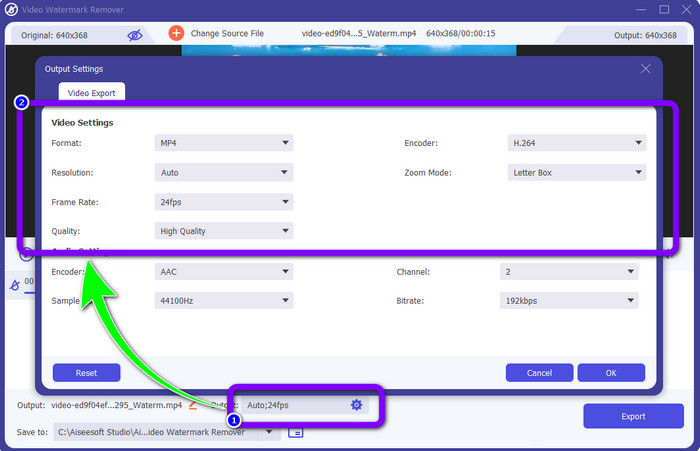
Bước 5: Sau khi che các hình mờ, bạn cũng có thể thay đổi định dạng, chất lượng, tốc độ khung hình và độ phân giải của video bằng cách nhấn vào tùy chọn Output ở phần dưới của giao diện.
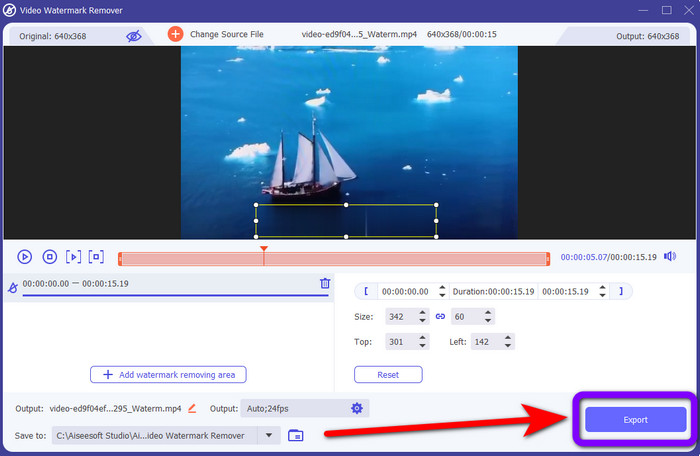
Bước 6: Bước 6: Ở bước cuối cùng, nhấp nút Export và lưu video đã chỉnh sửa của bạn.
Sử dụng Trình cắt video
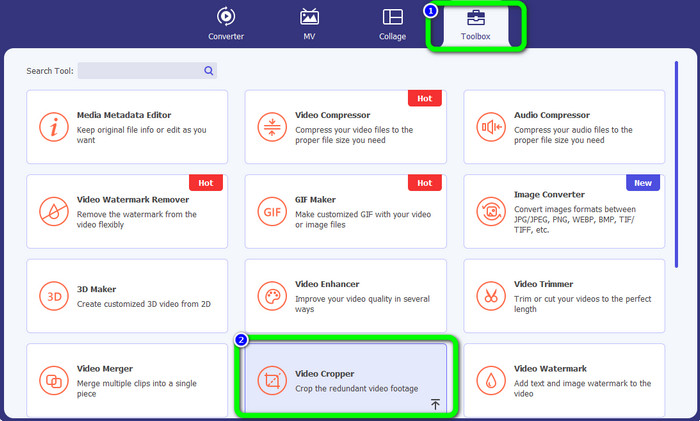
Bước 1: Vào bảng Toolbox và chọn công cụ Video Cropper.
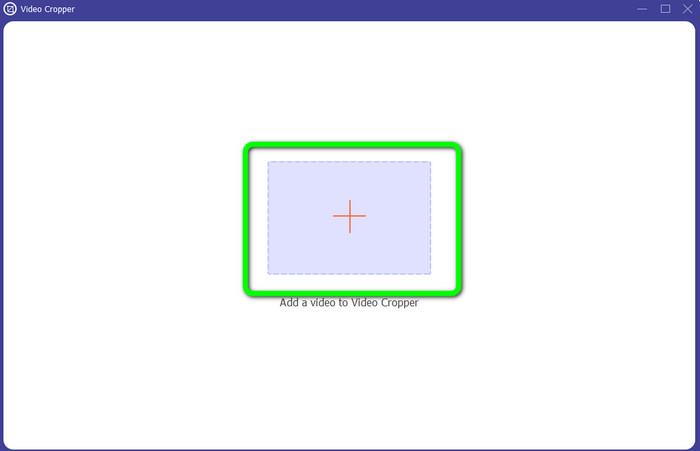
Bước 2: Nhấn biểu tượng + để thêm video có hình mờ.
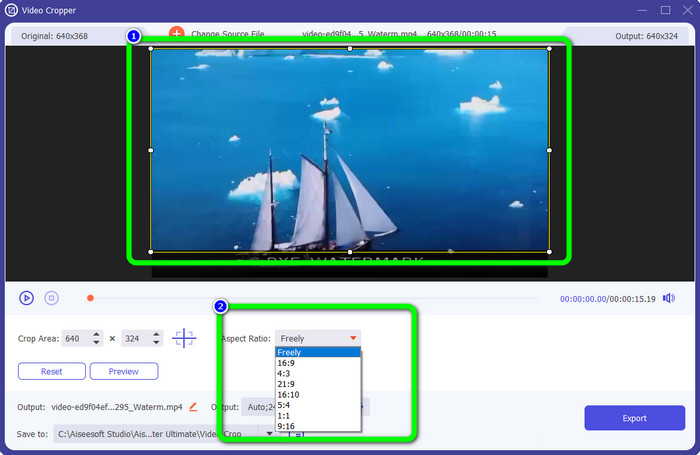
Bước 3: Tại đây, bạn có thể cắt khung hình video để loại bỏ hình mờ. Bạn cũng có thể chuyển sang ô thứ hai để chọn mẫu cắt khung mà bạn muốn.
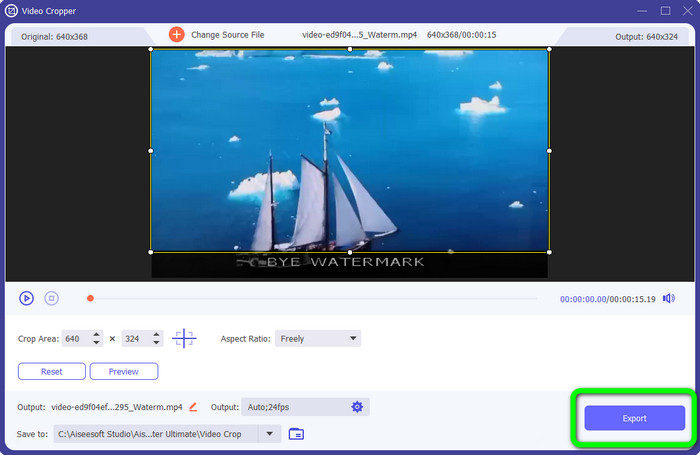
Bước 4: Nếu bạn đã hoàn tất việc cắt video, hãy nhấp nút Export để lưu video không còn hình mờ.
Sử dụng Video Watermark Remover Trực tuyến
Sau khi biết các phương pháp đơn giản nhất bằng công cụ ngoại tuyến, chúng tôi sẽ giới thiệu thêm một trình xóa hình mờ mà bạn có thể thử trực tuyến. Ứng dụng này là Video Watermark Remover Online. Đây là một trình xóa hình mờ video mới, hoàn toàn tự động giúp bạn không còn phải bận tâm. Bạn cũng có thể xóa nhiều yếu tố khác nhau khỏi video, như logo, chữ ký, ngày tháng, hình mờ, văn bản và nhiều hơn nữa. Phần mềm này giống với các công cụ xóa khác, nhưng điểm đặc biệt là nó có thể tự động xóa hình mờ. Ứng dụng được thiết kế để phát hiện đối tượng rồi thay thế chúng bằng màu sắc phù hợp, dựng lại và lấp đầy mọi thứ sao cho trông giống như tệp gốc.
Tuy nhiên, bạn chỉ có thể tải lên năm video khi sử dụng phiên bản miễn phí. Nó cũng có quá trình mã hóa chậm và bạn không thể xuất nó sang các định dạng tệp khác. Bạn phải mua đăng ký để trải nghiệm nhiều tính năng tuyệt vời hơn từ công cụ này. Làm theo các bước bên dưới để xóa hình mờ khỏi video của bạn bằng Video Watermark Remover Online.
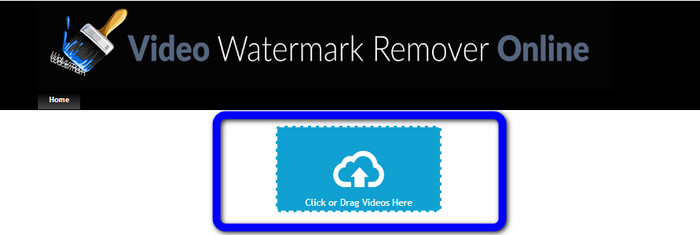
Bước 1: Hãy truy cập Video Watermark Remover Online. Nhấp vào ô màu xanh (Blue box) để thêm video của bạn. Bạn cũng có thể kéo thả video.
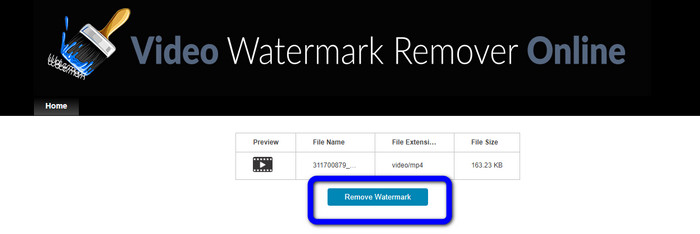
Bước 2: Sau khi xử lý tệp xong, nhấn nút Remove Watermark. Đợi quá trình xóa hoàn tất. Lưu video của bạn không còn hình mờ.
Phần 3: Câu hỏi thường gặp về xóa hình mờ khỏi video
1. Trình xóa hình mờ video tốt nhất cho Windows và Mac là gì?
Video Converter Ultimate là công cụ xóa hình mờ tốt nhất. Nó có thể dễ dàng loại bỏ các đối tượng không mong muốn khỏi video của bạn, chẳng hạn như hình mờ, biểu trưng, hình dán, văn bản, v.v.
2. Xóa hình mờ video trực tuyến có an toàn không?
Không phải tất cả đều an toàn. Sau khi xóa các hình mờ bằng các công cụ trực tuyến, họ có thể xóa ngay tệp của bạn để không ai có thể xem và sử dụng tệp video của bạn. Tuy nhiên, một số ứng dụng không an toàn, vì vậy trước tiên bạn phải kiểm tra ứng dụng bạn đang sử dụng.
3. Chất lượng video của tôi có thay đổi sau khi xóa hình mờ không?
Nó phụ thuộc vào các ứng dụng bạn đang sử dụng. Nếu không muốn ảnh hưởng đến chất lượng video, bạn có thể sử dụng Video Converter Ultimate
Phần kết luận
Bạn đã nắm được ý tưởng và học được cách xóa hình mờ khỏi video trong Adobe After Effects. Ngoài ra, bài viết này cũng cung cấp cho bạn những lựa chọn thay thế tốt nhất để xóa hình mờ với các bước cực kỳ đơn giản. Và nếu bạn muốn xóa các yếu tố không mong muốn khỏi video một cách hiệu quả mà không làm giảm chất lượng, bạn có thể thử dùng Video Converter Ultimate.
-
 Bằng chứng chắc chắn để tạo video chuyển động chậm bằng After Effects
 Bất kỳ suy nghĩ hoặc cảm xúc nào cũng có thể là Bằng chứng vững chắc để thực hiện các video chuyển động chậm bằng After Effect được đánh giá hoặc nâng cao bằng cách xem nội dung nào đó ở chế độ chuyển động chậm. Đọc bài viết này để biết cách tạo chuyển động chậm trong After Effects.
-
 Cách tăng tốc video trong After Effects [Công cụ tăng tốc tốt nhất]
 Tăng tốc hoặc làm chậm video của bạn bằng cách sử dụng công cụ tăng tốc video tốt nhất. Tìm hiểu cách tăng tốc độ video sau hiệu ứng bằng cách đọc bài viết này.
-
 Hướng dẫn từng bước về cách xóa biểu tượng cảm xúc khỏi video
 Bạn cảm thấy khó chịu với biểu tượng cảm xúc trên video của mình? Bài đăng này sẽ cung cấp cho bạn các quy trình tốt nhất để xóa ngay lập tức các biểu tượng cảm xúc khỏi video của bạn bằng các công cụ tuyệt vời
