


 Chuyển đổi video Ultimate
 Trình ghi màn hình
 Sửa chữa video
 Tải xuống an toàn
Quy trình về cách cắt các phần của video trên iPhone
Bạn có thể đã quay một video tuyệt đẹp bằng iPhone hoặc iPad trong thời gian rảnh và muốn chia sẻ với bạn bè hoặc đăng lên mạng xã hội. Nhưng trước hết, sẽ tốt hơn nếu bạn chỉnh sửa những phần của video mà bạn không muốn gửi đi. Trong trường hợp này, bạn có thể nhanh chóng chỉnh sửa video bằng các công cụ sẵn có bằng cách rút ngắn hoặc cắt sửa chúng. Vậy cách rút ngắn video trên iPhone như thế nào? Bạn sẽ thấy những cách tốt nhất trong bài viết này. Nếu muốn nắm toàn bộ các bước, hãy đọc hết những thông tin bên dưới.

Phần 1. Quy trình hiệu quả để cắt video trên iPhone
Sử dụng ứng dụng Ảnh
Nếu bạn là người dùng iPhone và muốn rút ngắn thời lượng video, ứng dụng Ảnh có thể giúp bạn. Ứng dụng Ảnh không chỉ tốt cho việc hiển thị hình ảnh và video. Với sự trợ giúp của ứng dụng dựng sẵn này, bạn cũng có thể cắt hoặc cắt video của mình. Vì là một ứng dụng đơn giản trên iPhone nên bạn có thể rút gọn video chỉ bằng vài cú chạm. Bằng cách này, tất cả người dùng, đặc biệt là người mới bắt đầu, có thể sử dụng ứng dụng. Ngoài ra, vì đây là ứng dụng dựng sẵn nên không cần cài đặt. Tuy nhiên, dù là một ứng dụng thực tế để cắt video nhưng ứng dụng Photos vẫn tồn tại một số hạn chế. Ứng dụng này không phù hợp nếu bạn muốn các công cụ chỉnh sửa nâng cao để cải thiện video bên cạnh việc rút ngắn thời lượng video. Ứng dụng Ảnh chỉ có thể cung cấp các chức năng chỉnh sửa cơ bản như cắt, thêm bộ lọc, v.v. Nếu bạn muốn biết cách cắt video trên iPhone, hãy làm theo các bước bên dưới.
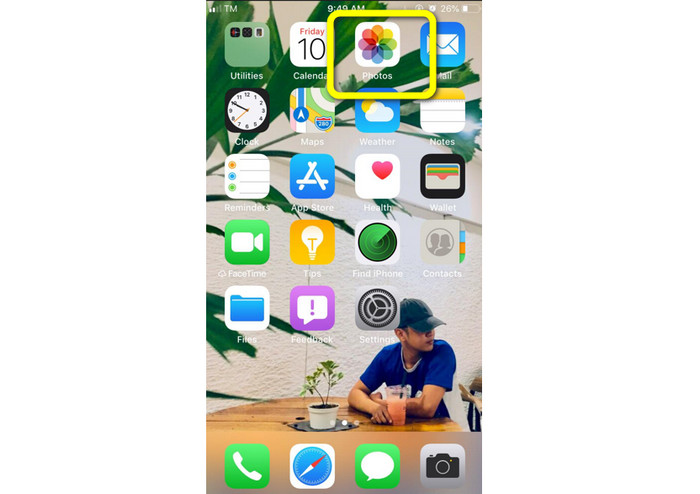
Bước 1. Mở iPhone của bạn và khởi chạy ứng dụng Ảnh (Photos).
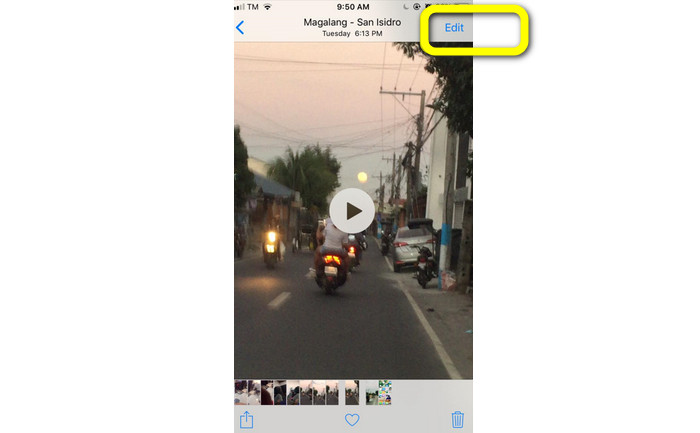
Bước 2. Sau đó, nhấn vào video bạn muốn rút ngắn. Tiếp theo, nhấn nút Sửa (Edit) ở góc bên phải màn hình.
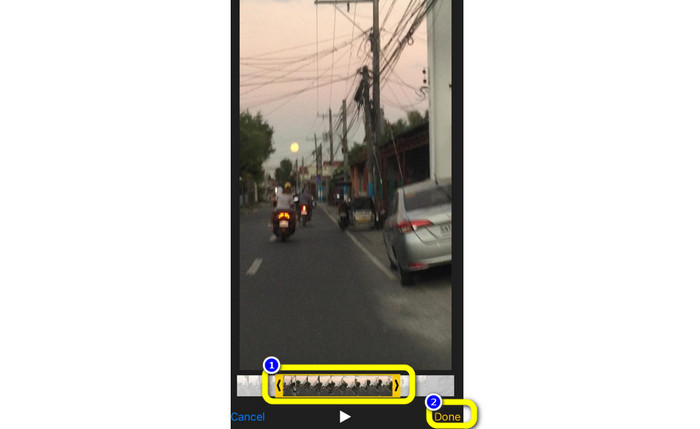
Bước 3. Lúc này bạn có thể rút ngắn video bằng cách kéo mép của thanh thời lượng video. Bạn có thể kéo cả mép trái và phải của video. Sau khi cắt video xong, nhấn nút Xong (Done) để lưu vào điện thoại.
Sử dụng iMovie
Bạn có muốn chỉnh sửa một số đoạn phim quay bằng iPhone, có thể là để cắt bỏ những phần không cần thiết, làm video ngắn hơn, hoặc khiến chúng bắt mắt hơn? Đây là một quá trình rất đơn giản khi sử dụng chương trình iMovie, vốn có sẵn cho các thiết bị iOS. Trình chỉnh sửa video tích hợp trong ứng dụng Ảnh mặc định là đủ đối với đa số người dùng. Tuy nhiên, bạn không thể dùng nó để truy cập các tính năng nâng cao như theo dõi timeline, áp dụng hiệu ứng chuyển cảnh, ghép nhiều video lại với nhau, v.v. Một chương trình chỉnh sửa video chuyên dụng như iMovie sẽ rất hữu ích trong trường hợp này. iMovie của Apple vượt trội hơn so với các công cụ chỉnh sửa video khác trên App Store. Bạn cũng có thể đồng bộ âm thanh và video bằng iMovie. Tuy nhiên, iMovie cũng có một số hạn chế. iMovie chỉ có trên các thiết bị iPhone. Điều đó có nghĩa là nếu bạn dùng Android, hãy thử sử dụng ứng dụng khác để cắt video.
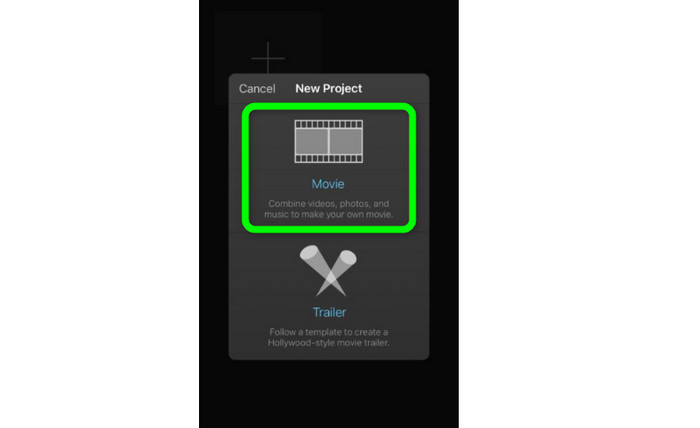
Bước 1. Tải xuống và cài đặt ứng dụng iMovie trên iPhone của bạn. Sau đó, mở ứng dụng. Khi giao diện đã hiển thị trên màn hình, hãy nhấn tùy chọn Create Project > Movie và thêm video vào.
Bước 2. Lúc này video bạn đã chọn sẽ xuất hiện trên timeline của iMovie. Theo mặc định, con trỏ sẽ ở cuối đoạn clip, nhưng bạn có thể kéo nó dần sang phải và dừng lại tại vị trí mong muốn nếu muốn cắt video.
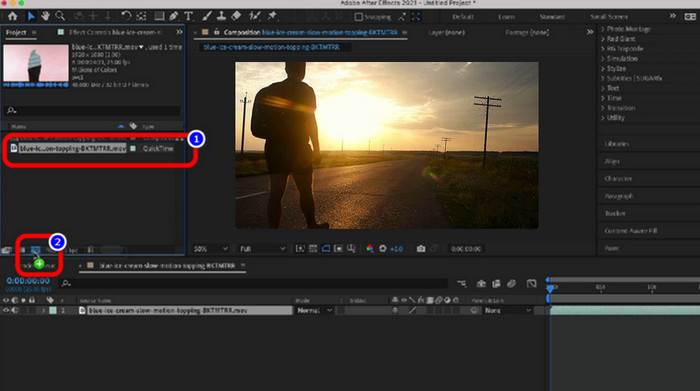
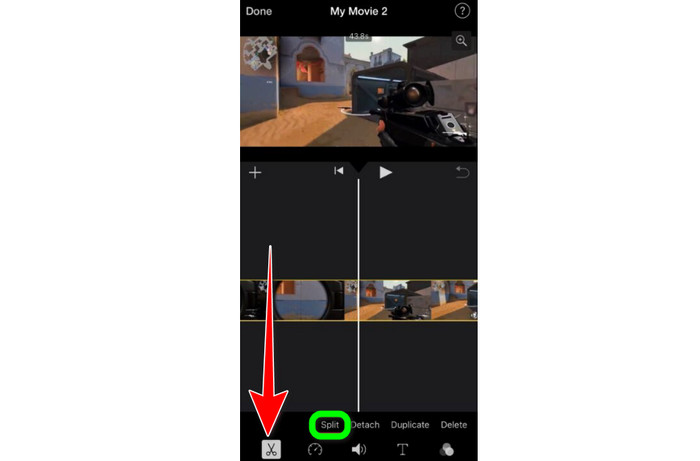
Bước 3. Giờ đây bạn có thể dùng một số tính năng mà iMovie cung cấp. Như minh họa bên dưới, biểu tượng Cây kéo (Scissor) thể hiện công cụ cắt. Chọn công cụ Split từ menu để cắt video đúng tại vị trí bạn đã đánh dấu.
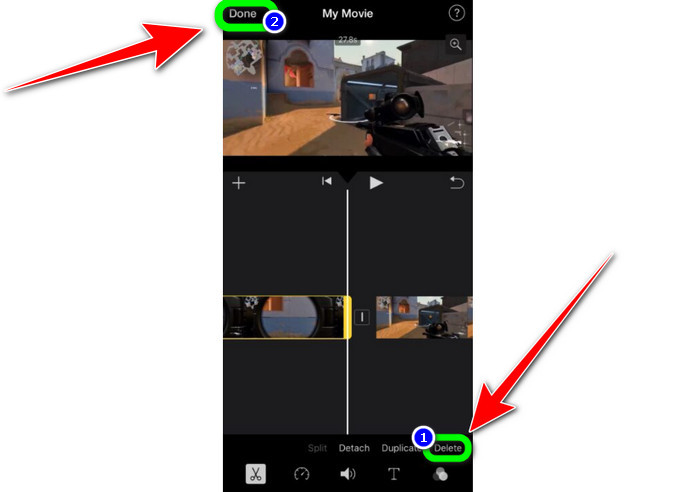
Bước 4. Sau đó, nhấn tùy chọn Delete để xóa phần không cần thiết của video. Khi đã cắt xong video, hãy nhấn nút Done.
Phần 2. Cách cắt video trên iPad
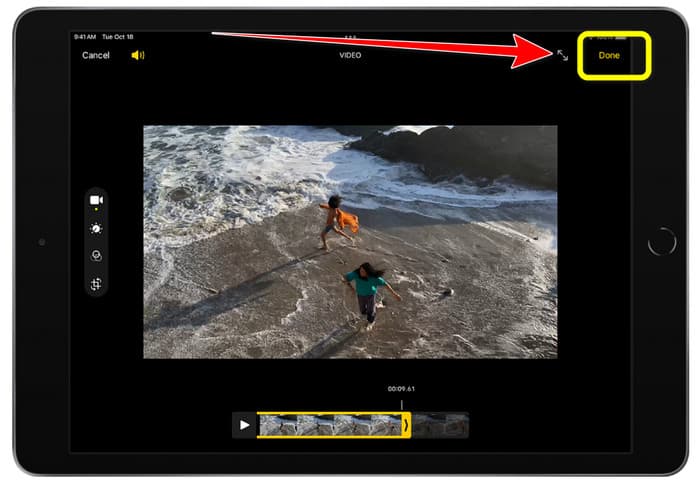
Nếu bạn muốn cắt hoặc tỉa video bằng iPad, bạn không còn cần phải tìm ứng dụng tải về nữa. Giống như trên iPhone, bạn có thể cắt hoặc tỉa video bằng ứng dụng Ảnh (Photos). Ứng dụng Ảnh khi dùng trên iPad vẫn có một số hạn chế. Nếu mục tiêu của bạn chỉ là cắt video thì hoàn toàn ổn. Nhưng bạn không thể dùng ứng dụng này nếu muốn sử dụng các công cụ chỉnh sửa nâng cao. Hãy làm theo các bước dưới đây để cắt hoặc tỉa video bằng iPad.
Bước 1. Mở ứng dụng Ảnh trên iPad, nhấn vào đoạn video bạn muốn chỉnh sửa và nhấn vào tùy chọn Sửa (Edit).
Bước 2. Kéo mép của khung xem (frame viewer) để rút ngắn độ dài video, bắt đầu quá trình cắt tỉa.
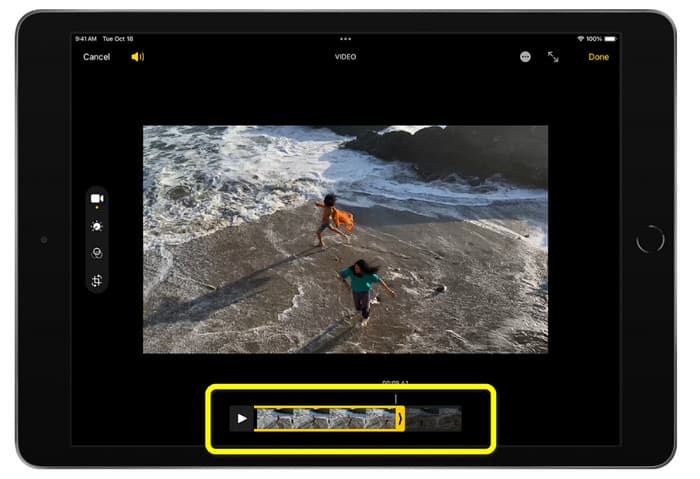
Bước 3. Khi đã cắt xong video, hãy nhấn nút Xong (Done).
Phần 3. Làm thế nào để Cắt Video iPhone trên PC
Bạn đang tìm cách tốt nhất để cắt video iPhone trên máy tính? Nếu đúng như vậy, hãy sử dụng Video Converter Ultimate. Bạn có thể dễ dàng cắt video iPhone với sự hỗ trợ của phần mềm offline này. Nó cũng cung cấp giao diện dễ sử dụng với các thao tác rõ ràng. Vì thế, nó rất lý tưởng cho mọi người dùng, đặc biệt là người mới bắt đầu. Bạn cũng có thể điều chỉnh nhiều thông số bằng cách vào phần cài đặt Đầu ra (Output). Độ phân giải, độ nét và tốc độ khung hình của video đều có thể thay đổi. Bạn cũng có thể chỉnh bitrate âm thanh, tần số lấy mẫu và các yếu tố khác. Bạn còn có thể lưu video xuất ra cuối cùng ở nhiều định dạng khác nhau, gồm MP4, MOV, AVI, MKV, v.v. Điều này rất có lợi cho người dùng vì Video Converter Ultimate có thể sử dụng trên cả máy tính Windows và Mac. Hơn nữa, ứng dụng sẽ không thêm watermark vào video đã chỉnh sửa. Vì vậy bạn vẫn có thể xem video mà không bị khó chịu.
Tải xuống miễn phí cho Windows 7 trở lên. Tải xuống an toàn.
Tải xuống miễn phí cho MacOS 10.7 trở lên. Tải xuống an toàn.
Bước 1. Tải Video Converter Ultimate về máy tính. Nhấn nút Download bên dưới để truy cập chương trình một cách dễ dàng.
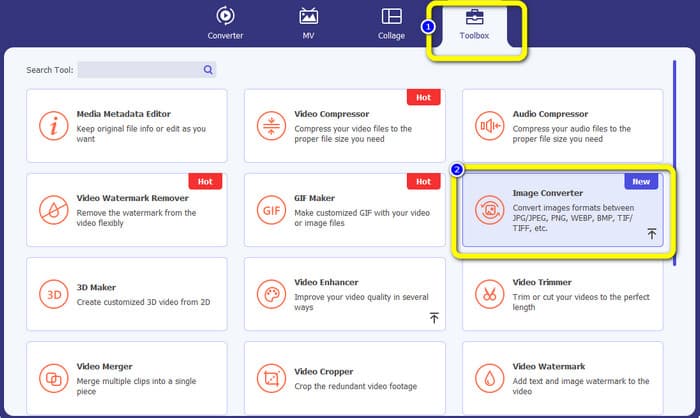
Bước 2. Sau khi tải xong, hãy mở chương trình để xem giao diện chính. Đảm bảo rằng video từ iPhone đã được chuyển sang máy tính. Sau đó, khi giao diện đã hiển thị, hãy nhấn Toolbox > Video Trimmer Tool.
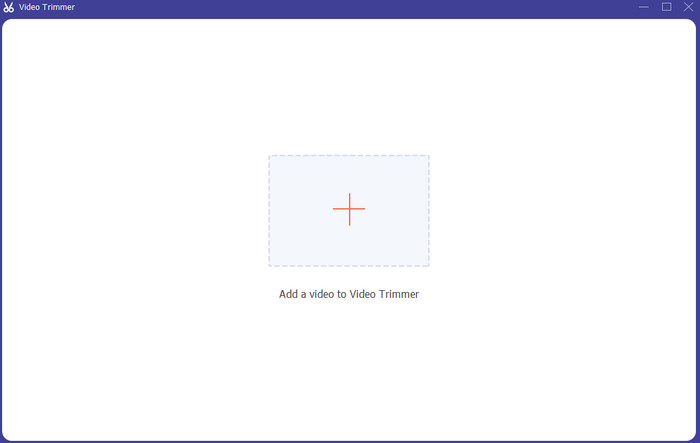
Bước 3. Khi giao diện mới xuất hiện trên màn hình, nhấn vào dấu + để thêm video iPhone.
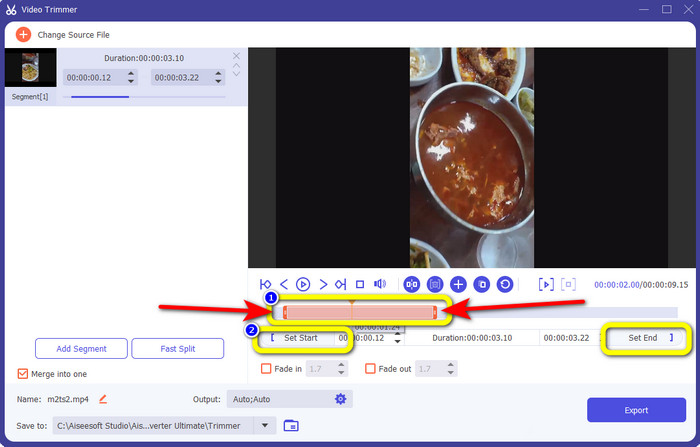
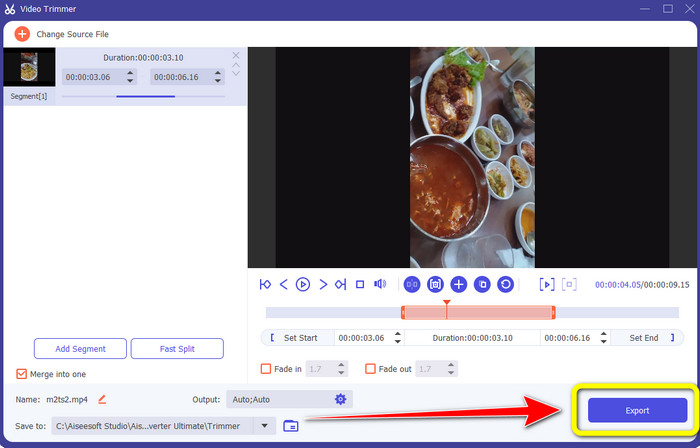
Bước 4. Lúc này bạn có thể điều chỉnh mép của video để cắt. Ngoài ra, bạn có thể dùng tùy chọn Set Start and Set End để cắt video thủ công.
Bước 5. Cuối cùng, nhấn nút Export để lưu video sau khi cắt.
Phần 4. Câu hỏi thường gặp về Cách rút ngắn video trên iPhone
Làm cách nào để cắt giữa video trên iPhone?
Nếu bạn muốn cắt phần giữa của video bằng iPhone, bạn vẫn có thể sử dụng các phương pháp được đề cập ở trên. Ứng dụng Ảnh và iMovie cũng có thể cắt bớt phần giữa của video.
Làm cách nào để cắt video trên điện thoại Android?
Bạn có thể vào ứng dụng Thư viện của mình. Sau đó, mở video và nhấp vào tùy chọn Chỉnh sửa. Sau đó, bạn đã có thể cắt video bằng cách kéo các cạnh của video.
Làm cách nào để chuyển video sang iPhone từ máy tính?
Bạn có thể sử dụng nhiều công cụ để chuyển video từ máy tính sang iPhone. Bạn có thể sử dụng iPhone Transfer Pro, Dropbox, AirDrop, v.v.
Phần kết luận
Việc cắt tỉa video rất hữu ích khi bạn muốn chia sẻ hoặc tải một đoạn clip lên mạng. Trong trường hợp đó, bài viết hữu ích này đã hướng dẫn bạn cách rút ngắn video trên iPhone. Ngoài ra, nếu muốn rút ngắn độ dài video iPhone bằng máy tính, bạn có thể sử dụng Video Converter Ultimate. Với sự hỗ trợ của chương trình offline này, bạn có thể cắt video iPhone một cách dễ dàng và nhanh chóng trên PC.
-
 [4 Giải pháp] Cách làm chậm video trên iPhone như dân chuyên nghiệp
 Bạn gặp sự cố làm chậm video trên iPhone? Nếu bạn gặp phải vấn đề này, đừng lo lắng nữa, vì chúng tôi sẽ giúp bạn giải quyết vấn đề bằng cách đọc bài viết này.
-
 Cách tua nhanh video trên iPhone - Điều chỉnh tốc độ video
 Làm cách nào để chuyển tiếp nhanh video trên iPhone của tôi? Làm cách nào để tua nhanh video trên iPhone bằng iMovie? Tìm hiểu 3 cách để tăng tốc video trên thiết bị iPhone và iPad.
-
 Hướng dẫn - 4 cách miễn phí để ghép video trên iPhone thành một video mới
 Đọc và nhận 4 cách dễ dàng để hợp nhất video trên iPhone. Tất cả các kiểu iPhone và phiên bản iOS đều được hỗ trợ. Bạn có thể kết hợp 2 video trở lên trên iPhone thành một video mới một cách nhanh chóng.
