


 视频转换大师
 屏幕录影大师
 视频修复
视频修复Audacity 元数据编辑器:它是在桌面上编辑音乐标签的最佳软件吗
一款名为 Audacity 的工具,是你可以用来高效录制超清晰音频的绝佳软件。借助这款工具,你可以像专业音频编辑器一样,为音频添加特效、美化处理以及其他编辑操作。该工具提供的功能之一就是音频标签编辑器。因此,今天我们将重点介绍 Audacity 元数据编辑器,以及这款工具的优缺点。

第 1 部分。 Audacity - 轻松编辑音乐元数据的最佳方式
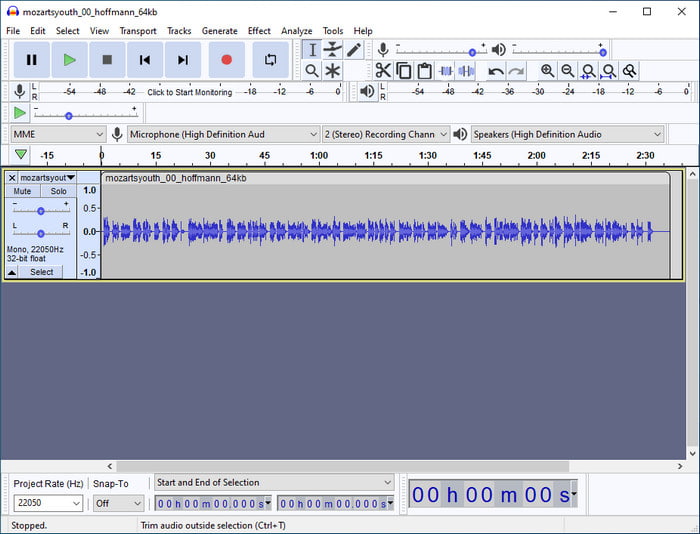
早些时候,我们解释过您可以将 Audacity 用作元数据编辑器,即使它是您可以在桌面上使用的专业音频编辑器。它编辑音频的能力远远优于您可以在网络上下载或访问的其他音频编辑器。使用该工具时,您将看到用于将元数据添加到文件的不同功能。下面的列表是根据您的喜好更改或更新标签之前您需要了解的四件事。想知道更多?当我们探索这些是什么时,让球继续滚动。
标签和价值
有七个不可更改的标签,无论情况如何,您都无法编辑,但如果您想详细制作文件数据,您可以添加更多标签。我们将列出您可以使用 Audacity 元数据编辑器填写的七个标签,以了解它们是什么。
◆ 艺人姓名
◆ 曲目标题
◆ 专辑名称
◆ 曲目编号
◆ 年份
◆ 类型
◆ 评论
您无法更改这些标签,但您可以在右侧更改它们的值。您不能更改前七个标签的名称,因为它们是永久性的,所以如果您觉得这些数据不够,想要添加另一个,可以单击添加按钮。然后在左侧面板的标签上键入名称,并在文本框的右侧面板上添加值或数据。
类型
Audacity 元数据编辑器可以选择流派。如果您想删除或添加音频文件的流派,您可以轻松单击下拉按钮并选择您想要的流派。但是,如果您想删除流派,您必须突出显示流派下的文本并按下键盘上的删除键。
模板
在使用 Audacity 时,你可以将 模板 作为音频文件标签的一部分进行添加或保存。但在这里可以使用的模板格式为 .xml。XML 文件是一种标记语言,其中包含数据和元数据,它是你从文件中提取出的元数据的延伸。不过,只有在此前用过某个模板的情况下,你才能在 Audacity 中加载该模板。
抑制音频对话框
如果您不想在导出带有元数据的音频文件时看到“音频对话框”,您可以勾选“导出音频时不显示”框。尽管该功能不会影响标签,但我们仍会重新考虑将其作为您想要使用的选项。但是如果你想看到这个对话框,你不能点击它。
如果这些选项对您来说还不够,您可以阅读下一部分。正如我们所提到的,您想要使用的纯粹专用的元数据编辑器远远大于 Audacity。请阅读下一部分以了解我们在说什么。
第 2 部分。如何使用 Ultimate 软件在 Windows 和 Mac 上编辑元数据
如果你对 Audacity 的元数据编辑器不太满意,那么 FVC Video Converter Ultimate 可能是弥补 Audacity 不足的最佳选择。借助这款终极转换器,你只需几次点击就能轻松修改媒体文件的标签。即使你没有编辑音频文件标签的经验也不必担心,因为这款工具并不难上手。此外,你可以在这里上传任意音频文件;如果你想修改视频文件的元数据,这个工具也能大显身手——而不像 Audacity 那样只支持音频文件。
除了其惊人的元数据编辑功能外,此工具还可以帮助您完成许多不同的任务,例如压缩、编辑、剪切、修剪、加速或减速等。您无需单独下载所有这些功能,您可以将此工具下载到拥有所有这些。不是很棒吗?从名字上看,它是终极的,所以它的特性和功能是毫无疑问的。按照以下步骤,了解如何使用终极工具更改或修复元数据。
步骤 1. 在桌面上下载这款终极元数据编辑器,先根据你的操作系统正确点击对应的下载按钮。按提示完成安装过程,然后启动程序继续。
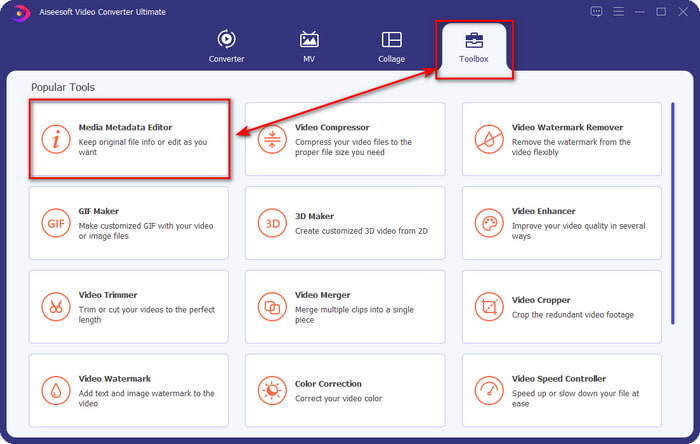
步骤 2. 接着,点击 工具箱(Toolbox) 选项,找到 媒体元数据编辑器(Media Metadata Editor),点击以打开该功能。
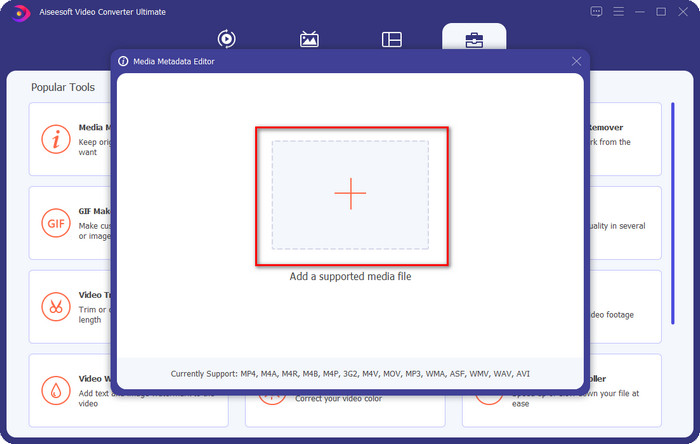
步骤 3. 点击 +,此时会在屏幕上弹出一个电脑文件夹窗口,找到你想要修改元数据的文件,然后点击 打开(Open)。
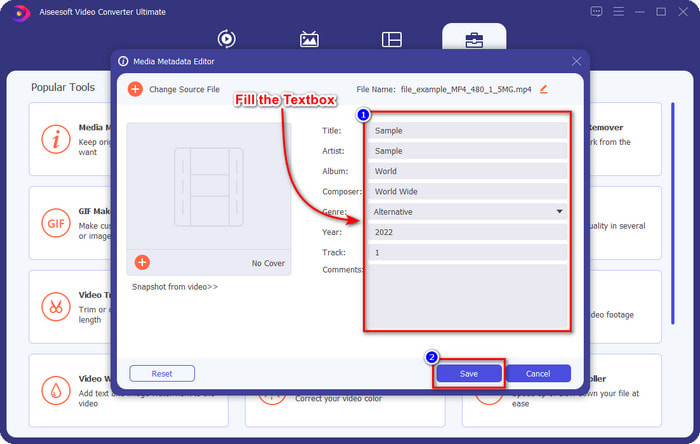
步骤 4. 在右侧输入你想添加的信息,点击相应的 文本框(textbox) 以手动输入数据。完成后,点击 保存(Save) 按钮,确保标签已经保存。就这么简单,你已经为媒体文件添加好了元数据,而且操作更加轻松。
相关内容:
第 3 部分。关于 Audacity 元数据编辑器的常见问题解答
我可以使用 Audacity 元数据编辑器添加图像吗?
该工具不支持在文件中的音频上添加图像作为标签。因此,如果您想使用它来添加图像作为标签,您不能这样做,但您可以使用 Ultimate 作为在文件上添加图像标签的替代方法。通过点击左侧的+图标,可以定位到要使用的图片文件;点击打开添加成功。
在 Audacity 上导出音频文件有水印吗?
幸运的是,它不会在您的音频文件上留下水印。因此,如果您使用它为您的音频文件添加标签,预计一旦您导出文件就不会出现水印。
为什么我无法打开 Audacity?
这个问题可能出现的原因有很多;如果您想知道,我们将列出您无法打开 Audacity 的三个原因。第一个原因,你要下载的下载包不完整;由于间隔或连接不稳定,您将无法打开 Audacity。二、安装过程不完整或中断,与下载过程相同;一旦安装过程不完整,Audacity 将无法打开。最后,您下载的版本需要更新,您可以查看Audacity的官方网站,看看您的桌面是否有新的更新。如果未提及问题,请致电该工具的技术支持以适当地为您提供帮助。
结论
Audacity 毫无疑问是目前可在 Windows 和 Mac 上免费下载的最佳音频编辑器之一。虽然它在添加标签方面的功能存在一定限制,但我们仍然认为,它是最优秀的音频元数据编辑工具之一。如果你觉得 Audacity 在这方面的表现仍然不够理想,那么一定要尝试下载并使用 FVC Video Converter Ultimate。这款工具在元数据编辑方面肯定会比 Audacity 元数据编辑器更能帮到你,下载后亲自试用一下,就能了解更多。
-
 具体教程 - 如何在 Audacity 中合并两个音轨
 Audacity 享有编辑音频的声誉。您下载了 Audacity 但不知道如何在 Audacity 中合并音轨?这篇文章将告诉您如何在 Audacity 中合并曲目。
-
 关于 Pentaho 元数据编辑器的绝对概述 [2022 年更新]
 没有找到关于 Pentaho 元数据编辑器的可靠文章?幸运的是,我们自己审查了该工具,以提供您将了解的有关该工具的事实。
-
 2022 年你必须知道的关于 VLC 元数据编辑器的提示和技巧
 您想将 VLC 用作元数据编辑器吗?在这种情况下,您可以阅读本文,因为我们提供了对 VLC 元数据编辑器的公正评论。
