


 视频转换大师
 屏幕录影大师
 视频修复
视频修复
 安全下载
安全下载用于将 HEIC 转换为标准 JPG 的 6 个最佳 HEIC 到 JPG 转换器
In this day and age, many of us love to take snaps, whether they are selfies or groupies on our mobile devices, such as iPhones. The vast majority of the images taken on iOS devices are in the format of HEIC because it has become the standard image format for iOS. When you transfer the file to others that are non-iOS, it won't open because that device doesn't support it by default. If you want to send the image file on other devices, you must consider converting it into a JPG format because this format supports widely by many devices. The list below will teach you to convert HEIC to JPG with the five converters you can use to finish the job.

第 1 部分。如何使用 Web 工具将 HEIC 转换为 JPG [在线方式]
我们测试了这 3 个提到的在线 HEIC 转换器中的每一个,以提供有关它们的相关信息。如果您想使用免费的网络工具,这是适合您的部分,但请记住,使用这样的转换器有一些限制。更重要的是,如果您使用以下工具避免转换时出现中断,请确保稳定的互联网连接。请阅读下面的完整详细信息以了解它们中的每一个。
FVC免费HEIC到JPG转换
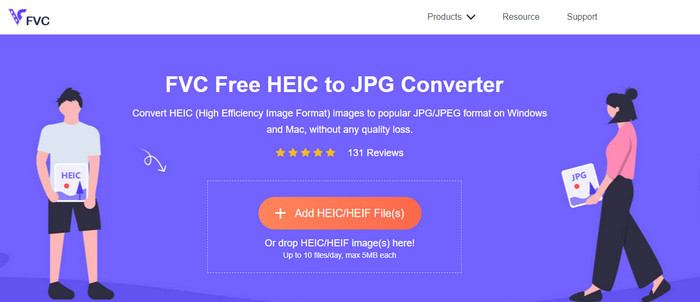
FVC Free HEIC to JPG Converter can help you convert HEIC files to JPG format in less than a few clicks. With this web tool, you won't need to download any additional installer on your drive or even sign up to use it. Although this tool is free to use, there are some limitations, like you can convert up to ten files per day, and the maximum file size for each image should be 5MB or less. Compared to some converters online, this might be enough, especially if you aren't using it often. So, if you want to test the online tool out, you can follow the instructions we include below.
Step 1. First and foremost, click this link to open a new tab on your web browser; this link will lead you to the main website of the online converter.
Step 2. Hit the Add HEIC/HEIF File (s), find the HEIC file on the folder that will show, click it and press Open to upload it.
Step 3. The conversion process will automatically start; you may now click the Download button when converting is finished.
HEIC 转 JPEG
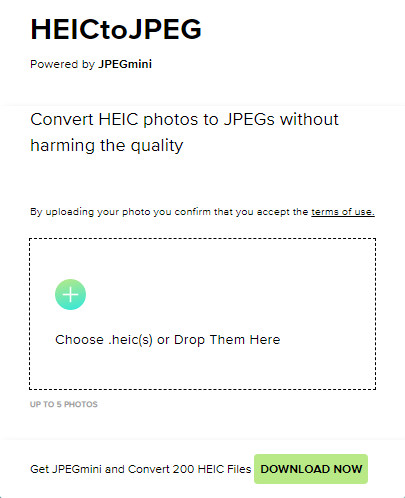
HEIC to JPEG is an online tool you can depend on how to convert HEIC to JPG, same as the online tool we mentioned this is free to access. With this tool, you can convert your HEIC file into a supported JPG then transfer it to the other device that doesn't support HEIC. Even though the tool can convert your HEIC, you will need to keep in mind that there are limitations on how many times you can convert per day. Unlike the online converter abovementioned, this web tool can only convert five HEIC files per day, which is much more limited than the other converters. If you want to use it, follow the steps given.
Step 1. Search the web converter on your search engine and open it.
Step 2. Click the plus button to upload the HEIC file you have on your desktop.
Step 3. Wait for the uploading process and optimizing, then click Download JPEG.
Image.convert-在线
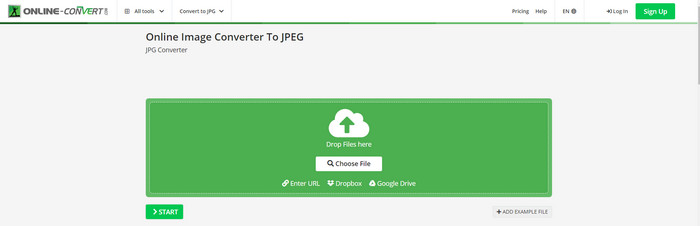
Image.convert-online allows you to convert HEIC to JPG online with the other optional setting to adjust the quality of the picture. Far from the first two converts, you can use on the webS, and you can use this web tool without limitation and convert your HEIC files here more than what the other two offer. Also, you can enhance the quality of the image and choose the compression you want to have. However, this tool's image editing features aren't as pro as the other dedicated editor you can use. Nonetheless, it is still a great HEIC converter you can use.
Step 1. Open your favorite browser, type the Image.convert-online, then click to open.
Step 2. Click Choose File and insert the HEIC file on the web tool.
Step 3. Adjust the image settings and compression; click Start if everything is settled in, then click Download to save it to your desktop.
第 2 部分。 如何在 Windows 和 Mac 上将 HEIC 文件转换为 JPG 或 JPEG [离线方式]
如果您的互联网连接不佳,我们上面提到的网络工具并不是解决和处理此问题的最佳选择。因此,如果您想在不使用互联网连接的情况下解决问题,您可以阅读并按照我们添加到下面提到的每个工具中的步骤进行操作。请仔细阅读它们以了解如何使用离线方式在您的桌面上转换 HEIC。
Aiseesoft HEIC 转换器 – 转换 HEIC 文件的最佳选择
Aiseesoft HEIC Converter is the tool that you will ever need in regards to how to change HEIC to JPG problem you will encounter on your desktop. If you want the best tool for converting the HEIC file, then there is no doubt that this is the tool that can help you. With its straightforwardness, you won't need to be a professional to use the tool because, with just a few clicks, you can have the converted HEIC at your reach.
除了它的转换能力,这个工具还支持闪电转换过程,所以不用担心,因为您可以立即拥有 JPEG。令人惊讶的是,如果您有各种 HEIC 文件,该工具可以同时转换多个 HEIC 文件。很神奇,对吧?如果您对我们提到的描述感到惊讶,您必须继续阅读后续步骤,因为我们提供了一个易于理解的教程,可以在 Windows 和 Mac 上成功地将 HEIC 转换为 JPG。
Step 1. After downloading the software, follow the installation process, then open it.
Step 2. You can drag and drop the HEIC files in here for an easier process of uploading the file here, or you can either click the Add HEIC, find the file on your desktop, then click Open to place it.
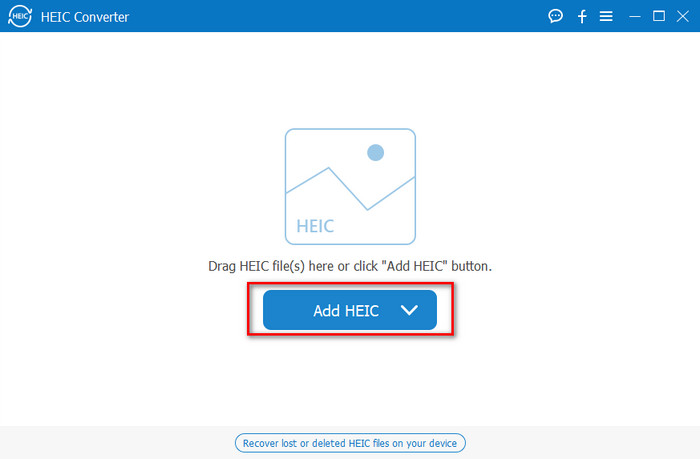
您可以在此处添加任意数量的 HEIC 文件,因为此工具可以同时将 HEIC 文件转换为 JPG。
Step 3. After uploading the HEIC file, click the drop-down button at the upper right corner of the interface and choose the JPEG/JPG.
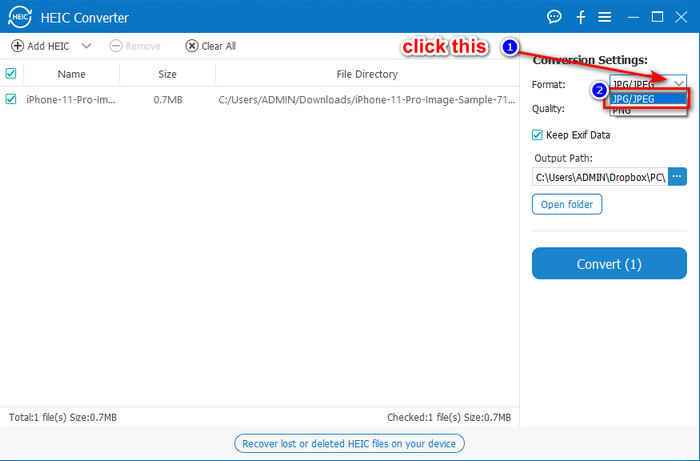
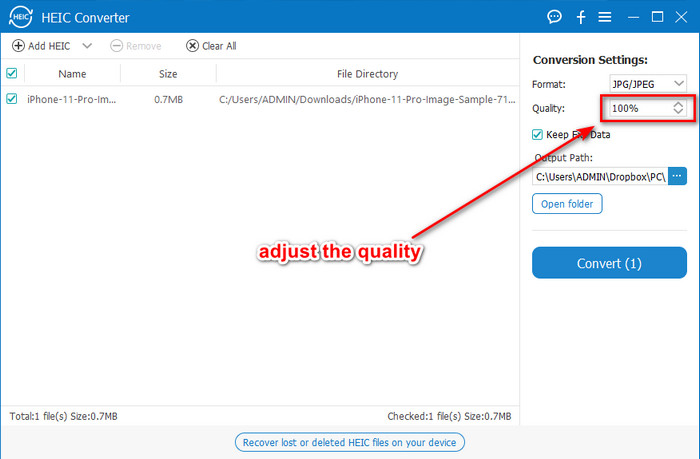
Optional. Unlike on some converters, here, you can adjust the quality of the HEIC image by changing it on the Quality before you export it.
Step 4. If everything is done and you're ready to convert the HEIC to JPG, you can now click the Convert button. The conversion process will begin; waiting is unnecessary because of the ultra-fast converting process this tool supports. As easy as that, you can now share the file in another format but in the .jpg extension.
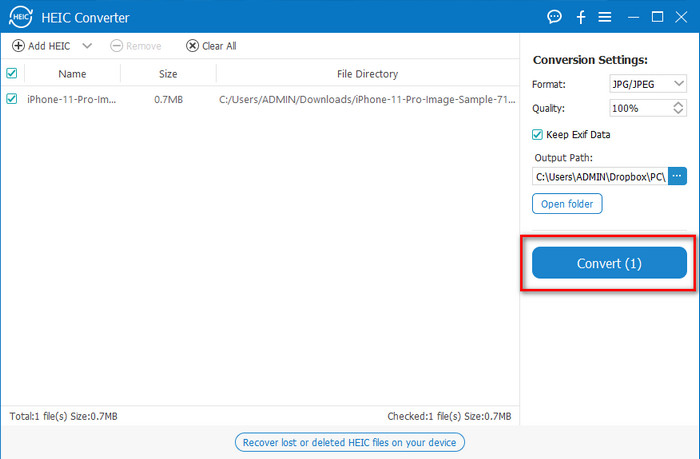
这就是将您的 HEIC 照片转换为 JPG 的全部内容。此外,您可以使用此工具将 HEIC 批量转换为 PNG。
预习
Preview is the native image viewer you can use to view and change the HEIC format. However, the converting this tool can do isn't usual that will take a process like the other tool in this article. If you use this default image viewer, you can change the file extension of the HEIC into .jpg.
除了查看和转换的能力外,它还可以加密 PDF 文件并限制文件的使用、图像校正等。如果您是 Mac 用户,您可以按照以下步骤在 macOS 上将 HEIC 转换为 JPG。
Step 1. Open your Finder, locate the Preview, then open the HEIC file using the tool.
Step 2. Once you open the file with the Preview, go to the File menu and choose on the list Export.
Step 3. Click format and select either JPEG or JPEG-2000, and click Save if you are finished.
GIMP
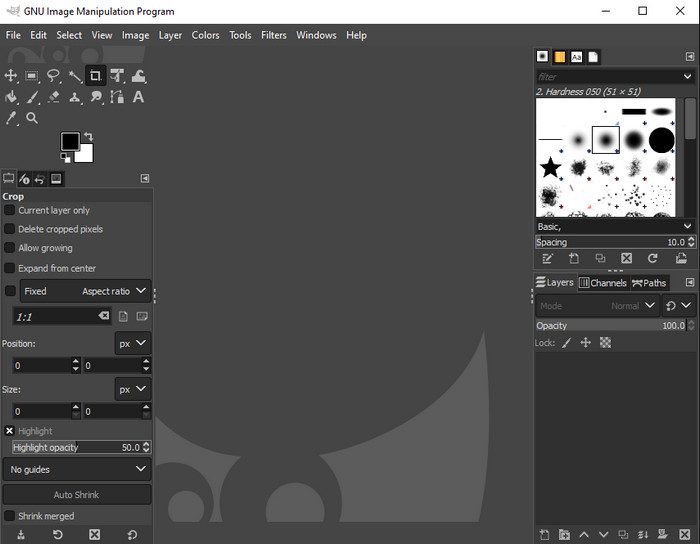
GIMP is a dedicated image editor you can download on your Windows and Mac. This tool supports editing the HEIC file; you have to make it look better, like adjusting the saturation, contrast, etc. Same as the Preview available on Mac, this tool performs not as a converter, but it can change the file extension of HEIC into a JPE, JPEG, JPG, or another image format you want.
这个工具提供的转换工具不多,但是如果你想学习如何在 PC 上将 HEIC 转换为 JPG,你可以复制我们在下面添加的步骤。
Step 1. Download the software on your Windows or Mac, then launch it after the downloading process.
Step 2. Go to the File menu, click Open, select the HEIC file you have on your desktop and upload it.
Step 3. Back to the File menu, click Export As, then a panel of Export Image will show, click Select File Type (By Extension), then click the JPEG on the list. Lastly, click Export if you are done.
第 3 部分。关于将 HEIC 转换为 JPEG 的常见问题解答
将 HEIC 照片转换为 JPG 后,是否会消除透明度?
Yes, the transparency of HEIC will is unavailable after you convert the format to JPG. After all, JPEG or JPG doesn't support transparency like the PNG. Instead, you can use the Aiseesoft HEIC Converter to convert HEIC into a transparent PNG. In step 3, after clicking the drop-down button, choose the PNG instead of the JPG/JPEG, follow the succeeding steps to export the file.
HEIC 格式是什么?
HEIC is a known format containing image files but in a smaller file size than the JPG, but the quality is preserved and high-quality. Apple Inc now uses this format as a native image format on their iOS and Mac products. If you want to know more about the said format, you can click this link to learn more about the HEIC file format.
我可以将 HEIC 批量转换为 JPG 吗?
You can use the Aiseesoft HEIC Converter, a dedicated batch HEIC file converter you can download on your Windows and Mac. Upload as many as you want HEIC files in here, then convert them all into JPG or PNG without degrading their quality. Also, there isn't a limitation on how many times you can convert, and the file size doesn't matter with this tool.
结论
您现在可以使用信息和步骤将 HEIC 文件转换为 JPG 格式。选择是使用在线 HEIC 到 JPG 转换器还是离线转换器;无论您选择什么,当您仔细阅读本文时,成功就在您身边。
If you haven't decided yet on what to use, we suggest that you download the Aiseesoft HEIC Converter, for it is the best HEIC converter among the rest on the list. You can test the tool by downloading it on your desktop, see if it fits you, and solve the problem by following the steps above.
-
 最佳 MOV 到 DivX 免费使用 Mac 和 Windows 转换器
 如果您正在寻找 MOV 到 DivX 免费转换器,我们可以为您提供解决方案。本文介绍了适用于 Mac 和 Windows 的顶级 MOV 到 DivX 转换器。
-
 免费 WMV 到 DivX 转换器用户的首选
 这是用户最常使用的最好的免费 WMV 到 DivX 转换器。本文为您提供了将 WMV 文件转换为 DivX 的最佳方法。
-
 如何在 iPhone 上更改视频元数据的提示
 在 iPhone 设备上更改视频元数据有困难吗?幸运的是,本文讨论了在 iPhone 上更改视频元数据的最佳方法。
