


 视频转换大师
 屏幕录影大师
 视频修复
视频修复
 安全下载
安全下载了解如何在 Google Drive 和替代品上将 HEIC 转换为 JPG
HEIC 是 Apple 的较新文件格式。这种新的图像格式是在设备上保存图片的更好方法。此外,HEIC 使您的图像更小,同时保持其高质量。此外,许多人喜欢 HEIC 格式,因为它们是实时照片的绝佳图像格式。但是,Apple 设备支持 HEIC;因此,它在许多平台上不兼容。因此,如果您想在 Windows 支持的其他平台上使用 HEIC 文件或上传 HEIC,则必须将其转换为许多平台和网站都支持的 JPG 文件格式。
你知道吗?Google 云端硬盘已经开始支持 HEIC 格式,因此 iOS 设备可以使用这项云服务来备份文件。如果你在想能否在 Google 云端硬盘上将 HEIC 转换为 JPG,请继续往下阅读找到答案。

第 1 部分。如何在 Google Drive 上无损地将 HEIC 转换为 JPG
Google Drive 可能是最知名的云存储服务了。使用此程序,您可以存储和检索要上传的任何图像或视频。此外,许多 Apple 设备用户更喜欢使用 Google Drive 来存储他们的图片或视频。此外,该程序可以释放设备上大文件占用的空间。但是,Google Drive 无法转换图像或视频。因此,如果您在驱动器上上传了 HEIC 文件,则无法将其转换为 JPG 文件格式。
但在这一部分中,我们将向您展示一种将您的 HEIC 图像上传到 Google Drive 上的 JPG 格式的方法。请注意,这仅适用于 Google Drive 网页版,不适用于应用版。
如何通过将 HEIC 下载为 JPG 在 Google Drive 上将 HEIC 转换为 JPG:
步骤 1. 首先,打开 照片 App,选择你想要转换的 HEIC 文件。然后点击 共享 图标,并选择 Google 云端硬盘 选项。
步骤 2. 将你的 iPhone 连接到网络,这样照片就会上传到你的账号中。
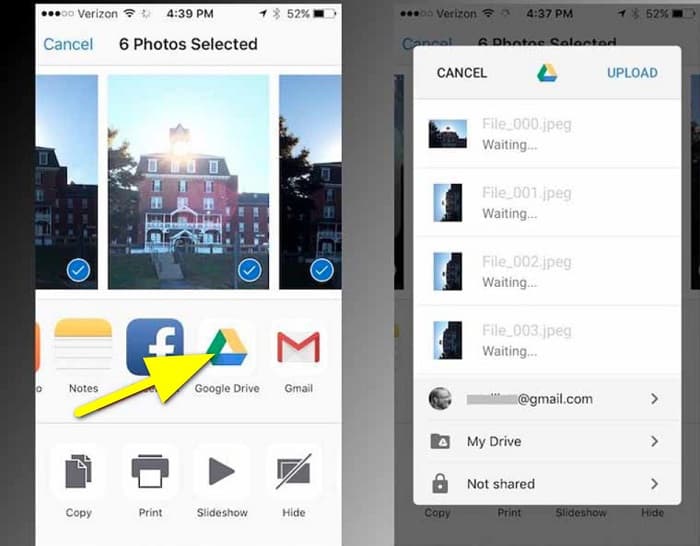
步骤 3. 接着,在电脑上打开浏览器,在搜索框中搜索 Google Drive。登录你用于备份 HEIC 图片的账号。
步骤 4. 然后,在 Google 云端硬盘中点击该 HEIC 图片,完整分辨率打开它。接着右键点击照片,选择 图片另存为。
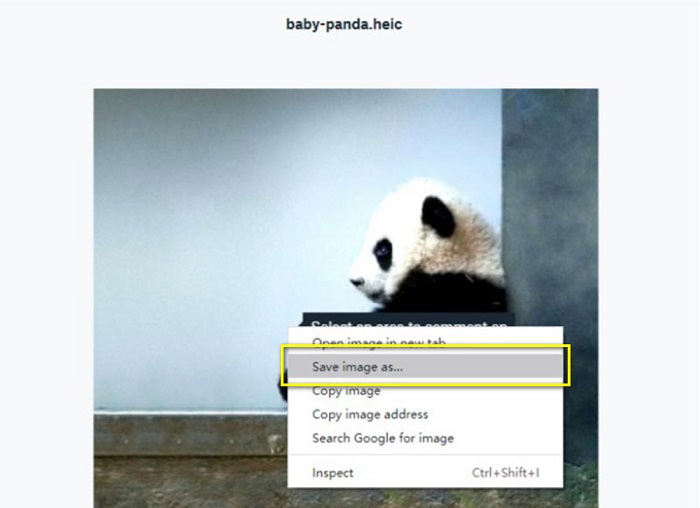
步骤 5. 在弹出的菜单中,找到你想保存图片的文件夹。将文件扩展名设置为 .jpg,然后点击 保存 按钮以保存更改。
第 2 部分。 如何在 Google Drive Alternative 上将 HEIC 转换为 JPG
由于 Google Drive 没有转换图像或视频的功能,因此我们会搜索可用于转换 HEIC 图像的功能。然而,市场上有许多转换工具,并非都支持 HEIC 格式。因此,我们在网上搜索了支持 HEIC 图像格式的最出色的转换器。此外,我们将讨论使用此图像转换器将 HEIC 无损转换为 JPG。
FVC免费HEIC到JPG转换
FVC Free HEIC to JPG Converter 是一款在线 HEIC 转换器,你可以在所有网页浏览器上使用它,比如 Google、Internet Explorer 和 Safari。这个在线应用支持将 HEIC 转换为 JPG,而许多应用并不支持这一功能。此外,你可以在保留 EXIF 数据(例如尺寸、格式、大小、拍摄日期/时间、曝光等)的前提下,将 HEIC 转换为 JPG。该程序可以在不损失质量的情况下转换 HEIC 图片。此外,它采用 AI 转换方式,可自动实现无损转换。同时,使用这款在线工具的一个优点是,你可以批量转换两张或更多图片。
FVC Free HEIC to JPG Converter 不需要您注册、订阅或使用第三方插件即可使用。而且您无需担心数据的安全性,因为它使用 100% 是安全的。阅读以下简单步骤,了解如何使用 FVC Free HEIC to JPG Converter 将 HEIC 转换为 JPG。
如何在 Google Drive 上将 HEIC 转换为 JPG:
步骤 1. 先打开你的网页浏览器,在搜索框中搜索 FVC Free HEIC to JPG Converter。
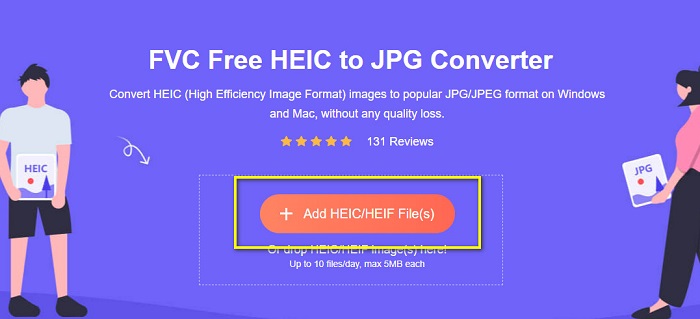
步骤 2. 然后,先启动该应用再进行使用。接着,在同一界面上点击 Add HEIC/HEIF Files 按钮,添加你想要转换的 HEIC 图片。
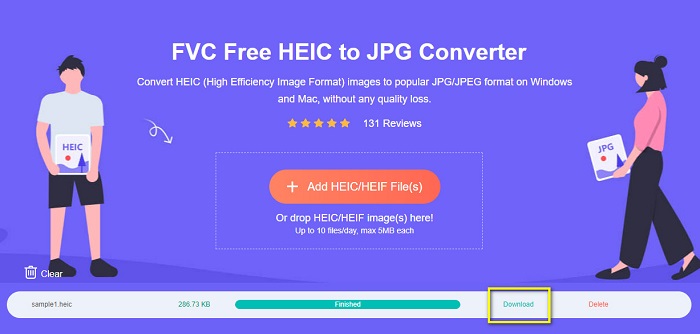
步骤 3. FVC Free HEIC to JPG Converter 会在你上传 HEIC 文件后自动开始转换图片。你会在界面下方看到 Finished 图标。
步骤 4. 最后,点击 Download 按钮下载转换后的图片。然后在电脑文件中找到你的输出文件。
就这么简单,您可以在计算机上轻松地将 HEIC 转换为 JPG。
Aiseesoft HEIC 转换器
Aiseesoft HEIC Converter 是一款可免费下载的应用程序,如果你正在寻找优秀的 HEIC 转换器,可以考虑它。此外,该程序允许你在保留图片 EXIF 数据的前提下,将 HEIC 转换为 JPG。如果你想减小文件大小,也可以调整图片质量。而且,它支持批量转换,你可以同时转换两份或更多 HEIC 文件。更棒的是,它可以在 Windows、Mac 和 Linux 等各类平台上免费下载使用。
Aiseesoft HEIC Converter 是一个用户友好的工具,因为它具有直观的用户界面。此外,它还支持标准文件格式,如 HEIC、JPG 和 PNG。但是,您需要先购买该应用程序,然后才能使用它的其他功能。
如何使用 Aiseesoft HEIC Converter 将 HEIC 转换为 JPG:
步骤 1. 在电脑上下载 Aiseesoft HEIC Converter。安装完成后,在设备上运行该应用。
步骤 2. 在主界面点击 Add HEIC 按钮,导入你想转换的 HEIC 图片。
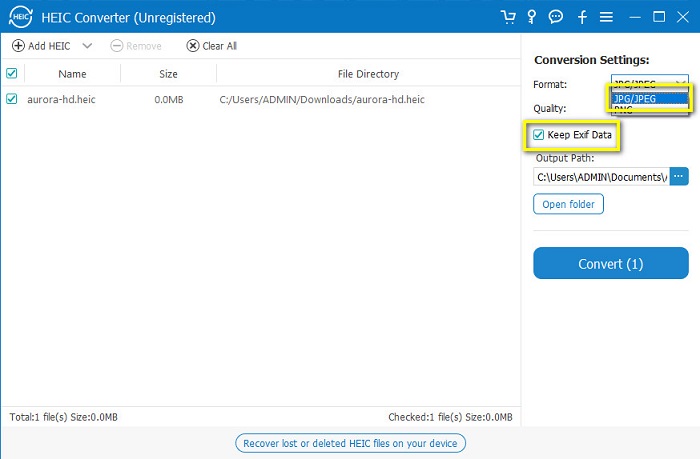
步骤 3. 然后在 Format 选项中选择 JPG/JPEG 作为输出格式。记得勾选 Keep EXIF Data 旁边的方框。
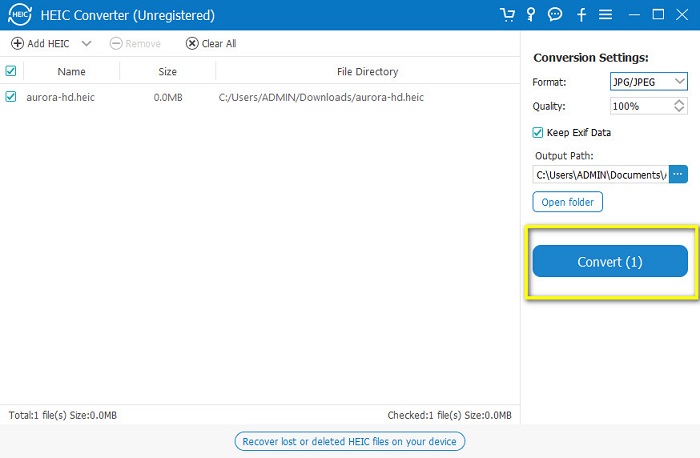
步骤 4. 最后,点击 Convert 按钮开始将 HEIC 转换为 JPG。等待转换完成,就大功告成了!你的 HEIC 图片现在已经变成 JPG 图片。
第 3 部分。有关在 Google Drive 上将 HEIC 转换为 JPG 的常见问题解答
如何管理 Google Drive 上的 HEIC 图片?
你可以通过 Google 相册在 Google 云端硬盘上管理你的 HEIC 图片。自从 Google 在 Google 相册中引入 AI 技术后,你现在可以按人物、类别或主题来管理你的照片。
为什么我的照片会以 HEIC 的形式上传到 Google Drive?
Google 云端硬盘会将您上传的文件保存为 HEIC,因为您的浏览器只会将您的图片的预览副本保存在您的计算机上。
HEIC 比 JPG 格式好吗?
在压缩和图像质量方面,HEIC 优于 JPG 格式。 HEIC 允许您通过透明度和更广泛的动态来提高图像质量。
结论
既然你已经知道无法在 Google Drive 应用中直接 将 HEIC 转换为 JPG,你可以采用在网页版 Google 云端硬盘中把 HEIC 图片另存为 JPG 的方法。不过,这种方式一次只能处理一张图片,而且必须在浏览器中操作。因此,我们推荐你使用 FVC Free HEIC to JPG Converter,它免费且易于使用。
-
 使用 2022 年的前 4 种改进方法将 HEIC 转换为 PDF
 要了解有关最佳 HEIC 到 PDF 转换器的更多信息,您可以下载此 2022。您可以阅读本文,因为我们提供了对它们的评论。
-
 2022 年精选的 5 个最佳 HEIC 到 JPG 转换器
 使用 HEIC 到 JPC 转换器,您可以轻松地将图像格式更改为便携式 JPG。想知道这5个工具是什么?阅读这篇文章。
-
 您必须知道的最佳免费和付费 HEIC 转换器 [2022 年更新]
 你想知道HEIC转换器是什么吗?如果是这样,我们将包括可用于更改 HEIC 格式的前 5 个免费和付费 HEIC 转换器。
