了解如何将 iFunny 链接下载为 MP4 格式 [在线和离线]

As we all know, iFunny is the new supplier of memes over the web. It also featured daily updated memes in different categories as well. But if you export videos from here there is always a watermark on the bottom left side of the video. Moreover, in this article we will talk about how to download and save iFunny to MP4 format without any watermark. Without any more delay let's proceed to the tools you may use to save videos.

iFunnu 转 MP4

第 1 部分。 在 PC 和 Mac 上将 iFunny 视频保存到 MP4 的最佳方法

1. FVC 免费屏幕录像机
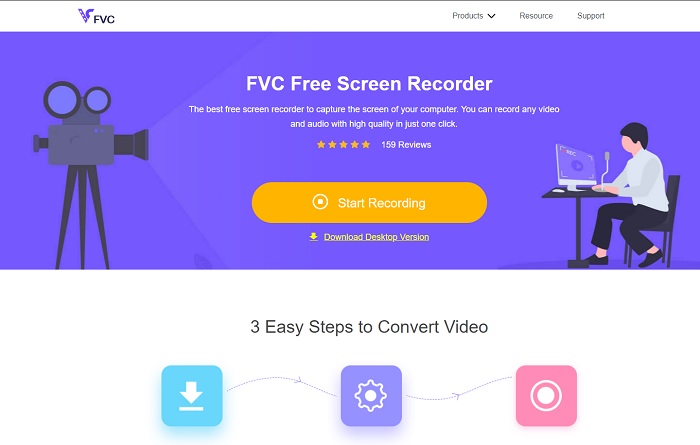
免费 FVC 录音机

If downloading iFunny videos to MP4 is not your forte then recording the video must be it. FVC Free Screen Recorder gives you the full control over recording video through your screen. Also, you can change the format if you want to but there's only a limited option with this feature. Nevertheless, it is safe and secure not only because it has a built-in library to access the recording easily. So, make way for the best web tool you can find on the internet. Stick to the instructions below as we talk on how to use this tool.

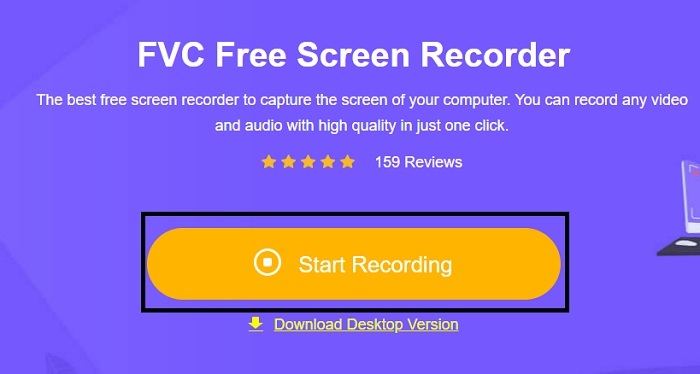
Step 1. Go to the link provided for you and a website will be open.

Step 2. To start the tool, click the Start Recording and allow the tool to be launched.

启动工具

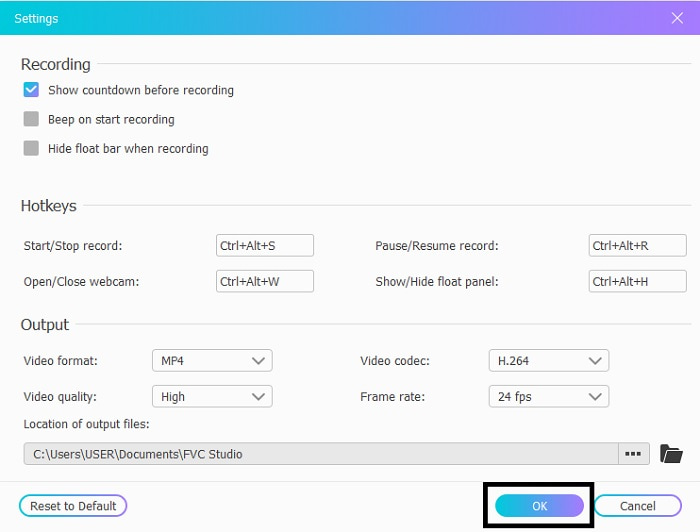
Step 3. In the mini toolbar, click the gear icon to change recording, hotkeys, and output if you want. To save the changes click OK.

更改录音

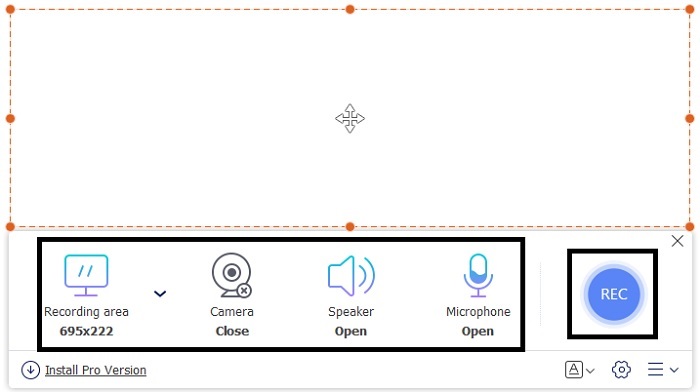
Step 4. Now adjust the length and width of the recording in the Recording Area, if you want to add the reaction of your face click the Webcam, Add the sounds of the video by opening the System Sound, and to add your own sound open the Microphone. Click the round REC button to start the recording.

调整长度

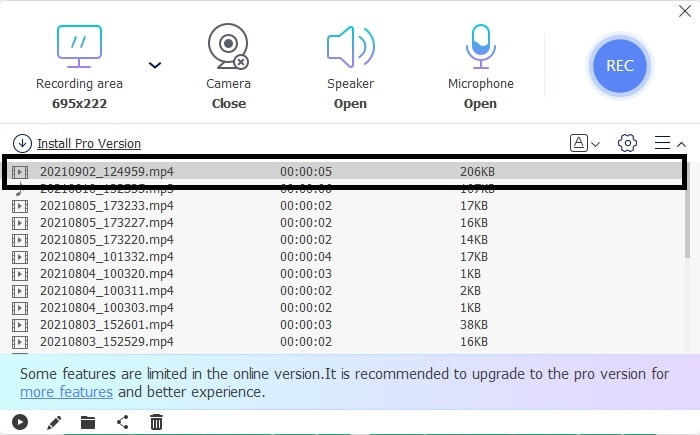
Step 5. If your recording is done, click the cube button to stop. It will automatically be saved into your drive but you can check the recorded file on the History List and watch.

单击立方体按钮

2. FVC 屏幕录像机

We know that web tools only give you limited features which means you can't add and explore. But what if we tell you that you can record at the highest level even without breaking a sweat? Introducing FVC Screen Recorder, a multi-purpose screen recorder that focuses only on innovation and a more futuristic interface. The best method to save iFunny videos without losing the quality of it is to record iFunny to MP4. Because if you share a video to other platforms using iFunny there is a chance that the quality of the will be lost especially when you download the link.

也许你想知道这个工具是否对用户不友好,或者它是否易于使用它不能像专业工具那样记录。老实说,除了 FVC Screen Recorder 之外,没有这样的工具可以开发这种功能。这个工具有三点引以为豪,因为它简单、高效、成本低,同时体验出色的录音。因此,不要吹嘘这一点,让我们按照以下步骤继续使用它。

Step 1. Choose which program that supports your desktop or laptop to download it. This will take a minute or two to be downloaded to your drive. Install it and set-up the tool according to your wants and click finish to save.

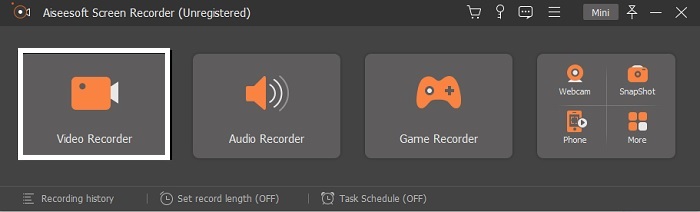
Step 2. The tool will automatically launch into your screen. Click the Video Recorder to record the iFunny videos.

启动到您的屏幕

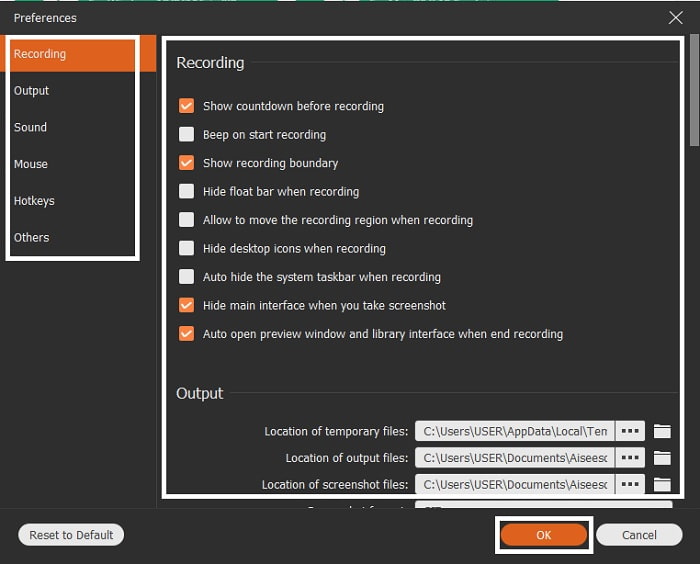
Step 3. In the toolbar go to the cog icon and change the preferences. To save the modification you've made click OK.

更改首选项

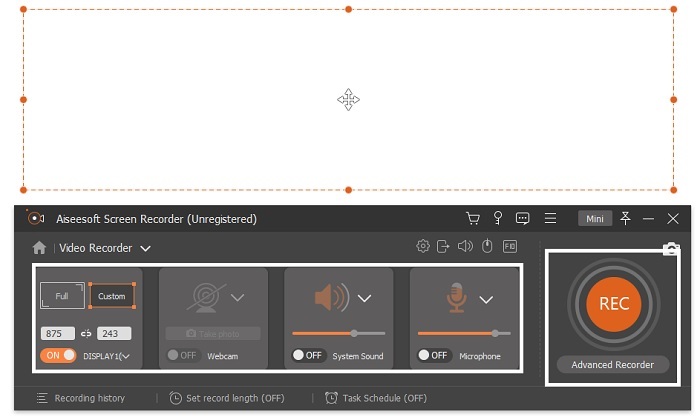
Step 4. Change the screen ratio of the recording based on what you want. Other features, to add your reactions open the Webcam, to add the audio of the video you've recording click the System Sound, and lastly to add your voice click the Microphone. If everything is settled, click the REC button to start the recording.

一切都解决了 Click Rec

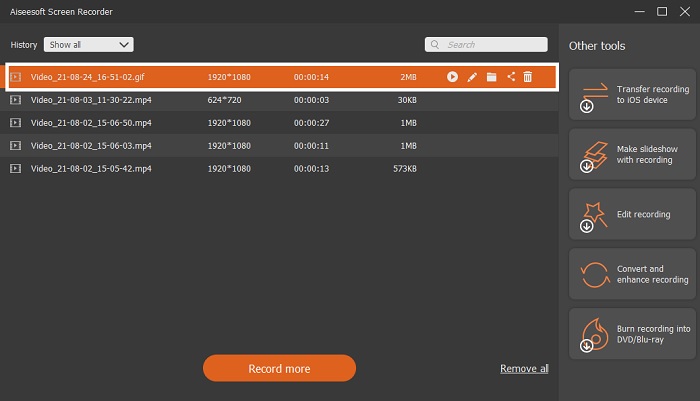
Step 5. To stop the recording click the square button. To save the iFunny video and directly save it as MP4 format, click Save and Next. So, if you want to watch the iFunny recording you did, go to the Recording List and click the first one.

停止录音

第 2 部分。 iFunny 链接到 MP4 下载器网络工具

All of the ones that are on the list are one of the best tools you can use to download via link. Copy the iFunny link to save MP4 format with the help of these tools.

1. TubeOffline

管离线

Convert the iFunny link with the help of TubeOffline. This tool helps you to convert at ease but the downside of this tool is that the ads are everywhere. Also, there is no age limit for the ads it shows on the tool. As we try to test this tool, the interface of it is not suitable for the ages of 18 and below because of the sexual ads content. As long as you stay on the website the ads will keep on popping up nowhere. But if you are not annoyed by the ads then you must try to use this.

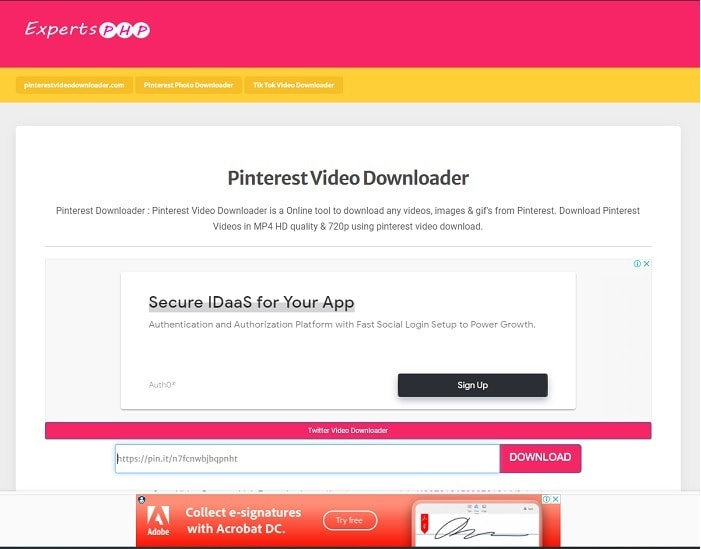
2.专家PHP

PHP专家

This tool has an ad on it but it is much less than the TubeOffline. ExpertsPHP might be your iFunny link to MP4 downloader if you may like to use it. This web tool is on point, which means even a beginner can use it. But it offers only two options: choose between the two and download it. Although this tool might be your choice and saving iFunny there are still mishaps if the file is not downloaded correctly. Still, this is much better than the first one especially if you are annoyed by the ads.

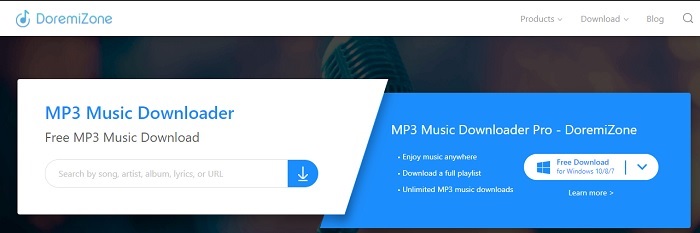
3. DoremiZone

哆啦A梦区

If the first two tools to download iFunny have ads DoremiZone has no ads. This tool is very informative as it shows how to use the tool. The blue and white is perfectly fit on its website. Also, unlike inserting a URL and downloading it, this tool has a unique search engine for music only. If you search their song, the artist's name, and the lyrics. But even though the tool provides this advanced feature, still if your connection has been interrupted there is a big chance that some of the code of the file will go missing.

Further Reading

How to Convert M2TS to MKV

How to Convert MKV to MP4

第 3 部分。 关于 iFunny 到 MP4 的常见问题解答

iFunny 适合未成年人访问吗?

访问 iFunny 所需的年龄限制是 13 岁以上,但如果您没有登录他们的网站。 iFunny 开发者不可能监控这个年龄限制和未成年人的活动。

我可以在 iFunny 上分享我的表情包或视频吗?

是的,您可以分享通过此平台制作的模因或视频。分享您在此处创建的模因,让世界使用它来更好地表达他们的情感。

我可以在 iFunny 上创建 GIF 吗?

You can create GIFs on iFunny but there is a much better tool that supports making a meme. FVC Ultimate Video Converter one of its features is a GIF maker you can create the most hilarious GIFs you've ever seen. You must download this tool and go to the toolbar to access it.

结论

To sum it up, recording is the ideal and the best way to save iFunny videos to MP4. But choosing between the two might be hard for you. As we are looking for the best tool that can give you the most amazing output you've been looking for. FVC Screen Recorder is the best in the area of recording video, audio and even gameplay as well. If you buy this tool it is like you've already prepared for the future. As FVC Screen Recorder promises you to have more futuristic features as we continue to step our game.

优秀的

Rating: 4.9 / 5 (based on 290 votes)