


 视频转换大师
 屏幕录影大师
 视频修复
视频修复
 安全下载
安全下载在Windows Media Player中播放MKV文件的3种方法
无法在Windows Media Player 打开 MKV 文件?
MKV 是一种常见的视频格式。你可能会拥有很多以 MKV 保存的高清电影、电视剧或其他视频。然而,作为 Windows 用户,你的默认视频播放器 Windows Media Player 并不原生支持对 MKV 容器的分离(打开)。现在我们回到问题本身,如何在 Windows Media Center 中播放 MKV 文件?

即使您将 Windows Media Player 升级到最新版本,也不能保证您不会遇到 MKV 播放问题。考虑到这一点,这篇文章想分享 3 种有效的方法来帮助您在 Windows PC 上播放 MKV 文件。
第1部分。如何在Windows Media Player中打开MKV文件
Windows Media Player 无法播放 MKV 文件,主要是因为解码器(codec)不匹配。你需要了解的是,MKV 实际上是一种媒体容器格式,用于封装视频流、音频流、字幕等。你需要为 WMP 提供正确的 MKV 分离器,以及相应的视频和音频编解码器与过滤器。本部分将指导你在 Windows Media Player 中播放 MKV 文件。
步骤 1: 打开 Windows Media Player,并用它打开 MKV 文件。你也可以右键单击 MKV 文件,选择使用 WMP 打开。
步骤 2: 此时你会看到一条错误消息,提示 Windows Media Player 无法播放该文件。在对话框中点击 Web 帮助 选项。
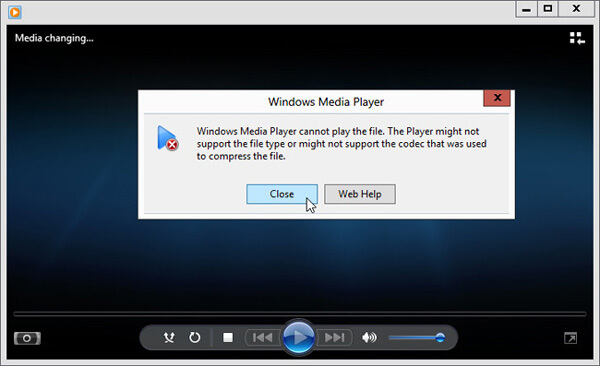
步骤 3: 点击 缺少解码器 下方的解码器链接(codec link)。复制并将该链接粘贴到浏览器中。这将引导你获取适用于 Windows Media Player 的 MKV 解码器。下载完成后,按照提示完成 Windows Media Player MKV 解码器的安装过程。
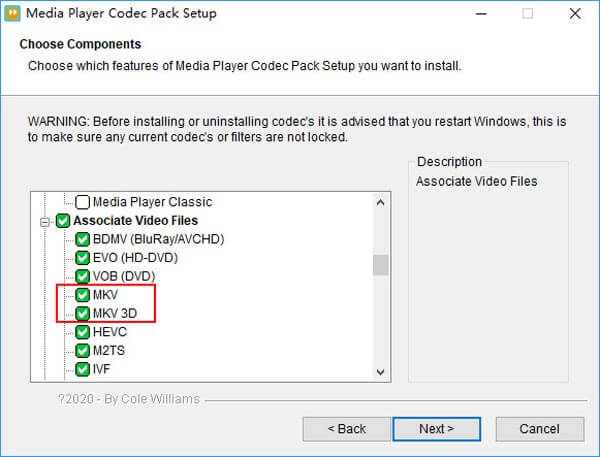
步骤 4: 重新启动 Windows Media Player,然后再次尝试播放你的 MKV 文件。

第2部分。在Windows Media Player替代方案中播放MKV文件的更好方法
使用正确的MKV编解码器,您可以在Windows Media Player中方便地打开MKV文件。但是,许多用户报告说,在使用WMP播放MKV时仍然存在其他一些播放问题。在这种情况下,您可以选择Windows Media Player替代品来帮助您播放MKV文件。
FVC Free MKV Player 是一个非常出色的 Windows Media Player 替代工具。它原生支持几乎所有常用的视频和音频格式,例如 MKV、MOV、MP4、FLV、AVI、RMVB、MPEG、AAC、MP3、M4A、WMA 等。你可以依靠它来高质量地观看 MKV 影片。

步骤 1: 打开浏览器并访问这个免费的 MKV 播放器网站。点击立即播放(Play Now)按钮,安装一个体积很小的启动器文件,用于播放 MKV。之后,MKV 播放的主窗口会出现在屏幕上。

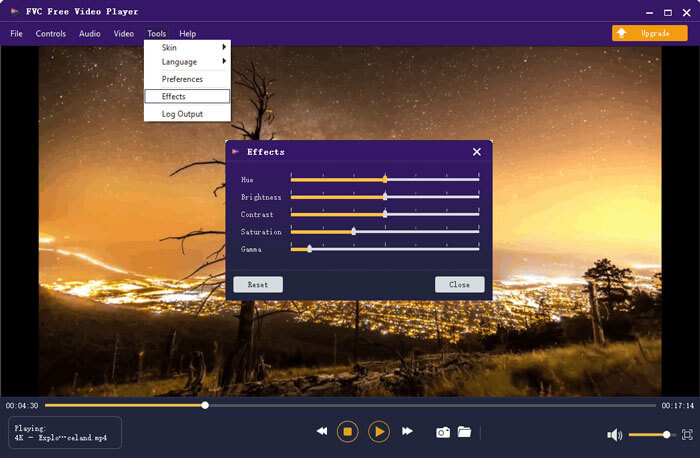
步骤 2: 点击打开文件(Open File)按钮,浏览并导入你的 MKV 文件。随后视频会自动开始播放。凭借其先进的视频编码技术,它可以流畅且高质量地播放 MKV 文件。此外,它还支持 DTS-HD 和 Dolby TrueHD。

您将获得MKV播放的所有控件。除了播放,暂停,后退,前进,调整音量等基本操作外,还可以调整效果,更改音轨和字幕以及自定义其他设置。
第3部分。转换MKV以便在Windows Media Player上播放
若要在 Windows Media Player 中播放 MKV 文件,你也可以选择将 MKV 转换成 MP4 等受支持的视频格式。这里向你推荐Free Online Video Converter,帮助你在无损的前提下将 MKV 转换为 MP4。
步骤 1: 在浏览器中打开这个免费的在线 MKV 转 MP4 转换页面。它兼容所有常见的网络浏览器,包括 Chrome、IE、Safari 和 Firefox。
步骤 2: 进入页面后,点击添加文件进行转换(Add File to Convert)按钮。在这一步,你需要安装一个用于 MKV 转换的小型启动器。完成后,屏幕上会弹出一个窗口,供你选择 MKV 文件。
步骤 3: 你会看到页面列出了许多常见的视频格式,如 MP4、MOV、AVI、MKV、FLV 等。请确保输出格式为MP4,然后点击转换(Convert)按钮。
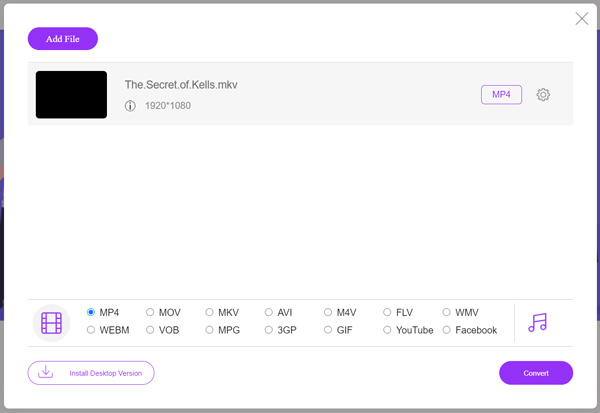
在完成MKV 转 MP4 的转换后,你就可以用 Windows Media Player 播放该文件了。转换过程中不会有任何画质或音质的损失。
第4部分。在Windows Media Player中播放MKV的常见问题解答
问题1.如何在Windows Media Player上更改视频的格式?
打开Windows Media Player并加载要转换的视频文件。单击顶部菜单上“翻录”选项卡下的小箭头。选择更多选项,然后单击标有格式的下拉菜单。在这里,您可以选择合适的输出格式并开始转换。
问题2. Windows Media Player是什么视频格式?
Windows Media Player的默认文件格式为WMV,Windows Media Video和WMA,Windows Media Audio。此外,它还支持Advanced Systems Format(高级系统格式)及其基于XML的播放列表格式Windows Playlist。
问题3. Windows 10可以播放MKV文件吗?
否。Windows10中的内置Windows Media Player 12无法播放MKV文件。您需要安装MKV编解码器才能播放。
结论
当 Windows Media Player 无法识别 MKV 解码器时,它只会弹出错误提示。要在 Windows Media Player 中播放 MKV 文件,你需要安装正确的解码器。你也可以选择使用第三方播放器,或者先转换 MKV 格式再播放。如果你对如何在 Windows Media Player 打开 MKV 文件还有任何疑问,欢迎给我们留言。
-
 顶级8 MKV播放器以所需的字幕播放MKV文件
 当您想要以所需字幕播放MKV视频时,可以了解有关PC / Mac排名前8位的MKV文件播放器的更多信息,并根据需要选择所需的播放器。
-
 MKV到MOV-如何将MKV转换成MOV
 如何在Mac上将MKV转换为MOV? iMovie可以读取MKV吗? MOV格式是什么意思?这篇文章介绍了2种简单的方法来帮助您使用免费的在线和专业视频转换器将MKV转换为MOV。
-
 AC3播放器-2021年10个最佳免费AC3播放器的评论
 什么是最好的AC3播放器? MX Player可以打开AC3吗?这篇文章列出了适用于Mac,Windows PC,iOS和Android设备的10个免费AC3播放器。
