


 视频转换大师
 屏幕录影大师
 视频修复
视频修复
 安全下载
安全下载如何在 Mac 上截屏 [简单有效的方法]
你是否正在寻找在 Mac 上截取屏幕画面的各种方法,却又不太确定该怎么做?那就继续往下看吧!在这篇全面的指南中,我们将一步步为你讲解在 Mac 上如何截屏的最简单、最高效的方法。无论你是刚入门的 Mac 新用户,还是已经很熟练但仍想探索更高级截图方式的老手,都能从本文中获得帮助。从基础快捷键到进阶技巧,我们都会详细介绍。现在就开始学习如何像专业人士一样在 Mac 上截图吧!

第 1 部分:如何使用快捷方式在 macOS 上截屏
学习如何使用快捷方式在 Mac 上截屏是一项至关重要的技能,因为它可以让你快速轻松地截取屏幕上的内容。你无需搜索菜单,只需按几个键即可以不同的方式截取屏幕截图。
以下是在 macOS 上截屏的 3 种快捷方法。
方法一:截取整个屏幕:
步骤 1. 首先,同时按住 Command、Shift 和 3 键。此操作会截取整个屏幕的截图。
步骤 2. 屏幕右下角会出现一个悬浮缩略图。你可以通过轻扫将其关闭,或者让它自行消失,截图将会直接保存到桌面文件夹。或者,你也可以点击该缩略图,将其在新的编辑窗口中打开,在那里你可以轻松裁剪、标注或分享这张截图。
方法二:部分截图:
步骤 1. 同时按住 Command、Shift 和 4 键。
步骤 2. 此时光标会变成十字准星,你需要拖动它选择区域。完成后,松开鼠标按钮即可完成截图。
步骤 3. 截图完成后,可能会出现一个缩略图。你可以点击它对截图进行编辑,或者忽略它,让截图直接保存到桌面。
方法三:捕获特定窗口:
步骤 1. 打开你想要截取的窗口。
步骤 2. 同时按下 Command、Shift、4 和 空格键。
步骤 3. 然后,光标会变成一个相机图标。使用这个图标点击你想要截取的窗口。
步骤 4. 截图完成后,你会在屏幕角落看到一个缩略图。点击它可以进行编辑操作,例如在 Mac 上裁剪截图;或者等待它自动保存到桌面。
第 2 部分。在 Mac 上截屏的专业方法
当你想在 Mac 上更专业地进行截图时,使用诸如 FVC Screen Recorder 这样的第三方工具是非常不错的选择。尽管 Mac 自带了基础的截图功能,但在专业使用方面,它缺乏足够的精确性和便利性。此外,在 Mac 上截取特定区域或窗口时,往往需要使用不同的按键组合或命令操作,这在使用上并不那么方便。
同时,FVC 屏幕录像机通过其直观的界面和一键式选项简化了在 Mac 上截取屏幕截图的过程,使用户能够准确捕获所需的内容,例如全屏屏幕截图、固定区域或自定义区域。此外,它支持各种图像格式,如 PNG、JPEG、BMP、GIF 和 TIFF,并提供关键编辑功能来增强 MacBook、Mac Pro、iMac、MacBook Air/Pro 和更多 Mac 设备上的屏幕截图。
步骤 1. 首先,在你的 Mac 上下载并安装 FVC Screen Recorder。该软件几乎支持所有 macOS 版本,包括最新的 macOS 14 Sonoma。
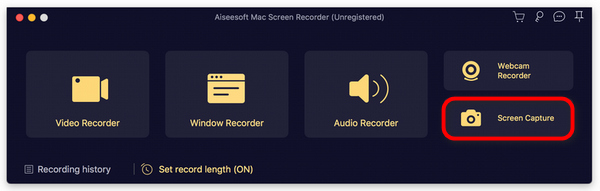
步骤 2. 接着,启动该工具并点击 Screen Capture(屏幕截图) 按钮。之后,你有三种方式在 Mac 上截图:全屏截图、固定区域截图或自定义区域截图。
步骤 3. 最后,你可以利用下方的多种工具对图片进行编辑,完成后点击 Save(保存),将图片保存到你的 Mac。
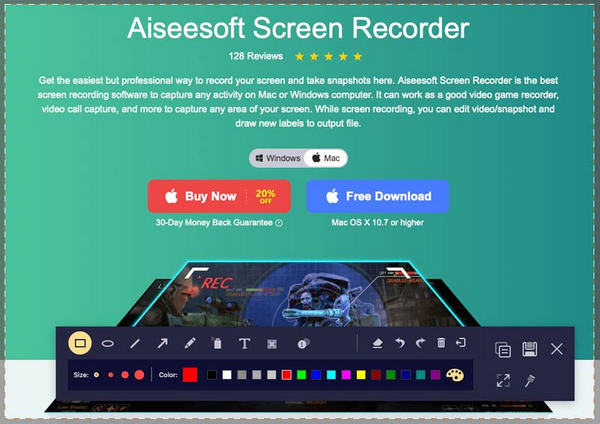
FVC 屏幕录像机确实是一款全面的工具,可以满足各种录制和快照需求,使其成为寻求多功能性和轻松在 Mac 上截屏的用户的首选。
第 3 部分。如果从 Mac 中删除屏幕截图怎么办
Aiseesoft Data Recovery 是一款软件工具,旨在帮助用户从计算机中检索丢失或删除的文件。借助此工具,Mac 用户可以恢复由于系统崩溃、格式化或其他原因而意外删除或意外丢失的 macOS 屏幕截图。此工具提供快速扫描和深度扫描选项,可有效搜索丢失的文件。凭借其用户友好的界面,此数据恢复工具可让用户轻松选择要恢复的文件类型和要扫描的特定磁盘驱动器。
步骤 1. 在你的 Mac 上下载并安装 Aiseesoft 数据恢复软件。
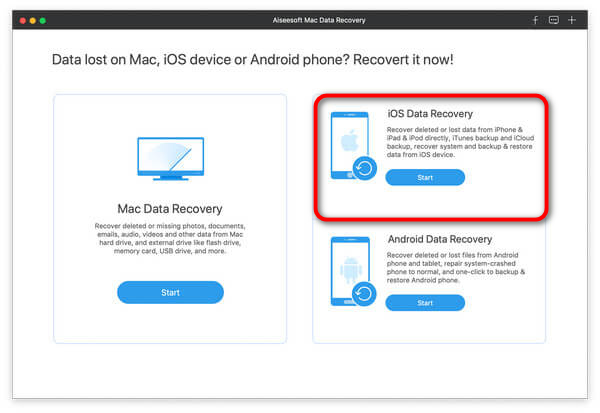
步骤 2. 运行该工具。
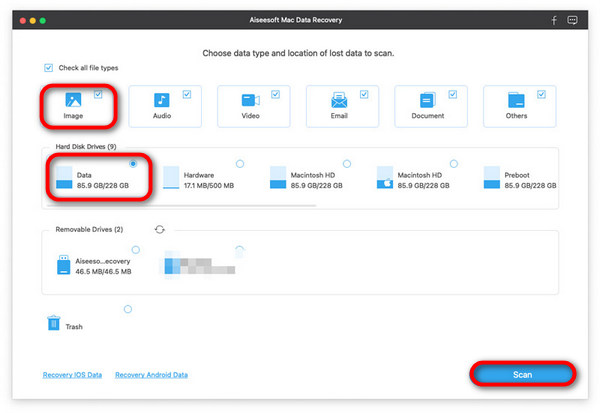
步骤 3. 选择 Image(图像) 以恢复在 Mac 上被删除的截图。之后,点击 Scan(扫描) 来扫描所有 Mac 上的图片。
步骤 4. 接下来,通过图像格式筛选找到你的 Mac 截图,然后双击任意图片预览详情。确认后,点击 Recover(恢复),即可将选中的截图恢复到你的 Mac。
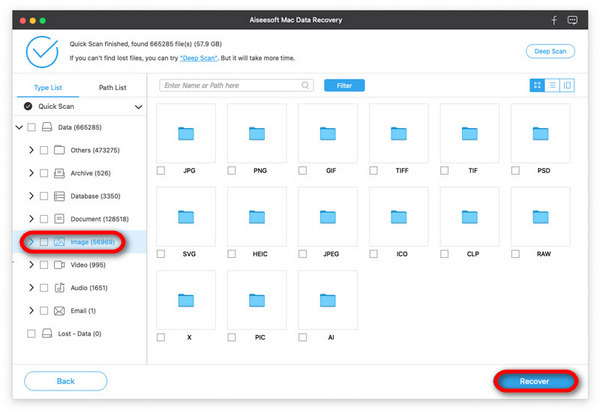
如果初次扫描后找不到丢失的数据,您可以尝试深度扫描选项来彻底扫描驱动器。请记住,此选项需要更长时间,但可能会提供额外的恢复结果。
第 4 部分。有关在 Mac 上截屏的常见问题
如何管理 Mac 上的屏幕截图?
学习如何管理 Mac 上的屏幕截图非常重要,因为它可以帮助您整理文件并节省计算机空间。当您的屏幕截图井然有序时,您可以在需要时快速找到它们,从而节省时间并帮助您提高工作效率。此外,管理屏幕截图可以更轻松地与他人共享屏幕截图并进行视觉交流。因此,通过学习如何管理屏幕截图,您可以让您的 Mac 体验更加高效和愉快。
我可以截取 Mac 上播放的视频的屏幕截图吗?
是的。您可以截取 Mac 上正在播放的视频的屏幕截图。要截取 Mac 上正在播放的视频的屏幕截图,您可以使用内置键盘快捷键或第三方应用程序(如 FVC 屏幕录像机)。截取视频屏幕截图时,请考虑暂停视频以捕获所需的帧,因为在视频播放时截取可能会导致图像模糊或扭曲。此外,某些视频播放器可能具有阻止截取屏幕截图的特定设置或限制,因此请务必检查您使用的视频播放器的设置。
我可以截取 Mac 上滚动网页的屏幕截图吗?
是的。您可以使用第三方应用程序(如 FVC 屏幕录像机)在 Mac 上截取滚动网页。此工具具有一项功能,可让您在截取屏幕截图时自动滚动,从而截取整个网页(包括屏幕上不可见的部分)的屏幕截图。
是否可以在 Mac 上以不同的文件格式截取屏幕截图?
是的。Mac 允许您以各种文件格式截取屏幕截图,包括 PNG、JPEG、TIFF 和 PDF。默认情况下,屏幕截图会自动以 PNG 格式保存,但您可以使用终端命令或第三方应用程序更改默认格式。此外,一些屏幕截图实用程序提供在截取屏幕截图之前指定所需文件格式的选项,让您可以灵活地选择最适合您需求的格式。
确实,了解如何在 Mac 上截取屏幕截图对于有效捕获和共享信息至关重要。无论您是初学者还是经验丰富的用户,掌握这项技能都可以让您记录您的屏幕并有效地与他人进行视觉交流。利用本文中为 Mac 用户提供的强大工具,将您的屏幕截图技巧提升到一个新的水平。立即开始像专业人士一样截取您的屏幕!
-
 在 Google Chrome 上截屏的 3 种有效方法 [指南]
 了解如何通过这些简单的步骤在 Google Chrome 上快速截取网站屏幕截图。使用我们的用户友好指南节省时间并提高工作效率。
-
 在戴尔 [2025] 上截屏的分步指南
 通过我们的分步指南了解如何在戴尔电脑上截取屏幕截图。通过这个简单的过程提高您的效率并节省时间。立即阅读!
-
 如何轻松在 HP 上截取屏幕截图 [2025 指南]
 通过我们的分步指南了解如何在戴尔电脑上截取屏幕截图。通过这个简单的过程提高您的效率并节省时间。立即阅读!
