


 視頻轉換大師
 屏幕錄影大師
 影片修復
影片修復
 安全下載
安全下載最佳免費 WMV 錄像機
您在手機或電視上看到過這款 Google Play 應用嗎?每當您播放音頻或視頻時,此應用程序都會運行 .wmv 文件。這種格式其實是為了和Real Video競爭。此技術發布後,電影和電視工程師將採用該技術。通常,這種格式用於 DVD 和藍光光盤。但是,從 DVD 或網站下載或保存視頻時,它不會默認為 .wmv。
這也是為什麼建議你重新錄製影片,或將影片轉換為現今大多數播放器支援的格式。基於這點,我們列出了幾款最佳的 WMV 錄製工具,可協助你將 Webex 錄影轉成 WMV。

第 1 部分。 七個最好的免費 WMV 視頻錄像機
1. FVC 免費屏幕錄像機
第一款 WMV 錄影工具來自 FVC。有一款名為 FCV Free Screen Recorder 的工具,可以以原始品質錄製 WMV 影片,甚至能以 20fps 至 24fps 將影片格式轉換為 WMV、MP4 或其他熱門格式。為什麼螢幕錄影程式可以用來替代轉檔?你可以不必下載再轉檔,而是直接重新錄影。將檔案播放並錄製,並將影片格式設定為你偏好的格式。這是一款依賴瀏覽器與網路的工具,可以錄製電腦螢幕上的活動。除了錄影之外,它也能錄製來自 Podcast、網路電台、有聲書及語音通話的音訊。此外,你還可以在匯出前編輯錄製檔。以上這些功能全部都在 FVC Free Screen Recorder 中提供。請參考以下步驟,了解如何使用此工具。
步驟 1. 前往 FVC Free Screen Recorder 的官方網站。
步驟 2. 點選 Start Recording 以啟動工具的浮動工具列。允許所有必要的權限,直到工具成功啟動。
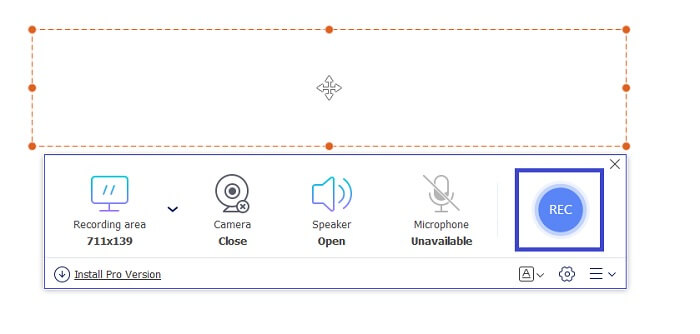
步驟 3. 在開始錄製之前,先將錄影框架調整為你想要的長寬比例。接著前往設定更改輸出檔案格式。完成後,點擊 REC 按鈕開始錄製。
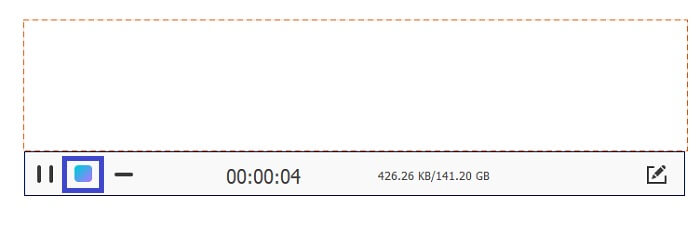
步驟 4. 錄製完成後,點擊藍色的方形按鈕結束錄影。
步驟 5. 在浮動工具列的下方檢視錄製列表,以找到錄製好的檔案。檔案會依由新到舊的順序排列。
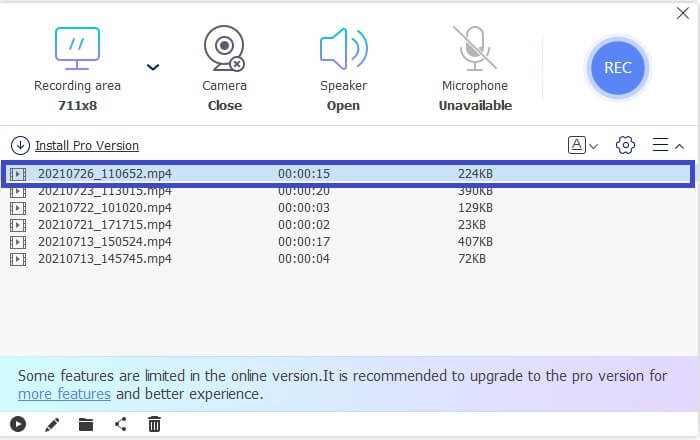
優點
- 它是免費的,無需註冊。
- 輸出格式支持 WMV 格式。
- 它允許您在保存視頻之前對其進行編輯。
- 錄音質量從低到高。
缺點
- 錄音有水印。
還不滿意?還有更多。如果需要,您可以下載該工具的專業版。有一個鏈接,上面寫著從主界面下載專業版。或者您也可以從這裡單擊下載按鈕。
FVC 屏幕錄像機被標記為當今最好的屏幕錄像機之一。它可用於個人或專業錄音。如果您正在尋找一款可以將 Webex 錄製文件轉換為 WMV 的應用程序,那麼這就是您的最佳選擇。這提供了比免費格式更多的格式。輕鬆拍攝快照、編輯您的錄音、在您忙碌時安排它、設置持續時間長度等等。可以肯定地說,與免費功能相比,提供的功能更多。此外,輸出格式和幀速率選項也很多。這個工具有什麼好處?對於那些從事電話營銷、視頻教程、視頻博客甚至個人使用的人來說,它非常有用。要使用它,這裡有一個簡單的指南。
步驟 1. 點擊上方提供的按鈕下載這款應用程式。
步驟 2. 依照安裝精靈的指示,依你的喜好完成設定。之後工具會自動啟動。
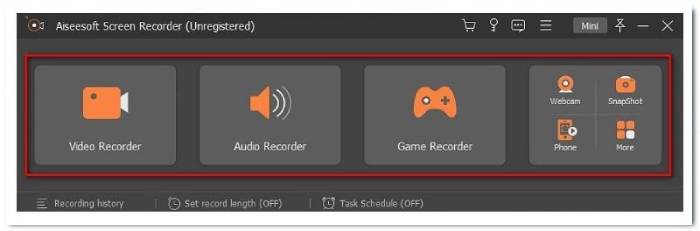
步驟 3. 接著點擊「Video Recorder」分頁,錄影介面就會出現。調整框架到你想錄製的尺寸。同時檢查設定,將輸出格式改為 WMV。然後按下紅色的 REC 按鈕開始錄製 WMV 影片。
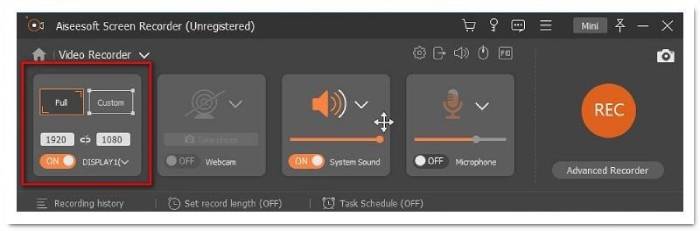
步驟 4. 錄製完成後,點擊主介面底部的紅色方形按鈕。接著會跳出另一個視窗,你可以在這裡選擇重新錄製或儲存檔案。
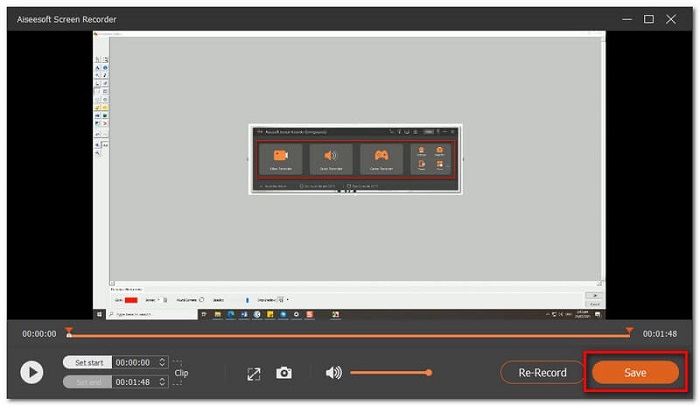
步驟 5. 檔案儲存後,會顯示可以找到錄影檔案的視窗。同樣地,錄影檔會依由新到舊的順序排列。
優點
- 它提供了更多的格式。
- 幀率從 20 到 60fps。
- 視頻質量 ID 從最低到無損。
- 沒有水印。
缺點
- 付費應用。
- 它需要更新版本的 Windows。
2. Windows 電影製作
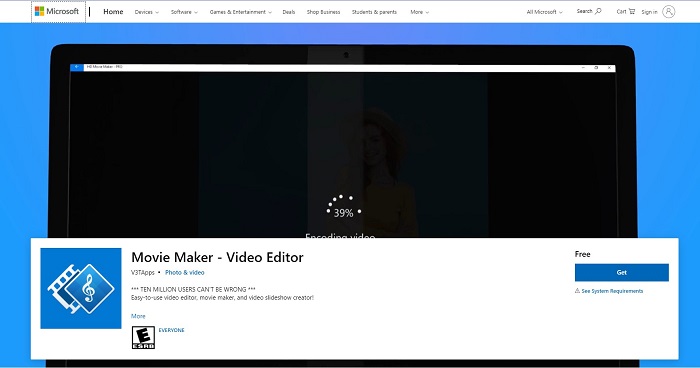
您可能會問如何使用 Windows Movie Maker 將 Webex 錄製文件轉換為 WMV?嗯,這很簡單。 Windows Movie Maker 是易於使用的視頻編輯器、轉換器和視頻幻燈片、製作器。既然是轉換器,你也可以用它來編輯視頻,編輯後設置格式為WMV。在您需要向正在轉換的視頻添加更多內容的任何情況下,該電影製作者都可以添加一個或多個剪輯。要了解有關該工具的更多信息,以下是您需要考慮的優缺點。
優點
- 它是包括 WMV 在內的多種格式的轉換器。
- 輸出格式支持 WMV 格式。
- 它允許您在保存視頻之前對其進行編輯。
- 錄音質量從低到高。
缺點
- 錄音有水印。
3. EzVid 屏幕截圖
就像 FVC Free Screen Recorder 一樣,EzVid 也是一種選擇。您可以重新錄製視頻,而不是轉換。無論如何,它提供了良好的視頻質量,它也是一個兼容 Windows Xp3、7、8 和 10 的視頻編輯器。 使用起來很有趣,可以讓您在錄製時在屏幕上繪圖,並控制視頻的速度.還有更多,看看下面。
優點
- 它可以錄製聲音。
- 它可以記錄人臉攝像頭、遊戲、應用程序、地圖和網頁。
- EzVid 使用 C++ 二進製文件。
- 具有無數的功能。
缺點
- 該工具在使用時有時會崩潰/出現技術問題。
- 一些用戶報告滯後。
4. 斯納吉特
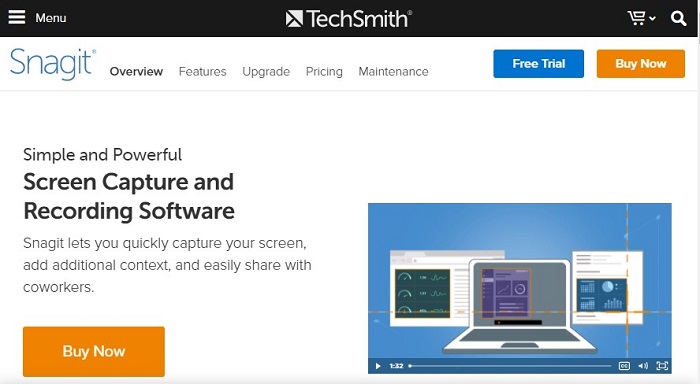
另一個免費下載的 WMV 錄音機是 Snagit。即時共享圖像、視頻、GIF 或其他共享輸出(如 WMV)。不僅如此,您還可以創建模板、視覺表示和註釋。還有一個叫做智能移動的功能,它可以捕捉物體並使它們移動。您可以重新排列按鈕、添加或刪除文本以及編輯捕獲圖像的元素。有更多提供查看下面的列表。
優點
- 它允許您創建圖章。
- 轉換和編輯視頻。
- 記錄 iOS 屏幕。
- 修剪視頻剪輯。
缺點
- 滾動捕獲不起作用。
5. OBS 工作室
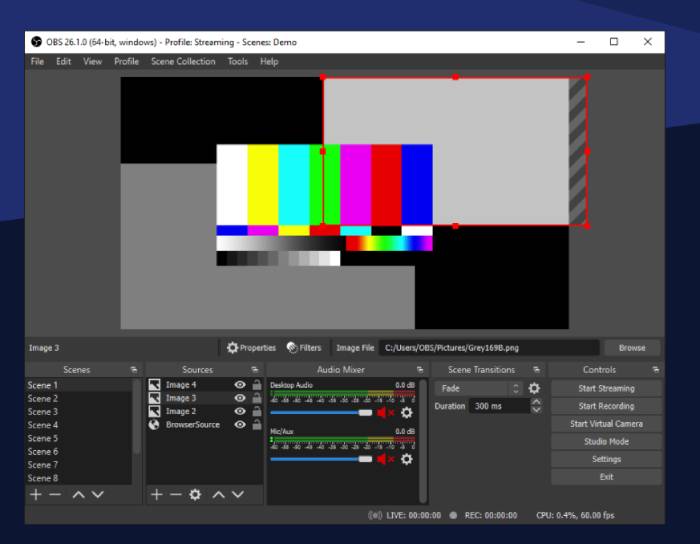
這個應用程序最受彩帶歡迎。它用於屏幕錄製實時流媒體,也可以作為進行實時流媒體的工具。大多數遊戲玩家使用它是因為它可以同時執行任務。另外,主要是因為它是一個開源的視頻錄製軟件。它提供了高性能和無縫的自定義轉換。除了這些,您還可以查看下面的列表。
優點
- 它具有簡單的配置設置。
- 設置被簡化。
- 它有一個 Dock IU,可讓您重新排列佈局。
- 可以製作各種格式。
缺點
- 滾動捕獲不起作用。
6.免費凸輪
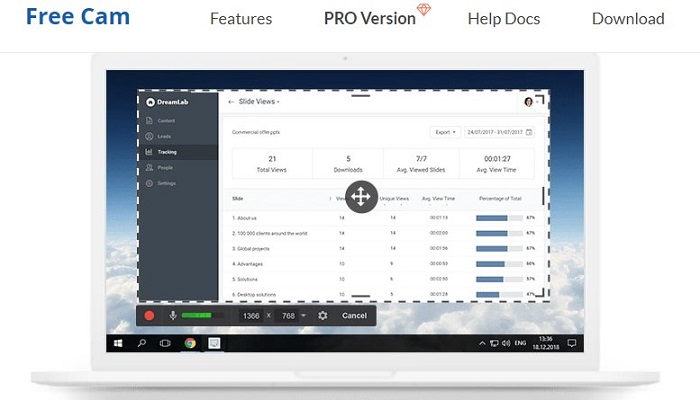
Free Cam 提供了可用於創建個人或專業視頻的果醬包功能。該工具提供了可調節的縱橫比,如 FVC 屏幕錄製。您還可以高質量錄製您的聲音並輕鬆突出顯示鼠標光標。由於此工具還記錄系統聲音,因此您可以確定音頻質量非常出色且沒有背景噪音。同時,通過檢查其優缺點來了解更多信息。
優點
- 在不同的社交媒體網站上有一個用於分享的直接按鈕。
- 最高 720p 的視頻質量。
- 註釋和設置提示是可能的。
- 支持微調您的音頻。
缺點
- 即使在重新啟動作弊後,Free cam 有時也不起作用。
7.分享X
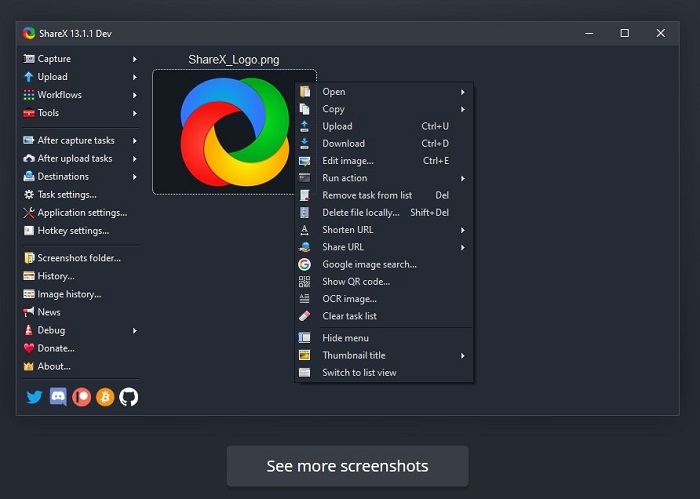
ShareX 是另一個可以通過錄製將 Webex 錄製文件轉換為 WMV 的工具。此工具具有屏幕錄製、音頻捕獲和屏幕捕獲功能。此外,它還允許您在錄製時進行註釋。如果您想知道此工具是否支持 WMV 格式。然而它是。它具有其他屏幕錄像機所不具備的更多功能。請參閱下面的列表
優點
- 它具有未合併到其他工具中的文本捕獲或 OCR。
- 滾動捕獲也可用。
- 可定制的區域。
- 已啟用錄音。
缺點
- 需要更改視頻編解碼器。
- FFMpegPath 的變化。
- 需要安裝錄音設備。
對比圖
| FVC免費屏幕錄像 | FVC 屏幕錄像機(高級版) | 視窗電影製作 | EzVid 屏幕截圖 | 斯納吉特 | OBS工作室 | 免費凸輪 | 分享X | |
| 錄視頻 |  | | | | | | | |
| 用音頻錄製視頻 | | | | | | | | |
| 編輯錄音 | | | | | | | | |
| 任務計劃程序 |  | | | | | | | |
| 設置持續時間 | | | | | | | | |
| 截屏 | | | | | | | | |
| 水印 | | | | | | | | |
| 錄音質量 | 最低,低,中,高 | 最低,最低,中間,最高,最高,無損 | 最低,低,中,高 | 最低,低,中,高 | 最低,低,中,高 | 最低,低,中,高 | 最低,低,中,高 | 最低,低,中,高 |
| 錄製幀率 | 20幀/秒,24幀/秒 | 20幀/秒,24幀/秒,25幀/秒,30幀/秒,60幀/秒 | 20幀/秒,24幀/秒 | 20幀/秒,24幀/秒 | 20 幀/秒、24 幀/秒 30 幀/秒 | 20 fps、24 fps 30 fps 60 fps | 20 幀/秒、24 幀/秒 30 幀/秒 | 20幀/秒,24幀/秒 |
| 輸出量 | WMV,MP4 | WMV,MP4,MOV,F4V,TS,AVI,WMA,MP3,M4A,AAC,PNG,JPG / JPEG,BMP,GIF,TIFF | WMV、GIF、MP4 | WMV、GIF、MP4 | WMV、GIF、MP4 | WMV、GIF、MP4 | WMV、GIF、MP4 | WMV、GIF、MP4 |
第 2 部分。 關於 WMV 錄像機的常見問題解答
為什麼我無法在手機上播放 .wmv 文件?
可能的原因之一是缺少數據塊。該文件格式將無法播放,因為視頻全長的一小段不正確的系統關閉導致文件損壞。
我應該使用哪些播放器來播放 .wmv 文件?
您可以嘗試以下 WMV 播放器:VLC 媒體播放器、Windows 媒體播放器、KMPlayer、DivX 播放器。
MPlayer 可以播放.wmv 格式嗎?
是的,它可以。具體來說,這裡是支持的格式:.wmv、AVI、MPEG、WMA、OGG、OGM 和 MP4。
結論
希望本文中編寫的 WMV 錄像機列表對您播放 .wmv 文件格式有足夠的幫助。您可以參考上表查看其提供的功能摘要。通過這種方式,您可以輕鬆做出決定並正確滿足您的需求。
-
 公正的Cinch評論錄音機和最佳選擇
 Cinch Audio Recorder是從流媒體網站下載音樂的最佳方法。只需從本文中了解更多有關無偏見評論和最佳替代方法的信息即可。
-
 適用於Windows和Mac的5大最佳鼠標和鍵盤記錄器
 這是可以保存鼠標移動和鍵盤單擊並重複事件的前五項最佳鼠標和鍵盤記錄器程序。
-
 最受歡迎的4種AVI屏幕錄像機,可將屏幕視頻捕獲為AVI文件
 為了在高質量AVI文件中記錄屏幕,本文確定並分享了本文中排名前4位的免費AVI屏幕記錄器。了解更多詳細信息,以便相應地找到所需的對象。
