


 視頻轉換大師
 屏幕錄影大師
 影片修復
影片修復
 安全下載
安全下載在 Mac 和 Windows 上錄製 MXF 視頻的最佳方法
MXF 檔案,也被稱為 Material Exchange Format(素材交換格式),是一組專業使用的容器格式,特別常見於像 SMPTE(Society of Motion Picture and Television Engineers,電影與電視工程師協會)這類數位機構。確切來說,它是類比錄影帶的實際替代品,只是以數位格式呈現。這種影片檔支援中繼資料(metadata)與時間碼。中繼資料在觀看影片內容時極為關鍵。多數的電視廣播電台、大型電影製作公司或相關機構經常採用這種檔案格式。也正因如此,這種格式在許多方面都非常出色。很多人在錄製或匯出影片時,都希望能使用這種檔案格式。現在要告訴你一個好消息,你現在可以利用 MXF 錄影工具來取得這種檔案格式。繼續閱讀本文,以了解更多資訊。

第 1 部分。 適用於 Windows 和 Mac 計算機的專業 MXF 記錄器
FVC Screen Recorder 是為您的視頻錄製提供基本功能的最受歡迎和可用的工具之一。您將在 FVC Screen Recorder 中看到的一件值得注意的事情是界面。它組織良好且易於理解。它是 100% 免受惡意軟件攻擊,最重要的是,您的文件受到保護,並且工具開發人員會考慮其機密性。當然,此工具在生成 MXF 視頻格式方面是可靠的。可以肯定地說,這是最好的 MXF 記錄器。
步驟 1. 在你的電腦上下載並安裝此工具。
步驟 2. 依照安裝流程進行,並啟動該應用程式。
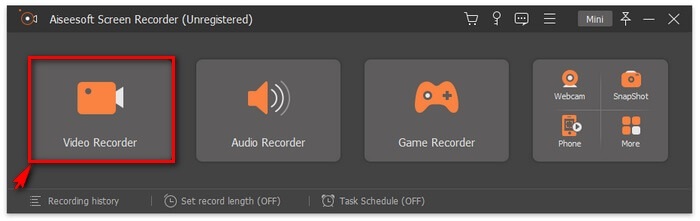
步驟 3. 要開始錄製時,選擇 錄影工具(Video Recorder)分頁,並選擇你要錄製的影片畫面大小。
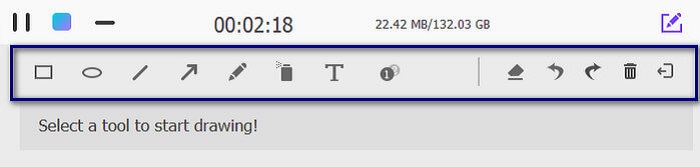
注意:你也可以在錄製的同時進行註解。只要點擊鉛筆(Pencil)圖示,即可喚出浮動工具列。
步驟 4. 錄製完成後,點擊圖片中所示的停止按鈕。它看起來是浮動工具列左側的紅色方形(Square)按鈕。

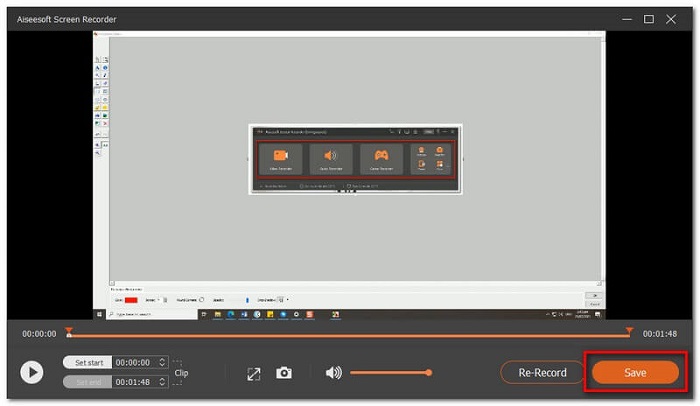
步驟 5. 接著在「儲存」與重新錄製(Re-Record)之間做選擇。若要預覽你剛錄製的影片,請點擊「錄製歷史(History)」按鈕。
優點
- 100% 保險櫃。安裝過程中沒有第三方硬件。
- 保證隱私保護。
- 支持大量視頻格式。
缺點
- 需要註冊。
第 2 部分。 值得一試的 4 大最佳 MXF 錄音機
接下來我們會為你介紹一份工具清單,這些工具也可以作為上面所列最佳 MXF 錄影工具的優良替代方案。
1. FVC 免費屏幕錄製-適用於 Windows 和 Mac 的 MXF 錄製器
和第一款工具一樣好,不過在功能上略有限制。這個工具其實是前述工具的免費版本。你無需下載安裝,只需要一個瀏覽器以及穩定的網路連線。與其他線上工具相比,這款應用的功能組合相當出色,其中有一些功能是其他免費工具所沒有的。若使用者沒有使用此類工具(例如這款 FVC Free Screen Recorder)的經驗,也不用擔心。其直覺式介面與清晰的操作流程,絕對能幫助初學者迅速上手。若要開始使用,請先下載下方的應用程式,並繼續依照下面的教學步驟操作。
步驟 1. 點擊開始錄製(Start Recording)按鈕,並依序允許必要的權限,直到成功啟動工具為止。
步驟 2. 工具啟動後,點擊REC按鈕開始錄製。錄製過程中,你也可以使用註解功能。
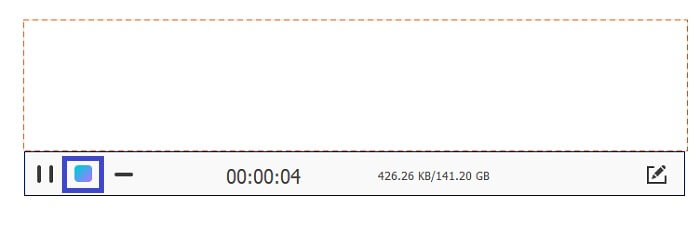
步驟 3. 若要停止錄製,請點擊藍色的方形按鈕以結束錄製。
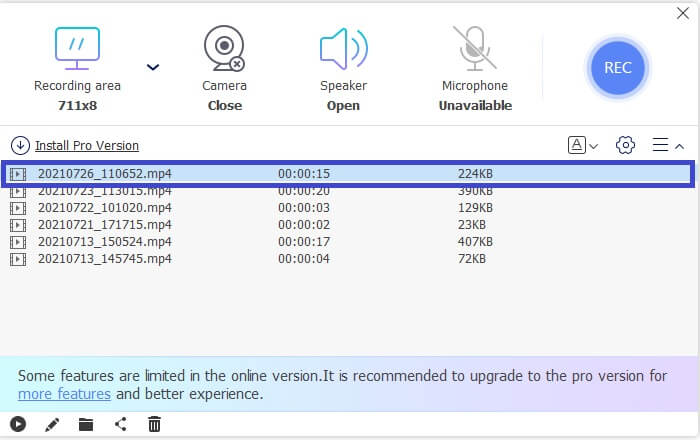
步驟 4. 最後,若你想預覽已錄製的影片,請查看浮動工具列底部的清單。
優點
- 100% 保險櫃。安裝過程中沒有第三方硬件。
- 保證隱私保護。
- 支持大量視頻格式。
缺點
- 需要註冊
2. Tiny Take - 適用於 Windows 的 MXF 記錄器
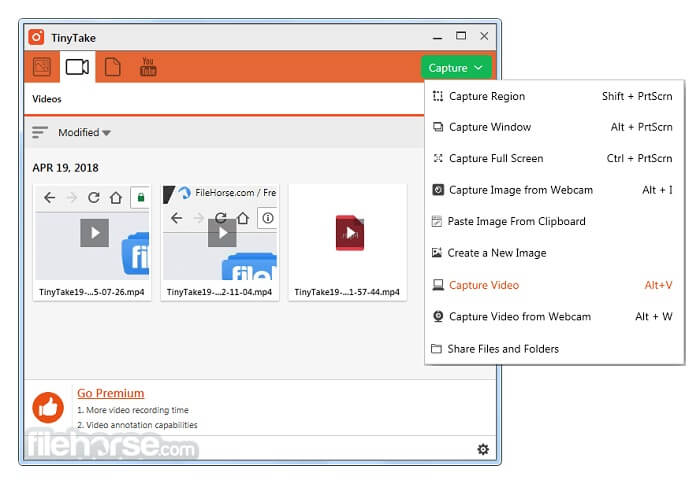
TinyTake 是另一個 .mxf 記錄器,可在可調整區域、特定窗口、全屏、網絡攝像頭,尤其是視頻中捕獲您的計算機屏幕。還有一個免費商店,您可以在其中存儲您錄製的視頻。保存或直接分享到您的社交媒體帳戶。另一方面,該工具有兩個版本,免費版和付費版。免費和高級之間的唯一區別是功能集和訪問權限。免費版只允許您錄製至少 5 分鐘的時間。忽略這些缺點,它仍然是一個不錯的選擇。
3.截屏
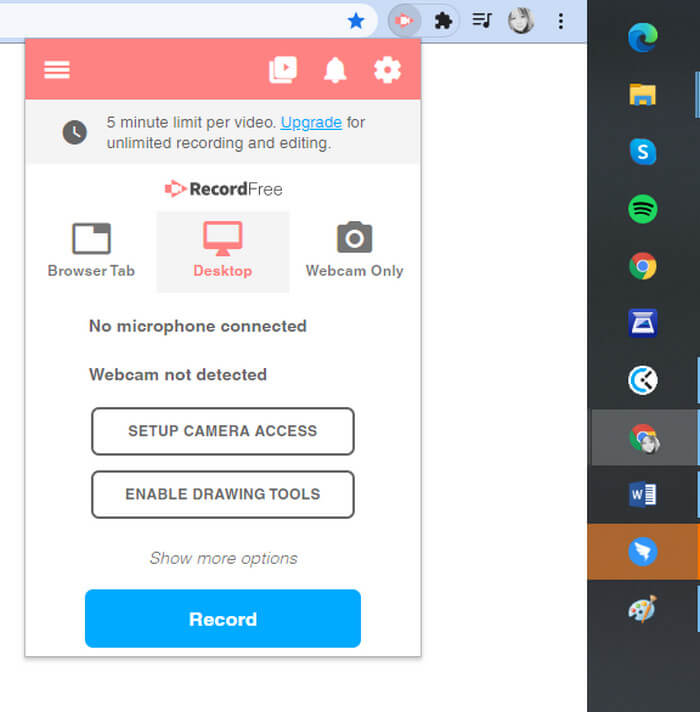
Screencastify 更易於訪問且非常簡單。它是一個專門為谷歌瀏覽器製作的依賴於網絡的工具。這非常適合那些害怕下載應用程序並希望保護計算機免受惡意軟件侵害的人。這個給你。使用 Screencastify,您無需擔心導出後的月費和水印。如果您是這種類型的用戶,您可以將其保留在您的待使用應用程序列表中。您可能在不久的將來需要它。
4. 艾茲維德
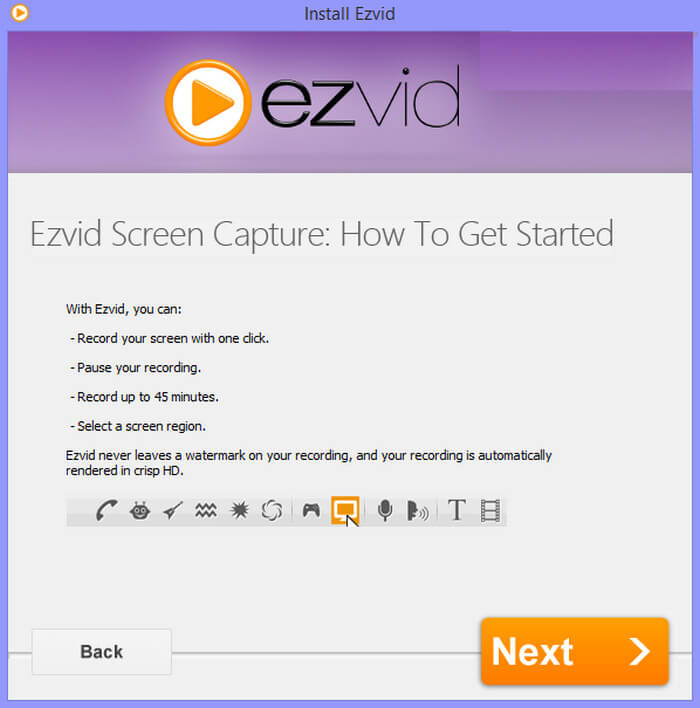
我們現在是最佳 MXF 記錄器列表的最後一個工具。了解 Ezvid,視頻製作者、屏幕錄像機和幻燈片製作者。您發現 Ezvid 的一個顯著特點是在您錄製時顯示在屏幕上的小部件。該小部件將允許您啟用、禁用、暫停或為您的演練視頻添加一些註釋。這是您在大多數屏幕錄像機上找不到的東西。此外,該工具用戶印象深刻的另一件事是能夠進行多個錄音並自動剪切它們。也就是說,它值得在我們最好的 MXF 錄音機列表中佔有一席之地。
延伸閱讀
第 3 部分。 比較圖表
| 特徵 | FVC 屏幕錄像機高級版 | FVC 屏幕錄像機免費 | TinyTake | ScreenCastify | 埃茲維德 |
| 音頻和視頻錄製 |  | | | | |
| 視頻編輯功能 | | |  | | |
| 鎖定窗口功能 | | | | | |
| 註釋特徵 | | | | | |
| 支持 MXF | | | | | |
| 惡意軟件安全 | | | | | |
| 可調比特率和縱橫比 | | | | | |
| 支持的視頻格式 | WMV、MP4、MOV、F4V、TS、AVI、WMA、MP3、M4A、AAC、PNG、JPG/JPEG、BMP、GIF、TIFF、MXF | BMP、GIF、TIFF、MXF、MP4 | MP4 M4A、AAC、PNG、JPG/JPEG、WMV、MP4、MOV | NG、JPG/JPEG、BMP、GIF、TIFF、MXF | WMV、MP4、MOV、F4V、PNG、JPG/JPEG、BMP、GIF、TIFF、MXF |
| 系統要求 | 操作系統:Windows 10、Windows 8、Windows 7、Windows Vista、Windows XP(SP2或更高版本)macOS 10.7或更高版本處理器:1GHz Intel/AMD CPU或更高版本內存:1G RAM | 網絡依賴 | 操作系統:Windows 10、Windows 8、Windows 7、Windows Vista、Windows XP macOS 10.7 或更高版本 | macOS 10.7 或以上 | Windows XP(SP2 或更高版本) macOS 10.7 或更高版本 |
第 4 部分。 有關 MXF 記錄器的常見問題解答
我在導入 MXF 文件時使用的是 Premier Pro,但它給出了錯誤消息 Unsupported File。我該如何解決?
關閉您的 Premier Pro。然後重命名 MXF 媒體文件所在的頂級文件夾。然後再次嘗試重新上傳。這應該可以解決問題。如果仍未修復,請嘗試使用編解碼器解決。
頁腳數據損壞錯誤。由於此錯誤,MXF 文件將無法播放。
MXF 文件無法播放的原因之一當然可能是由於頁眉或頁腳部分中的元數據損壞。如果錄製中斷,這很可能是原因。通過從頭開始重建或使用修復工具來修復原因。
我不斷收到一條錯誤消息,指出進口商報告了一般錯誤。這是什麼意思?
這意味著該文件沒有視頻或音頻流,即使您能夠成功將此文件上傳到 Premiere Pro,也會出現播放錯誤和在此過程中崩潰等相關問題。如果是這種情況,請將素材轉碼為不同的編解碼器。
結論
有了它,了解有關 MXF 格式的更多信息將幫助您解決在播放此類格式的視頻時可能遇到的一些問題。您始終可以依靠在這些文章中看到的常見問題解答來獲取一些故障排除技巧。如果在任何情況下您仍然不清楚 MXF 格式,請抓取互聯網並訪問 FVC 屏幕錄像機頁面。
-
 4個最佳的免費網絡啟動記錄器,以捕獲屏幕視頻
 是否在尋找無需花一分錢就能在桌面上錄製屏幕上活動的最佳方法?這是4種最常用的免費網絡啟動記錄器。
-
 公正的Cinch評論錄音機和最佳選擇
 Cinch Audio Recorder是從流媒體網站下載音樂的最佳方法。只需從本文中了解更多有關無偏見評論和最佳替代方法的信息即可。
-
 適用於Windows和Mac的5大最佳鼠標和鍵盤記錄器
 這是可以保存鼠標移動和鍵盤單擊並重複事件的前五項最佳鼠標和鍵盤記錄器程序。
