


 視頻轉換大師
 屏幕錄影大師
 影片修復
影片修復
 安全下載
安全下載編輯適用於 Windows、macOS、線上和行動電話的 M4A 文件
由於 M4A 檔案格式並非為所有裝置而設計,許多音訊編輯器在處理此格式時會遇到困難,導致使用者不易加以修改。其實 M4A 基本上已被各種裝置支援,因為是壓縮格式,所以在裝置上的負擔較輕、占用空間較小,同時仍能維持不錯的音質。別擔心,透過我們精心挑選的 Windows 與 macOS 軟體工具、適用瀏覽器的線上工具,以及行動應用程式,編輯 M4A 檔案 仍然完全可行。

第 1 部分. 在 Windows 11/10/8/7 和 macOS 上編輯 M4A 文件
1. 多合一M4A編輯器
這款由 FVC 精選的 Video Converter Ultimate 是一款多功能且易於使用的 M4A 編輯器。它是一套桌面軟體工具,被視為一體化的 M4A 編輯器,內建 M4A 剪輯、合併、壓縮、降噪、音量增強等功能。它同時具備音訊與視訊編輯能力,介面又相當直覺,是適用於 Windows 與 Mac 裝置的出色軟體。為了幫助你開始使用這款全能 M4A 編輯器,以下是一份簡要指南,協助你有效地操作此軟體。
步驟 1:在桌上型電腦上下載並安裝 FVC 精選的 Video Converter Ultimate。
步驟 2:在工具介面中,點擊 新增檔案(Add Files) 按鈕,將你的 M4A 檔案加入軟體。
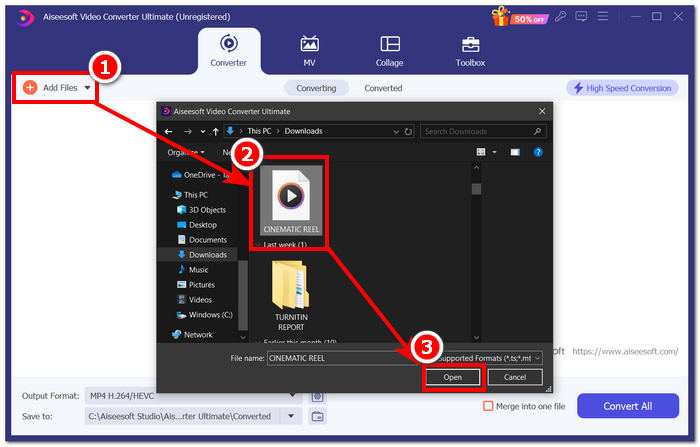
步驟 3:檔案匯入工具後,你可以點選位於已上傳 M4A 檔案旁邊的 編輯(Edit) 與 剪輯(Cut) 工具,開始編輯你的 M4A 檔案。
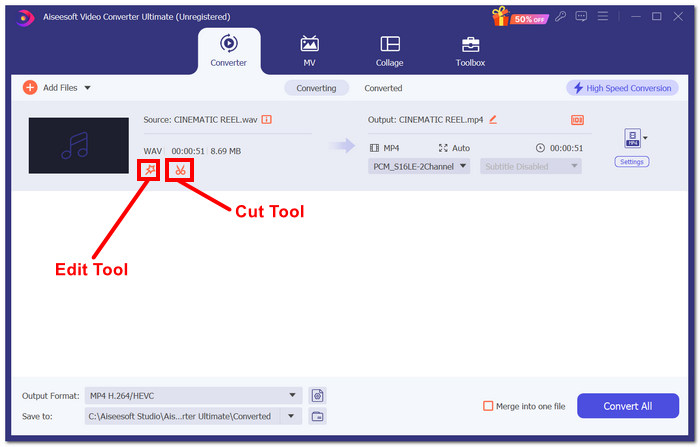
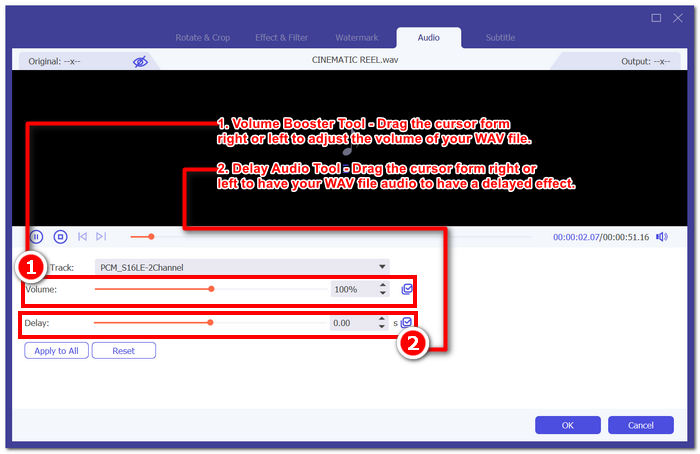
注意: 如果你想為 M4A 檔案套用音量增強(Volume Booster)與音訊延遲(Audio Delay)功能,請點擊 魔術棒(Magic Wand) 圖示。
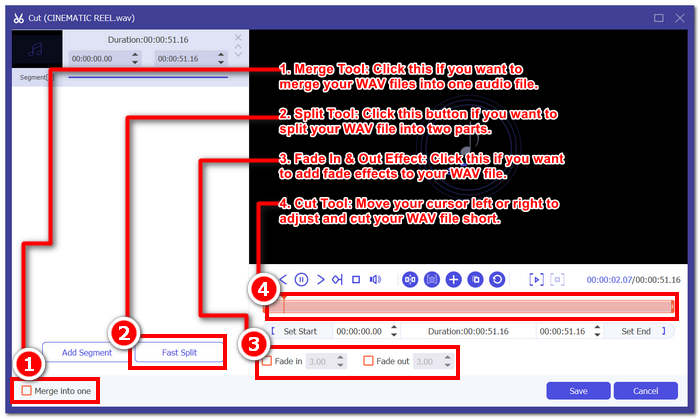
否則,按一下剪刀圖示可使用向 M4A 檔案新增淡入淡出、剪下、分割和合併效果等功能。
步驟 4:在成功依照喜好完成 M4A 檔案的編輯與剪輯後,點擊 全部轉換(Convert All) 按鈕,開始將檔案下載到你在桌面上指定的資料夾。

FVC 精選的軟體確實名副其實,是一款多功能 M4A 編輯工具。令人驚訝的是,該工具支援多種音訊和視訊格式,例如 MP3、M4A、MP4、AAC、WMA、WAV 等。此外,確保用戶始終獲得高品質的匯出,因為該工具透過高速導出技術提供無限的文件大小上傳,可以更快地處理和匯出 WAV 文件,同時保持文件的品質。
2. 開源且強大的M4A編輯器
一款也可用於錄製的開源 M4A 編輯器 Audacity 正是流行的 Audacity。憑藉多年的音訊製作專業知識,該程式是清單中最受歡迎和最廣泛使用的工具。它以其錄製音樂、編輯、混音和組合歌曲的能力而聞名。它還可用於編輯和產生用於播客的 M4A 檔案。相容於其他文件格式,WAV、MP3、MP2等;它還使其成為輕鬆進行 M4A 編輯和錄製的靈活工具。
步驟 1:在桌上型電腦上下載並安裝 Audacity。
步驟 2:安裝完成後開啟 Audacity。在其介面中,點擊螢幕左上角的 檔案(File) 功能表,接著點選 開啟(Open),載入你想編輯的 M4A 檔案。
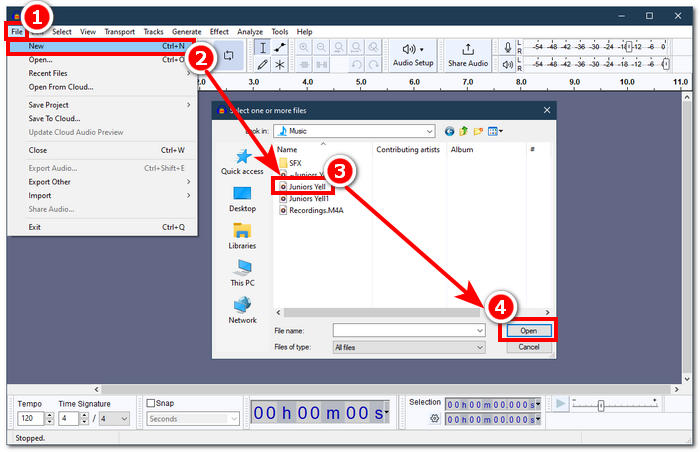
需要 FFmpeg 插件才能將 M4A 檔案與 Audacity 一起使用。請確保在進行 M4A 編輯之前安裝該插件。
步驟 3:當 M4A 檔案成功匯入工具後,你就可以使用內建的各種工具來編輯它。
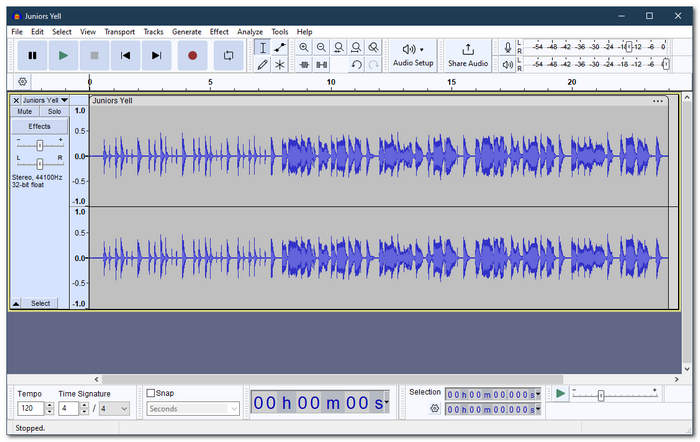
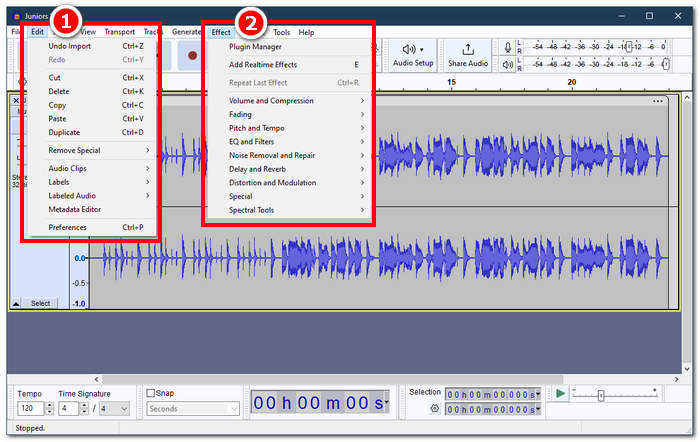
注意: 若要在 Audacity 中進行剪輯、刪除部分片段、套用效果、複製、貼上、重複,或合併音軌,請點擊工具左上方選單中的 編輯(Edit) 區段。若要調整音量、套用淡入淡出效果、變更音高與速度等,請點選同一列中的 效果(Effect) 區段。
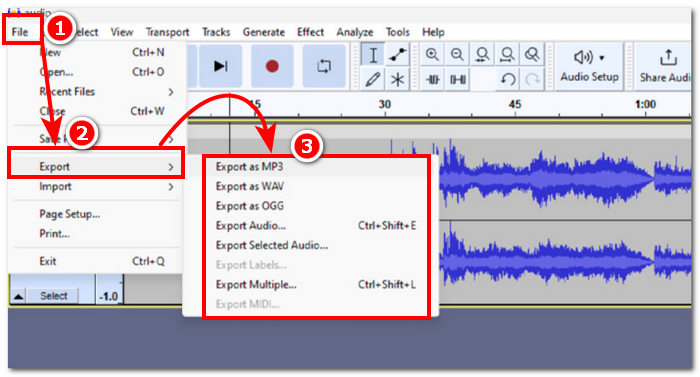
步驟 4:當你對 M4A 檔案的所有變更感到滿意後,請依序點選 檔案(File) > 匯出音訊(Export Audio) 來匯出你的音訊。
對於簡單的 M4A 編輯,Audacity 是一款出色的應用程序,因為它免費且有助於高效工作。此外,顏色追蹤特性很有用,因為它們能夠實現標籤部分的多重追蹤。一次處理多個軌道的缺點是程式只能一次管理一定數量的軌道。
第 2 部分:線上編輯 M4A 文件
若要使用線上或網頁版工具編輯 M4A 檔案,Aspose Audio Cutter 是進行即時、快速 M4A 編輯的理想方案。它特別適合為 M4A 檔案製作精準的剪輯,此線上工具支援 AAC、AIFF、FLAC、M4A、MP3、WAV 等多種格式。使用方式相當簡單,只需上傳 M4A 檔案,然後選擇你想剪裁的特定時間/長度區段並儲存即可。
步驟 1:前往 Aspose Audio Cutter 的官方網站。
步驟 2:在網站提供的上傳欄位中,將你想編輯的 M4A 檔案上傳或拖放到工具中。
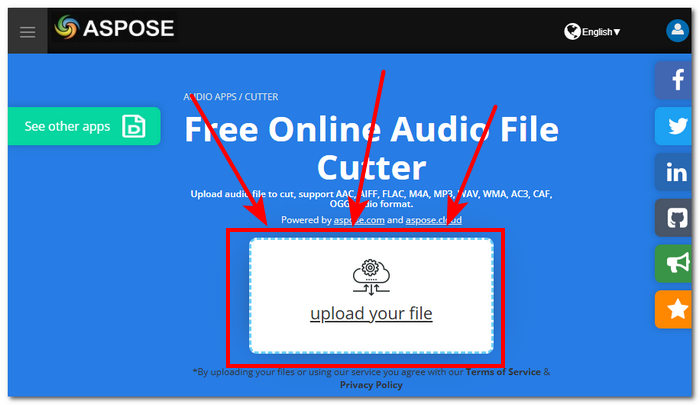
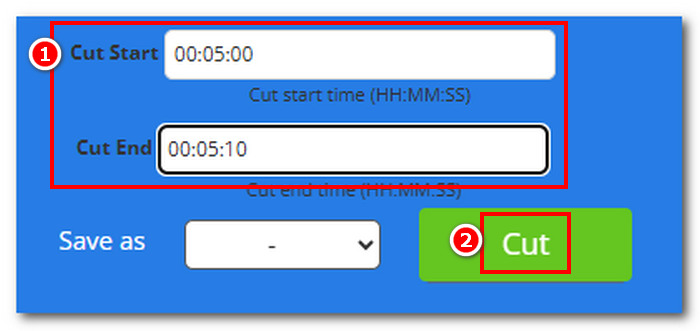
步驟 3:輸入你希望的剪輯開始(Cut Start)與剪輯結束(Cut End)時間,以精準排除 M4A 中想移除的部分,然後點擊 剪輯(Cut) 按鈕開始處理。
步驟 4:完成剪輯 M4A 檔案後,點擊 立即下載(Download Now) 按鈕,將檔案儲存到你的桌面。
你可以用你的 M4A 播放器 開啟它,檢查剪輯效果。
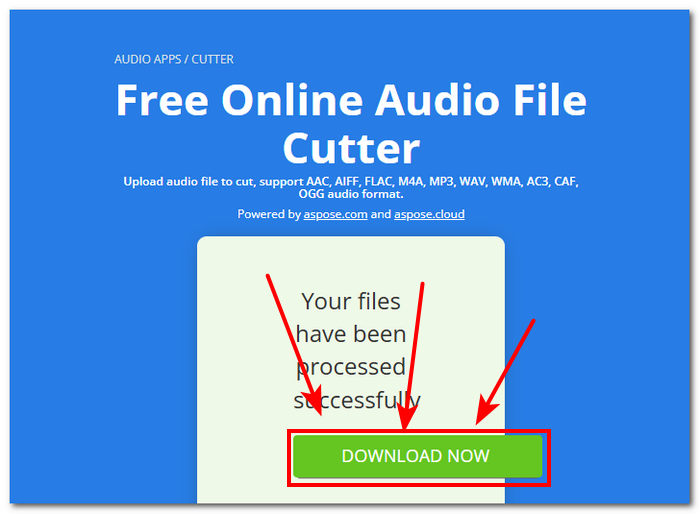
Aspose Audi Cutter 確實是一款用戶友好的工具,具有簡單的介面,專門用於創建 M4A 檔案的精確剪切。該服務速度快,無需安裝應用程式即可使用。因此,它的功能僅限於剪切功能,無法執行其他 M4A 編輯任務,例如添加淡入淡出效果、修剪、分割等。
第 3 部分. 在手機上編輯 M4A 文件
受桌面軟體版本的啟發,WavePad 行動版具有相同的介面,這使得更容易熟悉該應用程式。該行動應用程式可在 Android 和 iOS 裝置上免費下載,廣泛支援音訊格式,以確保該工具在編輯音訊檔案時的多功能性。此外,其 M4A 編輯功能提供廣泛的功能和效果,例如輕鬆剪切、修剪、複製、貼上、插入、靜音和自動修剪 M4A 檔案。
步驟 1:前往你的行動應用程式商店並下載 WavePad 行動版。
步驟 2:安裝完成後,點擊應用程式介面上方的 開啟(Open) 圖示,載入你的 M4A 檔案,然後等待匯入完成。
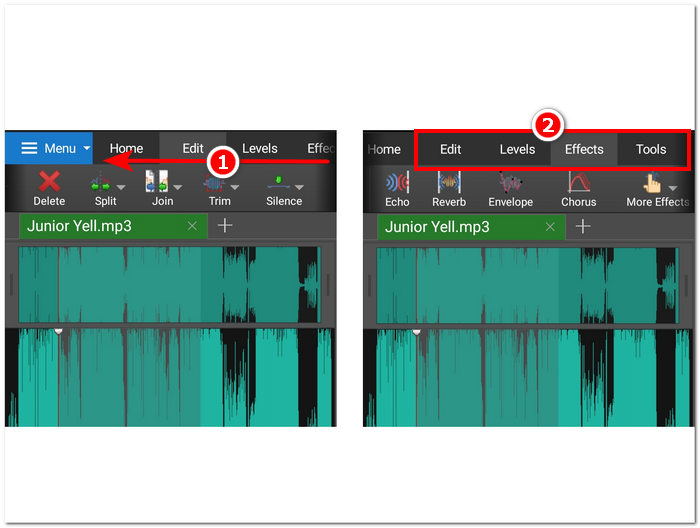
步驟 3:當 M4A 檔案在應用程式中載入完成後,開始探索 App 的各項功能來編輯你的 M4A。你可以將手指放在工具最上方,從右向左滑動,即可看到剪下(cut)、複製(copy)、合併(join)、貼上(paste)等功能。找到你所需的工具後,點擊即可將其套用到你的 M4A 檔案上。
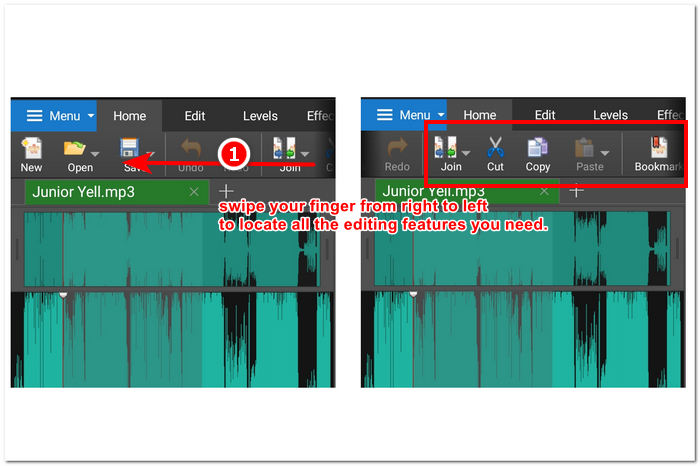
您也可以透過在「編輯」部分所在的欄位中從右向左滑動手指來探索和查看可用於編輯 M4A 檔案的其他效果和功能。您可以在其中將效果套用到 M4A 檔案等。
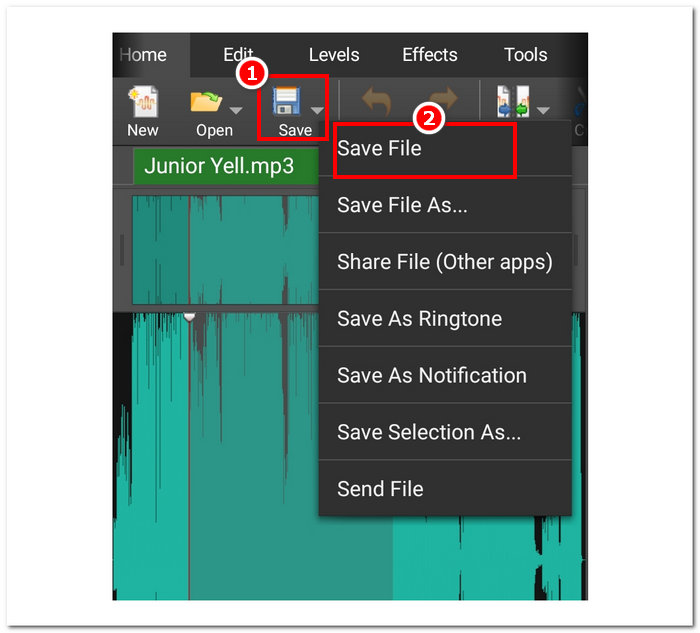
步驟 4:完成 M4A 檔案的編輯後,回到首頁(Home)區段,點擊儲存(Save)按鈕,再選擇「儲存檔案(Save File)」,即可將已編輯的 M4A 檔案下載到你的行動裝置。
也就是說,WavePad mobile 無疑是一款功能強大的行動 M4A 編輯器應用程序,它允許用戶對其 M4A 檔案執行幾乎所有可能的操作。該應用程式非常適合僅擁有行動裝置且總是在旅途中的用戶。
第 4 部分:有關如何編輯 M4A 檔案的常見問題解答
M4A比MP3差嗎?
它並不被視為比 MP3 更差,但依使用目的而定,M4A 通常能提供更佳的音質,同時也能在同樣或更佳的位元率下受惠於更先進的壓縮演算法。想了解更多 M4A 與 MP3 的差異,可以在這裡查閱。
M4A有什麼缺點?
M4A 檔案並未得到設備和平台的廣泛支持,因此您需要使用轉換器工具才能使用它們。此外,用戶在使用 M4A 作為音訊文件時經常遇到相容性問題,這使得它不是一個理想的文件,尤其是在共享時。
有沒有免費軟體可以將 M4A 轉換為文字?
是的,有大量免費軟體可以轉換 M4A,例如 Google Docs Voice Typing 和 Otter.ai。這些工具非常可靠,因為它們整合了語音辨識技術,可以將此 M4A 檔案中的音訊檔案轉錄為文字。
編輯後可以將 M4A 檔案轉換為其他格式嗎?
是的,許多 M4A 編輯器,例如 FVC 選擇的 Video Converter Ultimate,都有一個內建轉換器工具,允許使用者以不同的音訊格式儲存或匯出編輯後的 M4A 檔案。
如何確保編輯的 M4A 文件的品質得到維持?
為了確保您在儲存編輯的 M4A 檔案時始終獲得最高品質的匯出,請務必避免過度壓縮,並確保使用支援無損匯出品質的值得信賴的工具,
結論
由於相容性問題和某些音訊編輯器的支援有限,跨多個平台(包括 Windows、macOS、網際網路工具和行動電話)編輯 M4A 檔案可能很困難。與 WAV 等廣泛接受的格式相比,M4A 檔案在品質和壓縮之間提供了巨大的折衷,使其能夠有效存儲,同時保留可觀的音訊保真度。但是,您可以使用正確的工具和程式輕鬆編輯 M4A 文件,保證高品質輸出和多種編輯選擇,例如桌面版 FVC Video Converter Ultimate、網頁版 Aspose Audio Cutter 和WavePad 的行動版本。
-
 適用於Windows和Mac的5大最佳鼠標和鍵盤記錄器
 這是可以保存鼠標移動和鍵盤單擊並重複事件的前五項最佳鼠標和鍵盤記錄器程序。
-
 最受歡迎的4種AVI屏幕錄像機,可將屏幕視頻捕獲為AVI文件
 為了在高質量AVI文件中記錄屏幕,本文確定並分享了本文中排名前4位的免費AVI屏幕記錄器。了解更多詳細信息,以便相應地找到所需的對象。
-
 行動!屏幕錄像機評論–缺點,優點及其最佳替代方案
 Action Screen Recorder 是捕捉遊戲視頻的理想遊戲錄製軟件嗎?只需從評論中了解更多詳細信息,並從文章中了解更多細節。
