


 視頻轉換大師
 屏幕錄影大師
 影片修復
影片修復
 安全下載
安全下載如何放大打印圖片的最佳方法
放大圖片主要有兩種方式。你可以透過「升頻」來放大照片,也可以透過增加影像的像素數來放大。另外一種放大圖片的方法,則是改變照片的實際尺寸或長寬尺寸。在本教學中,我們會示範這兩種放大照片的方式。依照你的需求,你一定能在此找到問題的解答。繼續閱讀本指南,了解如何將影像放大用於列印,以及線上、離線等不同情境。

第 1 部分。放大圖像而不損失在線打印質量
當您第一次聽說放大圖像質量時,聽起來很複雜。但是,在閱讀這篇文章之後,這對您來說肯定會很容易。有大量的應用程序可以幫助您放大圖片。但問題是太多了,很難選擇一個。幸運的是,我們找到了一款可以幫助您輕鬆免費放大圖像的應用程序。
「FVC Free Image Upscaler」是一款非常出色的線上相片放大工具。線上工具的好處是無需下載安裝,能節省裝置的儲存空間。使用這個線上工具時,你可以將圖片放大為 2 倍、4 倍、6 倍或 8 倍。此外,它採用 AI 技術進行升頻,會自動偵測影像中畫質較低的部分,並加以強化。
此外,初學者可以輕鬆使用此應用程序,因為它具有直觀的用戶界面。此外,它具有預覽效果,使您可以在保存之前檢查輸出結果。 FVC Free Image Upscaler 可在所有網絡瀏覽器(如 Google、Firefox 和 Safari)上免費使用。
如何使用 FVC Free Image Upscaler 放大圖片進行打印
步驟一: 開啟你的網頁瀏覽器,在搜尋框中搜尋「FVC Free Image Upscaler」。你也可以直接點擊此連結前往主頁。
步驟二: 在主畫面中,點選「Upload Photo」按鈕,加入你想放大的圖片。你也可以使用拖曳放入的方式上傳影像。
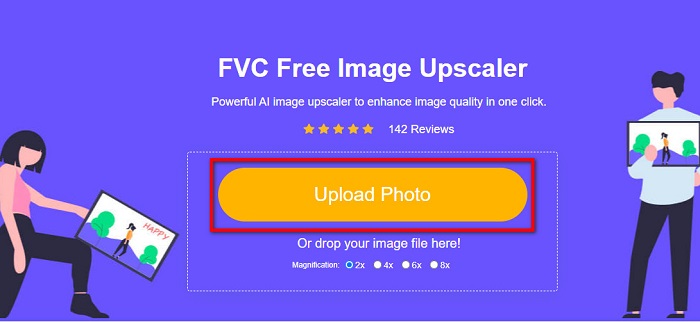
步驟三: 檔案上傳後,系統會帶你進入另一個畫面。選擇你希望的放大倍率,可在2x、4x、6x與8x之間選擇。圖片原始畫質越低,建議選擇越高的放大倍率。
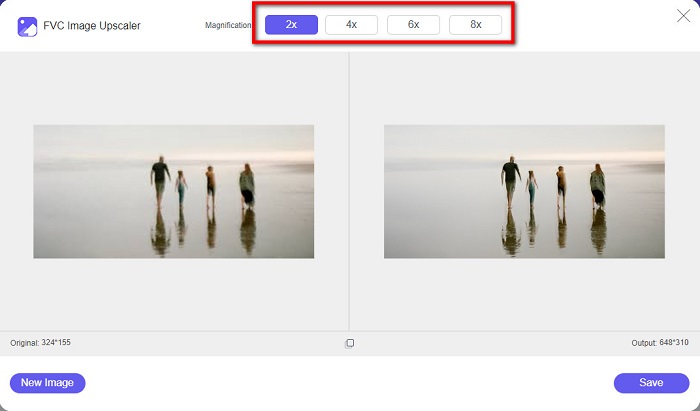
步驟四: 將游標移到左側圖片上方即可預覽放大後的效果。有看到變化嗎?如果滿意結果,點選介面右下角的「Save」按鈕,將輸出檔存到你的裝置中。
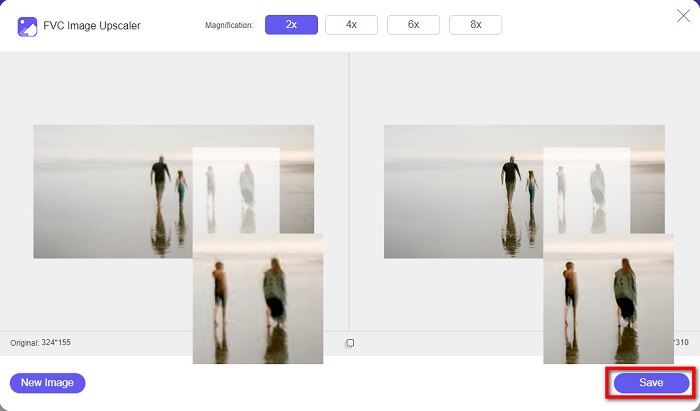
這些是關於如何使用 FVC Free Image Upscaler 放大圖片以進行在線打印的簡單步驟。很容易,對吧?但是,如果您想通過更改圖像尺寸來放大照片,請閱讀下一部分。
第 2 部分。如何在不損失質量的情況下在 Photoshop 中放大圖像
您可能在搜索如何放大照片時遇到過此應用程序。 Adobe Photoshop 是 Internet 上最傑出的照片編輯應用程序。 Adobe Photoshop 主要供經常編輯圖像以在不同平台上發布的專業人士使用。使用此應用程序的工具和功能,您一定可以產生驚人的輸出。但是您知道您還可以使用 Adobe Photoshop 放大圖像嗎?是的,你沒有看錯。它也是在不損失質量的情況下擴展圖片的合適工具。使用 Adobe Photoshop,您可以通過更改分辨率或手動輸入圖像的寬度和高度來放大圖像。儘管 Adobe Photoshop 是一款專業應用程序,但其放大功能使用起來非常簡單。事不宜遲,這些是使用 Photoshop 無損放大圖像的步驟。
步驟一: 首先,在電腦上下載並安裝 Adobe Photoshop。它幾乎支援所有作業系統,例如 Windows 與 macOS。安裝完成後,匯入你想放大的圖片。
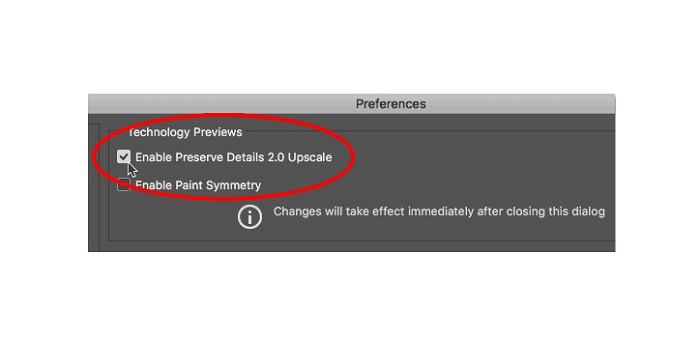
步驟二: 接著開啟「Preserve Details 2.0(保留細節 2.0)」功能。如果你使用的是 Windows 電腦,請到功能表列中的Edit(編輯)選單。如果你使用 Mac 裝置,請前往Photoshop CC選單,選擇Preferences(偏好設定),再點擊Technology Previews(技術預覽)按鈕。此時會跳出「偏好設定」對話框,並顯示在Technology Previews選項頁面。勾選Enable Preserve Details 2.0 Upscale(啟用保留細節 2.0 放大)旁邊的核取方塊,然後按下OK關閉此「Technology Previews」對話框。
步驟三: 接下來,開啟「Image Size(影像尺寸)」對話框。到「Image(影像)」選單中,選擇「Image Size(影像尺寸)」選項。
步驟四: 在 Photoshop 中放大或升頻圖片時,我們的目標是調整圖片的實體尺寸,也就是增加或減少像素數。因此,請確認「Resample(重新取樣)」已被勾選。
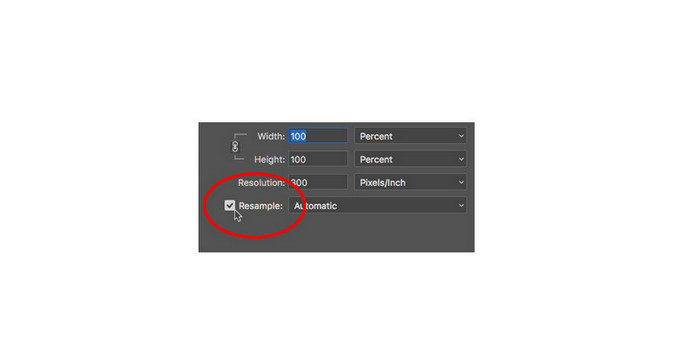
步驟五: 然後,透過輸入你偏好的尺寸,修改照片的高度(height)與寬度(width)。在預設狀態下,寬度與高度是連動的,所以當你變更圖片寬度,高度會自動依比例調整。
步驟六: 最後,將「Resample Method(重新取樣方法)」改為「Preserve Details 2.0」。預設的重新取樣方法為「Automatic(自動)」,但在自動模式下,Photoshop 並不會主動選擇 Preserve Details 2.0。因此,請點選「Automatic」,再改選為「Preserve Details 2.0」。
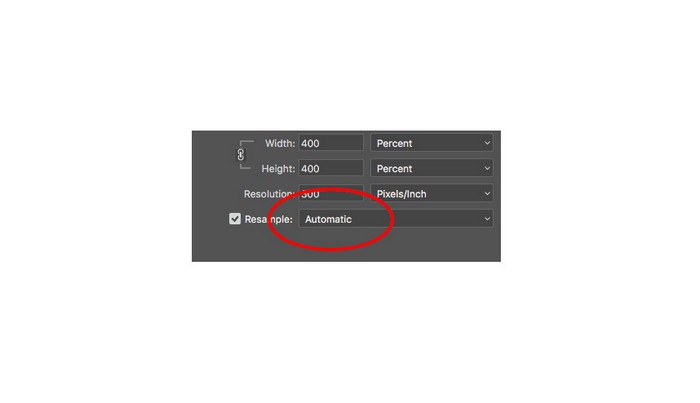
步驟七: 現在可以預覽結果了。選擇「Preserve Details 2.0」後,左側的預覽視窗會更新,顯示放大後的影像效果。你可以在預覽視窗中拖曳圖片,查看影像不同區域的細節。
按照這些步驟,您一定會學會如何在不損失質量的情況下放大圖片進行打印。
相關內容:
第 3 部分。有關如何在不降低質量的情況下放大圖像的常見問題解答
我可以在線放大 JPG 文件嗎?
你可以使用「FVC Free Image Upscaler」來變更 JPG 圖片的檔案大小。只要將放大倍率提高到 6 倍或 8 倍,即可放大 JPG 影像的尺寸。
Adobe Photoshop 是否支持 PNG 文件?
是的。許多平台都支持 PNG 文件,包括 Adobe Photoshop。您可以使用 Adobe Photoshop 導入幾乎所有圖像文件格式,例如 PNG、JPG、JPEG、BMP 和 WebP。
放大圖像會影響其文件大小嗎?
是的,它確實。圖像的文件大小會增加,因為您正在調整圖像的總像素數或每英寸的像素數。但是當您降低圖像的寬度和高度時,文件大小也會變小。
結論
以上就是在不犧牲畫質的前提下,放大圖片的幾種方法。無論是透過線上或離線方式,你都可以放大影像而不明顯降低品質。不過,如果你想要更簡單的放大流程,我們會推薦使用介面友善的「FVC Free Image Upscaler」。
-
 如何用兩種不同的方式在 Illustrator 中調整圖像大小
 了解在 Illustrator 中調整圖像大小的最佳方法。首先,在您的 PC 上下載並打開 Adobe Illustrator 應用程序,然後按照以下簡單步驟操作。
-
 6 種方法在 Web 和離線上 Reize 圖像 [100% 工作]
 通過我們在此處添加的教程,您現在可以根據您喜歡的大小輕鬆調整圖像大小。在這裡學習如何做!
-
 免費且無需安裝在 iPhone 上調整照片大小的最佳方法
 在 iPhone 上調整照片的大小可能很難學習。幸運的是,本文提供了有關如何輕鬆更改圖片尺寸的教程。
