


 محول الفيديو النهائي
 مسجل الشاشة
 إصلاح الفيديو
 تنزيل آمن
دليل بسيط حول كيفية جعل جزء من مقطع فيديو بالحركة البطيئة بشكل فعال
يستخدم معظم صانعي الأفلام تقنية زيادة عدد الإطارات (Overcranking) لجعل الفيديو يُعرض بالحركة البطيئة، لكنها تُستعمل في الأساس في الرياضة من أجل الإعادة الفورية. وبفضل التأثير الفني الذي تضيفه هذه التقنية، أصبح الجميع يغيّر سرعة الفيديو إلى الوتيرة التي يرغب بها. بمعنى آخر، أصبح الطلب على محرّر للحركة البطيئة منتشرًا على نطاق واسع في عالم الإنترنت كله، وارتفعت الحاجة إلى أداة مثالية للتحكم في سرعة الفيديو أكثر فأكثر مع مرور الوقت. ولتلبية احتياجك لأفضل أداة للتحكم في السرعة، سنستعرض أفضل ثلاث أدوات تحكم في السرعة وجدناها في السوق، والتي توفّر إمكانات مميزة جدًا في تعديل سرعة الفيديو. بالإضافة إلى ذلك، سنضمّن أيضًا شرحًا تعليميًا حول كيفية جعل جزء من الفيديو بالحركة البطيئة في كل أداة من الأدوات التي اخترناها خصيصًا لك.

الجزء 1. أفضل طريقة لعمل جزء من مقطع فيديو بالحركة البطيئة [مُقترح بشدة]
مع تزايد الحاجة إلى امتلاك أفضل أداة تحكم في السرعة لإبطاء مقطع معيّن، يوفّر FVC Video Converter Ultimate المساعدة التي تحتاجها لإنهاء هذه المهمة. يقدّم هذا المحوّل الشامل ميزة فريدة لإبطاء الفيديو أو تشغيله بسرعة عالية، ثم تطبيق ذلك في أقل عدد ممكن من النقرات. لن تخطئ باختيار هذا البرنامج، فهو من أسهل البرامج فهمًا واستخدامًا، كما أن واجهته الرسومية النظيفة تساعدك على الفهم والتنظيم بسهولة.
بالإضافة إلى وحدة التحكم في السرعة ، يمكنك أيضًا استخدام هذا البرنامج لتقسيم ودمج مقاطع فيديو متعددة في وقت واحد. أصبح العديد من المستخدمين سعداء بهذا البرنامج بسبب الميزات والوظائف المتعددة التي يوفرها لك. لذا ، لنفترض أنك تريد أن تكون جزءًا من المجتمع المبهج وأن تنبهر بهذا البرنامج. في هذه الحالة ، يمكنك قراءة البرنامج التعليمي أدناه حول كيفية إبطاء جزء من الفيديو ، ولكن أولاً ، ستحتاج إلى تنزيل البرنامج وتثبيته ثم فتحه للبدء.
تحميل مجانيلنظام Windows 7 أو أحدثتنزيل آمن
تحميل مجانيلنظام MacOS 10.7 أو أحدثتنزيل آمن
1. قم بقص جزء الفيديو الذي تريد تصويره بالحركة البطيئة
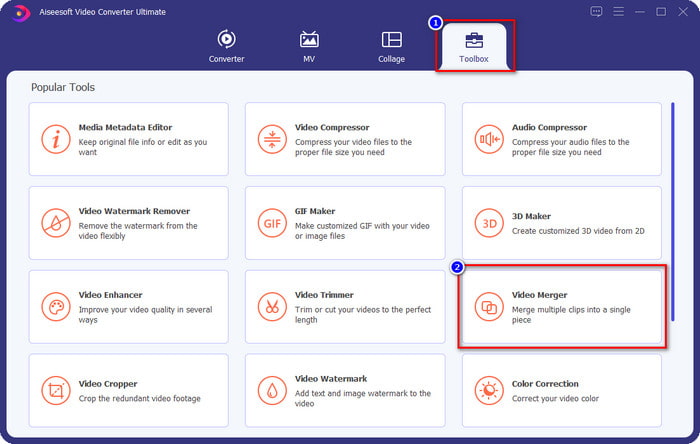
الخطوة 1. بعد تشغيل البرنامج، انتقل إلى Toolbox ثم ابحث هناك عن Video Trimmer.
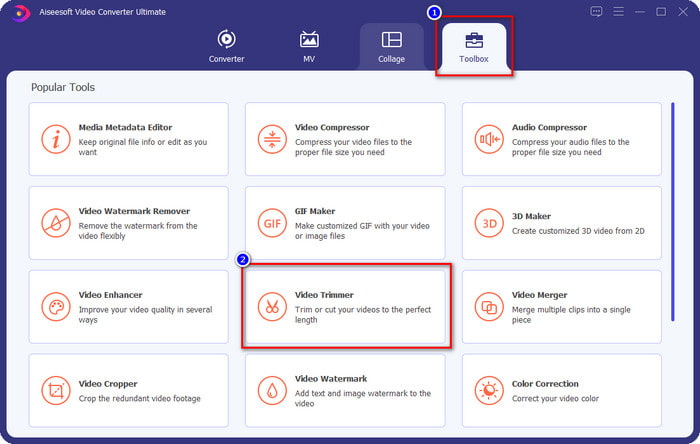
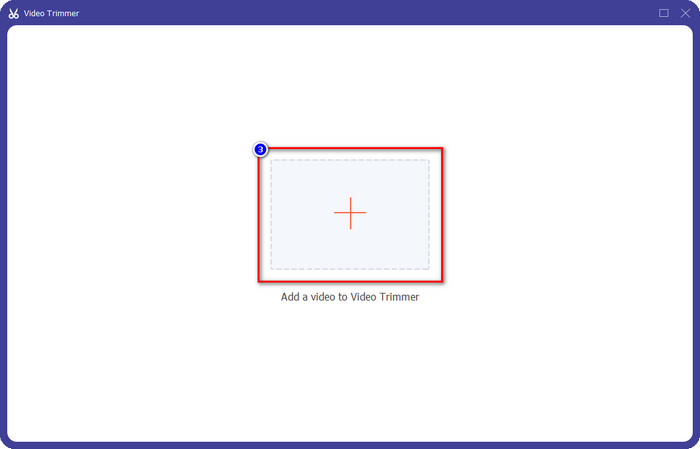
الخطوة 2. اضغط على أيقونة + لإضافة الفيديو الذي تريد تقسيمه، وابحث عنه في مجلداتك ثم انقر على Open.
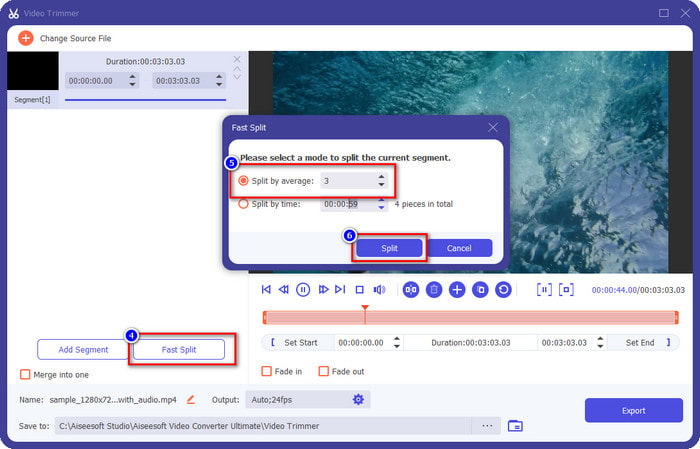
الخطوة 3. في أداة القص، انقر على Fast Split لقطع الفيديو الذي أضفته إلى مقاطع متعددة، ثم غيّر عدد الأجزاء حسب ما تريد للفيديو. بعد ضبط أجزاء الفيديو، انقر على Split.
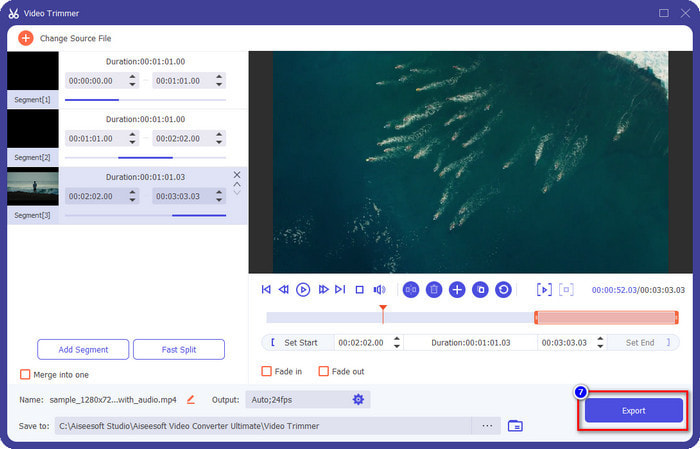
الخطوة 4. انقر على كل مقطع فيديو للتأكد من أن هذه هي الأجزاء التي تريد جعلها بالحركة البطيئة، ثم انقر على Export لحفظ الفيديو على جهازك.
2. قم بتغيير سرعة المقطع الذي قمت بتصديره
الخطوة 1. ابحث عن Video Speed Controller داخل Toolbox لإبطاء الجزء الذي قمت بقصّه سابقًا.
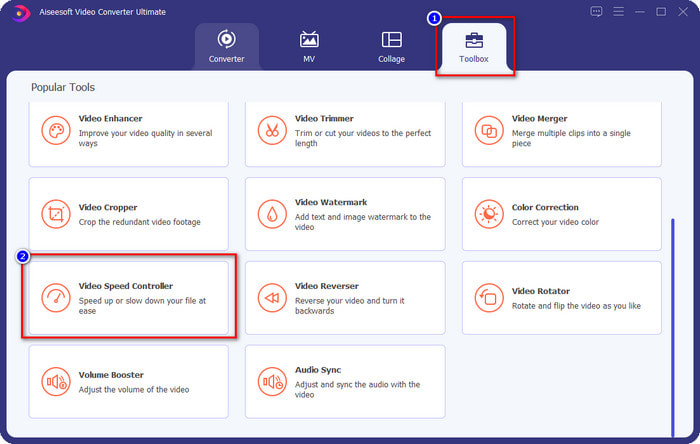
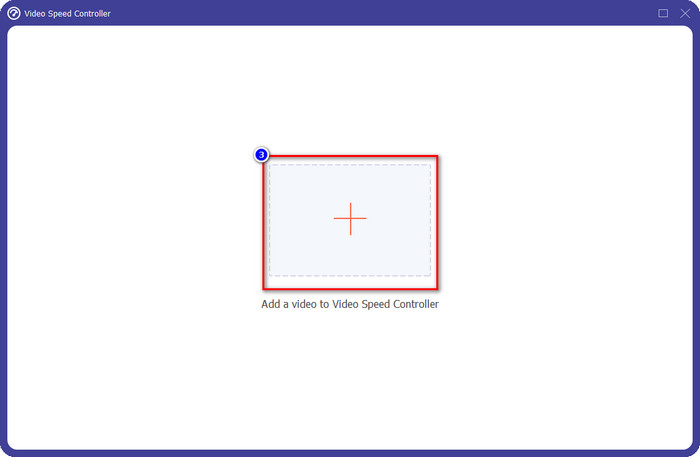
الخطوة 2. اضغط على زر + لإضافة ملف فيديو، وحدّد ملف الفيديو الذي قمت بتقسيمه وتريد إبطاءه، ثم انقر على Open لرفعه.
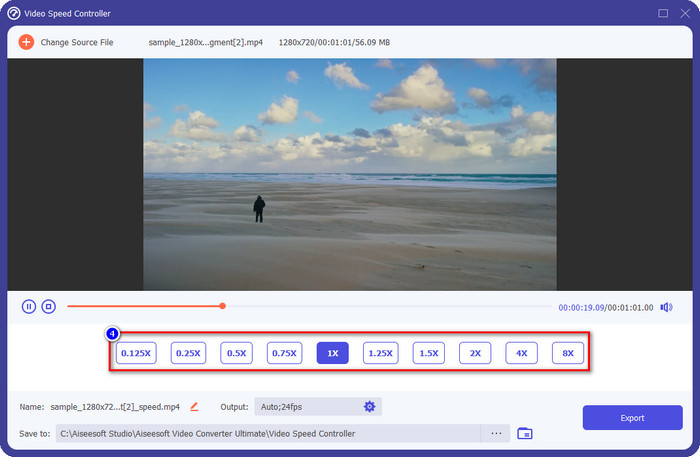
الخطوة 3. بعد إدراج الفيديو، اختر تأثير الحركة البطيئة الذي تريد تطبيقه على الجزء الذي قصصته. ستظهر أمامك عدة خيارات للسرعة على الشاشة. جرّبها جميعًا لترى أيها يحقق تأثير الحركة البطيئة الذي ترغب به.
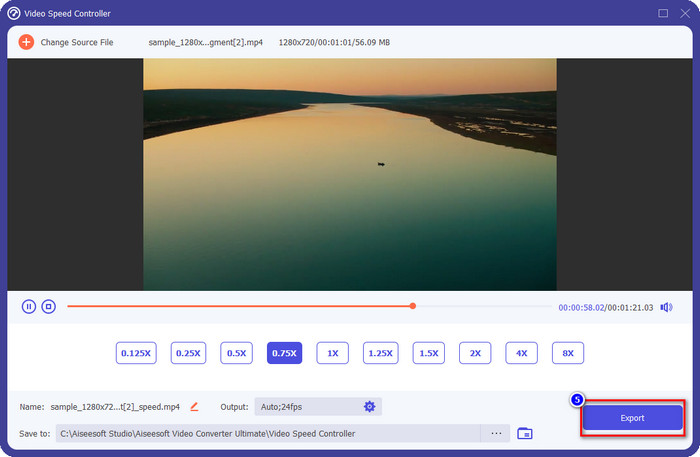
الخطوة 4. لحفظ الفيديو الذي قمت بإبطائه، انقر على Export.
3. ادمج الفيديو الذي قطعته مسبقًا بالحركة البطيئة
الخطوة 1. بعد قص الفيديو وإضافة تأثير الحركة البطيئة إليه، انقر على Video Merger لدمج جميع المقاطع. يمكنك العثور عليه في Toolbox.
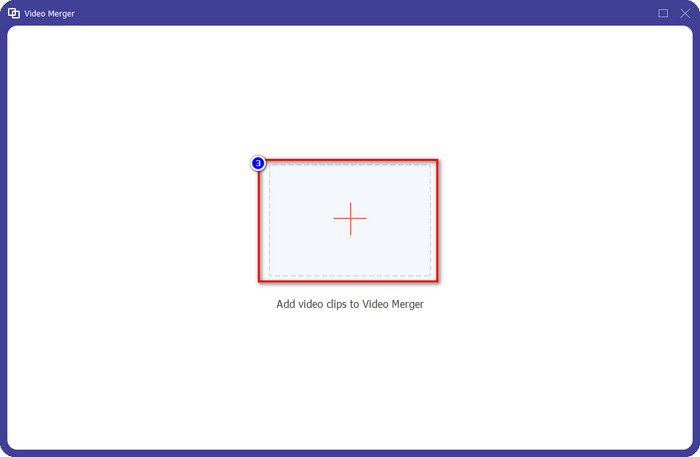
الخطوة 2. عند النقر على زر + ستظهر لك نافذة لاختيار الملفات؛ انقر على الملف الذي تريد إضافته ثم اضغط على Open.
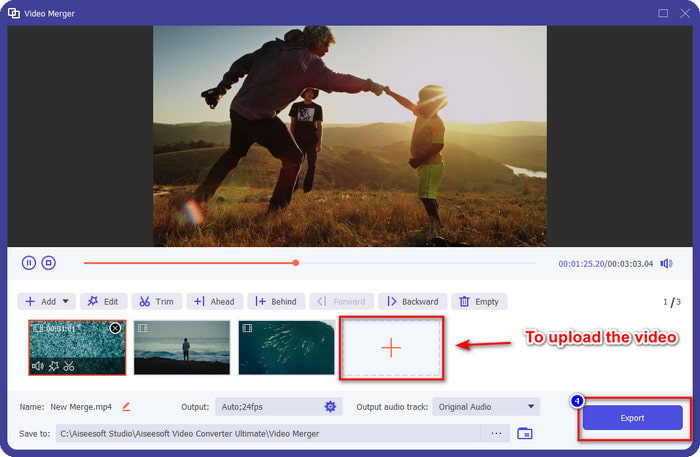
الخطوة 3. لإضافة باقي الأجزاء التي قمت بتقسيمها، انقر مرة أخرى على زر + لإضافتها جميعًا. رتّبها بالشكل الصحيح عن طريق سحب كل جزء إلى مكانه المناسب، وإذا كان كل شيء في موضعه، انقر على Export لحفظ الفيديو وفيه الجزء بالحركة البطيئة.
الجزء 2. برامج أخرى عبر الإنترنت وغير متصلة بالإنترنت يمكنك استخدامها لتغيير سرعة الفيديو إلى الوضع البطيء
قاطع الفيديو عبر الإنترنت - وحدة التحكم في السرعة
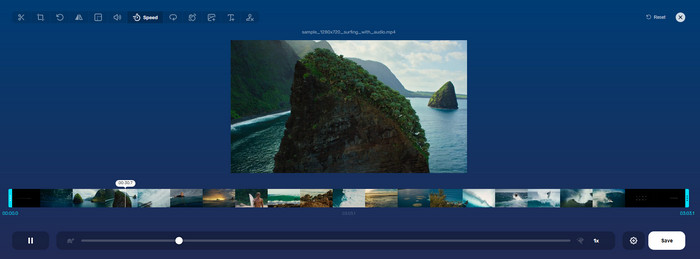
أداة Online Video Cutter – Speed Controller لا تحتاج إلى تنزيل لأنها تعمل مباشرة عبر الويب. باستخدام أداة للتحكم في سرعة الفيديو مثل هذه الأداة الإلكترونية، يمكنك استعمالها فورًا دون الحاجة إلى تنزيل موارد أو ملفات إضافية لتشغيل البرنامج. كما أن هذه الأداة على الويب تدعم ميزات تحرير أساسية قد تحتاجها عند الضرورة. وعلى الرغم من أن هذه الأداة ليست احترافية بقدر المحرّر الذي ذكرناه أعلاه، فإنها لا تزال ممتازة لاستخدامها في إبطاء الفيديو. لمعرفة كيفية جعل جزء من الفيديو بالحركة البطيئة، يمكنك اتباع الخطوات الآتية.
الخطوة 1. للوصول إلى الأداة عبر الإنترنت، ابحث عنها في المتصفح الذي تفضّله.
الخطوة 2. انقر على Open File ثم حمّل ملف الفيديو أو الجزء الذي تريد جعله بالحركة البطيئة.
الخطوة 3. اسحب شريط التمرير (slider) إلى اليسار لإبطاء الفيديو ثم انقر على Save.
فيديو سريع مجاني
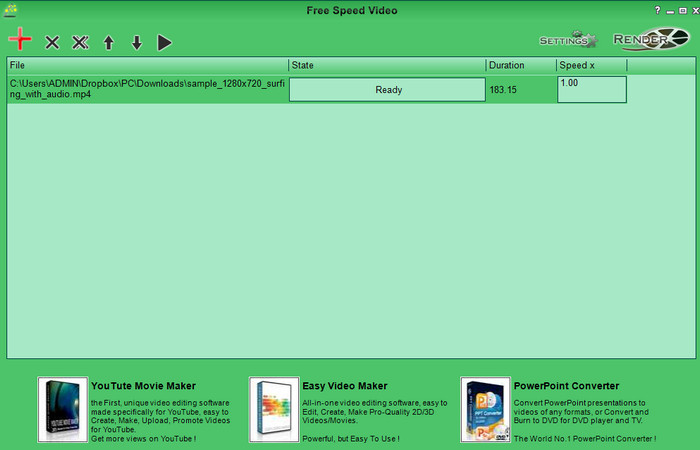
أداة أخرى للتحكم في السرعة يمكنك تنزيلها على جهاز الكمبيوتر هي Free Speed Video. هذه الأداة بسيطة جدًا، لذا فإن تعلّم استخدامها خالٍ تقريبًا من أي تعقيد. ورغم أن واجهتها الرسومية بسيطة، إلا أنها بحاجة إلى تحديث ليصبح التصميم أفضل ويساعد المستخدم على تمييز الخيارات المتاحة بوضوح. إذا كان تصميم الواجهة لا يزعجك، فيمكنك استخدام هذا البرنامج لضبط سرعة الفيديو حسب احتياجاتك مجانًا. ولمساعدتك على إبطاء الفيديو، سترشدك الخطوات التالية إلى كيفية إبطاء جزء من الفيديو.
الخطوة 1. قم بتنزيل البرنامج واتبع خطوات التثبيت ليصبح على جهازك.
الخطوة 2. انقر على زر + لإضافة الفيديو الذي تريد إبطاءه.
الخطوة 3. تحت خيار Speed x، اكتب رقم السرعة التي تريدها.
الخطوة 4. انقر على Render لحفظ النتيجة النهائية على جهازك.
الجزء 3. أسئلة وأجوبة حول كيفية جعل جزء من الفيديو في حركة بطيئة
لماذا يتجمد جزء الفيديو مع خاصية التصوير البطيء؟
يتجمد الانتقال بين سرعة الفيديو البطيئة والسرعة العادية بسبب السرعات المختلفة لكلا الفيديوين. يجب ألا تواجه انتقالًا متجمدًا وبطئًا على الرغم من الاختلافات إذا كنت تستخدم الأداة النهائية بدلاً من ذلك.
ما الذي يجعل انتقال الفيديو من الحركة البطيئة إلى السرعة العادية أكثر سلاسة؟
لا توجد إجابة محددة ، ولكن من الأفضل إبطاء جزء الفيديو إذا كانت الأداة التي لديك يمكنها زيادة السرعة. للحصول على انتقال أكثر سلاسة بين الفيديو بسرعة عادية وبطيئة ، يجب أن تحاول دمج الفيديو كما فعلنا مع البرنامج النهائي.
هل من الصعب تطبيق تأثير إبطاء على جزء الفيديو؟
قد لا تتمكن جميع البرامج التي يمكنك استخدامها على وجه الخصوص من تغيير جزء معين من سرعة الفيديو. تقوم معظم أدوات التحكم في السرعة بضبط سرعة الفيديو بالكامل بدلاً من الجزء المحدد. لذا ، إذا كنت تريد تغيير جزء سرعة تشغيل المقاطع ، فاقرأ الجزء 1 لمعرفة كل شيء.
خاتمة
أخيرًا، أصبح لدينا فكرة كافية عن كيفية جعل جزء من الفيديو بالحركة البطيئة بمساعدة الخطوات السابقة وبفضل التزامك بمتابعة هذا المقال حتى النهاية. ورغم أن البرامج تستطيع تغيير سرعة الفيديو بالكامل، فإن المشكلة تظهر عندما تريد تغيير جزء فقط منه. لذلك، لتحويل جزء من المقطع إلى نسخة بالحركة البطيئة لإضفاء لمسة مميزة على فيديوهاتك، ينبغي أن تستخدم FVC Video Converter Ultimate. يمكنك الحصول على هذا البرنامج بتنزيله وتثبيته على جهازك، ثم اتباع الخطوات التي ذكرناها سابقًا لتغيير جزء من المقطع فقط، دون التأثير في سرعة الفيديو بالكامل.
-
 أدلة قوية لعمل مقاطع فيديو بطيئة الحركة باستخدام After Effects
 يمكن توليد أي أفكار أو مشاعر أو تعزيزها من خلال مشاهدة شيء ما بالحركة البطيئة. اقرأ هذه المقالة لمعرفة كيفية إنشاء حركة بطيئة في After Effects.
-
 مناهج مثبتة لإنشاء مقاطع فيديو بالحركة البطيئة في Adobe Premiere
 يعد Premiere أحد أفضل البرامج من Adobe ؛ إنه يعمل بشكل أكبر على تحسين مقاطع الفيديو إلى المستوى التالي ، مثل إنشاء مقاطع فيديو بطيئة الحركة. اقرأ هذه المقالة لمعرفة المزيد عن Adobe Premiere وميزاته المفيدة.
-
 طريقة سهلة لعمل فيديو بطيء الحركة في Windows Movie Maker
 هل تريد أن تضفي تأثيرًا مثيرًا على مقطع الفيديو الخاص بك للتأكيد أو على الأقل لإبراز مقطع عن البقية بالحركة البطيئة ، ولا تعرف كيف؟ استمر في قراءة هذه المقالة لمعرفة المزيد.
