


 Video Converter Ultimate
 Gravadora de pantalla
 Reparació de vídeo
Com convertir GIF a MOV sense perdre la qualitat del vídeo
Els GIF s'han fet molt populars arreu del món per la seva utilitat polivalent. Per exemple, si vols fer que el teu text sigui més divertit, trist, esfereïdor o qualsevol altre sentiment que vulguis transmetre. I en algunes plataformes no es permet fer servir GIF perquè no hi són compatibles. Per exemple, a Twitter, aquest programa sí que admet GIF si estan en bucle, és a dir, si es repeteix l'acció. Però si el teu GIF no està en bucle i el comparteixes a través de Twitter, el GIF es convertirà en una imatge estàtica. Però no et preocupis, perquè pots utilitzar aquestes eines per convertir els teus fitxers GIF. Així podràs compartir-los a qualsevol plataforma que no admeti el GIF sense perdre qualitat. Dona un cop d’ull a la llista per saber quina és la millor per a convertir GIF a MOV.

Part 1. Millors opcions per convertir GIF a MOV amb format MOV d'alta qualitat
1. FVC Video Converter Ultimate
Aprendre a utilitzar FVC Video Converter Ultimate és un gran avantatge per a tu perquè aquesta eina és polivalent, cosa que vol dir que és més que un simple convertidor de GIF a MOV. Si tens un problema convertint el teu GIF a vídeo o viceversa, de vídeo a àudio, o convertint una imatge en un GIF, digues el problema i aquesta eina el pot resoldre. A més, aquesta eina no es diu Video Converter Ultimate només per causar una bona impressió al client, sinó que fa honor al seu nom com a convertidor definitiu. Així que no t’avergonyiràs d’utilitzar aquesta eina perquè és l’eina perfecta per convertir qualsevol fitxer a un format nou. A continuació tens els passos bàsics sobre com convertir els teus GIF al format de fitxer MOV amb uns passos extra per millorar el vídeo i fer-lo més atractiu.
Pas 1: Per descarregar l’eina, tria entre les dues plataformes compatibles i instal·la-la al teu disc. Modifica les preferències i fes clic a Finalitzar per desar la configuració.
Descàrrega gratuïtaPer a Windows 7 o posteriorDescàrrega segura
Descàrrega gratuïtaPer a macOS 10.7 o posteriorDescàrrega segura
Pas 2: Fes clic al signe més per afegir el fitxer GIF que necessites convertir. Però si tens un munt de fitxers GIF per convertir a MOV, és ideal arrossegar i deixar anar tots els fitxers a l’eina.
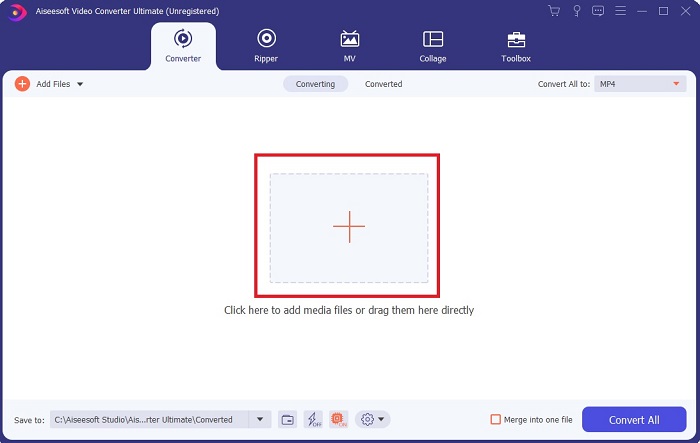
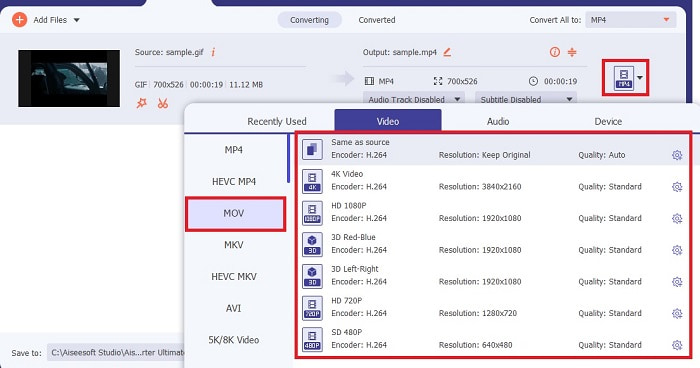
Pas 3: Al submenú de Convertir-ho tot a, fes clic a MOV a la pestanya Vídeo i tria la qualitat que vulguis. Tingues en compte que com més alta sigui la resolució i la qualitat, més gran serà la mida del fitxer.
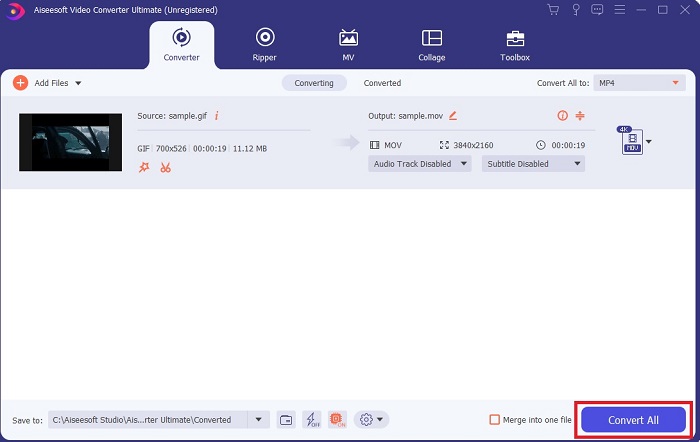
Pas 4: Fes clic a Convertir-ho tot per iniciar la conversió.
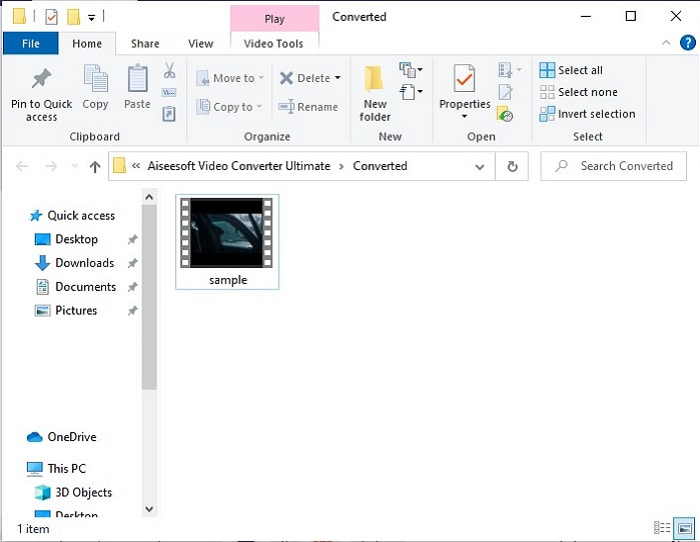
Pas 5: Es mostrarà a la pantalla un directori de fitxers que indica on s’ha desat el fitxer.
Pas addicional per millorar el vostre vídeo:
Aquest pas gratuït només està disponible en aquesta eina i no en altres eines gratuïtes ni en cap altra eina de pagament que faci conversions. Segueix aquests passos per millorar el teu fitxer MOV a una qualitat superior amb l’ajuda de Video Enhancer, una de les millors funcions de Video Ultimate Converter.
Pas 1: A la interfície principal, troba la Caixa d’eines i fes clic a Video Enhancer.
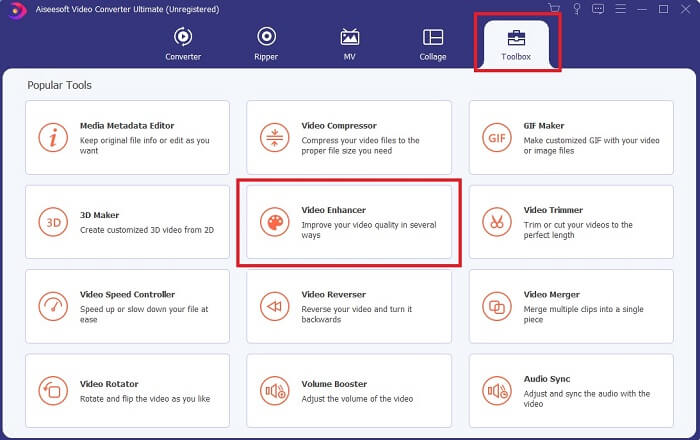
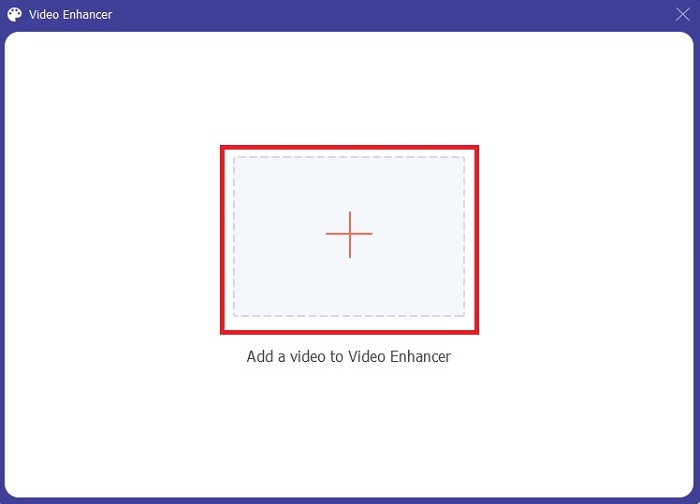
Pas 2: Fes clic al botó més per inserir el vídeo que vols millorar.
Pas 3: Tria què vols millorar del teu vídeo. Fes clic a Enhance i, voilà, el teu vídeo borros torna a la vida.
2. FVC Free Video to GIF Maker
FVC Free Video to GIF Maker és la versió gratuïta de l’eina anterior. Aquesta eina és un convertidor de primera categoria si la comparem amb altres eines. I, en alguns casos, aquesta eina és millor que altres eines de pagament. Així que convertir de GIF a MOV és bufar i fer ampolles si fas servir aquesta eina. Tot i això, el desavantatge de FVC Free Video to GIF Maker és que les funcions principals, com la millora de vídeo, no hi són compatibles. A més, la quantitat de formats de fitxer d’àudio i vídeo admesos és menor que en l’eina de pagament. Però, a diferència d’altres eines en línia, aquesta eina és molt més capaç que elles, perquè la pots utilitzar encara que no tinguis accés a Internet, igual que l’eina anterior. A banda d’això, el procés de conversió d’aquestes primeres eines és més segur que el d’altres eines en línia o fora de línia. Així que, sense més preàmbuls, comencem a convertir amb l’ajuda d’aquesta eina.
Pas 1: Fes clic al botó de descàrrega i instal·la’l al teu disc dur.
Descàrrega gratuïtaPer a Windows 7 o posteriorDescàrrega segura
Descàrrega gratuïtaPer a macOS 10.7 o posteriorDescàrrega segura
Pas 2: Inicia l’eina fent clic a la icona de l’eina a la pantalla. I es mostrarà una interfície com aquesta a la teva pantalla.
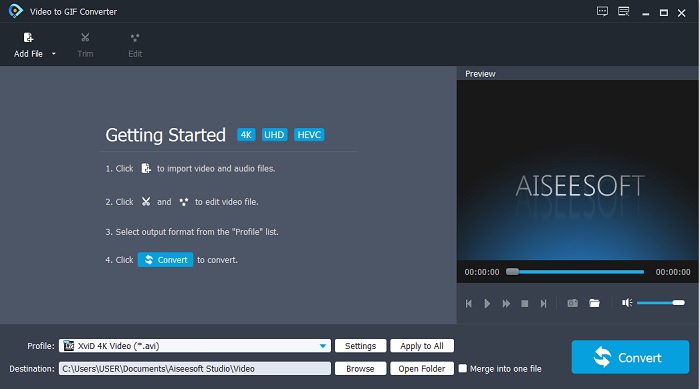
Pas 3: Fes clic a Add File per afegir el fitxer. O també pots arrossegar i inserir el fitxer a la interfície per treballar menys si hi ha massa fitxers.
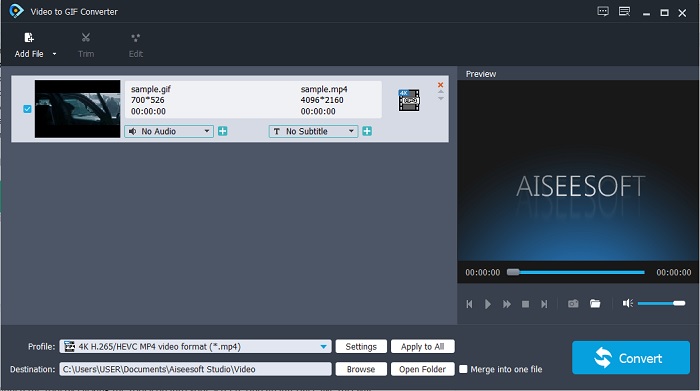
Pas 4: Prem el botó desplegable, després ves a HD video i fes clic al format MOV.
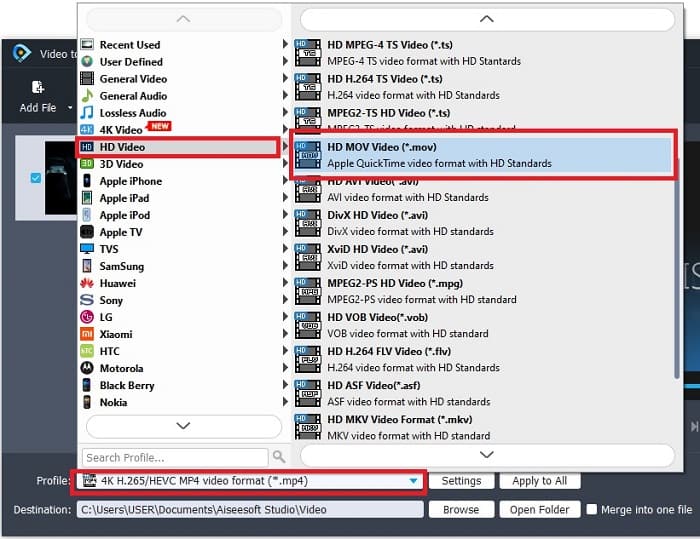
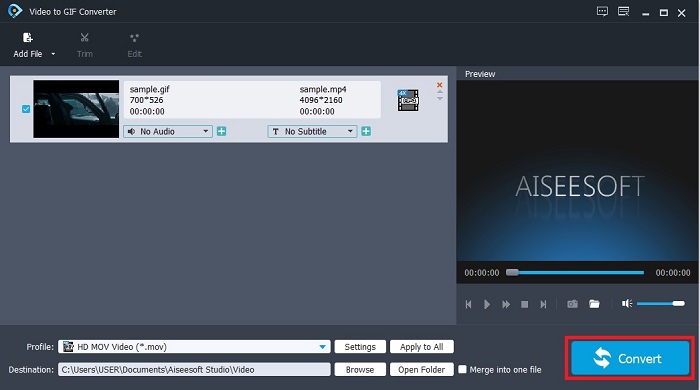
Pas 5: Fes clic al botó Convert per iniciar la conversió. I el fitxer es desarà automàticament al teu gestor de fitxers.
Part 2. Millor substitut en línia per convertir GIF a MOV
No cal dir que hi ha altres alternatives per a l'eina definitiva i per a la seva versió gratuïta sense descarregar fitxers addicionals al vostre PC o Mac.
1. CloudConvert
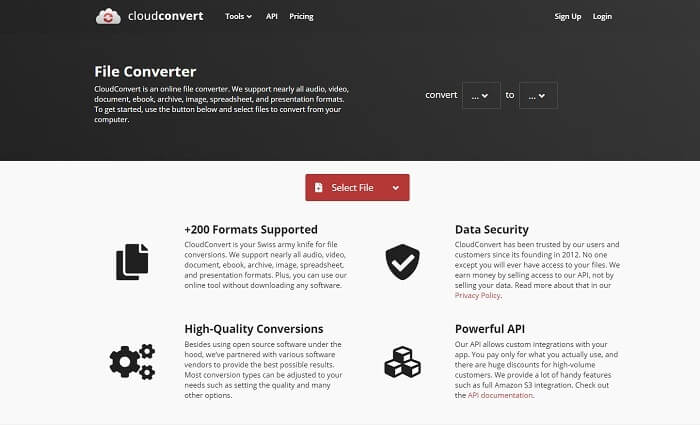
Converteix GIF a MOV sense perdre qualitat en línia fent servir CloudConvert. Bàsicament, pots convertir diferents formats amb aquesta eina i escollir entre més de 200 formats compatibles. També pots convertir llibres electrònics, fulls de càlcul, documents i presentacions, però no els pots millorar amb aquesta eina. Per tant, fer servir aquesta eina com a convertidor és com convertir el fitxer tal com és.
2. Convertir-vídeo-en línia
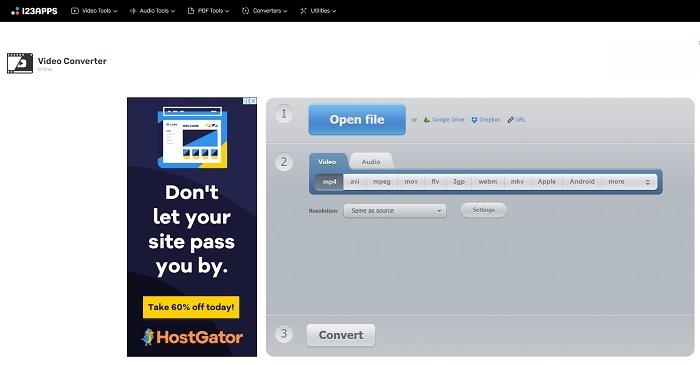
Aquesta eina en línia admet formats bàsics de vídeo com MP4, AVI, MOV, FLV, 3GP, WMV, MKV i WEBM. Convert-video-online només pot fer una conversió senzilla, però recorda que aquesta eina es limita només a formats de vídeo i àudio. A més, si insereixes el vídeo o l’àudio en aquesta eina en línia, trigarà una estona a pujar. Com que hi ha un procés d’identificació del fitxer, la conversió pot trigar una mica. Aquesta eina també té alguns anuncis al seu lloc web.
3. onlineconvertfree.com
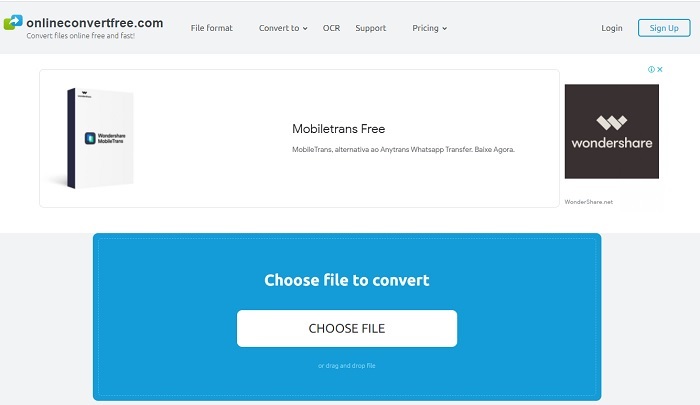
Tria aquesta eina en línia si vols convertir un GIF animat a format MOV. Perquè aquest onlineconverterfree.com té algunes funcions bàsiques d’edició que les dues primeres eines no ofereixen. A més de convertir fitxers, també pots canviar-ne la mida, comprimir, retallar, capgirar, unir i girar. Però el desavantatge d’aquesta eina és que només admet una petita quantitat de formats de vídeo i només MP3 per a l’àudio.
Part 3. Preguntes freqüents sobre GIF a MOV
MOV és una compressió sense pèrdues o amb pèrdues?
El MOV té dos tipus de compressió: pot ser sense comprimir o sense pèrdues. Si els teus fitxers MOV són massa grans, pots optar per comprimir aquests fitxers MOV.
Qui desenvolupa el format de fitxer MOV?
Aquesta extensió de fitxer està desenvolupada per Apple Inc. que està feta per ser utilitzada especialment al seu reproductor multimèdia local, que és el QuickTime Player.
Per què no puc reproduir el meu fitxer MOV? Quines són les altres alternatives per a QuickTime Player?
Hi ha moltes raons per les quals els teus fitxers MOV no es poden reproduir al teu reproductor multimèdia. En aquest cas, és habitual si ets usuari de Windows i no tens el QuickTime Player, o si tens un Mac però amb el QuickTime en una versió antiga. Aquí tens algunes de les millors alternatives a QuickTime en què et pots confiar.
Conclusió
Al final, ara tenim una idea més clara sobre què hem de fer si volem convertir GIF a format MOV. De vegades és difícil triar entre les eines perquè totes són increïblement bones, però sempre n'hi ha una que brilla més. I aquest és el FVC Video Converter Ultimate. Aquesta eina us ofereix la possibilitat de jugar amb el vostre vídeo i millorar-lo perquè es vegi molt millor. Així que trieu l'eina perfecta per fer la feina i també per tenir un resultat perfecte.
-
 [Guia] Com convertir vídeos M4V a GIF animats a Windows/Mac
 Si voleu crear fitxers GIF animats amb els vostres vídeos M4V preferits, podeu obtenir informació sobre 2 maneres fàcils i eficients de convertir vídeos M4V a GIF amb configuracions personalitzades.
-
 WebM a GIF: 3 convertidors gratuïts de WebM a GIF per crear els vostres propis GIF
 WebM és un GIF? Com convertir un vídeo en un GIF? Hi ha un convertidor gratuït de WebM a GIF? Aquesta publicació comparteix 3 maneres gratuïtes d'ajudar-vos a convertir WebM a GIF.
-
 Com convertir vídeos MKV a GIF animats sense Photoshop / FFmpeg
 Després de descarregar i veure pel·lícules MKV a l'ordinador, és possible que vulgueu compartir moments meravellosos amb amics o a Internet com a GIF. En aquest article, podeu obtenir informació sobre les dues maneres més fàcils de convertir MKV a GIF.
