


 Video Converter Ultimate
 Screen Recorder
 Oprava videa
Proces převodu souboru WebM na MOV: Bezproblémové metody, které byste měli znát
Pokud jde o produkci a streamování, ne každý formát videa je kompatibilní s každou digitální platformou. Když se pokoušíte vložit, vytvořit, nahrát nebo stáhnout relevantní soubory, může to způsobit velké problémy. Apple například nepoužívá tradiční prohlížeče, na které jsme v minulosti vyrostli – má svou vlastní platformu Safari. To je důvod, proč formáty videa, které jsou podporovány pouze prohlížeči Google Chrome, Mozilla Firefox, Opera a Microsoft Edge, nejsou uživatelům počítačů Mac vždy dostupné v prohlížeči.
One of such is a WebM video, which is a format that provides open video compression for HTML5. It requires a third-party media player to watch it if you are a Mac user. However, a MOV file format is what you seek if you want to play your videos without any hassle as it is Apple's own development for Apple QuickTime Player. So, what you want is to convert WebM to MOV on your Mac which in this article we provide the best ways for you to do so.
Část 1. Přehled: WebM a MOV
Pokud jste již nějakou dobu vystaveni konzumaci a streamování videa, určitě jste sledovali spoustu videí různých formátů na různých platformách. Možná jste se jednou divili, co tyto přípony souborů představují nebo jak se od sebe liší. Určitě jste se pokusili přehrát určité video ve svém prohlížeči, ale neudělá to, protože říká, že není podporováno. WebM například podporuje pouze několik moderních prohlížečů, jako je Chrome, Firefox a edge, protože je obvykle vložen do webových stránek pomocí HTML5.
Část 2. Nejlepší konvertor, který pomáhá převádět WebM na MOV
Converting video files isn't as difficult as you may think. Although there are numerous software and programs that can help you, there is still one of these that gets the job done quickly and easily. FVC Video Converter Ultimate is a free to download software that saves you all the time from searching through the internet finding the best converter online. Well, we ought to bring the best to you. You do not have to worry about the format of the video you wish to convert because this software supports various formats and not to mention, provides a lot of options for you to edit your video during conversion proper. So, these are the steps you need to follow to use this software:
Step 1: Before the conversion process, you first need to download the software and you can do this by clicking the Free Download button. You can choose either it for Windows or Mac. In this case, choose For Mac OS. Wait for the .exe file to finish downloading and open it once it is done to start installing it.
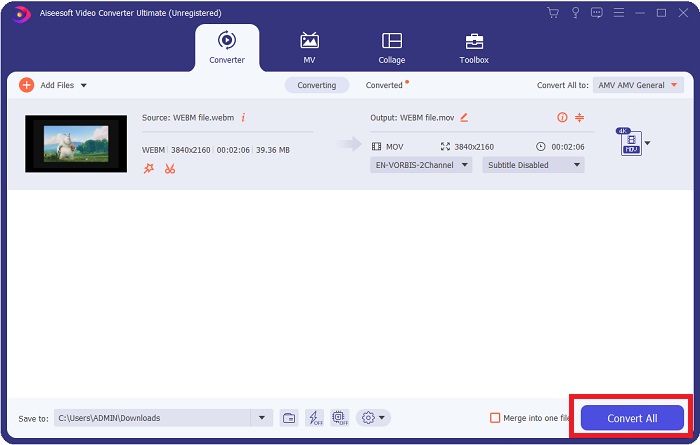
Step 2: If the software has finished installing, launch it and it will show you an interface. Automatically once the software has been launched, you will find yourself on the Converter tab. If not, click on it.
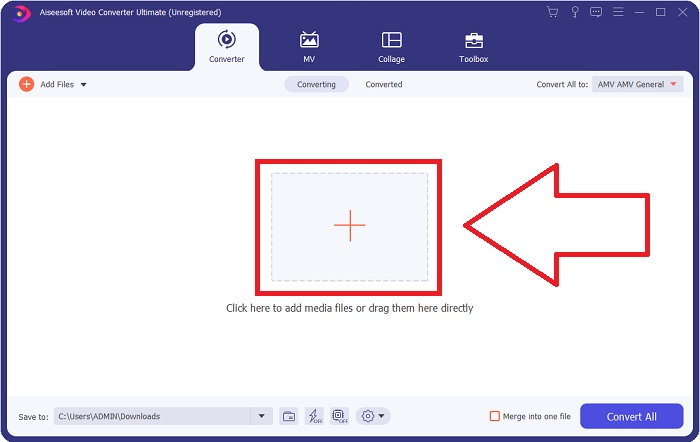
Step 3: There will be a + button in the middle of the interface for you to click to import the video file you wish to convert. Also, you can just drag and drop your videos with ease.
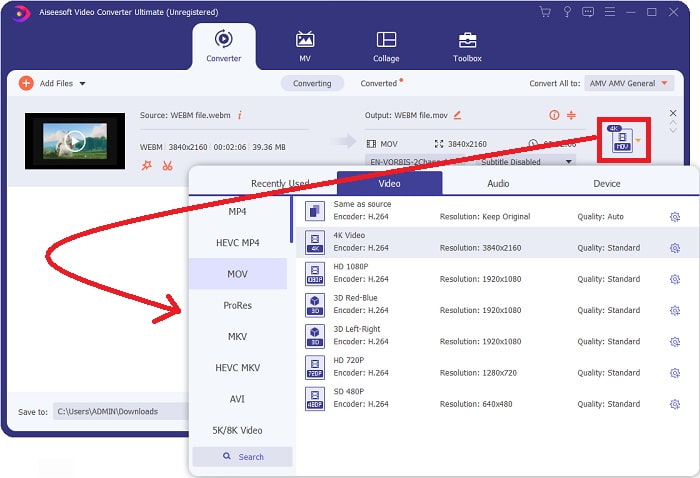
Step 4: Another interface will appear once your video is successfully imported. From there, you can see the current format your video is in on the far right. There is a drop-down arrow beside it, click on it and various options will appear. You can choose whichever format you want for your video to be converted but in this case, select MOV. There are options for you to choose from namely resolution and audio quality. For more, click the gear icon beside the quality or resolution you chose and you can further edit your video depending on what you need. To save the changes made, click Create New.
Step 5: Once you are done and satisfied with the changes, you can now find the Convert All on the lower right corner of the interface and click on it to export your converted video.
Část 3. Bonusové tipy: Další online konvertory, které převádějí WebM na MOV
Metoda 1: Použijte bezplatný převod
Pokud již nechcete stahovat software a již jen pokračovat v procesu převodu, můžeme vám ukázat alternativy pro tento. To se provádí čistě online, přičemž vám stále nabízí funkce, které potřebujete pro své potřeby úprav. Pokud chcete bezproblémovou metodu, tento webový nástroj je jednou z cest.
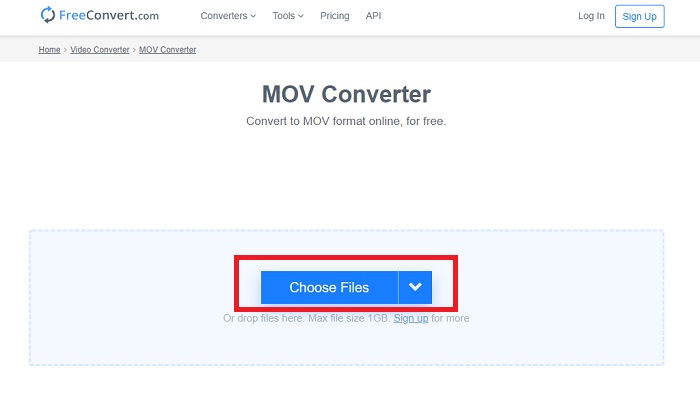
Step 1: Go to the site proper and you will find yourself in an interface in which a Choose Files button is in the middle of the page. Click on it to import the video file you want to convert.
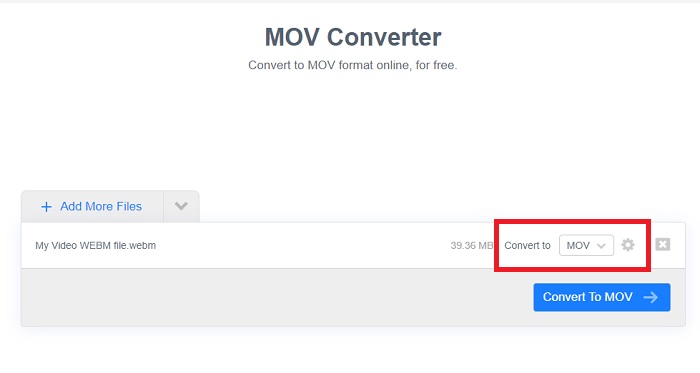
Step 2: Just like in the software itself, you can see the current format of your video on the right and beside it, there is a drop-down arrow. Click on it and choose from the formats you want your video to be converted to. For more options, click the gear icon to further edit your video. Click the Apply Settings button to keep the changes you have made.
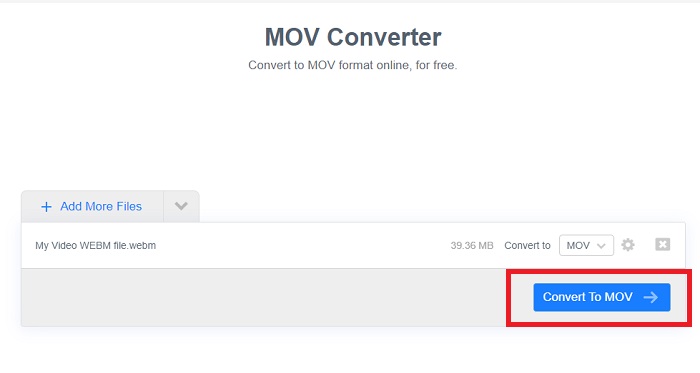
Step 3: If you are done with all the changes, you can now start the conversion by clicking the Convert to MOV button just below and wait for it to finish. Then, you can now export your converted video by clicking the Download MOV.
Metoda 2: Použijte Cloud Convert
Tento webový nástroj vám nabízí několik dalších možností při převodu souboru WebM na MOV online. Můžete upravovat nejen rozlišení nebo kvalitu zvuku, ale také fps, titulky a mnoho dalšího. Chcete-li používat tento online převodník, postupujte podle těchto jednoduchých kroků:
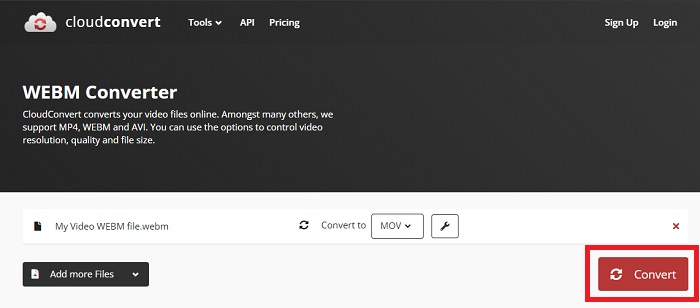
Step 1: First you have to import the video file you wish to convert by clicking the Select File button in the middle of the page. If you want to convert files simultaneously, click Add more Files.
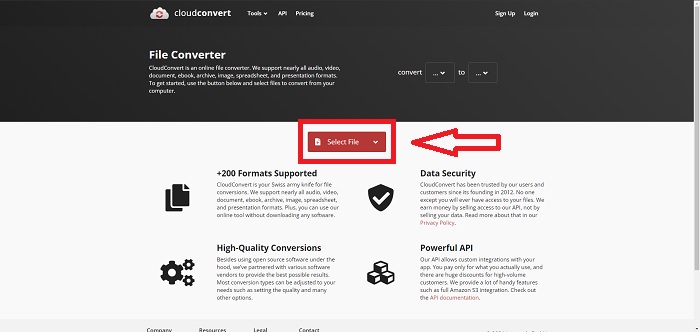
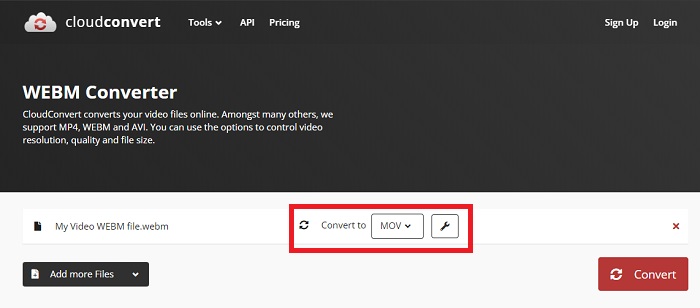
Step 2: Beside the file, you can select which video format by clicking the drop-down arrow. Also, click the wrench icon for more options. From there, you can edit certain aspects of your video and its audio. Then, click okay to save the changes.
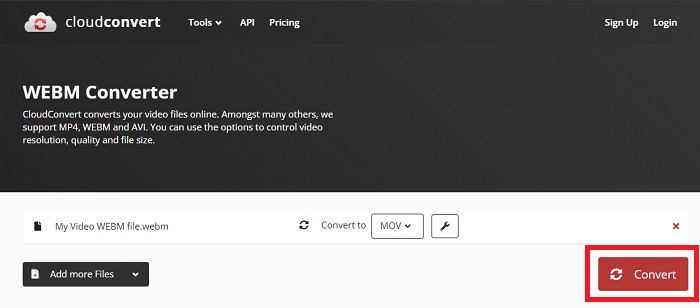
Step 3: Once you are done with all the edits, click the Convert button highlighted in red and wait for it to finish. Finally, click Download highlighted in green to export your fully converted video.
Metoda 3: Použijte ZamZar Convert
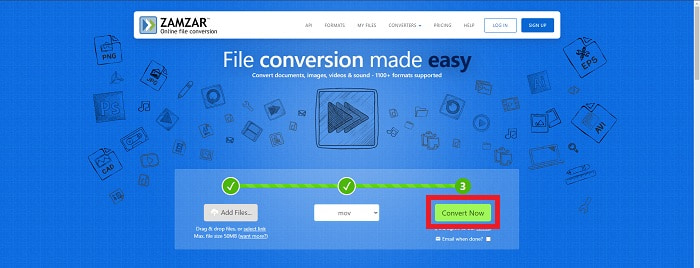
Tento webový nástroj nabízí méně možností pro vaše video, protože převádí pouze formát videa a zvuku. Práci však zvládne rychleji než ostatní zmíněné metody. Chcete-li použít tento online převodník, postupujte podle uvedených kroků:
Step 1: In the middle of the page, there are only three buttons to click for your video to be converted. First, click the Add files to import your video file.
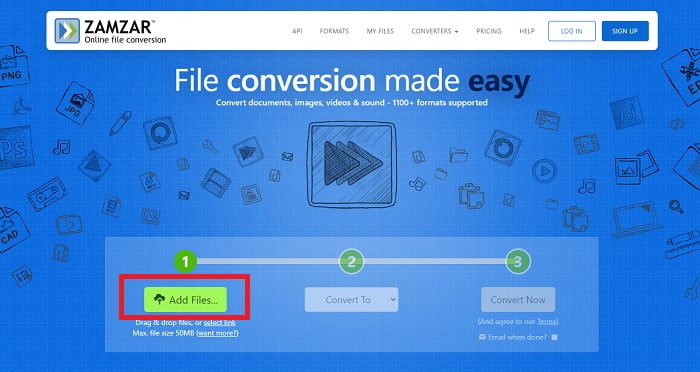
Step 2: For the second button, you can choose which video and audio format you want for your video. In this case, select MOV format.
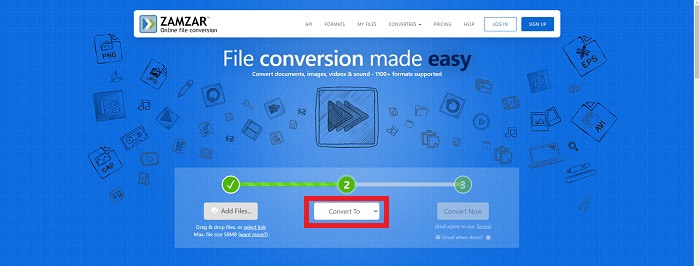
Step 3: Lastly, click the third and final button, Convert Now, to start the conversion proper and wait for it to finish. Once it is done, click Download to finally export your video to your desktop.
Část 4. Časté dotazy o převodu WebM na MOV
Co přesně je formát WebM?
WebM je formát otevřených mediálních souborů specifický pro web, který zahrnuje video streamy komprimované video kodeky VP8 nebo VP9, audio streamy komprimované audio kodeky Vorbis nebo Opus a texty WebVTT. Struktura souborů WebM je založena na kontejneru médií Matroska. Většina webových prohlížečů přijímá soubory WebM, protože se někdy používají na webech HTML5 k přehrávání online filmů. Například YouTube používá formát souboru WebM Video pro všechna videa na své stránce, od 360p po další extrémně vysoké kvality. Wikimedia a Skype jsou stejné.
Jaké přehrávače médií potřebuji k přehrávání videí WebM v případě, že je nechci převádět na MOV?
There is an alternative if you do not want to go through all the conversion process to play your WebM video. You can use a third-party application or what we call cross-platforming. A few of these third-party media players are VLC, KM Player, Media Player Classic, Winamp, jetAudio Basic, Moovidia, Persian, and XBMC which you can download on their corresponding sites to play your WebM files.
Je MOV vysoká nebo nízká kvalita?
Přehrávání videa je poměrně kvalitní se soubory MOV. MOV je zvláště užitečný, protože může obsahovat smíšená média, jako jsou obrázky, videa a 360stupňové animace. Obsahuje také veškeré obrazové a zvukové informace. Díky tomu je úprava souboru mnohem jednodušší.
Závěr
Existuje skutečně mnoho nástrojů, které můžete použít k převodu videa z jednoho formátu do druhého, ať už pomocí softwaru nebo webového nástroje, který můžete najít online. Stále však jdou ruku v ruce, pokud jde o možnosti nebo pohodlí, které nabízejí. Některým stačí dokončit práci a některé nabízejí různé možnosti, ze kterých si můžete vybrat. Tento článek se zaměřuje na to, aby vám pomohl zjistit, který z nich byste měli použít v závislosti na vašich potřebách. To je důvod, proč doporučujeme Video Converter Ultimate nejvíce, protože nabízí všechny další možnosti, o kterých možná nikdy nevíte, kdy je budete potřebovat. Je lepší mít tento software neustále vedle sebe, abyste si ušetřili všechny potíže s hledáním převodníku online pokaždé, když jej potřebujete.
-
 Jak změnit GIF na formát WebM bez ztráty kvality souborů
 Převeďte své gify na video formát WebM tak, aby měl značku videa HTML5. Spolehněte se na tento nástroj níže, abyste věděli, který je pro danou práci nejlepší.
-
 3 způsoby, jak převést WebM na MP3 bez ztráty kvality zvuku
 Máte problém, protože soubory WebM nelze použít k přehrávání uloženého zvuku? Pak si přečtěte tento článek, protože poskytujeme účinnou pomoc převodem WebM na MP3.
-
 3 Ohromující software používaný k převodu souboru WebM do formátu AVI
 Nemáte ponětí, jak převést WebM do AVI? Pak se pustíme do čtení tohoto článku. Protože specifikujeme všechny podrobnosti o WebM a třech převodnících, které můžete použít k převodu.
