


 Video Converter Ultimate
 Screen Recorder
 Oprava videa
 Bezpečné stažení
Jak převést libovolné video na MP4 zdarma
Pokud jde o video formáty, MP4 je bez pochyb jedním z nejuniverzálnějších formátů, které dnes používáme. Může obsahovat nejen video, ale také zvuk a titulky. V současnosti mnoho lidí používá MP4 k vytváření záložních kopií svých videí a filmů. Proto je zcela běžné převádět a ukládat video jako soubor MP4. Kromě toho téměř každý přehrávač a zařízení dokáže přehrát videa MP4, což je další důvod, proč převádět video do formátu MP4.
V tomto článku si proto ukážeme, jak změnit jiné video formáty na MP4. Také se naučíme, jak stahovat online videa do počítače.

Část 1. Jak převést místní video soubory na MP4
Někdo může řezat rohy změnou přípony souboru na MP4, aby změnil typ souboru. To však může způsobit potíže - zařízení nemůže rozpoznat změněný soubor. Pro změnu typu souboru byste tedy měli použít profesionální video převodník.
1. Online MP4 Video Converter
Pokud potřebujete online převést videa uložená ve vašem počítači do formátu MP4, můžete jednoduše použít užitečný nástroj pro konverzi s názvem FVC Free Online Video Converter.
Tento video konvertor zvládá převod videí velmi snadno. Jakákoli videa a filmy můžete bez problémů převést do formátu MP4 v původní kvalitě. Můžete dokonce upravit rozlišení, snímkovou frekvenci a datový tok videa nebo převádět soubory, například WMV do MP3, dle svých potřeb.
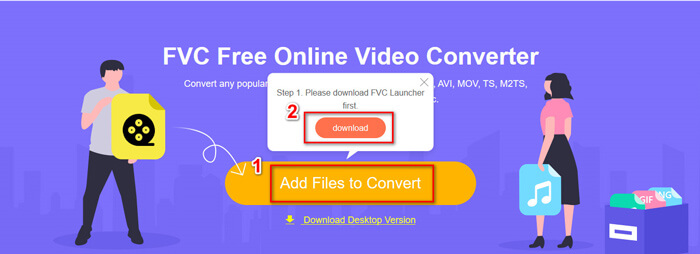
Krok 1. Přejděte na jeho oficiální stránky. Klikněte na Add Files to Convert a poté na Download. Spustitelný soubor se stáhne do vašeho počítače. Nainstalujte jej, prosím.
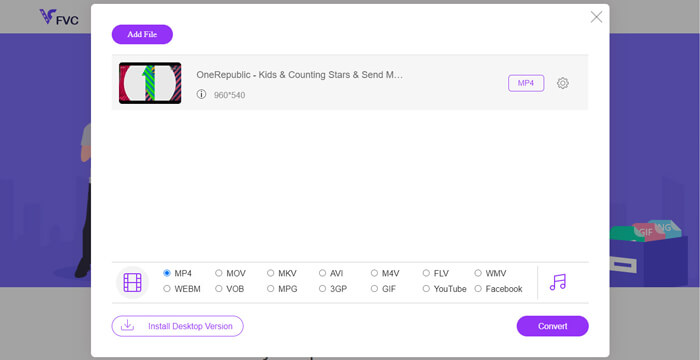
Krok 2. Po instalaci se zobrazí Open Window, ve kterém můžete vybrat videa, která chcete převést.
Krok 3. Poté můžete před zahájením převodu zvolit jako výstupní formát MP4. Klikněte na Convert a zvolte cílovou složku pro uložení. Poté brzy získáte své video ve formátu MP4.
2. Přehrávač médií VLC
Možná vás překvapí, že VLC Media Player dokáže také převádět videa. Ale je pravda, že jej lze použít jako převaděč videa MP4. Pokud již VLC ve svém počítači máte, můžete to zkusit.
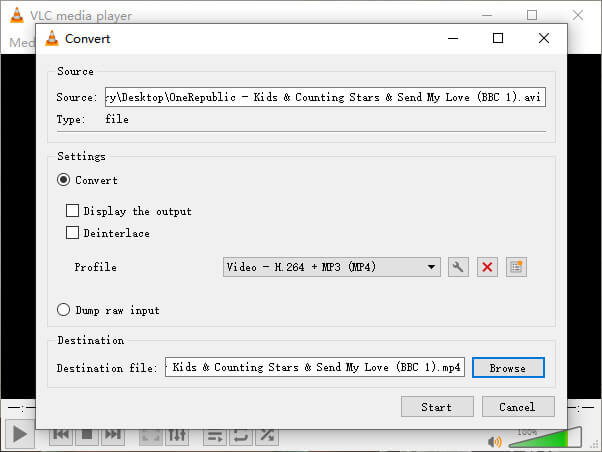
Krok 1. Otevřete VLC Media Player. Přejděte do nabídky Media a poté zvolte Convert/Save…
Krok 2. Přidejte video do VLC a klikněte na tlačítko Convert / Save dole.
Krok 3. Poté se ujistěte, že výstupní formát je MP4. Vyberte cílovou složku pro uložení a poté Start pro zahájení převodu.
Část 2. Jak stahovat streamované video do MP4
V dnešní době lidi z celého světa rádi sledují online videa. Při sledování těchto videí je můžete považovat za zajímavá a chcete si je uložit do počítače pro pozdější sledování. Většinu online streamovaných videí však nelze stáhnout přímo a některá mohou mít dokonce vlastní formáty, které běžní hráči těžko rozpoznají.
Jak tedy do počítače stáhnout a převést online video do populárnějšího formátu, například MP4?
Funkce záznamu v FVC Free Screen Recorder vám s tím může pomoci. Můžete nahrávat jakákoli online videa z YouTube, Vimeo atd. v takové kvalitě, jakou potřebujete. A je to zcela zdarma k použití. Postupujte podle následujících kroků a nahrajte streamovaná videa.
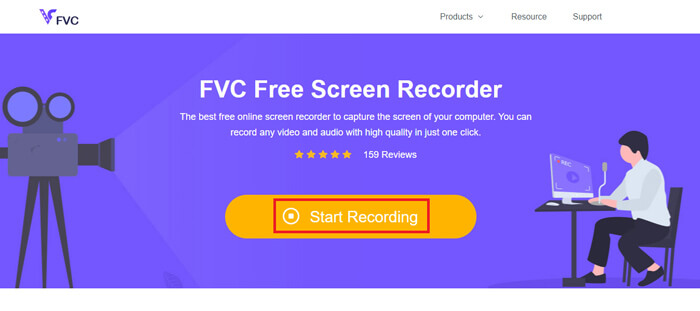
Krok 1. Klikněte na odkaz výše a zvolte Start Recording. Poté je potřeba stáhnout a nainstalovat spouštěč do počítače, pokud jste to dosud neudělali.
Zdarma ke staženíPro Windows 7 nebo novějšíBezpečné stažení
Zdarma ke staženíPro macOS 10.7 nebo novějšíBezpečné stažení
Krok 2. Upravte nahrávanou oblast na vhodnou velikost. Poté zapněte Speaker. Můžete zapnout i Microphone, pokud chcete přidat hlasový komentář. Kliknutím na REC spusťte nahrávání.
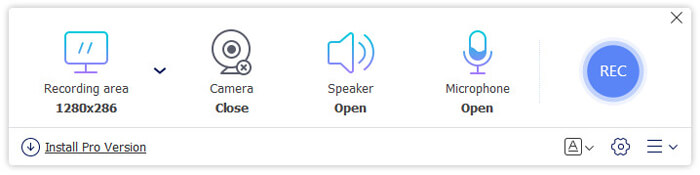
Krok 3. Až nahrávání dokončíte, klikněte na ikonu Stop pro jeho ukončení. Video bude ve výchozím nastavení uloženo do vašeho počítače.
Část 3. Časté dotazy týkající se převodu videa na MP4
1. Jak dlouho bude trvat převod videa na MP4?
Převod videa na MP4 obvykle trvá jen několik minut. Pokud je však velikost videa příliš velká nebo je rychlost sítě pomalá, může dokončení konverze vyžadovat více času.
2. Co když je převedený soubor MP4 příliš velký na sdílení?
Poté je třeba toto video MP4 zkomprimovat na menší velikost. Ve skutečnosti s FVC Free Online Video Converter můžete velikost souboru snadno zmenšit. Po spuštění rekordéru jednoduše klikněte na ikonu nastavení vedle svého souboru a snižte rozlišení. Po převodu zjistíte, že vaše video je mnohem menší než původní.
Dalším řešením je použít výkonný kompresor videa, jako je FVC Free Video Compressor, který dokáže velikost videa výrazně zmenšit během chvilky a ve vysoké kvalitě.
3. Existuje způsob, jak převést video z YouTube nebo Facebooku na MP4?
Pokud jste uživatelem YouTube Premium, můžete si stáhnout video z YouTube a pomocí převaděče videa jej převést na MP4.
Závěr
Dáváte přednost online nástrojům? Spolehněte se na FVC Free Online Video Converter. Už máte ve svém počítači nainstalovaný VLC? Pak můžete vyzkoušet i jeho funkci převodu.
Nyní už víte vše o změně videa na formát MP4. Doufáme, že jste našli ten nejlepší konvertor, který odpovídá vašim potřebám. Neváhejte nám zanechat komentář. Vaše cenná zpětná vazba nám pomůže se zlepšovat.
-
 3 bezplatné způsoby, jak změnit AVI na MP4 ve Windows / Mac
 Někdy, když sledujeme film v telefonu, přehrávač, který používáme, vyzve, aby video nebylo možné přehrát, protože nepodporuje formát AVI. Jak tedy můžeme rychle změnit AVI na MP4 bez ztráty kvality? Zde můžete vyzkoušet několik bezplatných metod.
-
 Jak převést MKV na MP4 na Windows / Mac
 Nelze přehrávat videa MKV? Chcete sledovat videa MKV na zařízeních, která nepodporují MKV? Zde jsou 2 bezplatné způsoby převodu MKV na MP4 bez ztráty kvality.
-
 Nejlepší 4 způsoby, jak zdarma převést MP4 na MOV
 Jak převést MP4 na MOV na Mac? Existuje nějaký bezplatný způsob, jak převést MP4 na MOV bez ztráty kvality? Tento příspěvek sdílí 4 jednoduché způsoby, které vám pomohou provést převod videa z MP4 na MOV na počítačích Mac, Windows PC a online.
