


 Video Converter Ultimate
 Skærmoptager
 Video reparation
5 GIF-resizere, du kan bruge til at øge størrelsen på din animerede GIF online og offline
At ændre størrelsen på en GIF er en nem opgave i enhver editor, men ikke alle editorer understøtter dette format. I stedet for at afprøve forskellige værktøjer og spilde en masse tid, hvorfor så ikke læse denne artikel? Hvorfor? Fordi vi præsenterer de værktøjer til ændring af størrelse, du kan bruge, og vi vil kun forholde os til fakta om disse fem værktøjer. Så, er du klar til at lære de resizere til animerede GIF’er at kende, som er tilgængelige på dine platforme? Hvis det er tilfældet, må vi nu gå videre til en detaljeret gennemgang af disse fem GIF-resizere nedenfor og finde ud af forskellene på hvert værktøj.

Del 1. Top 5 Online & Offline GIF Resizers
1. FVC Video Converter Ultimate [Anbefalet]
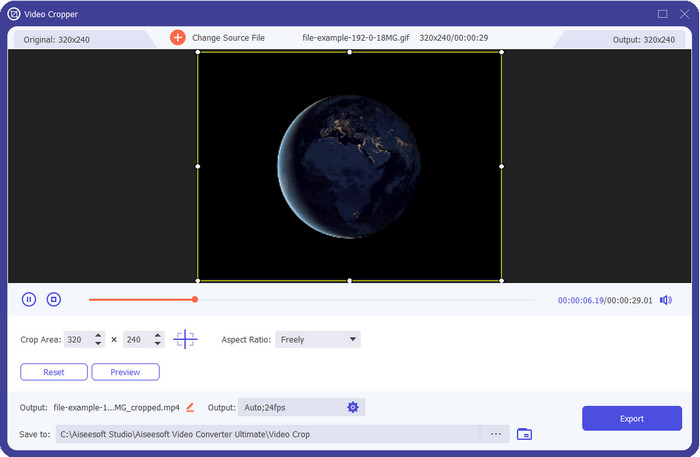
Alle værktøjerne her har ikke det, som FVC Video Converter Ultimate kan tilbyde dine GIF’er. Måske undrer du dig over, hvad der gør dette værktøj unikt? Dette ultimative værktøj giver en fuldstændig og billig løsning til at ændre størrelsen på GIF’er, som du vil elske at bruge. Dette værktøj er fremragende til at levere et professionelt resultat, som Photoshop kan give dig, men meget hurtigere for både begyndere og professionelle. Desuden kan dette værktøj ikke kun ændre størrelsen på din GIF, du kan også konvertere dine GIF’er til MP4, MOV, AVI, MKV og mere end 200 andre formater for at gøre dem kompatible med andre enheder. Hvis du skal lave en GIF og vil sætte den som tapet, er du heldig at have dette ultimative værktøj, for det har en GIF-maker, der vil hjælpe dig. Hvis du vil vide, hvordan du opretter og sætter GIF’er som tapet, skal du klikke på dette link. Ikke desto mindre anbefales dette værktøj til alle brugere, så de kan lære at ændre størrelsen på GIF’er afslappet uden at skulle læse en manual om, hvordan man bruger det.
Gratis download til Windows 7 eller nyere Sikker download
Gratis download til MacOS 10.7 eller nyere Sikker download
Fordele
- Tilpas størrelsen på din GIF i overensstemmelse med den størrelse, du ønsker frit ved at trække prikkerne frit.
- Den har en forhåndsvisning, du kan se for at sikre, at den er den nøjagtige størrelse, du har brug for på dine GIF'er.
- Den har en indbygget ultrahurtig gengivelse til en lynhurtig eksportproces.
- Tilgængelig i alle desktop-operativsystemer såsom Windows og Mac.
Ulemper
- Skal købes.
2. Adobe Photoshop
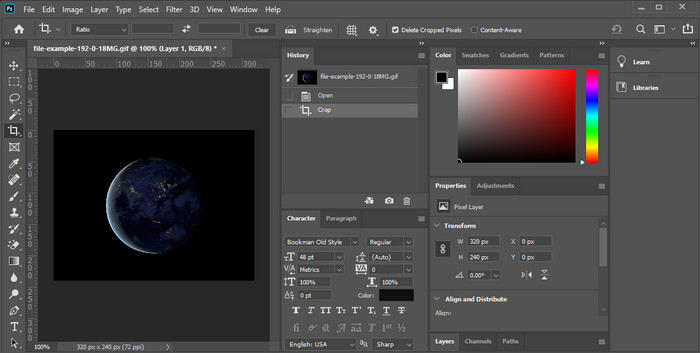
Hvad hvis du ønsker et professionelt værktøj til at ændre størrelsen? Så er Adobe Photoshop et valg. Dette downloadbare værktøj hjælper dig med at ændre størrelsen på enhver GIF nemt på få minutter. Mere detaljeret er dette værktøjet, som alle professionelle brugere vælger, når de vil redigere deres billeder, såsom GIF’er, så de ser bedre og mere iøjnefaldende ud. Selvom værktøjet er professionelt, er det stadig svært at bruge for dem, der ikke er teknologivante. Og hvis du kun vil ændre størrelsen på din GIF, er dette et dyrt værktøj til opgaven. Men hvis du vil bruge PhotoShop til at ændre størrelsen på GIF’er og tilføje nogle små detaljer, vil dette værktøj hjælpe dig; dog vil det tage længere tid at lære at bruge det end de andre værktøjer.
Fordele
- Det er det bedste valg til professionel billedredigering.
- Professionelt værktøj til professionelt brug.
- Avancerede redigeringsfunktioner til GIF'er.
Ulemper
- Kostbar.
- Svært at bruge, hvis du er ny inden for redigering.
3. GIFGIF'er
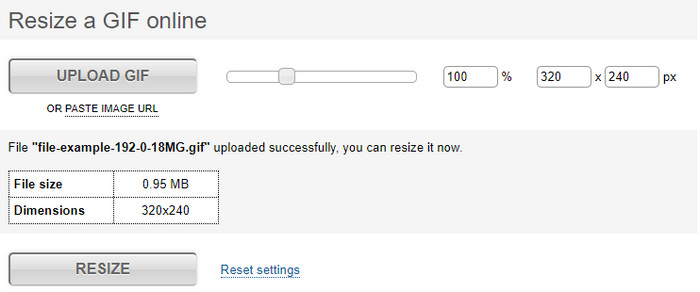
GIFGIFs har et af de mest omfattende GIF-biblioteker, du kan bruge til at gemme færdiglavede GIF’er på din enhed og har en simpel editor til at ændre størrelsen på store GIF’er. Dette værktøj har længe været der for at hjælpe brugere med at justere deres GIF’er efter behov via onlinetjenester. Selvom denne web-resizer er gratis og online, har den ingen annoncer i grænsefladen, som kan forstyrre dig, hvilket er fremragende. Men hovedproblemet med dens resizer er, at du skal angive den præcise størrelse eller det præcise formatforhold på det billede, du ønsker. Dette problem er mere stressende end reklamer, for du bliver nødt til at prøve igen og igen for at sikre, at det er den præcise ændring af størrelse, du vil have. Har du derimod en idé om det billedformat, du har brug for, er dette et valg til at ændre størrelsen på dine GIF’er.
Fordele
- Indbygget bibliotek til GIF'er.
- Det har ingen annoncer på nettet, der kan irritere eller forstyrre dig, mens du ændrer størrelsen på GIF'en.
- Nem og gratis at bruge.
Ulemper
- Internettet er nødvendigt for at afslutte opgaven med at ændre størrelse på GIF'er.
- Svært at vide, om det er den nøjagtige størrelse, du har brug for.
4.RedKetchup.io
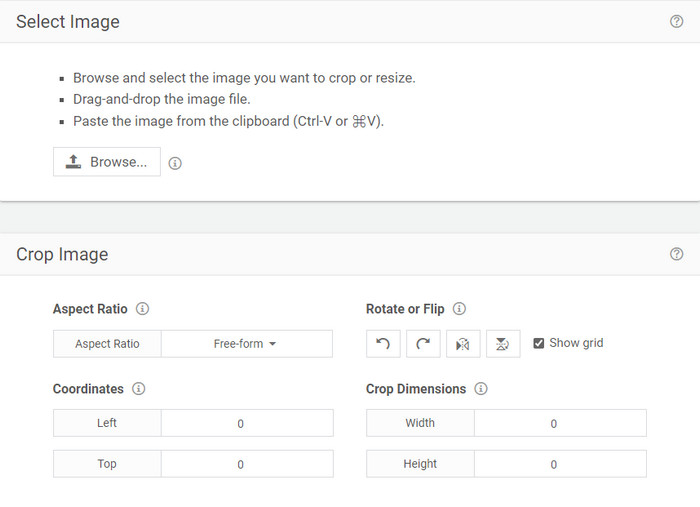
RedKetchup.io tilbyder en enkel og interaktiv måde at ændre størrelsen på animerede GIF’er inden for den specifikke grænse, du ønsker. Dette webværktøj giver internetbrugere mulighed for at få deres GIF’er til at se bedre ud ved hjælp af de redigeringsfunktioner, værktøjet stiller til rådighed. Desuden kan du lave en langt mere detaljeret ændring af størrelse her, end hvad Ezgif kan tilbyde dig. Selvom dette værktøj er meget nemmere at bruge end det første, mangler dets grænseflade nogle farver for at se professionel ud. Den eneste farve, du vil se, når du åbner værktøjet, er dets navn, og det er i rødt. Derudover er værktøjet gratis at bruge, men der er stadig nogle reklamer i grænsefladen, som kan være lidt trættende at se på.
Fordele
- Tilgængelig for alle, der har en internetforbindelse.
- Meget detaljeret GIF resizer.
- Gratis endnu, det er nemt at bruge.
Ulemper
- Det har irriterende annoncer på grænsefladen.
- Internetafhængig.
5. Ezgif
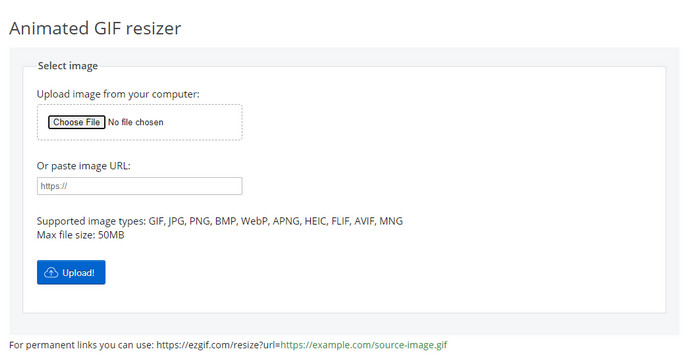
Er kendt for at være en af de bedste GIF-makers og kan også ændre størrelsen på GIF’er online, hvis du har brug for det. Ezgif har en intuitiv grænseflade, der gør din GIF bedre uden at du skal anstrenge dig meget. Og hvis du ikke er teknologiorienteret, er dette værktøj et godt valg for denne type brugere. Har du derimod ikke internetforbindelse, er dette værktøj ikke en mulighed til at ændre størrelsen på din GIF, fordi det er internetafhængigt ligesom det andet webværktøj nedenfor. Derudover kan reklamer i grænsefladen forstyrre dig, mens du ændrer størrelsen på GIF’erne. Hvis du bruger denne editor, skal du sikre dig, at du kender den bredde og højde, du vil indstille, fordi der ikke er nogen forhåndsvisning til at tjekke, om den ændrede størrelse passer til dine behov, og du kan ikke trække i forholdet for at tilpasse det efter dine ønsker.
Fordele
- Bedste GIF maker online.
- Det har enkle GIF-redigeringsfunktioner, du skal bruge.
- Få adgang til det gratis.
Ulemper
- Den har ingen forhåndsvisning til at kontrollere, om størrelsen på GIF'en er rigtig.
- Annoncer er på grænsefladen, der kan irritere dig.
Del 2. Sammenligningsskema om de 5 GIF-resizere
| Funktioner | Video Converter Ultimate [Anbefalet] | Photoshop | GIFGIF'er | RedKetchup.io | Ezgif |
| Redigeringsfunktioner |  | | | | |
| Annoncefri | | |  | | |
| Brugervenlig | | | | | |
| Internet-afhængig | | | | | |
| Billig eller omkostningsfri | | | | | |
| Forhåndsvisningsrude | | | | | |
Del 3. Ofte stillede spørgsmål om GIF Resizer
Ændrer kvaliteten af GIF'en sig efter ændring af størrelsen?
Kvalitetsmæssigt bør GIF'en ikke ændres drastisk til en sløret, men kvaliteten vil ændre sig, når du ændrer størrelsen på GIF'en, men den bør ikke være langt fra den originale GIF. Så hvis du støder på dette problem, betyder det, at kvaliteten har ændret sig under eksporten og ikke mens du ændrede størrelsen på GIF'en.
Bliver filstørrelsen på GIF'en lille?
Efter at have sammenlignet de to GIF'er, den originale og den ændrede størrelse, så vi en betydelig ændring i filstørrelsen. Selvom det er en lille ændring, kan vi se, at dens størrelse blev mindre end den oprindelige.
Kan jeg vende den tilbage til den originale GIF efter at have ændret størrelsen?
Når du har ændret størrelsen på din GIF, kan du ændre den til den oprindelige tilstand, hvis du ikke har eksporteret den endnu. Men hvis du eksporterer GIF'en og ikke er tilfreds med resultatet, kan du ikke vende den tilbage til den oprindelige GIF-størrelse. For at undgå dette problem skal du bruge en GIF resizer, der har en forhåndsvisning til at kontrollere outputtet, før du eksporterer det.
Efter konvertering af JPG til GIF vil det flytte sig?
Nej, det vil den ikke, fordi JPEG-filer ikke bevæger sig ligesom animerede GIF’er. Men du kan omdanne flere JPEG’er til en GIF, hvis du i stedet laver dem til en foto-GIF. Vil du lære, hvordan du gør det? I så fald vil denne artikel i høj grad hjælpe dig med at omdanne din samling af JPEG’er til en GIF.
Konklusion
Nu hvor vi ved, hvilke GIF-resizere du kan bruge, er det tid til at vælge. Alle online- og offlineværktøjer er individuelt testet for at give præcis information om værktøjerne og deres kapaciteter. Men vi fandt ud af, at Video Converter Ultimate giver det bedste resultat, når det gælder ændring af størrelsen på GIF’er. Selvom værktøjet skal købes, kan vi med sikkerhed sige, at dine penge ikke vil være spildt, efter du har anskaffet dette ultimative værktøj. Så nu, hvis du stadig tvivler på det, vi siger, skal du prøve og downloade det ultimative værktøj ved at klikke på download-knappen.
Gratis download til Windows 7 eller nyere Sikker download
Gratis download til MacOS 10.7 eller nyere Sikker download
-
 Sådan laver du en GIF på iPhone fra flere billeder, du har taget og gemt
 Vil du vide, hvordan man laver GIF'er på iPhone fra dine billeder? Dette indlæg deler 3 software, du kan bruge til at lave GIF'er på din iPhone.
-
 Top 3 konvertere du ikke bør gå glip af for at konvertere PNG til animeret GIF
 Vil du bringe din PNG til live? Prøv derefter at konvertere PNG til GIF-animeret format med de tilgængelige tilgængelige værktøjer og trin til, hvordan du gør det.
-
 Top 4 måder at omdanne animeret GIF til FLV på PC/Mac/Online/Android/iOS
 Vil du konvertere din GIF til FLV og dele dem online? Hvis ja, lad os se på de bedste GIF til FLV-konvertere, du kan bruge på PC, Mac, Online, Android og iOS.
