


 Video Converter Ultimate
 Skærmoptager
 Video reparation
Forstå, hvad metadata er: typer, eksempel, vigtighed og hvordan man får vist dem
Metadata er afgørende for enhver fil, fordi det forklarer mange ting om mediefilen. Men spørgsmålene er: Hvad er metadata? Hvad bruges det til? Hvad er eksempler på metadata? Er det nødvendigt at have metadata? Du får svar på alle disse spørgsmål senere i denne artikel. Derudover giver vi dig også en perfekt metadata-editor, som du kan bruge til at tilføje eller redigere metadata i din mediefil. Læs hele artiklen nedenfor og lær mere om metadata.

Del 1. Hvad er metadata
Definition
Metadata er data om de data, der er skjult fra mediefilen. Hvad er metadata? Antag, at du vil genkende filens indhold og andre karakteristika, så er metadata en snydekode. Hver mediefil har metadata, og hvis du skal have en organiseret mediefil, vil metadata hjælpe dig med at arrangere filen, hvis du har med mediefilbiblioteker at gøre. Nu hvor vi har en idé om metadata, lad os nu se på typerne af metadata.
Hvad er de forskellige typer metadata
Vidste du, at metadata har forskellige typer? Hvis ikke, vil nedenstående hjælpe dig med at forstå de seks andre metadatastrukturer og deres formål med lagring af data. Så nu, for at vide, hvad eksemplerne på metadata er, skal du læse diagrammet nedenfor.
| Typer af metadata | Beskrivelse |
| Beskrivende metadata | Den identificerer ressourcerne for et bestemt objekt, herunder flere elementer såsom titel, abstrakt, forfatter og nøgleord. |
| Administrative metadata | Det bruges til at administrere information som hvilken type ressource, oprettelse eller erhvervelse af data, tilladelse og disposition. |
| Referencemetadata eller forklarende metadata | De interne data beskriver indholdet og kvaliteten af de statistiske data fra ens perspektiv. |
| Statistiske metadata | Den beskriver den statistiske dataproces ved at indsamle, bearbejde og producere den. |
| Juridiske metadata | Oplysningerne omfatter data om ejeren af ophavsretten, offentlig licensering og ejerskab. |
| Strukturelle metadata | Dataene beskriver dens type, version, relationer og andre digitale materialekarakteristika. |
Hvad er betydningen af metadata?
Hvad metadata er og dets typer er allerede forklaret ovenfor; Nu skal vi bestemme dens betydning. Med metadata kan du kende de øvrige oplysninger om mediefilen, såsom forfatter, dato og klokkeslæt, forskelligt digitalt materiale og meget mere. Hvis du vil beskytte din mediefil, er dette også en af de bedste måder at bruge den på i stedet for at bruge et vandmærke. Så hvis din mediefil har metadata, kan du gøre mange ting, som du ikke kan tro, du kan gøre, som at organisere den i din mappe eller dit bibliotek.
Del 2. Sådan får du vist metadata på forskellige platforme
Vidste du, at du kan tjekke dine metadata på din mediefil gennem dine enheder uden at installere et særligt værktøj? Vil du vide, hvordan man gør det? I så fald skal du læse følgende detaljer for at vide mere om, hvilke metadata der er på din mediefil.
Til Windows-brugere
Trin 1. Find filen på dit skrivebord, og klik på højreklik-knappen på din mus.
Trin 2. Klik derefter på Egenskaber og find Detaljer; her vil du se din videos metadata under denne fane.
Til Mac-brugere
Trin 1. Find mediefilen i Finder, klik på højre-knappen på din mus, og klik på Værktøjer.
Trin 2. Klik derefter på Vis inspektør.
Trin 3. Et nyt vindue vises, klik så på Afslut, og du vil se metadataene for din fil.
For iPhone-brugere
Trin 1. Åbn Fotos-appen.
Trin 2. Klik på den video eller det billede, du vil tjekke metadata for.
Trin 3. Tryk på i‑ikonet, og metadataene vil blive vist på skærmen.
Til Android-brugere
Trin 1. Åbn Google Fotos på din enhed – hvis du ikke har downloadet den på din telefon, skal du først hente den i Play Butik.
Trin 2. Åbn filen, og klik på i‑ikonet for at se metadataene.
Del 3. Sådan redigeres eller tilføjes metadata med den bedste metadataeditor på skrivebordet
Med den bedste metadata-editor kan du nemt tilføje metadata til en mediefil, der ikke har nogen metadata, eller redigere dem, der allerede findes. FVC Video Converter Ultimate er det perfekte værktøj, du bør bruge til nemt at ændre eller tilføje metadata til enhver mediefil. Så for at forstå hvad metadata bruges til, kan du følge trinene og nemt lære, hvilke andre oplysninger du kan tilføje til metadataene.
Trin 1. Tryk på downloadknappen nedenfor for at hente værktøjet til din Windows eller macOS, klik på den downloadede fil, følg installationsprocessen, og åbn programmet.
Gratis download til Windows 7 eller nyere Sikker download
Gratis download til MacOS 10.7 eller nyere Sikker download
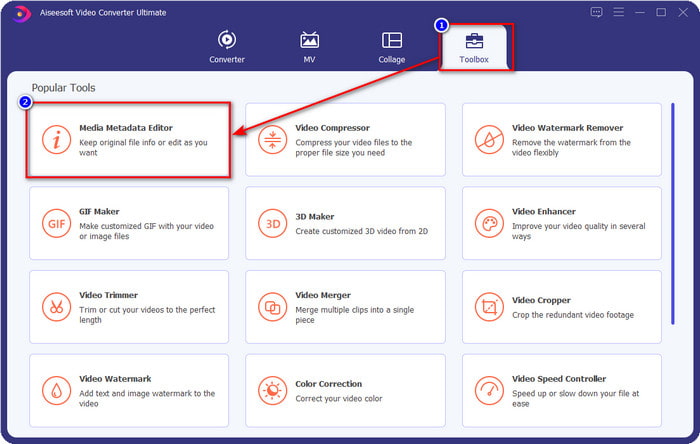
Trin 2. Gå til sektionen Værktøjskasse og find Media Metadata Editor; klik på den for at åbne den.
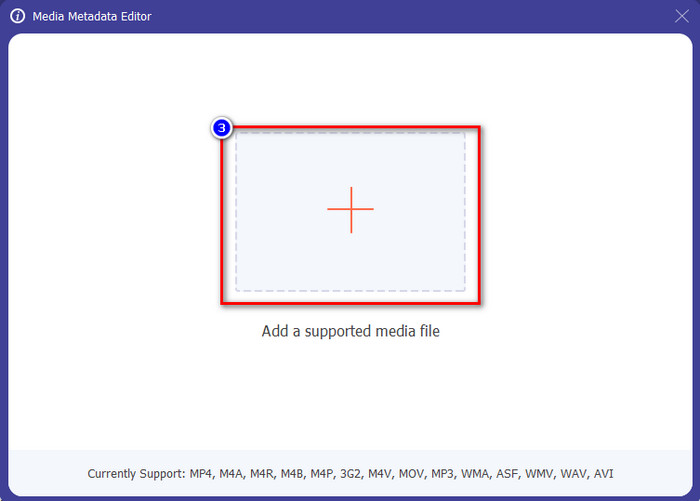
Trin 3. Et nyt vindue dukker op på skærmen; tryk på +-knappen for at tilføje den video, du vil tilføje eller redigere metadata for. Find videoen i mappen på din computer, og klik på Åbn for at fortsætte.
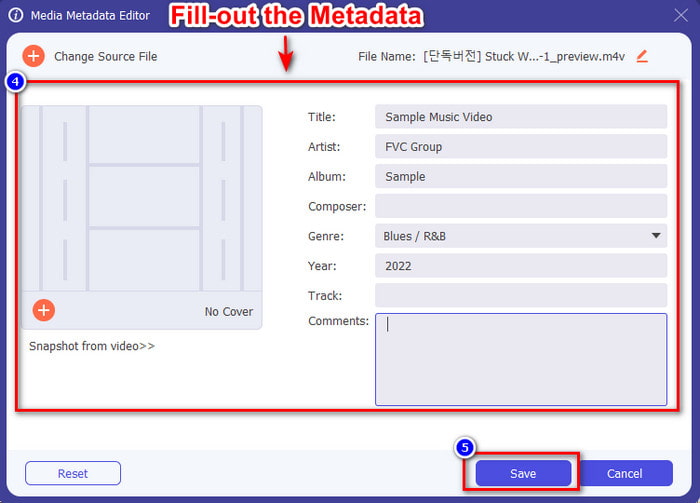
Trin 4. Vent på, at værktøjet indlæser filen, hvorefter metadata-editoren vises; her kan du tilføje dine egne metadata ved at udfylde tekstfelterne. Når du har tilføjet de nødvendige oplysninger, klikker du på Gem for at downloade mediet med de nye metadata. Uden anstrengelse har du nu tilføjet eller redigeret metadataene for din fil.
Relateret:
Sådan tilføjer du billede til video
Sådan tilføjer du vandmærke i iMovie
Del 4. Ofte stillede spørgsmål om Metadata
Hvorfor bliver filstørrelsen større efter tilføjelse af metadata?
Du bør ikke blive overrasket, hvis mediefilens størrelse bliver større på grund af metadataene, fordi den vil. Grunden bag det er, at metadata er et element, der er gemt på hver mediefil; metadata bidrager til størrelsen på videoen.
Påvirker metadata kvaliteten af videoen?
Kvaliteten af videoen ændres ikke, selvom du tilføjer, redigerer eller downloader en video med metadata.
Hvad er de vigtige metadata at tilføje?
Antag, at du vil tilføje metadata til filen uden metaoplysninger. Du skal udfylde de vigtige ting: forfatterens navn, titel, dato og klokkeslæt. Alle ting er vigtige, men disse er den væsentlige del af metadataene.
Konklusion
Endelig har vi nu et stort kendskab til metadata; alle de spørgsmål, du har grublet over, er allerede blevet besvaret i dette indlæg. Nu hvor du kender til metadata, bør du tilføje metadata til dine filer for at give dem et ekstra lag beskyttelse ved hjælp af den bedste metadata-editor på skrivebordet. Uden tvivl er FVC Video Converter Ultimate det perfekte værktøj, som alle kan bruge til nemt at tilføje metadata til deres filer eller redigere dem, der allerede findes. Med hjælp fra denne software kan du gøre mange ting – vil du vide, hvad de er? Ved at klikke på downloadknappen vil du se de andre fantastiske funktioner, den tilbyder.
-
 3 effektive måder at tilføje videoer og billeder sammen på Tiktok
 Vil du vide, hvordan du tilføjer billeder på Tiktok-videoer? I så fald skal du klikke og læse denne artikel for at lære, hvordan du nemt tilføjer billederne til din Tiktok-video.
-
 Føj tekst til video med de 3 bedste videoredigerere [Besværet]
 At tilføje tekst til en video er en nem opgave med det rigtige værktøj. Så i dag vil vi præsentere dig for de forskellige værktøjer, du kan bruge til at tilføje tekst til din video, før du deler den.
-
 Bona Fide anmeldelse om 6 tekstvideoapps [2022]
 Vil du vide, hvad tekstvideoapps er, du kan bruge på tværs af platformen? Denne artikel vil give en bona fide gennemgang af de seks tekstvideoapps på markedet.
